
Getting Data Back from a Prompt in a Flow
Disclaimer: This is more of a thought exercise than a valid use case, and contains some anti-patterns. It is meant to give one an example of parsing a prompt’s output with Apex.
Scenario
From a screen flow on the account page, we want to surface a list of the top 5 best products most likely to sell at an account. This information should be based on industry trends and purchasing history of the account.
We also want to know how much time passed since the last purchase of the product, and how many times the product has been purchased in the last year.
These top 5 products should be displayed in a table, from which the user can select one or more to create an opportunity and a related list of opportunity products.
We’ll use a template triggered prompt flow to ground the prompt builder with the appropriate data from the account.
The Tricky Part
The prompt builder output can’t simply return records. We can only access the output in its rawest form: as string of JSON. We’ll need to parse the JSON and map it to something that can be displayed in a table component in the screen flow.

The Solution
There are different table components available in flow. The out-of-the-box table component can only be used to display records. There are third party components that can display a list of Apex-defined objects. For simplicity, we are going with the former. That means every piece of data we want to show needs a corresponding field. We need two new custom fields: Time Passed from Last Purchase and How Many Times Purchased In Last Year.

Since our focus is on getting JSON from the prompt and parsing it, we won’t spend too much time on the precise business logic. Here’s what the template triggered prompt flow looks like.
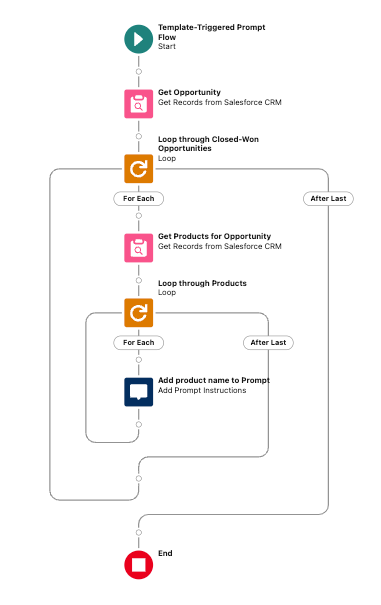
Here’s what the prompt looks like:You are a Sales Rep for the {!$Organization.Name} company.You want to understand what would be next best order for the customer {!$Input:Account.Name} based on his previous ordersAs the orders you will lookup in the last year orders{!$Flow:Recommended_Next_Best_Product_Flow.Prompt}Summarize the products to count how many times each product have been purchased but don't put this result in the answer.Also try to understand from the purchase dates when it was the last time each product has been purchased, also don't put this calculation in the answer.Based on this calculation propose 5 products to order that might be suggested for the next order for the customer based on the products that have been purchased more times or that is a long time since the last purchase.Do not include "*" in the product nameTry to suggest products with the Product Family of Services or SoftwareTry to suggest also product that are more suitable for the customer industry that is {!$Input:Account.Industry}Order the results from the most suggested to the less suggested.For each suggested product, say how much time passed from the last purchase (in months or weeks) and specify how many times it has been purchased in the last year.Avoid suggesting products like shipping charges since they are automatically calculated.In the output of this prompt, return the 5 products in a list of objects. Each object should include the following attributes: ProductName, ProductId, ProductFamily, TimePassedFromLastPurchase, HowManyTimesPurchasedInLastYear.In the output of this prompt, only include the JSON array of the objects. Do not include any other text.Delete the "```json" at the beginning of the prompt, and delete the "```" at the end of the prompt.
Pay close attention to the last few lines of the prompt.
- In the output of this prompt, return the 5 products in a list of objects. Each object should include the following attributes: ProductName, ProductId, ProductFamily, TimePassedFromLastPurchase, HowManyTimesPurchasedInLastYear.
- In the output of this prompt, only include the JSON array of the objects. Do not include any other text.
- Delete the ““`json” at the beginning of the prompt, and delete the ““`” at the end of the prompt.
Note: It is critical to remove the “`json from the beginning and the “` at the end of the prompt output.
Parsing the Prompt Output
Remember, this will be launched in a screen flow. The screen flow will be distributed on the account lightning record page. It’ll take that account id, get the entire account record, then pass the whole record to the prompt builder.
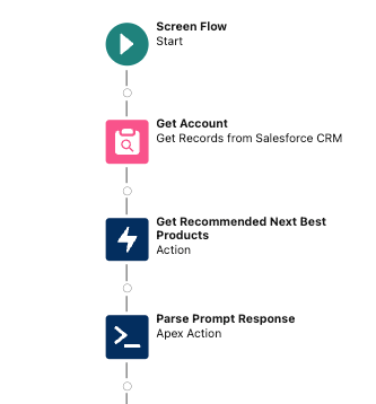
The output from the prompt must be manually mapped to a text variable, in order to pass it to the Apex action.

Here is what the Apex code looks like.
public class ProductInfoParser {

    // Inner class to represent the structure of the incoming JSON
    public class ProductInfo {
        public String ProductName;
        public String ProductId;
        public String ProductFamily;
        public String TimePassedFromLastPurchase;
        public Integer HowManyTimesPurchasedInLastYear;
    }

    // Wrapper class to handle the input from Flow
    public class Request {
        @InvocableVariable(required=true)
        public String jsonInput; // The input from Flow, a single string containing the JSON array
    }

    // Wrapper class to handle the output back to Flow
    public class Response {
        @InvocableVariable
        public List<Product2> products; // The list of Product2 objects to return
    }

    // Invocable method to be called from Flow
    @InvocableMethod(label='Parse JSON and Map to Product2' description='Parses JSON array and maps the values to a List<Product2>')
    public static List<Response> mapJsonToProducts(List<Request> requests) {
        List<Response> responses = new List<Response>();
        Request req = requests[0];
        Response res = new Response();
        res.products = new List<Product2>();

        // Deserialize the JSON array into a list of ProductInfo objects
        List<ProductInfo> productInfoList = (List<ProductInfo>) JSON.deserialize(req.jsonInput, List<ProductInfo>.class);
        System.debug(productInfoList);

        // Map the ProductInfo to actual Product2 objects
        for (ProductInfo info : productInfoList) {
            Product2 prod = new Product2();
            prod.Name = info.ProductName;
            prod.Id = info.ProductId;
            prod.Family = info.ProductFamily;
            prod.Time_Passed_From_Last_Purchase__c = info.TimePassedFromLastPurchase;

            // Convert integer to string for the text field
            prod.How_Many_Times_Purchased_In_Last_Year__c = String.valueOf(info.HowManyTimesPurchasedInLastYear);

            // Add the mapped product to the response list
            res.products.add(prod);
        }
        // Add the response with the list of products to the responses list
        responses.add(res);

        // Return the responses containing the lists of Product2 objects
        return responses;
    }
}
Important: The object attributes of the JSON returned by the prompt builder output must match the attributes of the Apex class. Note the attributes of the inner class ProductInfo match exactly: ProductName, ProductId, ProductFamily, TimePassedFromLastPurchase, HowManyTimesPurchasedInLastYear.
These must match in order for us to take advantage of the system method JSON.deserialize(). It is possible to create a custom JSON parser, but that is both messy and unnecessary.
The remainder of the flow takes the top recommended products returned from the Apex, and renders them in a table. The user may then select the products, and the flow will create an opportunity and related opportunity products.

Key Takeaways
- Manually assign a text variable to hold the JSON string returned in the prompt output. You’ll need it to pass into the Apex.
- Be sure to include the following in the prompt instructions:
Delete the "```json" at the beginning of the prompt, and delete the "```" at the end of the prompt. - The object attributes of the JSON output of the prompt builder must match the attributes of the Apex class.