In complex B2B and enterprise order management environments—such as cybersecurity, telecommunications, and SaaS—orders often consist of a combination of hardware items requiring physical shipment/configuration and software licenses that depend on those physical endpoints being configured first.
This blog post walks through the end-to-end process in Salesforce Revenue Cloud, from configuring custom Order Status picklist values in Setup to using Dynamic Revenue Orchestration (DRO) to manage dependent fulfillment steps, manual tasks, and dynamic start date adjustments without requiring order cancellations or re-submissions.
1. Configuring Custom Order Status Picklist Values
Before submitting an order to DRO, your organization may require custom stage gates or custom status values on the standard Order object to align with internal compliance or review procedures.
To add a new status value to the Order object:
In Salesforce Setup, open Object Manager and select Order.
Click Fields & Relationships and open the Status picklist field.
Under the Order Status Picklist Values section, click New.
Add your custom status label (e.g., Review) and associate it with the appropriate Status Category (Draft, Activated, or Processed).
Save the new value and verify that it is enabled for your Order record types.
Figure 1: Customizing Order Status picklist values (Review) in Object Manager.
2. Structure of a Multi-Product Enterprise Order
Once the custom status is active, you can create and review your order. Consider an enterprise cybersecurity order containing three distinct product lines:
Figure 2: Order Details page showing line products and status progression before submission
3. Order Submission & Decomposition in DRO
Update the order status to Review and click Submit Order to send it directly into DRO.
Important Note on Automation Rules: Because the order status is updated to Review rather than Activated, any system rules, triggers, or automation flows configured specifically to fire upon reaching the standard Activated state will not fire during this submission. This allows fulfillment orchestration to commence under a review lifecycle without triggering prematurely activated downstream triggers.
Upon submission, DRO decomposes the order into fulfillment plans and orchestration steps:
Immediate Path (Threat Intel Feed): Bypasses hardware dependencies, proceeds through assetization, and creates a billing schedule immediately starting on the order date.
Delayed / Gated Path (Hardware & Endpoint Security Suite): Triggers dependent manual fulfillment tasks such as Ship Security Keys and Configure License[cite: 1, 2].
4. Progressing Manual Fulfillment Steps
As physical hardware is shipped and processed, administrators or automated systems update individual task statuses within the DRO Orchestration Plan:
Ship Security Keys: Status moved from In Progress to Completed[cite: 1, 2].
Enroll Security Keys: Processed and updated[cite: 1, 2].
Staged Assetization: Hardware assets are created and linked to the account.
5. Adjusting Subscription Start Dates, Repricing & Order Activation
If software endpoint configuration takes longer than anticipated (or is scheduled for a future rollout date), charging the customer from the original order date will result in inaccurate invoices.
DRO allows order product subscription start and end dates to be edited directly prior to completing the final activation gate:
Edit Order Product Dates: Open the Order Product record for Endpoint Security Suite, locate Subscription Information, adjust Start Date and End Date to align with the new projected rollout date, and save[cite: 1, 2].
Reprice All: Return to the Order Details page and click the Reprice All button to recalculate pricing and billing values based on the updated dates[cite: 1, 2].
Activate the Order: Advance the Order Status bar from Review to Activated and save the order state[cite: 1, 2].
6. Finalizing Activation and Billing Schedule Generation
With the order repriced and activated, return to the DRO Plan Orchestration tab and complete the remaining gate tasks (e.g., Configure License)[cite: 1, 2].
DRO processes the remaining automated steps:
Activate Endpoint
Staged Assetization
Create Billing Schedule
7. Verification Across Billing Schedules and Account Assets
Upon refreshing the Order and Account views, all components reflect synchronized timelines:
Billing Schedules
Each product line item has a dedicated billing schedule record reflecting its true active timeline[cite: 1, 2]:
Threat Intel Feed: Billing starts from the initial submission date.
Endpoint Security Suite: Billing schedule start date matches the newly adjusted start date[cite: 1, 2].
Figure 8: Order Billing Schedules list displaying distinct start dates and itemized totals
Figure 9: Individual Billing Schedule record showing adjusted Billing Schedule Start Date
Account Managed Assets
Navigating to the Account record under Managed Assets verifies that all three assets are active, with lifecycle start and end dates accurately mapped to actual fulfillment timelines[cite: 1, 2].
Figure 10: Account Managed Assets showing adjusted Lifecycle Start and End dates per line item
Key Takeaways
Custom Order Lifecycle: Standard Order Status picklist values can be easily extended in Object Manager Setup to match organizational workflow stages prior to execution[cite: 1, 2].
Bypassing Activation Triggers: Submitting an order under a non-activated status (like Review) allows DRO fulfillment to initiate while bypassing rules that strictly target the Activated state[cite: 1, 2].
Repricing & Activation: Hitting Reprice All after updating line product dates ensures pricing accuracy before advancing the status to Activated[cite: 1, 2].
Dependency Handling: DRO holds dependent software activation and billing until prerequisite hardware steps complete[cite: 1, 2].
Seamless Integration: Assets and Billing Schedules automatically inherit updated order product dates without needing complex order amendments[cite: 1, 2].
https://unofficialsf.com/wp-content/uploads/2022/09/largeUCSF-300x133.png00Anoop Thomashttps://unofficialsf.com/wp-content/uploads/2022/09/largeUCSF-300x133.pngAnoop Thomas2026-10-09 03:52:522026-10-09 03:55:16Managing Order Status Setup & Delayed Provisioning with Dynamic Revenue Orchestration (DRO)
Salesforce Revenue Cloud Billing ( a.k.a RCB) offers robust functionality to manage your entire revenue lifecycle, and a critical component of that is integrated payments processing. While the setup and core features are detailed in the official Salesforce help documentation (see: https://help.salesforce.com/s/articleView?id=ind.billing_payments.htm&type=5 ),
Revenue Cloud Billing Offers payments processing with the help of Payments platform . With two different platforms merging to support payments processing it might often seem complicated for our customers to understand how everything works – starting from setup till execution. This blog post will dive into how customers can strategically leverage this functionality to streamline operations, enhance customer experience, and accelerate cash flow.
Let’s start with a sample customer use case to understand payment processing better – Smart Bytes is a company which sells Software , Hardware and Consumption based products to its customers. They have recently subscribed to Revenue Cloud Billing to manage their billing needs. They wanted a billing system which can collect payments automatically on time so that their account receivables are intact. They knew RCB was a perfect fit as
It helps them bill any transaction
Process payments automatically
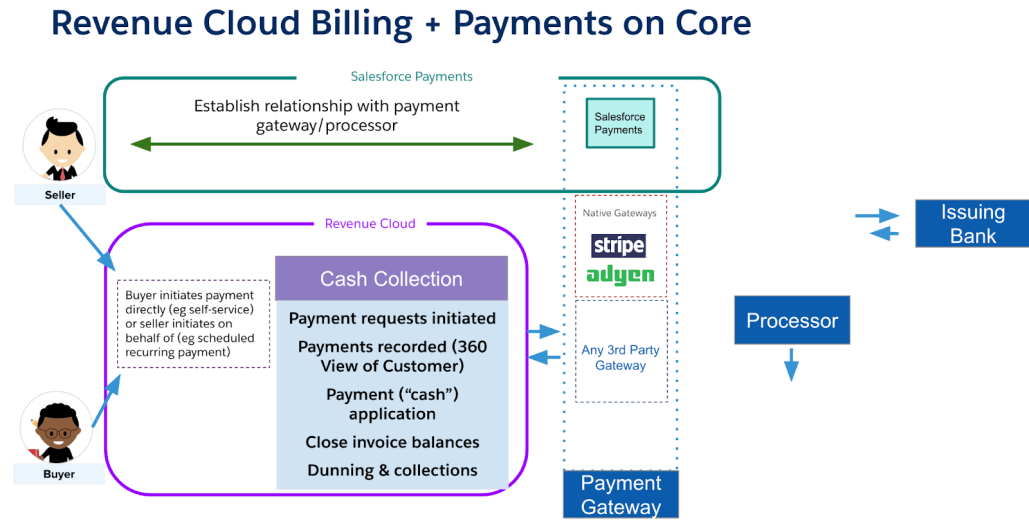
The first step towards efficiently processing payments is to have a gateway connection established within revenue cloud billing.Below diagram pictorially represents how payments are processed and how RCB leverages payment gateways to enable the same for customers
1. Gateway Support within Revenue Cloud Billing
Revenue Cloud Billing is designed to be payment gateway agnostic, allowing you to connect to various providers.
This flexibility ensures that as your business scales or enters new markets, you can adapt your payment strategy without a massive re-implementation effort.
Below are the two ways in :
Native Gateways a.k.a Salesforce Payments – with logos Stripe & Adyen ( only BYO Supported)
Third Party Gateways – Any gateway / Any logo of their choice
Let’s take a look at a couple of scenarios to understand how customers with different merchant accounts can use revenue cloud billing to process payments
Scenario 1 : Smart Bytes has recently onboarded with RCB and Stripe/ Adyen as the payment gateway
With Adyen Smart Bytes can only bring existing merchant account and configure within salesforce as Merchant Account
Scenario 2 : Smart Bytes has merchant account with a vendor other than Stripe OR Adyen – Third Party Gateway Vendor
If customers have a contract with any other payment gateway other than Stripe/ Adyen they can connect with the concerned merchant account as a third party gateway within revenue cloud billing
If the appexchange package is not readily available , the expectation from customers is to work with the gateway vendor/partner and get the managed package hosted on appexchange OR they can have adapter classes designed and connect via Apex classes from within the org. So that it is readily available for download in an RCB org to connect for payments processing .
Note : Revenue Cloud Billing does not consider any vendor as preferred partner . When choosing a new provider, simply verify its compatibility and follow the setup instructions provided in the official documentation.
In addition to above , if customers do not want to connect via adapter class/ app exchange connector. They can choose to-
Import Payments processed on the gateway end and create a payment record within salesforce .
Also to kick start their journey with existing vendors they can leverage our “Import token feature “ to import existing tokens and start saving new ones with the gateway vendor henceforth.
Scenario 3 : Smart Bytes has an existing merchant account with Stripe/Adyen
If the merchant account is with Adyen then SmartBytes can use the BYO ( Bring your Own ) account . However customers will have to subscribe to “Prime Commerce” in order to get the existing account. Contact your AE for more information.
If SmartBytes has an existing account with Stripe then they cannot yet ( as on Jan 2026) bring the existing Stripe account and connect from RCB . However they can still utilize RCB to its full potential by following one of the routes below :
Keep processing payments with Stripe by leveraging Stripe payments, batch processing , payment links etc and bring in the processed payments as a payment record within salesforce ( with mode as external and status as processed) . More to be described in further sections of the blog
Bring in externally saved tokens into salesforce as saved payment method records and use the tokens to process payments within salesforce ( more to be described in further sections of the blog )
Bring in Stripe as a third party payment gateway , talk to stripe for an app exchange package/ connector as described above and connect with the gateway as a third party vendor
2. Save Payment Methods
Now that you have a gateway connection established, what is the next step ?
The next step would be to have a “Save Payment Method” record created / available in salesforce which in turn can be used to process payments with the help of payment APIs.
All the payment APIs accept a saved payment method as an Input hence it is necessary to have SPM records created
How to create a saved payment method record ? Let me describe that for you , please note that the outcome of each of the actions is to have a saved payment method record created
Recommendation 1 : Leverage Payment APIs to save a payment method against gateways ( native / third party)
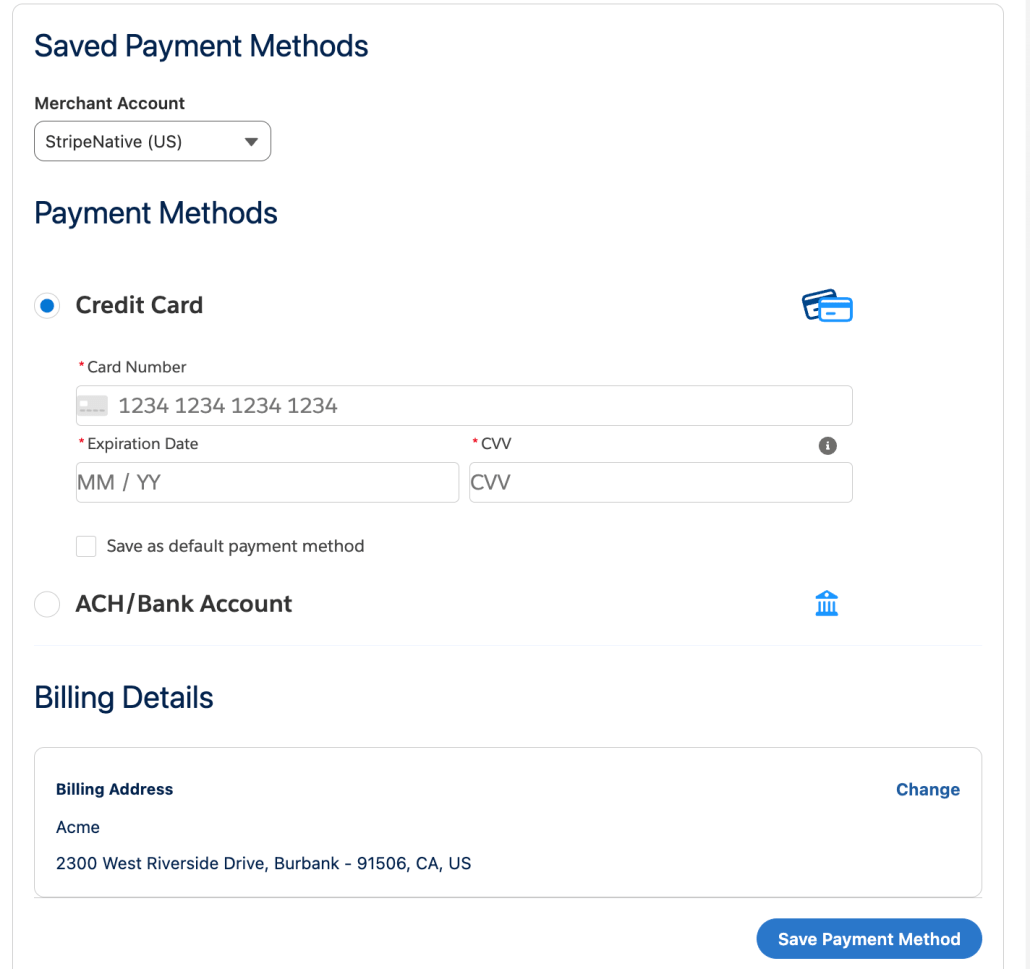
Recommendation 2 : Save a Payment method against account using the MOTO Component within RCB org . This is accessible to an internal user of the customer who can save the payment method on behalf of the buyer . Currently users can save Credit Card and ACH Payment methods via this component . This is currently available for only Native merchant accounts ( customers cannot save payment methods against third party gateways using this component) . Also this component is available on LAB page for customers to drag and drop to an UI of their choice .
Recommendation 3 : Customers can import already saved tokens into salesforce by doing an sObject insert of SavedPaymentMethod entity . Let’s understand this better with an example
Smartbytes has an existing merchant account with Cybersource ( lets say) . They have been conducting business for quite some time. Hence SmartBytes already has saved / tokenized payment methods of their customers with cybersource .Now SmartBytes wants to start billing with RCB.
In order to ensure continuity of their business they need to ensure that the saved tokens are usable by RCB too. Hence it is essential to bring those saved tokens into salesforce ecosystem.
SmartBytes’ internal user ( Payments Operations user) can copy the tokens from their merchant account and import into RCB as saved payment method records. Customers have a choice to bulk import or import some of their choice . Refer documentation for more details.
Once the tokens are saved as SPM records these can be used for processing payments within RCB – via Batch processing engine , Individual payment APIs, Billing Portal, etc.,.
Recommendation 4 : Customers can also save payment methods against their account leveraging our self-service billing portal . Refer this section for more information.
3. Different ways you can process payments with RCB
Flexible Payment Options
The integrated platform allows customers to easily manage their payments processing with their preferred payment methods.
Feature
Description
Customer Benefit
System Leverage
Batch Processing
Customers schedule a batch run to process payments in bulk
No manual intervention and automatic settlement of Invoices
Revenue Cloud creates Payment Schedules & Schedule Items to process payments in bulk by batching the requests
Self-Service Portals
Users can login against their account , select an Invoice & process the payments with already saved payment methods/ save a payment method
Customers can choose when to pay and to which Invoice to pay for. Easily access the Invoices and pay with few clicks
Link the Billing Account to a Customer Community or self-service interface
Process Payments through APIs
Invoke Sale , Auth or Capture API with Saved Payment Method to process payments
Build custom integrations, flows as per their business need
Salesforce Workflows, Invocable Actions, Easy UI setup , Support for any gateway
Bring in Externally Processed Payments
Apart from what you saw above , you can also bring in externally processed payments by importing them into the salesforce ecosystem. You can manually create a payment record with processing mode as “External” or bulk import the payments leveraging the payments sObject API . Refer link below for more details :
Now that you have successfully setup gateway → saved the payment methods → Processed payment with these saved payment methods the next step customers would want any billing product to support is to be able to issue Refunds
With Salesforce Revenue Cloud it is easy to issue refunds ( We are making it further easy for you 😉 ) . Customers can use refunds API to process a refund against a payment record . Refer the link below for details on the API
Customers can pass the payment ID and issue refund to the source or desired payment method and customers can also process partial refunds , meaning if Payment collected was for $100 customers can process a refund for $20 alone .
The processed refund can be applied to the payment to ensure that the payment balance is reflected appropriately. Think of it this way , you collected a $100 payment of which you refunded $20 . But your payment record still reflects $100 available which is wrong! Hence you would want to apply the issued refund to the payment record so that the payment balance is $80 which would be the actual balance available for utilization. And the cherry on the top is – our Refund API works with externally processed payments too.
In addition to the above, we are often asked whether customers can refund a Credit Memo issued :
The way customers can issue a refund against a Credit Memo posted is by creating a manual payment record worth the credit memo → Issue Refund against this payment record created → To close the process they can void the credit memo
5. Application of the Payment to Invoice and Unapplying the Payment from an Invoice
How do you tell your billing system that the revenue is realized? By utilizing the payment record available to settle the Invoice thus indicating the system that the Invoice is paid for . As you have noticed above , we do that automatically via our batch processing engine. However if you are not leveraging batch processing then you have access to our awesome APIs to apply a payment record to an Invoice in order to reduce the Invoice balance or unapply ( an unusual word , I know !) the payment from an Invoice – meaning undo the application of payment to an Invoice.
You can send payment links to your users , clicking which they can make a payment . This payment record can be linked to the account and used to settle the Invoice . Customers can enter the payment method details from which they would want the payment amount to be debited and process the payment. Using Payment intent customers can link the payment link to an Invoice before sending to the buyer indicating the system that the payment is processed against the selected Invoice
Refer below link for more details on PayNow links :
Powered by our self-service portal/ experience cloud billing portal our customer’s customer a.k.a buyer can login to their account and view associated Invoices, process payments, raise disputes and also save payment methods against their accounts among many other things. Billing portal currently supports saving of payment method , processing of payments via Native gateways / Salesforce Payments
Billing Portal empowers the buyers/external users to :
Save a Payment Method :
Buyers can login to their portal and select an Invoice for settling , while paying the Invoice buyers have a choice to either pay with an already saved card or save a new card/ a new payment method .
This payment method gets saved against the buyer account .
Buyers can access all the saved payment methods against the account via the portal for settling the Invoice
Process/ Settle Invoices
Buyers will be displayed a list of all Invoices with available balance against the account. Buyer can select an Invoice and click on “Pay” which will re-direct them to a screen to select a payment method / use a new payment method to process the payment against Invoice and settle automatically.
Third- Party Support via Portal
Customers can request their gateway vendor for components compatible with our billing portal and add the components to the portal to manage payments processing , saving payment methods with the the help of third party gateways.
8. Payments in Trial Orgs
Customers need to explicitly get payments enabled in their trial orgs by requesting salesforce admin/SE
9. If you do not want to use automated payments processing with RCB
Customers can turn of “Automatically generate PS and PSI upon Invoice posting” org pref and can
Process payments manually via our APIs OR
Import externally processed payments and use our Apply APIs to settle Invoices.
Appendix
Link for Processing Payments and Issuing Refunds :
Here are the fields that we will create on the Invoice Object:
E-Invoicing Status:
Pending: The invoice has been created but is not yet ready for submission.(Draft Status of Invoice)
Canceled: DRAFT invoice not used, so canceled it.
Ready for E-Invoicing: The invoice has been finalized and is ready to be sent to the network. This status will be our trigger.
Sent to Network: The middleware has successfully sent the invoice data.
Acknowledged by Network: The network has received the invoice and confirmed its validity.
Approved: The invoice has been approved by the tax authority (for clearance models).
Rejected: The invoice was rejected by the network due to errors.
Correction Needed: Data needs correction.
Correction Addressed: Correction has been made and can be resent for Approval.
Error: The integration process failed.
Exempt: Invoice is exempted from E-Invoicing Process.
Voided invoice
Document Number
Idempotency Key
Document ID
Issue Date
Transmission DateTime
Assuming these fields to be present:
VAT ID: Account Object
PEEPOL ID: Account Object
Company ID: Account Object
Now that we have the relevant fields we want to capture for Netherlands, we will move to the next step
Create Invoice Event
This event is a lightweight message containing key identifiers, like the InvoiceId and AccountId.
Go to Setup > Integrations > Platform Events.
Click New Platform Event.
Name it something clear, like Invoice Posted Event.
Add a custom field to carry the necessary information. The most important one is Invoice ID (Text). You can also add Account ID.
Create Trigger for the Event
Go to Setup > Process Automation > Flows.
Click New Flow and select Record-Triggered Flow.
Configure the Trigger:
Object: Invoice
Trigger the Flow When: A record is updated
Set Entry Conditions:
Status Is Changed True
Status Equals Posted
Optimize the Flow for: Actions and Related Records
Upon firing, the trigger doesn’t call the middleware directly. Instead, it publishes a Custom Platform Event within Salesforce which can be read by the middleware or Mulesoft. This decouples Salesforce from the middleware, making the system more robust and scalable.
Click the + icon on the path.
Select the Create Records element.
Configure the Element:
How Many Records to Create: One
How to Set the Record Fields: Use separate resources, and literal values
Object: Select your new Platform Event, Invoice Posted Event.
Set Field Values: Map the fields you created on your event.
Invoice ID (your event field) Equals $Record > Id (the ID of the invoice that triggered the flow).
Save and Activate
Save your flow and activate it. That’s it!
You org is now generating a salesforce event whenever an Invoice is posted. All we now need is a middleware to read this message and consume it.
Consume Salesforce Event
import queue
import threading
import time
from salesforce_streaming import SalesforceStreamingClient

# --- Configuration (Same as before) ---
SF_USERNAME = "your.name@example.com"
SF_PASSWORD = "your_password"
SF_SECURITY_TOKEN = "your_security_token"
IS_SANDBOX = False
CONSUMER_KEY = "YOUR_CONNECTED_APP_CONSUMER_KEY"
CONSUMER_SECRET = "YOUR_CONNECTED_APP_CONSUMER_SECRET"
EVENT_API_NAME = "My_Custom_Event__e"

# 1. Create a thread-safe queue to hold incoming event payloads
event_queue = queue.Queue()

# 2. Modify the callback to put messages into the queue
def queueing_callback(message):
    """Callback to add the event payload to a processing queue."""
    print("🚀 New event received by listener...")
    event_payload = message.get('payload', {})
    event_queue.put(event_payload) # <-- Put the payload into the queue


def process_events_from_queue():
    """
    This is the 'worker' function.
    It runs in a separate thread and processes payloads from the queue.
    """
    print("✅ Worker thread started. Waiting for events...")
    while True:
        try:
            # The .get() method will wait here until an item is in the queue
            payload = event_queue.get(block=True)

            print("\n--- Worker picked up an event for processing ---")
            print(f"   Payload: {payload}")

            # --- THIS IS WHERE YOU ADD YOUR PROCESSING LOGIC ---
            # For example, get a specific field and call another system.
            invoice_id = payload.get('Invoice_ID__c')
            if invoice_id:
                print(f"   Action: Calling another API for Invoice ID: {invoice_id}")
                # e.g., result = composite_api_call(invoice_id)

            # Simulate work being done
            time.sleep(2)
            print("--- Finished processing event ---\n")

        except Exception as e:
            print(f"Error in worker thread: {e}")


# --- Main script logic ---

if __name__ == "__main__":
    # 3. Start the worker thread
    # The 'daemon=True' means the thread will exit when the main script exits.
    worker_thread = threading.Thread(target=process_events_from_queue, daemon=True)
    worker_thread.start()

    # Initialize and subscribe the Salesforce client
    client = SalesforceStreamingClient(
        consumer_key=CONSUMER_KEY,
        consumer_secret=CONSUMER_SECRET,
        username=SF_USERNAME,
        password=SF_PASSWORD + SF_SECURITY_TOKEN,
        sandbox=IS_SANDBOX
    )

    channel = f"/event/{EVENT_API_NAME}"
    print(f"Listener subscribing to channel: {channel}")
    client.subscribe(channel, queueing_callback)

    # Start listening
    print("Listener connected. Press Ctrl+C to stop.")
    try:
        client.connect()
    except KeyboardInterrupt:
        print("Script terminated gracefully.")
        client.disconnect()
Extract Invoice and associated details using the event message
From the event, we can extract the Invoice ID and use it to call a composite API in Salesforce org to receive the details of the invoice. Note: You can modify the request body to add/remove more fields and objects as needed.
Here is an example of Composite API Call Request Body:
Setup your Accounting periods and assign to Legal Entity
Setup your Chart of Accounts (General Ledger Accounts)
Define the automations to generate journal entries (Setup General Ledger Accounting Assignment Rules)
https://unofficialsf.com/wp-content/uploads/2022/09/largeUCSF-300x133.png00Sunilhttps://unofficialsf.com/wp-content/uploads/2022/09/largeUCSF-300x133.pngSunil2025-10-08 02:43:442025-10-08 02:43:47From Indrajeet Sengupta: Example to implement e-invoicing with Revenue Cloud
Imagine instead of printing an invoice, putting it in an envelope, and mailing it or emailing it, you create it in your accounting software and send it directly to your customer’s accounting software in a structured digital format. That’s e-invoicing in a nutshell.
E-invoicing is the issuance and exchange of invoices in a structured electronic data format, designed for machine-to-machine readability and automated processing. Crucially, a true e-invoice is not simply a PDF or scanned document; it is a structured file, often in XML, UBL, or EDI formats, that can be automatically validated, consumed, and posted directly into a recipient’s accounting or ERP system. The exchange typically occurs through standardized Peppol networks or dedicated government portals. This systematic approach eliminates manual data entry and establishes a transparent, auditable flow of fiscal transaction data between trading partners.
For any multinational enterprise, implementing einvoicing correctly and efficiently is an imperative compliance measure. Governments—particularly those with VAT/GST systems—are imposing mandates to gain real-time or near real-time visibility into business transactions, a strategy designed to combat fraud and close the tax gap. Failure to comply with country-specific standards results in penalties and can prevent a business from legally trading in key jurisdictions. Operationally, this required automation reduces significant administrative costs (paper, postage, labor), eliminates manual data entry errors, and accelerates Accounts Receivable and Accounts Payable cycles, directly improving cash flow.
2. The Benefits of Going Digital
Why are businesses and governments so excited about e-invoicing? The advantages are clear:
Cost Savings: Say goodbye to expenses on paper, printing, and postage. More importantly, you save countless hours of manual processing time.
Faster Payments: Because e-invoices are received and processed instantly, the approval and payment cycle is significantly shorter. This greatly improves cash flow.
Reduced Errors: Manual data entry is prone to human error. E-invoicing eliminates this, ensuring accuracy and reducing the back-and-forth of correcting mistakes.
Enhanced Security: E-invoices are exchanged over secure networks, drastically reducing the risk of invoice fraud, phishing scams, and interception compared to paper or PDF invoices sent via email.
Improved Compliance: With governments increasingly mandating e-invoicing for tax purposes, adopting it ensures you stay compliant with tax regulations automatically.
Environmental Friendliness: Less paper means a smaller carbon footprint.
3. The Global Trend: E-Invoicing Mandates
Governments worldwide are recognizing the power of e-invoicing to combat tax evasion and digitize their economies. This has led to a wave of mandates requiring businesses to adopt e-invoicing. The trend is moving from a “post-audit” model (where tax authorities check records later) to a “clearance” model (where invoices must be cleared by the government in real-time).
The process involves a few key steps and players for both the seller and the buyer.
For the Seller:
Invoice Creation: The seller creates an invoice in their ERP or accounting system as usual.
Tax Determination: Often, a specialized tax vendor solution is integrated to automatically calculate the correct VAT/GST based on the transaction details, ensuring tax accuracy.
Conversion & Validation: The invoice data is converted into a structured e-invoice format (like XML).
Sending to Partner: The seller sends this e-invoice to their chosen invoicing partner (e.g., Vertex, Sovos, Pagero, Avalara). This partner acts as an access point to the e-invoicing network.
Transmission: The partner validates the invoice against country-specific rules and transmits it securely through the required network (like PEPPOL or a government portal) to the buyer’s access point. In “clearance” models, this step includes sending the invoice to the tax authority for real-time approval before it’s sent to the buyer.
For the Buyer:
Receiving: The buyer’s invoicing partner receives the e-invoice from the network.
Data Ingestion: The partner sends the structured data directly into the buyer’s ERP or accounts payable (AP) system.
Automated Processing: The AP system automatically processes the invoice, matching it against purchase orders and goods receipts without any manual keying.
Approval & Payment: The invoice is routed for digital approval and scheduled for payment, all within the same system.
5. Common Formats for E-Invoices
Because e-invoices are meant for machines to read, they use structured data formats. You’ll often hear these terms:
XML (eXtensible Markup Language): The foundation for many e-invoice standards.
UBL (Universal Business Language): A popular library of standard XML business documents, widely used in e-invoicing.
Factur-X / ZUGFeRD: A hybrid format popular in France and Germany that embeds an XML file within a human-readable PDF.
PEPPOL BIS Billing 3.0: The standard format used across the PEPPOL network.
6. Common E-Invoicing Networks
E-invoices don’t just travel over the open internet; they use secure, standardized networks.
PEPPOL (Pan-European Public Procurement On-Line): The most widespread international network. It’s not just for Europe; countries like Australia, New Zealand, Singapore, and Japan have adopted it. It works as a “four-corner model” where the seller (corner 1) sends to their Access Point (corner 2), which sends to the buyer’s Access Point (corner 3), which delivers to the buyer (corner 4).
Government-Centralized Platforms: Many countries, particularly in Latin America (e.g., Mexico’s CFDI, Brazil’s NF-e) and Europe (e.g., Italy’s SdI), operate a centralized government hub. All invoices must pass through this single platform for validation and clearance.
Service Provider Networks: Companies like Sovos, Tungsten, and Tradeshift operate large networks that can connect businesses to each other and to various government platforms, simplifying compliance across multiple countries.
7. How do you do it in Revenue Cloud
Salesforce Revenue Cloud is a powerful engine for managing complex billing, and can be functionality expanded where needed to connect to government portals and standardized networks such as PEPPOL. Additionally, Revenue Cloud can connect to and utilize external service providers to manage e-invoicing requirements across the globe
So, how do you bridge this gap? The answer lies in a well-architected middleware integration. While Salesforce’s recommended IPaaS (Integration Platform as a Service) is MuleSoft, you can also build a custom solution. This guide breaks down the entire process, showing you how to turn Revenue Cloud into a compliant, global e-invoicing machine.
The Foundation in Salesforce
Before you can build any bridges, you need a solid foundation. This involves preparing your Salesforce org to hold all the necessary data and track the e-invoicing lifecycle.
Data Capture
Ensure all required data points for e-invoicing are captured in Salesforce. This data often lives across multiple objects. Key objects include Invoice, Account, Billing Schedule Group, InvoiceLine, InvoiceLineTax, Contact, BillingProfile.
E-Invoicing Status Field
On the Invoice object, create a custom picklist field named “E-Invoicing Status”. This field is crucial for tracking the invoice’s journey and triggering the automation.
Example Statuses:
Pending: The invoice has been created but is not yet ready for submission.(Draft Status of Invoice)
Canceled: DRAFT invoice not used, so canceled it.
Ready for E-Invoicing: The invoice has been finalized and is ready to be sent to the network. This status will be our trigger.
Sent to Network: The middleware has successfully sent the invoice data.
Acknowledged by Network: The network has received the invoice and confirmed its validity.
Approved: The invoice has been approved by the tax authority (for clearance models).
Rejected: The invoice was rejected by the network due to errors.
Correction Needed: Data needs correction.
Correction Addressed: Correction has been made and can be resent for Approval.
Error: The integration process failed.
Exempt: Invoice is exempted from E-Invoicing Process.
Voided invoice – No need to send for E-Invoicing.
This can be made more granular based on the country level specifications
E-Invoicing Fields on Invoice
There can be various details that might need to be captured, creating fields for these. Here are some example fields:
E-Invoicing Status
Idempotency Key
Issue Date
Document Number
Document ID
IRN Number (India)
IdSdi (Italy)
UUID (Mexico)
Chave de Acesso (Brazil)
Transmission DateTime
PDF Document (or use Invoice Files)
Create Custom Salesforce Event for Invoice Posted
Salesforce does not generate an event whenever a custom field like “E-Invoicing Status” field is set to a particular value. To do this, we will create an event that is a lightweight message containing key identifiers, like the InvoiceId and AccountId. Using this the middleware will be able to fetch the invoice details
The Integration Process: A Detailed Breakdown
Here’s how the magic happens, step by step, following an event-driven architecture.
1. Trigger
The process kicks off inside Salesforce. An automation rule (using a Salesforce Flow or Apex Trigger) monitors the Invoice object. When a user updates an invoice’s “E-Invoicing Status” to “Ready for E-Invoicing” or “Correction Addressed”, the trigger fires. This E-Invoicing Status could change automatically once the Invoice is in Posted State or manually depending on business conditions. Customers can write flows to change this based on their business requirements.
2. Event
Upon firing, the trigger doesn’t call the middleware directly. Instead, it publishes a CustomPlatform Event within Salesforce which can be read by the middleware or Mulesoft. This decouples Salesforce from the middleware, making the system more robust and scalable.
3. Listen
Your middleware layer is continuously listening for this specific Platform Event from Salesforce. When it catches a new event, it knows it has a new e-invoice to process.
4. Extract
The middleware takes the InvoiceId from the event message and makes a Composite API call back to Salesforce. This is highly efficient, as it allows the middleware to query the Invoice record and all its related parent records (like the Account for the Tax ID and the BSG for the PO number) in a single, consolidated API call.
5. Transform
This is the middleware’s primary job. It takes the JSON data extracted from Salesforce and transforms it into the required e-invoicing format for the target country. This usually means mapping the Salesforce fields to a structured XML format, such as UBL (Universal Business Language) or a country-specific standard like Factur-X.
6. Send
Once the e-invoice file is created, the middleware authenticates with the external E-Invoicing Network’s API and sends the transformed payload. The middleware then updates the “E-Invoicing Status” in Salesforce to Sent to Network.
7. Reconcile
The E-Invoicing Network will respond. This can happen in two ways:
Synchronous Response: An immediate reply confirming the file was received and is structurally valid. The middleware can use this to update the status in Salesforce to Acknowledged by Network.
Asynchronous Response: The final approval or rejection from a government tax authority may come minutes or hours later. The network typically sends this status back via a webhook, which is a URL pointing to your middleware. The middleware listens for this incoming webhook to receive the final status.
8. Update Back SF
Upon receiving the final reconciliation status (e.g., Approved or Rejected), the middleware makes one last API call to Salesforce. It updates the Invoice record with:
The final “E-Invoicing Status” (Approved or Rejected).
The unique Reference Number provided by the tax authority.
Any error messages in case of rejection.
Any other necessary fields that needs to be captured.