
From: Sravya Yellapragada – Unlocking Payments Processing in Revenue Cloud Billing

Salesforce Revenue Cloud Billing ( a.k.a RCB)  offers robust functionality to manage your entire revenue lifecycle, and a critical component of that is integrated payments processing. While the setup and core features are detailed in the official Salesforce help documentation (see: https://help.salesforce.com/s/articleView?id=ind.billing_payments.htm&type=5 ), 

Revenue Cloud Billing Offers payments processing with the help of Payments platform .ย  With two different platforms merging to support payments processing it might often seem complicated for our customers to understand how everything works – starting from setup till execution. This blog post will dive into how customers can strategically leverage this functionality to streamline operations, enhance customer experience, and accelerate cash flow.

Let’s start with a sample customer use case to understand payment processing better – Smart Bytes is a company which sells Software , Hardware and Consumption based products to its customers. They have recently subscribed to Revenue Cloud Billing to manage their billing needs. They wanted a billing system which can collect payments automatically on time so that their account receivables are intact. They knew RCB was a perfect fit as

  1. It helps them bill any transaction
  2. Process payments automatically

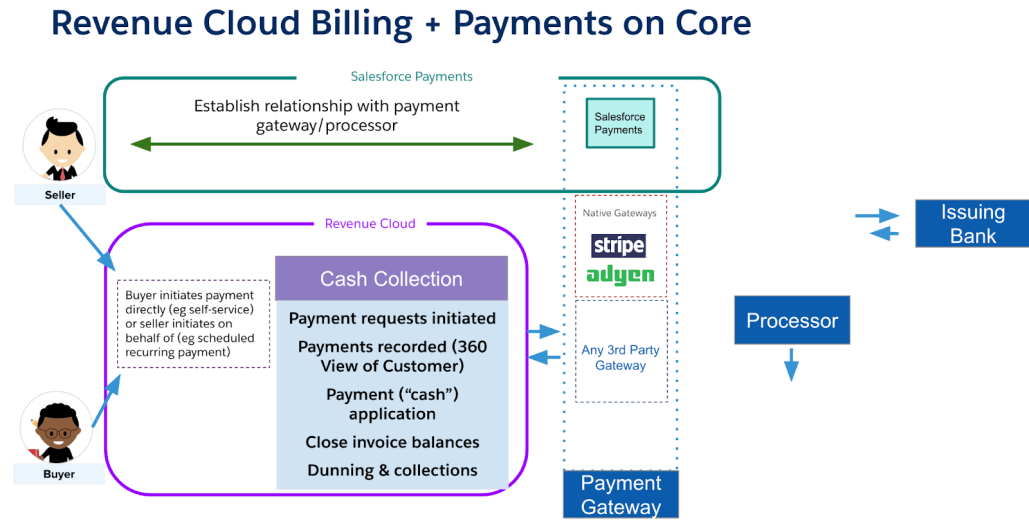
The first step towards efficiently processing payments is to have a gateway connection established within revenue cloud billing.Below diagram pictorially represents how payments are processed and how RCB leverages payment gateways to enable the same for customers 
1. Gateway Support within Revenue Cloud Billing 

Revenue Cloud Billing is designed to be payment gateway agnostic, allowing you to connect to various providers.

This flexibility ensures that as your business scales or enters new markets, you can adapt your payment strategy without a massive re-implementation effort. 

Below are the two ways in  : 

  • Native Gateways a.k.a Salesforce Payments – with logos Stripe & Adyen ( only BYO Supported)
  • Third Party Gateways – Any gateway / Any logo of their choiceย 

Let’s take a look at a couple of scenarios to understand how customers with different merchant accounts can use revenue cloud billing to process payments 

Scenario 1 : Smart Bytes has recently onboarded with RCB and Stripe/ Adyenย  as the payment gateway

Since this is a new merchant account with Stripe. SmartBytes can connect with merchant accounts from within RCB and turn on payments processing . Refer help doc link below for more details on how to configure a merchant account within salesforce – https://help.salesforce.com/s/articleView?id=ind.billing_setup_payments_merchant_accounts.htm&type=5

With Adyen Smart Bytes can only bring existing merchant account and configure within salesforce as Merchant Account

Scenario 2 : Smart Bytes has merchant account with a vendor other than Stripe OR Adyen – Third Party Gateway Vendor

If customers have a contract with any other payment gateway other than Stripe/ Adyen they can connect with the concerned merchant account as a third party gateway within revenue cloud billingย 

The prerequisite for connecting with a third party vendor is to have an app ( of the vendor) hosted on app exchange package . Sample here – https://appexchange.salesforce.com/appxListingDetail?listingId=a0N3A00000FMhSsUAL

If the appexchange package is not readily available , the expectation from customers is to work with the gateway vendor/partner and get the managed package hosted on appexchange OR they can have adapter classes designed and connect via Apex classes from within the org. So that it is readily available for download in an RCB org to connect for payments processing . 

Once the app exchange package is available . Refer this link to understand how to connect with a third party gateway – https://help.salesforce.com/s/articleView?id=ind.billing_setup_third_party_payments.htm&type=5

Note : Revenue Cloud Billing does not consider any vendor as preferred partner . When choosing a new provider, simply verify its compatibility and follow the setup instructions provided in the official documentation.

In addition to above , if customers do not want to connect via adapter class/ app exchange connector. They can choose to- 

  1. Import Payments processed on the gateway end and create a payment record within salesforce .

Also to kick start their journey with existing vendors they can leverage our โ€œImport token feature โ€œ to import existing tokens and start saving new ones with the gateway vendor henceforth.

Scenario 3 : Smart Bytes has an existing merchant account with Stripe/Adyen

If the merchant account is with Adyen then SmartBytes can use the BYO ( Bring your Own ) account . However customers will have to subscribe to โ€œPrime Commerceโ€ in order to get the existing account. Contact your AE for more information.ย 

If SmartBytes has an existing account with Stripe then they cannot yet ( as on Jan 2026) bring the existing Stripe account and connect from RCB . However they can still utilize RCB to its full potential by following one of the routes below :  

  • Keep processing payments with Stripe by leveraging Stripe payments, batch processing , payment links etc and bring in the processed payments as a payment record within salesforce ( with mode as external and status as processed) . More to be described in further sections of the blogย 
  • Bring in externally saved tokens into salesforce as saved payment method records and use the tokens to process payments within salesforce ( more to be described in further sections of the blog )
  • Bring in Stripe as a third party payment gateway , talk to stripe for an app exchange package/ connectorย  as described above and connect with the gateway as a third party vendor

2. Save Payment Methods 

Now that you have a gateway connection established, what is the next step ? 

The next step would be to have a โ€œSave Payment Methodโ€ record created / available in salesforce which in turn can be used to process payments with the help of payment APIs. 

All the payment APIs accept a saved payment method as an Input hence it is necessary to have SPM records created

How to create a saved payment method record ? Let me describe that for you , please note that the outcome of each of the actions is to have a saved payment method record created

Recommendation 1 : Leverage Payment APIs to save a payment method against gateways ( native / third party)ย ย 

https://developer.salesforce.com/docs/commerce/salesforce-commerce/references/comm-ccs-payments-ref?meta=tokenizePaymentMethod

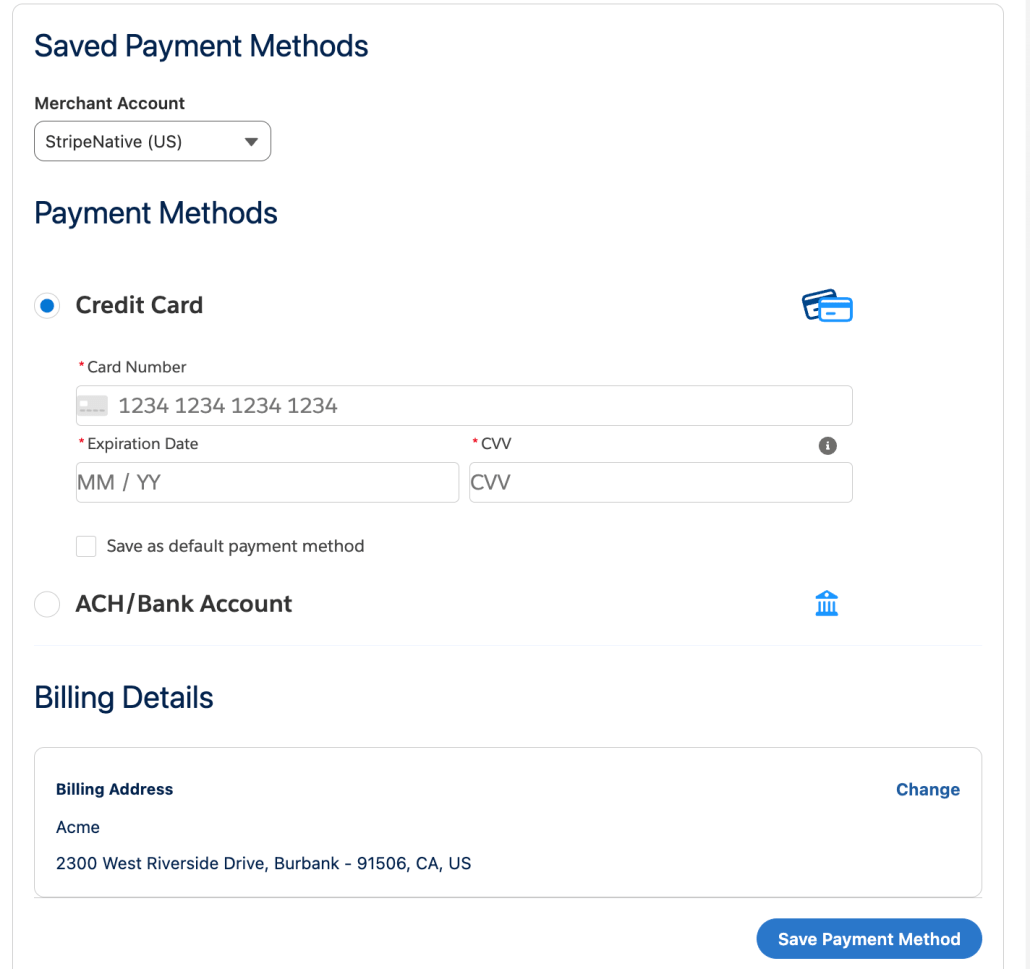
Recommendation 2 : Save a Payment method against account using the MOTO Component within RCB org . This is accessible to an internal user of the customer who can save the payment method on behalf of the buyer . Currently users can save Credit Card and ACH Payment methods via this component . This is currently available for only Native merchant accounts ( customers cannot save payment methods against third party gateways using this component) . Also this component is available on LAB page for customers to drag and drop to an UI of their choice . 
Recommendation 3 : Customers can import already saved tokens into salesforce by doing an sObject insert of SavedPaymentMethod entity . Letโ€™s understand this better with an example 

Smartbytes has an existing merchant account with Cybersource ( lets say) . They have been conducting business for quite some time. Hence SmartBytes already has saved / tokenized payment methods of their customersย  with cybersource .Now SmartBytes wants to start billing with RCB.

In order to ensure continuity of their business they need to ensure that the saved tokens are usable by RCB too. Hence it is essential to bring those saved tokens into salesforce ecosystem.

SmartBytes’ internal user ( Payments Operations user) can copy the tokens from their merchant account and import into RCB as saved payment method records. Customers have a choice to bulk import or import some of their choice . Refer documentation for more details.ย 

Once the tokens are saved as SPM records these can be used for processing payments within RCB – via Batch processing engine , Individual payment APIs, Billing Portal, etc.,.

Recommendation 4 : Customers can also save payment methods against their account leveraging our self-service billing portal . Refer this section for more information.

3. Different ways you can process payments with RCB 

Flexible Payment Options

The integrated platform allows customers to easily manage their payments processing with their  preferred payment methods.

FeatureDescription Customer BenefitSystem Leverage
Batch Processing Customers schedule a batch run to process payments in bulk No manual intervention and automatic settlement of Invoices Revenue Cloud creates Payment Schedules & Schedule Items to process payments in bulk by batching the requests 
Self-Service PortalsUsers can login against their account , select an Invoice & process the payments with already saved payment methods/ save a payment methodCustomers can choose when to pay and to which Invoice to pay for. Easily access the Invoices and pay with few clicksLink the Billing Account to a Customer Community or self-service interface
Process Payments through APIsInvoke Sale , Auth or Capture API with Saved Payment Method to process payments Build custom integrations, flows as per their business need Salesforce Workflows, Invocable Actions, Easy UI setup , Support for any gateway

Bring in Externally Processed Payments 

Apart from what you saw above , you can also bring in externally processed payments by importing them into the salesforce ecosystem. You can manually create a payment record with processing mode as โ€œExternalโ€ or bulk import the payments leveraging the payments sObject API . Refer link below for more details : 

https://developer.salesforce.com/docs/atlas.en-us.object_reference.meta/object_reference/sforce_api_objects_payment.htm

https://help.salesforce.com/s/articleView?id=commerce.om_payment_objects.htm&type=5

4. Processing Refunds with RCB 

Now that you have successfully setup gateway โ†’ saved the payment methods โ†’ Processed payment with these saved payment methods the next step customers would want any billing product to support is to be able to issue Refunds 

With Salesforce Revenue Cloud it is easy to issue refunds ( We are making it further easy for you ๐Ÿ˜‰ ) . Customers can use refunds API to process a refund against a payment record  . Refer the link below for details on the API 

https://developer.salesforce.com/docs/commerce/salesforce-commerce/references/comm-ccs-payments-ref?meta=createPaymentRefund

Customers can pass the payment ID and issue refund to the source or desired payment method and customers can also process partial refunds , meaning if Payment collected was for $100 customers can process a refund for $20 alone . 

The processed refund can be applied to the payment to ensure that the payment balance is reflected appropriately. Think of it this way , you collected a $100 payment of which you refunded $20 . But your payment record still reflects $100 available which is wrong! Hence you would want to apply the issued refund to the payment record so that the payment balance is $80 which would be the actual balance available for utilization. And the cherry on the top is – our Refund API works with externally processed payments too. 

In addition to the above, we are often asked whether customers can refund a Credit Memo issued : 

The way customers can issue a refund against a Credit Memo posted is by creating a manual payment record worth the credit memo โ†’ Issue Refund against this payment record created โ†’ To close the process they can void the credit memo 

5. Application of the Payment to Invoice and Unapplying the Payment from an Invoice 

How do you tell your billing system that the revenue is realized? By utilizing the payment record available to settle the Invoice thus indicating the system that the Invoice is paid for . As you have noticed above , we do that automatically via our batch processing engine. However if you are not leveraging batch processing then you have access to our awesome APIs to apply a payment record to an Invoice in order to reduce the Invoice balance or unapply ( an unusual word , I know !) the payment from an Invoice – meaning undo the application of payment to an Invoice. 

Refer the APIs below for more information : 

https://developer.salesforce.com/docs/atlas.en-us.256.0.revenue_lifecycle_management_dev_guide.meta/revenue_lifecycle_management_dev_guide/connect_resources_payment_line_apply.htm

https://developer.salesforce.com/docs/atlas.en-us.256.0.revenue_lifecycle_management_dev_guide.meta/revenue_lifecycle_management_dev_guide/connect_resources_payment_line_unapply.htm

 6. PayNow Links with RCB 

You can send payment links to your users , clicking which they can make a payment . This payment record can be linked to the account and used to settle the Invoice . Customers can enter the payment method details from which they would want the payment amount to be debited and process the payment. Using Payment intent customers can link the payment link to an Invoice before sending to the buyer indicating the system that the payment is processed against the selected Invoice 

Refer below link for more details on PayNow links : 

https://help.salesforce.com/s/articleView?id=commerce.pay_now_payment_link_overview.htm&type=5

 7. Self-Service Billing Portal 

Powered by our self-service portal/ experience cloud billing portal our customerโ€™s customer a.k.a buyer can login to their account and view associated Invoices, process payments, raise disputes and also save payment methods against their accounts among many other things. Billing portal currently supports saving of payment method , processing of payments via Native gateways / Salesforce Payments 

Customers can spin up a billing portal for their business and do their own branding for the portal . Refer this help link for setup –https://help.salesforce.com/s/articleView?id=ind.billing_self_service_portal.htm&type=5

Billing Portal empowers the buyers/external users to : 

Save a Payment Method : 

Buyers can login to their portal and select an Invoice for settling , while paying the Invoice buyers have a choice to either pay with an already saved card or save a new card/ a new payment method . 

This payment method gets saved against the buyer account .

Buyers can access all the saved payment methods against the account via the portal for settling the Invoice 

Process/ Settle Invoices 

Buyers will be displayed a list of all Invoices with available balance against the account. Buyer can select an Invoice and click on โ€œPayโ€ which will re-direct them to a screen to select a payment method / use a new payment method to process the payment against Invoice and settle automatically. 

Third- Party Support via Portal 

Customers can request their gateway vendor for components compatible with our billing portal and add the components to the portal to manage payments processing , saving payment methods with the the help of third party gateways. 

 8. Payments in Trial Orgs

Customers need to explicitly get payments enabled in their trial orgs by requesting salesforce admin/SE

9. If you do not want to use automated payments processing with RCB 

Customers can turn of โ€œAutomatically generate PS and PSI upon Invoice postingโ€ org pref and can 

  1. Process payments manually via our APIs OR
  2. Import externally processed payments and use our Apply APIs to settle Invoices.

Appendix 

Link for Processing Payments and Issuing Refunds : 

https://help.salesforce.com/s/articleView?id=ind.billing_payments_apis.htm&type=5

From Indrajeet Sengupta: Example to implement e-invoicing with Revenue Cloud

So for the sake of clarity, we will use an example for Vertex Netherlands to comply with E-Invoicing

Letโ€™s prepare the org. 

The first thing that we do is create fields on the Invoice level to get the org ready. 

Help article showing how to create custom fields in Salesforce: https://help.salesforce.com/s/articleView?language=en_US&id=platform.adding_fields.htm&type=5 

Here are the fields that we will create on the Invoice Object:

  1. E-Invoicing Status:
    1. Pending: The invoice has been created but is not yet ready for submission.(Draft Status of Invoice)
    2. Canceled: DRAFT invoice not used, so canceled it.
    3. Ready for E-Invoicing: The invoice has been finalized and is ready to be sent to the network. This status will be our trigger.
    4. Sent to Network: The middleware has successfully sent the invoice data.
    5. Acknowledged by Network: The network has received the invoice and confirmed its validity.
    6. Approved: The invoice has been approved by the tax authority (for clearance models).
    7. Rejected: The invoice was rejected by the network due to errors.
    8. Correction Needed: Data needs correction.
    9. Correction Addressed: Correction has been made and can be resent for Approval.
    10. Error: The integration process failed.
    11. Exempt: Invoice is exempted from E-Invoicing Process.
    12. Voided invoiceย 
  2. Document Number
  3. Idempotency Keyย 
  4. Document ID
  5. Issue Date
  6. Transmission DateTime

Assuming these fields to be present:

  1. VAT ID: Account Object
  2. PEEPOL ID: Account Object
  3. Company ID: Account Object

Now that we have the relevant fields we want to capture for Netherlands, we will move to the next step

Create Invoice Event

This event is a lightweight message containing key identifiers, like the InvoiceId and AccountId.

  1. Go to Setup > Integrations > Platform Events.
  2. Click New Platform Event.
  3. Name it something clear, like Invoice Posted Event.
  4. Add a custom field to carry the necessary information. The most important one is Invoice ID (Text). You can also add Account ID.

Create Trigger for the Event

  1. Go to Setup > Process Automation > Flows.
  2. Click New Flow and select Record-Triggered Flow.
  3. Configure the Trigger:
    • Object: Invoice
    • Trigger the Flow When: A record is updated
    • Set Entry Conditions:
      • Status Is Changed True
      • Status Equals Posted
    • Optimize the Flow for: Actions and Related Records

Upon firing, the trigger doesn’t call the middleware directly. Instead, it publishes a Custom Platform Event within Salesforce which can be read by the middleware or Mulesoft. This decouples Salesforce from the middleware, making the system more robust and scalable.

  1. Click the + icon on the path.
  2. Select the Create Records element.
  3. Configure the Element:
    • How Many Records to Create: One
    • How to Set the Record Fields: Use separate resources, and literal values
    • Object: Select your new Platform Event, Invoice Posted Event.
    • Set Field Values: Map the fields you created on your event.
      • Invoice ID (your event field) Equals $Record > Id (the ID of the invoice that triggered the flow).
  4. Save and Activate

Save your flow and activate it. That’s it!

You org is now generating a salesforce event whenever an Invoice is posted. All we now need is a middleware to read this message and consume it.

Consume Salesforce Event

import queue
import threading
import time
from salesforce_streaming import SalesforceStreamingClient

# --- Configuration (Same as before) ---
SF_USERNAME = "your.name@example.com"
SF_PASSWORD = "your_password"
SF_SECURITY_TOKEN = "your_security_token"
IS_SANDBOX = False
CONSUMER_KEY = "YOUR_CONNECTED_APP_CONSUMER_KEY"
CONSUMER_SECRET = "YOUR_CONNECTED_APP_CONSUMER_SECRET"
EVENT_API_NAME = "My_Custom_Event__e"

# 1. Create a thread-safe queue to hold incoming event payloads
event_queue = queue.Queue()

# 2. Modify the callback to put messages into the queue
def queueing_callback(message):
    """Callback to add the event payload to a processing queue."""
    print("๐Ÿš€ New event received by listener...")
    event_payload = message.get('payload', {})
    event_queue.put(event_payload) # <-- Put the payload into the queue


def process_events_from_queue():
    """
    This is the 'worker' function.
    It runs in a separate thread and processes payloads from the queue.
    """
    print("โœ… Worker thread started. Waiting for events...")
    while True:
        try:
            # The .get() method will wait here until an item is in the queue
            payload = event_queue.get(block=True)
            
            print("\n--- Worker picked up an event for processing ---")
            print(f"   Payload: {payload}")
            
            # --- THIS IS WHERE YOU ADD YOUR PROCESSING LOGIC ---
            # For example, get a specific field and call another system.
            invoice_id = payload.get('Invoice_ID__c')
            if invoice_id:
                print(f"   Action: Calling another API for Invoice ID: {invoice_id}")
                # e.g., result = composite_api_call(invoice_id)
            
            # Simulate work being done
            time.sleep(2)
            print("--- Finished processing event ---\n")

        except Exception as e:
            print(f"Error in worker thread: {e}")


# --- Main script logic ---

if __name__ == "__main__":
    # 3. Start the worker thread
    # The 'daemon=True' means the thread will exit when the main script exits.
    worker_thread = threading.Thread(target=process_events_from_queue, daemon=True)
    worker_thread.start()

    # Initialize and subscribe the Salesforce client
    client = SalesforceStreamingClient(
        consumer_key=CONSUMER_KEY,
        consumer_secret=CONSUMER_SECRET,
        username=SF_USERNAME,
        password=SF_PASSWORD + SF_SECURITY_TOKEN,
        sandbox=IS_SANDBOX
    )
    
    channel = f"/event/{EVENT_API_NAME}"
    print(f"Listener subscribing to channel: {channel}")
    client.subscribe(channel, queueing_callback)

    # Start listening
    print("Listener connected. Press Ctrl+C to stop.")
    try:
        client.connect()
    except KeyboardInterrupt:
        print("Script terminated gracefully.")
        client.disconnect()

Extract Invoice and associated details using the event message

From the event, we can extract the Invoice ID and use it to call a composite API in Salesforce org to receive the details of the invoice. Note: You can modify the request body to add/remove more fields and objects as needed.

Here is an example of Composite API Call Request Body:

POST: /services/data/v64.0/composite

{
  "allOrNone": false,
  "compositeRequest": [
    {
      "method": "GET",
      "url": "/services/data/v62.0/sobjects/Invoice/3ttSG000000Q0SbYAK",
      "referenceId": "Invoice"
    },
    {
      "method": "GET",
      "url": "/services/data/v62.0/query?q=SELECT+Id,Name,InvoiceId,ChargeAmount,Quantity,UnitPrice,LegalEntityId+FROM+InvoiceLine+WHERE+InvoiceId='3ttSG000000Q0SbYAK'",
      "referenceId": "InvoiceLines"
    },
    {
      "method": "GET",
      "url": "/services/data/v62.0/query?q=SELECT+Id,TaxName,InvoiceLineId,TaxAmount,TaxCode+FROM+InvoiceLineTax+WHERE+InvoiceLineId+IN+(SELECT+Id+FROM+InvoiceLine+WHERE+InvoiceId='3ttSG000000Q0SbYAK')",
      "referenceId": "InvoiceLineTaxes"
    },
    {
      "method": "GET",
      "url": "/services/data/v62.0/query?q=SELECT+Id,Name,BillingStreet,BillingCity,BillingPostalCode,BillingCountry+FROM+Account+WHERE+Id+IN+(SELECT+BillingAccountId+FROM+Invoice+WHERE+Id='3ttSG000000Q0SbYAK')",
      "referenceId": "Account"
    },
    {
      "method": "GET",
      "url": "/services/data/v62.0/query?q=SELECT+Id,FirstName,LastName,Email,Phone+FROM+Contact+WHERE+Id+IN+(SELECT+BillToContactId+FROM+Invoice+WHERE+Id='3ttSG000000Q0SbYAK')",
      "referenceId": "Contact"
    },
    {
      "method": "GET",
      "url": "/services/data/v62.0/query?q=SELECT+Id,Name,CompanyName,LegalEntityCity,LegalEntityAddress,LegalEntityCountry,Status+FROM+LegalEntity+WHERE+Id+IN+(SELECT+LegalEntityId+FROM+InvoiceLine+WHERE+InvoiceId='3ttSG000000Q0SbYAK')",
      "referenceId": "LegalEntity"
    }
  ]
}

ย Note: Please add and remove more fields/objects in the request as necessary.

Transform the request for Vertex Netherlands

Here is an example of Netherlands request for Vertex:

Here is an example request for Netherlands Invoice Request. https://developer.vertexinc.com/einvoicing/docs/netherlands-examples

Here is an explanation of the fields needed in the Netherlands Invoice Request

XML Path (Key)Description / PurposeSalesforce Availability
Routing & Header
RoutingDetails > SenderThe sender’s VAT registration number.Yes
RoutingDetails > ReceiverA static code telling Vertex the target format (e.g., Netherlands PEPPOL).In Middleware
CustomizationIDA Vertex-specific ID for the billing specification. Static Value: urn:vertexinc:vrbl:billing:1Static Value: urn:vertexinc:vrbl:billing:1
ProfileIDA Vertex-specific ID for the business process profile. Static Value: urn:vertexinc:vrbl:billing:1.0Static Value: urn:vertexinc:vrbl:billing:1.0
IDYour unique invoice number.Yes
IssueDateThe date the invoice was created.Yes
IssueTimeThe time the invoice was created.Yes
DueDateThe date payment is due.Yes
InvoiceTypeCodeThe standard code for the document type (e.g., 380 for an invoice).In Middleware: 380-Invoice , 381-Credit Note
NoteA general, free-text note for the entire invoice.Yes
DocumentCurrencyCodeThe three-letter ISO currency code (e.g., EUR).Yes
BuyerReferenceA reference number from the buyer (e.g., a contact person or department code).Yes
InvoicePeriod > StartDateThe start date of the service or billing period.Yes
InvoicePeriod > EndDateThe end date of the service or billing period.Yes
InvoicePeriod > DescriptionA text description of the billing period (e.g., “Monthly”).Yes
OrderReference > IDThe buyer’s Purchase Order (PO) Number.Yes
OrderReference > SalesOrderIDThe seller’s internal sales order number.Yes
DespatchDocumentReference > IDThe reference number for the despatch or delivery note.Yes
Supplier (Your Company) Details
AccountingSupplierParty > EndpointIDYour company’s PEPPOL ID for electronic routing.Company Specific, in Middleware
AccountingSupplierParty > PartyIdentification > IDYour company’s identifier (often the VAT number).Yes
AccountingSupplierParty > PartyName > NameYour company’s common trading name.Yes
AccountingSupplierParty > PostalAddress > StreetNameYour company’s street address.Yes
AccountingSupplierParty > PostalAddress > CityNameYour company’s city.Yes
AccountingSupplierParty > PostalAddress > PostalZoneYour company’s postal code.Yes
AccountingSupplierParty > PostalAddress > Country > IdentificationCodeYour company’s two-letter country code (e.g., NL).Yes
AccountingSupplierParty > PartyTaxScheme > CompanyIDYour company’s VAT registration number.Yes
AccountingSupplierParty > PartyLegalEntity > RegistrationNameYour company’s full, official registered name.Yes
AccountingSupplierParty > PartyLegalEntity > CompanyIDYour company’s official registration number (e.g., Chamber of Commerce).Yes
AccountingSupplierParty > Contact > NameThe name of a contact person or department at your company.Yes
Customer (Buyer) Details
AccountingCustomerParty > EndpointIDThe customer’s PEPPOL ID for electronic routing.Custom Field on Account Object
AccountingCustomerParty > PartyName > NameThe customer’s company name.Yes
AccountingCustomerParty > PostalAddress > StreetNameThe customer’s street address.Yes
AccountingCustomerParty > PostalAddress > CityNameThe customer’s city.Yes
AccountingCustomerParty > PostalAddress > PostalZoneThe customer’s postal code.Yes
AccountingCustomerParty > PostalAddress > Country > IdentificationCodeThe customer’s two-letter country code.Yes
AccountingCustomerParty > PartyTaxScheme > CompanyIDThe customer’s VAT registration number.Yes
AccountingCustomerParty > PartyLegalEntity > RegistrationNameThe customer’s full, official registered name.Yes
AccountingCustomerParty > PartyLegalEntity > CompanyIDThe customer’s official registration number.Yes
AccountingCustomerParty > Contact > TelephoneThe customer’s telephone number.Yes
AccountingCustomerParty > Contact > ElectronicMailThe customer’s email address.Yes
Delivery & Payment
Delivery > ActualDeliveryDateThe actual date goods were delivered or services were completed.Order Start Date
Delivery > DeliveryLocation > Address > StreetNameThe street address of the delivery location.Yes
Delivery > DeliveryLocation > Address > CityNameThe city of the delivery location.Yes
Delivery > DeliveryParty > PartyName > NameThe name of the party receiving the delivery.Yes
PaymentMeans > PaymentMeansCodeA standard code for the payment method.https://developer.vertexinc.com/einvoicing/docs/netherlands-payment-means
PaymentMeans > PayeeFinancialAccount > IDYour bank account number (IBAN) for payment.Middleware or Custom Object in Salesforce
PaymentMeans > PayeeFinancialAccount > NameThe name of the bank account owner.Middleware or Custom Object in Salesforce
PaymentMeans > PayeeFinancialAccount > FinancialInstitutionBranch > IDYour bank’s identifier code (BIC/SWIFT).Middleware or Custom Object in Salesforce
PaymentTerms > NoteA text note describing the payment terms.Middleware or Custom Object in Salesforce
Invoice Line Items
InvoiceLine > IDThe unique identifier for the invoice line (line number).Yes
InvoiceLine > NoteA free-text description for the line item.Yes
InvoiceLine > InvoicedQuantityThe quantity of the item sold.Yes
InvoiceLine > LineExtensionAmountThe total amount for the line (Quantity x Price), excluding tax.Yes
InvoiceLine > OrderLineReference > LineIDThe corresponding line number from the original purchase order.Yes
InvoiceLine > Item > NameThe name of the product or service.Yes
InvoiceLine > Item > SellersItemIdentification > IDYour internal product code or SKU.Yes
InvoiceLine > Item > StandardItemIdentification > IDA standard product identifier like a GTIN or EAN code.Custom Field on Object
InvoiceLine > Item > ClassifiedTaxCategory > IDA standard code for the tax category (e.g., ‘S’ for standard rate).https://developer.vertexinc.com/einvoicing/docs/classifiedtaxcategory
InvoiceLine > Item > ClassifiedTaxCategory > PercentThe tax rate percentage applicable to this item.Calculated in Middleware
InvoiceLine > Item > AdditionalItemProperty > NameThe name of an additional property for the item.Yes
InvoiceLine > Item > AdditionalItemProperty > ValueThe value of the additional property (e.g., the PO number again).Yes
InvoiceLine > Price > PriceAmountThe net unit price of the item (price for one piece).Yes
InvoiceLine > Price > BaseQuantityThe quantity the unit price applies to (usually 1).Middleware
Invoice Totals
TaxTotal > TaxAmountThe total VAT/tax amount for the entire invoice.Yes
TaxSubtotal > TaxableAmountThe total base amount subject to a specific tax rate.Yes
TaxSubtotal > TaxAmountThe total tax amount for that specific tax rate.
LegalMonetaryTotal > LineExtensionAmountThe subtotal of all line amounts, before tax and document-level charges.Yes
LegalMonetaryTotal > TaxExclusiveAmountThe total amount of the invoice, excluding tax.Yes
LegalMonetaryTotal > TaxInclusiveAmountThe total amount of the invoice, including tax.Yes
LegalMonetaryTotal > AllowanceTotalAmountThe total of all document-level discounts/allowances.
LegalMonetaryTotal > ChargeTotalAmountThe total of all document-level extra charges/fees.
LegalMonetaryTotal > PayableAmountThe final, total amount due for the invoice.Yes

Post the request for Vertex Netherlands

This is code in python

"""

Simple script to:
  1) get an access token from Vertex
  2) POST a VRBL/UBL XML invoice to Vertex Send Document endpoint

"""

import argparse
import json
import os
import sys
import uuid
import time
import requests

DEFAULT_TOKEN_URL = "https://auth.vertexcloud.com/oauth/token"
DEFAULT_BASE_URL = "https://e-invoicing-service.vertexcloud.com"

def get_access_token(client_id: str, client_secret: str, token_url: str = DEFAULT_TOKEN_URL, audience: str = "verx://migration-api", timeout: int = 10):
    """
    Request an access token using client_credentials.
    Returns (access_token, expires_in, retrieved_at_timestamp)
    See Vertex docs for required params. :contentReference[oaicite:4]{index=4}
    """
    payload = {
        "client_id": client_id,
        "client_secret": client_secret,
        "audience": audience,
        "grant_type": "client_credentials"
    }
    headers = {"Content-Type": "application/json"}

    resp = requests.post(token_url, json=payload, headers=headers, timeout=timeout)
    resp.raise_for_status()
    j = resp.json()
    token = j.get("access_token")
    expires_in = j.get("expires_in", 0)
    if not token:
        raise RuntimeError(f"Failed to obtain access_token. Response: {j}")
    return token, int(expires_in), int(time.time())

def send_document(xml_path: str, access_token: str, base_url: str = DEFAULT_BASE_URL, idempotency_key: str = None, timeout: int = 30):
    """
    Send a single VRBL XML file to Vertex Send Document endpoint.
    The VRBL XML must be posted as raw XML with Content-Type=application/xml. :contentReference[oaicite:5]{index=5}
    Returns requests.Response
    """
    if idempotency_key is None:
        idempotency_key = str(uuid.uuid4())

    url = base_url.rstrip("/") + "/customers/v2/documents"
    headers = {
        "Authorization": f"Bearer {access_token}",
        "Content-Type": "application/xml",
        "Accept": "application/json",
        "Idempotency-Key": idempotency_key
    }

    with open(xml_path, "rb") as fh:
        xml_bytes = fh.read()

    resp = requests.post(url, data=xml_bytes, headers=headers, timeout=timeout)
    return resp, idempotency_key

def main():
    parser = argparse.ArgumentParser(description="Get Vertex access token and send VRBL XML invoice.")
    parser.add_argument("--xml-file", required=True, help="Path to VRBL XML invoice file (UBL XML).")
    parser.add_argument("--client-id", default=os.getenv("VERTEX_CLIENT_ID"), help="OAuth client_id (or set VERTEX_CLIENT_ID).")
    parser.add_argument("--client-secret", default=os.getenv("VERTEX_CLIENT_SECRET"), help="OAuth client_secret (or set VERTEX_CLIENT_SECRET).")
    parser.add_argument("--base-url", default=DEFAULT_BASE_URL, help="Base URL for send document endpoint.")
    parser.add_argument("--token-url", default=DEFAULT_TOKEN_URL, help="OAuth token URL.")
    args = parser.parse_args()

    if not args.client_id or not args.client_secret:
        print("Error: client_id and client_secret must be provided either via args or env vars VERTEX_CLIENT_ID and VERTEX_CLIENT_SECRET.", file=sys.stderr)
        sys.exit(2)

    # 1) Get token
    try:
        token, expires_in, retrieved_at = get_access_token(args.client_id, args.client_secret, token_url=args.token_url)
        expiry_time = retrieved_at + expires_in
        print(f"Obtained access token (expires in {expires_in}s at epoch {expiry_time})")
    except Exception as e:
        print(f"Failed to obtain access token: {e}", file=sys.stderr)
        sys.exit(1)

    # 2) Send document
    try:
        resp, idem_key = send_document(args.xml_file, token, base_url=args.base_url)
    except Exception as e:
        print(f"Error sending document: {e}", file=sys.stderr)
        sys.exit(1)

    # 3) Process response
    print(f"Idempotency-Key used: {idem_key}")
    print(f"HTTP {resp.status_code}")

    # Vertex typically returns JSON for the response; print it if possible
    content_type = resp.headers.get("Content-Type", "")
    if "application/json" in content_type:
        try:
            print(json.dumps(resp.json(), indent=2))
        except Exception:
            print(resp.text)
    else:
        print(resp.text)

    if not resp.ok:
        sys.exit(3)

if __name__ == "__main__":
    main()

Update the Org with the Response

Here is an example of how you can update back your org:

PATCH: {instance_url}/services/data/{version}/sobjects/Invoice/{INVOICE_ID}

{
ย ย "Document_ID__c": "123e4567-e89b-12d3-a456-426614174000",
ย ย "E-invoicing_Status__c": "Sent to Network",
ย ย "Idempotency_Key__c": "2a8f6d0c-1f5a-4b6b-b9a0-3f4e3c9d7f12"
}

Poll Vertex for Approval

Vertex Document: https://developer.vertexinc.com/einvoicing/docs/get-document-status 

GET: https://e-invoicing-service.vertexcloud.com/customers/v2/documents/{documentId}

Capture fields to update the salesforce org on Approval:

OutputTypeDescription
documentIdGUIDThe GUID of the document you requested to view the status of.
Document NumberStringThe logical invoice number from within the invoice body.
Issue DateDateTimeThe issue date time from the invoice body.
StatusStatusCodeThe document workflow status as listed in Document Workflow Status.
Transmission DateTimeDateTimeThe timestamp at which the invoice was transmitted to Vertex e-Invoicing.
ErrorDetailsObjectAn object providing structured details about any errors encountered in document processing.
EndpointsObjectAn object providing structured information about the routing information for the document.

Follow the same API call made above to update the Salesforce Org with the exact status and other relevant information.

Transaction Journals

Considering you implement the accounting features as outlined here https://help.salesforce.com/s/articleView?id=ind.billing_financial_accounting.htm&type=5 ; the system will automatically generate the transaction journals for your transactions.  Key things to configure 

  • Enable accounting under Billing Settings
  • Setup you Legal Entity
  • Setup your Accounting periods and assign to Legal Entity
  • Setup your Chart of Accounts (General Ledger Accounts)
  • Define the automations to generate journal entries (Setup General Ledger Accounting Assignment Rules)ย 

From Indrajeet Sengupta: E-Invoicing with Revenue Cloud

What is E-Invoicing?

Imagine instead of printing an invoice, putting it in an envelope, and mailing it or emailing it, you create it in your accounting software and send it directly to your customer’s accounting software in a structured digital format. That’s e-invoicing in a nutshell.

E-invoicing is the issuance and exchange of invoices in a structured electronic data format, designed for machine-to-machine readability and automated processing. Crucially, a true e-invoice is not simply a PDF or scanned document; it is a structured file, often in XML, UBL, or EDI formats, that can be automatically validated, consumed, and posted directly into a recipientโ€™s accounting or ERP system. The exchange typically occurs through standardized Peppol networks or dedicated government portals. This systematic approach eliminates manual data entry and establishes a transparent, auditable flow of fiscal transaction data between trading partners.

For any multinational enterprise, implementing einvoicing correctly and efficiently is an imperative compliance measure. Governmentsโ€”particularly those with VAT/GST systemsโ€”are imposing mandates to gain real-time or near real-time visibility into business transactions, a strategy designed to combat fraud and close the tax gap. Failure to comply with country-specific standards results in penalties and can prevent a business from legally trading in key jurisdictions. Operationally, this required automation reduces significant administrative costs (paper, postage, labor), eliminates manual data entry errors, and accelerates Accounts Receivable and Accounts Payable cycles, directly improving cash flow.


2. The Benefits of Going Digital

Why are businesses and governments so excited about e-invoicing? The advantages are clear:

  • Cost Savings: Say goodbye to expenses on paper, printing, and postage. More importantly, you save countless hours of manual processing time.
  • Faster Payments: Because e-invoices are received and processed instantly, the approval and payment cycle is significantly shorter. This greatly improves cash flow.
  • Reduced Errors: Manual data entry is prone to human error. E-invoicing eliminates this, ensuring accuracy and reducing the back-and-forth of correcting mistakes.
  • Enhanced Security: E-invoices are exchanged over secure networks, drastically reducing the risk of invoice fraud, phishing scams, and interception compared to paper or PDF invoices sent via email.
  • Improved Compliance: With governments increasingly mandating e-invoicing for tax purposes, adopting it ensures you stay compliant with tax regulations automatically.
  • Environmental Friendliness: Less paper means a smaller carbon footprint. 

3. The Global Trend: E-Invoicing Mandates

Governments worldwide are recognizing the power of e-invoicing to combat tax evasion and digitize their economies. This has led to a wave of mandates requiring businesses to adopt e-invoicing. The trend is moving from a “post-audit” model (where tax authorities check records later) to a “clearance” model (where invoices must be cleared by the government in real-time).

Hereโ€™s a snapshot of the global landscape:

Country/RegionMandate StatusKey Go-Live DatesOfficial Source Link
Americas
BrazilMandatory (Fragmented)NFCom: 1 Nov 2025; National NFS-e: 2026http://www.nfe.fazenda.gov.br/portal
MexicoMandatoryLive (CFDI 4.0 since 1 Apr 2023)https://www.sat.gob.mx/portal/public/tramites/factura-electronica
ChileMandatoryLive (since Feb 2018)https://www.sii.cl/servicios_online/
ColombiaMandatoryLive (since Nov 2020)https://micrositios.dian.gov.co/sistema-de-facturacion-electronica/
PeruMandatoryLive (since 2022)https://cpe.sunat.gob.pe/
ArgentinaMandatoryLive (since 2019 for most sectors)https://www.afip.gob.ar/fe/
Costa RicaMandatoryLive (since 2019)https://www.hacienda.go.cr/ATV/login.aspx
Europe
FrancePhased MandateReception: 1 Sep 2026; Issuance (Large/Mid): 1 Sep 2026; Issuance (SME): 1 Sep 2027https://www.impots.gouv.fr/professionnel/je-decouvre-la-facturation-electronique
GermanyPhased MandateReception: 1 Jan 2025; Issuance (Large): 1 Jan 2027; Issuance (All): 1 Jan 2028https://en.e-rechnung-bund.de/
ItalyMandatoryLive (since 1 Jan 2019)https://www.agenziaentrate.gov.it/portale/aree-tematiche/fatturazione-elettronica/fatturazione-elettronica-site-area
PolandPhased MandateIssuance (Large): 1 Feb 2026; Issuance (All): 1 Apr 2026https://www.podatki.gov.pl/ksef/
SpainMandate Pending RegsProjected 2027/2028https://www.facturae.gob.es/factura-electronica/Paginas/factura-electronica.aspx
DenmarkB2G(Mandatory) / B2B (Phased)1 January 2005: B2G , 1 January 2024 – 1 January 2026: Phased Implementation for B2Bhttps://danishbusinessauthority.dk/requirements-digital-bookkeeping-systems
BelgiumMandatory1 Jan 2026https://einvoice.belgium.be/en
RomaniaMandatoryReporting: 1 Jan 2024; E-invoicing: 1 Jul 2024https://www.anaf.ro/anaf/internet/ANAF/despre_anaf/strategii_anaf/proiecte_digitalizare/e.factura
SerbiaMandatoryLive (since 1 Jan 2023)https://www.efaktura.gov.rs/
AustriaB2G MandatoryLive (B2G since 1 Jan 2014)https://www.usp.gv.at/en.html
BulgariaB2G MandatoryLive (B2G since 1 Jul 2017)https://www.e-docs.bgsait.com/
Canary IslandsMandate Pending RegsSame as Spain (Projected 2027/2028)https://www.gobiernodecanarias.org/tributos/
CroatiaB2G MandatoryLive (B2G since 1 Jul 2019)https://www.fina.hr/servis-e-racun
CyprusB2G MandatoryLive (B2G since 1 Apr 2020)https://www.uat.gov.cy/
Czech RepublicB2G MandatoryLive (B2G since 1 Oct 2016)https://www.nakh.cz/cs/
DenmarkMandatoryLive (B2G since 2005, B2B since 2024 for bookkeeping)https://erhvervsstyrelsen.dk/
EstoniaB2G MandatoryLive (B2G since 1 Jul 2019)https://www.rtk.ee/
FinlandB2G MandatoryLive (B2G since 1 Apr 2020)https://www.valtiokonttori.fi/
Great Britain (UK)B2G (NHS) MandatoryLive (NHS since 2019)https://www.gov.uk/government/publications/public-procurement-policy-note-0318
IcelandMandatoryLive (B2G since 2015, B2B since 2016)https://www.fjs.is/
IrelandB2G MandatoryLive (B2G since 18 Apr 2020)https://ogp.gov.ie/e-invoicing-in-ireland/
LuxembourgPhased MandateLive (Large: May 2022; Mid: Oct 2022; Small: Mar 2023)https://gouvernement.lu/en/dossiers/2021/facturation-electronique.html
NetherlandsB2G MandatoryLive (B2G since 18 Apr 2019)https://www.logius.nl/producten/e-factureren
NorwayB2G MandatoryLive (B2G since 1 Jan 2019)https://www.digdir.no/
PortugalPhased MandateLive (B2G since Jan 2021; B2B since Jan 2023)https://www.espap.gov.pt/
SloveniaB2G MandatoryLive (B2G since 1 Jan 2015)https://www.ujp.gov.si/
SwedenB2G MandatoryLive (B2G since 1 Apr 2019)https://www.digg.se/
APAC & Middle East
Saudi ArabiaPhased MandatePhase 2 (Integration) live since 1 Jan 2023 in waveshttps://zatca.gov.sa/en/E-Invoicing/Pages/default.aspx
IndiaPhased MandateLive (Threshold: AATO > Rs. 5 Crore)https://einvoice1.gst.gov.in/
JapanQualified Invoice SystemLive (since 1 Oct 2023)https://www.nta.go.jp/taxes/shiraberu/zeimokubetsu/shohi/keigenzeiritsu/invoice_about.htm
AustraliaPhased MandateB2G Live (since 1 Jul 2022)https://www.ato.gov.au/Business/eInvoicing/
New ZealandPhased MandateB2G Capability: 1 Jan 2026https://www.einvoicing.govt.nz/
MalaysiaPhased MandateIssuance (Large): 1 Aug 2024; Issuance (All): 1 Jul 2025https://www.hasil.gov.my/en/e-invoice/

4. How Does It Work? The E-Invoicing Process

The process involves a few key steps and players for both the seller and the buyer.

For the Seller:

  1. Invoice Creation: The seller creates an invoice in their ERP or accounting system as usual.
  2. Tax Determination: Often, a specialized tax vendor solution is integrated to automatically calculate the correct VAT/GST based on the transaction details, ensuring tax accuracy.
  3. Conversion & Validation: The invoice data is converted into a structured e-invoice format (like XML).
  4. Sending to Partner: The seller sends this e-invoice to their chosen invoicing partner (e.g., Vertex, Sovos, Pagero, Avalara). This partner acts as an access point to the e-invoicing network.
  5. Transmission: The partner validates the invoice against country-specific rules and transmits it securely through the required network (like PEPPOL or a government portal) to the buyer’s access point. In “clearance” models, this step includes sending the invoice to the tax authority for real-time approval before it’s sent to the buyer.

For the Buyer:

  1. Receiving: The buyer’s invoicing partner receives the e-invoice from the network.
  2. Data Ingestion: The partner sends the structured data directly into the buyer’s ERP or accounts payable (AP) system.
  3. Automated Processing: The AP system automatically processes the invoice, matching it against purchase orders and goods receipts without any manual keying.
  4. Approval & Payment: The invoice is routed for digital approval and scheduled for payment, all within the same system.

5. Common Formats for E-Invoices

Because e-invoices are meant for machines to read, they use structured data formats. You’ll often hear these terms:

  • XML (eXtensible Markup Language): The foundation for many e-invoice standards.
  • UBL (Universal Business Language): A popular library of standard XML business documents, widely used in e-invoicing.
  • Factur-X / ZUGFeRD: A hybrid format popular in France and Germany that embeds an XML file within a human-readable PDF.
  • PEPPOL BIS Billing 3.0: The standard format used across the PEPPOL network.

6. Common E-Invoicing Networks

E-invoices don’t just travel over the open internet; they use secure, standardized networks.

  • PEPPOL (Pan-European Public Procurement On-Line): The most widespread international network. It’s not just for Europe; countries like Australia, New Zealand, Singapore, and Japan have adopted it. It works as a “four-corner model” where the seller (corner 1) sends to their Access Point (corner 2), which sends to the buyer’s Access Point (corner 3), which delivers to the buyer (corner 4).
  • Government-Centralized Platforms: Many countries, particularly in Latin America (e.g., Mexico’s CFDI, Brazil’s NF-e) and Europe (e.g., Italy’s SdI), operate a centralized government hub. All invoices must pass through this single platform for validation and clearance.
  • Service Provider Networks: Companies like Sovos, Tungsten, and Tradeshift operate large networks that can connect businesses to each other and to various government platforms, simplifying compliance across multiple countries.

7. How do you do it in Revenue Cloud

Salesforce Revenue Cloud is a powerful engine for managing complex billing, and can be functionality expanded where needed to connect to government portals and standardized networks such as PEPPOL. Additionally, Revenue Cloud can connect to and utilize external service providers to manage e-invoicing requirements across the globe

So, how do you bridge this gap? The answer lies in a well-architected middleware integration. While Salesforce’s recommended IPaaS (Integration Platform as a Service) is MuleSoft, you can also build a custom solution. This guide breaks down the entire process, showing you how to turn Revenue Cloud into a compliant, global e-invoicing machine.

The Foundation in Salesforce

Before you can build any bridges, you need a solid foundation. This involves preparing your Salesforce org to hold all the necessary data and track the e-invoicing lifecycle.

Data Capture

Ensure all required data points for e-invoicing are captured in Salesforce. This data often lives across multiple objects. Key objects include Invoice, Account, Billing Schedule Group, InvoiceLine, InvoiceLineTax, Contact, BillingProfile.

E-Invoicing Status Field

On the Invoice object, create a custom picklist field named “E-Invoicing Status”. This field is crucial for tracking the invoice’s journey and triggering the automation.

Example Statuses:

  • Pending: The invoice has been created but is not yet ready for submission.(Draft Status of Invoice)
  • Canceled: DRAFT invoice not used, so canceled it.
  • Ready for E-Invoicing: The invoice has been finalized and is ready to be sent to the network. This status will be our trigger.
  • Sent to Network: The middleware has successfully sent the invoice data.
  • Acknowledged by Network: The network has received the invoice and confirmed its validity.
  • Approved: The invoice has been approved by the tax authority (for clearance models).
  • Rejected: The invoice was rejected by the network due to errors.
  • Correction Needed: Data needs correction.
  • Correction Addressed: Correction has been made and can be resent for Approval.
  • Error: The integration process failed.
  • Exempt: Invoice is exempted from E-Invoicing Process.
  • Voided invoice – No need to send for E-Invoicing.

This can be made more granular based on the country level specifications

E-Invoicing Fields on Invoice

There can be various details that might need to be captured, creating fields for these. Here are some example fields:

  1. E-Invoicing Status
  2. Idempotency Key
  3. Issue Date
  4. Document Number
  5. Document ID
  6. IRN Number (India)
  7. IdSdi (Italy)
  8. UUID (Mexico)
  9. Chave de Acesso (Brazil)
  10. Transmission DateTime
  11. PDF Document (or use Invoice Files)

Create Custom Salesforce Event for Invoice Posted

Salesforce does not generate an event whenever a custom field like โ€œE-Invoicing Statusโ€ field is set to a particular value. To do this, we will create an event that is a lightweight message containing key identifiers, like the InvoiceId and AccountId. Using this the middleware will be able to fetch the invoice details

The Integration Process: A Detailed Breakdown

Hereโ€™s how the magic happens, step by step, following an event-driven architecture.

1. Trigger

The process kicks off inside Salesforce. An automation rule (using a Salesforce Flow or Apex Trigger) monitors the Invoice object. When a user updates an invoice’s “E-Invoicing Status” to โ€œReady for E-Invoicingโ€ or โ€œCorrection Addressedโ€, the trigger fires. This E-Invoicing Status could change automatically once the Invoice is in Posted State or manually depending on business conditions. Customers can write flows to change this based on their business requirements.

2. Event

Upon firing, the trigger doesn’t call the middleware directly. Instead, it publishes a Custom Platform Event within Salesforce which can be read by the middleware or Mulesoft. This decouples Salesforce from the middleware, making the system more robust and scalable.

3. Listen

Your middleware layer is continuously listening for this specific Platform Event from Salesforce. When it catches a new event, it knows it has a new e-invoice to process.

4. Extract

The middleware takes the InvoiceId from the event message and makes a Composite API call back to Salesforce. This is highly efficient, as it allows the middleware to query the Invoice record and all its related parent records (like the Account for the Tax ID and the BSG for the PO number) in a single, consolidated API call.

5. Transform

This is the middleware’s primary job. It takes the JSON data extracted from Salesforce and transforms it into the required e-invoicing format for the target country. This usually means mapping the Salesforce fields to a structured XML format, such as UBL (Universal Business Language) or a country-specific standard like Factur-X.

6. Send

Once the e-invoice file is created, the middleware authenticates with the external E-Invoicing Network’s API and sends the transformed payload. The middleware then updates the “E-Invoicing Status” in Salesforce to Sent to Network.

7. Reconcile

The E-Invoicing Network will respond. This can happen in two ways:

  • Synchronous Response: An immediate reply confirming the file was received and is structurally valid. The middleware can use this to update the status in Salesforce to Acknowledged by Network.
  • Asynchronous Response: The final approval or rejection from a government tax authority may come minutes or hours later. The network typically sends this status back via a webhook, which is a URL pointing to your middleware. The middleware listens for this incoming webhook to receive the final status.

8. Update Back SF

Upon receiving the final reconciliation status (e.g., Approved or Rejected), the middleware makes one last API call to Salesforce. It updates the Invoice record with:

  • The final “E-Invoicing Status” (Approved or Rejected).
  • The unique Reference Number provided by the tax authority.
  • Any error messages in case of rejection.
  • Any other necessary fields that needs to be captured.

9. Accounting

Considering you implement the accounting features on the org, as outlined here https://help.salesforce.com/s/articleView?id=ind.billing_financial_accounting.htm&type=5, you will be able to find the journal entries generated to the transaction journal.

You can look at the following post for an example how this is done.