
From James Barker: Using Flows with Prompt Builder
The Interaction Between Flows & Prompts
Late last year, Salesforce announced Prompt Builder. Prompts are the mediums that are used to communicate with the large language models (LLM) such as ChatGPT from OpenAI. Prompt Builder gives Salesforce Admins the capability to create, test, revise, customize, and manage prompt templates ensuring high quality outputs that are protected by the Salesforce Trust Layer.
But what is the impact of this all? Being able to use summaries and fuzzy logic as part of your flows is a huge productivity gain for admins and end users.
This article will go over three key areas:
- Leveraging Flows Within A Prompt Builder
- Calling A Prompt Template From A Record Triggered Flow
- Creating A Dynamic Prompt Template With A Screen Flow
A great resource for the nuances about writing prompt templates is a blog by Raveesh Raina: The Ultimate Guide to Prompt Builder.
Prompt Builder, Prompt Templates, Template-Triggered Prompt Flow – Where do we Begin?
Prompt Builder is the solution to create and manage all of your prompt templates using configuration methods. Prompt Templates are what you build to be re-used as part of a variety of use-cases for field generation, Flows (Record-Triggered, Template-Triggered, & Screen Flows), and Einstein Copilot.
Finally, Template-Triggered Prompt Flows are a new type of flow that is built to enhance, or bring in more, specific data into your prompt template.

You can see the official help article for the prompt template types here. I find visual examples to be the most helpful so here is a quick overview of each in action. These are the first three prompt template types that are currently available with more coming by Salesforce and by customers.
User Triggered Field Generation For Any Summary
As a Seller, I want a way to stamp a current overview of an account regarding any deals or support requests and comments from both. Specifically, I want a way to adjust the output for what is relevant rather than just use a predefined template. Field Generation is a great method to generate content for record fields with the user clicking a button to run the prompt, allowing for adjustments, then populating the field with the output.

Sending An Email Grounded With CRM Data
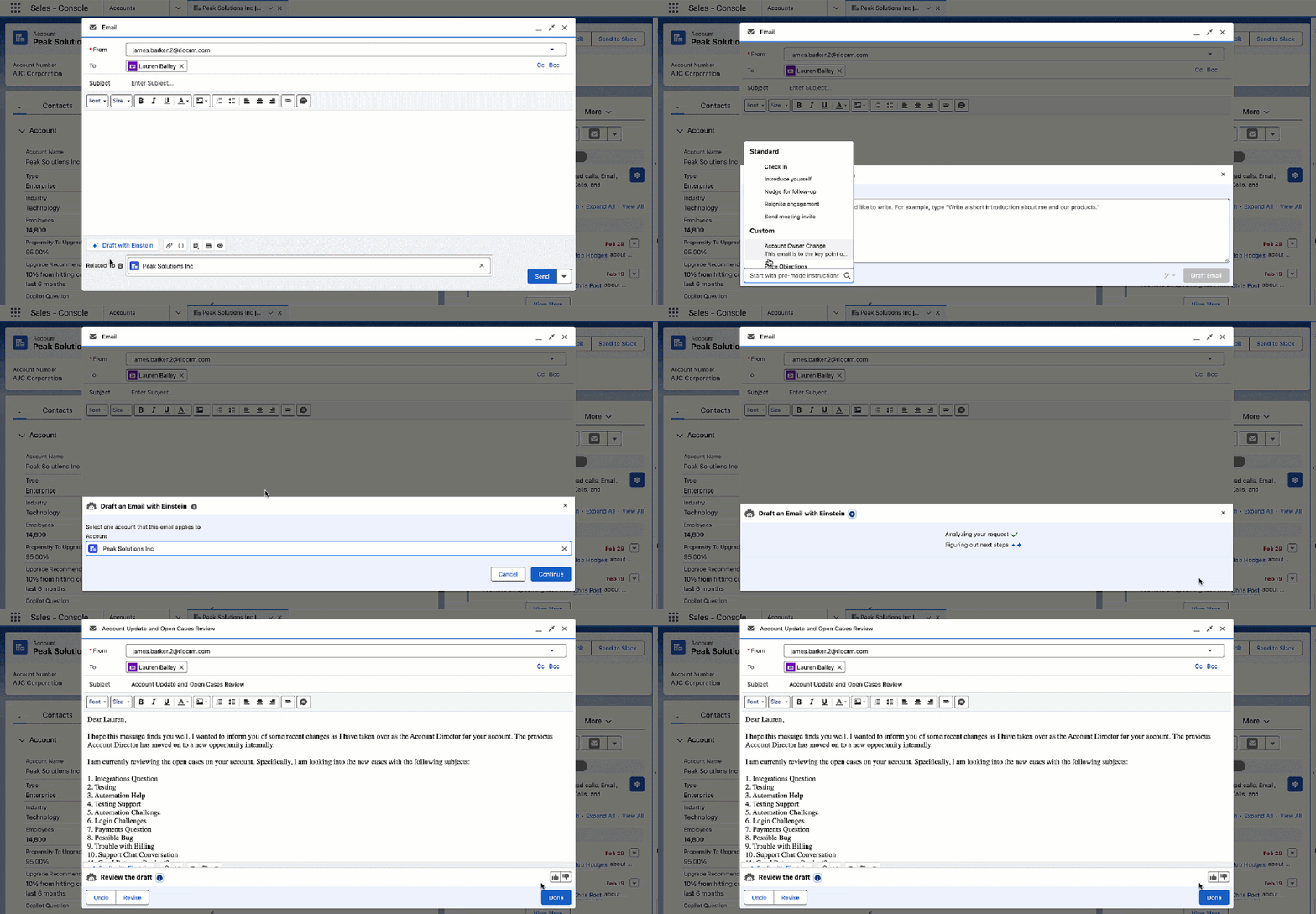
Rather than using an email template that pulls in merge fields, use the Sales Email template type to create a personalized email in a way that scales, especially with high velocity sellers.
Where static email templates can pull in merge fields, and we can extend this by adding in formula fields on a record – they will always feel like a template. That is where Sales Email (via Generative AI) comes in to provide that human-like messaging.
Go Beyond Field Generations & Sales Emails
Beyond these two types of prompt templates, we have Flex which we will explore today with a screen flow, and record summary, which is part of Einstein Copilot.
- Flex: Generate content for any business purposes that other templates don’t cover. Flex prompt templates let you define your own resources. Think of Flex Templates as a regular flow, you can set up any inputs manually and the resulting output is a one-off.
- Record Summary: Summarize record data for a comprehensive view of a record. Record summary prompt templates are used by the Summarize Record standard invocable action. In Einstein Copilot, they’re used by the Summarize Record standard copilot action.
Leveraging Template-Triggered Prompt Flows Within A Prompt Template
First let’s see a side-by-side of when you use a flow vs when you don’t within a prompt output. For this example, I’ve created a prompt that provides the user with an overview of all opportunities related to the account.
Using A Related List

As you can see here, we can use the prompt to call out CRM data and using our Trust Layer, send it to the LLM to provide a quick summary back to the user. So what’s the limitation? Without flows we cannot control specifically what information to enhance the prompt with, use formulas, calculate logic, or make a callout to a web service. For example we can’t add in just the Open Cases or only Closed Won Opportunities.
The fact that we have Prompt Builder to quickly adapt and adjust our prompts to ensure a high quality is endless in terms of its value. Remember, we are retrieving and sending information using natural language; there can be times that we pull the wrong records. By adding another line “Display the next steps” to the prompt, I’ve now pulled in more records by accident.

Now, let’s use a flow to retrieve the exact records that we want and push only the fields that we want. Introducing the Template-Triggered Prompt Flow; This launches from a prompt template and allows us to specify what information to enhance the prompt with.
Summary:
- Without Flows: Use this prompt and related information, with little control over the specific records/data to provide a response.
- With Flows: use this prompt with the exact records and fields with complete control to provide a response.
Retrieving Information That Isn’t Available In Prompt Builder, But Accessible Via Flows.
Another example of using a flow to retrieve specific information is when data is not available in prompt builder to begin with. For example, pulling in emails that were manually logged into the CRM.
Salesforce stores manually logged emails from Cases and Inbox as records in an object called Email Message which cannot be accessed by Prompt Builder. So we can use a flow to retrieve these to then enhance the prompt for a response.
In this example we are using a flow to bring in more data into the prompt that lives directly on the record itself; but we can also use flows to use formulas, run calculations on business logic, and make callouts to web services.

Calling A Prompt Template From A Record Triggered Flow
Rather than our users having to manually choose to fill in a field, let’s now automatically update the account description field when an opportunity is created/updated.
When you activate a prompt template, you can call it as an action from a Flow, this starts to make things interesting when it comes to extending the Generative AI capabilities within Salesforce.
While calling to prompt templates with your flows, you can also define custom variables that don’t have to map to a specific object and can be free text.

These can be pulled in our Flow Builder and we can use variables or data from the record to import here to make these even more flexible.

Creating A Dynamic Prompt Template With A Screen Flow
If we can call out to a prompt template through a flow to stamp into a field or use a user initiated field generation; why would we want to use a screen flow as part of the user experience?
So far, I found that companies want a way to make a prompt template “dynamic” so we can re-use the same prompt template for a lot of different questions.
The video below will go over the capability of asking questions about meeting notes and using a screen flow to be the method of experience.
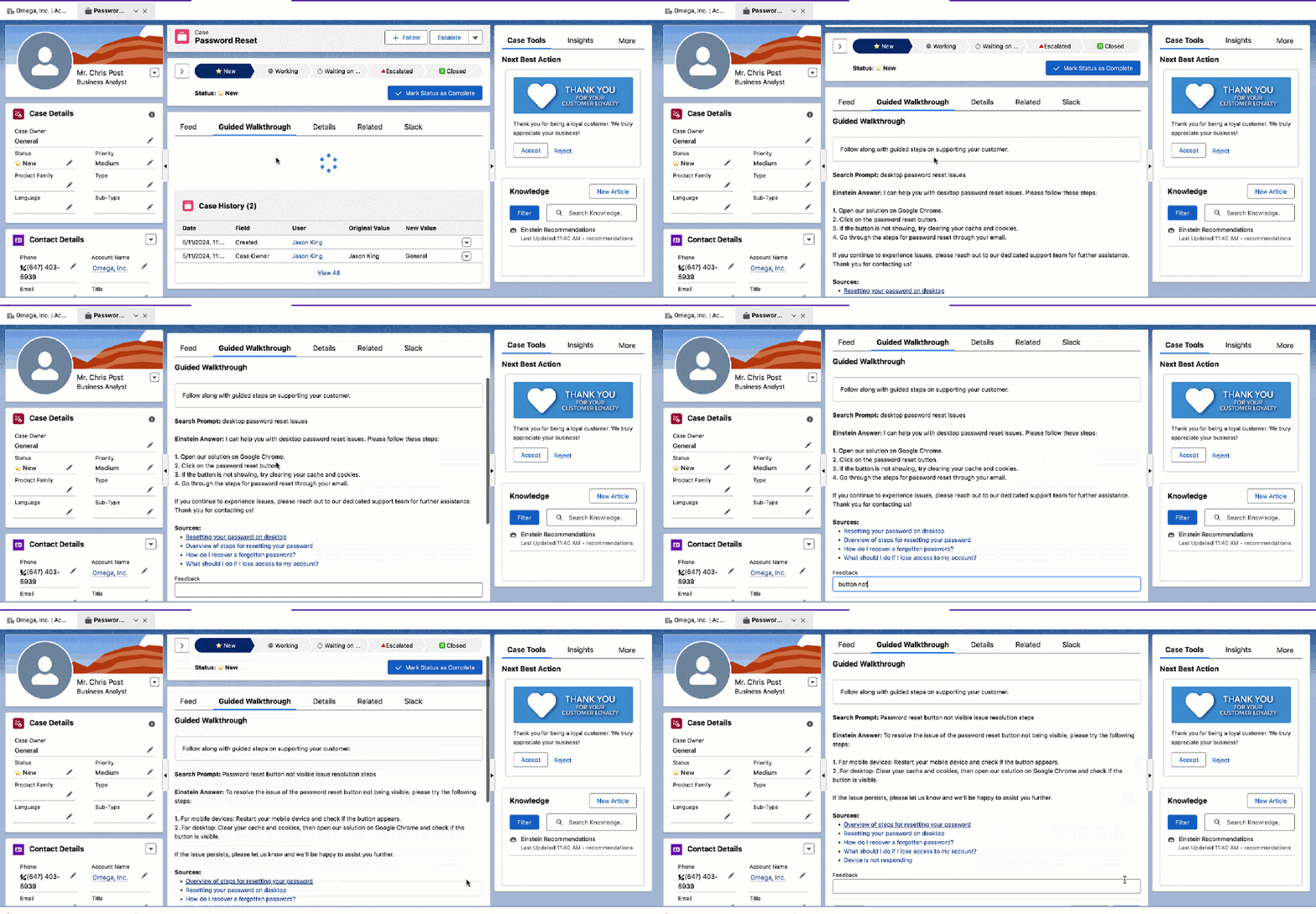
Another use-case that is coming up more often is helping service teams troubleshoot an issue and adjust the steps based on feedback from the customer. In the below example, we are using a screen flow to showcase the answer and also how the search prompt is being adjusted each time around.
Matching On Natural Language Criteria
Back when I was a Salesforce Administrator, to Consulting on Salesforce, to now working at Salesforce, a constant requirement has always come up for users, “How can I find the right records based on some criteria?” This is something that I built originally with Data Fetcher and Screen Flows for logic that was “hard-coded”, but what if we want to match based on reasoning?
The use case that we have here is to identify the best lender for a business request based on a variety of factors, primarily previous use-cases/reasons that were approved that use natural language that we can’t filter on.
Now with Flows & Prompt Builder we can open up way more possibilities.
Considerations That I’ve Identified So Far
- The get records and loop in a Template-Triggered Prompt Flow works for only 1 level of the record information. For example, if I get a collection of events, I can add the event name to the prompt; however I cannot add the related WhoId name or the Owner name unless I use two more get elements.
- Template-Triggered Prompt Flows (today, July 2024) are mapped to a specific Prompt Template; meaning I cannot re-use the same flow in multiple prompt templates.
- It takes time to load a Generative AI response regardless of the user experience layer we use (field generation, record-triggered flow, screen flow, etc) but we are still saving our users considerable amounts of time – adjust the model being used to change the output and time taken for each prompt to run in Prompt Builder.
- When we use flows to enhance a prompt, it is so easy to do so that we often forget LLMs have limits; prompt builder for building the prompt templates currently (today, July 2024) has a character limit of 128,000 characters.
Thank you for following along with this article; my hope is that you have a basic understanding of how we can use Flows to bring even more value and impact to Generative AI within Salesforce.
To learn more about automating generative AI responses in your existing workflows, check out this other blog by Raveesh Raina on embedding AI responses through 3 simple techniques.
Please comment if you have any questions!