
From Titan: Combine Titan OCR with the Power of Salesforce Flow
Editor’s Note: UnofficialSF is pleased to enable commercial creators of Flow extensions like Titan to introduce their products and demonstrate useful use cases. One of our goals is to see a rich tier of commercial solutions in addition to the many free extensions that will continue to be available. UnofficialSF receives no compensation for this.
Salesforce automation tools can help you stay ahead of the pack in today’s competitive business environment. They enable organizations to streamline operations, increase efficiency, reduce costs, improve accuracy, and focus on strategic initiatives.
Salesforce Flow is the silver bullet when it comes to streamlining business processes and automating tedious manual tasks. Salesforce Flow can automate various business processes across different departments and functions, such as marketing and sales, customer services and operations, and finance and human resources. With Salesforce Flow, you can streamline actions such as sending emails and custom notifications, executing business logic, manipulating data, and editing records in your CRM. Salesforce Flow empower you to create interactive and guided experiences by defining and automating a series of steps.
If you want to extract data from various files using the power of Salesforce Flow, you can get Salesforce Einstein AI for your Enterprise or Unlimited edition. Alternatively, you can harness the power of Titan and OCR.
In this use case, we will show you how to trigger Titan’s OCR (Optical Character Recognition feature) from within a Salesforce Flow. Combining Salesforce Flow and Titan OCR will allow you to seamlessly extract data from a variety of file types. Leverage the power of Salesforce Flow and Titan’s OCR feature to easily create and update records in Salesforce using AI functionalities.
Before getting started, you will need to have an API-enabled edition of Salesforce and to have installed your Titan package. Install Titan on the Salesforce AppExchange by clicking Get It Now, and following the prompts. Once Titan is installed, it’s also a good idea to read up on how to connect Titan to Salesforce.
Now you are good to go!
What is Titan OCR?
Titan’s OCR feature gives you the power to parse and extract data from documents automatically using Titan Vision AI. Customers can upload documents such as passports, driver’s licenses, and certificates, which are read by Titan. Data from these documents is then pushed to Salesforce in real time. Subsequently, a record is either updated or created in Salesforce using the OCR feature. In addition, native Salesforce files can be used to create or update records using Titan Flow. This gives you the opportunity to convert a file to data that can be used later to update information in Salesforce.
In this use case, we look at how you can trigger Titan OCR from within a Salesforce Flow to automatically read information from important files and push the information to Salesforce.
How Does Salesforce Flow Work with Titan OCR?
In this article, we examine a Salesforce Flow triggered by a record in Salesforce that then, in turn, triggers a Titan Flow. The Titan Flow gets the file related to the triggering record to the OCR of the file. Then the JSON of the OCR is pushed back to Salesforce to the triggering record. This is useful if you want to go beyond using a static file format (which Titan OCR can do) to create or update records in Salesforce.
In many cases, such as this, the customer works with multiple different formats that are also continually changing. So, in this instance, Titan OCR will extract this data to the JSON or plain text format and push this to Salesforce. This gives the Salesforce admin the ability to create a Salesforce automation (Apex) that will parse the data and create or update records accordingly.
Note: For those of you who are not familiar with Titan Flow, it is Titan’s process management tool. Not to be confused with Salesforce Flow, this tool enables you to combine different processes in the Titan platform, manage integrations to third-party systems, and perform unique actions that extend the Titan platform.*
Salesforce Flow & Titan OCR: Use Case Unpacked
Before using Salesforce Flow and Titan OCR, you need to make sure Titan Flow is set up to run a Get from the file related to the Account record.**
Let’s take a closer look at how this use case works by checking out the steps below:
Salesforce Flow
- For this use case, our Salesforce Flow is triggered by an Account Object:

2. If we open up this trigger, you can see that the Salesforce Flow is triggered every time that it’s updated or created to meet the condition “field trigger_titan_flow_ocr_c equals True”.

3. Now that the Salesforce Flow trigger is set, an Action can be added. In the Action window, you need to run the “Form_Builder_TitanFlow” Action. This Action (and many more) comes with Titan’s AppExchange managed package.
In order to run this action, you need to paste the Titan Flow ftFormHash (which is copied after setting up Titan Flow) as well as the recordId of the Account that triggers the flow:

4. You will be able to browse to Salesforce and open the Account record, then find the Trigger Titan Flow OCR checkbox and click the Edit icon.
Note: There are other parameters that can be passed to the Titan Flow if needed. For this, you will need to toggle on “Don’t Include” and add parameters.
5. Click the Titan Flow OCR checkbox on the Account record and then the Save button.
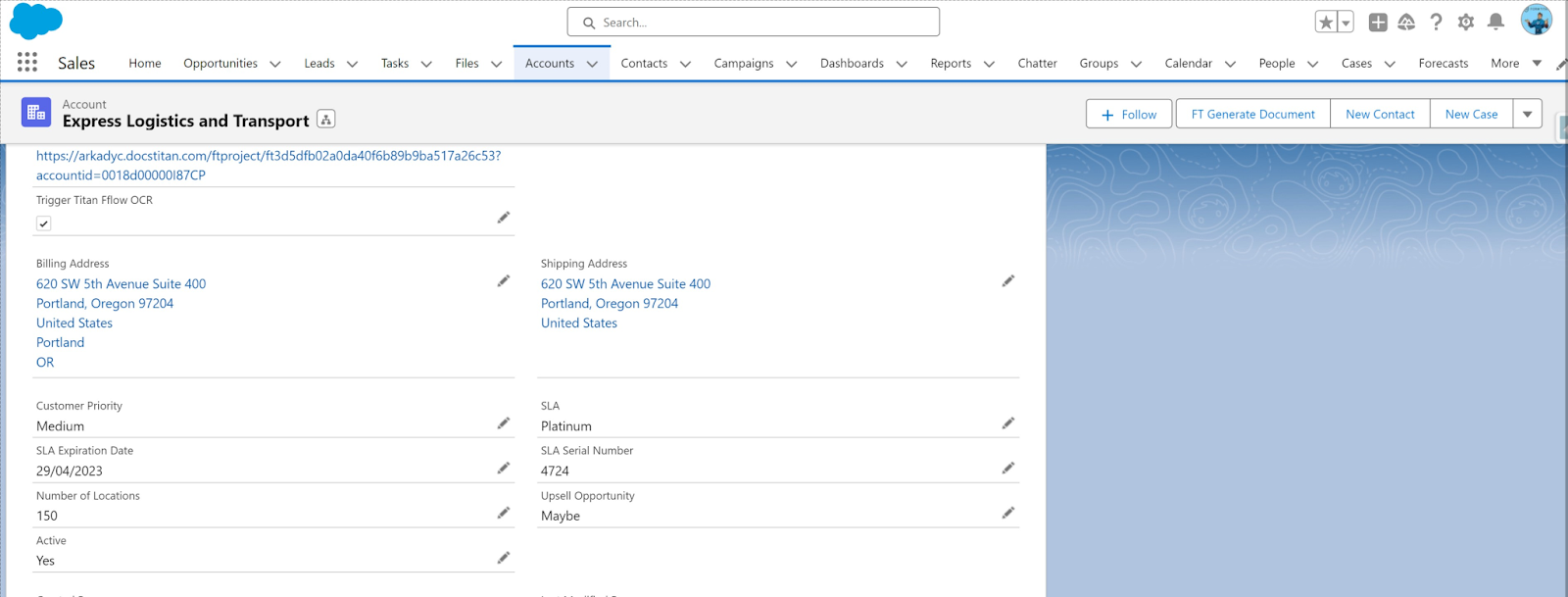
6. Then in Salesforce Flow, which triggers Titan Flow, OCR is performed. And you will be able to see your piece of JSON in the Account record field:

Note: Here, we show you how to get this JSON and send it to Salesforce. You could also send it as a related file or a Flow Transform utility.
Bear in mind that if the format of your file is static, you can skip pushing JSON (as demonstrated above) and do straightforward creation or updating of fields and records in Salesforce.
Salesforce Flow + Titan OCR: Wrapped
And that’s a wrap on how you can trigger Titan OCR via a Salesforce Flow using no code and minimal configuration. Work with multiple and changing formats without breaking a sweat. This is only one example of how you can combine Titan and Salesforce Flow and there are many other cool actions you can perform with this no-code software.
Footnotes:
*See an example of Titan Flow set up for this use case:
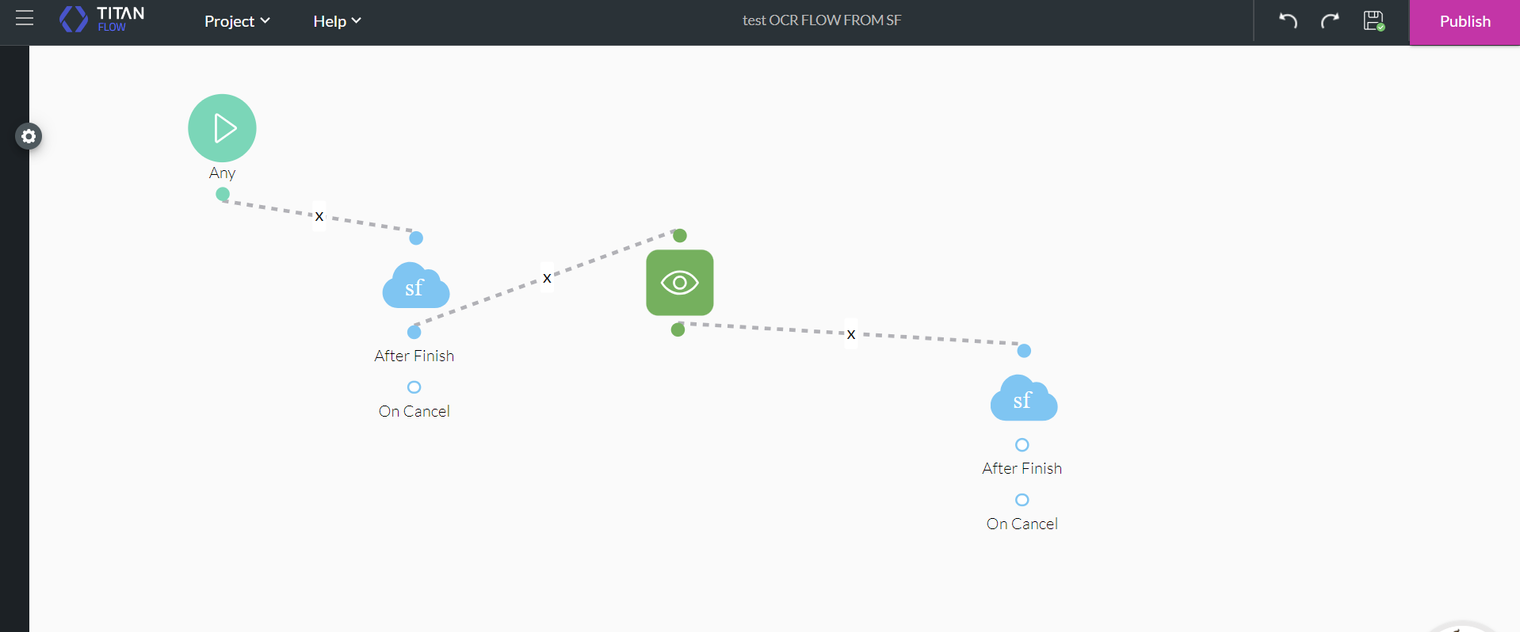
Titan Flow gets the Account Record ID and then the file that is related to this account
Here are some examples of Salesforce and non-Salesforce actions and integrations you can run with Titan Flow:


** Set up OCR in Titan Flow:
- Note: In this example, we use only one related file but there can be multiple files related to the record. If you choose, there can be multiple logic conditions added to this Get action. This determines the file/s the Get needs to fetch from Salesforce.

- OCR is configured for this file by adding the Titan Vision AI node:

3. Then a Salesforce Action node is added to update the triggering record, in our case, the Account, and push the JSON into a Salesforce field or as a file attached to the Salesforce record.

4. For this use case to work in Salesforce Flow, we need the FormHash of the Titan Flow that has just been set up. Copy and save it by clicking “Publish” in the Titan Flow project:
