
Sneak Preview: Salesforce Flow Features Coming in Spring ’24
Here’s what you can look forward to this February!
Repeaters Make it Easy to Create Lists in Screen Flows (Beta)
You can create a form and let the user decide how many to fill out:

The basic concepts behind repeaters are that 1) You can assemble any form you want and 2) Once the user is done filling out their forms, you’ll need to assign their data to a matching collection resource like a collection of Accounts, and then save the collection. More specifically:
- Add a Repeater component to your screen.
- Drag other components into the repeater and configure them.
- Add a Loop to your flow to map the resulting collection data into the right data structure, such as a CRM object or Apex-define type for external services.
- Use Create Records or an external callout to commit the data you collected in the Repeater component.
Additional Notes
- Supported components:
- Basic inputs: Checkbox, Text, Long Text, Password, Date, Date/Time, Number, Currency
- Choices: Picklist, Multi-Select Picklist, Radio Buttons, Checkbox Group
- Feature support in “child components” (components dragged into a Repeater):
- Not supported: Conditional Field Visibility, Help Text, Input Validation
- Reactivity: Child components can react to changes in screen-level components (ones that are not inside of a repeater) but they can’t react to other child components.
- The scope of this feature is focused on use cases for creating new data, not updating existing data. Pre-populating with existing data isn’t supported (planned for future release).
Limit Removed: You No Longer Are Limited to 50,000 Paused Flows
Not much to say about this beyond: Good riddance.
Reactivity Added to Display Text and Long Text
You can insert references to the output of other screen components into your Display Text now. Use this to create responsive notices like the ‘You have completed X% of the form’ message shown here:

In the above example, a formula is being used to calculate the percentage of inputs that have a value. This feature requires that your flow be running on API version 59 or higher, so make sure to resave old flows with the current API number if you want to turn on reactivity. Note that references from components that output a record (like Data Table’s firstSelectedRow output) are not formatted with currency symbols, decimal scales, or date formatting. You must place the record’s field in a formula resource with the data type you need to get the right formatting.
Below is an example of how you can use reactivity to insert a dynamic header into a Long Text component:

In the above example, a text template is used (with Plain Text mode selected).
Reactivity is the most powerful thing we’ve done with screen flows in years. Here are some paths to more resources:
Transform Element Gains Several New Features (Beta)
The Transform element continues to march towards release. The new features this release include:
- You can calculate an Aggregate (such as a COUNT or a SUM) from a collection and map it to a target field
- You can combine data from multiple input sources to populate a target
- You can define a static value using a formula

Notes on Static Mapping: You’ll have to map the target field first, add field transform to the mapping, then replace merge field in formula editor with a static value.
Here are the current considerations for using Transform:
- Source data doesn’t support global variables
- The Transform element is available for only autolaunched, screen, and triggered flows
- Collection Choice Set, Picklist Choice Set, and Record Choice Set are treated like strings
- Support only 1 level of nested collection
- read only fields are hidden on the target side
- no traversals for sobjects
- only support automatic output
- no collection transform yet (join, filter, sort, etc)
- 10 nested levels max
Data Table Row Selections are Now Maintained When you Search
Previously when a customer needed to search across records within a Data Table, any selections made previous to the search would be lost. Now selections are maintained across record searches.

New Flow Orchestration Features – Standard Reports, Notification Controls, and Controllable User Context
Standard Reports
Go into Reports>Public Reports and select one of our Sample Orchestration object report, you can add filters and use them in dashboards.

Notification Controls
You can now disable automatic email notifications in Process Automation Settings and create your own background step to notify users about work items assigned to them.

‘Run As’ Context Control
You can now run a background or Mulesoft step as a selected user or opt to run the step as a user specified by a resource at run time.

There’s also a new permission that allows a user to reassign a work item.
New deployments and new enhancements for the new resource picker
The new resource picker is now available additionally in Update Records, Delete Records and Get Records. In addition, it has added a couple of new features:
Expanded Friendly Grouping incorporates automatic outputs for a more complete experience:

Improved Resource Selection causes the selected value to be clearly marked with a checkbox:

Draft Save and Panels Rollout Continues
All elements except for Screen and Action now are panelized and support Draft Mode save capability. This means that you can save your flow without having to finish configuring or resolving errors. When you save, warnings display with what to fix before you can activate your flow.

Improvements to Input Validation
The Validate Input Section has been added to Custom components and additional Standard components including Name, Address, Email and Data Table
Validate Input provides an easy way to apply formulas to the values input by the user, and deliver a custom error message:
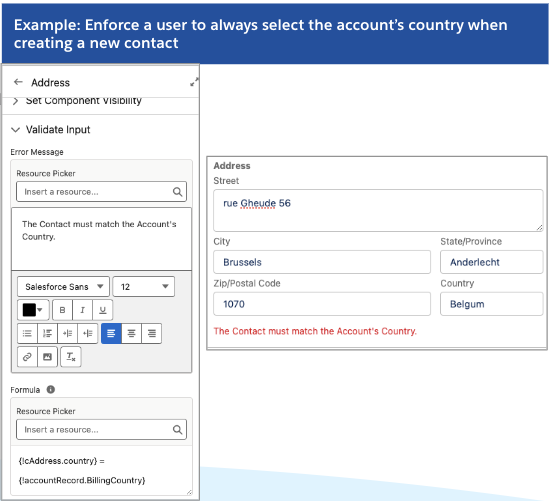
To surface translated error messages, reference a translated custom label in the Error Message input.
Technical Note: Previously this feature had only been implemented for the ‘native’ screen components, which are applied in Flow screens using a proprietary interface. Later Out-of-the-box components like Data Table use the same interface that custom components do. This is good for standardization but we never brought the validation feature forward to these newer components.
Speedups!
Invocable Action List Loading
If you have an org with a lot of invocable actions, you should see a noticeable time reduction on the order of 83-89% when you add an Action to the canvas and try to view the list of available actions:

Packaging of Flows
We found a substantial opportunity to speed up the time packaging takes when flows are involved, reducing that time between 57 and 69%.
New Release Update: Stricter rules for flow URL redirection
When this is turned on, some URLs that previously were accepted as redirect targets for flow launched from a Custom Button will no longer be allowed. Note that you can always add trusted URLs to your list in Setup.

Custom Buttons are (embarrassingly) the only way built into the product to carry out a redirect at the end of a screen flow. This site has a couple of extensions you can use.
It’s Easier to Import Mulesoft Endpoints as Flow Actions
There’s a new Setup experience for connecting to Mulesoft that substantially reduces the number of steps required:

Add Flows to your Einstein Prompt Templates
You can embed Template-Triggered Prompt Flows into a Prompt Template to dynamically provide the Prompt Template with information generated by the flow. Note that Prompt Templates are expected to GA slightly later than Spring ’24.

Data Cloud and Flow: Debug Flows Triggered By Data Cloud
If you have Data Cloud, you can start a flow on a Data Cloud data change event. These flows can now be debugged in Flow Builder.

Marketing Cloud and Flow: Wait until an Event in a Schedule, Segment-Based Flow
If you have the new Marketing Cloud Growth Edition, you can use Flow to trigger on a schedule and then process a Data Cloud segment as a batch. You can send emails or SMS messages to all of the segment’s members and then have the flow wait until the recipients respond to those messages before continuing.

Marketing Cloud and Flow: Introducing the New Flow Manager App
If you have Marketing Cloud Growth installed, you’ll be one of the first to see the new Flow Manager. It’s a Lightning App that provides full Lightning support to the management of flows. If you don’t have that particular product, look for this game-changer to become available to all Admins in Summer ’24. The most immediate benefit for most admins will probably be the ability to search your flows quickly and easily.
Marketing Cloud and Flow: Flow Access Control lets you give controlled builder capabilities to non-admins
Flow now makes permissions available in Permission Sets to enable a User to use specific Flow elements for orgs that have Marketing Cloud Growth installed. This is an alternative to the traditional Manage Flows permission that provides full access to Flow Builder. With these new granular permissions, you can enable a User to, for example, create flows that can do Get Records but not Delete Records. In Spring ’24, this ability extends to flows triggered by a specific set of marketing-oriented Flow triggers: Scheduled, Segment-Based trigger, Data Cloud Data Change trigger, and Form-Submitted trigger. In the future other trigger and process types will be available for this citizen enablement. Note that all such enablement is 100% opt-in: orgs that do not use this functionality will continue to operate as before, with the Manage Flows permissions providing universal access to selected admins.
Migration Tools from Process Builder: Additional PB flows can be partially migrated
Check the Migrateable column of the Migrate to Flow tool on processes – it will now say ‘Partially’ for certain criteria. After migration, the tool will let the user know which parts of the migrated flow will need additional configuration.

Migrate less common actions from Process Builder using the migration tool, and then further configure them in Flow to finalize the migration. This can be especially helpful if you want to use the Migration tool capabilities to migrate pending scheduled actions to scheduled paths, but they previously contained an unsupported action such as Post to Chatter.
See which Flows are using an Email Alert
Find in Setup under Process Automation / Workflow Actions / Email Alerts. Select a specific email alert and there is a new list called “Flows Using This Email Alert.” This will work on existing orgs, no additional configuration needed

ISV Support: Delete Workflow Rules from Managed Packages
Developers with managed packages that contain Workflow Rules need to migrate their solutions to Flow, but they were unable to delete the workflow rules when they were no long needed. This can now be done. See the Partner Community for more information.