https://unofficialsf.com/wp-content/uploads/2022/09/largeUCSF-300x133.png00Alex Edelsteinhttps://unofficialsf.com/wp-content/uploads/2022/09/largeUCSF-300x133.pngAlex Edelstein2019-10-22 20:26:522019-11-04 07:43:49Next Best Action Recommendations Component Available for Flow Screens
We discussed examples of how to use the Generate and Enhance elements in a previous post. With the Map element, you can modify existing Recommendation fields and create new fields that can be passed to Flow as input variables. In this post, we’ll take a closer look at the Map element. Like Generate and Enhance, the output is always a list of recommendations, however, unlike the other two elements, Map doesn’t require you to write any Apex code and relies instead on expressions and formulas.
Use Case 1: Modify Existing Recommendation Fields with Expressions
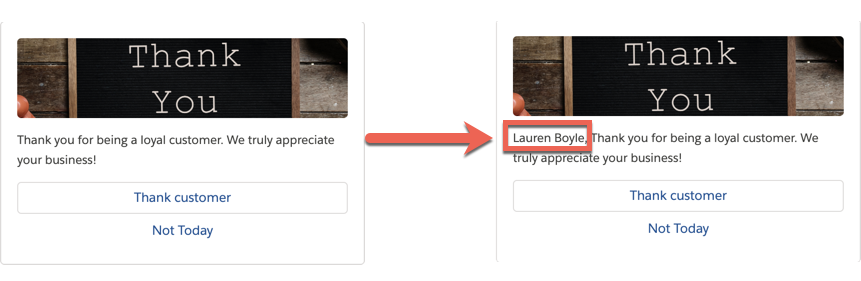
Suppose you have a Recommendation with the Description, “Thank you for being a loyal customer. We truly appreciate your business!” Now, with the Map element, you can personalize this Description by appending the name of the contact. For example, “Lauren Boyle, Thank you for being a loyal customer. We truly appreciate your business!” You can use this concept to make a variety of easy enhancements using the full power of the Salesforce formula operators and functions.
To do so, first add a Load element to the canvas and load all of the recommendations you want to change (you could also choose to add a Generate element and pass in dynamically generated recommendations). Then, add the Map element to the canvas. In the Map Values to Fields section, set the Description field to be $Record.Contact.Name+ “, ” + Description.
Make sure the Map element (Personalized Thank You) is placed after the Load element. It will transform the Descriptions of all recommendations flowing into it.
When you execute the strategy, your recommendations will look like the image on the right and include the contact name for the current case.
Use Case 2: Create New Fields That Can Be Passed as Inputs to Flow as Input Variables
The Einstein Next Best Action Lightning Component passes two default variables to all Flows – contextRecordId and recommendationId. In the Flow, you can do a Get Records and retrieve the current record on which the strategy is displayed (e.g. Case or Account) or the accepted recommendation. See this post for detailed instructions. With the Map element, you can create new “virtual” fields and pass them to the flow as input variables, in addition to the default ones. This scenario is most useful when you’re working with dynamically created recommendations and want to pass some context to the Flow. Bear in mind that in the case of dynamic recommendations, there is no recommendationId to pass to the Flow.
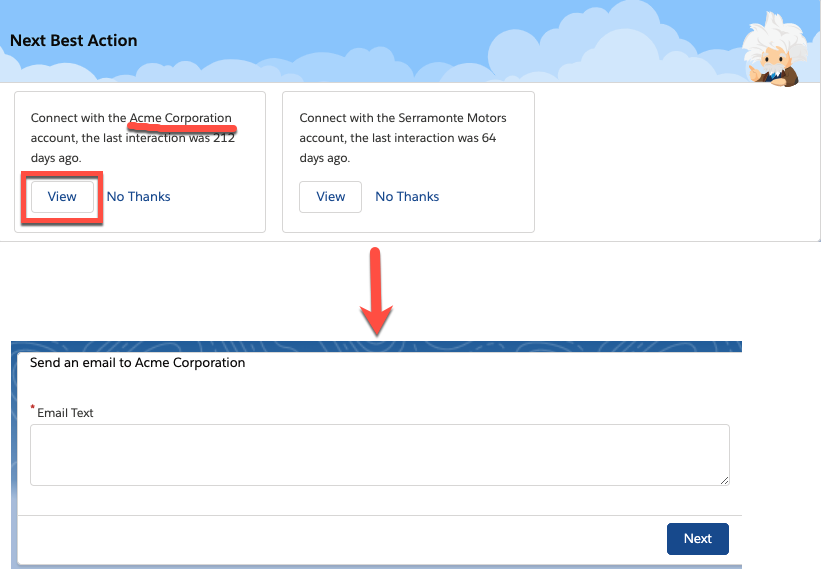
For example, let’s suppose you create a strategy that generates a set of accounts that you should connect with because the last contact was more than 90 days ago. Check out our Integration Guide for instructions on how to build such a strategy. When the recommendation is accepted, you want to launch a flow that references the selected account. Thus, you want to pass the Account Id to the Flow.
First, make a small tweak to the Recommendation object and add a text field called AccountId__c. Second, in the Apex action responsible for generating recommendations, set the AccountId__c with the ID of the generated account: AccountId__c = account.Id. The modified class would look like the following.
global class Generate_GetAccountsToFollowUp {
    @InvocableMethod(label='Accounts to Follow Up Today'
                     description='Recommend accounts the current user should follow up on today')
    global static List<List<Recommendation>> getAccounts(List<String> inputData){
        List<List<Recommendation>> outputs = new List<List<Recommendation>>();
        Integer daysSinceLastContact;
         Account[] accounts = [SELECT Name, Description, LastContactDate__c, OwnerId FROM Account WHERE OwnerId = :inputData[0]];

        List<Recommendation> recs = new List<Recommendation>();
        for (Account account:accounts) {
            if (account.LastContactDate__c != null){
                daysSinceLastContact = account.LastContactDate__c.daysBetween(date.today());
                if (daysSinceLastContact > 30){
                    Recommendation rec = new Recommendation(
                        Name = account.Name,
                        Description = 'Connect with the ' + account.Name + ' account, the last interaction was '+ daysSinceLastContact + ' days ago.',
                        ActionReference = 'accountOutreach',
                        AcceptanceLabel = 'View',
                        AccountId__c = account.Id
                    );
                    recs.add(rec);
                }
            }
        }
        outputs.add(recs);
        return outputs;
    }
}
Third, in the accountOutreach flow, create a text variable, called “accountId,” and mark it as “Available for input.”
Next, add a Map element after the Generate element.
Finally, in the Map element, create a text variable called accountId and set it to be AccountId__c. The variable name MUST match the name of the flow input variable.
The dynamically generated account Id will now be passed as an input variable to the Flow (accountId) and can be referenced to do things like Get Account details.
For example, send an email to each account.
https://unofficialsf.com/wp-content/uploads/2022/09/largeUCSF-300x133.png00Merwan Hadehttps://unofficialsf.com/wp-content/uploads/2022/09/largeUCSF-300x133.pngMerwan Hade2019-08-01 14:28:302020-01-05 09:53:14How To: Use the Map Element in the Strategy Builder
Check out the Next Best Action session from TrailheaDX and learn how you can integrate insights from AI services like Einstein Discovery, IBM Watson, and Aisera with the new capabilities added in the Summer ’19 release.
https://unofficialsf.com/wp-content/uploads/2022/09/largeUCSF-300x133.png00Merwan Hadehttps://unofficialsf.com/wp-content/uploads/2022/09/largeUCSF-300x133.pngMerwan Hade2019-06-24 20:58:282019-06-24 21:44:55Next Best Action – TrailheaDX
https://unofficialsf.com/wp-content/uploads/2022/09/largeUCSF-300x133.png00Merwan Hadehttps://unofficialsf.com/wp-content/uploads/2022/09/largeUCSF-300x133.pngMerwan Hade2019-06-13 15:07:282019-06-13 15:12:05Use the Next Best Action REST API to execute a strategy and retrieve recommendation reactions
In this guide, we’ll walk you through all the different ways that you can connect to sources of insight from Next Best Action to generate and enhance recommendations and to pull in relevant properties for decision making. Note – the Generate and Enhance elements are new updates, shipping with the Summer ’19 Release.
There are 3 main integration points, all of which require Apex invocable actions:
Generate
Enhance
External connections
The Generate element enables you to create new in-memory, on-the-fly recommendations, either from an external data source or from other Salesforce objects.
The Enhance element enables you to modify a given set of recommendations to include real-time updates, personalized information, or AI driven prediction scores.
And finally you can create an external connection to fetch properties in JSON format from external services. For example, you can connect to a Heroku endpoint to obtain a credit score for a given customer.
Let’s dive deeper into each one. You can install the strategies and invocable actions used in the examples by installing this package in your org. Note – your org must be using the Summer ’19 (or later) release.
Generate
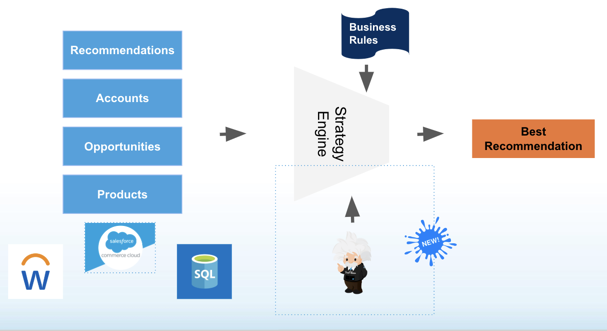
Instead of defining recommendations manually as records in Salesforce, you can use the Generate element to dynamically create temporary, in-memory recommendations as a part of the current strategy execution. These dynamic recommendations can be sourced from external data sources like Commerce Cloud or a SQL database or from other Salesforce objects like Accounts or Products.
For example, you can build a dashboard of prioritized accounts to connect with.
Or create recommendations sourced from the Products object.
The Generate element has the following characteristics:
@InvocableMethod(
label='Related Wikipedia Pages'
description='Recommend wikipages that are related to the named input wikipage')
It can pass any number of inputs to the Apex Action, either as lists or list of lists of primitives, SObjects, and user-defined Apex objects. To provide more than one input, the input parameter MUST be a list or list of lists of a user-defined Apex object (e.g. a custom class called DataContainer).
List<String> relatedTo
OR
global class DataContainer {
@InvocableVariable
public string accountId;
}
____
global static List<List<Recommendation>> invocableMethod(List<DataContainer> inputData)
It returns a list of recommendations. InvocableMethods support returning either a list of an SObject type or a list of lists of an SObject type. As the Enhance element operates on a list of recommendations and not a single recommendation, the method must return a List<List<Recommendation>>.
global static List<List<Recommendation>> invocableMethod(List<DataContainer> inputData)
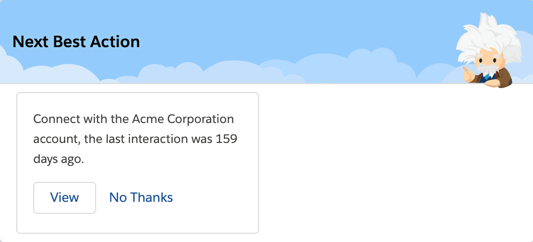
Example: Recommend accounts the current user should follow up on today Suppose you want to recommend the top accounts your salespeople should meet with today because the last interaction was more than 90 days ago. With the Generate element, you can call an Apex Action which does a SOQL query for Accounts where the Owner is the logged in user (the salesperson) and identify those accounts where the last contact date was more than 90 days ago. The relevant accounts can be returned in the form of recommendations.
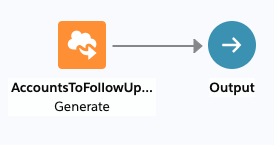
The strategy can be as simple as the Generate element with an Output element.
In the configuration dialog of the Generate element, select Accounts to Follow Up Today as the Apex Action and pass in ‘$User.id’ as an input parameter.
The Generate element, in turn, will call the getAccounts invocable method in the Generate_GetAccountsToFollowUp Apex class. Notice how you can fetch the relevant accounts and create a new list of recommendations where the Description includes the name of the account (account.Name) and the number of days since last contact (daysSinceLastContact).
global class Generate_GetAccountsToFollowUp {
//NOTE: You can get the user id of the current user by also doing UserInfo.getUserId().
    @InvocableMethod(label='Accounts to Follow Up Today'
                     description='Recommend accounts the current user should follow up on today')
    global static List<List<Recommendation>> getAccounts(List<String> inputData){
        List<List<Recommendation>> outputs = new List<List<Recommendation>>();
        Integer daysSinceLastContact;
        Account[] accounts = [SELECT Name, Description, LastContactDate__c, OwnerId FROM Account WHERE OwnerId = :inputData[0]];
        List<Recommendation> recs = new List<Recommendation>();
        for (Account account:accounts) {
            if (account.LastContactDate__c != null){
                daysSinceLastContact = account.LastContactDate__c.daysBetween(date.today());
                if (daysSinceLastContact > 90){
                    Recommendation rec = new Recommendation(
                        Name = account.Name,
                        Description = 'Connect with the ' + account.Name + ' account, the last interaction was '+ daysSinceLastContact + ' days ago.',
                        //Pre-req: Create a screen flow with the name simpleFlow
                        ActionReference = 'simpleFlow',
                        AcceptanceLabel = 'View'
                    );
                    recs.add(rec);
                }
            }
        }
        outputs.add(recs);
        return outputs;
    }
}
Example: Get related Wikipedia pages as recommendations You can also use the Generate node to create recommendations for external data sources. For example, consider a scenario where you want to show related Wikipedia pages, as recommendations, for a given topic. The Generate element enables you to call an Apex Action which in turn makes a GET request to a Wikipedia endpoint. The pages are returned in the form of recommendations.
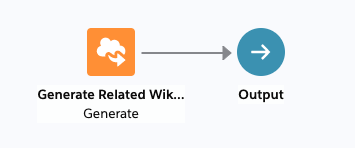
A strategy with the Generate element can be as simple as the Generate element with an Output element.
In the configuration dialog of the Generate element, select Related Wikipedia Pages as the Apex Action and pass in ‘India’ as an input parameter.
The Generate element will call the getPages invocable method in the Generate_GetWikiPages Apex class. Notice how there is a mapping of Wikipedia articles to recommendation fields.
//Guidance around Apex class definitions: https://developer.salesforce.com/docs/atlas.en-us.apexcode.meta/apexcode/apex_classes_defining.htm
global class Generate_GetWikiPages {
    //InvocableMethod Guidance: https://developer.salesforce.com/docs/atlas.en-us.apexcode.meta/apexcode/apex_classes_annotation_InvocableMethod.htm
    //Input parameter must be a list or list of lists of either primitive type or Object type
    @InvocableMethod(
        label='Related Wikipedia Pages'
        description='Recommend wikipages that are related to the named input wikipage')
    global static List<List<Recommendation>> getPages(List<String> relatedTo){

        List<List<Recommendation>> outputs = new List<List<Recommendation>>();
        Http http = new Http();
        HttpRequest request = new HttpRequest();
        String urlName = relatedTo[0].replace(' ','_');
        // Pre-req: Set up a Remote Site Setting for this to work.
        request.setEndpoint('https://en.wikipedia.org/api/rest_v1/page/related/'+urlName);
        request.setMethod('GET');
        HttpResponse response = http.send(request);
        if(response.getStatusCode() == 200) {
            Map<String, Object> result = (Map<String, Object>)
                JSON.deserializeUntyped(response.getBody());
            List<Recommendation> recs = new List<Recommendation>();
            for(Object item : (List<Object>)result.get('pages')) {
                Map<String, Object> page = (Map<String, Object>) item;
                Recommendation rec = new Recommendation(
                    Name = (String)page.get('displaytitle'),
                    Description = (String)page.get('extract'),
                    //Pre-req: Create a screen flow with the name simpleFlow
                    ActionReference = 'simpleFlow',
                    AcceptanceLabel = 'View'
                );
                recs.add(rec);
            }
            outputs.add(recs);
        }
        return outputs;
    }
}
Enhance
The Enhance element allows you to modify a given set of recommendations on-the-fly, every time the strategy is executed. These recommendations could be static recommendations that live as records in Salesforce or dynamic recommendations sourced from external data sources or other Salesforce objects. For example, you can use the enhance element to calculate a discount % for your customers based on how long the account has been with your company or you can use it as a means for A-B testing two branches of recommendations.
The Enhance element has the following characteristics:
@InvocableMethod(
label='Enhance with Discounts Based on Age'
description='Returns an enhanced set of recommendations with appropriate discounts')
IMPORTANT – It can pass any number of inputs to the Apex Action. The input parameter MUST be a list or list of lists of a user-defined Apex object (e.g. a custom class called DataContainer) and the user-defined Apex object MUST include a List<Recommendation> variable. The List<Recommendation> variable will be automatically set with the recommendations flowing into the Enhance element.
global class DataContainer {
    @InvocableVariable
    public string accountId;

    @InvocableVariable
    public List<Recommendation> recommendations;
}
________
global static List<List<Recommendation>> invocableMethod(List<DataContainer> inputData)
It returns a list of recommendations, List<List<Recommendation>>. Note – these recommendation edits are only in-memory and are not persisted after the strategy execution.
global static List<List<Recommendation>> invocableMethod(List<DataContainer> inputData)
Example: Enhance Recommendations with Discounts Based on Customer Age
Suppose you use Next Best Action to provide upsell recommendations. You’d like to reward your loyal customers by adding a 5 % discount to your product recommendations if the customer has been with your company for more than 1 year, 10% for more than 2 years, and 20% for more than 5 years. With the Enhance element, you can call an Apex Action which does a SOQL query to fetch the Account age and append it to the description of all incoming recommendations.
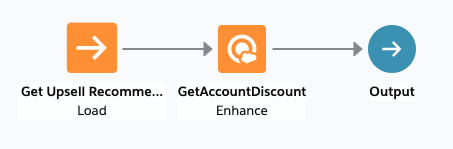
The strategy with the Enhance element can be as simple as Load → Enhance → Output. All recommendations retrieved or loaded by the Load element are implicitly passed as a list of recommendations to the underlying invocable method.
In the configuration dialog of the Enhance element, select Enhance with Discounts Based on Age as the Apex Action and pass in ‘$Record.id’ as the input parameter.
The Enhance element will in turn call the getDiscounts invocable method in the Enhance_GetAccountDiscount class. Notice how Description of each recommendation has a discount value appended to it (r.Description + ‘ with a 5% discount’).
global class Enhance_GetAccountDiscount {
    @InvocableMethod(label='Enhance with Discounts Based on Age' description='Returns an enhanced set of recommendations with appropriate discounts')
    global static List<List<Recommendation>> getDiscounts(List<DataContainer> inputData){

        List<Recommendation> recommendations = inputData[0].recommendations;
        List<List<Recommendation>> outputs = new List<List<Recommendation>>();
        Account[] accounts = [SELECT Name, Description,CreatedDate, id FROM Account WHERE id = :inputData[0].accountId];
           Double ageAccountMonths = accounts[0].CreatedDate.date().monthsBetween(date.today());
        Double ageAccount = ageAccountMonths/12;
        List<Recommendation> returnedRecommendations = new List<Recommendation>();
        for (Recommendation r:recommendations){
            if(ageAccount > 1){
                r.Description = r.Description + ' with a 5% discount';
            }
            else if (ageAccount > 2){
                r.Description = r.Description + ' with a 10% discount';
            }
            else if (ageAccount > 5){
                r.Description = r.Description + ' with a 20% discount';
            }
            returnedRecommendations.add(r);
        }
        outputs.add(returnedRecommendations);
        return outputs;

    }

}
External Connections
External Connections have the following characteristics:
Unlike Enhance, External Connections do not take a set of recommendations as inputs. They return a single set of properties that can be referenced in expressions but not mapped to recommendations. Unlike Generate, External Connections do not result in the creation of new, temporary recommendations.
They run before the strategy is processed, and not during the processing of the strategy.
Their values are globally accessible (i.e you can use them in every element of the strategy).
They can return a broad range of different properties (Generate and Enhance always return a List of Recommendations).
Example: Calling a Heroku endpoint to fetch a credit score Let’s suppose that you make certain upsell offers to your customers based on their credit-worthiness. For example, you offer them a 0% refinancing only if their credit score is above 750. Credit scores aren’t typically something you would store in Salesforce because they change dynamically and frequently. Using an external connection, you can call an Apex Action which will call an external endpoint and return the credit score given some information about the user.
global with sharing class GetFranchiseeData {
    @InvocableMethod
    public static List<Results> getCreditScore(List<Requests> requests)
       {
            Http http = new Http();
            HttpRequest request = new HttpRequest();
               //Make sure you add the below endpoint as a remote site setting
            request.setEndpoint('https://repair-service.herokuapp.com/api/creditScore?customerId='+ requests[0].custId);
            request.setMethod('GET');
            HttpResponse response = http.send(request);
             Results curResult = new Results();
            curResult.creditScore = Integer.valueOf(response.getBody());

            List<Results> resultsList = new List<results>();
            resultsList.add(curResult);
            return resultsList;
       }

    global class Requests {
        @InvocableVariable
      global String custId;

    }

    global class Results {
        @InvocableVariable
      global Integer creditScore;
    }
}
To call the above Apex Action, create an external connection and pass the Account’s External ID (If you pass values less than 4000, the API will return 550. It will return 810 for values greater than or equal to 4000.)
You can filter the Zero % Refinancing Offer based on the Credit Score by referencing the connection in the Filter node.
https://unofficialsf.com/wp-content/uploads/2022/09/largeUCSF-300x133.png00Merwan Hadehttps://unofficialsf.com/wp-content/uploads/2022/09/largeUCSF-300x133.pngMerwan Hade2019-06-12 13:34:262019-07-01 12:40:21Integration Guide for Next Best Action
We have a bevy of new features in the Summer ’19 Release with 3 new elements – Generate, Enhance, and Map, the Actions and Recommendations Lightning component, and support for packaging strategies. Check out the video to learn more!
https://unofficialsf.com/wp-content/uploads/2022/09/largeUCSF-300x133.png00Merwan Hadehttps://unofficialsf.com/wp-content/uploads/2022/09/largeUCSF-300x133.pngMerwan Hade2019-06-12 13:09:162019-06-13 15:41:20What’s New with Next Best Action in the Summer ’19 Release?
Ever wanted to inject Einstein Next Best Action into your Flows? Check out this post by Marc Baizman.
https://unofficialsf.com/wp-content/uploads/2022/09/largeUCSF-300x133.png00Makario Aruliahhttps://unofficialsf.com/wp-content/uploads/2022/09/largeUCSF-300x133.pngMakario Aruliah2019-05-27 23:54:222019-05-28 15:44:34Use Einstein Next Best Action with Flow by Marc Baizman
The Tooling API provides a way to get information about Action Strategies. I’m more familiar with the Metadata API, but in general Salesforce is trending towards the Tooling API as a more flexible, granular tool, and this is likely to increase. For performance reasons, metadata API deploys and retrieves will often trigger a recompilation of all of an org’s Apex. (This is controlled by a setting in Apex Settings called “Perform Synchronous Compile on Deploy” which is on by default in many orgs). The recompilation can make the mdapi deploy/retrieve too slow for quick data calls of the sort you’d want for your apps. So Tooling API is the way to go.
As a tip, it is considerably easier to play with this api if you install the Salesforce Workbench Tools for Google Chrome. Just go to a page that’s logged in to your org and then click this button in the toolbar.
https://unofficialsf.com/wp-content/uploads/2022/09/largeUCSF-300x133.png00Alex Edelsteinhttps://unofficialsf.com/wp-content/uploads/2022/09/largeUCSF-300x133.pngAlex Edelstein2019-05-06 10:41:042019-05-06 10:41:07Accessing NBA via the Tooling API
You aren’t limited to using the lightning components that Salesforce has provided for displaying recommendations. You can POST your own execution calls to the Action Strategy Engine REST endpoint and get back recommendations as a JSON blob.
It’s recommended that you provide a contextRecord ID, although if your strategy doesn’t have any $Record references, it will not be used. Here’s an example of a POST body:
Note the strategyContext section in the above example. This powerful mechanism allows you to pass in additional context that you can then reference in your strategy’s expressions. There’s currently no way to configure these additional values in the standard Next Best Action components but when you’re making your own REST calls, you can provide all you want.
Each recommendation in the array contains all of the information typically used by the Next Best Action component to display the recommendation.
Each recommendation will include a reference to a screen flow. If you want to run the screen flow you’ll want to incorporate the lightning:flow component into your solution and pass it the name of the flow and any parameters. Alternatively, you can encode action information into custom fields of the recommendation. Example: You have two recommendations: “Buy Fish Food from Amazon” and “Buy Tools from Amazon”. You’re using these recommendations in a custom Amazon ordering application. You add a custom field to your Recommendation object called “Product” and store ‘Fish Food’ on one and ‘Tools’ on the other. When you programmatically call the NBA engine, you get back the Buy Fish Food from Amazon recommendation. Part of that response includes the recommendation ID. You then query for that recommendation and read the value of its Product field. You now have the value that your private Amazon ordering system needs to automatically order.
https://unofficialsf.com/wp-content/uploads/2022/09/largeUCSF-300x133.png00Alex Edelsteinhttps://unofficialsf.com/wp-content/uploads/2022/09/largeUCSF-300x133.pngAlex Edelstein2019-04-05 13:35:302019-04-05 13:35:31Building Your Own Next Best Action Front End
When we built Next Best Action, we set things up to fire a platform event whenever an error occurs. You can leverage Process Builder and Flow to create custom notification profiles that flexibly get error messages to where you want them. Learn more.
https://unofficialsf.com/wp-content/uploads/2022/09/largeUCSF-300x133.png00Alex Edelsteinhttps://unofficialsf.com/wp-content/uploads/2022/09/largeUCSF-300x133.pngAlex Edelstein2019-02-26 22:36:552019-02-26 22:37:01Transmit NBA Errors to Custom Notification Targets