
Example Custom Flow Actions for Omni Supervisor
In the Winter ’23 release, an exciting new feature was shipped allowing admins to put more power in the hands of Supervisors to run their teams’ with a new configurable action framework from Omni Supervisor. I’ve gone into some details on creating your own actions in this post, but this page is here to describe a package of custom actions that I’ve created that you can install and use make use of as you see fit.
You can install these Supervisor Flow Actions as a standalone package from this link (unmanaged) – Updated Jan 13th 2026 – will slightly differ from what is shown below
- Ensure that Omni Channel is enabled before installing
- Ensure that your ‘Service Channel’ for the ‘Case’ object has the developer name of ‘Case’. With Version 2 of our Flow actions, installing this package without an exact match on the Service Channel developer name will fail with a permissions issue. We’re looking into how we can resolve this so it at least installs without an error when this happens, but for this to work right away it needs to match.
Once installed – check for each flow below as to whether you need to make updates, before adding it to a Supervisor Configuration (as detailed in the help docs) – all Flows that reassign work will need updating.
Flow list:
Password Reset
Description:
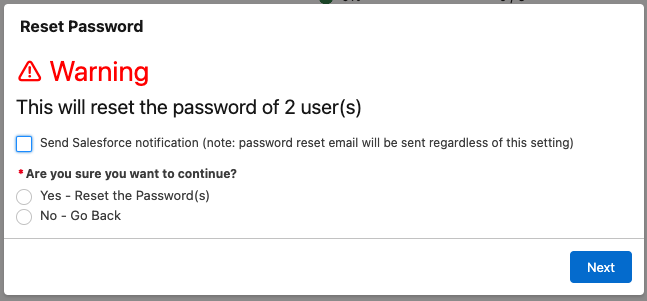
This flow is designed to be used on the ‘Agent Summary’ tab of Omni Supervisor, and expects a list of User record Ids to be passed in (to the input variable ‘ids’ – this is done by default from Omni Supervisor). This will show the above screen – where you can choose to send a notification to the affected Users – choosing to send the notification will result in the users getting a Salesforce notification (bell icon), informing them that their password has been reset. They will also get the standard password reset email (whether you select the checkbox or not).
Note – this Flow is set to ‘Run as System’ as it is calling Apex, and the ‘system.resetPassword()’ function.
Required Updates
- Add this action to the appropriate ‘Supervisor Configurations’ (or create one) that you want this to appear for.
- Ensure you have a ‘Custom Notification’ in the Setup screens which is active, and applies for at least Desktop
- Ensure the user has access to the ‘ResetUserPassword’ Apex Class (via Permission set or Profile)
Optional Updates
None
Update Capacity
Description:
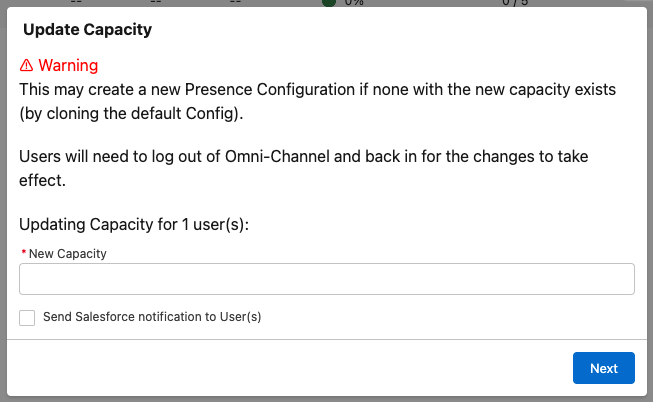
This flow is designed to be used on the ‘Service Reps’ tab of Omni-Supervisor, and expects a list of User record Ids to be passed in (to the input variable ‘ids’ – this is done by default from Omni-Supervisor). This will show the above screen – where you can enter the new capacity to use for the selected user(s).
This will update the capacity on the
Required Updates
- Add this action to the appropriate ‘Supervisor Configurations’ (or create one) that you want this to appear for
- Ensure you have a ‘Custom Notification’ in the Setup screens which is active, and applies for at least Desktop
Optional Updates
- You can change this to create a Presence Configuration per agent – this creates a lot of overhead, but means that their capacity change can take effect right away and only affect them, rather than potentially lots of users.
(this one has been removed from the latest package – but simple to implement)
Send Notification
Description:
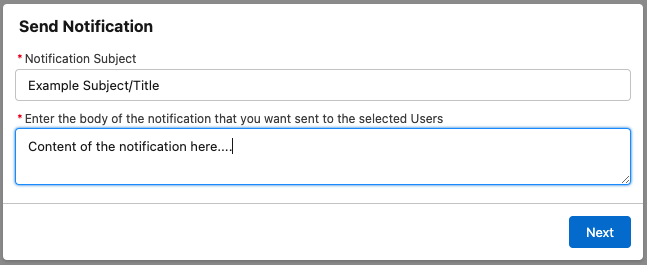
This flow is designed to be used on the ‘Agent Summary’ tab of Omni-Supervisor, and expects a list of User record Ids to be passed in (to the input variable ‘ids’ – this is done by default from Omni-Supervisor). This will show the above screen – where you can enter the subject and body of the notification you want to send the selected User(s).
Sending the notification will result in the users getting a Salesforce notification (bell icon), with the entered values. Clicking on this notification will take them to their ‘Home’ screen
Required Updates
- Add this action to the appropriate ‘Supervisor Configurations’ (or create one) that you want this to appear for.
- Ensure you have a ‘Custom Notification’ in the Setup screens which is active, and applies for both Desktop and Mobile (for the checkbox to send a notification to work)
Optional Updates
- You can copy/clone this Flow to send a message in your appropriate messaging platform (e.g. Slack, Teams or SMS) or to send an Email, using the various Flow actions available (either OOB, or via install).
- You can update the navigation from the ‘Send Navigation’ action to go to a different location as appropriate for you (but a navigation target of some sort must be defined).
Reassign All
Description:
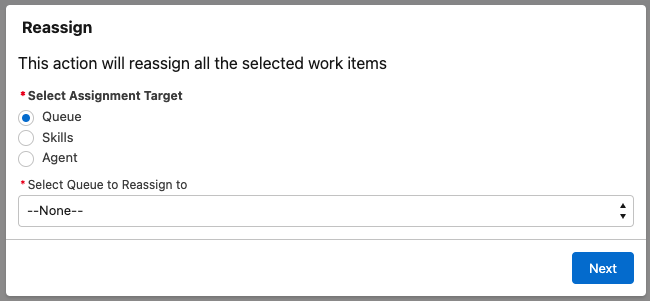
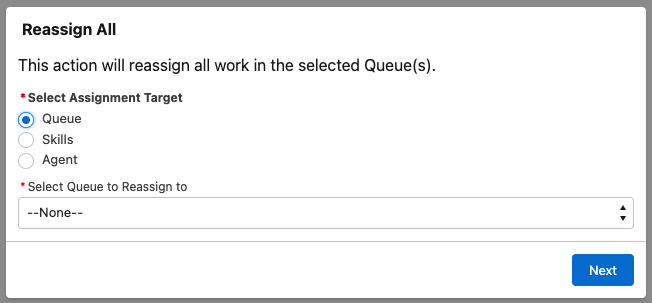
This flow is designed to be used on the ‘Queues Backlog’ tab of Omni-Supervisor, and expects a list of Queue (Group) record Ids to be passed in (to the input variable ‘ids’ – this is done by default from Omni-Supervisor). This will show the above screen – where you can select the appropriate Queue or User you want to assign all of the work in the selected Queue(s) to. Today, this only supports Queues, Skills and Agents.
Required Updates
- Each of the Route Work actions need to be updated for your Org – select the appropriate channel and routing configuration (where appropriate) to a valid value.
- For any other types of work you have in your org, you will need to add another ‘Collection Filter’ element to filter for that work, and loop through it.
Optional Updates
None
Reassign
Description:
This flow is designed to be used on any of the tabs in Omni-Supervisor that lists work – such as the Skills Backlog, or any of the sub-tabs of each page. The Flow expects a list of record Ids to be passed in (to the input variable ‘ids’ – this is done by default from Omni-Supervisor) – these could be of many different types. This will show the above screen – where you can select the appropriate Queue, Skills or User you want to assign all of the selected work items to.
Warnings
- Reassigning work that is currently assigned directly to an agent to a Queue will fail – workaround is to assign to a skill first, before assigning to the queue (can be added to the Flow)
- Using this action on the ‘Assigned Work’ page may have unexpected consequences – as that work is currently with an agent, and will be re-routed while they are still working on it, potentially leading to multiple people working on the same work item.
Required Updates
- Each of the Route Work actions need to be updated for your Org – select the appropriate channel and routing configuration (where appropriate) to a valid value.
- For any other types of work you have in your org, you will need to add another ‘Collection Filter’ element to filter for that work, and loop through it.
Optional Updates
Assign to Me
Description:
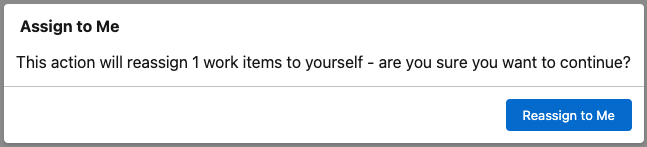
This flow is designed to be used on any of the tabs in Omni-Supervisor that lists work – such as the Skills Backlog, or any of the sub-tabs of each page. The Flow expects a list of record Ids to be passed in (to the input variable ‘ids’ – this is done by default from Omni-Supervisor) – these could be of many different types. This will show the above screen – where you can select the appropriate Queue or User you want to assign all of the selected work items to. Today, this only supports Queues and Agents, due to limitations with the setup of dynamically adding skills in Flow – it is on the near term roadmap to resolve this short-coming.
This is the same as the Reassign Flow above, but a faster way to assign to yourself if you want to quickly grab a work item out of the backlog.
Warning – using this action on the ‘Assigned Work’ page may have unexpected consequences – as that work is currently with an agent, and will be re-routed while they are still working on it, potentially leading to multiple people working on the same work item.
Required Updates
- Each of the Route Work actions need to be updated for your Org – select the appropriate routing configuration to a valid value.
- For any other types of work you have in your org, you will need to add another ‘Collection Filter’ element to filter for that work, and loop through it.
Optional Updates
None
