Tag Archive for: external services

Agentforce and External Services: A No-Code API Integration Guide

As a Salesforce administrator, you’re always looking for ways to make your org smarter and more efficient. Agentforce has already transformed how you handle sales and service inquiries, but what if your AI agents could access external information from any API to add agentic automation to any task? And what if you could set this up without writing a single line of code?

In this guide, I’ll walk you through how to integrate a mock credit check API with Agentforce using External Services. While we’re using a simulated credit service for this example (no real credit checks are performed), the integration process is the same as how you would connect to any external API that your company already uses. Even better, you can set this up on your own at no cost to follow along.
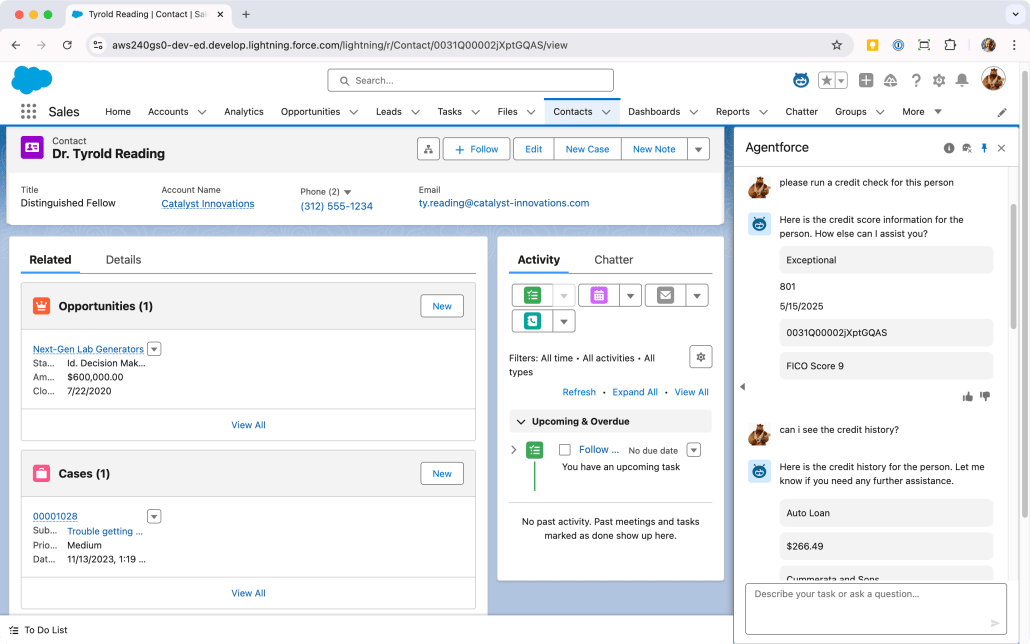
Screenshot of a Credit Score Agent

What We’re Building: Simulating an AI-Powered Credit Assistant

Before diving into the how-to, let’s clarify what we’ll be covering:

  • An Agentforce Topic configuration that demonstrates how to connect to external APIs
  • Supporting configurations of the Salesforce Platform that enable connectivity
  • A realistic simulation of pulling credit information using a customer’s unique identifier
  • All of this without writing custom code, using the same process you’d follow with real APIs!

The Magic Behind It: External Services + Agent Actions

The secret to this integration is combining two powerful Salesforce features:

  1. External Services allow you to connect to external APIs without code,
  2. Agentforce Agent Actions enables AI agents to use those external API capabilities.

When combined, these features let your AI agents access and use external assets just like a human agent or Flow automation would, but with better ease-of-use powered by natural language. Whether connecting to our mock credit API or your organization’s actual financial back-ends, fulfillment systems, or third-party APIs, the process remains the same.

Step-by-Step Setup

Step 1: Set Up a Mock API

For this demonstration, we’ll use a free mock API service called Beeceptor. This simulates how a real API would work without needing actual financial data:

  1. Download the OpenAPI spec from this GitHub gist. If you’re familiar with GitHub, you’ll note the option to download all three files at once. (We’ll need the other two for a later step.)
  2. Go to Beeceptor.com and create a free account.
  3. Use this option to create a mock server from the OpenAPI spec. You’ll upload the file you downloaded, then click the primary button to start the generation process.
  4. Click the button that appears at the end of the import process to navigate to the details of the new endpoint. If you created a free account, you can also navigate to Your Endpoints in the dropdown at the upper right (showing your name). Either way, you’ll want to drill into the details of the mock server.
  5. Next, we’ll create intelligent mocking rules to simulate realistic responses. Click Mocking Rules, then click Create New Rule to begin. We’ll need one rule for each method in our mock API: GetCreditScore and GetCreditHistory. Match the configuration for each method with the screenshot below. Note that we’ll make clever use of Beeceptor’s features to generate realistic results, so you’ll need this syntax for the Response body of the credit score, and this syntax for the Response body of the credit history. Copy the syntax from GitHub to save yourself time and hassle.
Mocking Rule for Get Credit Score API method
Mocking Rule for Get Credit History API method

Step 2: Connect Your API to Salesforce with External Services

Now, we’ll connect Salesforce to the mock API. To do this, we need a Named Credential to hold the URL, and an External Credential to capture the authentication needed to access this URL. (The two are linked.) We’ll keep this simple by using the No Authentication option, since no authentication is actually required to use the Beeceptor endpoint. Please note that Beeceptor will only accept a limited amount of requests per day without a paid account.

  1. In Setup, go to Security > Named Credentials
  2. Click the External Credentials subtab and click New.
  3. Fill in the details and click Save:
  • Label: No Auth for Credit Check
  • Name: no_auth_for_credit_check
  • Authentication Protocol: No Authentication
  1. Scroll down to Principals and click New:
  2. Fill in no_auth as the Parameter Name and click Save.
External Credential for mock API (no authentication)

Since Trust is Salesforce’s #1 value, the Named Credential subsystem also requires explicit permissions granted to users to make callouts using a given credential. This is represented by the Principal on the External Credential, and we’ll link it to the user who will actually be using the Agent. The Principal holds information like a password or API key, though there’s no such sensitive values to worry about in this example.

With that understanding, let’s grant ourselves access to the new Principal.

  1. In Setup, go to Users > Permission Sets.
  2. Locate a Permission Set already assigned to your user, or create a new one. Click into it, then scroll down to External Credential Principal Access and click that link.
  3. You’ll be looking at a list of Principals that the users with this Permission Set can use in a callout. There may be no items in this list; either way, click Edit so we can add the new Principal.
  4. The list on the left-hand side will contain all the External Credential Principals in the org. Find the one we just created (no_auth_for_credit_check - no_auth) and click the right arrow under Add to add it to the list. (Refer to the screenshot below for guidance.) Click Save.
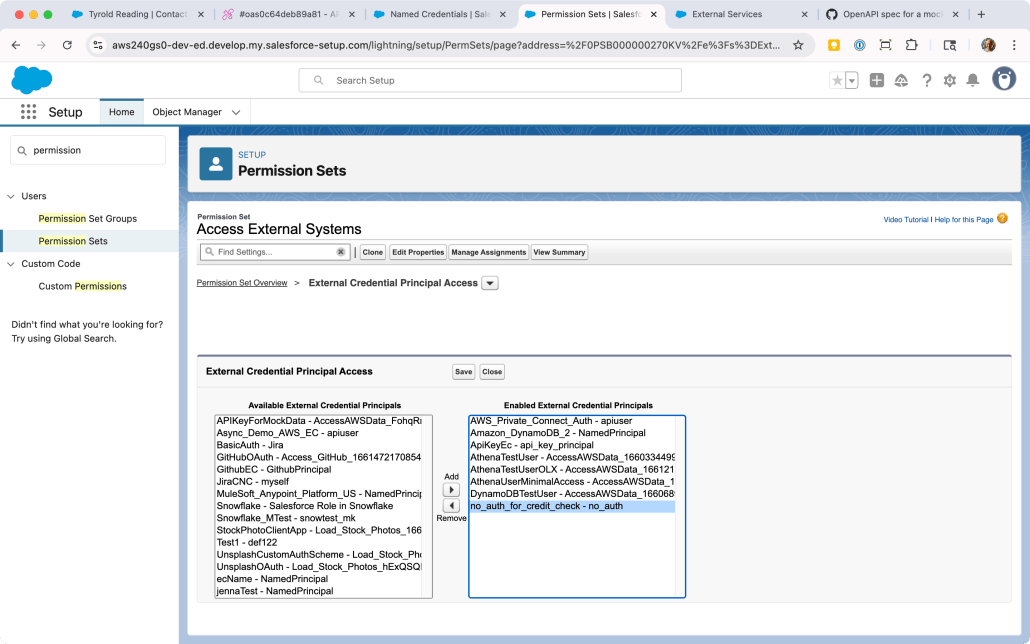
Adding External Credential Principal to Permission Set

To recap, what we’ve done is allow one or more users to make a callout using this credential. This is similar to how you need to grant access to Objects, Reports, Apex Classes, and other constructs in Salesforce.

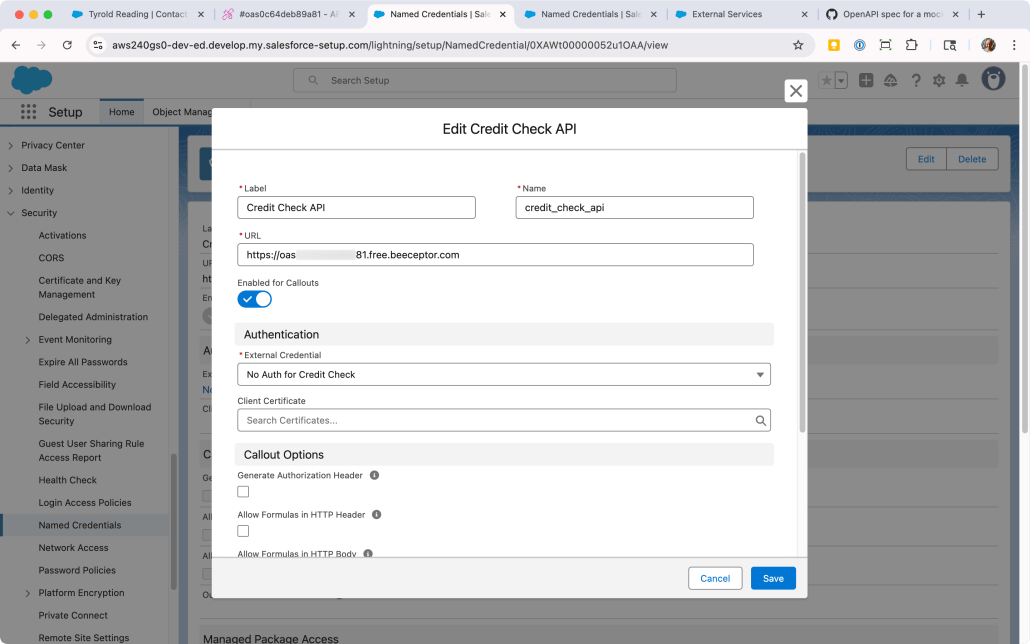
You may have noticed we didn’t capture the URL in Salesforce yet. Let’s do that now by creating the Named Credential.

  1. In Setup, go to Security > Named Credentials
  2. On the Named Credentials subtab, click New.
  3. Fill in the details and click Save:
  • Label: Credit Check API
  • Name: credit_check_api
  • URL: Paste in the URL of the mock API from Beeceptor.
  1. Scroll down to Principals and click New:
  2. Fill in no_auth as the Parameter Name and click Save.
Named Credential for mock API

Finally! We now have the Named Credential configured with both the correct URL and the correct authentication options, and we’ve granted ourselves access to use it. With that in place, we can register the mock API as an External Service. This will enable us to use the API methods as Agent Actions.

  1. In Setup, go to Integrations > External Services
  2. Click Add an External Service
  3. Choose From OpenAPI Specification and click Next.
  4. Enter CreditAPI as the External Service Name and use the following as the Description: Returns the credit score and related information for a consumer identified by their National ID Number.
  5. Under Service Schema, choose “Upload from local” and upload the OpenAPI specification you downloaded from GitHub (mock-openapi-spec.json).
  6. Under Select a Named Credential, locate the credit_check_api credential you created previously.
  7. Click Save & Next.
  8. Click the checkbox next to the Operation column to multi-select both methods from the API. Click Next.
  9. Review the new service and click Finish. You’ll see it added to the list of External Services.

Step 3: Add Custom Fields to the Contact Object

To make our scenario more realistic, we’ll add a custom fields to store the simulated credit information:

  1. In Setup, go to Object Manager > Contact
  2. Click Fields & Relationships > New
  3. Create a field with the Label of National ID Number (Text, 20 characters).
  4. Optionally, you can add it to the Page Layout or Lightning page.

For more on adding custom fields to objects, refer to this section of Salesforce Help. Technically, you can get the External Service and Agent to work without it.

Step 4: Create Agent Actions in Agentforce

Now, let’s make these API operations available to our AI agent:

  1. In Setup, type Agentforce into the Quick Find and click Agentforce Assets.
  2. Click on the Actions subtab and then New Agent Action.
  3. Fill in the details for the first action and click Next:
  • Reference Action Type: API
  • Reference Action Category: External Services
  • Reference Action: Select Get Credit Score from the dropdown
  • Agent Action Label: Get Credit Score
  • Agent Action API Name: Get_Credit_Score
  1. Enter Getting credit score in the Loading Text
  2. Under the first Output, check the checkbox for Show in conversation.
  3. Click Finish
  4. Repeat steps 3-5 for a second action, with the following differences:
  • Reference Action: Select Get Credit History from the dropdown
  • Agent Action Label: Get Credit History
  • Agent Action API Name: Get_Credit_History
  • Loading text: Getting credit history
Creating an Agent Action backed by an Action rendered from an External Service

Step 5: Create a Topic for Credit Information

Now, you’ll create a topic that uses these actions. A complete description of Agentforce is beyond the scope of this post, so here’s some resources to refer to if you’re still getting familiar with Agent configuration:

Since you’ve built the Agent Actions in the steps above, add both of them to a Topic just like any other Actions.

Topic configuration for credit check

The description of the Actions is pre-populated from the API spec, so most of the Topic configuration amounts to instructing Agentforce to use these Actions when the user enters input like run a credit check.

Topic configuration showing credit check actions

Step 6: Test Your Integration

Time to see your new API integration in action:

  1. Navigate to a Contact record in your Salesforce org
  2. Make sure the Contact has a value in the National ID Number field (add something like “123-45-6789” if it’s empty)
  3. Click the Agentforce icon in the top right corner of the page to open the Agent UI in the side panel
  4. Type a natural language request like…
  • “Run a credit check for this person”
  • “What’s this person’s credit score?”
  • “Check the credit history for this customer”

Sit back and watch as the Agent recognizes the intent and activates your Credit Check topic, retrieves the National ID when possible, calls the mock API to get simulated credit information, and presents the results in a conversational format. Whew!

Try different types of requests and see how the Agent handles them. You can also test what happens when you don’t have a National ID on the Contact; the Agent should ask you to provide one.

The Results: Understanding the Power of API Integration

After setting up our mock API integration, you’ve learned how your AI agents can:

  • Retrieve and use external API assets in real-time
  • Process that data intelligently to provide relevant insights
  • Maintain context between the external data and your Salesforce records
  • Deliver this information conversationally to users

All of this happens without any custom code or expensive development resources. The only thing left to do is figure out what to do with all the time you’ve saved. 🙂

Have you integrated external APIs with Agentforce? Share your experience in the comments below!

Invoke a MuleSoft RPA Process from Flow using External Services

MuleSoft Robotic Process Automation (RPA) gives you the power to automate business processes that usually require human input and interact with systems that don’t have an API, extending the reach of Salesforce’s process automation capabilities by integrating these RPA processes into flows in Salesforce as of Winter ’23!

Use MuleSoft RPA Manager to publish REST APIs for your RPA processes to Anypoint Exchange, which you can then register as External Services in Salesforce and invoke from low-code tools like Flow Builder.

This post describes the configuration steps necessary to invoke a MuleSoft RPA Process in Flow Builder. It assumes familiarity with MuleSoft RPA, Named Credentials and External Credentials, Permission Sets, External Services, and Flow Builder.

Step 0: MuleSoft RPA Pre-requisites

  • Configure the connection between MuleSoft Anypoint platform and your org to import MuleSoft RPA APIs.
    • In MuleSoft RPA Manager, publish the RPA process as a REST API to Anypoint Exchange.
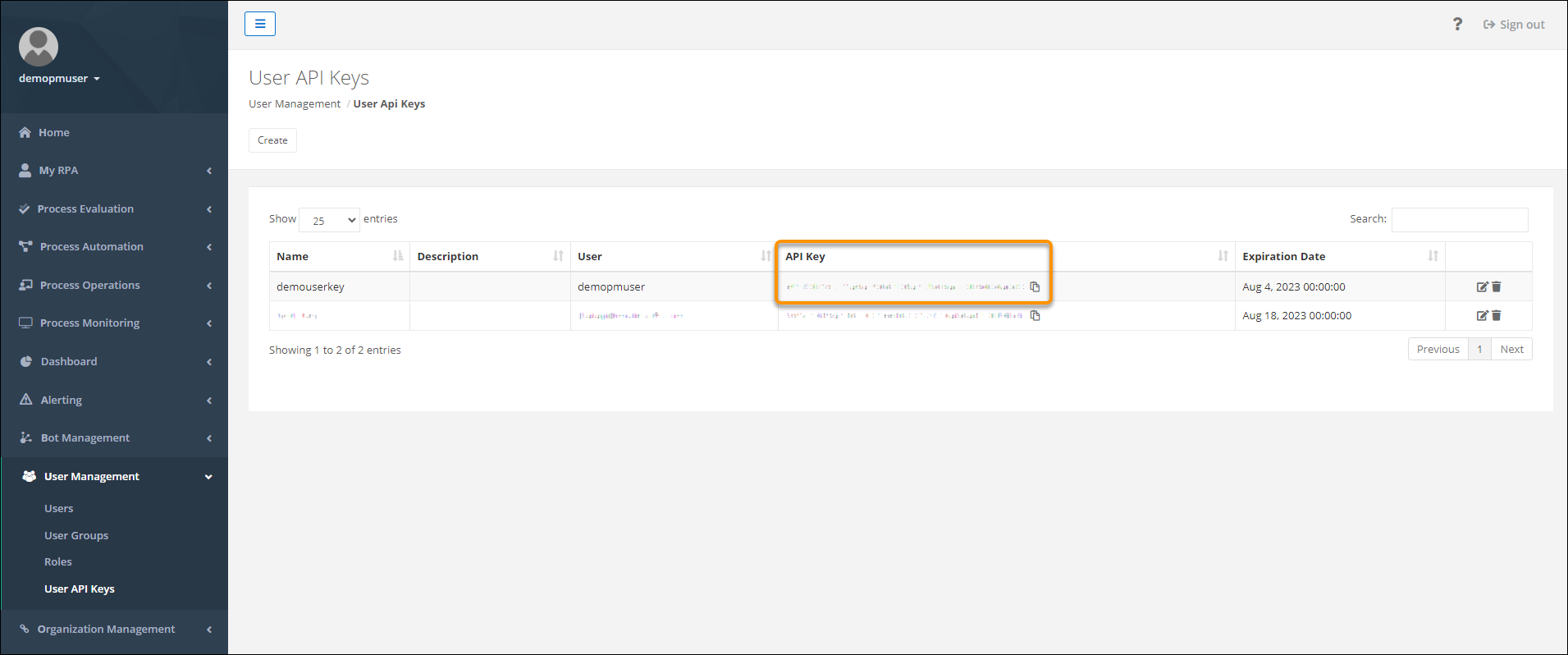
    • In MuleSoft RPA Manager, copy the API key from the User Management | User API Keys page.

MuleSoft RPA Manager: User Management page

Steps 1-3: Connect Salesforce to MuleSoft Anypoint Platform

These steps create the initial connection between MuleSoft Anypoint platform and your org:

  • Step 1: Create a Connected App in MuleSoft Anypoint PlatformA connected app in MuleSoft Anypoint platform allows Salesforce to call MuleSoft APIs.
  • Step 2: Create an Authentication ProviderUse the ID and the secret from your MuleSoft Anypoint Platform connected app to create an authentication provider.
  • Step 2b: Update Your MuleSoft Anypoint Platform Connected App – Use the Salesforce authentication provider callback URL to update your MuleSoft Anypoint Platform connected app.
  • Step 3: Create a Legacy Named Credential (Retrieve APIs) – Create a legacy named credential to access/authenticate into your MuleSoft Anypoint Platform connected app from Salesforce and retrieve the APIs published to MuleSoft Anypoint Exchange. The legacy named credential stores the URL for MuleSoft Anypoint Platform. External Services uses the legacy named credential when listing the MuleSoft APIs available for import.

Note: the ability to create a ‘Legacy’ named credential is still supported, although it will be discontinued in a future release, at which point, this portion of the instructions will be updated to reflect the new capability.

Salesforce: Named Credentials Home Page

Step 4: Create a Named Credential (Runtime) and External Credential

Note: MuleSoft RPA authenticates clients invoking RPA processes through API keys. The Salesforce Winter ’23 release includes new functionality in Named Credentials and External Credentials that supports this type of authentication.

  • Create an external credential, permission set mapping and custom header
    • Overview
      • Create a second named credential that stores the endpoint for MuleSoft RPA Manager. External Services uses the second named credential when invoking “runtime” the MuleSoft RPA process in a flow.
    • External credential:
      • Before creating a second named credential, first create an external credential.
        • Create an external credential to capture the API key and other authentication details.
        • Then create a named credential to store the actual endpoint.
        • This allows for multiple endpoints to be addressed with the same authentication configuration.
      • After entering the details for the external credential, click Save. You’re taken to the Named Credentials screen. Now you need to create a permission set mapping for this new external credential. This mapping ensures that only the correct users get access to these credentials.
    • Permission set mappings:
      • Click External Credential and select the external credential you created.
      • Scroll to Permission Sets Mappings so you can link the external credential to a user’s permission set.
      • Click New to create a permission set mapping for this external credential using the details below for an external credential that uses ‘Custom’ as the authentication protocol.
    • Custom headers:
      • Lastly, create a custom header for this external credential using the the details below as guidance for how to create a custom header.

Example
Salesforce: External Credentials Detail Page

  • Create a named credential
    • Now that you have an external credential, create a named credential and then link it to the external credential you just created in the previous step. As mentioned before, this second named credential stores the endpoint for MuleSoft RPA Manager. External Services uses the second named credential when invoking “runtime” the MuleSoft RPA process in a flow. Use the details below for how to create a named credential.

Example

Salesforce: New Named Credential Window

  • Verify that the external credential and the named credential you just created are linked
    • From the Named Credentials page, click External Credentials.
    • Click the name of the external credential from this list and confirm that the named credential you just created appears in the Related Named Credentials area shown in the example below.
    • As a reminder:
      • The Named Credential stores the MuleSoft RPA Endpoint
      • The External Credential stores the MuleSoft RPA API Key + Authentication details

Example
Salesforce: External Credentials Detail Page

Step 5: Register the MuleSoft RPA API as an External Service

As you are configuring the external service, recall that you created two named credentials.

  • Legacy named credential (Retrieve APIs) – this named credential stores the MuleSoft Anypoint platform URL and is used to retrieve the APIs published to MuleSoft Anypoint Exchange. Use this named credential in the “Select a MuleSoft Anypoint Platform Account” screen.

Example

  • Named credential (Runtime) – this named credential stores the MuleSoft RPA Manager URL and is used when invoking “runtime” the MuleSoft RPA process in a flow. Use this named credential in the “Configure your MuleSoft Anypoint Platform Service” screen.

Example

Example

Step 6: Invoke a MuleSoft RPA Process in a Flow

  • Now you are ready to start and check the status of the MuleSoft RPA process from a flow.
  • If you follow the steps outlined in the help docs Invoke a MuleSoft RPA Process in a Flow, listed below are a few additional tips to help guide you through the flow configuration.

Create Resource for RPA Process Input Variables

Tip: In step 2, when creating a New Resource to store the input variables for the RPA process, you can obtain the External Service Name and Apex Class Name from the External Services Detail Page to help configure the New Resource

Salesforce: External Services Detail Page

Assign Values to RPA Process Input Variables

Tip: In step 3, you can obtain the information about each variable/input parameter that needs to be defined in the above Apex class from the External Services Detail Page as well as the OpenAPI specification (a few examples shown below).

RPA Process OpenAPI Specification

OperationId: startProcess > ProcessExecutionWithExecutionId

ProcessExecutionWithExecutionId > ProcessExecution

ProcessExecution > inputArguments

Authorizing Salesforce access to Slack

Oftentimes the biggest obstacle to integrating Salesforce with an External Service is the first step: configuring secure designated access to that service. Below are step-by-step instructions on using OAuth 2.0 to grant Salesforce the ability to post a message in Slack:

[Slack] App & App Credentials

Tell Slack about the Salesforce app that will need access your Slack workspace, and that it needs permissions to write messages.

1.Log into Slack as the administrator of the workspace you want to integrate with Salesforce.

2. In the Apps page, click on “App Directory” in the upper right hand corner.

3. In the App Directory, click on “Build” in the upper right hand corner, which should take you to api.slack.com.

4. Click on “Start Building”.

5. In the “Create a Slack App” modal:

a. App Name: enter an app name

b. Development Slack Workspace: select the workspace you want to Salesforce to access

c. Click “Create App”

6. Modal will close, and you will see the Settings -> Basic Information page for your newly configured app. In the “Building Apps for Slack” section, under “Add features and functionality”, click “Permissions”.

7. In the Features -> OAuth & Permissions page, scroll down to the “Scopes” section. For Bot Token Scopes, click “Add an OAuth Scope”, and choose “chat:write”.

8. Scroll up to the “OAuth Tokens & Redirect URLs” section, and click “Install App to Workspace”.

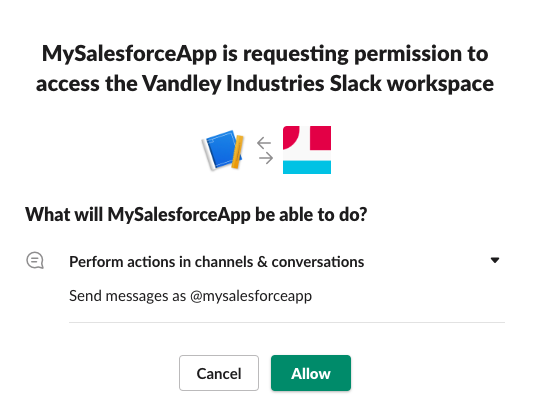
9. Click “Allow” to confirm you want this app to access your Slack workspace.

[Slack] Client ID and Secret

Retrieve the shared secret that Salesforce needs to use to access Slack:

10. In the Settings -> Basic Information page for your app in Slack, scroll down to the “App Credentials” section, and copy the values for the “Client ID” and “Client Secret” fields.

[Salesforce] Auth. Provider

Configure Salesforce to request access to Slack using the shared secret:

11. Log into Salesforce as an administrator for your org.

12. In the Setup -> Auth. Providers page, click “New” to configure a new auth. provider.

13. Configure the new Auth. Provider as follows:

a. Provider Type: Open ID Connect

b. Name: (choose a name for the Auth Provider)

c. URL Suffix: (choose a suffix to be used in client configuration URLs)

d. Consumer Key: (paste in the Client ID from step #10 above)

e. Consumer Secret: (paste in the Client Secret from step #10 above)

f. Authorize Endpoint URL: https://slack.com/oauth/v2/authorize

g. Token Endpoint URL: https://slack.com/api/oauth.v2.access

h. Default Scopes: chat:write

i. (Leave all other fields with their default values)

j. Click Save

[Salesforce] Callback URL -> [Slack] Redirect URL

Whitelist the Salesforce Salesforce Callback URL in Slack:

14. From Salesforce’s Setup -> Auth. Provider page, click to view the details of your newly configured Auth. Provider.

15. Scroll down to the “Salesforce Configuration” section, and copy the value from the “Callback URL” field.

16. In Slack, go back to the “Features -> OAuth & Permissions” page for the app from step #7 above.

17. In the “Redirect URLs” section, click “Add New Redirect URL”.

18. Paste in the Callback URL from step #15 above.

19. Click “Save URLs”.

[Salesforce] Named Credentials

Configure the Slack callout endpoint and authentication parameters.

20. Go back to Salesforce.

21. From the Setup -> Named Credentials page, click “New Named Credential”.

22. Configure the new Named Credential as follows:

a. Label: (choose a label for the Named Credential)

b. Name: (choose a name for the Named Credential)

c. URL: https://slack.com

d. Identity Type: Named Principal

e. Authentication Protocol: OAuth 2.0

f. Authentication Provider: (choose Auth. Provider you configured in step #13 above.

g. Scope: chat:write

h. Start Authentication Flow on Save: checked / selected

i. (Leave all other fields with their default values)

j. Click Save. The Authentication Flow will start.

k. Click “Allow”.

Extend the Power of Flow with External Services

Lightning Flow already empowers you to declaratively automate your business processes within Salesforce. But what if your business processes require integrations between Salesforce and other non-Salesforce services? Chances are that customer service agents who use Salesforce to track and resolve support cases would also need to access information from and/or submit changes to another backend system. Or perhaps you want a Flow to create a new record in Salesforce as well as post a message in Slack to notify the team. These are scenarios where you can leverage External Services to extend the ability of Flow to automate processes beyond Salesforce!

External Services provides a declarative way to access external business processes, whether they are proprietary APIs, public APIs, or other Salesforce APIs:

For any REST API that you want available as a callout from Lightning Flow, you just need to register the OpenAPI 2.0 specification for that API, so that it will be available as an action in Flow.

Configuring Flow to Integrate with an External Service

To support this integration, you just need to provide Salesforce with the following information:

  1. Named Credentials
    • Where to configure this: Setup -> Named Credentials
    • What these configurations tell Salesforce: Where is the external service being hosted (domain URL), and what credentials do we need to send for authentication?
  2. External Services:
    • Where to configure this: Setup -> External Services
    • What these configurations tell Salesforce: Where the OpenAPI 2.0 specification is located (relative to the domain URL of the Named Credential), and/or what the API specification is. The specification describes what API callouts Salesforce can make to the external service.
  3. Flow Action:
    • Where to configure this: Setup -> Flow
    • What these configurations tell Salesforce: Which action / callout you want to make to the external API, what input parameters you want to send, and what variable you want to use to store the response.

Example

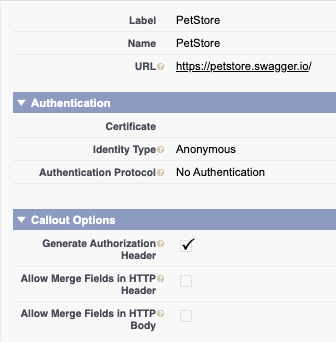
This example shows how to the register the OpenAPI 2.0 specification for the Swagger PetStore API, as well as configure a callout to the PetStore API in Flow:

Named Credential:

External Service:

Flow – Add “findPetsByStatus” action:

Flow – Configure Input Parameters and Store Response:

Learn More

Here are some more resources for you to learn more about External Services:

External Services Trailhead

Katie Kodes’ Tutorial