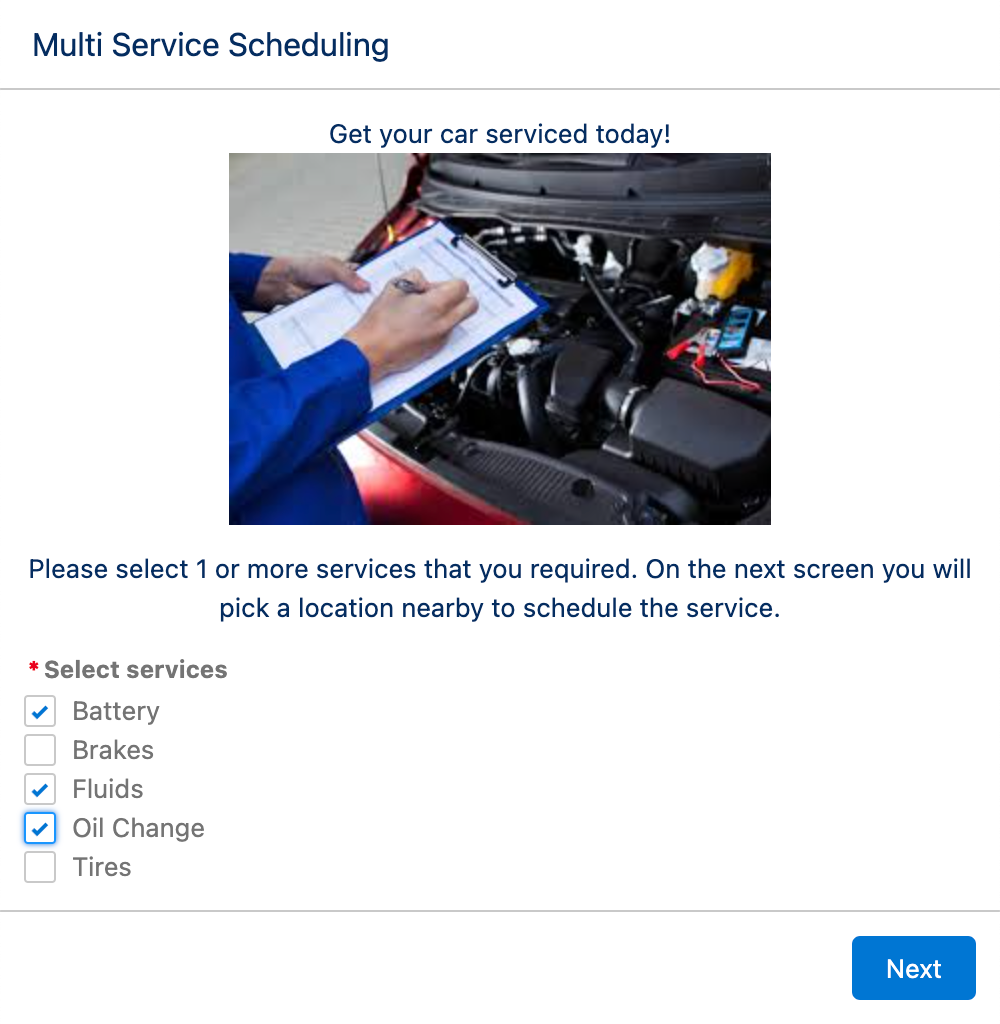
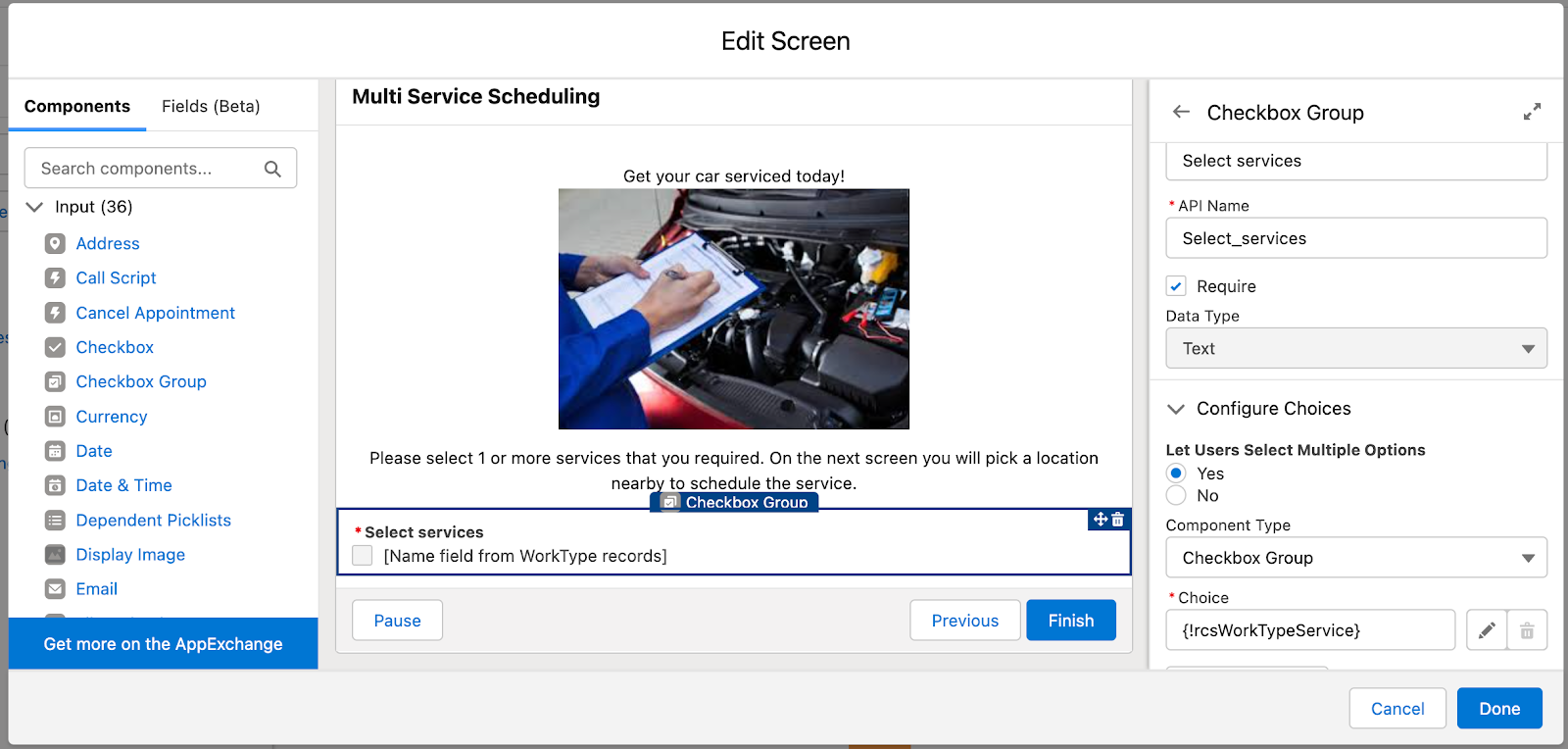
What if your business offers appointment booking for multiple services with a single appointment. For example, you offer auto services and allow customers to select from a menu of options, such as oil change, tire rotation, brake service and others. The customer may select 1 service or multiple services, and depending on the services selected, the duration of the appointment should be long enough enough to accommodate the selected services.
Above: Example of a flow screen prompting a user to select 1 or more auto services
What if you also had many store locations, and each store might offer a different menu of options. For example, the Wakefield store offers all services but the Reading store does not offer brake services.
With Salesforce Scheduler, you can accommodate this out of the box by creating many Work Type Groups to represent the combinations of services.
Consider the following table of Work Type Groups with its limitless number of combinations
Services
Duration
Oil Change
30
Brakes
60
Tire Rotation
30
Wiper Service
15
Oil Change and Brakes
90
Brakes and Tire Rotation
90
Tire Rotation and Wiper Service
45
Oil Change and Wiper Service
45
Brakes and Wiper Blades
75
…and many more combinations
But, this is probably not the most practical way to offer a menu of services. This document describes an alternative approach which includes 2 custom fields and a small bit of Apex code. Check out the details below.
Solution Overview
This solution allows you to run the Scheduler flows with a few minor configurations and an Apex @invocableMethod, allowing the user to select the desired services and perform precision scheduling without all of the permutations of work type groups.
The solution consists of custom fields on the Work Type object and Service Appointment object, an Apex Class, Work Type Group and Work Type data organized in a specific way and a configured flow. The flow makes use of the FilterByResourceIds parameter to ensure only those resources who have the skills needed are returned.
Objects
Work Type Groups
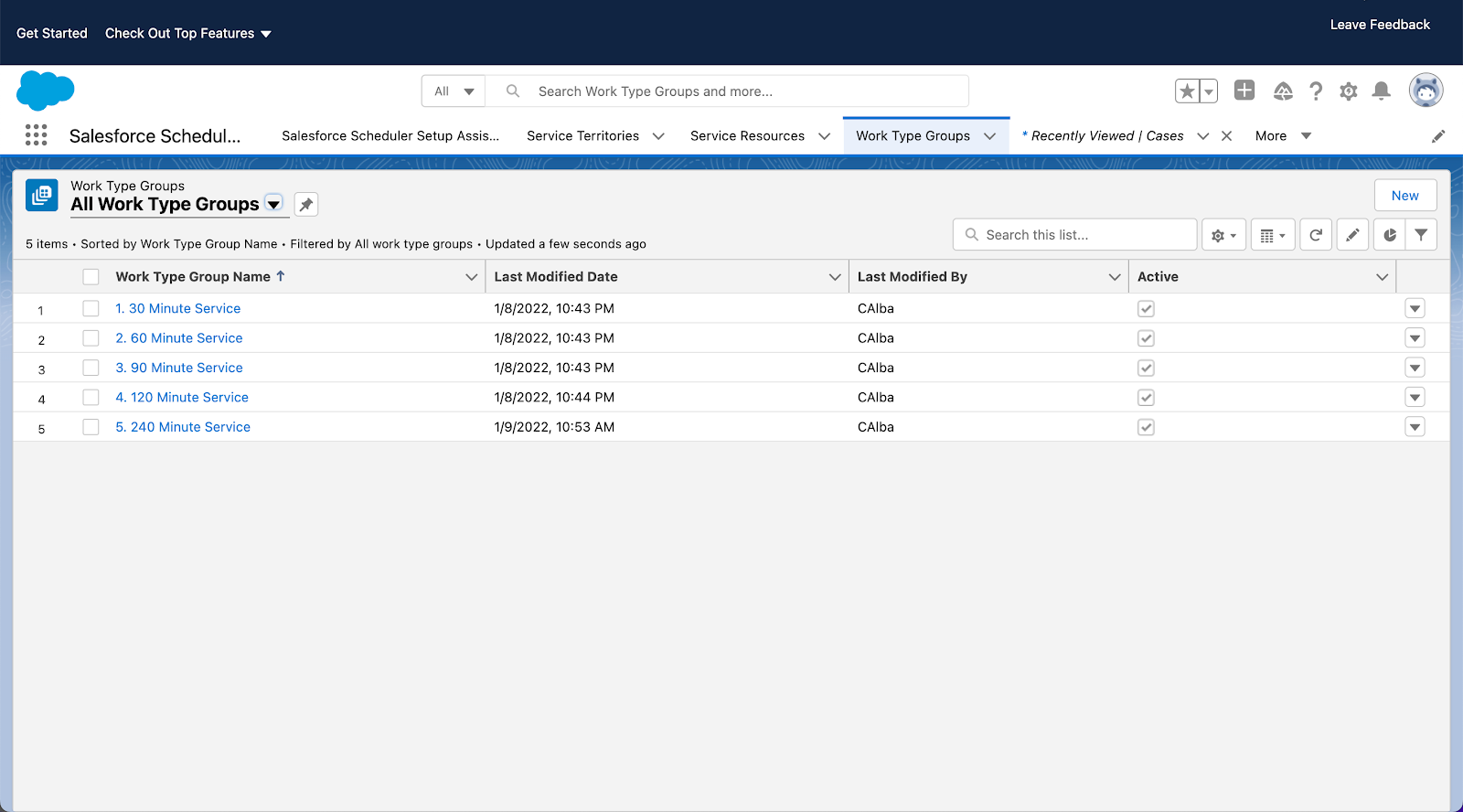
Create Work Type Groups only to reflect the duration of the services required. For example, Work Type Groups called 30 Minutes, 45 Minutes, 60 Minutes, 90 Minutes, etc. These are tied to Work Types with the respective durations.
Skills
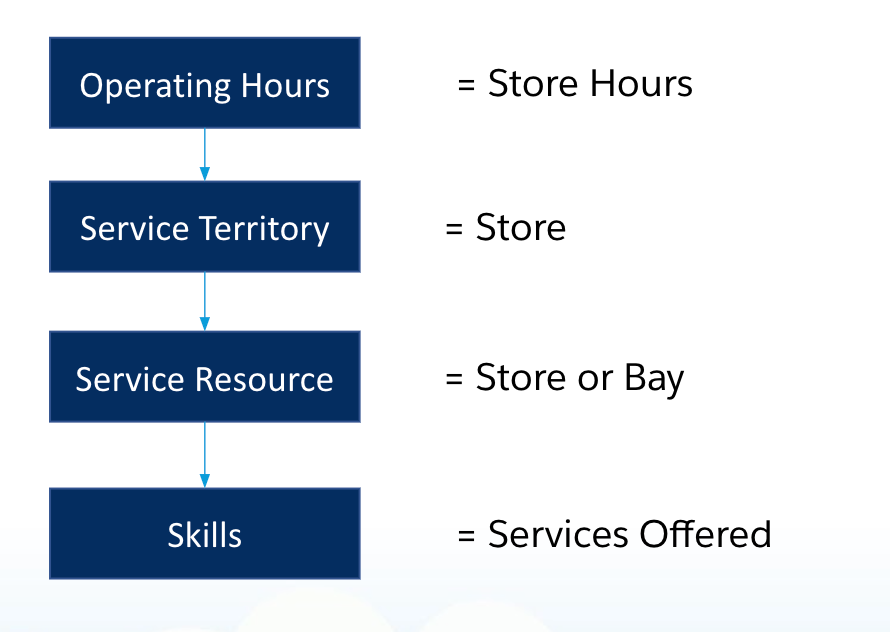
Create Skills for each service required. For example, create an Oil Change Skill, a Brake Service Skill, a Tire Rotation Skill and so on.
Service Resources and Service Territories
Create Service Territories to represent the store locations and create 1 resource for each service lane or bay present in the store. Assign skills to service resources to define the services offered. For example, if the store offers oil changes and brake service, but no other services, then assign only those 2 skills to the service resources associated with the store.
Service Appointment
Add a custom text (255) field called Selected Services. This will store the id’s of the work types that were selected by the user. This can be used by a rescheduling flow (not described in this document).
Work Types
Add a custom picklist field called Service Type, with values of Service and Scheduling.
Create 2 types of Work Types:
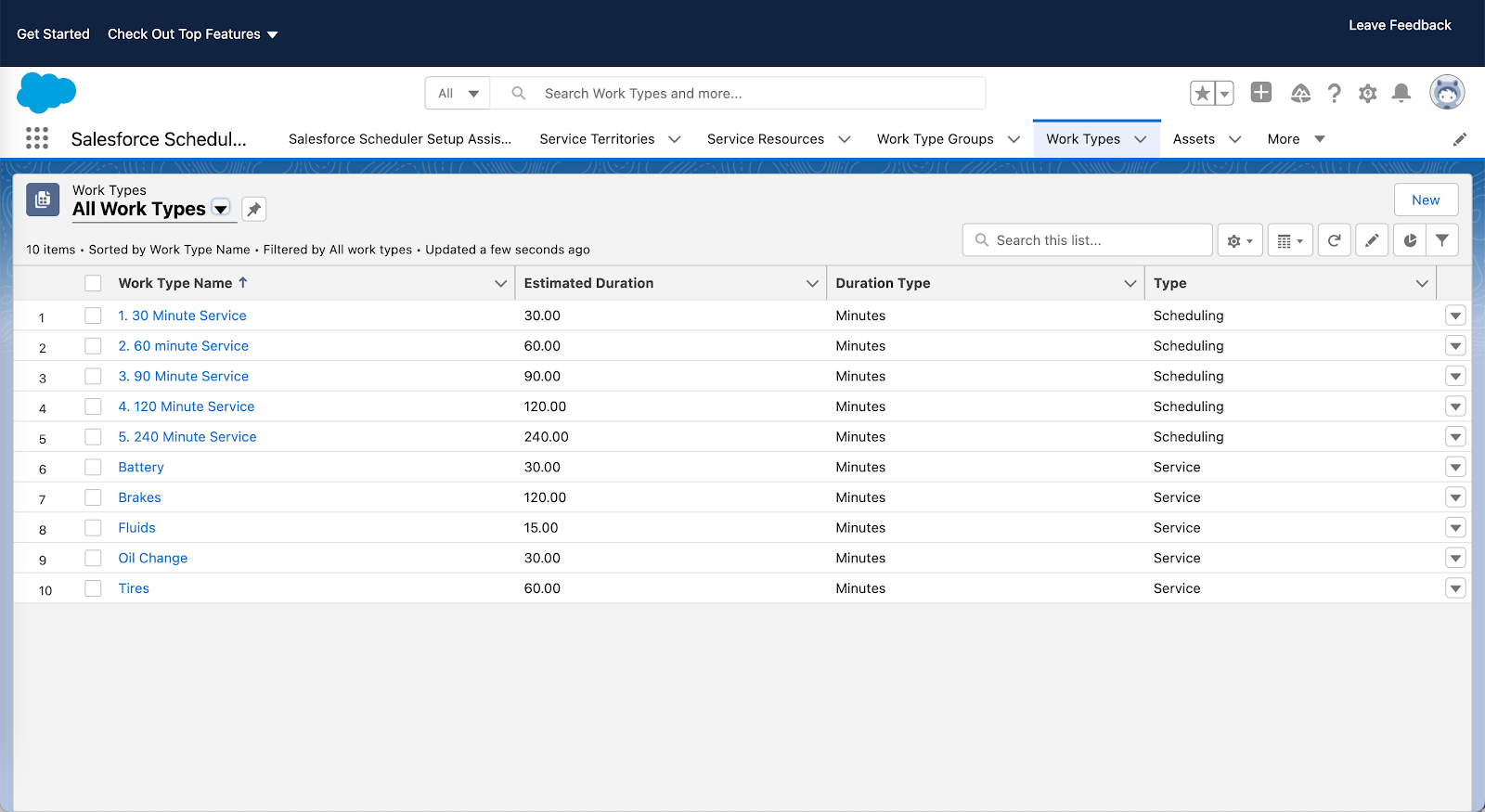
Service Work Types
These are work types that represent each service, the skill required and the expected duration. For example,
WT Name = Oil Change, Skill Required = Oil Change, Duration = 30 Minutes, Service Type = Service
WT Name = Brakes, Skill Required = Brake Service, Duration = 60 Minutes, Service Type = Service
These work types are not assigned to any work types groups or service territory work types.
Scheduling Work Types
These are work types that represent a total duration, have no skills required and the expected duration. For example,
WT Name = 30 Minute Service, Duration = 30 Minutes, Service Type = Scheduling
WT Name = 60 Minute Service, Duration = 60 Minutes, Service Type = Scheduling
These work types are assigned to Work Type Groups (see screenshot below) and they are assigned to service territory work types.
Pic above: Work types for Service (with Skills required) and work types for Scheduling (no Skills required)
Pic Above: Work Type Groups just for Scheduling
Apex Class
An Apex class is used to determine the scheduling Work Type Group which is just large enough to cover the list of input Services. It accepts a list of Work Type ids and returns a Work Type Group id and a text field containing a comma separated list of Service Resource ids who have the skills required for the input Services.
The code for the apex class and a test class is contained in the package file at the end of this document.
Flow
Modify the Inbound New Guest Appointment flow to prompt for the services required (service work types), call the apex class and then present the list of time slots available.
Pic Above: Flow with new steps added to prompt for services and call the apex class.
Pic Above: New Screen which prompts for services. Select services is a picklist tied to a record choice set which selects only Work Types where Service Type = Service.
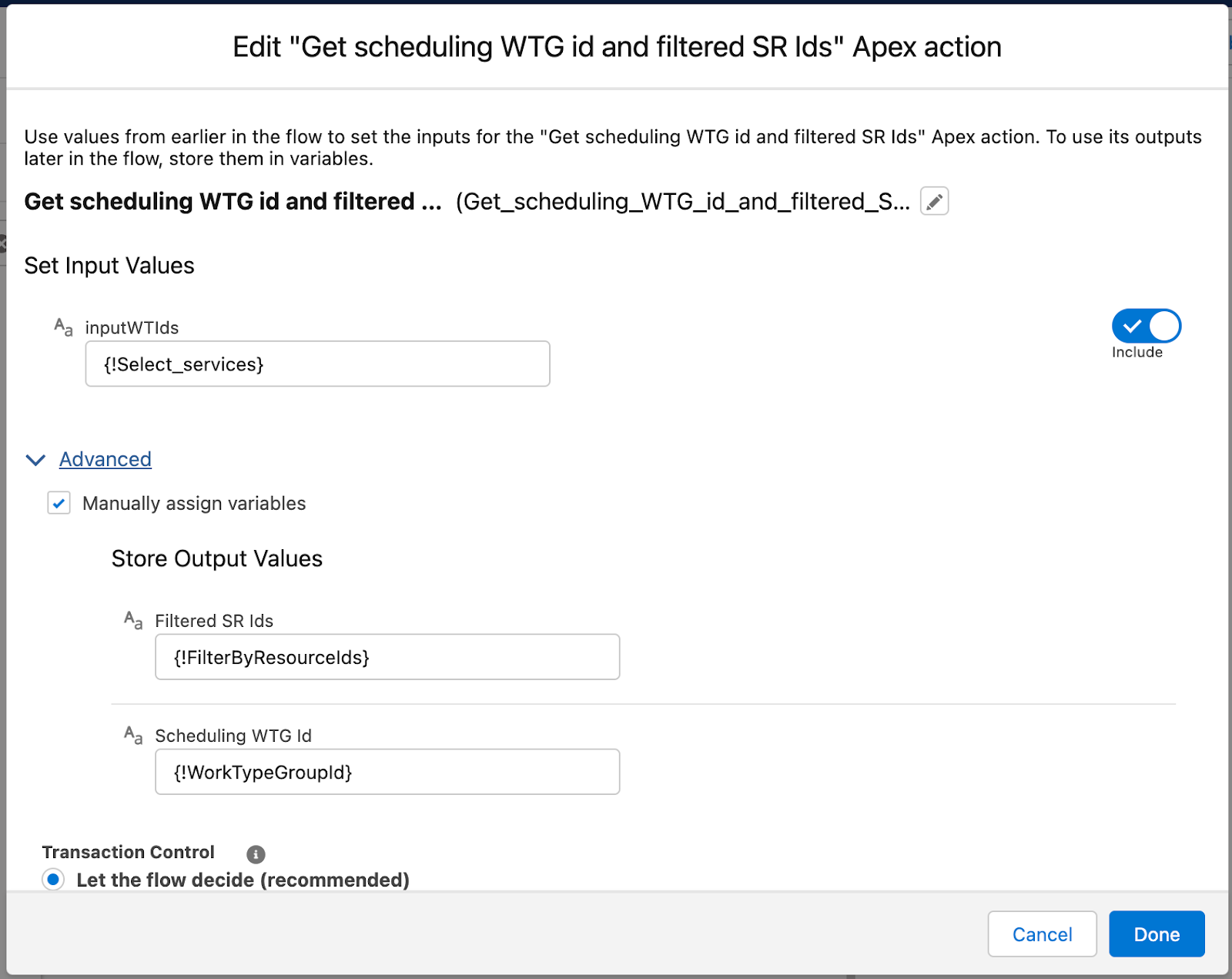
Call to Apex which returns the applicable work type group id with the duration large enough to accommodate the selected services. Also set the FilterByResourceIds field, which will be used in the select location and select time slots screens.
Video of it in action
Check out the short video below.
Package
Try it yourself in your own sandbox. The custom fields, Apex Class, Test Classes and an example of a configured Inbound New Guest Appointment flow are included in this repo.
Since FilterbyResourceIds is limited to 50 service resource ids, you should ensure that you pass in a service territory id to the Apex Method so as not to exceed this limit.
Modify line 24 of the Apex code to select the specific service territory selected by the user.
listST = [select id from serviceterritory where isactive = true];
Lines 50-56 contain code to limit the total number of service resource ids to a maximum of 50. If the limit of 50 changes in a future release, you should change this code to reflect the new limit.
Rescheduling Flow
A rescheduling flow is not included here. If rescheduling is part of your use case, use the Service Appointment custom field created in this package to retrieve the services selected by the user when the appointment was scheduled. Add the custom screen and call to the Apex method to retrieve the corresponding scheduling Work Type Group, similar to how the flow in the package has been configured.
https://unofficialsf.com/wp-content/uploads/2022/09/largeUCSF-300x133.png00Sunilhttps://unofficialsf.com/wp-content/uploads/2022/09/largeUCSF-300x133.pngSunil2022-05-24 21:34:002022-05-25 02:24:39From Chris Albanese and Chris Hartt – Scheduling 1 appointment with multiple work types
The use case is fairly straightforward, as a customer of a bank, I want to schedule an online meeting with my advisor and discuss my accounts. The technology the bank wants to use is MS Teams.
The technology usage behind this particular demo is to simply create a meeting in MS Teams via an API which returns a URL that parties can click on to launch Teams( either browser or desktop ) and have a meeting. There is a lot more that can be done, but this integration is to show the possibilities with the connection
Technology Utilized
Listened below are the main technologies and configurations used in the demo preparation.
Main SaaS Tech Stacks
Salesforce Scheduler
MS Teams Online Meeting
MS Graph Rest API’s
Demo Setup Technology
MS Azure Development Account – Needed to setup a MS Teams Environment
Salesforce Org
Postman – To easily test the setup and API’s
<optional>MS Visual Studio – Used to write and deploy code
Apex Classes
Invocable Methods setup to make available in Flows
Test Classes
Auth Provider Setup in Salesforce
Named Credentials
Salesforce Flows – To provide the screen navigation, call Azure to get the meeting, and update the appropriate records.
Demo Flow High Level
This section describes the general flow of the demo from start to finish when showing to the customer. This is a specific flow for the customer this demo was prepared for. You can tailor or make your own flow(s) for your customer.
Customer goes to the portal to schedule a meeting, leveraging the Salesforce Scheduler.
This demo has an authenticated flow, there is a person account associated with the demo.
Enter the required information from the screen
Click by previously scheduled service appointments or search for a banker.
Click Next
Click on a Work Type Group → Select the type => Click Next
Select Video Call
Enter a address → San Francisco → Select a branch
Choose a date in scheduler
The call to MS Teams is done at this point and a URL is returned to the “Additional Information” Section. Note, this could be put anywhere but for the purpose of the meeting we chose here.
Click on next and a new Service Appointment is created with the Meeting URL in a custom field that can be accessed to launch a teams meeting.
The integration behind the scene created a MS Team meeting valid link that can be clicked on to start a team meeting. This utilized the MS Graph API, OAuth/Open ID authentication/authorization, and Apex Callout to create and return the meeting.
Demo Details
This section will describe the setup needed to execute the demo. What is described is the particular flow used to validate and test the integration. The entire section for Postman is completely optional, but it is suggested to do this to validate and debug. In our case, it was invaluable in determining the exact headers to place into the API. In the initial development, Postman was first used outside of Salesforce to ensure the API format was correct and the authentication/auth was setup correctly in Azure.
Microsoft Azure Setup
The first piece that is needed is a Microsoft Developer Account to be able to setup a new Azure environment. We won’t go into the details here on all of the steps, the directions are straightforward. When it gets to the point of asking what features you want to add, make sure you add in the MS Teams option that will be available.
Specific API format for the Online Meeting API’s. Note: We are using Delegated API but the Application API could be used as well with more customer setup for permissions.
Setup Salesforce/Postman Application in Azure
The first thing needed is to setup a new custom application in Azure AD that will be used to generate the authentication and authorization needs for Salesforce connections and optionally Postman Connections. You can create two apps, or in my case, I just created one to handle both.
App Setup
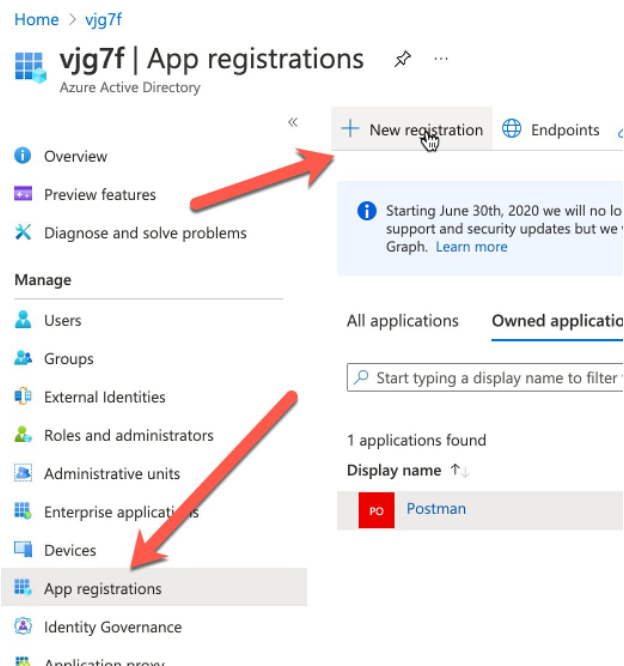
Create a new App from the App Registrations link along the left hand side and click on New Registration
Fill out the form and leave the defaults as they are. We will fill in multiple redirect URI in a later step.
API Permissions Setup
Click on the API Permissions from the left-hand side of the application you have created. (Click the application from the previous step)
Create the API Permissions needed for MS Teams Online Meetings. In addition, add a few extra permissions to ensure the token can be refreshed. The permissions can be found in the Graph API docs. We added a generic one for read and Mail.Read for testing purposes, they are not fully required. Once the permissions are added click on the “Grant Admin Context for … ”. The status will be red until this is done.
In this section we will create the client key and secret which will be used in the Postman and Salesforce integrations to authenticate into Azure and Teams.
Click on the Certificates & Secrets Menu item on the left hand side.
Click on New client secret
Enter a new description and the expiration of the secret. You can choose whatever you like or keep the default.
Copy the Secret Key Value for use later when setting up the authentication sections of Salesforce and Postman
The Secret ID is an Azure ID, it will not be used anywhere. The ID that is used is the Application(client) ID from the application you created. We will show this in detail later.
Authentication Setup
This section covers the Authentication Setup that will be needed. This section will be done when you are ready to setup either Salesforce and/or Postman to Authenticate and setup the redirect URI authorization from the client request. Additionally, the Endpoints needed for authorization and token endpoints locations are covered in this section. If this is the first time through the setup, you most likely won’t have the redirect URI’s available but for document cleanliness, we are keeping the Azure setup all in one section.
Click on the Authentication menu item on the left hand side.
Click on Add a Platform link to add a platform.
Click on Web Platform
Add the redirect URI from your application( the location of these URI’s from Salesforce and Postman will be shown later ).
The image below is an example where the Postman and Salesforce API’s have been added. In this case, 1 Postman and 2 Salesforce Demo Environments are part of this application.
The Endpoints needed for the configuration of the applications can be found on the overview section of the application you have configured. Click on the Endpoints link from the overview and the first two endpoints are used when configuring the authentication.
Salesforce Setup
This section describes the Salesforce Setup needed to access MS Teams. It is strongly advised to setup Postman first to validate and test the API as well as get familiar with the API before jumping into Apex coding setup. This section will consist of Authentication setup, the Named Credential, and the Apex code needed to create a Teams meeting and retrieve a URL. Additionally, this will provide the callback referenced in the Azure section which will be needed to complete the Authentication section in Azure.
Auth. Provider Setup
The first step is to create the Authorization Provider configuration to connect to Azure. You will need the Secret Key(Value) from the Certificate setup in Azure as well as the application id.
Enter Salesforce Setup→Auth.Providers→New
Choose Open ID Connect from the Provider Type drop-down.
Name the Auth Provider.
URL Suffix → Can make the same as the name.
Consumer Key → This is the Application ID from Microsoft Azure. This is found in the Overview Section of your App in MS Azure.
Consumer Secret → This is the Secret Value from the Certificate setup done previously in MS Azure.
Authorization Endpoint URL – This is the OAuth 2.0 Endpoint given in the Azure Setup Above
Token Endpoint URL – This is the OAuth 2.0 token endpoint given in the Azure Setup above.
Default Scopes<optional> – We set the scopes in the named credentials but they could also be set here. In this example we just set the online meeting read/write. When setting the scope, the values are delimited with a space.
Make sure all 3 options are checked for Send Access token in Header, Send client credentials in header, and include customer secret in API response.
Use the defaults for the remainder.
Save
Click on the newly defined Auth Provider to open it up
Copy the Callback URL that is shown in the Salesforce Configuration. If you have Experience Cloud setup and you are using those domains, then add those callback URLs as well to the Azure configuration.
Take the callback URL you copied above and back in the MS Azure AD setup for your application, add this to the redirect section. Do this by clicking on Add URI.
Named Credential
Creating a named credential will perform the authentication to MS Azure and do the Oath validation. Here is where the MS Authenticator is used( I set mine to auto approve ) to validate the OAuth connection. It will prompt you to login to your instance of Azure. The login will be the MS Azure login/id that was created during the setup of the developer instance.
A couple of notes for this setup. The example shown only accesses the one API for creating an online meeting in MS Teams. This could be a general named credential to just the Graph root level and you can append the rest of the API in the code. Alternatively, you can create a named credential for each of the API’s or perhaps the most commonly used ones.
In Setup→Named Credentials click on New
Enter the label and the URL of the API Endpoint you wish to access. In this case, the full API is used for the onLineMeeting for Delegated access. The application access has a different signature.
Identify Type will be Named Principal.
Auth Protocol will be be OAuth 2.0
Select the Auth Provider created in the previous step.
Scope: very important! The scope here will match the scope you created in MS Azure for the application. It is space delimited.
Click Save and this will trigger the actual connection to Azure and validate the Authentication
When you Save, the Oauth flow will initiate.
If successful, you will see Authenticated in the Authentication Status in Salesforce. If it fails, you will get a failure screen from MS Azure.
Common Issue: Used the wrong secret key or id. Double check in the Auth. Provider those are correct.
URL Endpoint is in valid: Check your URL Endpoint. (one reason to use Postman first)
Salesforce Application Code
This section will review the Apex application code needed to make the Rest API call to set up a teams meeting and retrieve the meeting URL from the Teams Server. The code is not production quality but instead is a sample to prove the concepts. The current iteration does not accommodate error handling in a meaningful way nor does it do much more than create a meeting. The goal of this good is to demonstrate the basic connection for customers and proof of concept the meeting invite is ready. The sample code will be in two parts, the first part is a test class that can be used to validate the connection and result. Once that is working, then the 2nd class uses @InvocableMethod so that it can be used in flows. Obviously this can be tailored however desired.
This section does not instruct how to set up command line tools, deploy the source, or other development tasks. It is assumed the reader understands how to deploy, run the developer tools/debugger in Salesforce.
Test Apex Class – Simple Class to Create the Meeting utilizing Named Credentials
public class TestAzure {
/* Test Method for Unit Testing Connection */
public static String getMeetingUrl()
{
HttpRequest req = new HttpRequest();
Http http = new Http();
//Setup the Endpoint and append the name of the file
if ((parser.getCurrentToken() == JSONToken.FIELD_NAME) &&
(parser.getText() == ‘joinWebUrl’)) {
parser.nextToken();
webLink = parser.getText();
System.debug(‘joinWebUrl= ‘ + webLink);
}
}
return webLink;
}
}
Common Issues/Errors
MS Teams will return a 201 in the HTTP Response. This is a success. It is documented in the API
HTTP Error 500 – Internal Server Error
Notice the headers that are set. The MS Graph documentation does not state it explicitly, but in our testing we found that the 2 accept lines need to be in the header when sending the request. You need to add the gzip, etc and the “*/*” accept lines.
401 – The 401 unauthorized generally means the scope is incorrect in the Named Credential or both in the Named Credential or the Azure setup. Make sure the permissions are correct and the scope is space delimited.
403 – Forbidden – This occurs when the secret keys are incorrect. You should have fixed this when you saved the name credential so it shouldn’t show up.
Note: When using the Apex Debugger – Look for the debug line to joinWebURL populated with a long string for the meeting. It will start with something like this: 12:40:52:477 USER_DEBUG [37]|DEBUG|joinWebUrl= https://teams.microsoft.com/l/meetup-join/19%3am
Salesforce InvocableMethod Class Utilizing the Apex Code and Callout
This is the actual code used in the demonstration. This code is accessible in the Flow Builder inside of Salesforce as an Apex Action.
global class GetTeamsMeetingURL {
@InvocableMethod(label=’Get MS Teams Meeting URL’ description=’Returns a meeting URL For MS Teams’)
global static List<String> makeApiCallout(List<List<String>> inputTeamsParms)
{
// Setup the HTTP Initial Request
HttpRequest req = new HttpRequest();
Http http = new Http();
//Setup the Headers, format the body, and call the MS Graph API
if ((parser.getCurrentToken() == JSONToken.FIELD_NAME) &&
(parser.getText() == ‘joinWebUrl’)) {
parser.nextToken();
webLink = parser.getText();
System.debug(‘joinWebUrl= ‘ + webLink);
}
}
// Apex Actions Return. The method signature for invocable method requires a List of Strings to be returned.
return new List<String>{webLink};
}
}
Salesforce User Experience Setup
This section is optional but describes how the above code can be accessed in the low-code building tools inside of Salesforce.
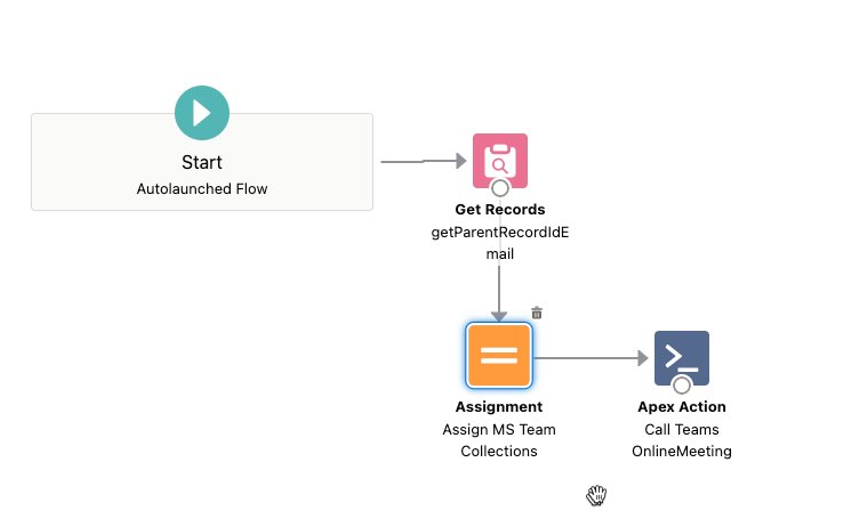
This section in a flow shows how this action is called to retrieve a URL for the MS Team Meeting and then assigns it to a Record in Salesforce. A larger flow will then do further processing as part of a full scheduling flow. The takeaway is that the Apex Code above is an option to drag and drop into the low code builder and use it when running a flow. It could also be embedded within a Lightning Web Component(LWC) and used in other places. Lastly, it can always be accessed from another Apex Class to get the required information.
Postman Setup
This section describes how to setup Postman to access MS Graph API and test the API integration outside of Salesforce in a developer-centric manner. This is completely optional, but oftentimes if it works in Postman and not in another application or Salesforce, you can see what is different in Postman versus the other applications. This tutorial assumes the reader is familiar with Postman and has downloaded the application or is using the web version. This document will use the desktop installation for reference. This section does not require knowledge of the Salesforce Setup. We recommend starting with Postman before the setup in Salesforce.
To make life easier, download the Postman Collection already created for MS Graph. It does not contain the Teams integration unfortunately, but it does have a big chunk of other API’s that can be used to make sure the authorization is all setup as well as plenty of examples. To do so:
Click on Explore on the Menu at the Top of Postman
Search for MS Graph Workspace
It will be either MS Graph or MS Graph Fork Workspace
You can also find it by clicking on Workspaces and scrolling to it.
Create a new Fork from either the Graph or the Fork Graph – Right click on the Microsoft Graph Space to get the Fork Option
You should end up with something like this in your My Workspace or wherever you saved the forked Graph Collection to.
What this provides is a whole list of MS Graph APIs broken up into folders. In our testing, we used Delegated to validate with.
Setup Postman Authentication
Setting up Authentication is straightforward and will require the client id and secret key from the MS Azure setup done previously. Additionally, you will need to add the callback URL to the Authentication section in MS Azure. You also need to set up Environment variables as part of this step.
Setup Environment Variables
Postman needs to pass in environment variables to the headers in the API. To set these up, create a new environment to be used with MS Graph.
Click on Environments on the left hand side of Postman and click the Plus sign at the top of the environment list
Name your Environment and add in the 3 values needed
ClientID – This will be the Application ID of the App you created in MS Azure.
Client Secret – This will be the Secret Value created in the Client Secret step of Azure
TenantID – This is the tenant id found in the overview of your app.
Now that you have set up the environment variables – make sure to make that environment your active environment. It should show up here. You can access it from the drop down as well.
Setup Authentication
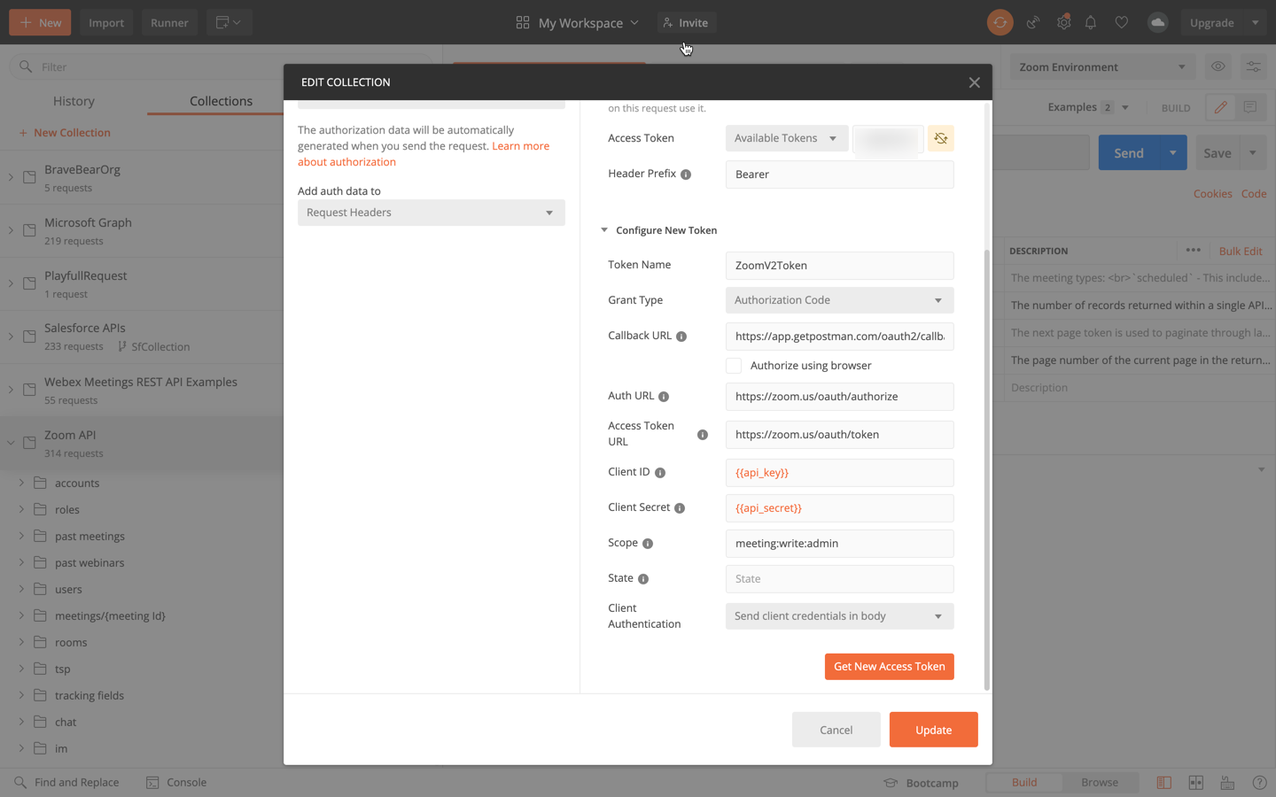
Click on the Delegated Folder in the MS Graph Collection on the left hand side of Postman. This will bring up the Authorization Screen.
Selection OAuth2.0 from the drop down.
Select Add Auth data to the Request Headers
Access Token → Available Tokens ( this will get filled in later )
Header Prefix – Bearer
Configure New Token Section
Token Name – Fill in something for this
Grant Type – Authorization Code
Leave the rest defaulted.
3. It will look much like this after filling out.
Set the Callback URL in MS Azure – Note: This step must be done or your auth will fail. Take the Callback URL above with the oauth URL for Postman and add it to the Callback URLs in your application in MS Azure.
Get a New Access Token – Use this to debug whether you can get authorized or not and once authorized use the token.
Click on the Get New Access Token at the bottom of this screen in Postman on the Authorization screen.
This will kick off the OAuth Flow, which will have you login to MS Azure and Authenticate. I used the Microsoft Authenticator download to my phone for MFA purposes which makes this more automatic.
Note: This is where if you have an incorrect setup, you’ll get a bunch of errors. Check your setup against the above, do you have the right token id?
You will go through the screens until you get a very long access token. Click on the Use Token button.
Create and Run the MS Graph Online Meeting API
Although there are several Teams APIs in the Team Folder, they are chat related versus the Online Meeting. We need to create a new API for the OnlineMeeting to be accessed. In this section we will cover creating the new API, adding parameters, and testing the API.
Navigate to the Teams Folder
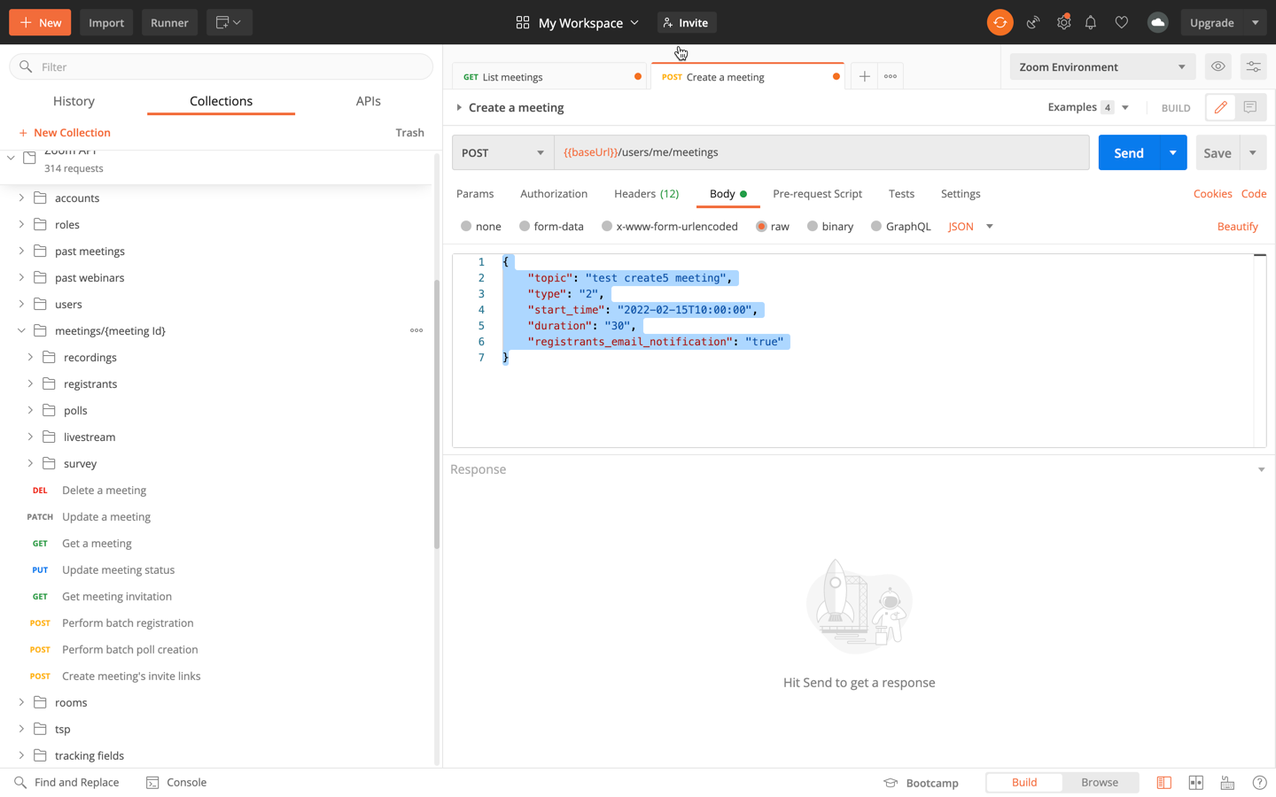
Click New at the Top( or right click to add a request ) and add a new Web HTTP Request
Switch the type from GET to POST
Put in the name of the method in the POST
On the Body, use the JSON application type.
Add the body in JSON format, Subject was added for the example.
Click Send
Results are shown below from the meeting when successful.
https://unofficialsf.com/wp-content/uploads/2022/09/largeUCSF-300x133.png00Sunilhttps://unofficialsf.com/wp-content/uploads/2022/09/largeUCSF-300x133.pngSunil2022-05-24 05:57:032022-05-24 06:35:14From Brad Shively: Create MS Team Meetings from Salesforce (with Salesforce Scheduler)
Shift is one of the major additions made in Salesforce Scheduler, It provides the user with enormous flexibility and makes the entire process of appointment scheduling less cumbersome. The diagram below shows the interaction between Shift and various other entities involved in scheduling a Service Appointment.
A Service Territory Member can have multiple Shifts associated with it and as a result the time slot selected for the Service Appointment can fall between more than one overlapping shifts (considering both the required and primary Service Resources).
In the following sections we will figure out a way to reverse map all the associated Shifts with corresponding Service Appointment.
Creating a custom object
For completing the purpose of reverse mapping Shift with Service Appointment a custom object(Service appointment shift) is used as a junction object. It comprises of the following custom fields:-
ServiceAppointnmentId – Referring to a Service Appointment.
ShiftId – Referring to a Shift whose startTime and endTime completely encloses the Service Appointment’s time slot.
Modified – A boolean flag to help backtrack all the updates made to Service Appointment.Only the records with the flag value false should be considered as reliable entries.
Canceled – A boolean flag which is set to true only when the associated Service Appointment is canceled.
As evident from the design proposed whenever a Service Appointment is scheduled we need to obtain all the Shifts associated with the Service Appointment.For each associated Shift, one record comprising of ServiceAppointmentId,ShiftId
and Modified(initially false) must be made.
For achieving our goal of reverse mapping we will be writing triggers on two entities:
Service Appointment
Assigned Resource
Creating a Service Appointment
We must do the reverse mapping the moment a Service Appointment is created.Whenever a Service Appointment is created necessary inserts are made in Assigned Resource and this will invoke the trigger that we will be writing for Assigned Resource .
Pseudocode
Let us first discuss the pseudocode for triggers when new Service Appointments are created.
Create a trigger which runs after inserts are made in Assigned Resource.
Fetch all the linked Service Appointments using the just inserted Assigned Resource records.
Check for any previous entries for obtained Service Appointments in the custom object and for all those records set the Modified as true.
Design a map of Service Appointment and all the required resources for that appointment.
Loop through all the Service Appointments in the map and obtain the associated Shifts of the Service Resource.
Do the inserts for Service Appointment and Shift mapping records.
Updating a Service Appointment
Whenever a Service Appointment is modified we can make changes in the time slot and the required resources of the Service Appointment.Once a Service Appointment is updated we must set the Modified field for all the records of this Service Appointment in the custom object to true and obtain new associated Shifts. Let’s have a look at the possible scenarios and the way we are handling it.
Deletion of required SR from Appointment(will invoke an after delete trigger on Assigned Resource)
Addition of required SR to Appointment(will invoke an after insert trigger on Assigned Resource)
Moving of SR from required to optional resource(will invoke an after update trigger on Assigned Resource)
Moving of SR from optional to required resource(will invoke an after update trigger on Assigned Resource)
Change in Appointment start time and/or end time
Change in Appointment WTG/WT (Appointment duration)
Changing the time slot at the same time altering the Assigned Resources.
For these cases we will be using one update and a delete trigger on Assigned Resource wherein we implement a similar logic as mentioned above.
Disclaimer: The following code is meant to be verbose and easily understandable from a Salesforce Developer perspective. Given a choice between performance vs readability I have strived for the latter. It is a proof of concept to demonstrate the feature and should be modified and tested thoroughly as per different data shapes and existing code in the org.
trigger getassociatedshifts on AssignedResource (after insert,after update,after delete) {
/* fetching all the linked service appointments from the trigger */
List<ServiceAppointment> AllAppointments = new List<ServiceAppointment>();
if(Trigger.isDelete) {
List<String> AffectedAppointments = new List<String>();
For(AssignedResource a:Trigger.old) {
AffectedAppointments.add(a.ServiceAppointmentId);
}
AllAppointments = [Select Id,ServiceTerritoryId,SchedStartTime,SchedEndTime,WorkTypeId from ServiceAppointment where Id In :AffectedAppointments];
} else {
AllAppointments = [Select Id,ServiceTerritoryId,SchedStartTime,SchedEndTime,WorkTypeId from ServiceAppointment where Id In (Select ServiceAppointmentId from AssignedResource where Id In :Trigger.New)];
}
/*
check for any previous entries for obtained service appointments in the custom object
and for all those records set the modified flag as true
ServiceResourceToServiceAppointment = [Select ServiceResourceId,ServiceAppointmentId from AssignedResource where ServiceAppointmentId in:AllAppointments
For(Service_appointment_shift__c all:[Select id,modified__c from Service_appointment_shift__c where Service_Appointment__c In :changed]) {
all.Canceled__c =true;
all.Modified__c = true;
ServiceAppointmentShiftToUpdate.add(all);
}
/* updating the records */
update ServiceAppointmentShiftToUpdate;
}
https://unofficialsf.com/wp-content/uploads/2022/09/largeUCSF-300x133.png00Sunilhttps://unofficialsf.com/wp-content/uploads/2022/09/largeUCSF-300x133.pngSunil2022-04-28 03:54:132022-06-22 01:58:39From Adwait & Mrityunjoy Chowdhury: Reverse Map Service Appointment to the appropriate shift
A customer of Salesforce is looking to integrate with Zoom and the Online Meeting capabilities from Salesforce using Portal / Internal screens. The use case is fairly straightforward, as a customer of a bank, I want to schedule an online meeting with my advisor and discuss my accounts. The technology the bank wants to use is Zoom.
The technology usage behind this particular demo is to simply create a meeting in Zoom via an API which returns a URL that parties can click on to launch Zoom( either browser or desktop ) and have a meeting. There is a lot more that can be done, but this integration is to show the possibilities with the connection
Technology Utilized
Listened below are the main technologies and configurations used in the demo preparation.
<optional> Visual Code – Used to write and deploy code
Apex Classes
Invocable Methods setup to make available in Flows
Test Classes
Auth Provider Setup in Salesforce
Named Credentials
Salesforce Flows – To provide the screen navigation, call Zoom to get the meeting, and update the appropriate records.
Demo Flow High Level
This section describes the general flow of the demo from start to finish when showing to the customer. This is a specific flow for the customer this demo was prepared for. You can tailor or make your own flow(s) for your customer.
Customer goes to the portal to schedule a meeting, using the Salesforce Scheduler.
This demo has an authenticated flow, there is a person account associated with the demo.
Enter the required information from the screen
Click by previously scheduled service appointments or search for a banker.
Click Next
Click on a Work Type Group → Select the type => Click Next
Select Video Call
Enter a address → San Francisco → Select a branch
Choose a date in scheduler
The call to Zoom is done at this point and a URL is returned to the “Additional Information” Section. Note, this could be put anywhere but for the purpose of the meeting we chose here.
Click on next and a new Service Appointment is created with the Meeting URL in a custom field that can be accessed to launch a Zoom meeting.
The integration behind the scene created a Zoom meeting valid link that can be clicked on to start a Zoom meeting. This utilized the Zoom API, OAuth/Open ID authentication/authorization, and Apex Callout to create and return the meeting.
Demo Details
This section will describe the setup needed to execute the demo. What is described is the particular flow used to validate and test the integration. The entire section for Postman is completely optional, but it is suggested to do this to validate and debug. In our case, it was invaluable in determining the exact headers to place into the API. In the initial development, Postman was first used outside of Salesforce to ensure the API format was correct and the authentication/auth was setup correctly in Zoom.
Zoom Setup
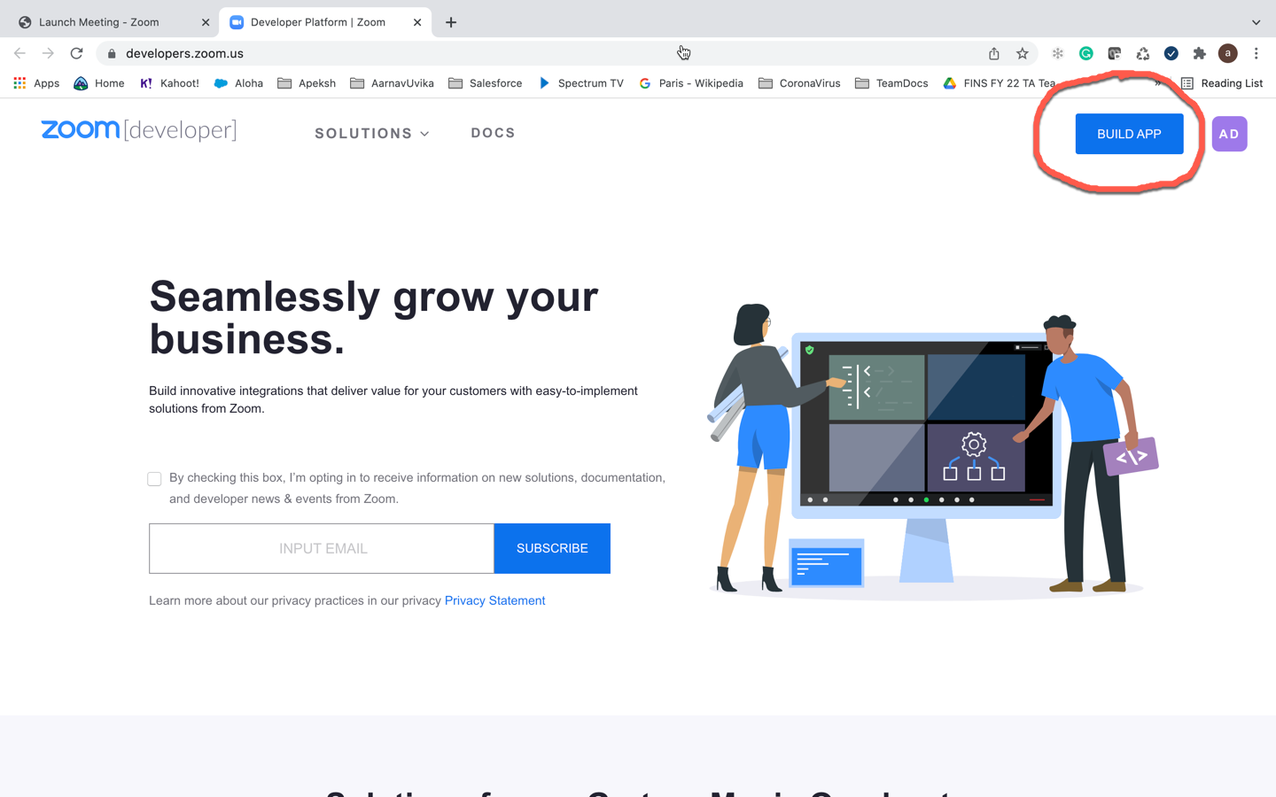
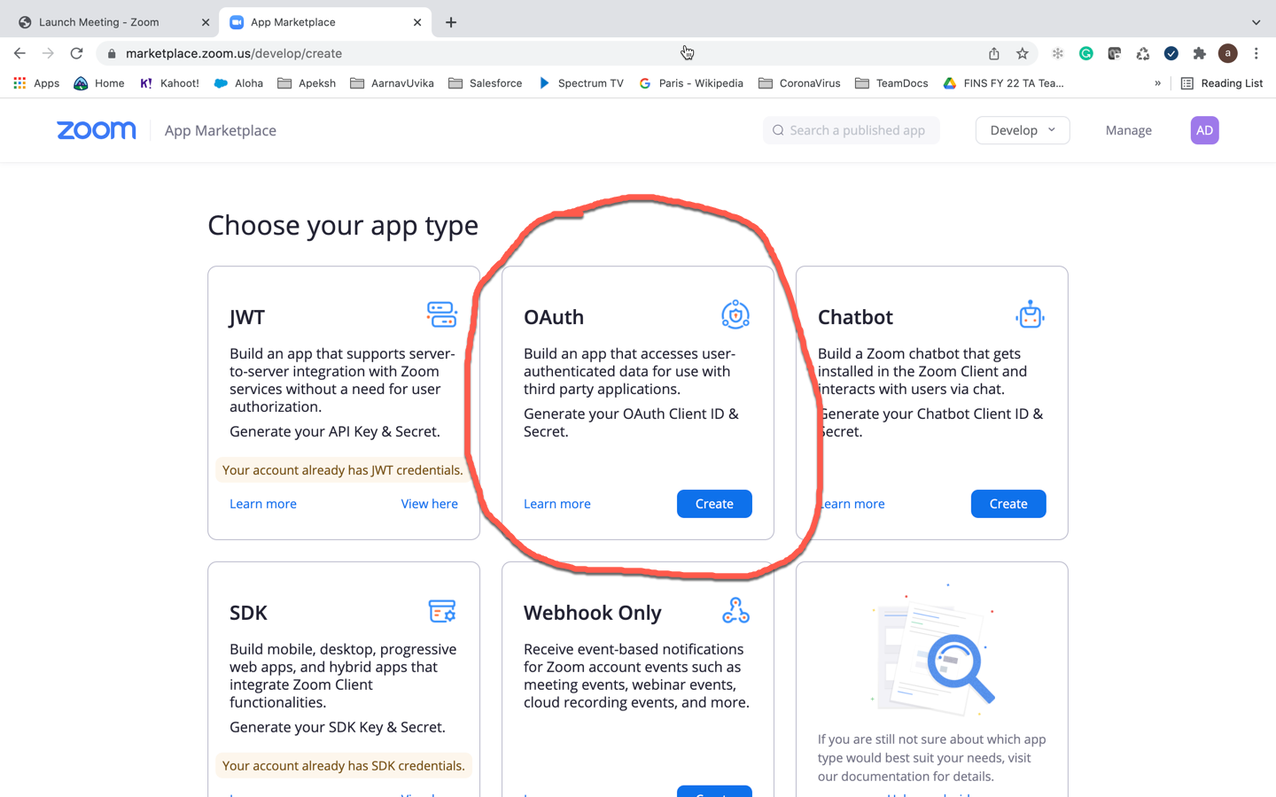
The first piece that is needed is a Zoom Developer Account. Please note you cannot use a Salesforce Zoom account as they have disabled permission to use the API. Best bet create Personal Zoom account with personal ( no salesforce account) or working with your client account that allows to create meeting via API
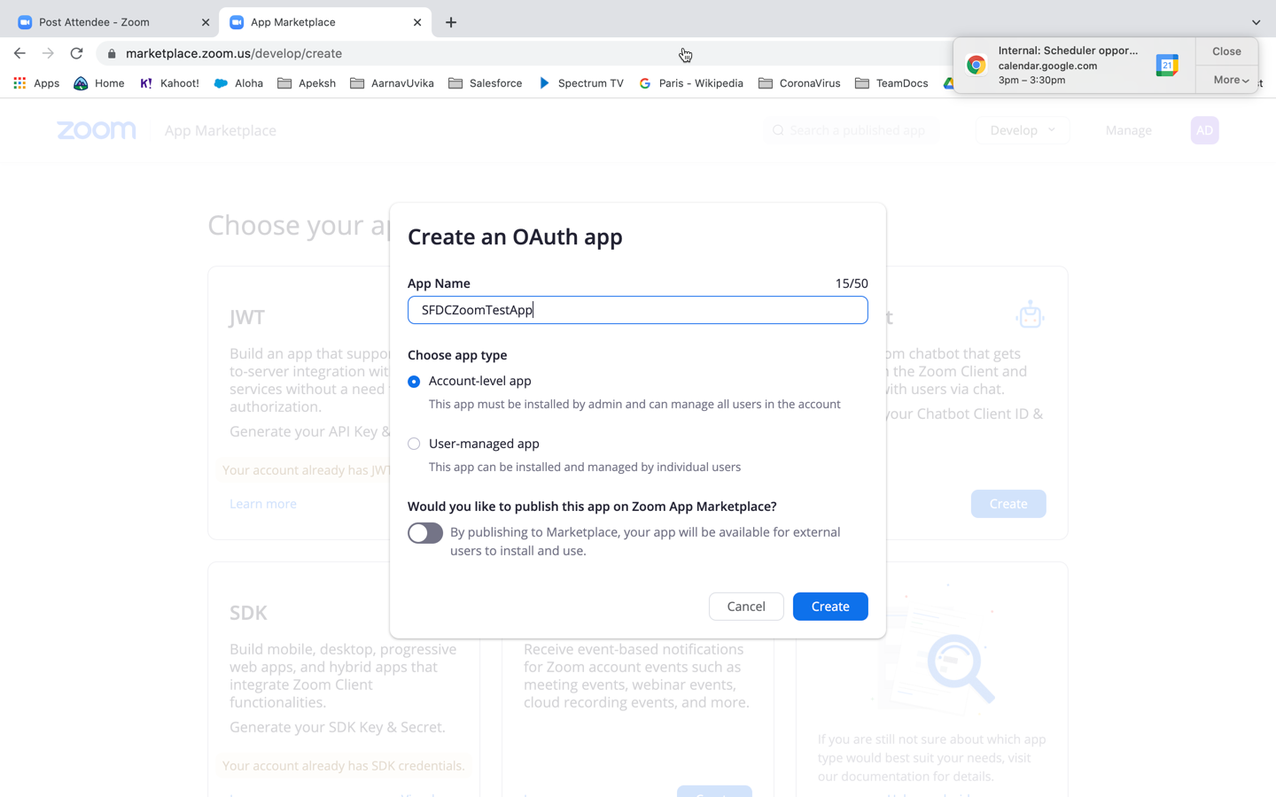
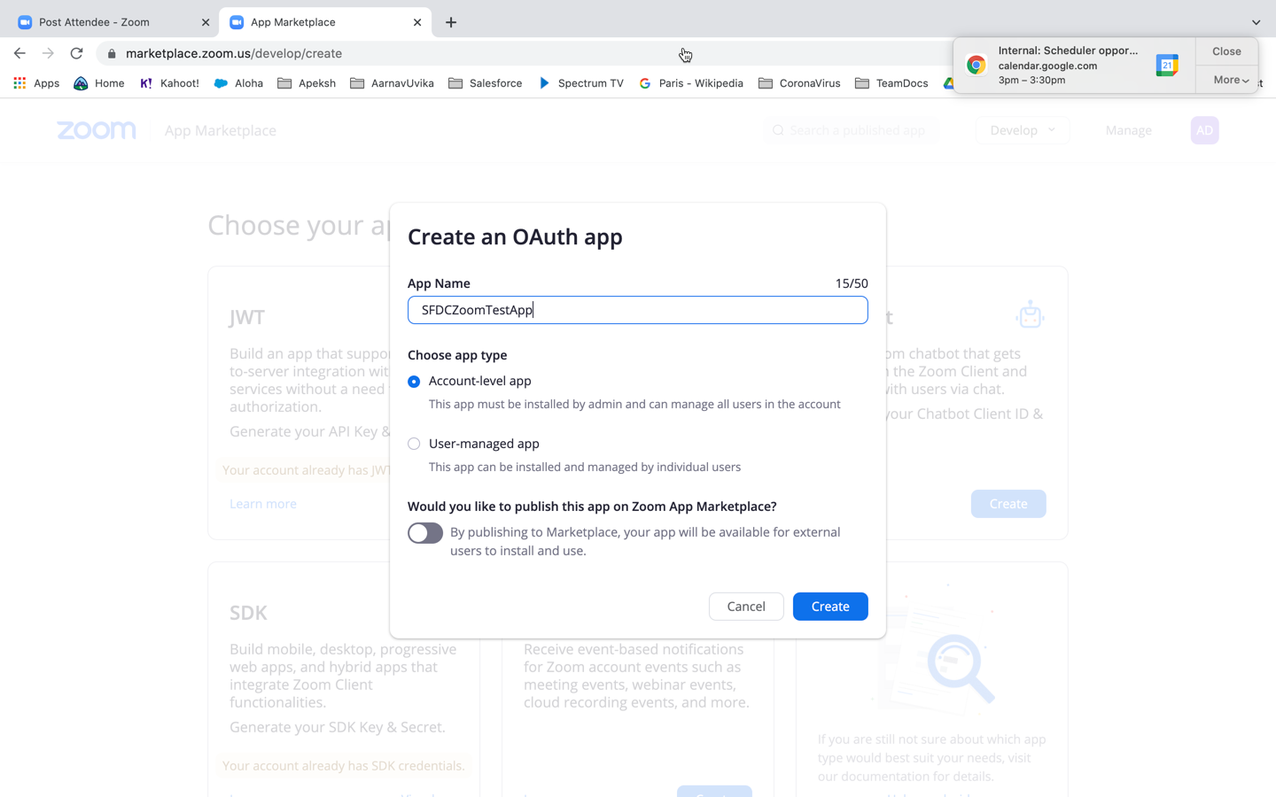
Name it, choose an account level app and toggle off the publish button like this.
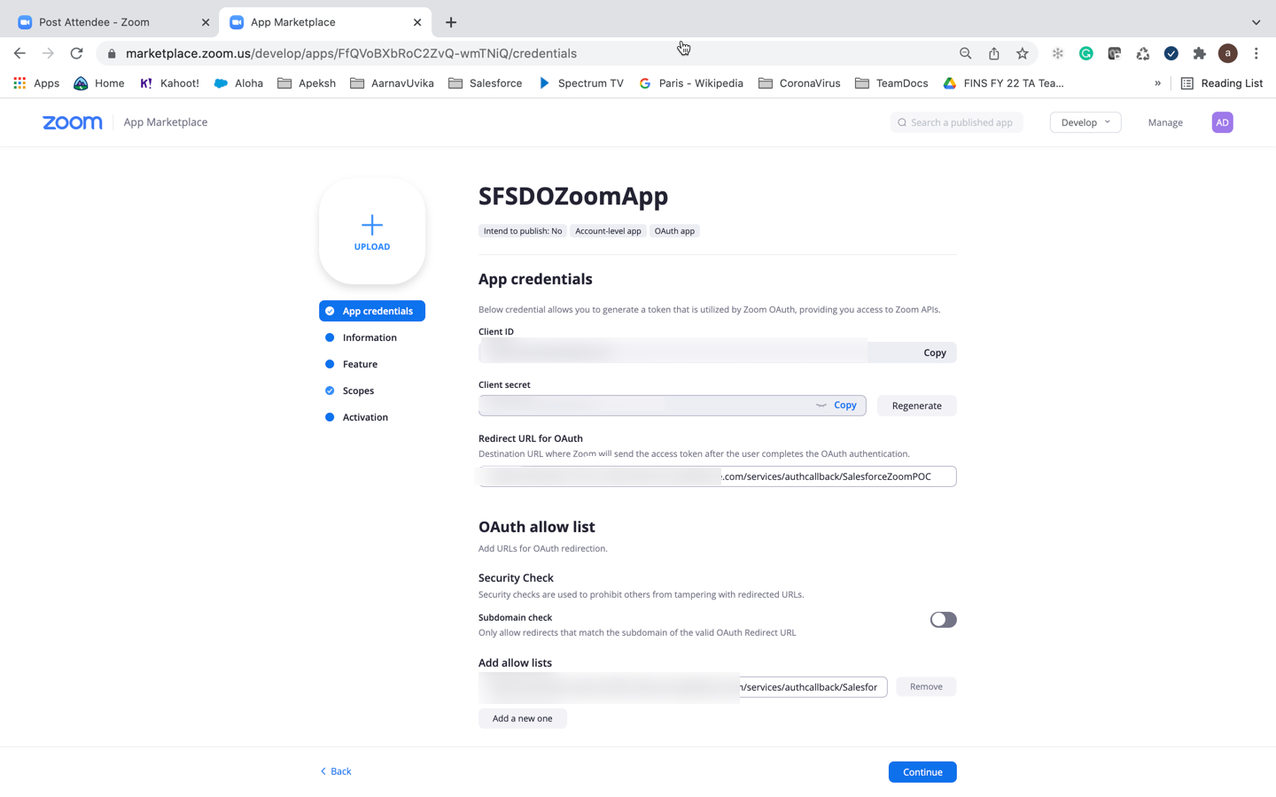
Next screen
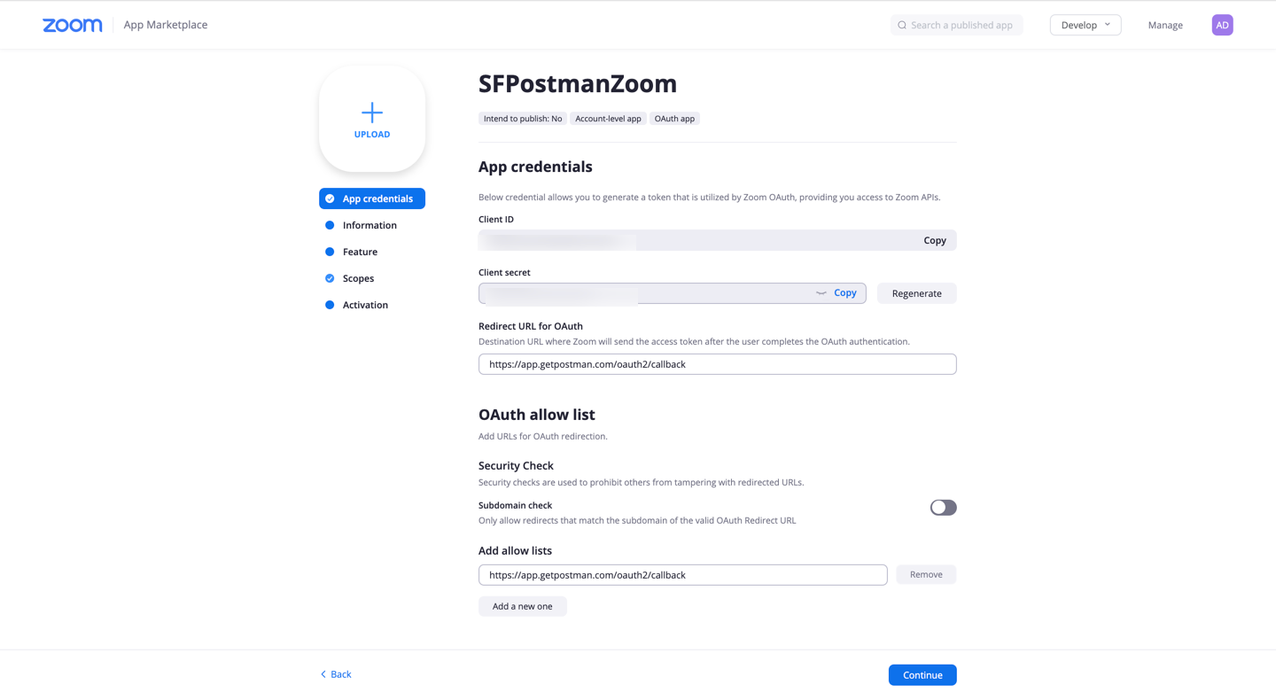
Screen will show the client key, client secret. Copy & store in a secure place. You will need these in the Salesforce setup.
Populate the redirect url and add the allow list.
You will find the redirect url to use in Salesforce → Setup → Authentication provider → Callback URL. (You can change this once you setup authentication provider in Salesforce.)
This section describes the Salesforce Setup needed to access Zoom API meetings. It is strongly advised to setup Postman first to validate and test the API as well as get familiar with the API before jumping into Apex coding setup. This section will consist of Authentication setup, the Named Credential, and the Apex code needed to create a Zoom meeting and retrieve a URL. Additionally, this will provide the callback referenced in the Zoom section which will be needed to complete the Authentication section in Zoom.
Auth. Provider Setup
The first step is to create the Authorization Provider configuration to connect to Zoom. You will need the Secret Key(Value) from the Certificate setup in Zoom and the application id.
Enter Salesforce Setup → Auth Providers → New.
Choose Open ID Connect from the Provider Type drop-down.
Name the Auth Provider.
URL Suffix → Can make the same as the name.
Consumer Key → This is the client key in Zoom.
Consumer Secret → This is the client secret in Zoom.
Make sure this option is checked: Send client credentials in header.
Use the defaults for the remainder.
Save.
Click on the newly defined Auth Provider to open it up.
Copy the Callback URL that is shown in the Salesforce Configuration. If you have Experience Cloud setup and you are using those domains, then add those callback URLs as well to the Zoom Dev configuration.
Take the callback URL you copied above and paste back in the Zoom redirect url & allow list. (Use the exact same word to word, no space.)
Named Credential
Creating a named credential will perform the authentication to Zoom and do the OAuth validation. Here is where the Zoom Authenticated App is used to validate the OAuth connection. (I set mine to auto approve.) It will prompt you to login to your instance of Zoom. The login will be the Zoom Developer login/id created during the setup of the developer instance.
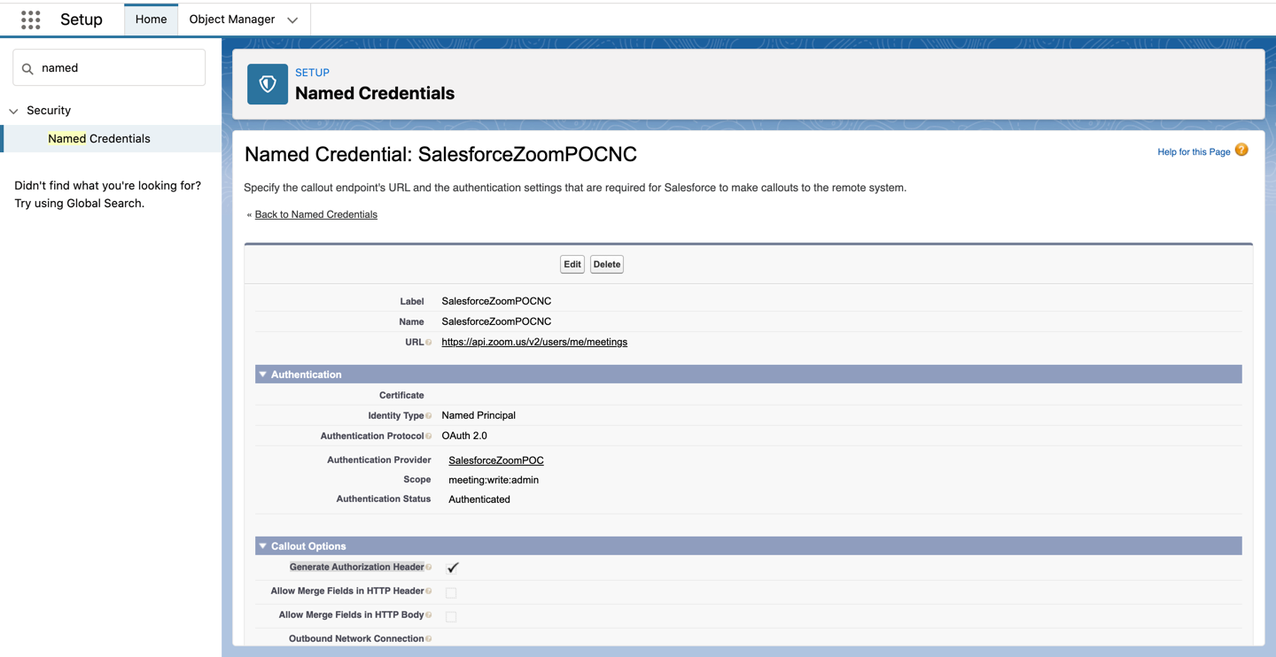
In Setup → Named Credentials, click New.
Enter the label and the URL of the API Endpoint you wish to access. In this case, the full API is used for the onLineMeeting for Delegated access. The application access has a different signature
Select the Auth Provider created in the previous step.
Scope: very important! The scope here will match the scope you created in Zoom for the application. It is space delimited.
meeting:write:admin
Click on Generate Authorization Header.
Check on Start Auth Flow on Save.
Generate Auth Header is checked.
Click Save. This will trigger the actual connection to Zoom and validate the Authentication.
When you Save, the OAuth flow will initiate.
Zoom Login Screen will popup.
Login.
If successful, you will see Authenticated in the Authentication Status in Salesforce. If it fails, you will get a failure screen from Zoom. Common Issues:
Used the wrong secret key or id. Double check the values in the Auth. The Providers are correct.
URL Endpoint is invalid. Check your URL Endpoint. (Using Postman first helps avoid this issue.)
Salesforce Application Code
This section will review the Apex application code needed to make the Rest API call to setup a Zoom meeting and retrieve the meeting URL from the Zoom Server. The code is not production quality but instead is a sample to prove the concepts. The current iteration does not accommodate error handling in a meaningful way nor does it do much more than create a meeting. The goal of this good is to demonstrate the basic connection for the customer and proof of concept the meeting invites. The sample code will be in two parts, the first part is a test class that can be used to validate the connection and result. Once that is working, then the 2nd class uses @InvocableMethod so that it can be used in flows. Obviously this can be tailored however desired.
This section does not instruct how to setup command line tools, deploy the source, or other development tasks. It is assumed the reader understands how to deploy, run the developer tools/debugger in Salesforce.
Test Apex Class – Simple Class to Create the Meeting utilizing Named Credentials
public class TestZoomApi {
/* Test Method for Unit Testing Connection */
public static String getMeetingUrl()
{
HttpRequest req = new HttpRequest();
Http http = new Http();
//Setup the Endpoint and append the name of the file
if ((parser.getCurrentToken() == JSONToken.FIELD_NAME) &&
(parser.getText() == ‘join_url’)) {
parser.nextToken();
webLink = parser.getText();
System.debug(‘join_url= ‘ + webLink);
}
}
return webLink;
}
}
Common Issues/Errors
Zoom will return a 201 in the HTTP Response. This is a success. It is documented in the API.
HTTP Error 500 – Internal Server Error
Notice the headers that are set. The Zoom documentation does not state it explicitly, but in our testing we found that the 2 accept lines need to be in the header when sending the request. You need to add the gzip, etc and the “*/*” accept lines.
401 – The 401 unauthorized generally means the scope is incorrect in the Named Credential, or in the Named Credential and/or the Zoom setup. Make sure the permissions are correct and the scope is space delimited.
403 – Forbidden – This occurs when the secret keys are incorrect. You should have fixed this when you saved the name credential so it shouldn’t show up.
Note: When using the Apex Debugger – Look for the debug line to joinWebURL populated with a long string for the meeting. It will start with something like this: 12:40:52:477 USER_DEBUG [37]|DEBUG|joinWebUrl= https://us04web.zoom.us/j/xxxxxxxxxx?pwd=xxxxxxxxxxxxxxxxx
Salesforce InvocableMethod Class Utilizing the Apex Code and Callout
This is the actual code used in the demonstration. This code is accessible in the Flow Builder inside of Salesforce as an Apex Action.
global class GetZoomMeetingURLwithInput {
@InvocableMethod(label=’Get Zoom Meeting URL with Input’ description=’Returns a meeting URL For Zoom’)
global static List<String> makeApiCalloutwithInput(List<List<String>> inputZoomsParms)
{
HttpRequest req = new HttpRequest();
Http http = new Http();
//Setup the Endpoint and append the name of the file
if ((parser.getCurrentToken() == JSONToken.FIELD_NAME) &&
(parser.getText() == ‘join_url’)) {
parser.nextToken();
webLink = parser.getText();
System.debug(‘join_url= ‘ + webLink);
}
}
// Apex Actions Return. The method signature for an invocable method requires a List of Strings to be returned.
return new List<String>{webLink};
}
}
Salesforce User Experience Setup
This section is optional but describes how the above code can be accessed in the low-code building tools inside of Salesforce.
This section in a flow shows how this action is called to retrieve a URL for the Zoom Meeting and then assigns it to a Record (such as the Service Appointment, and/ or its associated Event) in Salesforce. A larger flow will then do further processing as part of a full scheduling flow. The takeaway is that the Apex Code above is an option to drag and drop into the low code builder and use it when running a flow. It could also be embedded within a Lightning Web Component(LWC) and used in other places. Alternatively, it can be accessed from another Apex Class to get the required information.
Postman Setup
This section describes how to setup Postman to access Zoom APIs and test the API integration outside of Salesforce in a developer-centric manner. This is completely optional, but oftentimes if it works in Postman and not in another application or Salesforce, you can see what is different in Postman versus the other applications. This tutorial assumes the reader is familiar with Postman and has downloaded the application or is using the web version. This document will use the desktop installation for reference. This section does not require knowledge of the Salesforce Setup. We recommend starting with Postman before the setup in Salesforce.
Postman Collection – use version 2 link below. (Do NOT use v1.)
To make life easier, download the Postman Collection already created for Zoom as plenty of examples. To do so:
Setup Postman Authentication
Setting up Authentication is straightforward and will require the client id and secret key from the Zoom setup done previously. Additionally, you will need to add the callback URL to the Authentication section in Zoom. You also need to setup Environment variables as part of this step.
Salesforce Scheduler gives tools needed to simplify appointment scheduling in Salesforce. We can create a personalized experience by scheduling customer appointments in person, or by phone or video; with the right person at the right place and time. One of the strong feature of the product is its ability to manage availability of multiple Service Resources for various Work Types across multiple Service Territories.
Now the biggest question is if there is an out of the box Salesforce Report that can provide a list of service appointment slots available for all or a specific set of service resources. The Answer is NO.
So, how do we solve for it?
Salesforce Scheduler calculates the availability of a service resource at runtime on demand (when a user is scheduling an appointment). Salesforce Scheduler uses multiple entities along with data from external systems to calculate availability data. This information is NOT stored anywhere to report on.
To solve for the reporting Question – we need some complex level of customization. This can be achieved using the power of the Salesforce Scheduler and Salesforce platform to generate reports on Service Resource’s availability information.
Approach we will use in this blog post
Salesforce Scheduler provides the LxScheduler namespace which offers the apex method getAppointmentCandidates which provides the availability information. We will use this method to
retrieve the information using Apex
dump the retrieved information into a custom object that we will create and
report on top of the custom object
Create Custom Object – Appointment Slots
Let us create a custom object, “Appointment Slots” with these custom fields to store availability information
Service Resource (lookup)
Service Territory (lookup)
Work Type Group (lookup)
Start Date (Date/Time)
End Date (Date/Time)
Remaining Appointments (Integer, default value = 1)
Enable reporting for this custom object.
Query and Dump retrieved information into the Custom Object
public without sharing class ReportDump implements Database.Batchable<sObject>{ public Database.QueryLocator start(Database.BatchableContext BC){ String query = 'SELECT Id FROM ServiceResource where isActive = true'; return Database.getQueryLocator(query); }
public void execute(Database.BatchableContext BC, List<ServiceResource> srList){ Integer DUMP_DURATION = 30; String ACCOUNT_ID = '001xx000003GYQRAA4'; String SCHEDULING_POLICY = '0Vrxx0000004C92'; //Hardcoding WTG for now List<String> wtgs = new List<String>(); wtgs.add('0VSxx0000004C92GAE');
List<Appointment_Slots__c> slots = new List<Appointment_Slots__c>();
for (ServiceResource sr : srList){ //Find all territories he works in List<ServiceTerritoryMember> stms = [Select Id, ServiceTerritoryId from ServiceTerritoryMember where ServiceResourceId = :sr.Id]; List<String> territories = new List<String>(); for (ServiceTerritoryMember stm : stms){ territories.add(stm.ServiceTerritoryId); }
for (String wtg : wtgs){ lxscheduler.GetAppointmentCandidatesInput input = new lxscheduler.GetAppointmentCandidatesInputBuilder().setWorkTypeGroupId(wtg).setTerritoryIds(territories).setStartTime(System.now().format('yyyy-MM-dd\'T\'HH:mm:ssZ', 'America/New_York')).setEndTime(System.now().addDays(DUMP_DURATION).format('yyyy-MM-dd\'T\'HH:mm:ssZ', 'America/New_York')).setAccountId(ACCOUNT_ID).setSchedulingPolicyId(SCHEDULING_POLICY).setApiVersion(Double.valueOf('54.0')).build(); String response = lxscheduler.SchedulerResources.getAppointmentCandidates(input);
public void finish(Database.BatchableContext BC){ }
}
Create a Report using the Custom Object
Create a Salesforce report using this custom object. Refer – https://help.salesforce.com/s/articleView?id=sf.rd_reports_overview.htm&type=5 on how to create reports. Here is a sample matrix report we created which reports a Service resources total available hours at a Service location for an appointment topic / template – and this is how it looks.
Truncating records in custom Object
The example quoted above requires the Appointment Slots object to be empty in order to calculate the Service Resources availability. Ensure you truncate the data in the custom object before running the above batch job. Please refer this help article on Truncating Salesforce Obejcts https://help.salesforce.com/s/articleView?id=sf.dev_object_trunc.htm&type=5.
In the Spring ‘22 release, Scheduler introduced Shift Rostering Management which can be used to setup working hours for resources.
Shifts is a paradigm changing update to Salesforce Scheduler product. It eases pain of setting adhoc or non-recurring time slots for Service Resources to work. It also gives flexibility to work outside Service Territory’s operating hours.
One of the advantages of using Shifts is the ability to use Custom reports to report on working hours of a resource but that goes away if we allow resources to setup shifts beyond the working hours of a Territory. So here one would want to restrict the Service Resource to only create Shifts within the working hours of a Service Territory. This way, you could use create a custom report on the Shift record to understand the working hours of previous weeks or months.
Another scenario where this could be a need is when we have two types of Service Resources:
Service Resources who work within the constraints of their Service Territory’s Operating Hour
Service Resources who can go beyond their Service Territory’s Operating Hours. For eg: contractors (independent wealth managers) who can even take important appointments after working hours of the Service Territory (Branch)
Selectively restraining working hours of resources
First we need to define which resources can work beyond their branches working hours.
For this we are going to simply add a custom field to Service Resource of type boolean. Let’s call this field OvertimeEnabled for now.
If OvertimeEnabled is True then the Service Resource can work extra hours else they cannot.
Data Model
Next we need to set our Scheduling Policy such that we don’t restrict Shifts as per Service Territory’s Operating Hour by default. For this we will se up policy to use Shifts but uncheck the box ‘Use service territory’s operating hours with shifts’
Now we can add a trigger on Shift entity which runs before insert and update on the entity. In this trigger we will check validate that shift timings are within Branch’s Operating Hours only for resources who have OvertimeEnabled flag set to false.
Set<Shift> confirmedShifts = new Set<Shift>(); Set<String> territoryIds = new Set<String>(); //We will only run this validation for Shifts with Status Category = "Confirmed" AND Service Resource can work extended hours for(Shift shift: shifts) { if(shift.StatusCategory == 'Confirmed' && srIds.contains(shift.ServiceResourceId)) { confirmedShifts.add(shift); territoryIds.add(shift.ServiceTerritoryId); } }
if(confirmedShifts.size() > 0) { //Get all Service Territory IDs along with their OperatingHourId ServiceTerritory[] territoryIdsWithOperatingHours = [SELECT Id, OperatingHoursId FROM ServiceTerritory WHERE Id IN :territoryIds];
Set<String> operatingHourIds = new Set<String>(); for(ServiceTerritory st: territoryIdsWithOperatingHours) { //Service Territory may not have Operating Hour defined if(st.OperatingHoursId != null) { operatingHourIds.add(st.OperatingHoursId); } }
//Get Timeslot information for all Operating Hours got in previous step. We disregard all STM level concurrent timeslots (Shifts with MaxAppointments set to 1) TimeSlot[] timeSlots = [SELECT Id, DayOfWeek, StartTime, EndTime, OperatingHoursId FROM TimeSlot WHERE MaxAppointments = 1 AND OperatingHoursId IN :operatingHourIds];
//Complex data structure to store Working hours for all Service territories. We will store empty inner map in case Service Territory does not have Operating Hour defined Map<String, Map<String, TimeSlot>> serviceTerritoryWithTimeSlotsPerDay = new Map<String, Map<String, TimeSlot>>();
if(dayOfShiftStart != dayOfShiftEnd) { s.addError('Shift should be within Service Territory\'s Operating hours '); } else if(slots.get(dayOfShiftStart) == null || slots.get(dayOfShiftEnd) == null) { s.addError('Operating Hours for Service Territory not set up correctly'); }else if(s.StartTime.time() < slots.get(dayOfShiftStart).StartTime || s.EndTime.time() > slots.get(dayOfShiftEnd).EndTime) { //Eureka s.addError('Shift should be within Service Territory\'s Operating hours '); } } } }
P.S. For this code we have considered that Service Territory’s OH are in same timezone as shifts being created.
https://unofficialsf.com/wp-content/uploads/2022/09/largeUCSF-300x133.png00Akshayhttps://unofficialsf.com/wp-content/uploads/2022/09/largeUCSF-300x133.pngAkshay2022-02-09 04:38:062022-02-09 04:38:44From Ankit Srivastava: Restraining Shifts within the Service Territory’s Operating Hours
In the Spring ‘22 release, Scheduler introduced Shift Rostering Management which can be used to setup working hours for resources.
Instead of adding shift records one at a time, we can add multiple shifts in one go! Salesforce Scheduler allows adding multiple shifts. In this document we will demonsrate how to upload shifts using Salesforce bulk API capability.
Here I’ve even provided a template to help you create the final CSV which you need to upload!
Quick Help Video on process
Video how to create BulkShift csv data
Step 1.a: Creating Shifts CSV file directly
If you plan to share this with business users, try the format in 1.b which allows you to create the Id & record mapping and the business user only needs to select the record names.
Create spreadSheet/Excel file
Copy Paste the first row of the below table
StartTime/EndTime Should be in GMT format (Local Time and GMT time difference should be adjusted)
Navigate to the “ShiftsMetadata” and add all the metadata of the Shifts. (Step done by Admin)
Service Resource Name,Service Resource Id
Service Territory Name,Service Territory Id,
Owner Name,Owner Id,
WorkTypeGroup Name,WorkTypeGroup Id,
GMT Time difference. (GMT time difference is the time difference from your local time to GMT Time).
Navigate to next sheet “DraftShifts” Create your required shifts based on the data you have uploaded in ShiftMetadata sheet,(Note No need to add any data in “GMT Start Time” and “GMT End Time”, it will populate the data automatically on dragging the column. Calculation is already done.Remember that don’t delete the first column because it has all the formulas, just update the first row as per you need.
Navigate to FinalShiftData and you will see the status is already populated.
Drag the rest of the columns to populate all the data from DraftShits to Final Shifts. If there is #NA value present for any cell , remove those values to make value empty.(Note: Do not delete the first row as it has all the formulas. It will populate the value and then drag the column)
To get basic status information on a job, such as the overall job state or the number of records processed, use a GET request with the following details:
https://unofficialsf.com/wp-content/uploads/2022/09/largeUCSF-300x133.png00Akshayhttps://unofficialsf.com/wp-content/uploads/2022/09/largeUCSF-300x133.pngAkshay2022-01-29 08:54:472022-02-09 00:35:23From Mrityunjoy Chowdhury: Adding Multiple Shift records using a CSV file
In Spring’21 Salesforce Scheduler introduced a feature to preset the timezone for the appointment time slots . This feature sets the default time zone for all time slot pages, using the provided DefaultTimeZone flow variable.
We can use this feature to dynamically set the time zone in which guest users load time slots i.e. browser timezone.
This will only work for the Salesforce supported time zones, you can find the complete list here.
Preset browser timezone
We will fetch the browser timezone through the lightning component that will be exposed to the flow builder. And to validate the browser time zone i.e. supported in salesforce or not, we will write an apex controller.
All the code is bundled at https://github.com/ruchi2994/browserTimeZone. It contains the lightning component, apex class, and updated flow. After code deployment, enable TimeZoneController apex class access for the guest user profile.
Let’s look at how to use the lightning component in the flow to preset the browser timezone.
Businesses and Organizations which provide services have to provide a way for their customers to request appointments with the provider’s service resources. These experiences are expected to be easy to access without any kind of account creation and no authentication involved. Examples can be booking an appointment with a hair stylist at your favorite Salon, looking up for a dentist for a regular cleaning, reaching out to a financial advisor at a bank near your home.
To implement un-authenticated user experiences, the best way in Salesforce is to use the Guest user profile that comes with any Experience Sites (Earlier Communities). Experience sites can be built with public pages where end-users can access the application built using these guest user access. Refer this knowledge article for more information around Guest users – https://help.salesforce.com/s/articleView?id=000327969&type=1
From a high level, there are three design options to allow un-authenticated Guest users to access Scheduler features and functionality. These design patterns are as follows and illustrated below.
API level: this pattern offers the most flexibility but requires the most investment in time as everything is custom built. You will host and build your interface entirely on your (external to Salesforce) web site, and create a fully custom-developed user interface with custom code to accesses Scheduler on the back end via Scheduler REST APIs. If you are wondering about how all of this works in the context an UNAUTHENTICATED (or guest) user experience — that’s a great question! The Scheduler API can be accessed from an unauthenticated type perspective using the oAuth SAML bearer assertion flow, which uses connected app to request/grant an access token for that “guest user” (unauthenticated) type experience. You will use a connected app associated with a particular profile to grant that profile permissions to access what is needed. This is similar to the way Salesforce Experience Cloud Guest User leverages the Guest User Profile & Guest User to allow unauthenticated type access to Salesforce objects and the Scheduler Inbound flow.
Component Level: this is the option that we will be going over in this blog. Using this pattern you will leverage Salesforce Experience Cloud/ public sites along with out-of-the-box or custom cloned versions of pre-built Scheduler flows. Scheduler flows are flexible and can be customized in a number of ways, including extending to the Scheduler APIs from within the flow. With this design pattern you will access Scheduler flows from your (external to Salesforce) business web site and remain on your web site’s URL.
Page Level: this level of access offers a relatively quick time to market and can be achieved in a number of ways”:
Leveraging the end to end Salesforce footprint, offering Scheduler capability as part of an Experience Cloud community.
Hosting your Scheduler flow on a public-facing Salesforce Site, and pointing to that site from your site’s menu. You can register a customized domain within Salesforce to use with your site to make the user flow as seamless and branded as possible.
Most business prefer NOT to have too many websites / links and prefer to have everything hosted on their business websites. In such scenarios the appointment scheduling experience needs to be embedded into the business’s website. To implement such user experiences, components build in Salesforce application need to be used outside Salesforce. Salesforce offers a mechanism called LightningOut to provide such experiences.
Configuration steps to be executed
First and foremost thing is to have a Guest user Profile. Create a Digital Experience Site and make the Site available for public access. This can be enabled by navigating to the Site → Builder settings → General and Turning this feature ON.
Navigating to the ‘Guest User Profile’ by clicking on the Profile link and exploring the Object settings, you will notice that the System ONLY allows users to either CREATE or READ on most of the objects. Configure this ‘Guest User Profile’ as mentioned in the help article – https://help.salesforce.com/s/articleView?id=sf.ls_set_up_guest_users.htm&type=5
Create a Flow using the ‘Scheduler Scheduler Flow Template – Inbound New Guest Appointment’. Customize the flow as per your needs or use the template as is. OOTB template will create a lead and assign the service appointment against the lead.
Most of all, for everything to work perfectly, configuring the Scheduler application using the guided setup. Navigate to the hamburger icon to see all applications, look for ‘Salesforce Scheduler Setup Assistant’ and complete the configuration steps
Understanding the Setup
The appointment time slots are determined based on your Org Setup followed by Salesforce Scheduler configurations and data setup. Ensure you have validated all these and setup configurations and data correctly
Organization Setup-
Verify the Organization Wide Defaults for external access
For the below set of objects either set them to Public Read Only
Work Type
Work Type Group
Service Resource
Service Territory
User
Or extend access to the records by Creating sharing rules for guest users (Determine which records to expose to your Community’s guests and decide on a right sharing method – group based, role based or criteria-based record-sharing rules to match your business processes)
NOTE: Without defining sharing rules for guests, unauthenticated users can’t access the records required for the Inbound New Guest Appointment flow with Embedded Services hosted in a community or external site.
Scheduler Application Setup – Ensure you have setup data for these objects
What services are offered by the Organization
WorkTypeGroup
WorkType
WorkTypeGroupMember
What locations and what times are these services Offered
ServiceTerritory
ServiceTerritoryWorkType
OperatingHours
TimeSlot
AppointmentTopicTimeSlot
What skills are required to provide these services
Skill
SkillRequirement
Who is providing these services and at what times they are NOT available
ServiceResource (A user or an Asset)
ServiceResourceSkill
ServiceTerritoryMember
ResourceAbsence
Guest User Setup
Make sure you set the default timezone for the guest user profile for the Scheduler
Note: Additional customization is required to support the timezone mapping for guest appointments which can be passed via APIs if out of the box flow templates do not support use cases.
To allow a guest to schedule appointments, update the Guest User Profile to allow guests users to
Run Flows
Edit Events
Optionally, configure field level security for the Asset field on the Service Resource object
The Asset field becomes available only when your org has an Asset Scheduling license enabled and provisioned in the instance
Grant Edit permission to profiles that will book appointments, including guest profiles
Add the Asset field to the page layout for the Service Resource object
External Website – Guest User Flow
As mentioned in the preface, to expose lightning components out of Salesforce, we will explore the LightningOut feature. External websites can be your business websites, and adding an experience for customers to request and schedule appointments we need to add a Lightning component to the external website.
Steps involved here
Generate web-based html code that will include the details of the Experience site and the LightningOut component which launches the Guest user Flow. Here is a sample code and refer the demo video to know what changes to make to this sample code so that it works for you.
<head></head> <body> <script src=”https://sandbox-234ss-cs1.cs1.stmfa.stm.force.com/lightning/lightning.out.js”></script> <script> $Lightning.use(“runtime_appointmentbooking:lightningOutGuest”, // name of the Lightning app function() { $Lightning.createComponent( “lightning:flow”, // top-level component of your app { }, // attributes to set on the component when created “lightningLocator”, // the DOM location to insert the component function(cmp) { console.log(‘Hi from callback’);// callback when component is created and active on the page cmp.startFlow(‘runtime_appointmentbooking__Guest_Flow‘); } ); }, ‘https://sandbox-234ss-cs1.cs1.stmfa.stm.force.com’ // Community endpoint ); </script>
<div id=”lightningLocator”> <p>Lightning Component mentioned in the Script is invoked from here</p> </div> </body>
Work with your company’s external website administrators to embed the above component into your company’s external website where you plan to have it.
Get the details of the page like URL where this is hosted, this will be required to let the external traffic into salesforce in the next step
Setup CORS
Typically this to whitelist the Origin URLs, so that Salesforce can allow these web browsers to communicate with Salesforce
The out of the box Salesforce Scheduler service territory search screen only lets you search a location via Google API. However, it does not show those locations on a map, nor does it add more information about that territory. An example of such a use case would be letting customers know that route to that branch may be busy someday because of a rally happening near it!
Don’t worry! With a platform like Salesforce, and with a bit of code, we can easily create a new component which can do that. Below is an example of the outcome of such coding!
If you look at the code in the class, you will notice that we are making 2 API calls. The first call returns you the address details and a place id. The second call returns you the geolocation data. Geolocation data is what is used by our scheduler connect API.
Core Logic
The brains of this functionality are in the FlowLocationController class. If you could get a Google API key, you can go ahead with the code (You need to replace the Google API key). However, if you do not have the key, you can still use this code by using the drop-downs to select city, state and country picklists.
The code path from the method searchLocationLatLang follows the logic of geolocation. Similarly, the code path of the method searchLocationString follows the logic of the state country picklist.
The method getTimeSlots returns a collection of timeslots information in a map related to an Operating Hour Id. We calculate slots information in string format since we need to show it as HTML in the maps component.
One thing to note here is we are capturing additional information about the territory from the standard Description field. In addition, the logo of each territory is stored in a custom field on Service Territory: Territory_Logo__c.
Aura Components
We have created two aura components and one event to handle location selection. First, the GoogleLocationSearch component calls Google Place API to get suggestions and geolocation information. Once Google API callout is complete, we trigger an event with latitude and longitude information via GoogleLocationSearchEvt. We then capture the event in the flowLocation component to display maps information. This component has specific design attributes which you can use to configure this component in the flows.
Following is the git repository containing all the code (https://github.com/snathpatil/scheduler-Google-map). You can deploy it to any org. Please note that this will create a new remote site setting to https://maps.Googleapis.com. Also, you need to make sure that you provide FLS to the custom field on Service Territory.
https://unofficialsf.com/wp-content/uploads/2022/09/largeUCSF-300x133.png00Akshayhttps://unofficialsf.com/wp-content/uploads/2022/09/largeUCSF-300x133.pngAkshay2022-01-18 01:52:012022-01-18 01:52:33From Shantinath Patil: Google Maps in Scheduler