Using Flow, Prompt Builder, and Multimodal AI to Validate Partner Proof-of-Completion Files

A customer recently had a pretty common partner management problem.

Partners needed to submit a proof of completion before a rebate claim could be created. The proof was usually a PDF. Sometimes it was an invoice. Sometimes it was a completion certificate. Sometimes it was a document that looked right to a human, but still didnโ€™t include the actual fields the business needed.

The required information was simple enough:

Date
Amount
Quantity
Product

So far, so good.

The problem was that โ€œupload a fileโ€ is not the same thing as โ€œsubmit a valid claim.โ€

A partner could upload a PDF with no amount. Or a screenshot with no product. Or a document that had the product and date, but no quantity. If we created the rebate claim immediately after upload, we would just be moving the validation problem downstream to an internal team.

That is usually where the process starts to get expensive.

The Standard Approach

The first instinct might be to build a custom Lightning Web Component.

You could create an LWC that accepts the file, calls Apex, sends the file somewhere for parsing, waits for a response, validates the result, and then creates the rebate claim.

That works.

But it also means you now own the user interface, the file handling behavior, the error handling, the Apex integration, and probably a few edge cases around Experience Cloud permissions.

For this use case, that felt heavier than it needed to be.

The better starting point was a Screen Flow hosted in the partner community.

Let Flow Handle the Upload

Salesforce already gives us a File Upload screen component.

That matters.

When a partner uploads the PDF from the screen flow, Salesforce creates the file in Salesforce Files. More specifically, you can capture the uploaded fileโ€™s ContentDocumentId from the File Upload component output and store it in a Flow text collection variable.

That ContentDocumentId becomes the handoff point.

We do not need to rebuild file upload from scratch. We do not need to recreate the standard Salesforce Files model. We just need to use the file that Salesforce already created and pass it into the next step in the process.

The first screen is simple:

Upload Proof of Completion
Accepted file types: PDF, PNG, JPG
Store uploaded Content Document IDs in a collection variable

Now we have the partnerโ€™s file inside Salesforce.

Then comes the interesting part.

Let the Prompt Read the File

This is where Prompt Builder becomes more than a text generation tool.

The prompt template can use a model that supports file inputs, including PDFs and images. That means the uploaded proof of completion can be passed into the prompt as grounding context, and the model can inspect the document for the fields we care about.

The prompt does not need to be clever.

In fact, it should be intentionally boring.

Something like:

You are reviewing a partner proof-of-completion document.
Extract the following fields from the uploaded file:
- completionDate
- amount
- quantity
- product
Only return values that are clearly present in the document.Do not infer or guess.
If a required field is missing, include the field name in missingFields.
Return the response in this JSON format:
{ "completionDate": "", "amount": "", "quantity": "", "product": "", "missingFields": []}

Notice the important instruction:

Do not infer or guess.

For this process, a guessed value is worse than a blank value. If the PDF does not clearly show the amount, we want the partner to fix the submission before a claim is created.

Return Structured Data to Flow

Once the prompt runs, the response needs to be useful to Flow.

That means the output should be structured. Ideally, the prompt returns predictable fields that can be mapped into Flow variables:

completionDate โ†’ Date variable
amount โ†’ Currency or Number variable
quantity โ†’ Number variable
product โ†’ Text variable or Product lookup helper value
missingFields โ†’ Text collection or delimited text value

Now the flow has something it can reason over.

This is the key shift.

We are not asking AI to โ€œapproveโ€ the claim. We are asking AI to extract the values needed for the existing business process.

Flow still owns the process logic.

That is a much better division of responsibility.

Add the Decision Element

After the prompt action returns its response, the flow checks missingFields.

If missingFields is not blank, the user goes back to the upload screen.

The screen can display a message like:

We could not find the following required information in your proof of completion:
Amount
Quantity
Please upload a corrected document that includes all required fields.

Now the partner gets immediate feedback.

No internal review queue.
No manual email back to the partner.
No half-created rebate claim sitting in a pending status because the proof was unusable.

If missingFields is blank, then the flow continues.

Create the Rebate Claim

At this point, the flow has the values it needs:

Date
Amount
Quantity
Product
Uploaded proof file

Now the flow can create the rebate claim record.

Depending on the data model, this could be a custom object like Rebate_Claim__c, with fields such as:

Completion_Date__c
Claim_Amount__c
Quantity__c
Product__c
Partner_Account__c
Status__c

The flow creates the claim and then links the uploaded file to the claim record using ContentDocumentLink, if the file was not already uploaded directly against that record.

That last part is important.

If the rebate claim does not exist yet when the partner uploads the file, the file may need to be linked to the newly created claim after the record is inserted. The ContentDocumentId captured earlier is what makes that possible.

Why This Pattern Works

The nice thing about this architecture is that every tool is doing the job it is good at.

Flow handles the guided user experience.

The File Upload component handles the upload.

Salesforce Files stores the document.

Prompt Builder extracts structured information from the PDF.

Flow validates the result.

The rebate claim is only created after the required fields are present.

No custom LWC required.

That does not mean an LWC would be wrong. There are absolutely cases where a custom component makes sense, especially if the upload experience needs to be highly customized.

But for this use case, the screen flow is easier to maintain, easier to hand off to admins, and easier to change later when the business inevitably adds one more required field.

And they will.

A Few Practical Considerations

There are still some details worth thinking through.

First, be clear about whether the partner can upload multiple files. If the business process expects one proof of completion, make the UI enforce one proof of completion.

Second, keep the prompt strict. The model should extract, not invent. The phrase โ€œdo not infer or guessโ€ should be doing real work here.

Third, think about product matching. If the document says โ€œModel X-1000โ€ but Salesforce stores the product as โ€œX1000 Commercial Unit,โ€ you may need a second step to normalize or match the extracted product value.

Fourth, consider storing the raw AI response. That can be useful for troubleshooting when a partner says, โ€œThe document had the amount,โ€ but the prompt did not find it.

Finally, keep a human review path. AI-assisted validation is a great first pass, but there should still be a way to route weird edge cases to a person.

The Takeaway

This is a good example of using AI inside an existing Salesforce process without turning the whole process over to AI.

The partner still uploads the proof.

Salesforce still stores the file.

Flow still controls the business logic.

The rebate claim still gets created using normal Salesforce automation.

The only difference is that Prompt Builder helps read the document before the claim is created.

That is the sweet spot.

Use the LLM for the part that used to require a person to open the PDF and look for four fields.

Use Flow for everything else.
Minor update to Datatable (v4.3.7)

I have released version 4.3.7 of the Datatable flow screen component. It fixes a bug where the table wouldn’t display when the Row Action button had the default label and added reactivity to the Preselected Rows attribute.

New String Normalizer Apex Action

String Normaliser is an utility class initially developed to replace accented characters on names (diacritical) into their ASCII equivalents. eg. Mรฉlanie > Melanie, Franรงois > Francois, Josรฉ > Jose, Iรฑaki > Inakiโ€‹, Joรฃo > Joao, etc. (all strings are returned in lower case to increase processing time by reducing the number of characters to iterate).

Additional methods have been added to extend its functionality such as:

  • Removing special characters keeping alphanumeric only, eg. O’brian > Obrian
  • Replacing special characters with empty spaces, eg. O’brian > O brian
  • Returning using proper case (first letter capitalised), eg. joe doe > Joe Doe
  • Removing all spaces

Specially useful during duplicate detection, eg when comparing Records in Matching Rules by populating Custom fields (eg. FirstNameASCII__c, LastNameASCII__c), or when searching existing Contacts/Leads in the Query element and avoid duplicates by creating a new record.

Custom fields can be populated by a Before-Save Flow or by an Apex Trigger when names are edited or a record is created. And a Batch Job can be implemented to update all the existing records in the Org to populate the custom fields. (The utility class is separated from the Invocable Action to allow using in Apex, although the Test Class includes both).

Current diacritics values can be expanded declarative by moving the Map to a Custom Metadata or Custom Settings.

Written by: Jose De Oliveira

Link to documentation and installation instructions

We’re Experimenting With Ads….

It costs about $600 per year to sustain UnofficialSF.com, and we’re experimenting with some ad placement to help keep the site running. I apologize for the inconvenience!

Generic Record Type Picklist

Controlling Picklist and Multiselect Picklist based on Record Types

Created byย Ajaypreet Singh Saini


This Post was most recently updated on:ย 3/2/26
Current Version:ย 1.0.0


This Generic Record Type Picklist is a high-performance “all-in-one” component for Salesforce Screen Flows. It dynamically fetches and displays picklist and multiselect values based on a specific Record Type. Instead of building unique screens for different business processes, you can use this one component to ensure users only see the options they are allowed to select.


Core Features

Dynamic UI Switching: You don’t need two separate components for Picklist and Multiselect Picklist. โ€˜Multi-select Picklistโ€™ property set to TRUE in the component property editor turns a standard dropdown (Picklist) into a beautiful Dual Listbox for Multi-select fields.

Record Type Intelligence: Filters values by Record Type ID, Developer Name, or Label, making it “Sandbox-to-Production” safe. 

Built-in Validation: Includes a custom validation engine that prevents users from proceeding if a required field is empty.

Metadata Synchronization: Automatically pulls Field Labels directly from your Object Manager settings (when API Name is provided), reducing manual configuration, but if needed, it gives you an option to override the Label.

Review Mode: Features a professional Read-Only display to show users their selections on summary screens without allowing edits.


Note:
This component acts as a normal Picklist or Multiselect Picklist if the โ€œRecord Type Needed?โ€ property is not set (default value is FALSE).


If this โ€œRecord Type Needed?โ€ is set to TRUE, then provide either the RecordType Name, RecordType ID, or RecordType DeveloperName in the โ€œRecord Type Identifierโ€ input to convert this normal Picklist or Multiselect Picklist to be controlled based on Record Type.


Attributes

AttributeTypeNotes
INPUT
Default ValueStringSets the initial selection. For Multi-select, use semicolon-separated values (e.g., Option1;Option2).
Object API NameString(Required) The API name of the Salesforce Object (e.g., Account, Custom_Object__c).
Field API NameString(Required) The API name of the Picklist or Multi-select Picklist field.
Label OverrideStringCustom text for the field label. If blank, it defaults to the Field Label defined in Salesforce.
Inline Help TextStringText to display in the info-bubble next to the field label.
Multi-select PicklistBooleanSwitch between a Dropdown (False) and a Dual Listbox (True).
RequiredBooleanIf True, the Flow prevents navigation until a value is selected.
Read Only ModeBooleanDisplays the selected value as static text in a shaded boxโ€”ideal for summary screens.
DisabledBooleanGrays out the input, preventing any user interaction while still showing the current value.
Record Type Needed?BooleanSet to True to enable filtering of picklist values by a specific Record Type.
Record Type IdentifierStringThe ID, Developer Name, or Label of the Record Type used to filter the list.

Installation

Production or Developerย Version 1.0.0

Sandboxย Version 1.0.0


Release Notes

3/2/26 โ€“ Ajaypreet Singh Saini โ€“ v1.0.0

Initial Release


Previous Versions

3/2/26 โ€“ Ajaypreet Singh Saini โ€“ v1.0.0

Initial Release

Production or Developer Version 1.0.0

Sandbox Version 1.0.0


View Source

Source Code

From Yumi: Check out the new Kanban Component

Check out him overview of this major new visual component:

From Yumi Ibrahimzade: How to Trigger a Flow on a File Upload

Yumi’s post does a great job of diving into this powerful new feature that’s easy to miss. One issue is discoverability: to find this trigger, you need to know about the Automation Event-Triggered Flow Type.

Check it out!

Salesforce Agentic Orchestration and Flow

Innovation in agentic orchestration is accelerating rapidly, and our automation product teams have been hard at work improving Flow to make it easier than ever to bring agents and human-centered work together. With the Summer โ€™25 release, weโ€™ve introduced powerful new capabilities that help you embed Agentforce agents into your automations and extract structured data from agent responses. I also have an update on how weโ€™re tapping into MCP to make Flow and Action Platform capabilities available to the full power of all actions โ€”connect any agent technology to the full power of Salesforce actions.

Add agents to automation with Flow & Agentforce

As of Summer โ€˜25 release, you can now easily insert Agentforce agents into most flows. 

This video from Liz Awad, one of our product managers, demonstrates a flow that features two different embedded Agentforce agents. One of the great strengths of Flow is its ability orchestrate different agents and combine them with business logic that guarantees certainty and safety (often referred to as deterministic processing).

How Itโ€™s Done 

Activate your Agentforce Agent in Setup. Then go to a flow that supports the Action element, such as a Screen Flow, an Autolaunched Flow or a Record-Triggered Flow. Add the Action element, and in its property editor, click on the AI Agent Actions category, and youโ€™ll see an action for each of your activated Agentforce agents.

If you have MuleSoft for Flow : Integration installed, youโ€™ll also be able to find actions for sending prompts to OpenAI and Anthropic.

Easily extract information from Agent responses with Structured Outputs

One of the problems we have had to solve in the last year involves the handling of the text output that Agents return. That text is unstructured, just like this post. But suppose you want to use information that the Agent returned in subsequent parts of your flow? You need a way to accomplish several things:

  1. You need to instruct the agent on which specific data you want to get back. For example you might want to tell it to return a temperature value labelled โ€˜Tempโ€™ and formatted in celsius degrees.
  2. You need to be able to surface those specific outputs from the agents as resources that can be mapped to the inputs of โ€˜downstreamโ€™ actions. For example, you might want to map the temperature value into an action that calls out to a legacy system thatโ€™s very particular about formatting.ย 

Our Action Platform team worked with our Agentic Orchestration program to solve this by enhancing all of the Agentforce actions to use Structured Outputs, a simple mechanism that lets the builder, at Design Time, identify specific named values that they want to use. These values are passed to the agent as instructions and the agent returns them in a format that the flow can automatically extract. The values also surface as available Design-Time resources that can be mapped to downstream inputs. 

How Itโ€™s Done

From the property editor use the Configure Structured Outputs section to define the outputs you want to get back from the agent:

Coming Soon: MCP Server Support for All Invocable Actions

There are now more than 1000 standard actions made available by different Salesforce products, and each month more than 350,000 different custom actions (written in Apex) get used. Most of these are available today in Agentforce, but what if you want to use a different agent technology but still access all of your Salesforce actions and capabilities? 

It will soon be possible to define MCP Servers on the Salesforce Platform. MCP is a new technology that, among other things, standardizes the way that actions can be tapped into by agents. When you create an MCP server, you will be able to add any Salesforce action to it, immediately providing a way to expose actions to your agent of choice. 

Summary: Orchestrate Agents Today with Flow and Actions

You can use generally available Flow and Action features today to orchestrate rich interactions that mix agents and humans. This allows the immediate combination of the reasoning power of agents and the certainty of process automation, which provides a way to insert agentic reasoning into all manner of business processes while maintaining control and safety. I encourage you to try our latest features out!

Enhanced Approval Requests

I recently had the opportunity to meet with the team responsible for the excellent AppExchange product that handles enhanced approval requests. It is available in both a free and a paid version. Their roadmap includes expanding the app to work seemlessly with both the original and the new flow based approval processes.

You can read all about it here. Efficient Approval Management with Salesforce Flow Approval Processes and Enhanced Approval Requests Pro

Getting Data Back from a Prompt in a Flow

Disclaimer: This is more of a thought exercise than a valid use case, and contains some anti-patterns. It is meant to give one an example of parsing a prompt’s output with Apex.

Scenario

From a screen flow on the account page, we want to surface a list of the top 5 best products most likely to sell at an account. This information should be based on industry trends and purchasing history of the account.

We also want to know how much time passed since the last purchase of the product, and how many times the product has been purchased in the last year.

These top 5 products should be displayed in a table, from which the user can select one or more to create an opportunity and a related list of opportunity products.

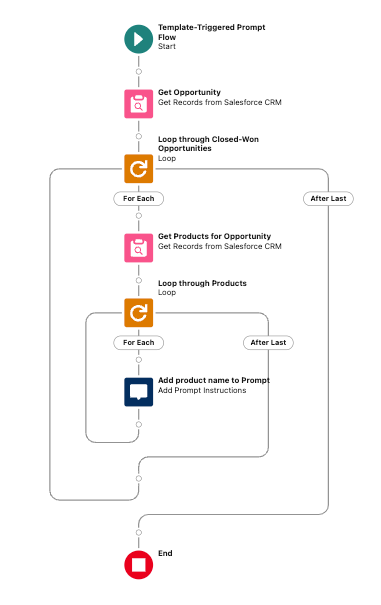
Weโ€™ll use a template triggered prompt flow to ground the prompt builder with the appropriate data from the account.

The Tricky Part

The prompt builder output canโ€™t simply return records. We can only access the output in its rawest form: as string of JSON. Weโ€™ll need to parse the JSON and map it to something that can be displayed in a table component in the screen flow.

The Solution

There are different table components available in flow. The out-of-the-box table component can only be used to display records. There are third party components that can display a list of Apex-defined objects. For simplicity, we are going with the former. That means every piece of data we want to show needs a corresponding field. We need two new custom fields: Time Passed from Last Purchase and How Many Times Purchased In Last Year.

Since our focus is on getting JSON from the prompt and parsing it, we wonโ€™t spend too much time on the precise business logic. Hereโ€™s what the template triggered prompt flow looks like.

Hereโ€™s what the prompt looks like:
You are a Sales Rep for the {!$Organization.Name} company.
You want to understand what would be next best order for the customer {!$Input:Account.Name} based on his previous orders
As the orders you will lookup in the last year orders
{!$Flow:Recommended_Next_Best_Product_Flow.Prompt}
Summarize the products to count how many times each product have been purchased but don't put this result in the answer.
Also try to understand from the purchase dates when it was the last time each product has been purchased, also don't put this calculation in the answer.
Based on this calculation propose 5 products to order that might be suggested for the next order for the customer based on the products that have been purchased more times or that is a long time since the last purchase.
Do not include "*" in the product name
Try to suggest products with the Product Family of Services or Software
Try to suggest also product that are more suitable for the customer industry that is {!$Input:Account.Industry}
Order the results from the most suggested to the less suggested.
For each suggested product, say how much time passed from the last purchase (in months or weeks) and specify how many times it has been purchased in the last year.
Avoid suggesting products like shipping charges since they are automatically calculated.
In the output of this prompt, return the 5 products in a list of objects. Each object should include the following attributes: ProductName, ProductId, ProductFamily, TimePassedFromLastPurchase, HowManyTimesPurchasedInLastYear.
In the output of this prompt, only include the JSON array of the objects. Do not include any other text.
Delete the "```json" at the beginning of the prompt, and delete the "```" at the end of the prompt.

Pay close attention to the last few lines of the prompt.

  • In the output of this prompt, return the 5 products in a list of objects. Each object should include the following attributes: ProductName, ProductId, ProductFamily, TimePassedFromLastPurchase, HowManyTimesPurchasedInLastYear.
  • In the output of this prompt, only include the JSON array of the objects. Do not include any other text.
  • Delete the ““`json” at the beginning of the prompt, and delete the ““`” at the end of the prompt.

Note: It is critical to remove the “`json from the beginning and the “` at the end of the prompt output.

Parsing the Prompt Output

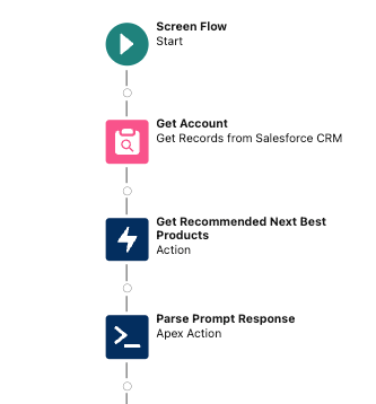
Remember, this will be launched in a screen flow. The screen flow will be distributed on the account lightning record page. Itโ€™ll take that account id, get the entire account record, then pass the whole record to the prompt builder.

The output from the prompt must be manually mapped to a text variable, in order to pass it to the Apex action.

Here is what the Apex code looks like.

public class ProductInfoParser {

// Inner class to represent the structure of the incoming JSON
public class ProductInfo {
public String ProductName;
public String ProductId;
public String ProductFamily;
public String TimePassedFromLastPurchase;
public Integer HowManyTimesPurchasedInLastYear;
}

// Wrapper class to handle the input from Flow
public class Request {
@InvocableVariable(required=true)
public String jsonInput; // The input from Flow, a single string containing the JSON array
}

// Wrapper class to handle the output back to Flow
public class Response {
@InvocableVariable
public List<Product2> products; // The list of Product2 objects to return
}

// Invocable method to be called from Flow
@InvocableMethod(label='Parse JSON and Map to Product2' description='Parses JSON array and maps the values to a List<Product2>')
public static List<Response> mapJsonToProducts(List<Request> requests) {
List<Response> responses = new List<Response>();
Request req = requests[0];
Response res = new Response();
res.products = new List<Product2>();

// Deserialize the JSON array into a list of ProductInfo objects
List<ProductInfo> productInfoList = (List<ProductInfo>) JSON.deserialize(req.jsonInput, List<ProductInfo>.class);
System.debug(productInfoList);

// Map the ProductInfo to actual Product2 objects
for (ProductInfo info : productInfoList) {
Product2 prod = new Product2();
prod.Name = info.ProductName;
prod.Id = info.ProductId;
prod.Family = info.ProductFamily;
prod.Time_Passed_From_Last_Purchase__c = info.TimePassedFromLastPurchase;

// Convert integer to string for the text field
prod.How_Many_Times_Purchased_In_Last_Year__c = String.valueOf(info.HowManyTimesPurchasedInLastYear);

// Add the mapped product to the response list
res.products.add(prod);
}
// Add the response with the list of products to the responses list
responses.add(res);

// Return the responses containing the lists of Product2 objects
return responses;
}
}

Important: The object attributes of the JSON returned by the prompt builder output must match the attributes of the Apex class. Note the attributes of the inner class ProductInfo match exactly: ProductName, ProductId, ProductFamily, TimePassedFromLastPurchase, HowManyTimesPurchasedInLastYear.

These must match in order for us to take advantage of the system method JSON.deserialize(). It is possible to create a custom JSON parser, but that is both messy and unnecessary.

The remainder of the flow takes the top recommended products returned from the Apex, and renders them in a table. The user may then select the products, and the flow will create an opportunity and related opportunity products.

Key Takeaways

  • Manually assign a text variable to hold the JSON string returned in the prompt output. Youโ€™ll need it to pass into the Apex.
  • Be sure to include the following in the prompt instructions: Delete the "```json" at the beginning of the prompt, and delete the "```" at the end of the prompt.
  • The object attributes of the JSON output of the prompt builder must match the attributes of the Apex class.