For those that were unable to make our presentation at Dreamforce, you can find the content here! The slide deck that we presented is below – for each of the 5 tips, there are posts on this website that dive into more details, however first, we announced that ‘Enhanced Omni-Channel‘ is now GA! Check out the link for more details.
This post is to describe how and when to setup and configure Status-Based capacity in Salesforce, when using Omni-Channel routing, including some common pitfalls and how to avoid them.
One of the big issues we hear a lot is that admins will configure agents to have really high capacity numbers, so that they are always busy with cases that are in progress – maybe a capacity as high as 100 cases at once. This works OK initially, but then an agent goes on leave for a couple of weeks and when they come back online they get 100 brand new cases right away they need to action – PANIC!
I’ll talk about how to avoid this problem down below, but first – let’s start with the basics.
What is status-based capacity?
Within the Omni-Channel setup you have two options for capacity management – ‘Tab-based’ or ‘Status-based’. This gets set at the ‘Service Channel’ level, so for each object type that is routed in Omni-Channel, you can use a different model (e.g. VoiceCall versus MessagingSession).
This influences how and when work items are consuming an Omni-Channel users capacity, and therefore if and when they receive new work.
So what’s the difference? I’ll start with Tab-based, this is the default capacity model and the simplest. When an Omni-Channel user accepts a piece of work, that work is opened in a new console tab. That work will continue to consume capacity until the user closes that tab, or logs out of Omni-Channel.
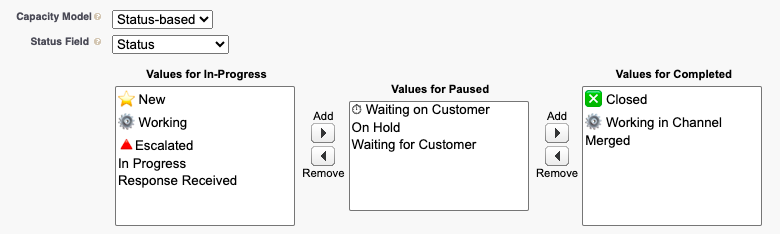
Status-based works differently – capacity consumption is based on a the value of a picklist field on the record that is being routed. In the Channel Settings, the admin will map which picklist field to use on the object and then map each of that picklists’ values to an Omni-Channel status – either ‘In-Progress’, ‘Completed’ or (new in Winter ’24) ‘Paused’. When the appropriate field on the record is updated, the Omni-Channel status may change, and result in capacity being released. For example, in the configuration below, if the ‘Status’ field on this record was updated from ‘Working’ to ‘Waiting for Customer’, capacity will be released as the work will move to a ‘Paused’ state – similarly if it moves back to ‘Working’ it will start consuming capacity again.
When to use status-based capacity?
Status-based capacity is best suited to long running asynchronous work, where the work may pause and resume throughout it’s life cycle – perhaps you need to wait on the customer to get back to you or a back office team to respond with more information – these are perfect candidates for Status-based capacity. Most often, this is an object like the Case or Lead object.
Today, unfortunately it isn’t supported on the Chat, Voice or Messaging channels, but we’re working on fixing those last two, stay tuned!
How should I configure status-based capacity?
I’ve sold you on status-based capacity – great!! The basics you can find in our help docs, but in this post I want to go into more details of the ins and outs of this.
What we have often found, is that admins will only map the ‘Completed’ status to fields that map to the work being fully complete, rather than also when the agent is unable to do more work on it right now, e.g. Waiting on a customer. To work around this, they will set the agents’ capacity to a really high number – which works OK initially, until a new agent or an agent who was on holiday for a while comes back and they get assigned 50 work items at once! Oh no!!
To avoid this, admins should always ensure that the capacity matches what a user is actually capable of handling at any one moment, so more like 3 or 4 cases at once for instance. There are then 2 more steps: at once.
Map or create any mid-states for the work, where work is not actively happening on the work right now, but will should resume later, to a ‘Paused’ or ‘Completed’ status, to ensure work in these states do not consume capacity
Ensure that users are updating the records appropriately to release capacity, or ideally use automation to update the record as appropriate for the user.
When to use Paused or Completed? What’s the difference?
In Winter ’24 we enhanced Status-based capacity to add a new ‘Paused’ status. The purpose of this is to give users visibility into work that they currently own, and will need to resume at some point. The purpose of this is to give us
The difference between paused and completed is two-fold – the first part is the visibility mentioned above, and being able to see their paused work in the Agent Inbox. The second part is related to when the work resumes – paused work will always go back to the record owner, regardless of their current status or capacity, meaning they could be offline when that work resumes. Work that resumes from the ‘Completed’ state, can go through some extra logic to determine who the work should be assigned to – for instance it can check availability or capacity and return it to the original queue if the record owner isn’t available right now.
Which you want to use are up to you and your business case – is a quick response more important? Then use Completed. Is a consistent owner and the customer relationship more important ? Then use Paused. Both work great for different use cases.
Just now there is no easy way to initially ‘Paused’, and then change to the ‘Completed’ behavior (e.g. at the end of your shift or before going on leave) – but a way to ‘Leave’ the work, or relinquish ownership will be coming soon (goal for Spring ’24!) – stay tuned!
Are there any downsides? What’s the catch?
Once you have status-based capacity configured correctly, there are very few downsides, however there are one or two things to be aware of:
You are now more dependent on agents to end their work and look after their workload a lot more, so they will need to stay on top of their work and backlog to update it as appropriate (or add automation to auto-close work as needed).
The ‘Active Time’ field on the AgentWork record doesn’t get recorded – this is on our backlog to resolve, so keep a lookout each release.
Messaging and Voice don’t support this capacity model today (yet!)
We will continue to invest in enhancing Status-based capacity, but don’t worry – Tab-based isn’t going anywhere!
I hope you found this post useful and please let me know in the comments if you have any questions!
https://unofficialsf.com/wp-content/uploads/2022/09/largeUCSF-300x133.png00Craig Patersonhttps://unofficialsf.com/wp-content/uploads/2022/09/largeUCSF-300x133.pngCraig Paterson2023-09-12 11:53:072023-09-12 12:17:36Best practices for Status-Based Capacity with Omni-Channel
Maybe you’ve heard about “Enhanced Omni-Channel” in our release announcements, or maybe saw a great new feature in a demo that you don’t have access to and want to learn more. You are in the right place! Let’s answer some common questions about Enhanced Omni-Channel, and get you excited to upgrade to a whole new world!
Why does Enhanced Omni-Channel even exist? What’s wrong with the previous platform?
First – the boring stuff! In technical terms, Enhanced Omni-Channel is running on a whole new backend infrastructure, that is built for increased horizontal scale on Hyperforce. The existing platform has served us well until now and will continue to be supported for the foreseeable future, but as we look to scale & streamline our applications, a new one was required.
What do I get with Enhanced Omni-Channel?
Enhanced Omni-Channel is available to all of our customers as part of the Winter ’24 release, and at launch includes:
More detail on these shortly, however the other important thing to note is that all future innovation on Omni-Channel will only be available to customers on Enhanced Omni-Channel – so if you want any routing, agent or supervisor experience improvements then you will want to upgrade as soon as you can!
What is the Enhanced Agent Experience?
I’m so glad you asked! In Winter ’24, we’re excited to bring a new Agent Inbox experience to our Omni-Channel users. This new experience is optimized for asynchronous and long running work, allowing agents to see all the work on their plate in a single Inbox view. This gives agents much more visibility into their backlog and is much easier to use – and what’s more, this is just the beginning of the enhancements to their experience!
Paused Work
Those with keen eyes may have noticed something a bit strange in the screen shot – what does that ‘Paused’ badge mean? As part of this upgrade, we have improved the Status Based Capacity setup, to add a ‘Paused’ status alongside the previous ‘In-Progress’ and ‘Completed’ statuses for work. This means customers can now define situations where the record owner retains ownership and visibility of work in their Inbox, but the work doesn’t consume their capacity.
Once there is work to be done, the user is notified via the blue dot shown above – this is just the first use case of this notification, and we’re confident that users are going to love it!
These are just the beginning of an improved agent experience – more big changes are coming soon, stay tuned!
What is the Enhanced Supervisor Experience?
We haven’t forgotten about our Supervisors! Omni-Supervisor is great, but it has lacked a high level summary view, where you can see the health of your operations in one place – that is until now! The first feature available for Enhanced Supervisors is a new Wallboard view allows you to quickly and visually get a quick pulse check of your team in real time, allowing easier and faster identification of any actions that may need to be taken.
Check wait times, queue or skill backlog sizes, handle times, agent status & agent capacity all at a glance, and filter to see your most important queues or skill combinations.
What’s the catch? Do I lose anything when I upgrade to Enhanced Omni-Channel?
Sounding too good to be true? For most Omni-Channel customers, you will lose absolutely nothing, and all features that are available today will continue to work on Enhanced Omni-Channel with no changes necessary after upgrading – agents just need to log out and back into Omni-Channel. There is 1 exception to this – the ‘Transfer Skills’ button that shows up on the Omni-Channel widget isn’t present on the Enhanced version – if you are using this button, we suggest creating a Flow on the relevant record that handles the transfers instead. You can find an example in this Quip document, including a link to install the Flow and post installation instructions.
For any customers using our Chat channel (formerly known as LiveAgent), or any ‘Standard’ Messaging channels (such as SMS or WhatsApp) will need to upgrade to their ‘Enhanced’ equivalents before upgrading to Enhanced Omni-Channel, as these channels will stop working after the upgrade.
It couldn’t be simpler! Navigate to ‘Omni-Channel Settings’, and click the toggle on the right hand side. That will walk you through accepting the required terms and conditions, before enabling Enhanced Omni-Channel. After that, with a quick logout of Omni Channel and a screen refresh, the new Agent & Supervisor experiences will show up!
Here is a quick video that provides an overview of Enhanced Omni-Channel, and will show you the upgrade process
I hope this post answers the question of what is Enhanced Omni-Channel and motivates you to turn it on. We have an amazing roadmap of features that we will continue to deliver on the Enhanced Omni platform – stay tuned and keep logging your ideas on the Ideas Exchange!
https://unofficialsf.com/wp-content/uploads/2022/09/largeUCSF-300x133.png00Craig Patersonhttps://unofficialsf.com/wp-content/uploads/2022/09/largeUCSF-300x133.pngCraig Paterson2023-09-06 05:42:442025-06-25 11:23:33What is Enhanced Omni-Channel?
In recent releases there have been some big changes to Omni Supervisor setup to make life easier and more efficient for Supervisors. In the Winter ’23 release it has been taken a step further, by adding the ability to create your own Custom Actions using Salesforce Flow – this puts the power in your Salesforce Administrators hands to add the most impactful actions for your supervisors to each Omni Supervisor screen.
This configuration is all setup through ‘Supervisor Configurations’ – some of the key benefits of using these are:
Only see the agents that are most relevant to each Supervisor
Only see the work that is relevant to each Supervisor (through Queues or Skills)
Have custom actions that are most relevant to each Supervisor
The goal of this post is to walk you through setting up Omni Supervisor in the most optimal way in Salesforce.
Setup guide
First, I want to cover the basics – getting and setting access to Omni Supervisor and some of the Omni Supervisor settings available, before we move onto optimizing the Supervisor experience.
Access to Omni Supervisor
Included with Service Cloud (or any other way you have gained access to Omni-Channel) is the ability to monitor agents and work in real-time with the Omni Supervisor tool. Once Omni-Channel is enabled, it will become available – however we recommend that you limit who has access to it. You can do this by:
Editing all of your profiles to set ‘Omni Supervisor’ to ‘Tab Hidden’ under Tab Settings (or Object Settings) for your profiles
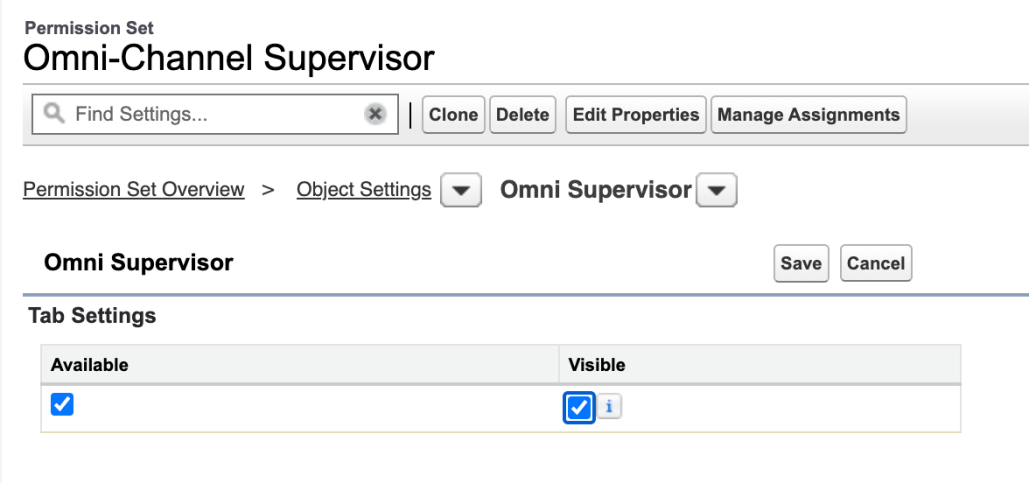
Create a Permission Set that grants access to this tab – similar to the screenshot below. You can then assign this permission set to your managers, supervisors and team leaders. Ideally you may want to include this option with other Supervisor settings, or create a Permission Set Group which includes this access.
On the ‘Supervisor Settings’ admin screen, there are various options you can enable – we recommend you enable all of them (learn more about each setting here), unless your country has particular restrictions on these items (the sneak-peek options need to be disabled in some countries due to privacy concerns).
Optimizing Omni Supervisor
Now that you have Omni Supervisor showing up for your Supervisors, let’s improve their experience. All of the configuration for optimizing Omni Supervisor can be done on one screen, the ‘Supervisor Configurations’ admin screen. We recommend that you create a Supervisor Configuration for each team or department in your organization – this will allow your supervisors to just see the agents and work that is relevant to them, removing any extra noise from other teams or departments.
Configure which Users Supervisors can see
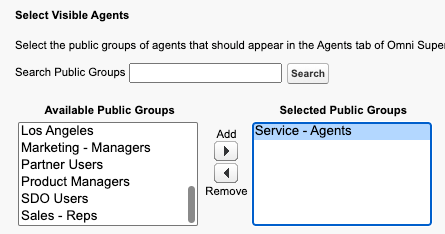
The first part of Supervisor Configuration is restricting which agents the Supervisor with this configuration will be able to see in Omni Supervisor – this is done through Public Groups. There are many other benefits to assigning your agents to Public Groups on top of using them with Supervisor Configurations – you can even nest Public Groups, so this is a great practice even without using them here.
As we suggest a Supervisor for each team and department, we also suggest you have a Public Group setup for each of your teams or departments. Once created, it is as simple as assigning the public group(s) to a Supervisor Configuration, this will mean that Supervisors assigned this configuration will only see agents within the assigned public group(s), reducing the noise in Omni Supervisor.
Configure which Work Supervisors can see
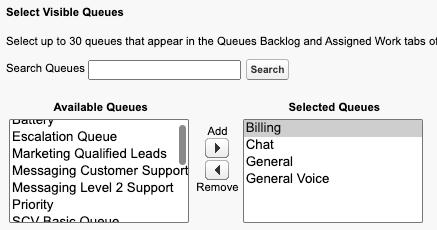
The next step is to filter the amount of work that the Supervisor sees in the Queue Backlog, Assigned Work and Skills backlog Tabs. For queue based work, this is as easy as assigning the appropriate queue(s) to the Supervisor Configuration – this will once again reduce the noise, and ensure the assigned Supervisor(s) only see the queues and work most relevant to them.
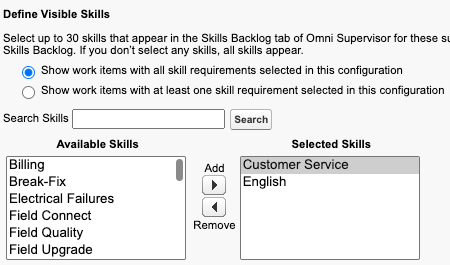
If you are using Skills based routing, it is a little more complex as you have the option to either display work with ANY of the skills you add to the configuration, or only display work that includes at least ALL of the assigned skills. The ‘ALL’ setting can be particularly helpful if you split your work by particular departments and/or countries or languages, and assign skills to work in this way. For instance, if you could add ‘French’ & ‘Tech Support’ to this list, and all work assigned at least the ‘French’ and ‘Tech Support’ skills would show up, but not any with only ‘France’ & ‘Finance Support’ skills assigned.
Configure which Actions Supervisors can take
This part is so exciting we have created out own blog about it! Check it out here.
However at a minimum, we recommend that you add the standard buttons to the screens – these are ‘Change Queues’ & ‘Change Skills’ (if you are using Skills based routing) on the ‘All Agents’ tab, and add the ‘Assign Agents’ button to the ‘Queues Backlog’ tab.
Assign Supervisor Configuration
Now you have created a configuration for each team and department, you can assign them to the appropriate supervisors and/or team leaders, and watch their productivity soar!
https://unofficialsf.com/wp-content/uploads/2022/09/largeUCSF-300x133.png00Craig Patersonhttps://unofficialsf.com/wp-content/uploads/2022/09/largeUCSF-300x133.pngCraig Paterson2022-10-17 12:37:162022-10-17 12:37:19How to Optimize Omni Supervisor with Supervisor Configurations
In the Winter ’23 release, an exciting new feature was shipped allowing admins to put more power in the hands of Supervisors to run their teams’ with a new configurable action framework from Omni Supervisor.
You can leverage the power of live data on Omni Supervisor, across all of the tabs (lists of Agents, Queues, Skills, work items in a given Queue, etc.) to execute contextual Screen Flow actions.
Make changes to agents configurations, Re-route work from a Queue, Order a Pizza for your team! The possibilities are endless – I’ve created a few examples that you can try out to get you started, you can find the details, including the installation link in this post.
To get the most our of this great new feature, you will want to find out what are some of the common actions Supervisors need to take on users or work items which require many clicks or manual steps today – these going to be perfect candidates to create new custom actions for, which can speed up their day tremendously (making you a hero). There may also be common actions IT or admins need to make, that could be delegated down to Supervisors, which are also great candidates (e.g. reset a users password).
To make use of these actions, you will need to assign Supervisors a ‘Supervisor Configuration’ – more details on those here.
Creating Custom Actions
A Custom Action is just a Screen Flow – however, the powerful part of these custom actions is the context you can pass to them – that is the list of records users select before invoking the action. That list of records gets converted to a list of IDs and put into an input variable for the flow, called ‘ids’, which the Flow can then take action on.
Each page passes in different types of data to the Flow – you can find more information in our help docs about each, but they fall into 1 of these 3 options:
User(s)
Queue(s)
Work Record IDs (i.e. the ID of the work item being routed – so a Case or Voice Call for instance)
Once you have your use case, creating the custom action is pretty straight forward and is outlined in our help docs, but here are the quick steps:
Create a new Flow of type ‘Screen Flow’
Create an input variable called ‘ids’ that is a Text Collection variable and is ‘Available for Input’
Now perform the action(s) on the records that are passed in as appropriate, looping where required
Save & Activate, giving it a sensible label as this is what will show up to your Supervisors as the button label
How easy is that??!! However, I want to help you out even more by diving into a few extra hints and tips when creating these:
Use a Toast to display success or failure instead of an extra screen to reduce clicks for the supervisor. You can find a package with this component on this site, here: https://unofficialsf.com/show-toast-flow-action/
Use the ‘Collection Filter’ element to quickly create a list of record IDs of all the same type (e.g. Cases), by checking the IDs in the list all start with the same 3 character prefix. You can then iterate each list independently with the Loop element
You can use the Flow feature of running Flows in System Context to delegate down extra powers to the Supervisors, so that the actions they run can manipulate admin data (such as Presence Configurations or Routing Configurations), or even objects/fields that they otherwise wouldn’t have access to – within the guardrails of the Flow that restricts what they can and can’t do to those objects.
You can add Emoticons 👍🙏❗️ to the Label of the Flow, which will then show up on the Supervisor screen to stand out more
The order you assign these is important – the first 4 will be shown on the page, while you can have up to 6 more in the dropdown (for a total of 10).
To test your actions, create a test Screen Flow that calls your new Flows as sub-flows, passing in the list of appropriate IDs to each.
I’m excited to see how our customers will make use of this exciting new feature! Don’t forget, to get you started I have created some examples of some common Flows you may want to use, and even packaged them up – details can be found in this page.
https://unofficialsf.com/wp-content/uploads/2022/09/largeUCSF-300x133.png00Craig Patersonhttps://unofficialsf.com/wp-content/uploads/2022/09/largeUCSF-300x133.pngCraig Paterson2022-10-17 12:36:482022-11-08 06:56:44Add super powers to supervisors with new Configurable Flow Actions
In the Winter ’23 release, an exciting new feature was shipped allowing admins to put more power in the hands of Supervisors to run their teams’ with a new configurable action framework from Omni Supervisor. I’ve gone into some details on creating your own actions in this post, but this page is here to describe a package of custom actions that I’ve created that you can install and use make use of as you see fit.
You can install these Supervisor Flow Actions as a standalone package from this link (unmanaged) – Updated Nov 11th 2025 – will slightly differ from what is show below
Ensure that Omni Channel is enabled before installing
Once installed – check for each flow below as to whether you need to make updates, before adding it to a Supervisor Configuration (as detailed in the help docs) – all Flows that reassign work will need updating.
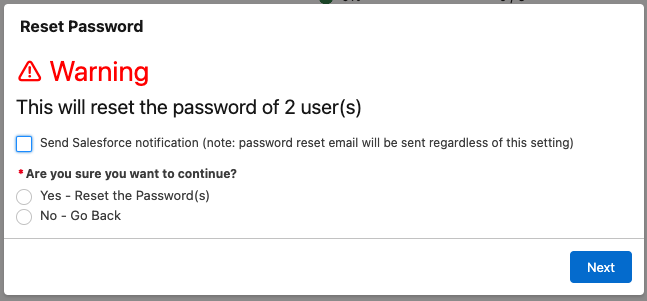
Description: This flow is designed to be used on the ‘Agent Summary’ tab of Omni Supervisor, and expects a list of User record Ids to be passed in (to the input variable ‘ids’ – this is done by default from Omni Supervisor). This will show the above screen – where you can choose to send a notification to the affected Users – choosing to send the notification will result in the users getting a Salesforce notification (bell icon), informing them that their password has been reset. They will also get the standard password reset email (whether you select the checkbox or not).
Note – this Flow is set to ‘Run as System’ as it is calling Apex, and the ‘system.resetPassword()’ function.
Required Updates
Add this action to the appropriate ‘Supervisor Configurations’ (or create one) that you want this to appear for.
Ensure you have a ‘Custom Notification’ in the Setup screens which is active, and applies for at least Desktop
Ensure the user has access to the ‘ResetUserPassword’ Apex Class (via Permission set or Profile)
Optional Updates None
Update Capacity
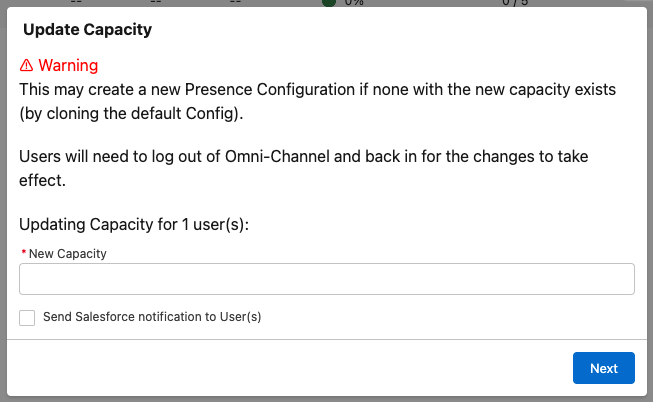
Description: This flow is designed to be used on the ‘Service Reps’ tab of Omni-Supervisor, and expects a list of User record Ids to be passed in (to the input variable ‘ids’ – this is done by default from Omni-Supervisor). This will show the above screen – where you can enter the new capacity to use for the selected user(s).
This will update the capacity on the
Required Updates
Add this action to the appropriate ‘Supervisor Configurations’ (or create one) that you want this to appear for
Ensure you have a ‘Custom Notification’ in the Setup screens which is active, and applies for at least Desktop
Optional Updates
You can change this to create a Presence Configuration per agent – this creates a lot of overhead, but means that their capacity change can take effect right away and only affect them, rather than potentially lots of users.
(this one has been removed from the latest package – but simple to implement)
Send Notification
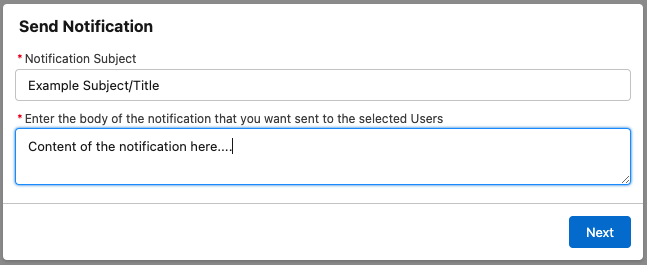
Description: This flow is designed to be used on the ‘Agent Summary’ tab of Omni-Supervisor, and expects a list of User record Ids to be passed in (to the input variable ‘ids’ – this is done by default from Omni-Supervisor). This will show the above screen – where you can enter the subject and body of the notification you want to send the selected User(s).
Sending the notification will result in the users getting a Salesforce notification (bell icon), with the entered values. Clicking on this notification will take them to their ‘Home’ screen
Required Updates
Add this action to the appropriate ‘Supervisor Configurations’ (or create one) that you want this to appear for.
Ensure you have a ‘Custom Notification’ in the Setup screens which is active, and applies for both Desktop and Mobile (for the checkbox to send a notification to work)
Optional Updates
You can copy/clone this Flow to send a message in your appropriate messaging platform (e.g. Slack, Teams or SMS) or to send an Email, using the various Flow actions available (either OOB, or via install).
You can update the navigation from the ‘Send Navigation’ action to go to a different location as appropriate for you (but a navigation target of some sort must be defined).
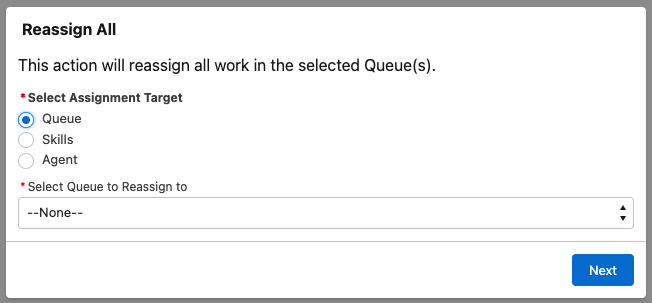
Reassign All
Description: This flow is designed to be used on the ‘Queues Backlog’ tab of Omni-Supervisor, and expects a list of Queue (Group) record Ids to be passed in (to the input variable ‘ids’ – this is done by default from Omni-Supervisor). This will show the above screen – where you can select the appropriate Queue or User you want to assign all of the work in the selected Queue(s) to. Today, this only supports Queues, Skills and Agents.
Required Updates
Each of the Route Work actions need to be updated for your Org – select the appropriate channel and routing configuration (where appropriate) to a valid value.
For any other types of work you have in your org, you will need to add another ‘Collection Filter’ element to filter for that work, and loop through it.
Optional Updates None
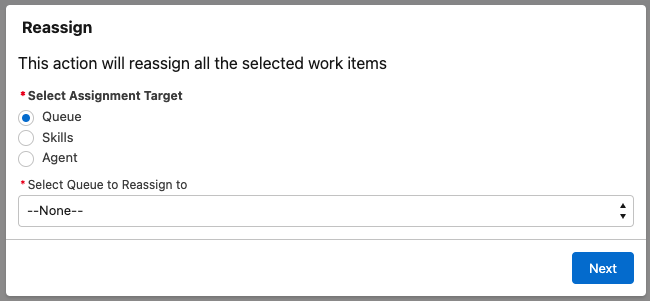
Reassign
Description: This flow is designed to be used on any of the tabs in Omni-Supervisor that lists work – such as the Skills Backlog, or any of the sub-tabs of each page. The Flow expects a list of record Ids to be passed in (to the input variable ‘ids’ – this is done by default from Omni-Supervisor) – these could be of many different types. This will show the above screen – where you can select the appropriate Queue, Skills or User you want to assign all of the selected work items to.
Warnings
Reassigning work that is currently assigned directly to an agent to a Queue will fail – workaround is to assign to a skill first, before assigning to the queue (can be added to the Flow)
Using this action on the ‘Assigned Work’ page may have unexpected consequences – as that work is currently with an agent, and will be re-routed while they are still working on it, potentially leading to multiple people working on the same work item.
Required Updates
Each of the Route Work actions need to be updated for your Org – select the appropriate channel and routing configuration (where appropriate) to a valid value.
For any other types of work you have in your org, you will need to add another ‘Collection Filter’ element to filter for that work, and loop through it.
Optional Updates
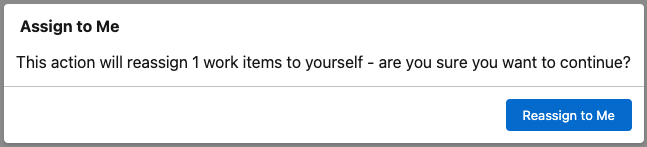
Assign to Me
Description: This flow is designed to be used on any of the tabs in Omni-Supervisor that lists work – such as the Skills Backlog, or any of the sub-tabs of each page. The Flow expects a list of record Ids to be passed in (to the input variable ‘ids’ – this is done by default from Omni-Supervisor) – these could be of many different types. This will show the above screen – where you can select the appropriate Queue or User you want to assign all of the selected work items to. Today, this only supports Queues and Agents, due to limitations with the setup of dynamically adding skills in Flow – it is on the near term roadmap to resolve this short-coming.
This is the same as the Reassign Flow above, but a faster way to assign to yourself if you want to quickly grab a work item out of the backlog.
Warning – using this action on the ‘Assigned Work’ page may have unexpected consequences – as that work is currently with an agent, and will be re-routed while they are still working on it, potentially leading to multiple people working on the same work item.
Required Updates
Each of the Route Work actions need to be updated for your Org – select the appropriate routing configuration to a valid value.
For any other types of work you have in your org, you will need to add another ‘Collection Filter’ element to filter for that work, and loop through it.
Optional Updates None
https://unofficialsf.com/wp-content/uploads/2022/09/largeUCSF-300x133.png00Craig Patersonhttps://unofficialsf.com/wp-content/uploads/2022/09/largeUCSF-300x133.pngCraig Paterson2022-10-17 12:35:452025-11-11 15:24:11Example Custom Flow Actions for Omni Supervisor