Reach out to your AE to get nominated for the pilot, we will turn on the pilot perm on your Sandbox and you are ready to roll!
Feature is available in Essentials, Professional, Enterprise, Performance, Unlimited, and Developer Editions.
OTHER CONSIDERATIONS FOR PILOT
Accessing Recommendation fields in the invoked flow
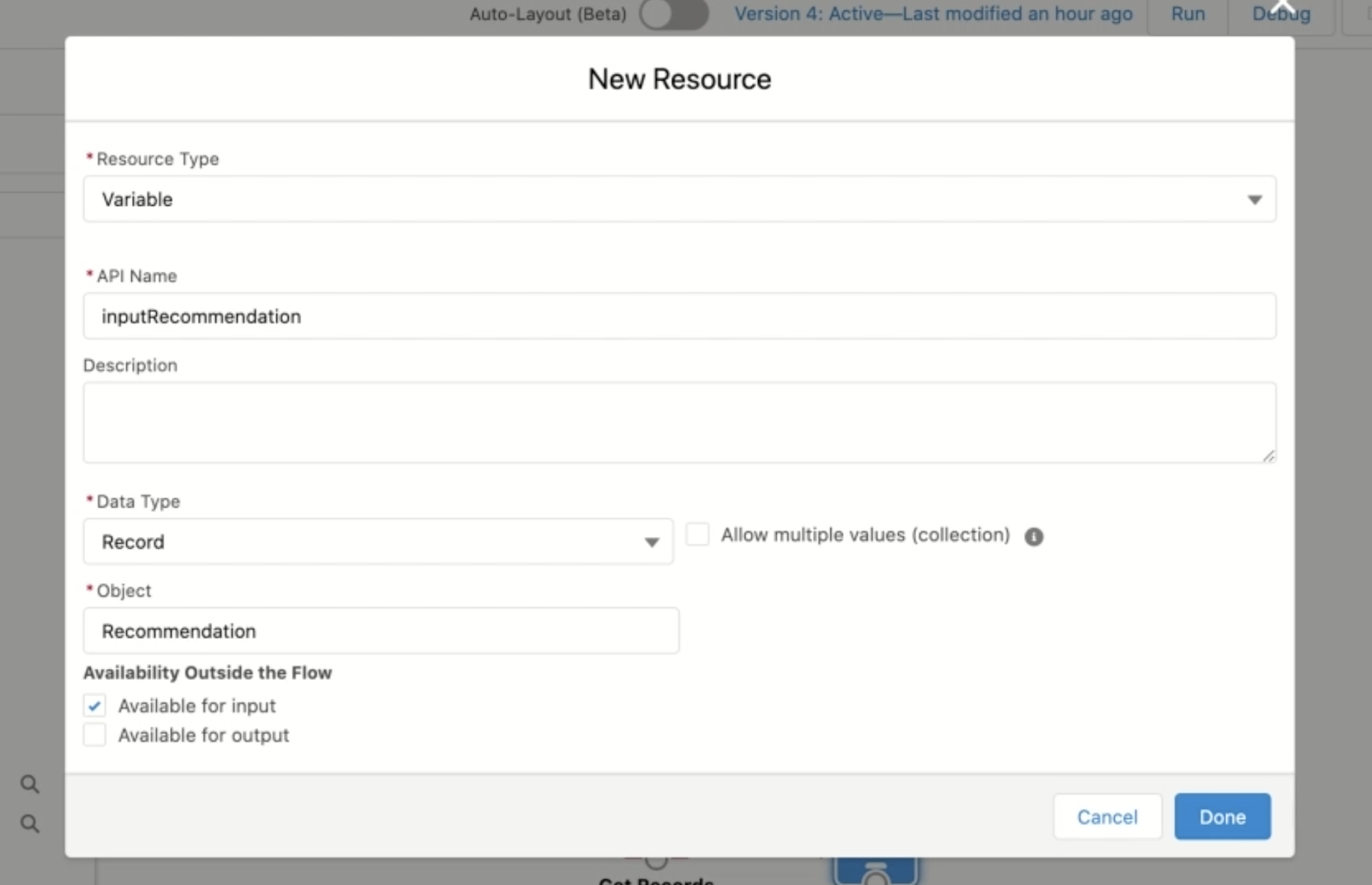
Create an optional input variable named inputRecommendation in the invoked flow of data type ‘Record’ and Object type ‘Recommendation’ and mark it as Available for input as shown.
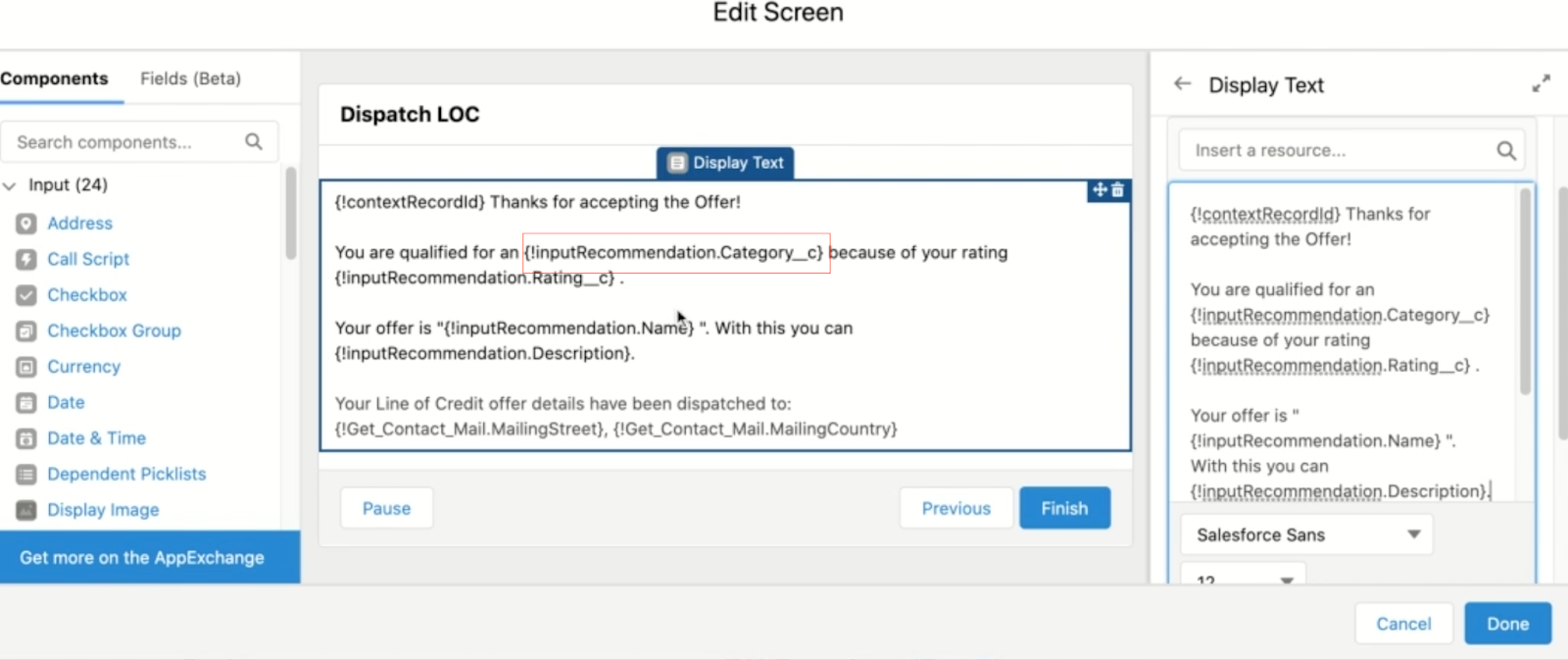
Now this variable holds details of the selected recommendations on the invoked flow that the admin can choose to display a more descriptive text on the screenflow invoked or save for custom reporting purposes. Example below where the category field(custom field) of the inputRecommendation is referenced in the invoked screenflow.
Automatic Variables
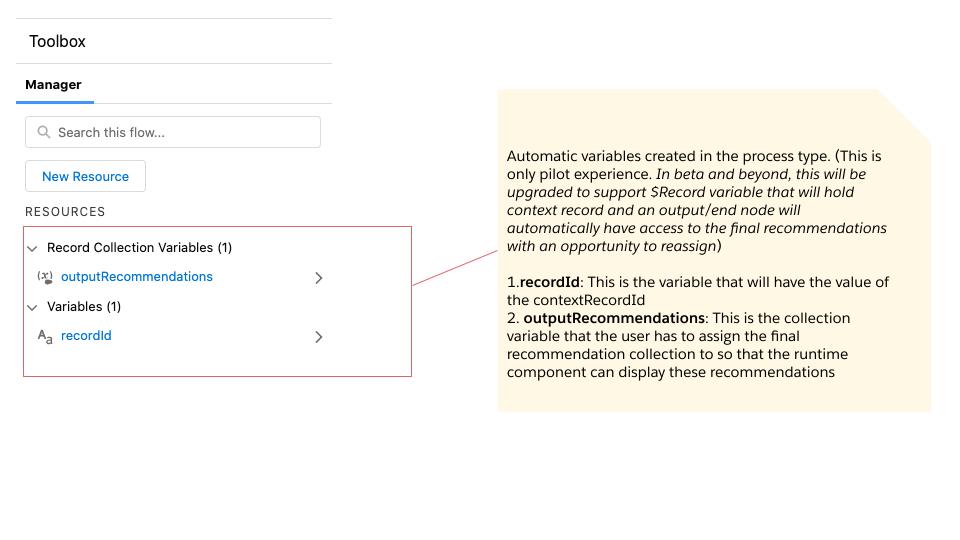
When you open the new recommendation strategy process type, 2 variables will be automatically created in the Manager tab under resources .
1.recordId: This is the variable that will have the value of the contextRecordId. (This is only pilot experience. In beta and beyond, this will be upgraded to support $Record variable that will hold context record
2. outputRecommendations: This is the collection variable that the user has to assign the final recommendation collection to so that the runtime component can display these recommendations (In beta and beyond an output/end node will automatically have access to the final recommendations but the admin will still have the ability to reassign it)
Versioning/ Activate or Deactivate a Recommendation Strategy:Versioning is a new platform capability that will be available to NBA users on this pilot. You can have multiple versions of a recommendation strategy, but only one version of each flow can be active at a time. You can activate or deactivate a flow right in Flow Builder or from the flow’s detail page in Setup.
Perms:
To create or manage recommendations
Modify All Data or Manage Next Best Action Strategies
To open, edit, or create a flow in Flow Builder:
Manage Flow
To create and save Lightning pages in the Lightning App Builder:
Customize Application
To view Lightning pages in the Lightning App Builder:
View Setup and Configuration
To run a recommendation strategy on a Lightning record page:
Run FlowsORFlow User field enabled on the user detail page
To create, edit and delete custom report types:
Manage Custom Report Types
To view recommendation metrics data:
Modify All Data or Manage Next Best Action Strategies
https://unofficialsf.com/wp-content/uploads/2022/09/largeUCSF-300x133.png00Janani Narayananhttps://unofficialsf.com/wp-content/uploads/2022/09/largeUCSF-300x133.pngJanani Narayanan2021-04-30 05:49:382021-04-30 06:06:55Pilot other considerations and requirements: Einstein Next Best Action on Flow(Blog 3 of 4 series)
Bonus: You also get to check out the brand new Sort collection processor element on Flow!
This tutorial will help you create your first Recommendation Strategy on Flow! This is a pilot feature, so contact your Account Executive to get nominated for the pilot. Also if you haven’t already, check out this blog for an overview on the product. As an added bonus, this tutorial also helps you check out the brand new Sort collection processor element on Flow!
You can now create Next Best Action Strategies using the powerful Flow Builder and leverage the power of Salesforce’s mature Automation Platform .
NBA customers will now have a brand new way of creating recommendation strategies on flow builder that is packed with powerful platform features such as Templates, Versioning, Packaging 2.0 support, Sub Strategies, Debugging enhancements and also will be home to low code AI driven Recommendation, OOTB Reporting and analytics , OOTB Integration with Bots, Enhanced Display component with Mobile support and many other cutting edge decisioning builder elements. Planned GA in Spring ‘22 (Safe Harbor applies)
WHAT WILL BE AVAILABLE AS PILOT IN SUMMER ‘21
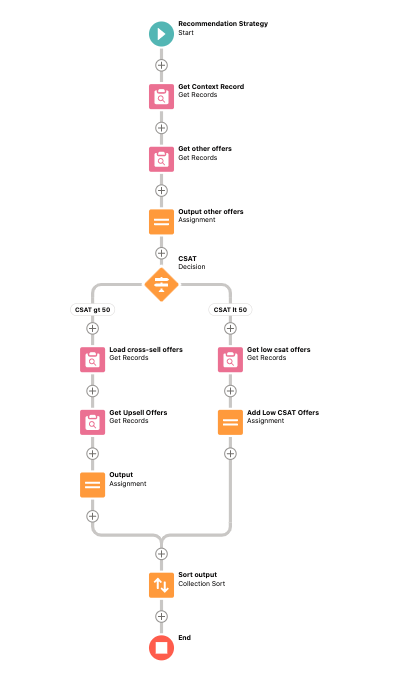
Try the following pilot tutorial out by creating a sample flow as follows. The use case is to show recommendations on a Case object. For a customer whose CSAT is greater than 50 show Cross-sell and Upsell offers (stored as recommendation records) and for a customer whose CSAT is lower than 50 show some Promotional offers. For every customer irrespective of CSAT, show any other recommendations.Also check out the demo video that explains all the features.
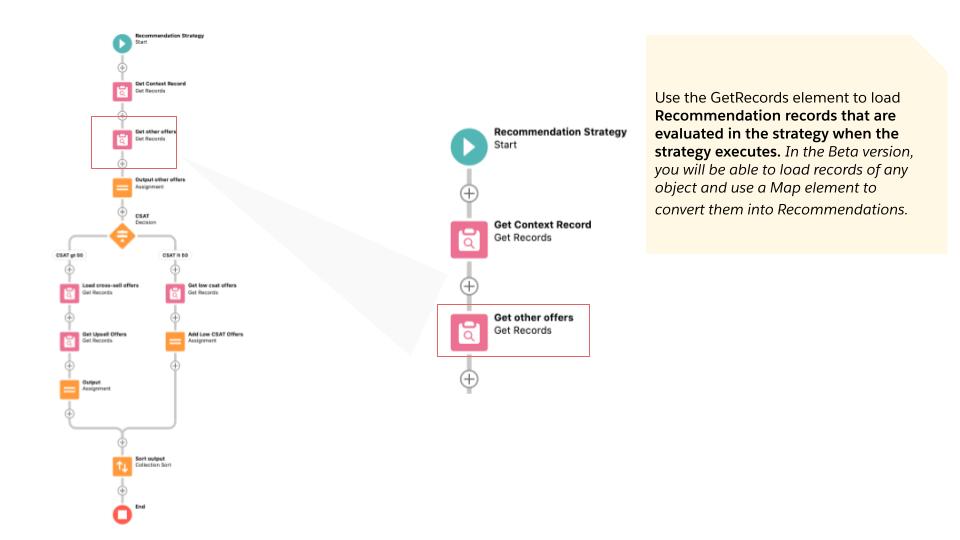
Let’s try and build the following flow and see some recommendations .
Use Flow Builder to Create a new Recommendation Strategy
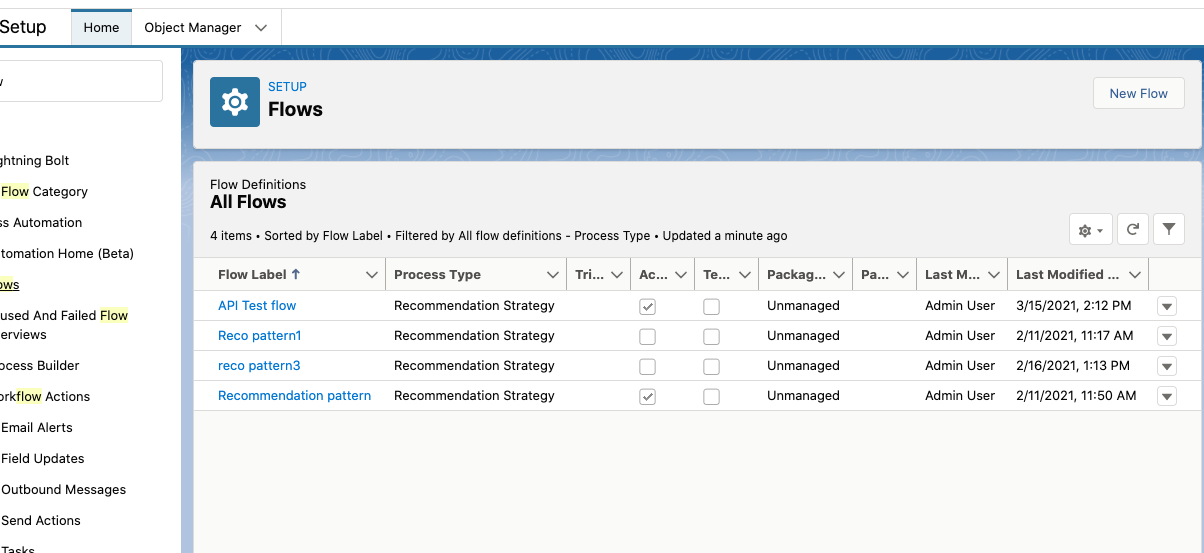
Open Flow Builder: From Setup, enter Flows in the Quick Find box, select Flows, and then click New Flow.
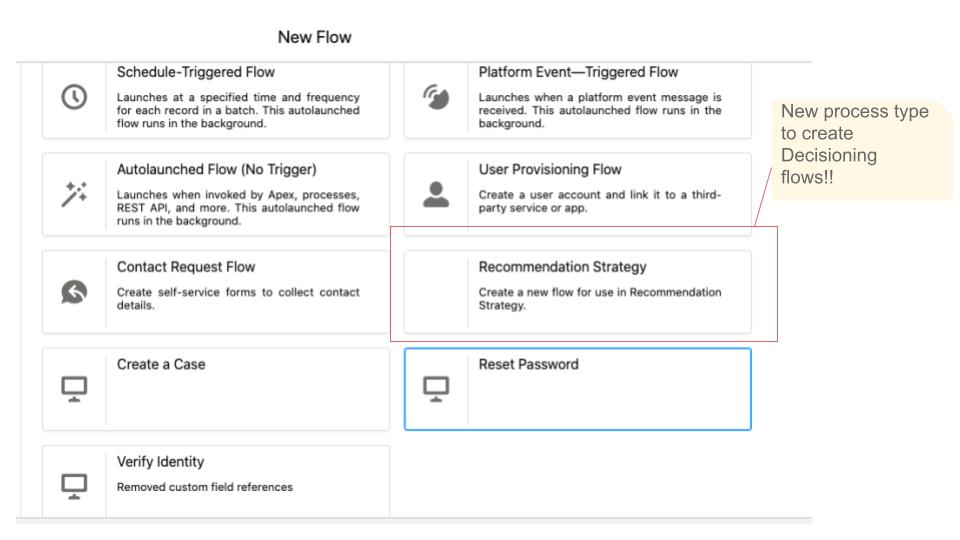
Select Recommendation Strategy on the, which is a new process type Recommendation Strategy, and click Create.
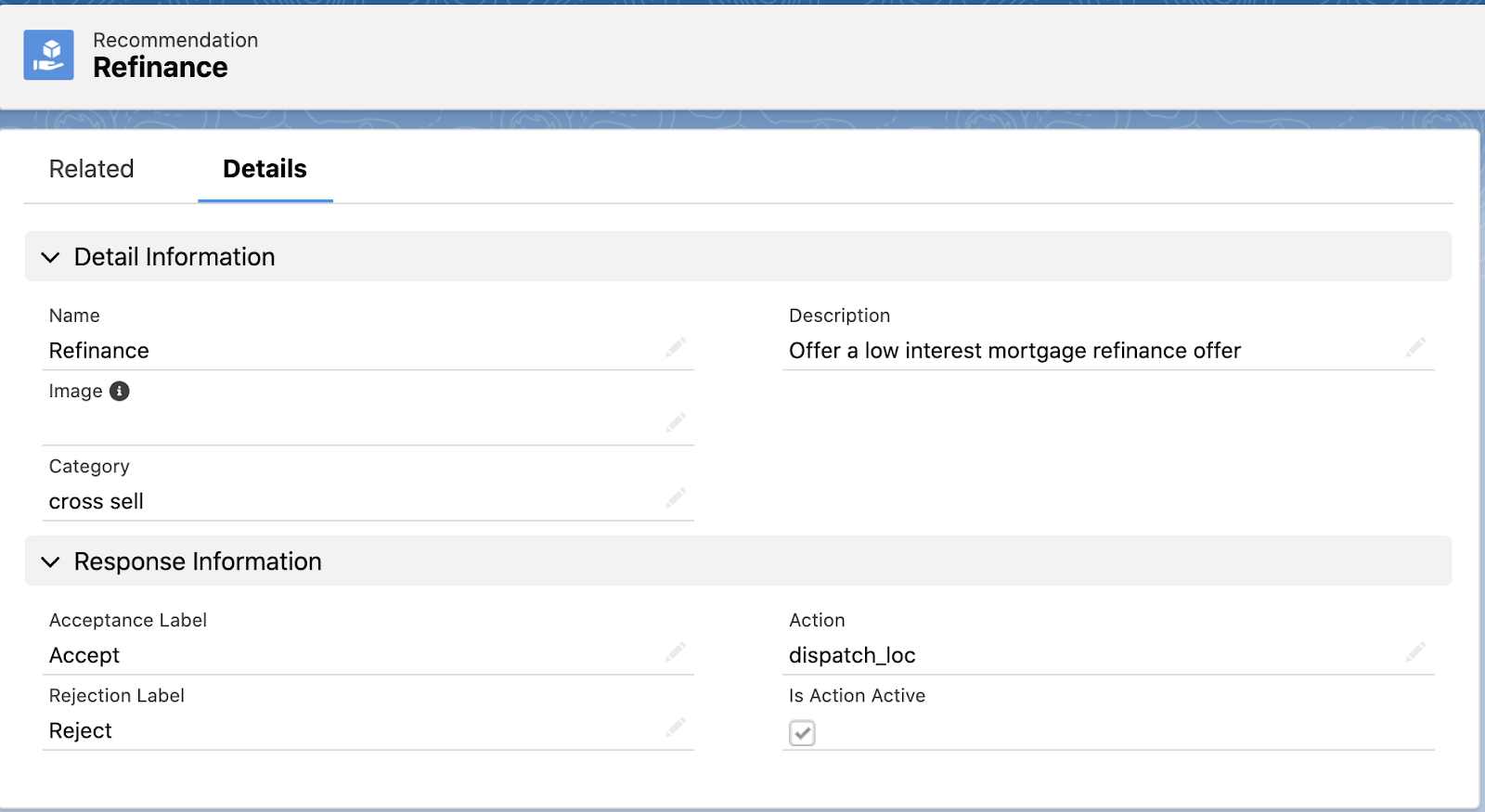
2. Create Recommendations :cRecommendations are created the same way as they are with the use of Strategy builder. Recommendations are standard Salesforce records, similar to accounts and contacts, that are processed by strategies and associated with flows (Make sure the flows associated with recommendations are Activated).Read ‘Create Recommendations’ from the documentation here.
3. Load Recommendations using GetRecords :
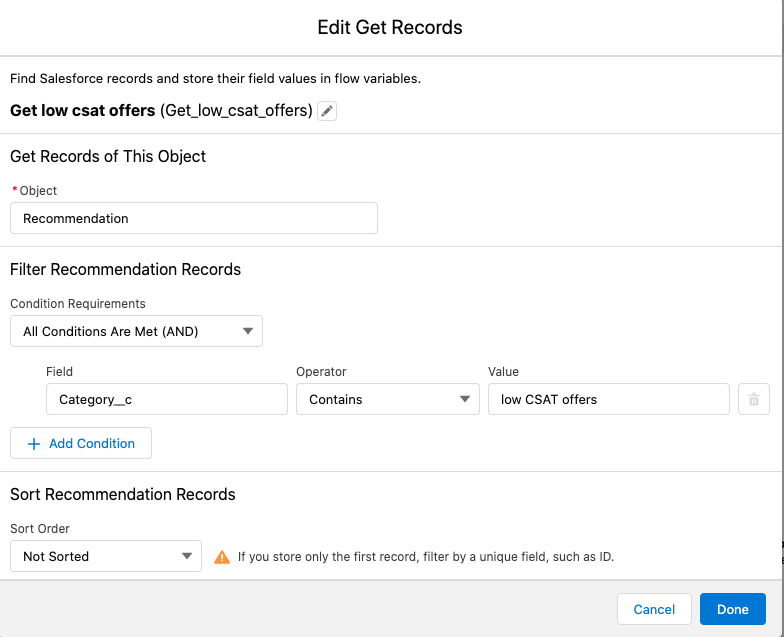
Use the GetRecords element to load Recommendation records that are evaluated in the strategy when the strategy executes. In the Beta version, you will be able to load records of any object and use a Map element to convert them into Recommendations.
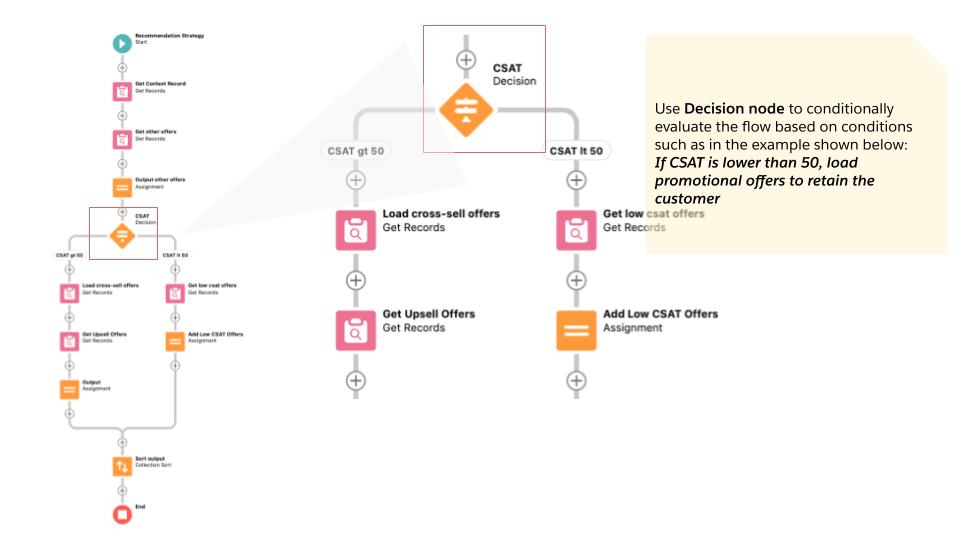
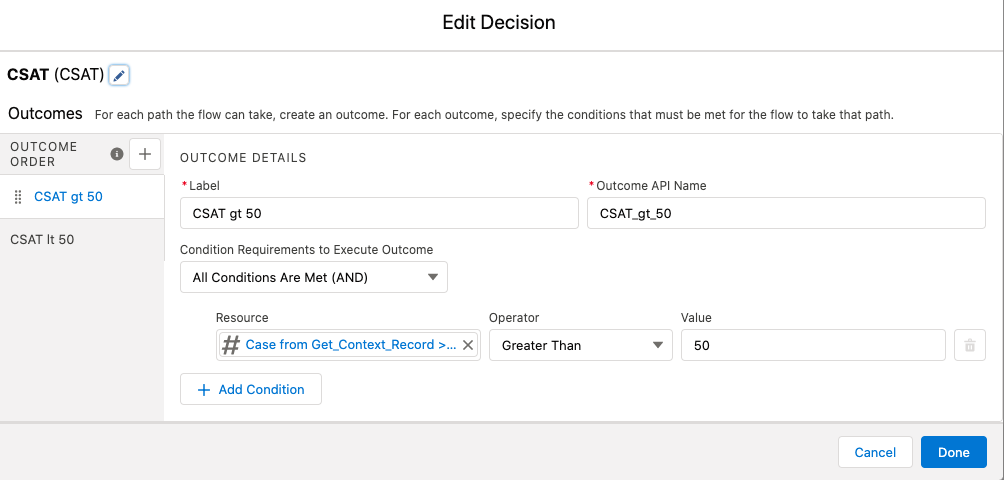
Use the Decision element to conditionally evaluate the flow based on conditions such as in the example shown below: If CSAT is lower than 50, load promotional offers to retain the customer.
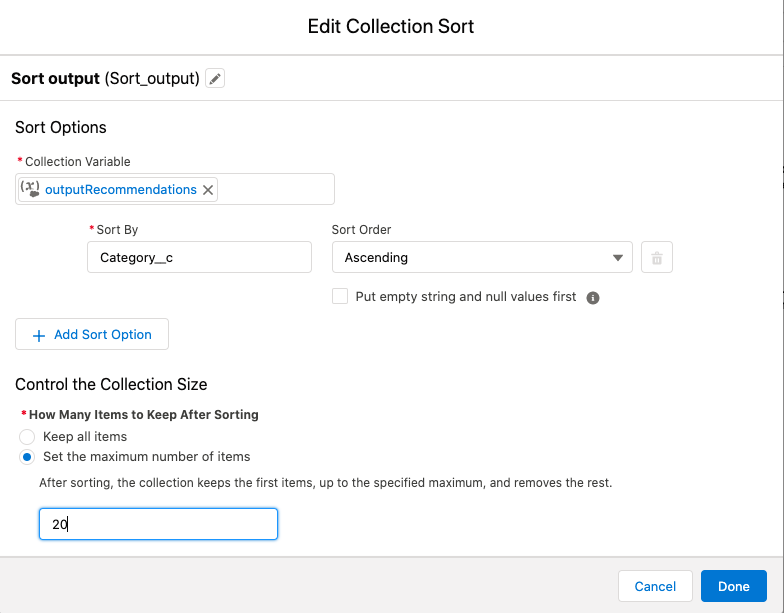
4. Sort recommendations( upto 3 levels deep)
With the Collection Sortnew element, you can reorder the recommendations using Recommendation fields up to 3 levels deep. Choose whether you want to sort in an ascending or descending order, and decide how many recommendations to allow through.
5. Save the flow and Activate it.
6. Display the resulting recommendations using the Next Best Action component on record pages
After creating a Recommendation strategy in Flow Builder, choose a page to display your recommendations and run your strategy. You can use a Lightning record page or an app’s Home page by following the steps below.
Lightning Page (Lightning App Builder)
In Lightning App Builder, create, edit, or clone a record page.
Drag Einstein Next Best Action from the component list to the location on the page where you want to display it.
In the property editor,Choose an action strategy and the number of recommendations you want the component to display.
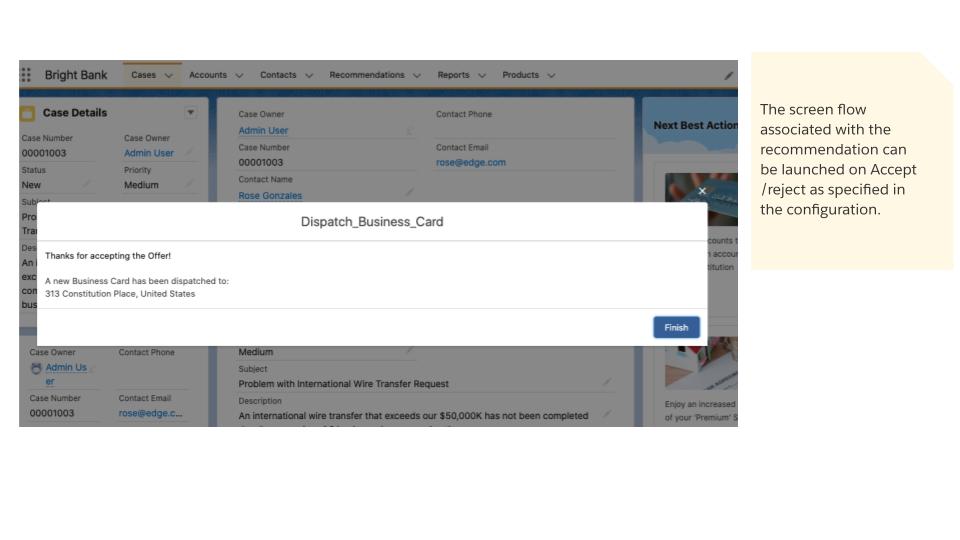
7. Accept/reject a recommendation and launch a flow from the runtime component. The screen flow associated with the recommendation can be launched on Accept /reject as specified in the configuration.
8. Report on accept/reject recommendations from the runtime component
As with Strategy Builder, custom reports can be easily created to report on and track recommendation data and strategy metrics. You can see the monthly total recommendations that a Salesforce org’s strategies served. And you can analyze which recommendations are accepted and rejected, who responds to them, and more.
For the NBA on Flow pilot, the one primary difference is that the the primary objects to report on are Recommendation Response (As opposed to Recommendation Reactions) and Recommendation Strategy Metrics (Same as previous – for monthly metrics)
Creating Reports on Recommendation Response metrics
Creating Reports on Monthly Strategy metrics
9. And finally .. you can also enable Recommendation Strategy process type to be invoked by the Flow Action endpoint.
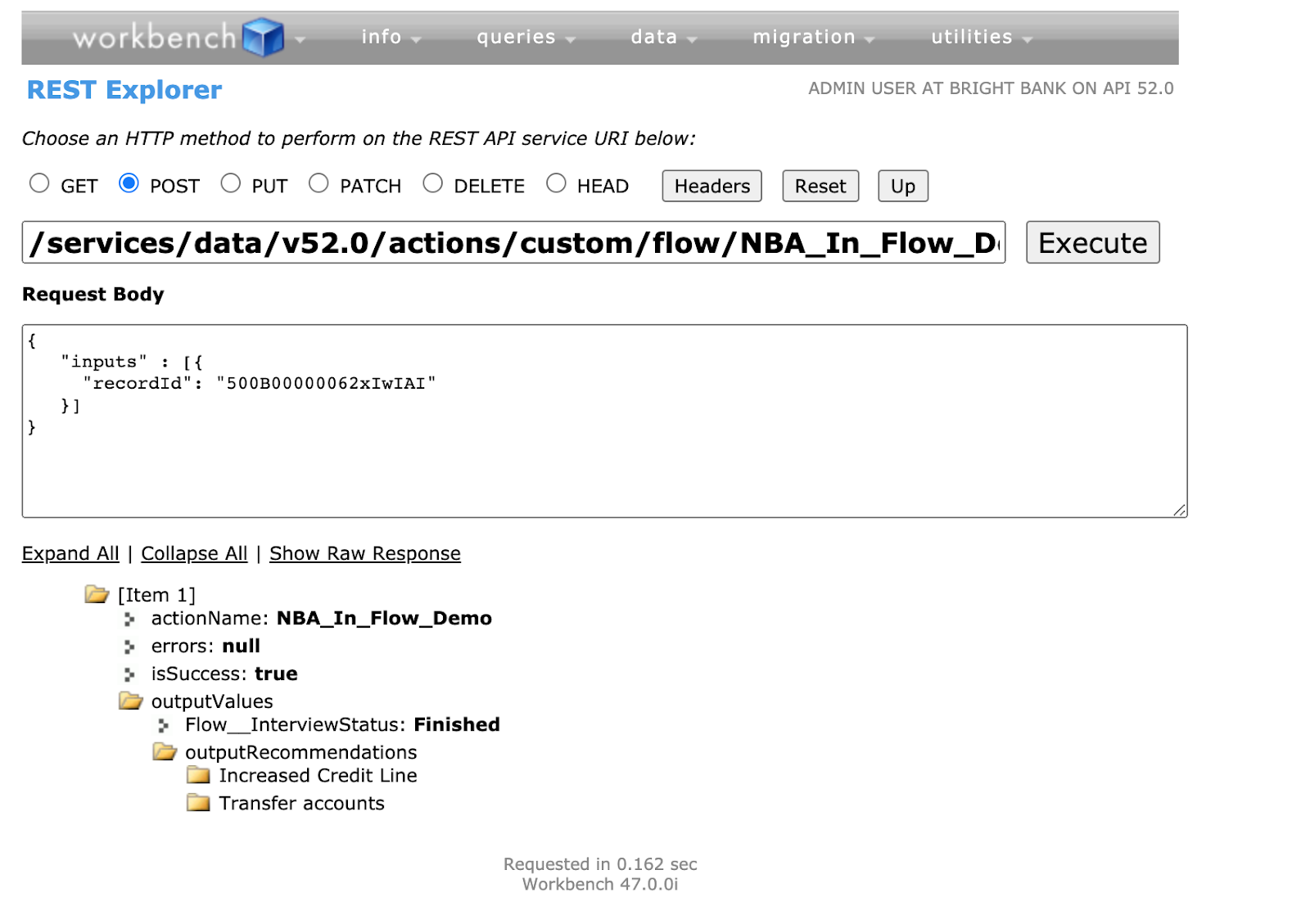
In addition to being able to display recommendations on the Home page or Lightning record page, a recommendation strategy can also be executed via a call to the Flow Action endpoint.
Display recommendations on a custom component or call the recommendation strategy from a scheduled flow by making a call to the API and retrieving recommendations.
The following example illustrates strategy execution via REST API
Thanks for following along this tutorial! Hope you had fun creating your first Recommendation Strategy on Flow! Wondering what more is coming up in subsequent releases?
With Beta/GA (Safe Harbor applies) you will have access to other collection processor and decisioning elements that is currently available in Strategy Builder such as Filter , Map , Branch Selector and Limit Reoffer elements in the new Recommendation Strategy process type in Flow.
In addition to having functional parity with Strategy builder, several other features such as OOTB low code AI recommendations, Scheduled/ Triggered Recommendations , Reporting enhancements, Display component enhancements, OOTB integration with Bots, Support for Mobile display and much more! Check out the blog for an in depth roadmap.
Check out these other blogs in the series for more information
https://unofficialsf.com/wp-content/uploads/2022/09/largeUCSF-300x133.png00Janani Narayananhttps://unofficialsf.com/wp-content/uploads/2022/09/largeUCSF-300x133.pngJanani Narayanan2021-04-30 05:49:102021-04-30 06:04:57Pilot Tutorial -Einstein Next Best Action on Flow(Blog 2 of 4 series)
With the Summer ‘21 Pilot we invite you to try out a brand new way to create Next Best Action Strategies using the Flow Builder that is packed with powerful platform features and many other cutting edge decisioning builder elements.
Planned GA in Spring ‘22 (Safe Harbor applies) Talk to your AE to get nominated for the Pilot and try it out!
This sounds exciting!! How do I try it out??
Since it’s a closed sandbox pilot, reach out to your AE and you can get nominated. Your AE will be able to share the following resources:Also available as blogs right here!
A detailed PDF with step by step instructions on how to get a Steelthread working with the new Recommendation Strategy Process type
A demo video to take you through the steps.
A list of FAQs
Don’t have an AE ? Do not fret. We will be out with the Beta version soon!! Until then, if you haven’t already get your hands dirty with the Strategy builder and try out building an NBA! Check out the Next Best Action Section of Unofficialsf to learn more.
Need a little more convincing to try out the pilot ?
Check out what’s coming up in Beta/GA in the next few releases with NBA on Flow!!!
Happy Next Best Actioning!!
Check out the other 3 posts in the series for a tutorial demo video , FAQs and more
https://unofficialsf.com/wp-content/uploads/2022/09/largeUCSF-300x133.png00Janani Narayananhttps://unofficialsf.com/wp-content/uploads/2022/09/largeUCSF-300x133.pngJanani Narayanan2021-04-30 05:46:202021-04-30 06:03:04Summer ’21 Pilot Preview: Einstein Next Best Action on Flow! (Blog 1 of 4 series)
Here are a few FAQs you may have. I ‘ll start with the obvious one – Is Strategy Builder Going Away?? ..
Is Strategy Builder going away? Why do we need 2 ways to build the same thing?
Great Question! No, it is not going away anytime soon. However, the good news is you stand to get a ton of great new features on the builder, Reporting and Display enhancements, templates etc that will be available on the new Recommendation Strategy Process type. You also get to enjoy some great platform features such as templates, versioning, advanced debugging capabilities etc right off the bat! Stay tuned for the beta in winter ‘22. In other words, we’d hate for you to loose out on all these cutting edge flow features, so while we will continue to support Strategy Builder- Flow is the future!!
How do I get access to this pilot feature?
Reach out to your AE to get nominated for the pilot, we will turn on the pilot perm on your Sandbox and you are ready to roll!
Feature is available in Essentials, Professional, Enterprise, Performance, Unlimited, and Developer Editions.
How do I connect to external services ?
Use Apex actions in flow to integrate external data sources and information from your Salesforce org into your strategies. You can connect to any number of EXTERNAL SERVICES: connect to an external endpoint such as a credit service provider AND easily bring back the logic, , For example say experian provides a RESTful interface for accessing credit score information. You can integrate the REST API, bring back the score . here and use that to filter out a few recommendations. Its basically a call out to Apex. So that helps with the business rules.
Can I connect to an AI of my choice?
In Beta/GA version of NBA in flow you will have access to Einstein Load node from Einstein Recommendation Builder* directly integrated ( with the Recommendation strategy process type. However you can use Apex actions as mentioned above to call any Prediction service and retrieve these values in the flow.
Before you activate a recommendation strategy test it thoroughly to make sure that it works as expected. Use the debug option in Flow builder to test the flow. This is analogous to the Inspect option on Strategy builder.
What Perms do I have to enable?
To create or manage recommendations
Modify All Data or Manage Next Best Action Strategies
To open, edit, or create a flow in Flow Builder:
Manage Flow
To create and save Lightning pages in the Lightning App Builder:
Customize Application
To view Lightning pages in the Lightning App Builder:
View Setup and Configuration
To run a recommendation strategy on a Lightning record page:
Run FlowsORFlow User field enabled on the user detail page
To create, edit and delete custom report types:
Manage Custom Report Types
To view recommendation metrics data:
Modify All Data or Manage Next Best Action Strategies
If I have strategies in my org already, will I have a migration tool ?
We are considering building a migration tool and would love feedback on it. However, we definitely will have some templates on the Beta/GA version to help you get started.
What is coming in future releases?
NBA on Flow Beta/GA (Winter/Spring ‘22 Safe harbor applies )
Strategy Builder Parity elements: Filter ,Map, Branch Selector, Limit Reoffer elements will be added to the Recommendation Strategy process type. This is to get to functional parity with Strategy builder. Beyond parity, the following features will be built.
Enhanced Reporting
Access to RecommendationReactions BPO for Reporting
Reporting with dynamic recommendations created with Generate node
Enabling sharing access on the object so access can be limited to reports for Business Users without giving access to the builder
Enhanced Display
Mobile support for Display component
Recommendation Reason: Ability to surface why a recommendation is surfaced along with Einsetin score if driven by a model
Capture Rejection reason
Multi strategy support
AI based Recommendations with Einstein Recommendation Builder*
https://unofficialsf.com/wp-content/uploads/2022/09/largeUCSF-300x133.png00Janani Narayananhttps://unofficialsf.com/wp-content/uploads/2022/09/largeUCSF-300x133.pngJanani Narayanan2021-04-30 05:43:332021-04-30 06:08:59Pilot FAQs-Einstein Next Best Action on Flow (Blog 4 of 4 series)
Here’s the 3rd Tutorial for the Summer ’21 Flow Orchestrator pilot:
If you’re interested in joining the pilot, contact your Account Executive. (If you don’t have an Account Executive, keep your eyes open…there may be other ways to participate in the future. )
Here’s the 2nd Tutorial for the Summer ’21 Flow Orchestrator pilot:
If you’re interested in joining the pilot, contact your Account Executive. (If you don’t have an Account Executive, keep your eyes open…there may be other ways to participate in the future)
This is the first tutorial for the upcoming Summer ’21 Flow Orchestrator pilot.
If you’re interested in joining the pilot, contact your Account Executive. (If you don’t have an Account Executive, keep your eyes open…there may be other ways to participate in the future)
Doug Swist brought to our attention this Facebook Group, which sports an impressive 2000+ members!
Formed by Paul Carass, this site is providing a lot of useful support and resolutions. Check it out!
https://unofficialsf.com/wp-content/uploads/2022/09/largeUCSF-300x133.png00Alex Edelsteinhttps://unofficialsf.com/wp-content/uploads/2022/09/largeUCSF-300x133.pngAlex Edelstein2021-04-24 08:56:152021-04-24 08:56:20A New Facebook Group for Flow Users
If you head over to the Flow Fanatic channel on YouTube, you’ll see that Alex Fram-Schwartz is creating new flow solutions and has challenged himself and his audience to solve 25 of them in 25 days. One thing I love about what he’s doing is that he’s targeting undelivered ideas from the Trailblazer community. We’ve done this a few times in the past, with things like SetupViaFlow. That’s a hell of a big challenge, so check it out:
Resource Priority and Filtering gives you an easy way to control and influence what resources are considered when scheduling an appointment. Up to this point it was the required skills of the Work Type and the Service Territory Membership that defined the pool of resources. Now you can layer on another filter. What are some use cases for this?
Gold/Silver/Platinum tiered service
Preferred Language
Fair distribution of work to resources (think Round Robin Lite)
Prioritized distribution of work (today I want all of my appointments to go to Connie)
It helps you address these requirements while, at the same time, keeps the number of Work Type Groups down to a minimum.
Check this out below write up and also this quick demo video.
Work Type Groups, Work Types and Service Territories
Let’s say you’re a bank and you offer appointment scheduling for general banking, lending and retirement and investing services. And let’s also say that you provide differentiated services based on the customer’s investments with the bank, where customers with lots of investments are serviced by ‘gold’ advisors, customers with a good amount are serviced by ‘silver’ advisors and everyone else is serviced by ‘bronze’ advisors.
By now you’ve probably figured out that for a given Service Territory, you can only have 1 work type from a given work type group. Let’s look at a example:
Service Territory = Market Street Branch
Work Type Group = General Banking
Work Types = General Banking Gold, General Banking Silver, General Banking Bronze
If you want to offer Gold, Silver and Bronze General Banking Services, you might think you could add those 3 Work Types to the Market Street Branch. Well, you can’t because you can only pick 1 from the the General Banking Work Type Group. So you could create Work Type Groups for General Banking Gold, General Banking Silver and General Banking Bronze. And if you want to offer the same for Lending and Retirement Services you would wind up with 9 Work Type Groups when you really want 3.
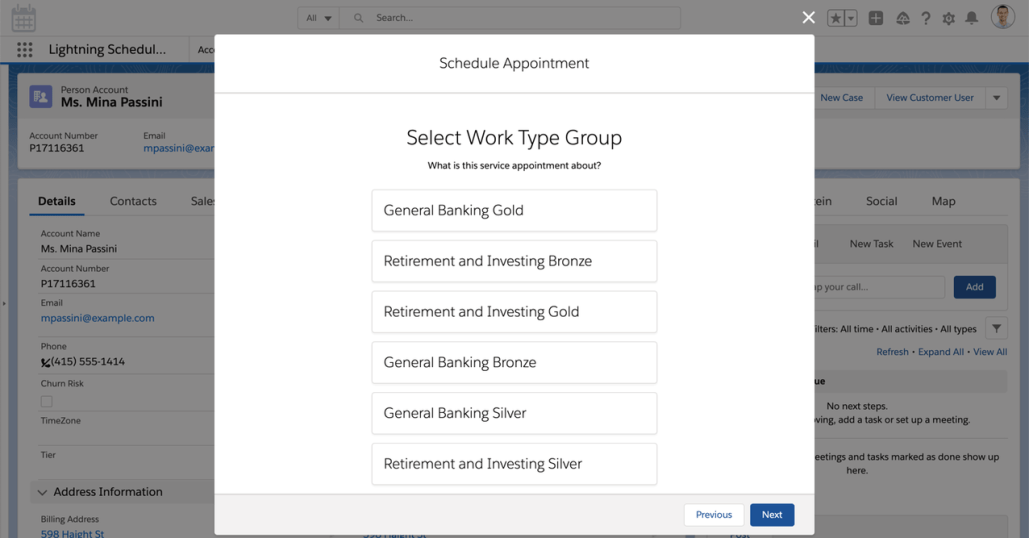
What you want the user to see – 3 Work Type Groups
What they will see – 9 Work Type Groups
Resource Priority and Filtering to the Rescue
Resource Priority and Filtering allows you to offer only the 3 Work Type Groups but still ensure that Gold customers are serviced by gold bankers, silver by silver bankers, and bronze by bronze bankers.
What do you need to do? Leverage the Resource Priority and Filtering Feature – see the help and training article. There is a new parameter the Resource Selection screen that allows you to filter the list of resources above and beyond what the required skills and service territory provide. Check out my example below for how to set this up.
Example
When running the scheduling flow, use the Filter by Resource Ids parameter to consider only resources whose Tier matches the customer’s Tier.
New fields
To the account object, I’ve added a picklist field called Tier, with values of Gold, Silver and Bronze. And to the service resource object a picklist field called Tier, with values of Gold, Silver and Bronze. I’ve also created a formula field on the service territory member object which equals serviceresource.tier__c. (this helps make the flow easier)
Flow Changes
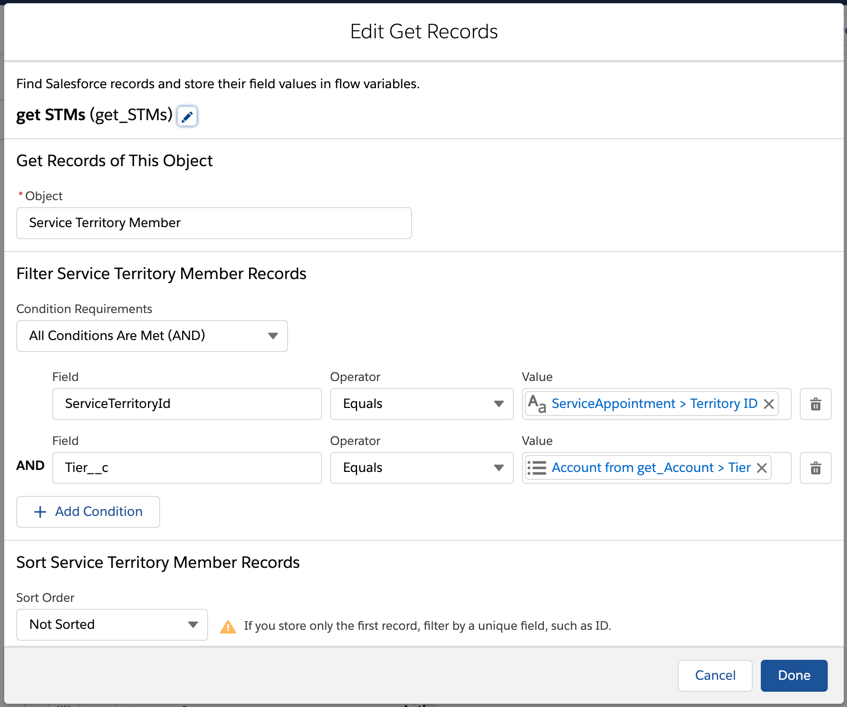
In the flow, add a step to retrieve the customer’s tier. Also add a step to retrieve all of the service territory member records where the tier matches. Make sure that you retrieve the STMs after the location step, since we need to know the territory id. In the screen shot below, you can see that after the Location Screen, I’ve added the 2 get records, the loop and the 2 assignment steps.
Then loop through all of the STMs you find to concatenate them together in a string. Here’s what’s inside the add SR ids to string assignment step in the screenshot above.
Since there’s an extra comma at the end of this, I created a formula field to which excludes the last character of the string.
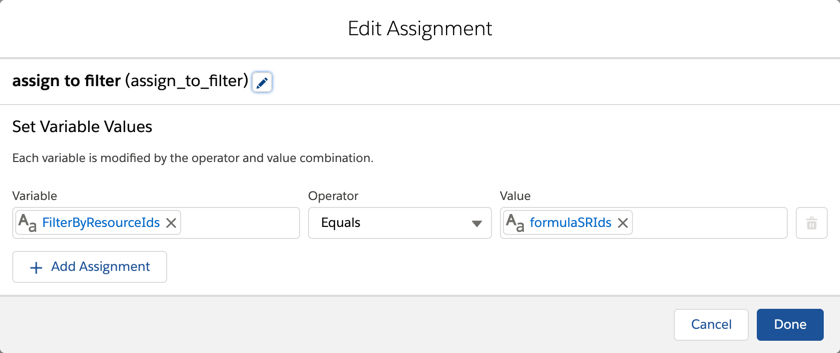
And then assign the formula to the FilterByResourcesId string.
Results!
Only 3 Work Type Groups are needed yet we can still provide Gold, Silver and Bronze service. In the screen shot to the right, 5 resources would have been returned without this feature, but I was able to limit the list to just the 2 gold bankers.
Resource Priority and Filtering Guidelines
Like everything else in Salesforce, there are best practices, guidelines and limits to consider. For Resource Priority and Filtering, 50 and 10 are the magic numbers. 50 is the maximum number of Service Resource Ids that can be passed into the filter, BUT, you want to make sure that after the application of the relevant skills, territory and availability checks, the resulting number of service resources with availability is no greater than 10.
Part II – Using Skills and APEX to power Resource Priority and Filtering
Check this out to learn how to further extend this feature using Apex.
In the example above, we used a service resource custom picklist field to identify which resources had the Gold/Silver/Bronze “skill”. What if we wanted to use the skill object itself. In other words, we have set up skills for Gold, Silver and Bronze and we have assigned those to bankers accordingly. We want the flow to consider only those resources that have the both the skills needed through the work type group (and related work type) as well as the skill needed from the account tier.
Getting Records from 1 object where Service Resource Ids are in another object
Normally, I would say do this all in flow but in reality we need to do a loop inside of a loop – Find all resources in the territory who also possess the desired tier skill. Unfortunately, we cannot do this type of query in flow. As you might have seen with a simple web search, flow does not support the equivalent of a SOQL “IN” condition. But we can do this with an APEX class with an invocableMethod, and we can do it with just a few lines of code.
Create an invocableMethod
As you’ve probably seen in other blogs, invocableMethods extend the power of flow with Apex code. In my Apex class below, I’m accepting a list of service territory member records (the resources in the territory) and a skill record and returning a string which is a comma separated list of service resource ids of only those service resources with the skill.
Remember with invocableMethods, you pass in a list of something and it returns a list of something. In this example, we’re passing in a list of a user-defined type called ResourceFilter, which consists of a List of Service Territory Member records and a Skill record and the method returns a list of strings.
Apex class example
//this class returns a common separated string of service resource ids
//it accepts a list of service territory member records and filters those with the required skill
public with sharing class PriorityResources {

    @invocableMethod
    public static list<string> getResources(list<ResourceFilter> rfList) {
        if (rfList==null) return new list<string>{''};
        set<string> setResource = new set<string>();
        set<string> setResourcewithSkill = new set<string>();
        ResourceFilter rf = rfList[0];
        //create a set of service resource ids from the stmlist passed in
        for(serviceterritorymember stm : rf.stmList) setResource.add(stm.serviceresourceid);
        try {
            datetime dt = datetime.now();
            //create a set of service resource ids that have the skill passed in
            for(serviceresourceskill srskill : [select serviceresourceid from serviceresourceskill where serviceresourceid in :setResource and skillid = :rf.skillRequired.id and effectivestartdate <= :dt and (effectiveenddate = null or effectiveenddate >= :dt) ])
                setResourcewithSkill.add(srskill.serviceresourceid);
        }
        catch(system.exception e) {
            return new list<string>{''};
        }
        //convert the set of resource ids into a comma separated string
        return new list<string>{String.join(new list<string>(setResourcewithSkill),',')};
    }

    public class ResourceFilter {
        @invocableVariable(required=true)
        public list<serviceterritorymember> stmList;
        @invocableVariable(required=true)
        public Skill skillRequired;
    }
}
Flow Example
Like in the previous example, in the flow, add a step to retrieve the customer’s tier. Also add a step to retrieve all of the service territory member records where the territory matches. And also retrieve the skill record that matches the customer’s tier. Make sure that you retrieve the STMs after the location step, since we need to know the territory id. In the screen shot below, you can see that after the Location Screen, I’ve added the 3 get records and the Apex action. You can also see how the Apex action is setup: I’m passing in the skill object and the STM objects (this is a list) and the Apex class will return the CSV string of Service Resources into the variable FilterByResourcesId. That’s it, you will have a list of Service Resources who work in the Territory who have the Tier Skill and these will be passed to the resource selection screen. This screen will further filter out only those resources which also have the skills needed for the selected Work Type Group (and work type).
https://unofficialsf.com/wp-content/uploads/2022/09/largeUCSF-300x133.png00Akshayhttps://unofficialsf.com/wp-content/uploads/2022/09/largeUCSF-300x133.pngAkshay2021-04-22 22:26:432023-04-02 19:56:19From Chris Albanese: Spring 21 Feature: Resource Priority and Filtering