Create a Next Best Action Employee App – Part 2

Setup and Installation steps (View Part 1 for demo video and details on the building blocks)

STEP 1: Install package

OR


STEP 2: Setup the environment

  • Make sure all custom fields on the User object are accessible and visible in the page layouts
  • Object Manager →User →Fields & Relationships
  • Navigate to each of the fields below and follow the steps to Set Field Level Accessibility to Visible to all profiles
    • Navigate to each of the fields below and follow the steps to Set Field Level Accessibility to Visible to all profiles
      • Einstein HiPo Likelihood
      • Next Shift Start Date
      • Next Shift End Date
      • Is People Manager
      • Survey Taken

Screen Shot 2020-06-25 at 11.43.37 AM.png
  • Ensure that the fields are visible in the default page layout
  • Go to object manager – User page layouts. Drag the custom fields to the Additional Information Section
  • Repeat for Message layout →Drag the Category field appears in the detail page

STEP 3: Create Users of the app.

  • User1
    • First name Bessie
    • Last Name Thomas
    • use your email for email and
    • give a username such as b.thomas@demo51.org
    • In additional information
      • Check Is People Manager
      • Add dates for Next Shift Start and Next Shift End Dates
      • Leave the Survey Taken column unchecked
  • User2 (Important to use the same name as for the purpose of the demo , it is hard coded)
    • First name Rosa
    • Last Name Garcia
    • use your email for email and
    • give a username such as m.garcia@demo51.org
    • In additional information
      • Leave the Is people manager unchecked
      • Leave the Survey Taken column unchecked
      • Give a value >80% to simulate Einstein HiPo Likelihood
      • Add dates for Next Shift Start and Next Shift End Dates
  • Make sure to remember the username and also change the password. (You should receive an email on the registered email)

STEP 4: Assign permissions

  • Go to users – permission set and enable both Goodmorning and Goodmorningsales permission for the user user(user user is the admin user for scratch orgs)
    • Permission set →Manage Assignments→ Add Assignments→ User, User (if scratch org or the relevant users) .
  • Profiles→system admin→ change permissions to view object (Assuming both users are System Administrators. If not assign the following permission accordingly to the users created)
    • custom app setting →check bright team management
Screen Shot 2020-06-25 at 11.52.01 AM.png


STEP 5: Add Data to custom objects

image
  • Go to SalesTacticalPlan object from the AppMenu (If it does not show – make sure the user permissions are set)
  • Create a record with the details shown (EmployeeDailyTacticalPlan)

  • Create the following records to the Recommendation object
  • If you do not see any field visible on the recommendation object : Go to Recommendation object Manager→Page Layout→Manage Assignment →Edit Assignment and assign recommendation layout to all users.
 NameDescriptionAction Reference Acceptance LabelRejection Label
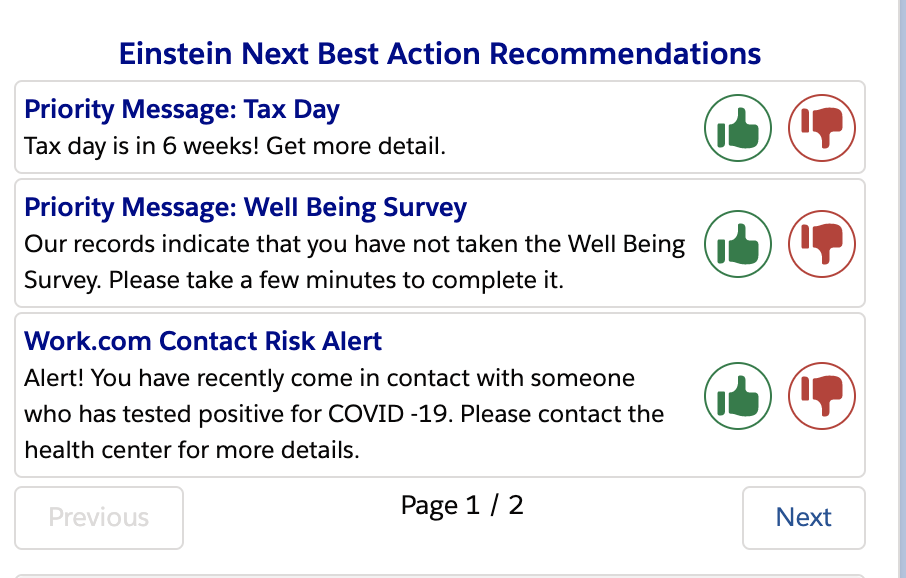
1Priority Message: Tax DayTax day is in 6 weeks! Get more detail.Tax_FlowAcceptReject
2Priority Message: Well Being SurveyOur records indicate that you have not taken the Well Being Survey. Please take a few minutes to complete it.Well_Being_Survey_FlowAcceptReject
3Work.com Contact Risk AlertAlert! You have recently come in contact with someone who has tested positive for COVID -19. Please contact the health center for more details.Contact_RiskAcceptReject
4Return to Work Shift Days Shift_FlowAcceptReject
5Training RecommendationYour manager has identified that you will benefit from the Great Salesforce Leaders training. Click to enroll.Enrollment_FlowAcceptReject

STEP 6: Set up the flow component to accept input for which messages and their respective priorities to be surfaced on the NBS Component

  • Navigate to the Bright Team Mgmt App from the App Menand then user profile(click on the profile pic icon) and then edit page to bring up LAB. NOTE: If you click on user profile when on setup , you go to User setup not the profile page so make sure you are on the app when pulling it up
    • Drag the Flow component and choose Manage Employee Tactics as shown below
Screen Shot 2020-06-25 at 11.54.52 AM.png

Drag a flow component.Choose the manage tactical plan. activate it for the org default

  • Go to the Bright Team Mgmt app and then user profile(click on the profile pic icon) and then edit page to bring up Lightning App Builder — if clicking on user profile when on setup pulls up

Screen Shot 2020-06-17 at 1.17.21 PM.png
Also set component visibility , add filter, Save and Activate.

  • Go back to user profile and the flow component displays –
    • Click Manage the team Priorities

Screen Shot 2020-06-25 at 12.18.16 PM.png
[If the following error message displays then do this additional step below]

This step maybe required on a non-scratch org - go to Setup - My Domain →Register a domain →Login →Deploy to users.


Screen Shot 2020-06-17 at 1.23.00 PM.png

Once done go back to UserProfile

  • Click Manage the team Priorities
Screen Shot 2020-06-17 at 1.20.59 PM.png
Order priorities(these are passed in from the flow) - these are all messages that are available. 
Once ordered - it gets saved on the EmployeeDailyTacticalPlan record as shown below
Screen Shot 2020-06-17 at 1.21.22 PM.png

STEP 7: Set up the NBA component (This is another flow component with a custom LWC -NOT THE STANDARD NBA COMPONENT)

We use a custom component here to show the modularity of the strategy builder. This demo can also be built with the standard NBA component and that is not covered here.

Screen Shot 2020-06-17 at 1.33.53 PM.png
  • Navigate to the user profile page again and edit page.
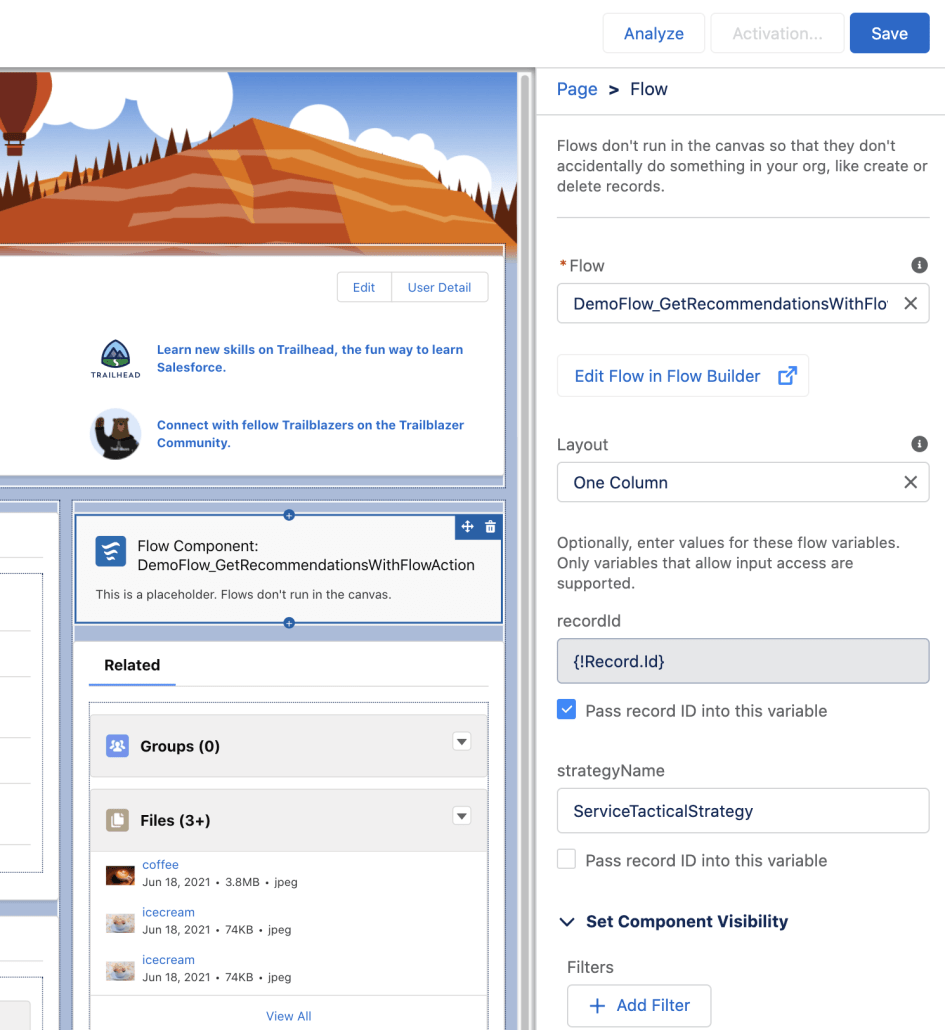
  • Add another flow component (which acts as the NBA component )
  • Choose ‘DemoFlow_GetRecommendationsWithFlowAction’ Flow
  • Click on the Pass Record id
  • Enter the strategy name- EmployeeTacticalStrategy (In the NBA component record id is passed automatically)
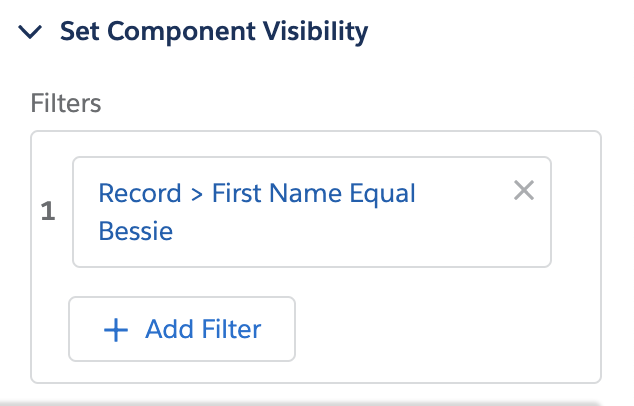
Set component visibility so it is viewed by the second user


STEP 8: Login and test the component

  • Login to the first user page : Bessie smith – Set the priorities. (If already covered in the steps above, login as the second user)
  • Now login to the second user page : See that the recommendations are displayed
Screen Shot 2020-06-18 at 11.34.12 AM.png


Create A Next Best Action Employee App- Part 1

Employee experience is the new HR superpower. Customer experience is no longer only for customers, with the Salesforce Platform you can not only seamlessly create amazing digital experiences for employees but also deliver them personalized and optimized. Especially in light of the new ‘work anywhere’ normal that fused home and work life, digital employee experience plays a key role in not just productivity but also employee motivation.

On this employee experienced focussed app, Einstein NBA can be leveraged to deliver

  • Education and event participation opportunities
  • Personalized communication
  • Well being and motivation opportunities

and much more. Powered with the insights from Einstein prediction builder – NBA combines data, business rules and AI to provide relevant and real time individualized recommendations.
Note: Prediction builder is not integrated in the app below but simulated with prediction scores.

Use Lightning flows with NBA

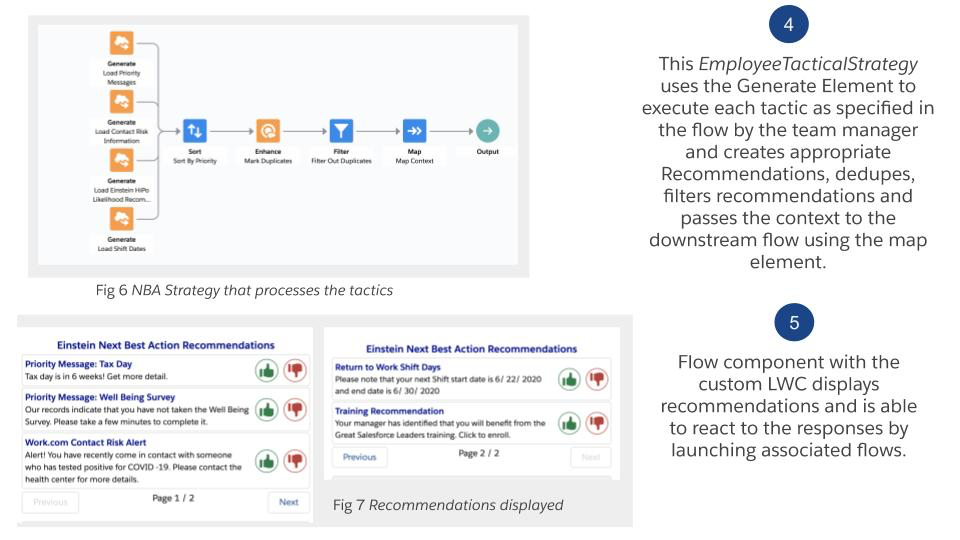
This app also showcases how Lightning flows can be used in conjunction with Next Best Action. There are numerous applications of how flow and NBA can be integrated into apps for powerful outcomes such as the one in this example. The example also shows a custom LWC component to display Recommendations and not the standard display component -this illustrates the modularity of the strategy builder and how it can be used with a custom component because it is exposed as a service.

A great way to combine the power of Apex with business user configuration

This sample application uses a sophisticated pattern to provide team managers with a simple flow that they can use for prioritization, while enabling IT to add or subtract recommendation tactics behind the scenes. This is a powerful way to address the desire of customers to mix backend power with business user configuration.

The individual tactics are modeled as Apex classes. The same example can be extended for several use cases of how system integrators can use Next Best Action to provide increased value by making use of Apex to create tooling that team managers can use to cater to the specific use case.

Building blocks of the app

(View setup and installation steps in Part-2 of the blog)

Untitled presentation (1).jpg

Untitled presentation (2).jpg
Untitled presentation (3).jpg
Untitled presentation (4).jpg

See part 2 for setup and installation steps

Advanced NBA: Using Apex Actions to Empower Team Manager to Set Team Priorities via Next Best Action Recommendations

Next Best Action enables you to provide agents, salespeople, and other employees with a customized list of prioritized recommendations every morning. In this sample app, which can be installed as a package, prioritization of tactics is managed by service team leaders, who can establish and change the priorities freely without the involvement of admins.

This sample application uses a sophisticated pattern to provide team managers with a simple flow that they can use for prioritization, while enabling IT to add or subtract recommendation tactics behind the scenes.

The individual tactics are modeled as Apex classes. The use of Apex to create tooling that team managers can use makes this a compelling example of how system integrators can use Next Best Action to provide increased value.

Install Package

Unmanaged 1.0

Installation:

  1. On the User page layout, add a flow component and point it to ServiceTacticalStrategy. Make sure the page is Activated.

New Intro to NBA Video – Force501

Nice intro video from Force501

Dreamforce Slides – Put Predictions into Action: Einstein Prediction Builder and Next Best Action

These are the slides Einstein and Next Best Action product managers presented at this admin track session. The video recording will be published officially by Salesforce in the next 1-2 months.

The session synosis was: Join us in this session to learn how you can harness the power of both Einstein Prediction Builder and Einstein Next Best Action to produce intelligent predictions and actionable recommendations to your end users that are powered by Einstein! You’ll also hear from Einstein Product Management on how you can get started with these products and what’s coming in the roadmap. Don’t miss it!

Public-Drop-of-DF-2019-Put-Predictions-into-Action_-Einstein-Prediction-Builder-and-Next-Best-Action

Did you present at Dreamforce? If so, you’re encouraged to create a post like this, which you can link back to your own site/blog/company. If you need an account on this site to blog, contact a site admin or use the feedback form on the home page.

Dreamforce Slides – Enterprise Application Development With Flow and Next Best Action

These are the slides I presented for this developer track session. Here’s the video.

The session synosis was: As a developer, you can leverage Flow and Next Best Action to multiply the impact of your code. Learn how you can turn your work into declarative building blocks, and how you can delegate management and configuration not just to your organization’s admins, but out into the business units themselves. See state-of-the-art sample apps featuring invocable actions, and get a preview of developer-oriented automation tools coming in 2020.

DF19_EnterpriseDevelopmentFlow

Did you present at Dreamforce? If so, you’re encouraged to create a post like this, which you can link back to your own site/blog/company. If you need an account on this site to blog, contact a site admin or use the feedback form on the home page.

Execute an NBA strategy and Display the Results in a Custom Recommendation Component

We’ve previously shown how you can take the official, out-of-the-box Next Best Action component and surface it in a Flow screen, where it will show recommendations. We wanted to support some additional use cases, though, so we’ve built a toolkit for complete customization of the Next Best Action presentation experience.

This solution consists of two parts:

  • A Flow Action that sends an execution request to the Next Best Action engine and receives back a list of recommendations
  • An open-source LWC Next Best Action display component that can be easily customized.

The Execute Strategy Flow Action lets you specify a strategy, a recordId, and the maximum number of results you want, and returns recommendations in the same data structure that the Apex api endpoint uses. You can take these recommendations and process them with your Flow. You can also pass them “as is” to the included Next Best Action “Compact” display component, which expects the same data structure.

The Compact NBA component is something of a test bed for features that Salesforce is considering for the main Next Best Action component. It has the following features:

  1. Works in flow screens unmodified
  2. Packs more recommendations into less space
  3. Supports multiple screens of recommendations (up to 25)
  4. When a recommendation is responded to, it disappears, and any recommendations that are ‘behind’ it slide up.
  5. Open-source. You can modify it easily to meet your custom needs

The Compact NBA component reports all reactions to the Recommendation Reaction endpoint for reporting. It does not support images or Community Cloud pages.

Attributes

ExecuteStrategy Flow Action

contextRecordIdString
maxResultsup to 25. Default is 4
strategyNameString

displayNBARecommendationsFSC

Input Parameters

<property name=”displayDescription” label=”Display Description” type=”Boolean” default=”false” role=”inputOnly”></property>        <property name=”displayTitle” label=”Display Title” type=”Boolean” default=”true” role=”inputOnly”></property>        <property name=”recordId” label=”Record Id” type=”String” role=”inputOnly”></property>        <property name=”strategyName” label=”Strategy Name” type=”String” role=”inputOnly”></property>        <property name=”displayMode” label=”Display Mode” type=”String” datasource=”ShowAll, ShowPages” default=”ShowAll” role=”inputOnly”></property>        <property name=”maxRecommendations” label=”Max Recommendations” type=”Integer” default=”25″ role=”inputOnly”></property>        <property name=”recommendations” label=”Recommendations” type=”apex://NBARecommendationsList” role=”inputOnly”></property>

View Source

For more information on the use of Apex-Defined data like the recommendation attribute, see this.

For another variation on incorporating NBA Recommendations into Flow, check out this post on how you can include the standard Out Of The Box NBA component in Flow screens.

This solution has not yet been packaged, but the classes and LWC’s are available here: https://github.com/alexed1/LightningFlowComponents/tree/master/flow_action_components/ExecuteNBAStrategy