From Aidan Harding: An expert Apex developer analyzes Flow vs. Apex tradeoffs and experiences
Thoughtful article here. Check it out.


Thoughtful article here. Check it out.
SetupViaFlow is a new installable extension that lets you
1) define changes to Record Type Visibility in Profiles and Permission Sets
2) modify picklist values in bulk.
This is normally done here:
 |  |
| Assigning Record Types to Profiles | Assigning Record Types to Permission Sets |
In real Salesforce usage, orgs can have a lot of these objects, and admins have been asking for some automation tools to make these changes in batches for a long time.
SetupViaFlow solves this nicely. Watch the video to learn more:
As you may be able to infer from the name, the hope here is that Record Type Visibility is just the start of the things that this app will automate in Setup. It has been built in a highly modular fashion, and it will be straightforward to add other kinds of Profile and Permission Set settings to this tool. In fact, we’re looking for help growing the range of Setup activities that can be done using this approach. If you have suggestions as to what we should prioritize to add to this, leave a comment below.
Also see the additional Developer Deep Dive video at the bottom of this post.
This app has been enhanced to support bulk picklist value management, addressing parts of a long-standing feature request.
The app provides the following functionality:
This feature set is something of a disappointment. When we set out to add bulk picklist management we hoped to be able to carry out Activate, Inactivate, Delete on all picklists. Unfortunately some of the combinations are not yet supported by any of the public APIs. Still, we hope that the ability to do mass activation and deactivation of custom picklist fields will prove useful!
This only works on custom profiles and permissions sets. But then, you don’t want to be playing around with the standard ones anyways.
This doesn’t support defaults on profiles for person accounts.
Make sure the record types you work with are ACTIVE. For some reason, you can’t modify inactive ones: “Error occured processing component Partner Community Login User. Default record type must be visible: Account”
Some of the built-in profiles have special restrictions on them, and trying to modify them causes errors that aren’t obvious, like this beauty: An Apex error occurred: usf3.MetadataService.MetadataServiceExamplesException: Request failed with no specified error.
This component requires that you first install or upgrade the Flow Base Packs
Step 2 : Install the current version of SetupViaFlow
Version 3.0 7/30/22
Troubleshoot Installation Issues
Step 3 : If you don’t have one on your org, add a Remote Site Setting that points back to your own org.
The easiest way to do this for a new org is to run the flow in Debug mode and wait for this error:

which conveniently gives you the exact form of the URL you need to create a simple Remote Site Setting in Setup:

Old Versions
Install Version 1.1.1 Unlocked (6-28-21)
Install Version 1.1.0 Unmanaged (4-20-21) adds Picklist Value Modification
Install Version 1.0.0 Unlocked 9/27/20
We’ve added QuickChoice and DualListBox to FlowBaseComponents.
Another change: the size of fbc_MetadataService was reduced by converting spaces to tabs.
Install here.
The Get Limits component is designed to assist with exposing Salesforce governor limits within Flow via a simple unmanaged package. In many instances in order to get to this data, you need to dig through your flow’s debug logs to determine there’s no potential issues. This app allows you to easily surface that information within an action step right within your existing flow and then also take action on the outputs if necessary.
Find out more here.
Enable this pilot to see a new component in Screen Builder: Section. Each section can be divided into up to 4 columns. Customers can use Sections to create multi-column layouts on their screens, and then embed whatever screen components they like in those components.
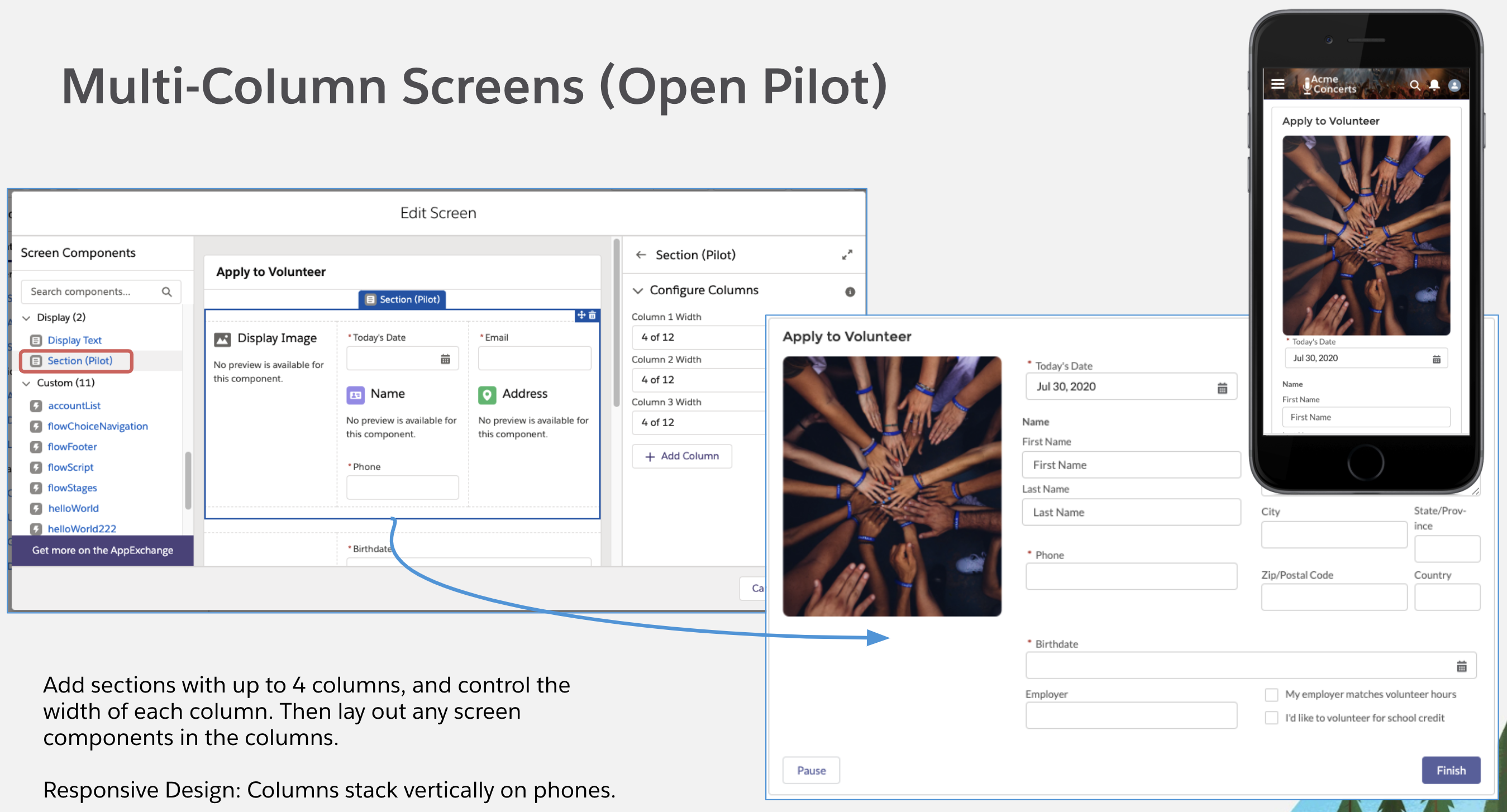
To register for the pilot, you currently need to request access via your Account Executive. Join the pilot community here and learn more.
I haven’t had a chance to really dig into this topic, but was asked about it recently and thought I’d assemble some known information.
Salesforce has GA support for this as a Named Credential type:

Testing AWS Named Credentials
Use code like this Apex code to verify that your Named Credential works:
HttpRequest req = new HttpRequest();
req.setEndpoint(‘callout:EC2/?Action=DescribeImages&ImageId.1=*INSERT_YOUR_AMI*&Version=2016-11-15’);
req.setMethod(‘GET’);
System.debug(req.getBody());
Http http = new Http();
HTTPResponse res = http.send(req);
System.debug(res.toString());
System.debug(res.getBody());


Named Credential Setup:
URL: https://ec2.us-east-1.amazonaws.com/
AWS Region: us-east-1
AWS Service: ec2 (edited)
It retrieves an image from an EC2 endpoint (you will have to set up your own EC2 endpoint or some similar thing!)
Also check out this blog post from ForcePanda.
Here’s an example of a set of AWS endpoints that have been successfully ingested as External Service Registrations

In the above example, I ingested the specification for the AWS API Gateway service. I found it at Apis.guru, a useful online library.
External Service recently extended the size of the specifications that can be ingested from 100k to 1megabyte. That was critical to enabling the above ingestion example, because it is about 700k in size.
There are other AWS specs that are larger than 1megabyte. For example, the AWS EC2 spec is 2.4 megabytes, and can’t be ingested as-is. However, it’s definitely possible to carve pieces of them out. It can be tricky because different parts of the spec depend on other parts. But usually, for a given service, there’s an 80/20 rule, and a small number of API’s carry most of the load. Salesforce does intend to increase the size of ingestable specifications.
Authorization Headers in AWS Specs
Salesforce External Services recently added support for Authorization Headers in its processing of Open API Specifications. AWS uses Authorization Headers extensively in its apis. Take as an example the DeleteApiKey api from above. In the specification you’ll find a listing of a bunch of authorization-related input parameters:

Like all input parameters, these then show up in the property editor of the resulting invocable action:

Note that in the spec above, these are defined as ‘components’. Further down, the ‘components’ section of the spec informs External Services that these are intended to be used as headers:

The invocable action code generated as part of the external service registration will take the inputs provided to the invocable action and form them into headers for the resulting callouts.
For the latest on the Datatable component, please go here: Datatable – Lightning Web Component for Flow Screens
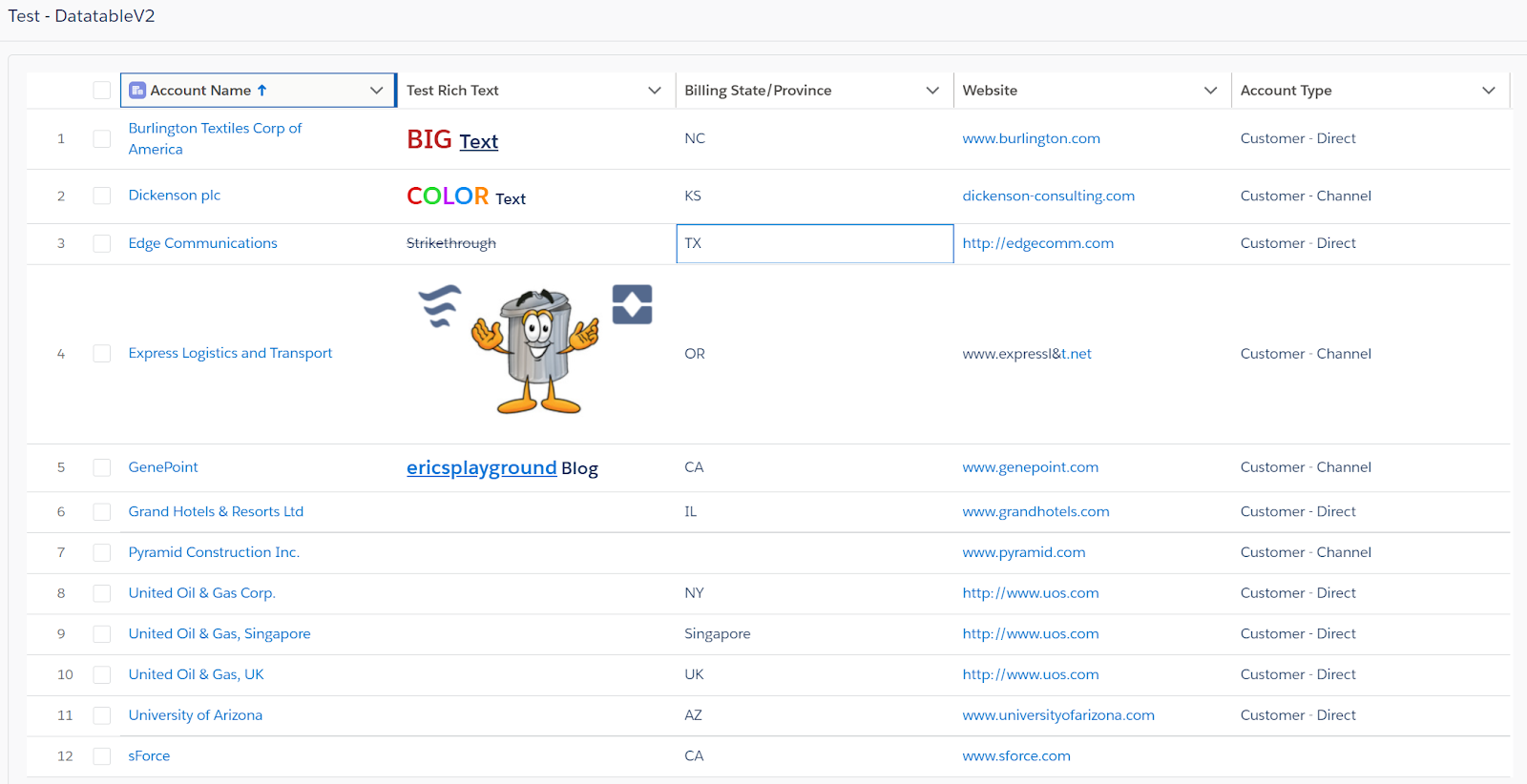
Thanks to a great addition from Kevin Hart (datapharmer), you can now display Rich Text, Images and Custom Links in your Datatables.
When you view a regular Listview with a Rich Text field, this is what you will see.
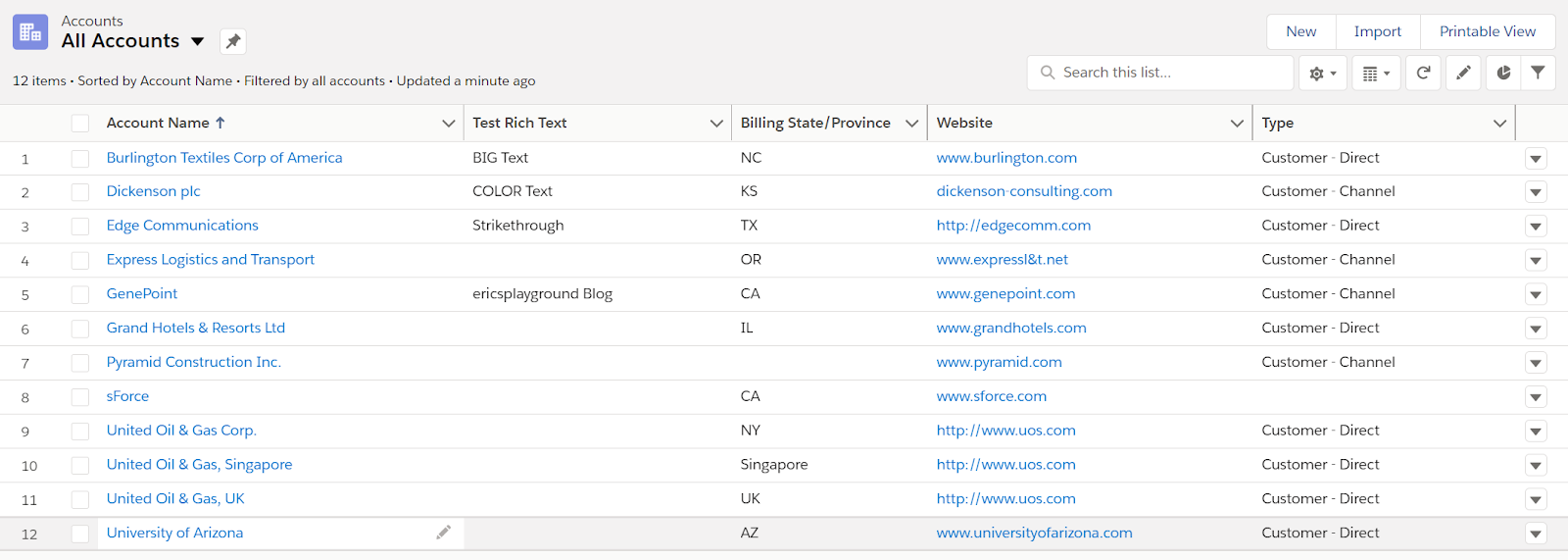
Here are the same records displayed in the Datatable component. Notice the Rich Text, Images and Links.
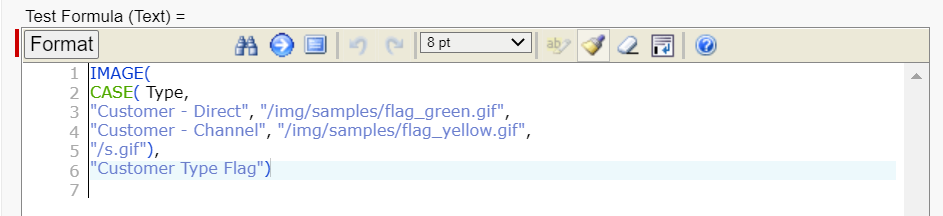
The Datatable also supports Text Formula fields with Functions such as IMAGE and HYPERLINK.
Here’s an example of an IMAGE formula based on the value of the Type field.
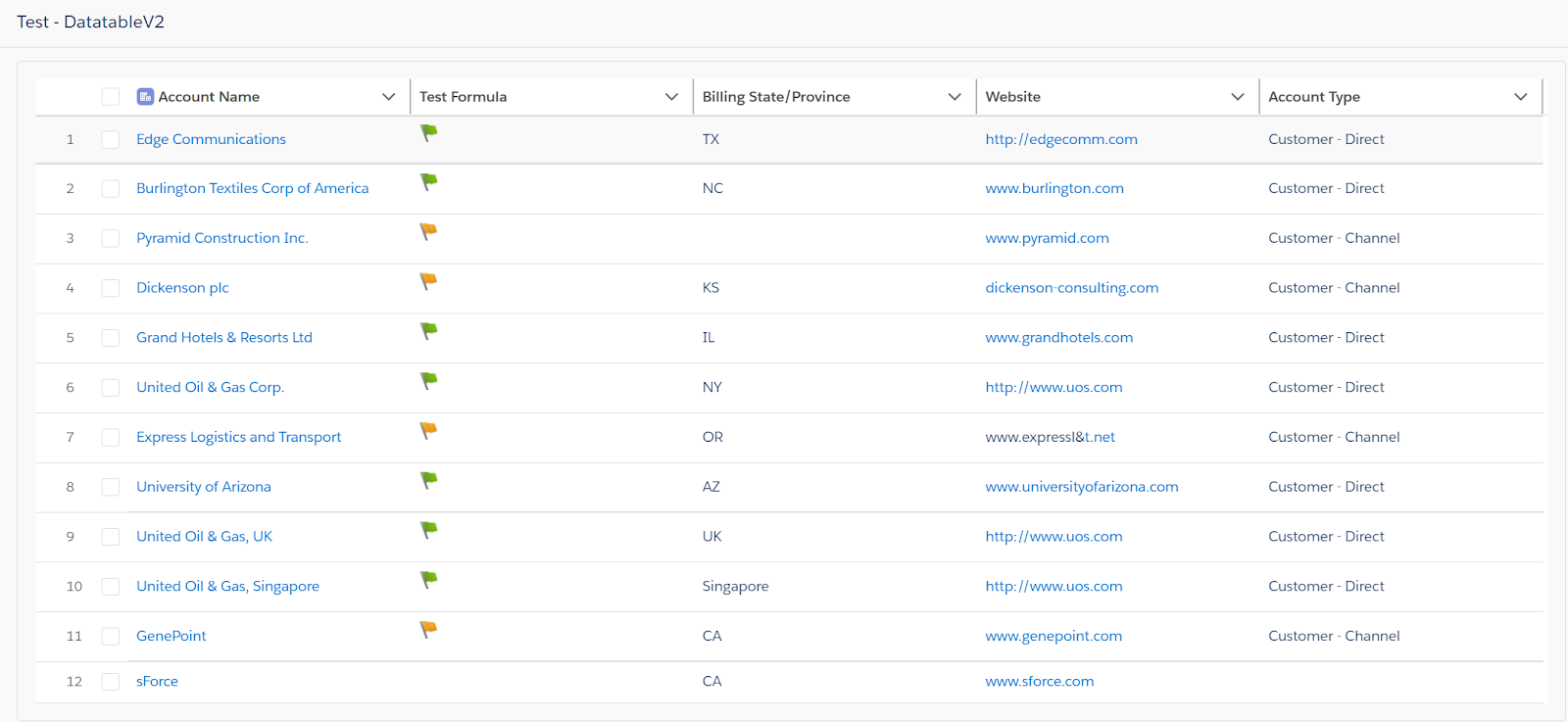
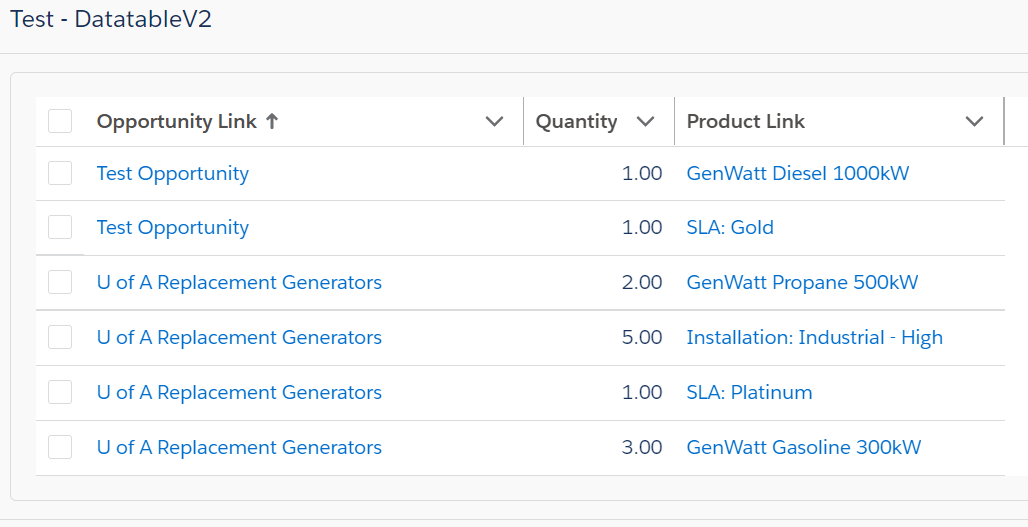
Here’s how you can use Custom HYPERLINK Formula fields to display links that aren’t natively handled by the Datatable component. This example adds custom fields to the Opportunity Lineitem object to display links to the related Opportunities and Products.


Best of all, you can create a Clickable Image using both the HYPERLINK and IMAGE Functions in the same Formula field.

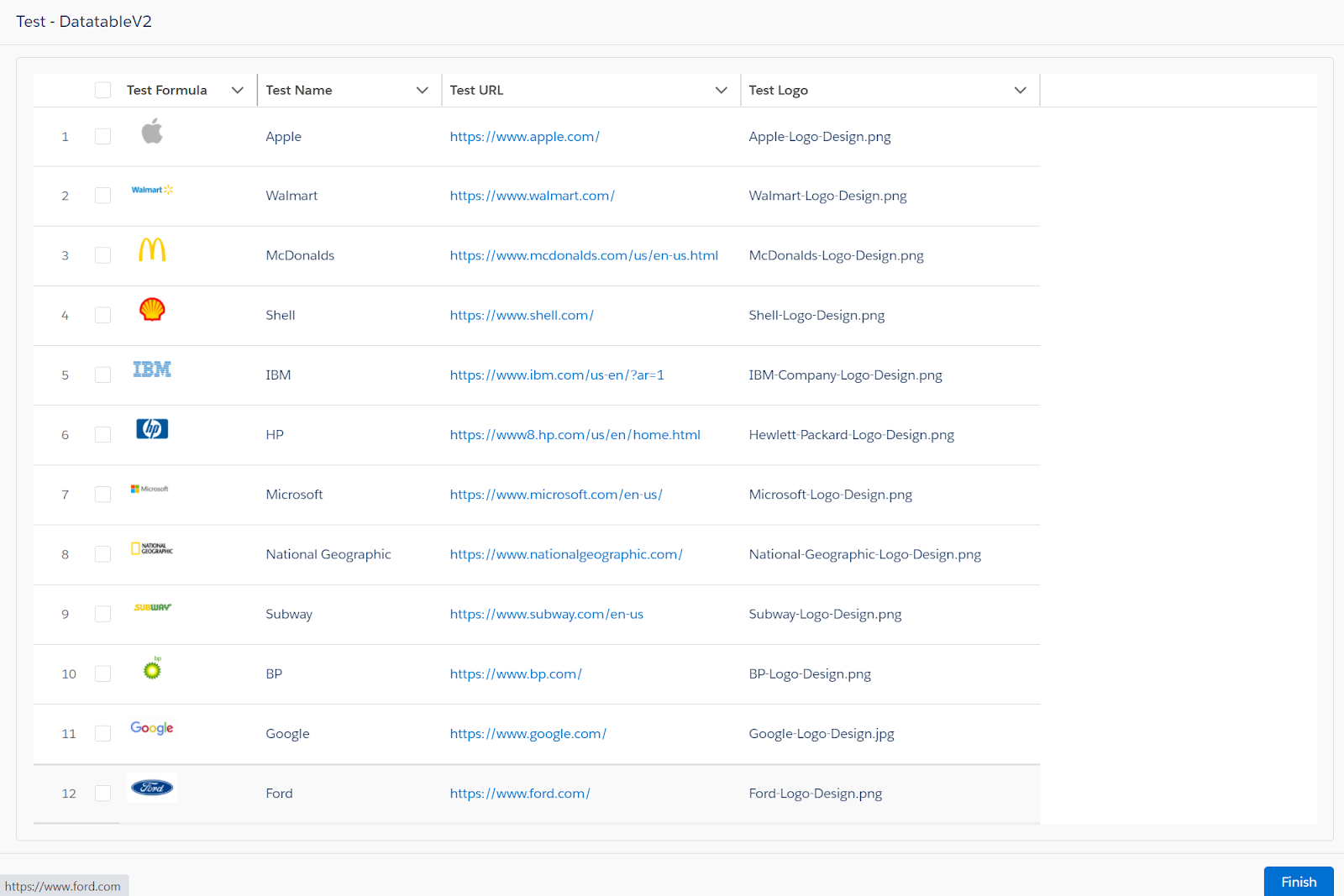
In the above example, clicking on any of the formula generated Logos in the first column of the Datatable will open a tab with the URL that is displayed in the Test URL column.
Vibhor Goel wrote an excellent post on using Visualforce to keep record data displayed in Flows in-sync with any changes made on a Lightning Record Page. He shows you how you can automatically update and refresh a Screen Flow when a record is updated. Check out the article here: https://www.accidentalcodersf.com/2020/09/keep-screen-flow-in-sync-with-record-page.html.
We have been posting about great things you can do with Flow and do in Lighting for quite some time now. When you click on Flow from the Home Page and then look at what is available to Extend Flows, you get to view and select from a number of different Flow Screen Components, Flow Actions and Process Components. We also have selections for Next Best Action, Lightning Page Components and External Services.

What was missing was a place to show you some of the great Applications and Utilities that you, the Administrator, can download and use to help you develop in and support your own orgs. Check out this new section often to see what might be there that you can put to use. Let us know in the comments about other Apps and Utilities that you would like to see highlighted on this page.

Many of the components on this site get updated on a regular basis with new enhancements. All you should need to do is follow the installation instructions to bring the component version up to date in your own orgs. Unfortunately, the methods and versions of the packaging tools we’ve used to produce these updated releases have changed over time. Things have finally settled down a bit and we are trying to be much more consistent in how the updates get packaged.
If you do run into issues there are a few things you can try. Unofficialsf.com contributor, Jack Pond, wrote this article a while back that may do the trick for you.
Another possible issue pops up when you have already created Flows that use the component you are trying to upgrade. Here’s an error you might see when trying to upgrade from v2.0 of the QuickChoice component:

This means you will have to Uninstall the current version before you can re-Install the new version. That’s OK if you haven’t already created Flows that use the component. What happens then is that you might get a message like this, “Unable to uninstall package” followed by one or more “Component is in use by another component in your organization. My_Flowname“.

If you are seeing this, you will need to first Delete any Flows that already use the component you are trying to update. Rather than having to recreate them from scratch, you can temporarily Export them then Import them back in after you have installed the updated component. Do this by first installing my Import/Export Flow Utility Flow.

The Import/Export Utility works with the most recent or active version of the Flow. You might also find that you have a number of older, inactive versions of the Flow that you have to delete as well. This can be a time-consuming manual process that can be avoided if you install my Flow and Process Builder List View with Batch Delete App.

It will be a fairly painless process once you have the right helper utilities installed in your org.