Some customers have noted that, for some screen components, the behavior of the help text button recently changed from “hover to see help” to “click to see help”. Here’s some background behind that change.
Originally, all Flow screen components supported formatting, embedded images, and embedded links in their helptext. They were written in Salesforce’s older Aura framework. They always required a click to open. Here’s the familiar UI that allows customers to create elaborate help content for each screen component:
Over the last 2 years, we have been converting the Aura components to use Salesforce newer and recommended Lightning Web Component framework. There are a lot of reasons to embrace the latest core Lightning technology like this, but sometimes there are side effects if the behavior of the new ‘base’ components provided by the framework doesn’t match the older behavior, and this is what happened with Help behavior. In LWC, the base help system uses tooltip semantics, causing the invocation to be on a hover but lacking support for rich text, embedded images, or embedded links. So for the last year or two, some screen components have had help bubbles that activated on hover.
After a few of the screen components were converted, some customers reported in that their investments in rich help were getting lost because the new hover text couldn’t show anything beyond plain text. Part of that is a mechanical limitation: with hovering behavior, if the hover text bubble has a link in it, you can’t click on that link because as soon as your cursor moves off of the triggering icon, the hover text goes away.
As a result, the Flow team has changed the behavior of its LWC screen components to use a popover. As part of this design, the popover is implemented with a click. While it’s possible to enable the popover to be implemented with a hover, we’d have to put a button next to the help icon that would enable users using screen readers and/or keyboards to have something to focus on, and so having to have two different visual elements side by side seemed unnecessary.
However, if there are users out there who really prefer the hover behavior, we’d like to hear more about that.
https://unofficialsf.com/wp-content/uploads/2022/09/largeUCSF-300x133.png00Alex Edelsteinhttps://unofficialsf.com/wp-content/uploads/2022/09/largeUCSF-300x133.pngAlex Edelstein2021-10-25 10:47:322021-10-25 10:48:07Recent Changes to Help Text in Screen Components
The Salesforce Flow team recently opened up an informal survey to get the community’s thoughts and feedback to help drive the future of Screen Flows. They would greatly appreciate 5-10 minutes of your time!
Editor’s Note: UnofficialSF is pleased to enable commercial creators of Flow extensions like Tigerface Systems to introduce their products and demonstrate useful use cases. One of our goals is to see a rich tier of commercial solutions in addition to the many free extensions that will continue to be available.
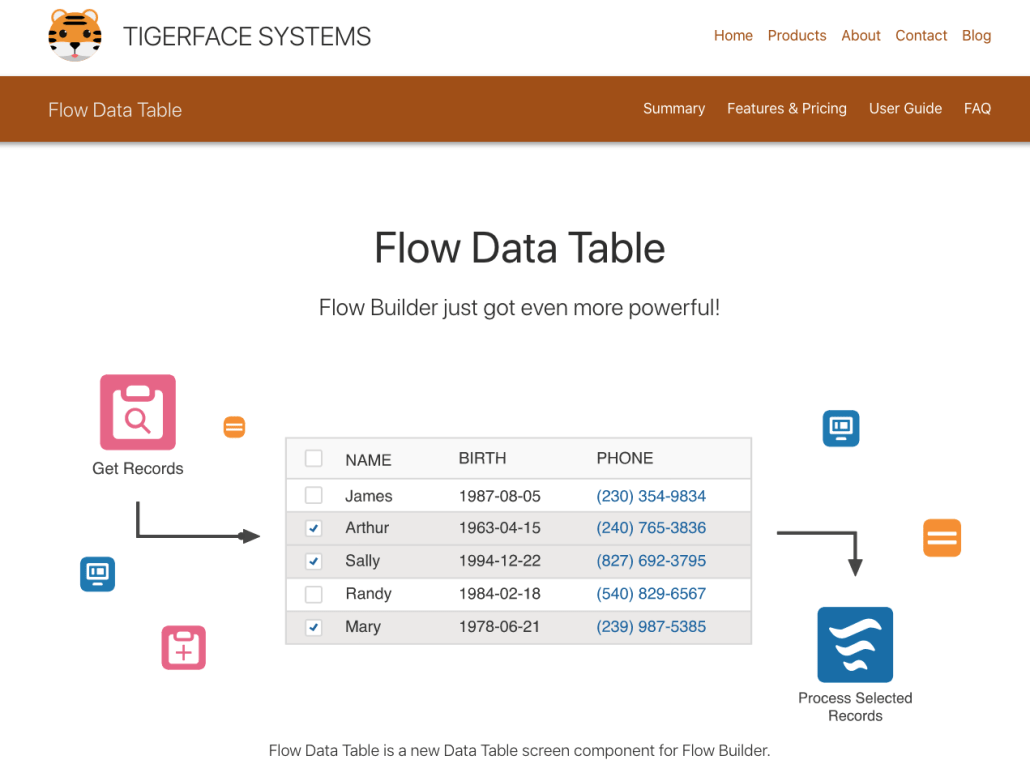
The Tigerface Systems Flow Data Table is a commercial grade production ready product available on the AppExchange. This product allows Salesforce users to view and interact with lists of records on a Flow Builder screen. Below are some of the many features offered:
Supports desktop, tablet, and mobile form factors.
Object, field, and record level security is enforced.
Sort and Select from a list of records.
In Memory Editing – allows user to edit records without saving to the database.
Database Editing – writes to the database and enforces validation rules.
The data table is offered via two AppExchange listings:
Free Edition. This provides read only capability with site-wide unlimited users at no cost.
Ultimate Edition – This is a paid product that provides sort and select along with the record editing features.
Data Table Configuration
Configuring the data table Is quick and easy. The following diagram depicts the configuration of the data table:
Configure Get Records – A Salesforce administrator will configure a Get Records step within Flow Builder. The Get Records step will read a set of records from the Salesforce database when the flow is run. The Get Records step will store the records in a record list variable, which is passed to the flow data table at run time.
Add Data Table to Screen – The administrator will drag the Flow Data Table lightning component from the toolbox onto the Flow Screen. The data table’s properties, such as the record list and fields to display, will be configured.
Sort and Select
This feature allows the user to sort by table columns and select one or more records in the list. The following diagram depicts this architecture:
The following processing steps will occur when the flow is run:
The Get Records step will retrieve record data from the Salesforce database. The record data will be stored into a record list variable and passed to the data table.
(Optional) Records can be read and stored into a second record list variable in order to cause one or more records to be pre-selected.
The data table receives the record list, retrieves the field definitions and user permissions from the Salesforce database, and displays the fields for each record.
The user can sort the records by column and select one or more records.
The selected records are available in a record list variable for subsequent flow processing.
The number of selected records is available in a variable for subsequent processing.
If the user selected one record it will be available in an object variable for subsequent processing. This variable will be empty otherwise.
In Memory Editing
This feature provides the capability for the user to edit the records that are presented in the data table. In this mode, the data table does not write the records to the Salesforce database. The following diagram depicts this architecture:
The following processing steps will occur when the flow is run:
The Get Records step will retrieve record data from the Salesforce database. The record data will be stored into a record list variable and passed to the data table.
The data table receives the record list, retrieves the field definitions and user permissions from the Salesforce database, and displays the fields for each record.
The user can edit the records in the data table. When the user clicks the Save button after editing, the changes will be written to the Record List Out variable. The records are not written to the Salesforce database when the data table operates in this mode. Note that the data table will only enable the edit feature if the user has edit privileges for the object. Field Level Security is also enforced by the data table.
The edited records are available in Record List Out for subsequent flow processing.
Database Editing
This feature provides the capability for the user to edit the records and store those changes to the Salesforce database real time. The following diagram depicts this architecture:
The following processing steps will occur when the flow is run:
The Get Records step will retrieve record data from the Salesforce database. The record data will be stored into a record list variable and passed to the data table.
The data table receives the record list, retrieves the field definitions and user permissions from the Salesforce database, and displays the fields for each record.
The user can edit the records in the data table. When the user clicks the Save button, the edited records are sent to the Salesforce database. Records without validation errors will be written to the database. Records with errors will be rejected, and error messages will be displayed to the user.
Note that the data table will only enable the edit feature if the user has edit privileges for the object. Field and Record Level Security is also enforced by the data table.
The edited records are available in Record List Out for subsequent flow processing.
Tigerface Systems is a custom software development company based in the suburbs of Maryland, USA. We specialize in custom Salesforce solutions that are marketed and sold on the Salesforce AppExchange. We are a private, family-owned and operated company. We do all work in-house to ensure the utmost highest quality is engineered from the beginning and maintained throughout our product’s lifecycle.
https://unofficialsf.com/wp-content/uploads/2022/09/largeUCSF-300x133.png00Adam Whitehttps://unofficialsf.com/wp-content/uploads/2022/09/largeUCSF-300x133.pngAdam White2021-10-21 12:29:362021-10-21 12:29:41[From Tigerface Systems] Enhanced Datatable with Full Mobile Support
This video shows an actual orchestration created by Orchestrator product manager Abhishek Sharma in collaboration with pilot Orchestrator customer Eigensonne:
In this demo, you can see Orchestrator’s new beta features, including autolaunched flow support and go-to connectors for routing to a previous stage.
https://unofficialsf.com/wp-content/uploads/2022/09/largeUCSF-300x133.png00Alex Edelsteinhttps://unofficialsf.com/wp-content/uploads/2022/09/largeUCSF-300x133.pngAlex Edelstein2021-10-20 08:18:522021-10-21 10:21:23New ‘Eigensonne’ Orchestrator Demo from the Orchestrator Team
Salesforce is currently piloting a feature called Reactive Screens that allows builders to pipe the output from one screen component to the input of another screen component on the same screen. Each time the source component changes its output, the target component dynamically updates and refreshes. To explore the possibilities of this, we created a simple Flow screen component called DataPoller that makes a SOQL query every X seconds and provides the results as an output. Then we enhanced the Datatable component so it will update every time it gets a new input.
The result is a highly reactive Datatable that responds instantly to any and all record changes:
DataPoller is a very simple little screen component that takes a SOQL query and a polling frequency. Even if your org isn’t enabled for the Reactive Screens pilot, you may still find DataPoller useful.
Attributes:
pollingFrequency
number. Seconds between queries. Default is 3
queryString
a conventional SOQL string, such as ‘SELECT Id, FirstName, LastName, CreatedDate, LastModifiedDate,Status FROM Lead’ Make sure that the object you’re querying here matches the object you select when first configuring the property editor.
This returns a retrievedRecords collection and an error string (which will be displayed on screen).
https://unofficialsf.com/wp-content/uploads/2022/09/largeUCSF-300x133.png00Alex Edelsteinhttps://unofficialsf.com/wp-content/uploads/2022/09/largeUCSF-300x133.pngAlex Edelstein2021-10-18 12:36:222022-11-05 10:13:04DataPoller and Reactive Screens for Flow
https://unofficialsf.com/wp-content/uploads/2022/09/largeUCSF-300x133.png00Alex Edelsteinhttps://unofficialsf.com/wp-content/uploads/2022/09/largeUCSF-300x133.pngAlex Edelstein2021-10-17 14:39:112021-10-17 14:39:20From Khyati Mehta: A Detailed Walkthrough Video of How To Use Flow to do OmniChannel Skills-Based Routing