The original recalculate formulas action posted last week actually required a text collection of field names. I went ahead and created a new action that is a bit simpler to use – this new action now just takes an input collection and outputs a collection with refreshed formula fields. Make sure that all of the fields are present on the record you are passing in, otherwise it might not get calculated properly. Be on the lookout for that in the next couple of days!
Summary
Ever notice how formulas don’t get calculated for formula fields or you need to reference ‘refreshed’ values in Flow?
James Hou (sparkworks.io & Google) and JamesIsSoPro from the Salesforce Discord community came up with two very handy actions that let you re-calculate all of the formula fields in a record collection or easily re-query for refreshed values in a record collection. This is quite handy – especially when you want to display formula fields on USF’s Datatable component if you’ve built up your own record collection.
Refresh Formula Fields
When would I use this?
Use this when changes occur to a collection of records before it hits the database – i.e. in a loop.
Use this when you only want to recalculate formula fields to use throughout your flow as a record collection goes through changes before it is committed to the database. This is great for when you want to assign values in an assignment element but want Salesforce to have the latest value in a formula. Best of all it doesn’t use a SOQL statement to do it and you don’t need to create the records for the formulas to calculate!
Scenario
Let’s say you’ve built or modified a collection of records to create at a later step in your flow through a Loop or through some action on UnofficialSF. Those collection of records haven’t actually hit the database yet, so any formula fields within that collection have not been recalculated yet. If you needed to reference a formula field that sits on a record, it would probably be inaccurate because it hasn’t been recalculated – it’s going to either be blank or wrong as it was using the formula value from when you initially grabbed it. This action will recalculate it for you so that you can then safely use the most updated value in an Assignment step or display it on a flow screen.
Example:
I ‘Get’ 10 contacts – each of these contacts has a ‘Data Quality Score’ formula field that adds up to 100 based on various non-blank fields on the contact. (i.e. Email = 20, Address = 50, etc)
I then loop through all 10 contacts and add in a value for one of the fields referenced in the formula. Per typical Flow usage I create a new collection of contacts to update the contacts later.
If I reference this ‘new’ collection it will still have the old ‘Data Quality Score’ because those changes have yet to hit the database and the formulas have not been re-calculated yet. If I were to reference this field on a screen or in assignment for another record, it’d be wrong!
I would then run this formula action on the new collection to force a recalculation of the Record Collection if I needed the most up-to-date formula value before doing any DML.
Note: Any issues / support for this action should be made on Jame’s Github Issues page (see Source link). Note that the text input is actually a text collection, not a comma-separated string. I will provide an updated action in the next couple of days.
Refresh/Requery Record Collection
When would I use this?
If you have a long-running Flow and you expect other users or processes (like an After-save Apex Trigger) to make changes to a collection of records, you want to be sure that the collection will have the latest information. But Flow will in these cases only have the old values based on when it did its original ‘GetRecords’ query.
Think of this action essentially as ‘Re-query Collection’ that quickly refreshes a collection.
https://unofficialsf.com/wp-content/uploads/2022/09/largeUCSF-300x133.png00Adam Whitehttps://unofficialsf.com/wp-content/uploads/2022/09/largeUCSF-300x133.pngAdam White2020-08-26 05:04:152020-09-08 16:50:53Ensure Your Record Collections Have the Latest Data with Recalculate Formulas and Refresh Record Collections
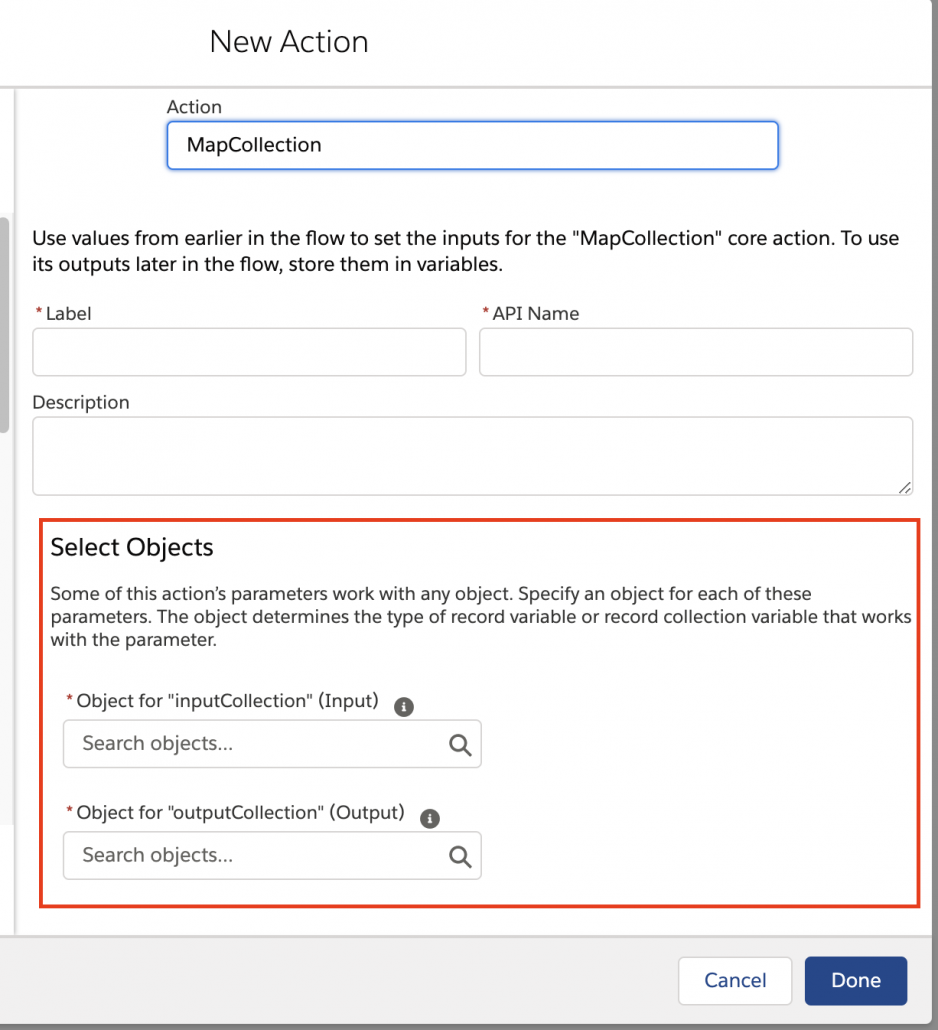
Some actions and screen components have input attributes of type SObject or SObject[]. When configuring an instance of one of these, you need to provide a concrete type in order to save the flow successfully.
The standard property editor does this by providing automatically generated mapping UI:
As the developer of a custom property editor, you have more flexibility. You can choose to provide a UI identical to the UI shown above. But you can also choose to handle the concrete mapping behind the scenes. For example, you might choose to ask the user a friendlier question like “What type of object do you want to use with this action?” and provide an object picker. Once the user has picked the object, you can fill in the dynamic type mappings via a normal CPE event dispatch.
When setting a type mapping, use this event:
const event = new CustomEvent('configuration_editor_type_mapping_changed', {
    composed: true,
    cancelable: false,
    bubbles: true,
    detail: {
        name, // name of the dynamic type. For actions, include the param name:  'Typename__param1'. For screens, just use the type name e.g "T"
        value, // concrete value type of the dynamic type, e.g 'Account'
    }
});
// for Screens the name attribute for event is just the dynamic type e.g “T” // for Actions it’s the type followed by the param name e.g “T__paramName”
Retrieving Existing Generic Type Mappings
The CPE interface supports a new attribute genericTypeMappings:
* array of complex object containing type name-value of the dynamic data types
   * in Action or Screen
   * eg: [{
   *       typeName: 'T', // the type name
   *       typeValue: 'Account' // or any other sObject
   *     }]
   */
Here’s an example of a CPE that supports generic type mapping:
import { LightningElement, api, track } from "lwc";

export default class DynamicTypeCpe extends LightningElement {
  _inputVariables = [];
  _builderContext = {};
  _elementInfo = {};
  _genericTypeMappings = [];

  _flowVariables;
  _elementType;
  _elementName;
  /* array of complex object containing name-value of a input parameter.
   * eg: [{
   *       name: 'prop1_name',
   *       value: 'value',
   *       valueDataType: 'string'
   *     }]
   */
  @api
  get inputVariables() {
    return this._inputVariables;
  }

  set inputVariables(variables) {
    this._inputVariables = variables || [];
    this.initializeValues();
  }


  @api
  get builderContext() {
    return this._builderContext;
  }

  set builderContext(context) {
    this._builderContext = context || {};
    if (this._builderContext) {
      const { variables } = this._builderContext;
      this._flowVariables = [...variables];
    }
  }

  /* contains the information about the LWC or Action in which
   * the configurationEditor is defined.
   * eg: {
   *       apiName: 'CreateCase', // dev name of the action or screen
   *       type: 'Action' // or 'Screen'
   *     }
   */
  @api
  get elementInfo() {
    return this._elementInfo;
  }

  set elementInfo(info) {
    this._elementInfo = info || {};
    if (this._elementInfo) {
      this._elementName = this._elementInfo.apiName;
      this._elementType = this._elementInfo.type;
    }
  }

  /* array of complex object containing type name-value of the dynamic data types
   * in Action or Screen
   * eg: [{
   *       typeName: 'T', // the type name
   *       typeValue: 'Account' // or any other sObject
   *     }]
   */
  @api
  get genericTypeMappings() {
    return this._genericTypeMappings;
  }

  set genericTypeMappings(mappings) {
    this._typeMappings = mappings || {};
    this.initializeTypeMappings();
  }

  /* Return a promise that resolve and return errors if any
   *    [{
   *      key: 'key1',
   *      errorString: 'Error message'
   *    }]
   */
  @api
  validate() {
    const validity = [];
    return validity;
  }

  get options() {
    return [
      { label: "Account", value: "Account" },
      { label: "Case", value: "Case" },
      { label: "Contact", value: "Contact" }
    ];
  }

  get recordVariableOptions() {
    if (this.typeValue) {
      return this.updateRecordVariablesComboboxOptions(this.typeValue);
    }
    return [];
  }

  @track
  inputValue = "";

  @track
  typeValue = "";

  @track
  record;

  initializeTypeMappings() {
    this._genericTypeMappings.forEach((typeMapping) => {
      if (typeMapping.name && typeMapping.value) {
        this.typeValue = typeMapping.value;
      }
    });
  }

  initializeValues() {
    this._inputVariables.forEach((variable) => {
      if (variable.name && variable.value) {
        if (variable.valueDataType === "reference") {
          this.inputValue = "{!" + variable.value + "}";
        } else {
          this.inputValue = variable.value;
        }
      }
    });
  }

  handleComboboxChange(event) {
    if (event && event.detail) {
      const newValue = event.detail.value;
      this.comboboxvalue = newValue;
      // for Screens the name atrribute for event is just the generic type e.g "T"
      // for Actions it's the type followed by the param name e.g "T__paramName"
      const name = this._elementType === "Screen" ? "T" : "T__record";
      const dynamicTypeChangeEvent = new CustomEvent(
        "configuration_editor_type_mapping_changed",
        {
          bubbles: true,
          cancelable: false,
          composed: true,
          detail: {
            name,
            value: newValue
          }
        }
      );
      this.dispatchEvent(dynamicTypeChangeEvent);
      this.updateRecordVariablesComboboxOptions(newValue);
    }
  }

  updateRecordVariablesComboboxOptions(objectType) {
    const variables = this._flowVariables.filter(
      (variable) => variable.objectType === objectType
    );
    let comboboxOptions = [];
    variables.forEach((variable) => {
      comboboxOptions.push({
        label: variable.name,
        value: "{!" + variable.name + "}"
      });
    });
    return comboboxOptions;
  }

  handleRecordChange(event) {
    if (event && event.detail) {
      const newValue = event.detail.value;
      this.inputValue = newValue;
      const valueChangedEvent = new CustomEvent(
        "configuration_editor_input_value_changed",
        {
          bubbles: true,
          cancelable: false,
          composed: true,
          detail: {
            name: "record",
            newValue,
            newValueDataType: "reference"
          }
        }
      );
      this.dispatchEvent(valueChangedEvent);
    }
  }
}
Salesforce provides a Platform Cache that can serve as a temporary storage device for your data. One use of this is when you want to store some data with one flow and retrieve it with another. However, caches are intended only for data that doesn’t need to sit around for long. They’re not intended to be used for persistent, reliable storage. For that, create a record and store your data in the record.
Another benefit of caches is performance. If you have a set of values that lots of your flows are constantly loading, you can potentially speed up your flow performance and reduce your number of DML operations by getting those items from your cache.
This package provides two Flow Actions: Store Data in Cache and Get Data From Cache.
Store Data in Cache
This action can store multiple pieces of data simultaneously in the cache. It has inputs for Records, Record Collections, Strings, Dates, and DateTimes. In each case, provide a key string that you’ll use when retrieving the data. You can use the cacheType input to specify whether you want to use your Org cache or a user Session cache (it defaults to Session).
Note that you need to specify an object type for the Record and Record Collection inputs even if you have no interest in caching records. That’s just a limit of the current UI.
In the following example, two pieces of data are being cached: a date and a string.
Get Data From Cache
This action allows you to specify one key only, so you’re only going to get one piece of data out per call.
Note that you need to specify an object type for the Record and Record Collection outputs even if you have no plans to retrieve records. That’s just a limit of the current UI.
On a normal org, note that these actions do not currently support namespaces and named partitions. They assume the use of the default partition. Read about Platform Cache for more information. Here’s an example of an org with a default partition that’s ready to work with these actions:
There are some other cache features like setting the expiration time that are not currently supported in these actions, but can be added if there’s interest.
https://unofficialsf.com/wp-content/uploads/2022/09/largeUCSF-300x133.png00Alex Edelsteinhttps://unofficialsf.com/wp-content/uploads/2022/09/largeUCSF-300x133.pngAlex Edelstein2020-08-23 17:27:042020-08-23 17:27:12Make Use of the Platform Cache from Flow
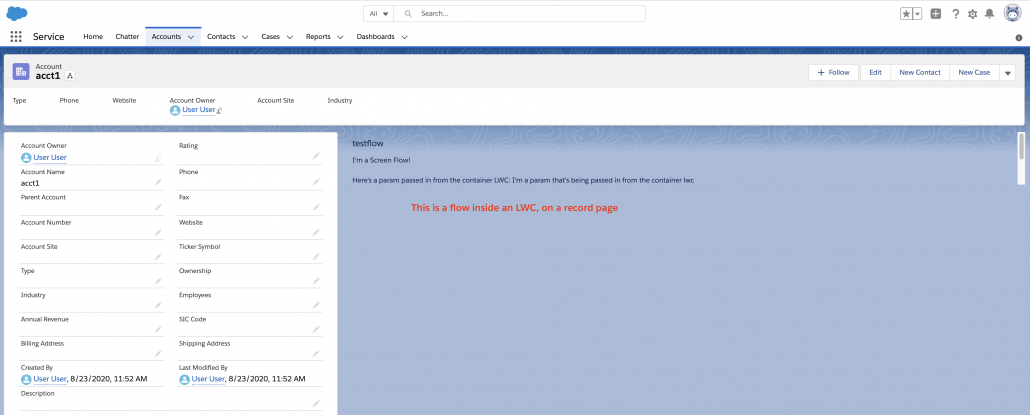
The lightning:flow component is commonly inserted into aura components to enable screen flows to run when those components are rendered. What if you want to insert a flow into your own LWC component?If you’re building an LWC, you can’t currently just invoke lightning:flow because it has not yet become available in an LWC version (and LWC doesn’t allow Aura components to be inserted).
To address, that, the ScreenFlow LWC installable from this page provides a way to insert a flow into your own LWC container. Simply invoke it in your LWC like this:
When your component instantiates, it will load the named flow into an iframe created with the specified height and width, and pass in any input params you provide.
How It Works
Getting this to work required a bit of bricolage. When ScreenFlow initializes, it sets up some message-passing infrastructure and determines the org URL. It then renders an iframe and passes to that iframe the name of a visualforce page called screenFlow that’s provided in this package. The URL that loads the screenFlow page also contains query parameters with any input parameters.
The visualforce page has script on it that creates a lightning:flow aura component and then sends it a start flow command. More event infrastructure is put in place so that when the lightning:flow generates some sort of status change, the event it fires gets passed up to the visualforce page, where it’s converted into a message that get passed across the iFrame boundary to the parent screenFlow lwc, which will dispatch an event (“flowstatuschange”) with any output data. Your container can register to receive flowstatuschange events so it can receive the output values of the flow.
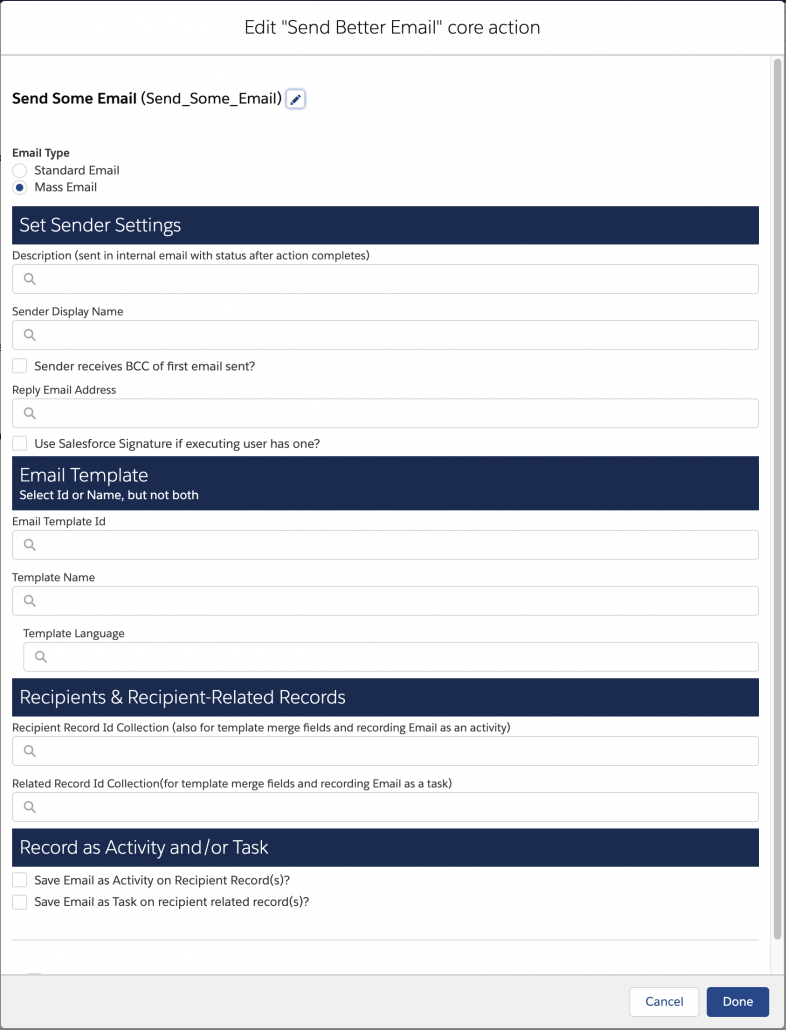
Jack Pond has added major improvements to email sending via Flow with Send Better Email – Flow Action. This action replaces all previous rich/html Flow actions. Most notably, the new action features a custom property editor, providing easier configuration:
Jack has also added new support for Salesforce’s Mass Email sending service. This substantially increases the amount of email you can send with a single Flow.
You can now independently choose whether you want your email sends to be recorded as activity history and/or tasks. Additionally, you can now specify a desired email template by name. The action will now return a list of created task ID’s if you choose to have tasks created.
For installation, we’ve chosen to change the name of the action to Send Better Email. That means that its installation won’t be blocked by the existence of older Send Email actions. In general we seek to keep the name the same and enable seamless upgrade, but in this case there were too many changes. Going forward, though, we hope to provide improvements in a way that can just be updated in place without aggravation.
I’m very pleased to again be able to share information about imminent new Flow functionality! This is a particularly strong release, possibly a match for the already-legendary Winter ’20 release. Preview Orgs can be obtained to try out this functionality.
Flow Canvas ‘Autolayout Mode’
Flow Builder now provides a canvas option called Autolayout that automatically connects elements to each other and handles layout. This simplifies the user experience and makes flow construction more consistent.
Use the new Autolayout toggle on the Flow Builder header to switch between Autolayout and the traditional Open Canvas mode:
Autolayout mode does not currently support flows where a single non-Loop element has more than one inbound connector or where a single Loop element has more than 2 inbound connectors.
When changing to Autolayout mode, if the current was created in Open Canvas mode, its positions will be lost, even if the user immediately changes back. We therefore recommend that users save before activating autolayout mode if changes are intended. However, if the flow is changed to autolayout mode and then closed without any saves, the original positions will still be present in the latest version.
We’re going to be very interested in feedback on the Autolayout experience because we don’t want to indefinitely maintain both modes and we think Autolayout is the future.
Trigger on Delete
Needs no explanation.
Universal ‘OR’ and ‘Custom Condition Logic’
You can now use actual OR logic. Oh, and Custom Condition Logic too. Everywhere in Flow. The ‘smart money’ on the Automation teams thinks this might be this release’s most popular new feature, despite the tough competition.
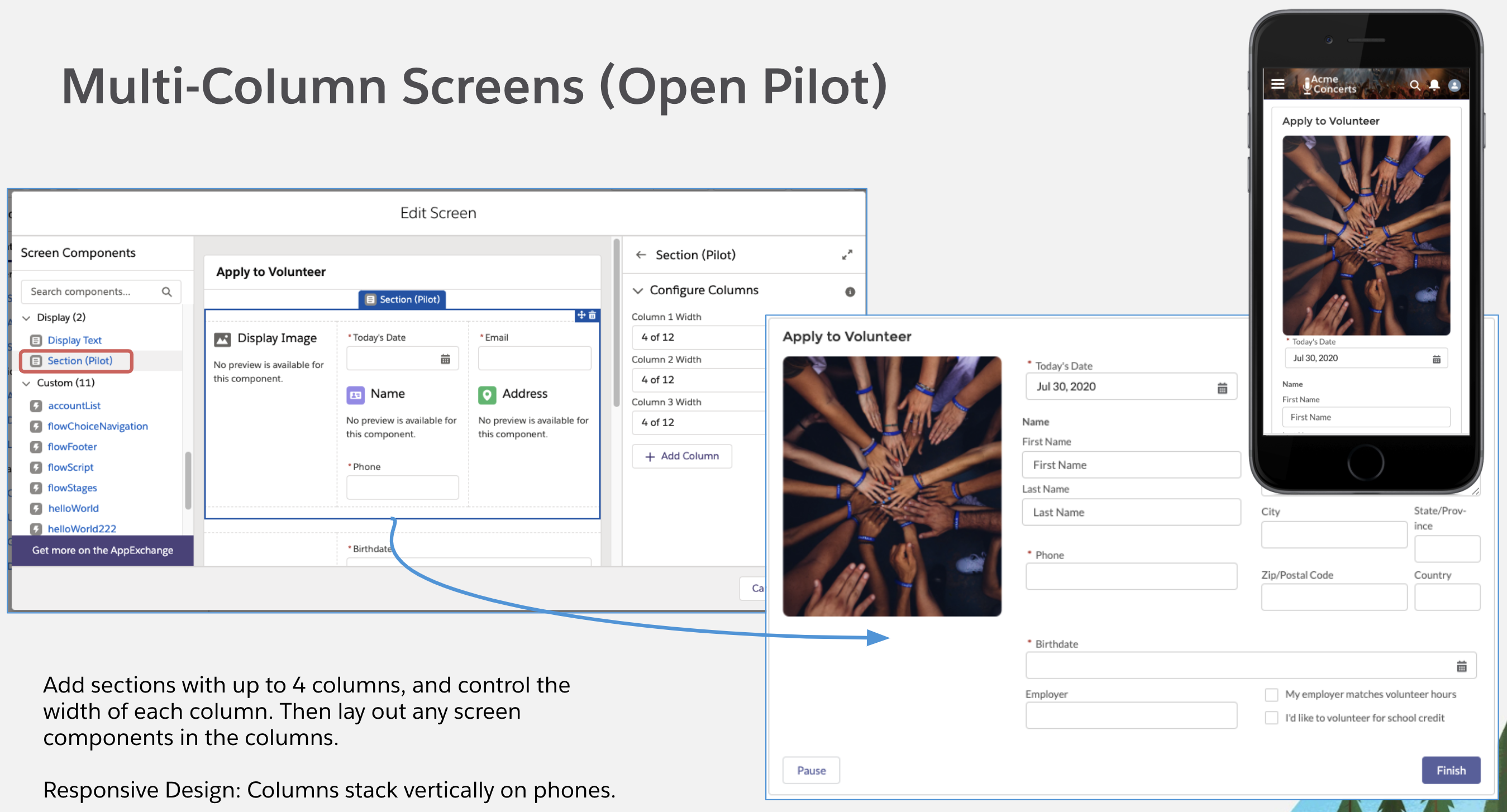
Multi-Column Screens (Open Pilot)
Enable this pilot to see a new component in Screen Builder: Section. Each section can be divided into up to 4 columns. Customers can use Sections to create multi-column layouts on their screens, and then embed whatever screen components they like in those components.
This enables you to do a debug run as a specified user. Great for testing.
This can be controlled at the org level:
Note:
Not available in production. Test your Flows in sandbox, please!
Does not affect API calls made from client-side components, such as Flow screen components.
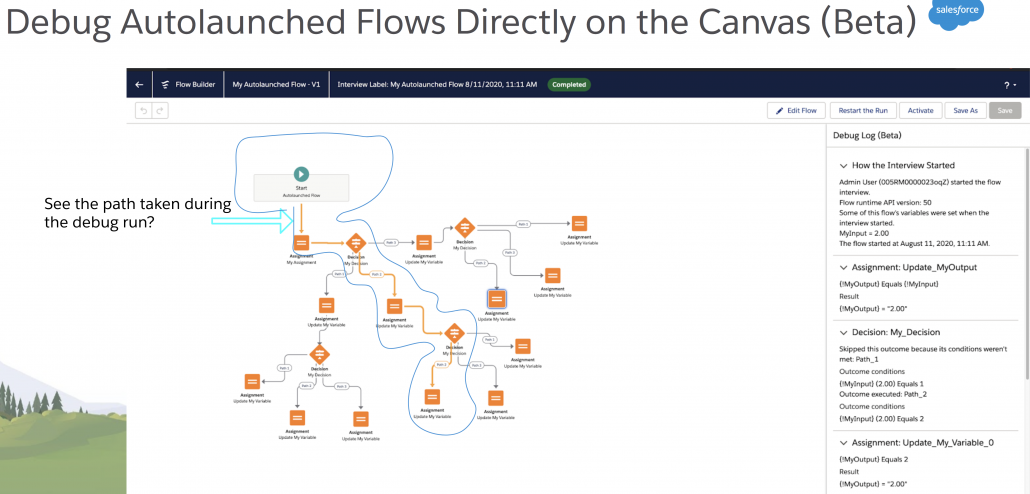
Visual Debugging for Autolaunched Flows
A number of debugging improvements have been rolled out for autolaunched flows:
Note the reorganized Debug Log, the improved header, and, most prominently, the visual path indicators.
Pills
Some parts of Flow Builder have been enhanced to feature pills, which allow friendly labels to be used in place of merge field syntax.
Click on a pill to reveal its underlying value. Pills do not change existing values in any way. They simply add a label.
For example $GlobalConstant.True will appear as ‘True’
We’ll be expanding the range of pills support in the next release.
Directed Error Messages
Error messages now provide, when available, links to the element that caused the error, allowing the property editor to be quickly opened.
Insider tip: one of the reasons we did this was to pave the way for the conversion of modal property editors into panel property editors that allow you to create an element and leave it partly unconfigured without triggering error messages. The validation moves to Save-time, which makes it important to help users ‘get back’ to the source of errors. This in turn is a prerequisite for true Draft Mode.
Record Update Trigger Improvements: Query Filters
A number of Process Builder capabilities comes to Flow in this release. Now, when you create a record-update triggered flow, you have the option to select entry criteria to narrow down which records you’re automating in the first place. The Process Builder choice to only run when the criteria has just changed to meet the requirements is also now available:
Record Update Trigger Improvements: ‘Only When Record Has Just Changed’
As seen above, the ‘When to Run the Flow for Updated Records allows for tighter control of execution.
Record Update Trigger Improvements: Traversal to Related Records
It’s hard to write something catchy about field traversal. It’s just one of those things that you don’t think about until you absolutely must have it. Now available in Record-Change Triggers.
Import Flow Actions for Public Web Services Like Jira, Trello and eBay with External Services (PILOT)
External Services, which I think of as ‘API Action Builder’, has been enhanced to support OAS 3.0 and schemas up to 1 million characters in size. The biggest impact of this is that, for the first time, it’s possible to use External Services to bulk import the ‘schemas’ (basically a big text file describing APIs that you can call) of public web services, generating dozens of Flow Actions that directly access those web services’ APIS.
Not all web service schemas can be imported in Winter ’21. Some are longer than the current 1 million character limit. Others produce errors when you try to ingest them because of functional gaps that still need to be addressed. However, as you can see from the image above, the list of services that you can successfully ingest includes Jira, Dropbox, Instagram, Twitter, Mailchimp, eBay, and Walmart, GoToMeeting, Trello, and Medium. Here are some examples of the actions that become available for use in flows:
Note that this currently planned as a closed pilot, meaning you need to request access via your company’s Account Executive.
Expanded Access to Global Variables
Global variables, previously only available in Flow via Formulas, are now accessible anywhere you want to reference a field.
Flow API Versioning
For enterprises, this is the sleeper feature with the big impact.
Traditionally, changes that can cause breaking disruption have been deployed as CRUC’s that have to be carefully regression tested:
For a variety of reasons, this is burdensome, so starting with this release, the Flow engine will be versioned with the API version. Features that are deemed to have disruptive impact get versioned, which means they only are applied automatically to new flows. (Importantly, we expect that most flow enhancements will not have any breaking impact and will not need to be versioned.)
For your existing flows, you can decide on a flow-by-flow basis when to upgrade to a new version with a new version setting:
So essentially, you will no longer need to apply CRUC’s to your mature flows.
This release contains 4 versioned improvements:
Remove unintended Next navigation from flow screens at the end of a Flow that shouldn’t be showing a Next button Eliminates a scenario where the Next button displays even though the ‘Next or Finish’ checkbox in a Screen element’s property editor is unchecked
Record Variables no longer cause an error if they are used in a merge field and have a ‘null’ value
The ISBLANK function returns true for empty strings and not just for null values.
Enforce the running user’s data access rights when evaluating Flow formulas
So, to reiterate, the above four bug fix/improvements will only automatically apply to Flows that use version 50 or higher. All flows that were last saved on a Summer ’20 or earlier org will be assigned version 49.
Now GA: Screen Components can use Generic SObject attributes
Invocable Actions (aka Flow Actions) already have this functionality at GA level.
Custom Property Editor Enhancements
Custom Property Editors for Flow Screen Components is now Generally available. Custom Property Editors for Flow Actions (Invocable Actions) remains at Beta, but the only work remaining is some minor packaging enhancement.
You can now use Custom Property Editors with Actions and Screen Components that use inputs of type SObject or SObject[]. This opens up the use of Custom Property Editors to screen components like the Datatable shown above and actions like the Collection Actions. This is called Dynamic Type Mapping and you can learn about it here.
Agents are now empowered with contextual, event-based recommendations in the Next Best Action and the Actions & Recommendation components based on information in Voice Call records and call transcripts. Events for call state changes, such as start call, end call, mute, hold, etc.,can be used to build event-driven solutions.
APIs in the Service Cloud Voice Toolkit can be used to push context-sensitive recommendations based on field values in the call record and keywords in the call transcript.
Next Best Action is invoked with key:value pairs in the Lightning Message Service message payload. The value given to a particular key can be retrieved in the Recommendation Strategy using $Request.key in the filter element as follows $Request.key != ” && CONTAINS(Name, $Request.key)
Next Best Action has been certified compliant with HIPAA (the Health Insurance Portability and Accountability Act of 1996), certifies that NBA meets the strict standards for protection of sensitive customer information.
Einstein Recommendation Builder
Einstein Recommendation Builder (ERB) allows admins to recommend or match records from one Force.com object to another, using an AI-powered recommendation engine. It offers a point-and-click interface to support standard and custom matching problems using CRM data
Next Best Action (NBA) Integration
ERB is natively integrated with Einstein Next Best Action to surface these AI-driven recommendations as next best actions.
Other Winter ’21 Changes
Text Template resources now remember whether you’re viewing in Plain Text or HTML mode. This helps avoid situations where users were inadvertently entering HTML markup into their text.
The Flow home page list view now shows the Trigger Type of each flow.
Labels show up in Flow Interview Logs.
Newly enforced security restrictions on guest user access mean you need to activate the recently implemented permission elevation to ‘System Context without Sharing’ if you want Guest Users to have access to flows that use the Next Best Action Recommendation object.
When a user changes the owner of a record via Salesforce Classic, that record change can now launch a record-triggered flow
I recently made a big learning about the difference between managed and unlocked/unmanaged packages: when a user tries to install an unlocked package, all of the tests are run, but when a user tries to install a managed package, the tests are not run.
This prevents managed package tests from interfering with validation rules on the target org.
What we were seeing with typical unmanaged packages on UnofficialSF: the developer would write tests but customers trying to install the package to their production org reported installation failures because the tests create test records like Accounts or Contacts, and these record creates were failing for miscellaneous reasons (missing a custom field that is required on that particular user’s org, for example).
I asked the product manager of Apex, Chris Peterson, who wrote:
I would absolutely recommend managed to make it so that your flow-centric admins don’t end up owning Apex tests they can’t maintain). If they want the source they can grab it off github, but managed packages should be your “easy turn-key” option.
For managed packages: the tests run on pkg creation, and only run on install when the test is explicitly annotated requesting this. Managed tests are NOT run on metadata deployments to the org, unless specifically requested.
For (1st gen) unmanaged packages: this is a real problem, and one of many reasons why I generally discourage the use of 1st generation unmanaged packages entirely.
For 2nd gen unlocked packages: I have less experience, and if this is what you’re asking about let me know and I’m happy to go do my homework, since I should probably know this anyways.
At the end of the day, it’s not possible to make a test that does any DML that will succeed anywhere, at least not practically. Using the right delivery mechanism to ensure test ownership is assigned correctly (i.e. to you, the provider for managed, instead of to your subscriber for unmanaged) is by far the superior option to trying to make a “works anywhere” test.
As a result, we’ll be switching to managed packages wherever possible on UnofficialSF.
https://unofficialsf.com/wp-content/uploads/2022/09/largeUCSF-300x133.png00Alex Edelsteinhttps://unofficialsf.com/wp-content/uploads/2022/09/largeUCSF-300x133.pngAlex Edelstein2020-08-13 19:31:172020-08-13 19:31:23Developer Packaging Guideline – Managed Packages help you avoid installation failures
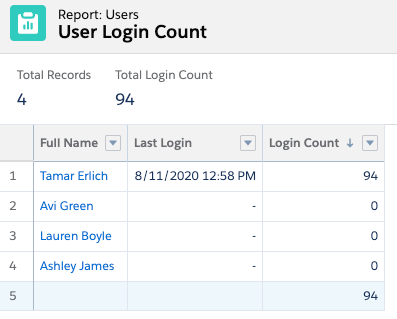
Trying to report on user login history using standard Salesforce reporting can be tricky. If you would like to see each users’s last login and his total login count for the last 6 months, sorted by login count, you have to use some external Excel manipulation. I was looking to get a simple report I could use to monitor login usage.
Simple Login Report
I was able to provide a nice solution using the new before save flow record trigger. The first step is to create a number field on the user object to hold the login count. Then create this simple before save flow. This flow updates the custom field on the User object. By incrementing a counter every time a login history is generated, each user shows a login count. Then, at any time, you can generate the report by simply reporting on your users.
User Login History FlowGet Login History RecordsConfirm records are returned (Null Check)Use the record count operator to assign the record count to the user fieldIf no records are returned, assign zero login count
This use case can be easily adapted to rollup any related records on other objects. I can think of several examples: count of opportunity contact roles on opportunity, count open cases on a contact, count of won opportunities on an account.
https://unofficialsf.com/wp-content/uploads/2022/09/largeUCSF-300x133.png00Tamar Erlichhttps://unofficialsf.com/wp-content/uploads/2022/09/largeUCSF-300x133.pngTamar Erlich2020-08-12 15:43:282020-08-12 16:39:53Flow Use Case – Use Before Save flow to update the total login count on the user record