Tag Archive for: Lightning Flow

What’s new for Datatable and other UnofficialSF components

I’ve released a new version of the Datatable component (4.3.5).

In addition to the Remove Row Action, I’ve added a new Standard Row Action and improved reactivity with a new single “Actioned Row” output.  When a row is “actioned”, you can fire off other reactive screen components like Flow Launcher or Screen Actions.  This lets you now do almost anything you want when clicking on a row action.

The action can be configured as a clickable icon or a full button and can be put in the first or last column of the datatable.

Some flow elements such as Transform and Filter are still not directly referenceable in the resource picker so I’ve updated the picker and the Datatable CPE to allow manual entry of flow attributes for the record and pre-selected record collections.  For example: “{!MyFilter}”

Other Datatable changes include increasing the maximum column width from 1000px to 1500px.

I’ve addressed a few bugs as well.

  • Date field values that get adjusted by the timzoneoffset now are stored as YYYY-MM-DD.  Prior versions stored these as a datetime which caused issues with collection processors and action buttons.
  • The SelectedRowKeyValue output now gets cleared when no rows are selected.
  • When both pagination and single row selection are enabled, the prior selection will be cleared before setting the new selection.
  • Fixed search/filter errors when using special characters by escaping special characters in filter and search terms.
  • The correct url for record hyperlinks will be generated when running in a playground org.
  • Edited ApexDefined rows will be output as soon as changes are saved.  (Issue #1565)  
  • If multiple preselected rows are provided and single row selection is enabled, only the first record in the collection will be marked as preselected.

It’s been a busy winter for updates on Unofficialsf.com.

I released an Auto-Navigate component for flow screens and added some new reactive collection processors.  By adding reactive conditional visibility to the Auto-Navigate component you gain full control over navigating between flow screens without the user needing to click a Next or Previous button.  The UpsertRecordByKey action lets one upsert a record into a record collection by matching the value of a key field.  

For certain types of reactive screens, some components are designed to react to the outputs of other components on the same screen. However, the first time a screen loads, these components may not have a value available. The Reactive Record and Reactive Record Collection components are designed to “seed” a component with a starting value before it can react to a change in another component. Think of these like the flow formula function BLANKVALUE where you can assign an optional value to use if the primary value is null or blank.

Updates to the Flow Screen Components Base pack include an updated combobox which means that Action Button and Screen Action outputs can now be directly referenced by other custom components from unofficialsf.com.  CPE developers can take advantage of a new feature that lets users manually reference flow attributes that can’t be selected natively by the component.  QuickChoice was updated to support default values for dependent picklists on initial screen load.  A Master Label and a Required attribute were added to the Object and Field picker.  The Rich Text Input screen component is now reactive.

The Flow Actions Base Pack and the Collection Actions were updated to have all entries be at API 45.0 or later which avoids any issues enabling the ICU Locale Formats which is being enforced in Spring ‘25.

New or updated Flow Actions include GetCaseThreadToken, GetPicklistValues and Base64ToFileConverter

Be sure to Subscribe to updates by clicking on any Blog post on this page and entering your email address and clicking Subscribe.

Datatable with Row Actions calling a pop-up Screen Flow

Datatable with Row Actions calling a pop-up Screen Flow

Recently I wrote an article on how datatable row actions could be used to execute a Screen Action.  This is a great feature if you need to perform some unattended actions on a record in the datatable.

But what if you need to provide some additional input or interact with the data in the actioned record?  Action Buttons and Screen Actions can only run auto-launched flows, not screen flows.
I was able to work with Josh Dayment to enhance his new Flow Launcher action to launch a screen flow reactively instead of just from a button.  We also added the capability of passing records and record collections in and out of the launched flow.

There will be many different use cases for this new capability, but this article highlights how you could combine Datatable and Flow Launcher to edit fields that aren’t natively supported for inline editing such as Lookup and Multi-Select Picklist fields.

Here’s the flow in action.  Each time the row action button is clicked, a screen flow pops up allowing the user to edit some of the fields in the actioned record.  When they click Save Changes, the datatable gets refreshed with the changed record.


This is a simple flow where you get a collection of Account records and present them in a Datatable on a reactive screen.

The reactive screen displays a Datatable with row actions enabled.  4 additional reactive actions are added to handle the additional processing.  Each of these will be explained in more detail later.

  1. CP – Get First Record
    Extract the single record from the collection of actioned rows provided by the datatable.
  2. Flow Launcher – Sobject
    Launch a screen flow that will allow the user to edit fields in the record provided by the Get First Record action.
  3. CP – Upset Record By Key
    Upsert the updated record from the screen flow into the current record collection.
  4. CP – Reactive Record Collection
    Provide the active record collection to be displayed in the Datatable and used by the Upsert action.  If nothing has been processed yet, seed the flow with the original Get Records collection.  Otherwise, return the collection provided by the Upsert Record By Key action.

When you first build this flow, set the input collection for the Datatable to be the collection of Accounts from the Get Records.  You will come back later and update this once you add the other reactive actions to the screen.

Next, define the Row Action for the Datatable.  Currently, there is only a Remove Row action so select that and restrict the number of actioned rows to 1.


The Remove Row action in the Datatable outputs a collection of records actioned by the user.  In this case, the Datatable is configured to restrict the user to a single action at a time.  The Get First Record component extracts the first record from the collection of Removed (Actioned) Rows from the Datatable so you have the single record you need to pass to the screen flow.


The Flow Launcher will fire by reacting to any changes in the record output by the Get First Record action which fires any time a new record is provided by the Datatable row action.

To configure the Flow Launcher component to launch the flow reactively, set the “Hide Launch Button” attribute to True (1).  To have the flow pop-up in front of the Datatable, set the “Show Flow in Modal” attribute to True (2).  You can select the size of the modal with the “Modal Size” attribute (3).  Identify the flow to be launched by providing the active flow’s API name in the “Flow API Name” attribute (4).  Identify which resource in the launched flow to pass the record to with the name of the input variable in “Subflow Input Variable Name” (5) and the record you are passing to that variable in “Launched Flow Input Attribute – Record” (6).  You can force the user to complete the called flow instead of closing the modal manually, by setting the “Disable Close Icon” attribute to True (7).


The flow being launched takes the values in the input record and displays a screen with inputs for some of the record’s fields.


The field values from the input record are used as defaults for the inputs on the screen.


The Flow Launcher action is looking for an output attribute from the flow with a special name of OUTPUT_Record.  You should create that as an output attribute in your screen flow and assign the values from the screen inputs to the OUTPUT_Record fields.


NOTE: You still want the calling flow to refresh even if the user doesn’t make any changes.  You can force this by having a custom checkbox field on your record.  The called flow will always change this value by setting it using this formula (fToggleChange).


The Upsert Record By Key component takes the modified record from the screen flow and upserts it back into the record collection by replacing the matching record in the collection with the new record values from the screen flow.  The key field API name defaults to Id.  Like you did with Datatable, you first need to configure this by referencing the original Get Records collection.  This will be changed after you add the Reactive Record Collection component to the screen.


Finally, the Reactive Record Collection component acts like a reactive BLANKVALUE function for record collections.  If the Input Record Collection hasn’t been populated yet, it uses the Alternate Record Collection to “seed” the original output from the component.  In this flow, the collection is first seeded with the results of the Get Records flow element.  After that, the record collection is the output from the Upsert Record By Key component. This output is used to provide the reactive record collection to both the Datatable component and the Upsert Record By Key component.


Now that the Reactive Record Collection component has been added to the screen, go back to the Datatable and Upsert Record By Key and change the Get Records collection to the output collection from the Reactive Record Collection component.


NOTE: CP – Get First Record, CP – Upsert Record By Key and CP – Reactive Record Collection are new actions I created and are available in version 1.0.3 or later of Reactive Screen Components.  These also require version 3.2.4 or later of the Collection Processors.


I hope this example gives you some ideas for some other use cases for components like Datatables with Row Actions or Autolaunched Screen Flows or Reactive Collection Processors.  Add your ideas to the comments.

Introducing: User-aware Record Type Picker for Flows

Update January 25, 2025: install links updated to latest version
Update October 15, 2022: install links updated to latest version
Update September 26, 2022: install links updated to latest version

Next week is the year’s big Main Event: Dreamforce. For some of us, that means packing our things and scrambling to fill our session schedules, make meetup plans, and find the perfect dinner spot. For others, like me, an sense of impending FOMO.

Fortunately, the announcements made at Dreamforce, and the Winter 23 release just a few weeks after, will be for everyone, whether you make it in to San Francisco or not. If you’ve reviewed the release notes or scoped out your preview sandbox, one item you may notice is that the Dynamic Fields feature for Screen Flows will be Generally Available, and with that, picklist fields will be Record Type-aware. This means you can simply place a record variable’s picklist field on a screen, and if you’ve set the Record Type for that record, it will correctly display only the picklist values that are active for that Record Type. However, that Record Type must be set on the record variable before the Flow arrives on that Screen with the picklist. So, then: what options do we have today for letting a user select a Record Type?

Today’s Options for RecordType Selection in Flows

  • You could build a Choice for each Record Type. That might work, but what if different users have a different permissions to different Record Types. Sounds like a pretty hairy mess to try to get right, and to maintain moving forward. Not a great option.
  • You could do a Record Choice Set or a Collection Choice Set based on the RecordType object. Of course! Perhaps by setting the Screen Flow to run in User Mode, which respects a user’s access to records, we’ll only get the Record Types that the user has permissions for. If you’ve tried this, you’ll quickly learn that the RecordType object, which holds all each object’s Record Types, is not limited by the user’s permissions. If a user has read access to an object, they’ll have access to every RecordType for that object, even if they don’t have permission to create a record for that Record Type.
  • The closest I could find is the GetRecordTypeInfo action in the UnofficialSF Flow Action Pack. Its a nifty action! But its a bit incomplete, as it requires you to pair it with another screen component, it won’t give you the Record Type Descriptions, and the Record Type information is provided in separate text collections, making it challenging to be able to use the selected option downstream in the Flow.

🎉 Welcome to the team, Record Type Picker 🎉

The Record Type Picker is an open-source, free-to-use component that can be used in Screen Flows to give users selectable choices of Record Types, automatically filtered to just the Record Types that the running user has access to!

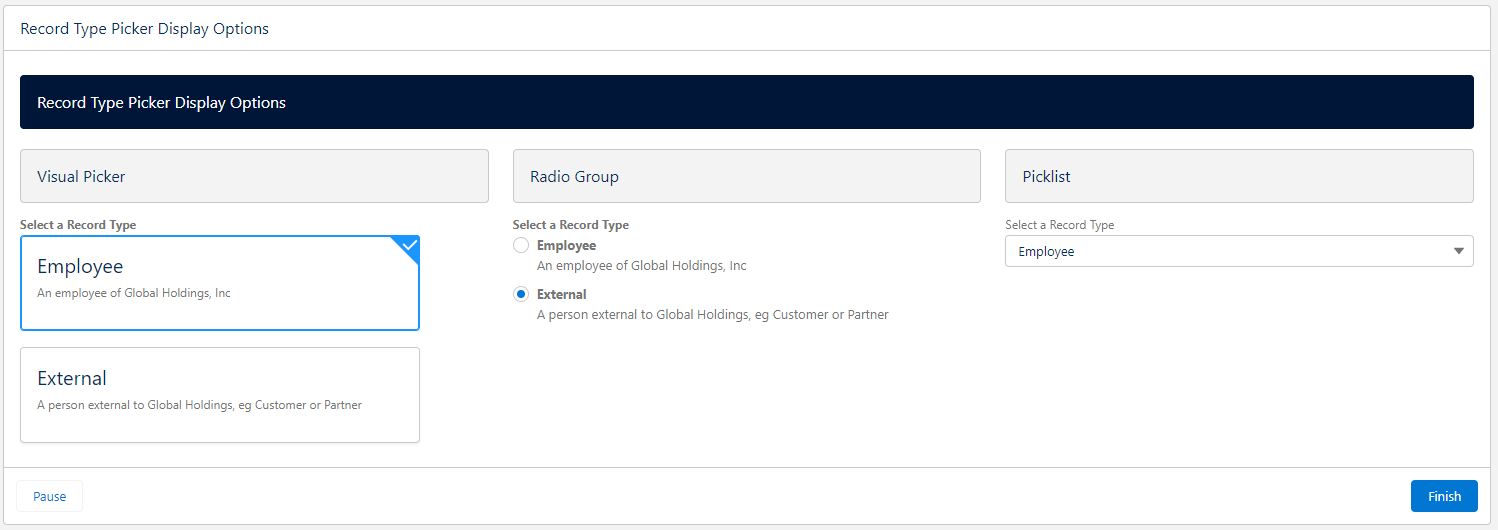
Three display types

Visual Picker, Radio Group, Picklist, each with optional Show or Hide Descriptions

Screenshot of the three display options available for this Record Type Picker component

Optional Auto-Next Navigation on Select

Auto navigate on selection works best with the Visual Picker on a screen that doesn’t have any other inputs and has the footer and/or Next button hidden. When the user clicks on a selection, the Flow will automatically navigate to the next screen. It is also recommended to provide a “Previous” button on the next screen so that the user has a chance change their selection if they’ve made a mistake.

Easy configuration with a Custom Property Editor that has a Preview mode

Bonus Invocable Action

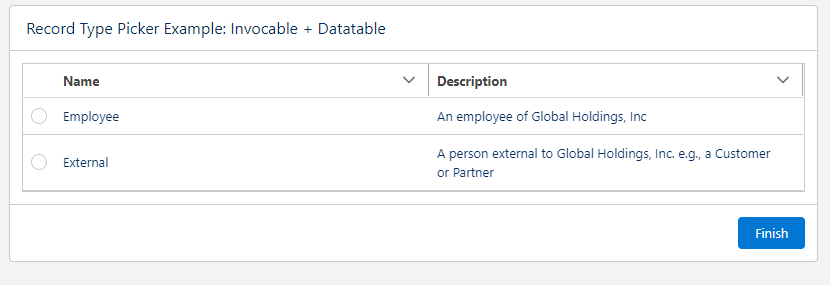
The package also comes bundled with an Invocable Action to get a Collection of RecordTypes available to the running user, in case you’d prefer to use other screen components like Collection Choices or Data Table

Install with Ease

This component does not depend on any other packages, and can be installed with an unlocked, namespaced package using the links below. The namespace means you don’t have to worry about conflicts with anything you’ve already got in your org, and being unlocked gives you the confidence that what you see in the source repo is what you get in the package.

Package version last updated: January 25 2025

Source

There are a handful of features that I’d like to add, but its at the point now that it should be pretty useful for anyone that needs this kind of thing. Take a look, and please add any issues or feature requests to the Issues log in the GitHub repo!


Flow Use Case: Create a filtered opportunity list view based on account team membership with Data Table and the new In Operator

The Winter ’23 release brings with it some very nice additions to flows. I set out to try out the new features with a use case that was impossible to do before without resorting to custom functionality
Use Case: Display all open opportunities for a selected user who is on the account team.
Problem statement: Since both opportunities and account team members are related to account, this cannot be done with standard reports. You cannot create a report type with one parent and two related objects.
I was able to accomplish this task using a flow combining some new features and some old favorites from UnofficialSF

Winter ’23 new features used
IN Operator
Data Table (beta)

UnofficialSF components
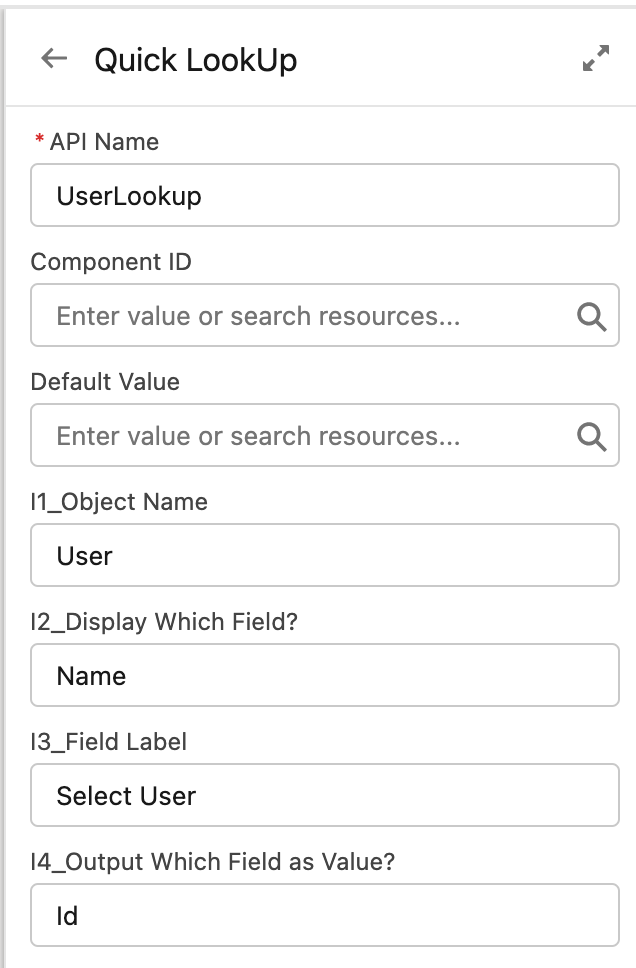
Quick Lookup flow screen component
Extract Strings from Collection flow action (part of Collection Processors)

The flow starts by displaying a user lookup for the selection. I had to use this custom lookup screen component since the standard one does not support a custom lookup field to a user record.

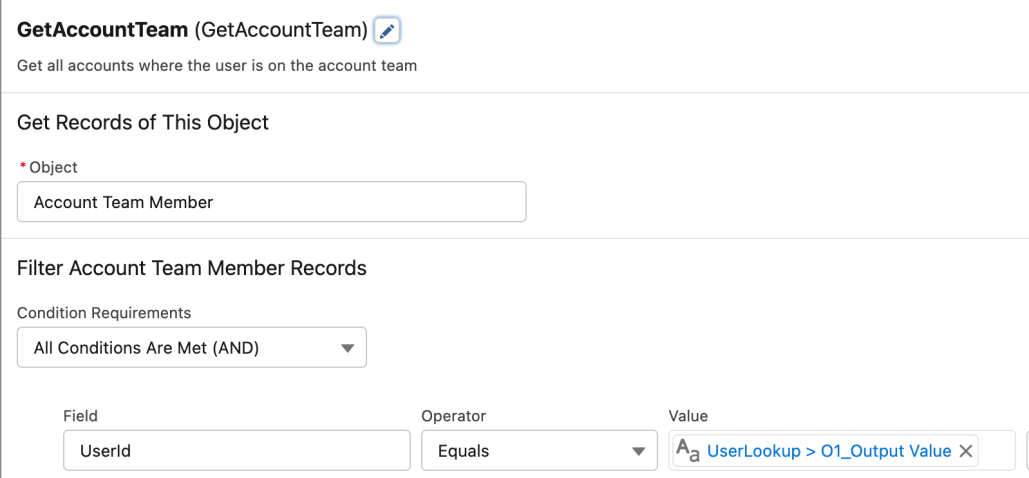
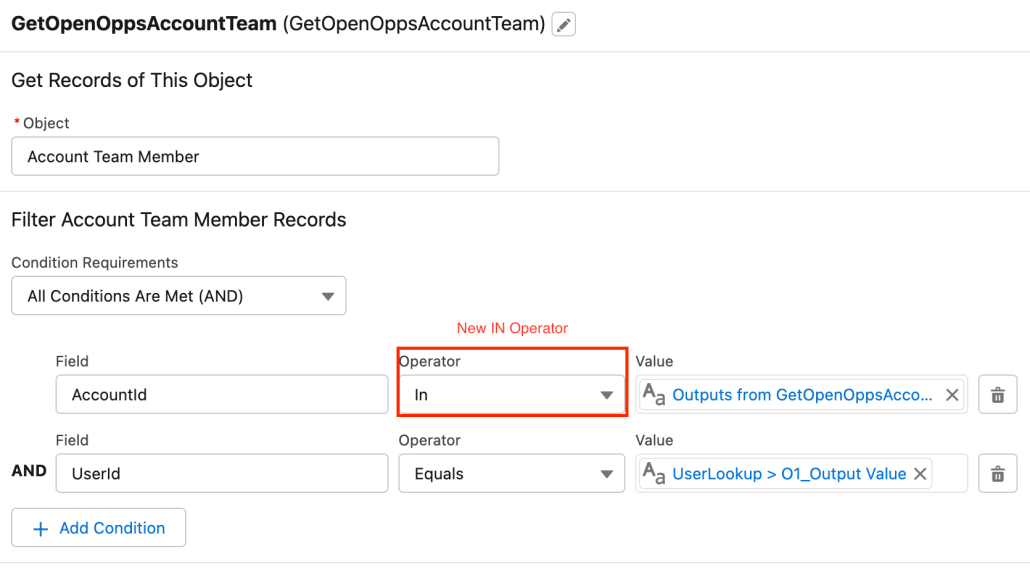
The selected UserId is then used to get all account team members for where the user is on the team

The next steps will be to get a collection of account Ids that can be used to get the open opportunities. For this I used the handy Extract Strings from Collection action instead of looping through the account team members and adding to a collection.

Now comes the fun part. I can use the new IN Operator to get all open opportunities where the opportunity’s account is in the account ID collection

I wanted to filter the account to get only the accounts that had open opportunities so I used another Extract Strings from Collection using the account Ids from the open opps. The dedupe function of the action ensures each account will only appear once in the resulting list (it is set to true by default)

Now that I had only the accounts of open opportunities, I wanted to filter my original account team members collection to only members from these accounts.

Alternatively you can use another get records IN, but this will consume another DML which can be avoided.

The next step was to prepare two more formula fields so I could display a link to the opportunity account name and the account name for the team member

Time to see the new Data Table (beta) in action
This is the open opportunities table

And the Account team table

Here is the completed flow

I added the flow to a Lightning app page and here is how the finished flow works

So simple and yet so powerful. I’m excited for all the new possibilities these new features bring to flow and looking forward to exploring more use cases.

From Yumi Ibrahimzade: Using Flow to Mass Delete Records from List View

Yumi Ibrahimzade from the blog Salesforce Time has written a post explaining how to use flow to add a mass delete button to a list view. Pay special attention to the second solution that avoids performing DML inside a loop by using a custom action that can be found in the collection actions here on UnofficialSF

Check it out

Salesforce Record Automation Benchmarking by Luke Freeland

Luke Freeland from the blog https://metillium.com/blog/ has published a post comparing process automation methods and measuring benchmarks Salesforce Record Automation Benchmarking
Part II compares Single VS Multi-Object Flow Field Update

Use Flows to Track Unread Emails on Cases and Increase Case Management Efficiency by Vibhor Goel

Vibhor Goel from the blog https://www.accidentalcodersf.com/ has published a post showing how to Use Flows to Track Unread Emails on Cases and Increase Case Management Efficiency

From Tamar Erlich: Powerful new OpportunityPartner Solutions using Flow with Apex-Defined Types

I was recently tasked with a requirement to display a list of opportunity partners on a custom object related to opportunity. I planned to use a flow to get the opportunity partner records and then display them using the Datatablev2 Flow Screen Component available on this site. When I tried to create the flow, I encountered some issues:
1. The Opportunity Partners object is a legacy object and cannot be customized. I could not create formulas for getting the account name or link to the account
2. I could not use dot notation to get the account name from the account ID in the get records component in the flow
3. I could not use the partner account ID as a filter criteria on a new get records element to get the account records.

Not Possible


I knew I had to create a custom way to get the data I needed to display. Eric Smith referred me to his blog post on how to use Apex defined data types and an invocable action to create data for the datatable component.
How to Use an Apex-Defined Object with my Datatable Flow Component
I create my Apex defined data type for opportunity partners.

/**
* @author       : Tamar Erlich
* @date         : October 07, 2020
* @description  : Wrapper class for opportunity partners
* Note          : This class is called by the GetOpportunityPartnersAction.
* *************************************************
*       <runTest><runTest>
* *************************************************
* @History
* -------
* VERSION | AUTHOR                | DATE               | DESCRIPTION
* 1.0     | Tamar Erlich          | October 07, 2020   | Created
**/
public with sharing class OpportunityPartnersWrapper {

    // @AuraEnabled annotation exposes the methods to Lightning Components and Flows
    @AuraEnabled
    public String accountName;
 
    @AuraEnabled
    public String partnerRole;
 
    @AuraEnabled
    public Boolean isPrimary;

    @AuraEnabled
    public String accountLink;

    // Define the structure of the Apex-Defined Variable
    public OpportunityPartnersWrapper(
            String accountName,
            String partnerRole,
            Boolean isPrimary,
            String accountLink
    ) {
        this.accountName = accountName;
        this.partnerRole = partnerRole;
        this.isPrimary = isPrimary;
        this.accountLink = accountLink;
    }
 
    // Required no-argument constructor
    public OpportunityPartnersWrapper() {}

}

I then created an invocable action that received the opportunity and account IDs and returns a JSON string that can be displayed in my flow table.

/**
 * @author       : Tamar Erlich
 * @date         : October 07, 2020
 * @description  : Invocable method that given opportunityId and accountId, returns a list of opportunity partners to display on opportunity plan record page
 * Note          : This class is called by the Flow.
 * *************************************************
 *       <runTest>GetOpportunityPartnersActionTest<runTest>
 * *************************************************
 * @History
 * -------
 * VERSION | AUTHOR                | DATE               | DESCRIPTION
 * 1.0     | Tamar Erlich          | October 07, 2020   | Created
 **/
global with sharing class GetOpportunityPartnersAction {
  // Expose this Action to the Flow
  @InvocableMethod
  global static List<Results> get(List<Requests> requestList) {
    // initialize variables
    Results response = new Results();
    List<Results> responseWrapper = new List<Results>();
    String errors;
    String success = 'true';
    String stringOutput;
    List<OpportunityPartner> opportunityPartners = new List<OpportunityPartner>();
    List<OpportunityPartnersWrapper> opportunityPartnersSet = new List<OpportunityPartnersWrapper>();
    Set<Id> setOppIds = new Set<Id>();
    Set<Id> setAccIDs = new Set<Id>();
    Map<Id, List<OpportunityPartner>> mapOppOppPartners = new Map<Id, List<OpportunityPartner>>();

    // create sets of Ids to use as bind variables in the query
    for (Requests rq : requestList) {
      setOppIds.add(rq.opportunityId);
      setAccIds.add(rq.accountId);
    }

    // query all request opportunities and their partners and create a map with opportunityId as the key and a list of parrtners as the values
    for (Opportunity opp : [
      SELECT
        Id,
        (
          SELECT AccountTo.Name, IsPrimary, Role
          FROM OpportunityPartnersFrom
          WHERE OpportunityId = :setOppIds AND AccountToId != :setAccIds
        )
      FROM Opportunity
    ]) {
      mapOppOppPartners.put(opp.Id, opp.OpportunityPartnersFrom);
    }

    for (Requests curRequest : requestList) {
      String accountId = curRequest.accountId;
      String opportunityId = curRequest.opportunityId;

      try {
        if (accountId == null || opportunityId == null) {
          throw new InvocableActionException(
            'When using the GetOpportunityPartners action, you need to provide BOTH an Account Id AND an Opportunity Id'
          );
        }

        if (!accountId.startsWith('001') || !opportunityId.startsWith('006')) {
          throw new InvocableActionException(
            'Invalid Account or Opportunity ID'
          );
        }
        // get the list of opportunity partners matching the current opportunityId from the map
        if (accountId != null && opportunityId != null) {
          opportunityPartners = mapOppOppPartners.get(opportunityId);
        }

        // populate the Apex defined wrapper type with opportunity partner information
        for (opportunityPartner op : opportunityPartners) {
          OpportunityPartnersWrapper opw = new OpportunityPartnersWrapper();

          opw.accountName = op.AccountTo.Name;
          opw.partnerRole = op.Role;
          opw.isPrimary = op.IsPrimary;
          opw.accountLink = '/' + op.AccountToId;

          opportunityPartnersSet.add(opw);
        }

        // Convert Record Collection to Serialized String
        stringOutput = JSON.serialize(opportunityPartnersSet);
      } catch (InvocableActionException e) {
        System.debug('exception occured: ' + e.getMessage());

        errors = e.getMessage();
        success = 'false - custom exception occured';
      } catch (exception ex) {
        System.debug('exception occured: ' + ex.getMessage());

        errors = ex.getMessage();
        success = 'false - exception occured';
      }

      // Prepare the response to send back to the Flow
      // Set Output Values
      response.errors = errors;
      response.successful = success;
      response.outputCollection = opportunityPartnersSet;
      response.outputString = stringOutput;

      responseWrapper.add(response);
    }

    // Return values back to the Flow
    return responseWrapper;
  }

  // Attributes passed in from the Flow
  global class Requests {
    @InvocableVariable(label='Input the Related OpportunityId' required=true)
    global String opportunityId;

    @InvocableVariable(label='Input the Opportunity\'s AccountId' required=true)
    global String accountId;
  }

  // Attributes passed back to the Flow
  global class Results {
    @InvocableVariable
    global String errors;

    @InvocableVariable
    global String successful;

    @InvocableVariable
    public List<OpportunityPartnersWrapper> outputCollection;

    @InvocableVariable
    public String outputString;
  }

  // custom exception class
  global class InvocableActionException extends Exception {
  }
}
/**
* @author       : Tamar Erlich
* @date         : October 07, 2020
* @description  : Test class for GetOpportunityPartnersAction Invocable method
* Note          :
* *************************************************
*       <runTest>GetOpportunityPartnersActionTest<runTest>
* *************************************************
* @History
* -------
* VERSION | AUTHOR                | DATE               | DESCRIPTION
* 1.0     | Tamar Erlich          | October 07, 2020   | created
**/
@IsTest
public with sharing class GetOpportunityPartnersActionTest {


    @isTest
    public static void opportunityPartnersFound(){

        // initialize variables
        List<GetOpportunityPartnersAction.Requests> requestList = new List<GetOpportunityPartnersAction.Requests>();
        String accountId;
        String opportunityId;

        // create test account
        List<Account> accounts = new List<Account>();

        for (Integer j = 0; j < 1; j++) {

            Account a = new Account(
                Name = 'email' + j + '.com'
                );

            accounts.add(a);
        }
        
        insert accounts;

        // create test opportunity
        Date closeDate = System.today();
        Opportunity testOpp;

        testOpp = new Opportunity(
            Name = 'test opp',
            StageName = 'Open In-Progress',
            Amount = 100,
            CloseDate = closeDate
        );
        insert testOpp;

        accountId = accounts[0].Id;
        opportunityId = testOpp.Id;

        // create test opportunity partner
        OpportunityPartner testPartner;
        testPartner = new OpportunityPartner(
            OpportunityId = opportunityId,
            AccountToId = accountId,
            Role = 'Dealer',
            IsPrimary = false
        );
        insert testPartner;

        // prepare request for GetOpportunityPartnersAction
        GetOpportunityPartnersAction.Requests request = new GetOpportunityPartnersAction.Requests();
        request.accountId = accountId;
        request.opportunityId = opportunityId;
        requestList.add(request);

        // run test and assert results
        List <GetOpportunityPartnersAction.Results> results = GetOpportunityPartnersAction.get(requestList);
        System.assertEquals(results[0].errors, null,'Errors not expected');
        System.assertNotEquals(results[0].successful, 'false', 'Success expected');
        System.assertEquals(true, results[0].outputCollection.size()>0, 'Opportunity Partners expected');
    }

}

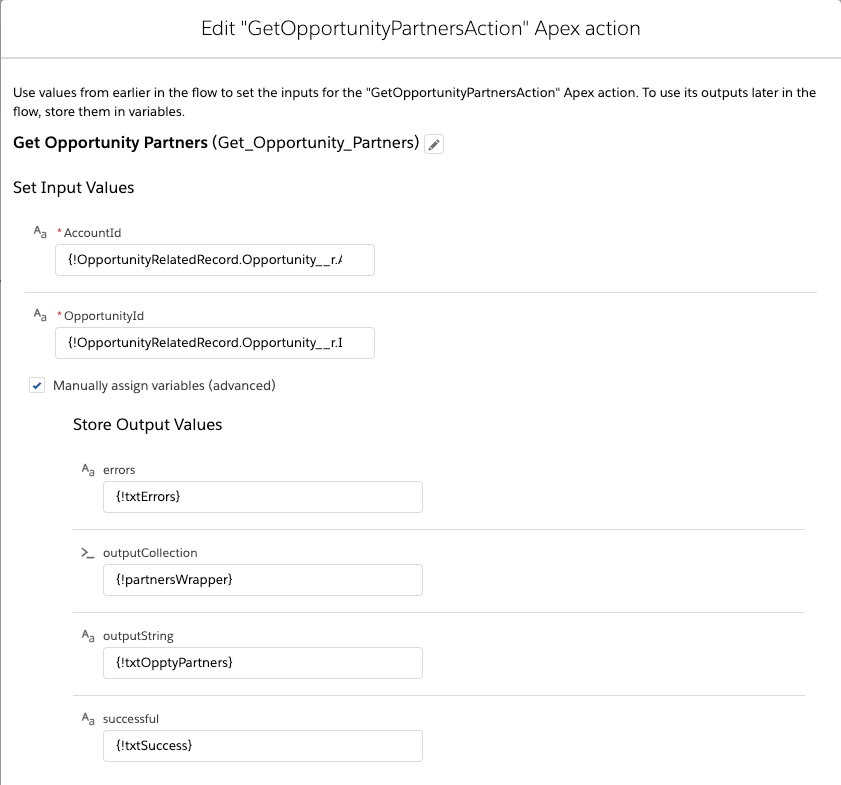
I then used my new action in the flow to get the opportunity partner records.

Invocable action

I then configured my datatable on the flow screen

Flow Screen

Some notes on the datatable configuration:
1. User Defined had to bet set to true
2. The Datatable Record String must be set to the variable returned from the action
3. The column field types must be set for all columns. I set the first column to the url type
4. My first column has special type attributes for displaying as a clickable link: 1:{label: { fieldName: accountName}, target: ‘_blank’}
5. Since this is for display only, I hid the checkbox columns
6. I used the new features available in v2.46 to apply an icon and title to the table

The View All link uses a formula to create the link

View All Formula

Here is the entire flow

And here is the end result

Opportunity Partners on custom object

This use case can be easily adapted to display other opportunity related information like opportunity team members or opportunity contact roles.

Source

Source

Flow Use Case – Use Before Save flow to update the total login count on the user record

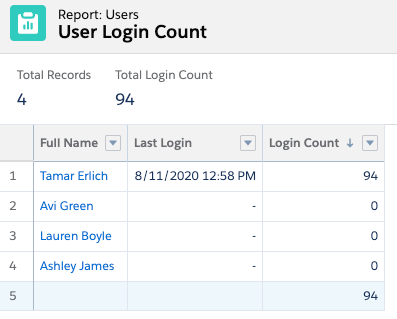
Trying to report on user login history using standard Salesforce reporting can be tricky. If you would like to see each users’s last login and his total login count for the last 6 months, sorted by login count, you have to use some external Excel manipulation. I was looking to get a simple report I could use to monitor login usage.

Simple Login Report


I was able to provide a nice solution using the new before save flow record trigger. The first step is to create a number field on the user object to hold the login count. Then create this simple before save flow. This flow updates the custom field on the User object. By incrementing a counter every time a login history is generated, each user shows a login count. Then, at any time, you can generate the report by simply reporting on your users.

User Login History Flow
Get Login History Records
Confirm records are returned (Null Check)
Use the record count operator to assign the record count to the user field
If no records are returned, assign zero login count

This use case can be easily adapted to rollup any related records on other objects. I can think of several examples: count of opportunity contact roles on opportunity, count open cases on a contact, count of won opportunities on an account.

Tutorial: Check field and system permissions in screen flows when using System Context using ExecuteSOQL

With the advent of System-context screen flows I can’t help but think of the famous phrase ‘With great power comes great responsibility’. When running screen flows in system context, you could inadvertently grant Read or Edit access to a critical system field to the wrong audience. Let’s say you wanted to do some cool stuff like in Jen Lee’s recent post about Community User Management, and you want to ensure the person running the flow has the ‘Manage External User’ permission. Her flow does this check using a custom permission, which is totally fine, this just checks the system permissions directly.

All of that is possible with some straightforward SOQL queries against the Permission Set Assignment object. You may or may not be aware, but the PermissionSet object actually contains Profile permissions as well so it’s a one-stop shop for getting Field and System permissions!

Run an action to check a field permission

The following example will run you through a VERY basic scenario where a Flow presents a screen to update a given field and the flow is running in System context – God mode.

  • We let the user pick an Account Rating in a basic Flow screen with a picklist radio button
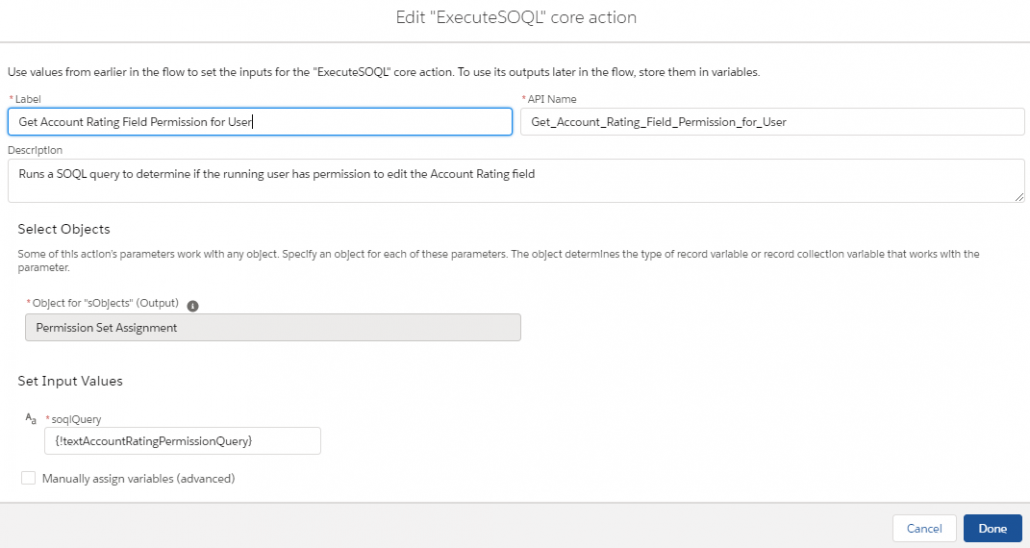
  • We run the ExecuteSOQL action to check if the running user has ‘Edit’ permission for the Account Rating field.
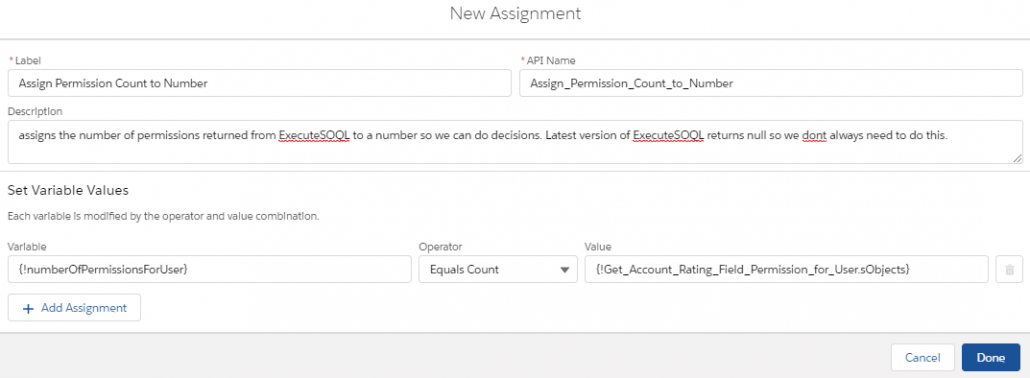
  • For older versions of ExecuteSOQL that return an ’empty’ collection we assign the count of the results to a number field
  • We then do a decision to see if the number of permissions assigned to the user is > 0.
  • We then either show a screen that says you cant edit it or we move on with updating the field.
Flow Overview

Most of you can probably handle the beginning and end – so I’ll provide some more color on the middle part that does the permission checking.

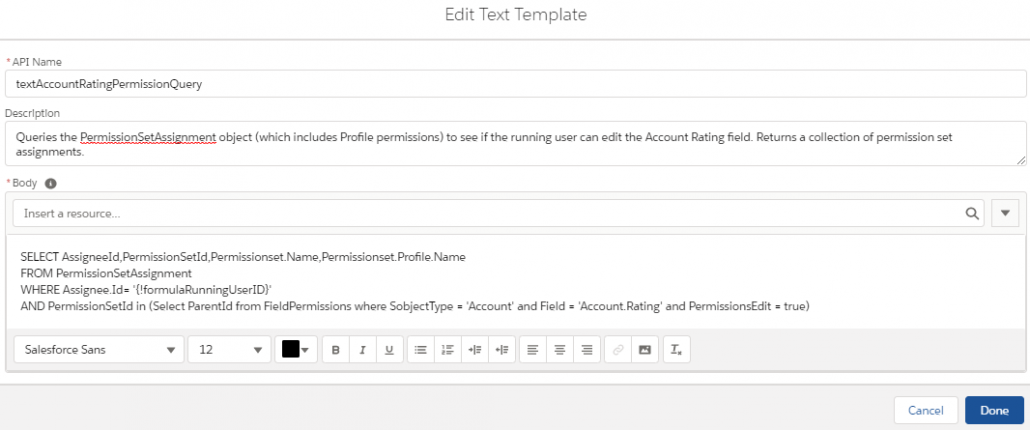
  • You’ll want to construct your query using a Plain Text text template variable:

SELECT AssigneeId,PermissionSetId,Permissionset.Name,Permissionset.Profile.Name
FROM PermissionSetAssignment
WHERE Assignee.Id= ‘{!formulaRunningUserID}’
AND PermissionSetId in (Select ParentId from FieldPermissions where SobjectType = ‘Account’ and Field = ‘Account.Rating’ and PermissionsEdit = true)

*WARNING* If you make any edits to the text template variable, a Flow bug will revert the template back to rich text and it will break the action! Make sure you revert it to Plain Text after every edit.

  • Next up is to make the ExecuteSOQL action:
  • Here’s an example result from the action above that returns the permission granted by the System Admin profile when run as myself.
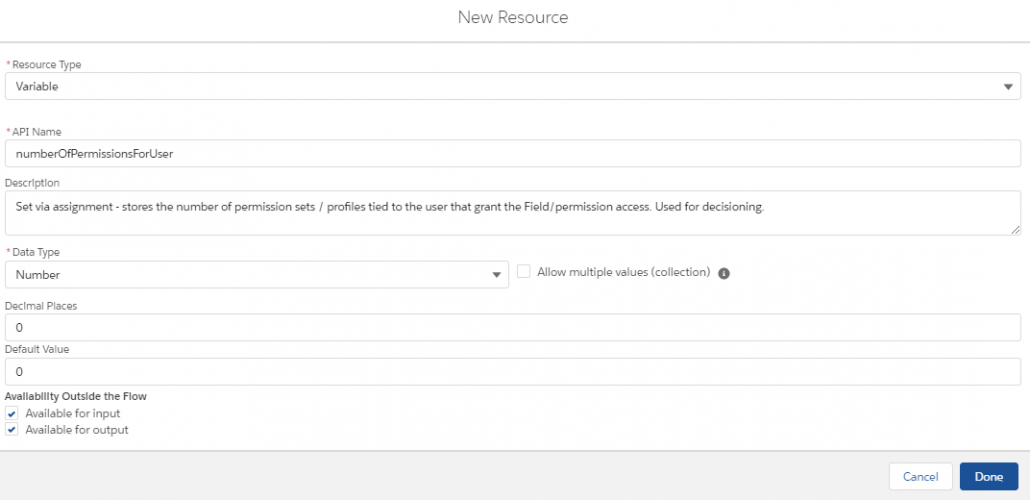
  • (For older versions of ExecuteSOQL only) You’ll then want to assign the results to a number since older versions of ExecuteSOQL return an empty collection if no results are found. Make sure you set the default value to 0 when making the variable.
  • Use an ISNULL check if you’re using the latest and greatest.
  • Create your decision and you’re done!

Checking multiple fields

You could of course extend this to multiple fields in one query by modifying the SOQL query, for example:

SELECT AssigneeId,PermissionSetId,Permissionset.Name,Permissionset.Profile.Name
FROM PermissionSetAssignment
WHERE Assignee.Id= ‘0051I000000UB4LQAW’
AND PermissionSetId in (Select ParentId from FieldPermissions where SobjectType = ‘Account’ and
Field in (‘Account.Rating’,’Account.Type’) and PermissionsEdit = true)

System permission checks

You can also check for specific system permissions! Let’s say you wanted a Flow embedded on the Case layout that manages the Contact’s community user record. The query below could be used to check if the user handling the case has permissions to manage the external user account:

SELECT AssigneeId,PermissionSetId,Permissionset.Name,Permissionset.Profile.Name
FROM PermissionSetAssignment
WHERE Assignee.Id= ‘{!formulaRunningUserId}’ AND PermissionSetId in (Select Id from PermissionSet where PermissionsManagePartners = true)