Reach out to your AE to get nominated for the pilot, we will turn on the pilot perm on your Sandbox and you are ready to roll!
Feature is available in Essentials, Professional, Enterprise, Performance, Unlimited, and Developer Editions.
OTHER CONSIDERATIONS FOR PILOT
Accessing Recommendation fields in the invoked flow
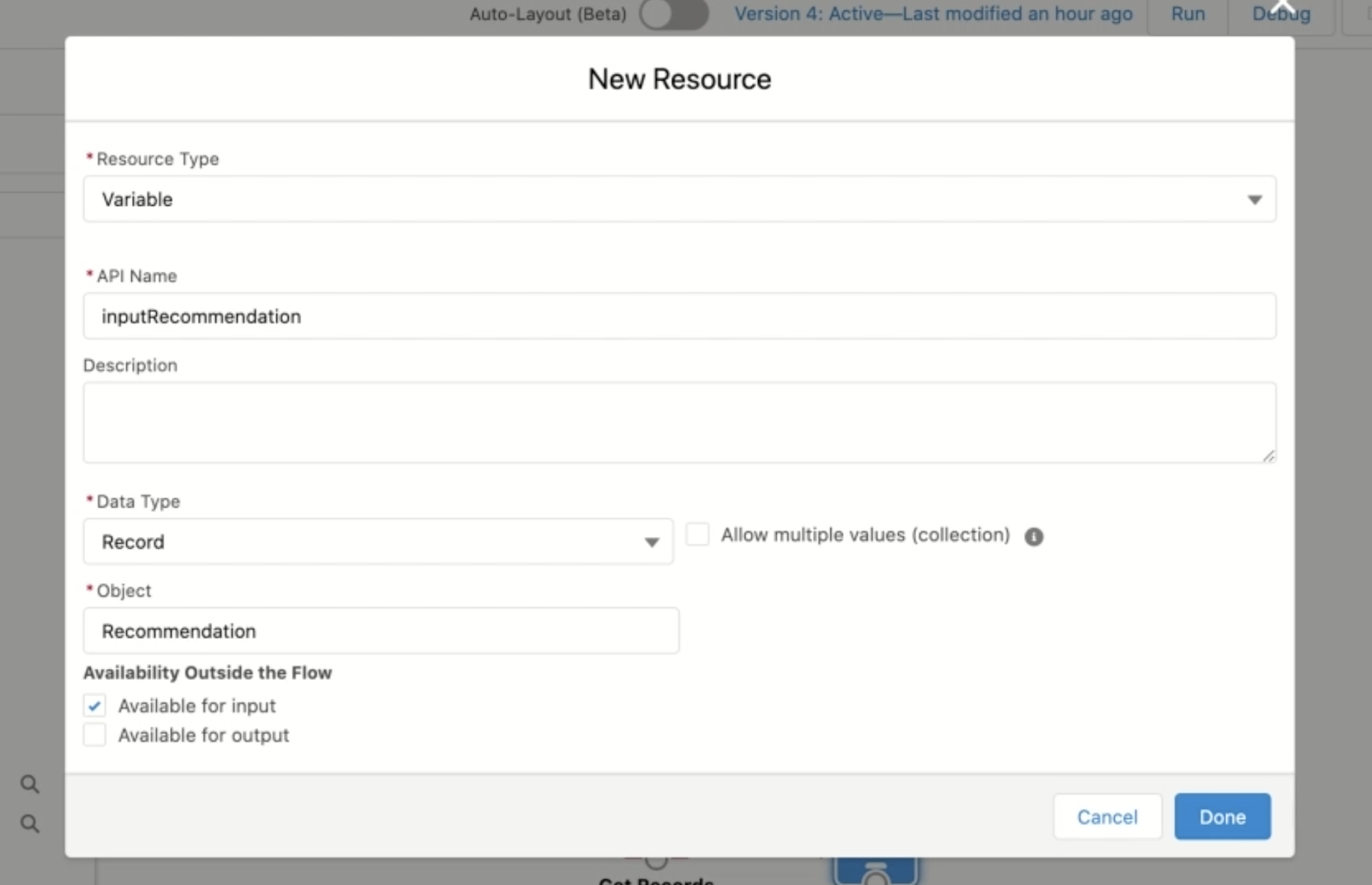
Create an optional input variable named inputRecommendation in the invoked flow of data type ‘Record’ and Object type ‘Recommendation’ and mark it as Available for input as shown.
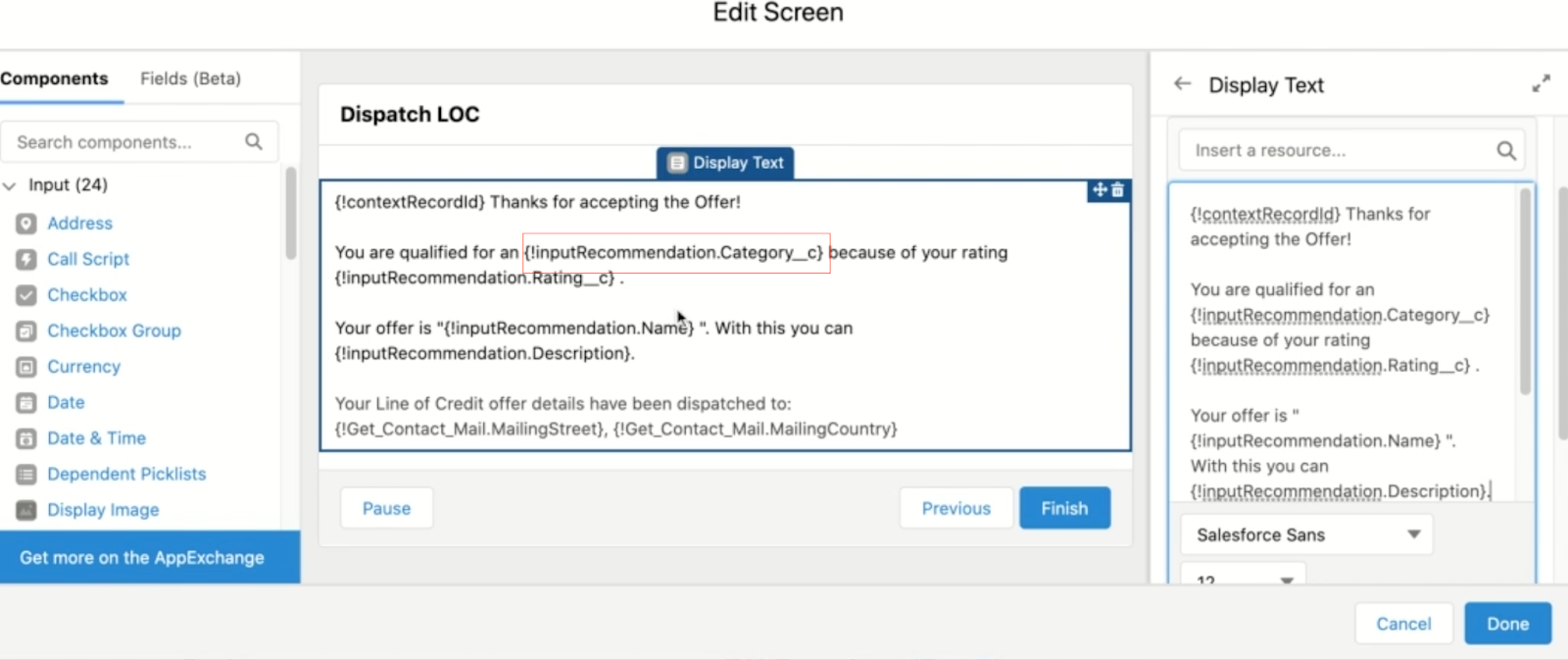
Now this variable holds details of the selected recommendations on the invoked flow that the admin can choose to display a more descriptive text on the screenflow invoked or save for custom reporting purposes. Example below where the category field(custom field) of the inputRecommendation is referenced in the invoked screenflow.
Automatic Variables
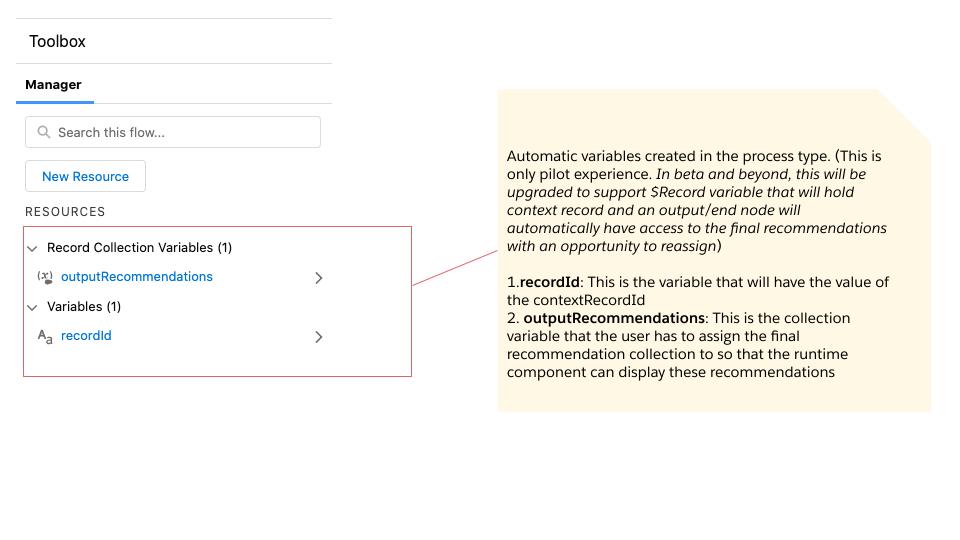
When you open the new recommendation strategy process type, 2 variables will be automatically created in the Manager tab under resources .
1.recordId: This is the variable that will have the value of the contextRecordId. (This is only pilot experience. In beta and beyond, this will be upgraded to support $Record variable that will hold context record
2. outputRecommendations: This is the collection variable that the user has to assign the final recommendation collection to so that the runtime component can display these recommendations (In beta and beyond an output/end node will automatically have access to the final recommendations but the admin will still have the ability to reassign it)
Versioning/ Activate or Deactivate a Recommendation Strategy:Versioning is a new platform capability that will be available to NBA users on this pilot. You can have multiple versions of a recommendation strategy, but only one version of each flow can be active at a time. You can activate or deactivate a flow right in Flow Builder or from the flow’s detail page in Setup.
Perms:
To create or manage recommendations
Modify All Data or Manage Next Best Action Strategies
To open, edit, or create a flow in Flow Builder:
Manage Flow
To create and save Lightning pages in the Lightning App Builder:
Customize Application
To view Lightning pages in the Lightning App Builder:
View Setup and Configuration
To run a recommendation strategy on a Lightning record page:
Run FlowsORFlow User field enabled on the user detail page
To create, edit and delete custom report types:
Manage Custom Report Types
To view recommendation metrics data:
Modify All Data or Manage Next Best Action Strategies
https://unofficialsf.com/wp-content/uploads/2022/09/largeUCSF-300x133.png00Janani Narayananhttps://unofficialsf.com/wp-content/uploads/2022/09/largeUCSF-300x133.pngJanani Narayanan2021-04-30 05:49:382021-04-30 06:06:55Pilot other considerations and requirements: Einstein Next Best Action on Flow(Blog 3 of 4 series)
Bonus: You also get to check out the brand new Sort collection processor element on Flow!
This tutorial will help you create your first Recommendation Strategy on Flow! This is a pilot feature, so contact your Account Executive to get nominated for the pilot. Also if you haven’t already, check out this blog for an overview on the product. As an added bonus, this tutorial also helps you check out the brand new Sort collection processor element on Flow!
You can now create Next Best Action Strategies using the powerful Flow Builder and leverage the power of Salesforce’s mature Automation Platform .
NBA customers will now have a brand new way of creating recommendation strategies on flow builder that is packed with powerful platform features such as Templates, Versioning, Packaging 2.0 support, Sub Strategies, Debugging enhancements and also will be home to low code AI driven Recommendation, OOTB Reporting and analytics , OOTB Integration with Bots, Enhanced Display component with Mobile support and many other cutting edge decisioning builder elements. Planned GA in Spring ‘22 (Safe Harbor applies)
WHAT WILL BE AVAILABLE AS PILOT IN SUMMER ‘21
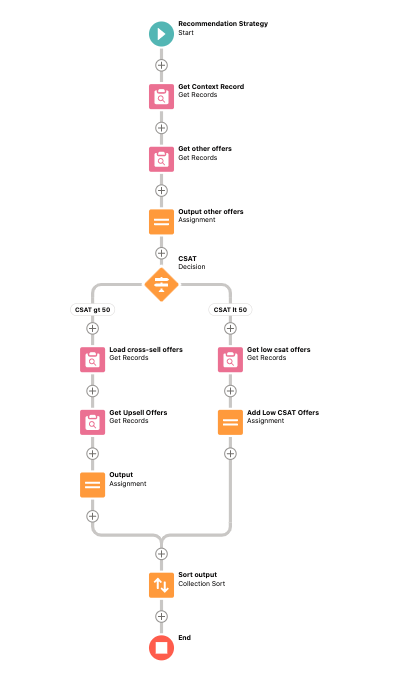
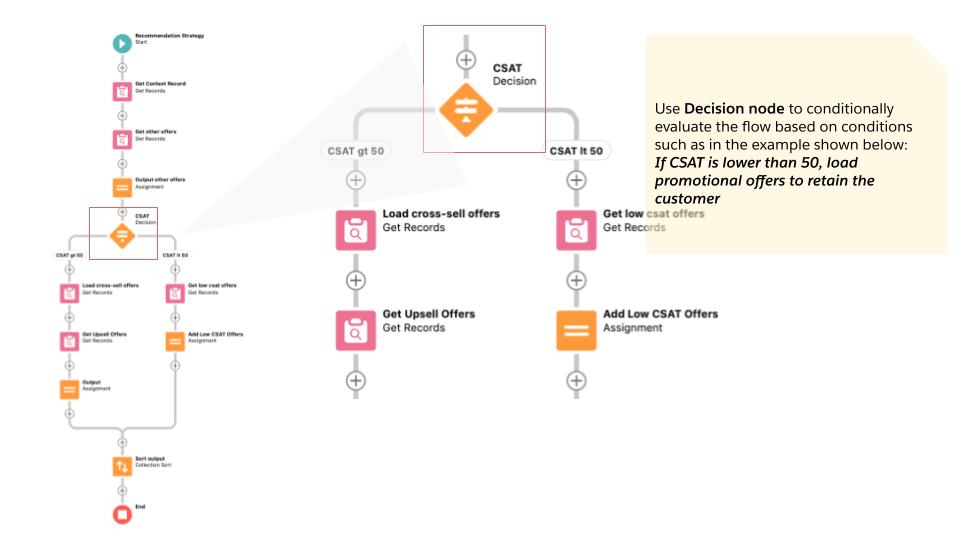
Try the following pilot tutorial out by creating a sample flow as follows. The use case is to show recommendations on a Case object. For a customer whose CSAT is greater than 50 show Cross-sell and Upsell offers (stored as recommendation records) and for a customer whose CSAT is lower than 50 show some Promotional offers. For every customer irrespective of CSAT, show any other recommendations.Also check out the demo video that explains all the features.
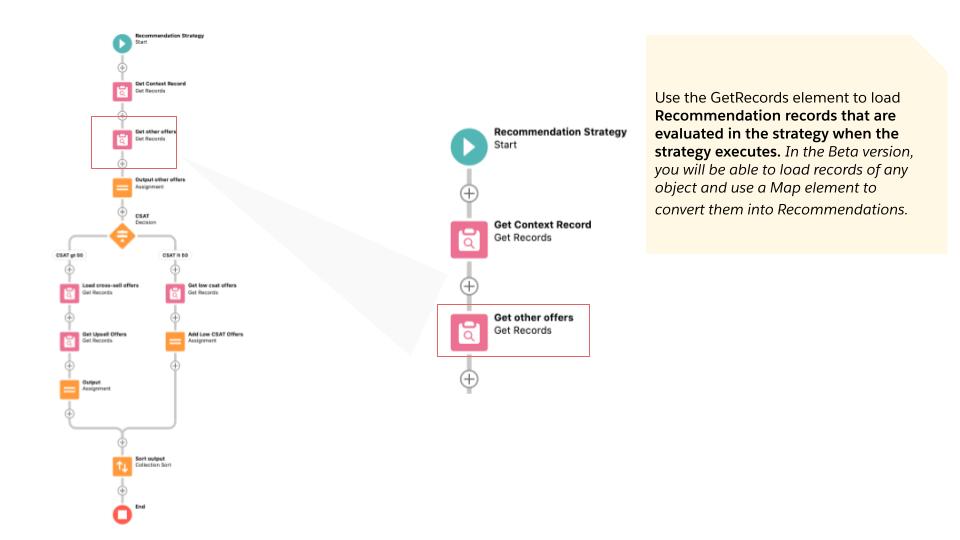
Let’s try and build the following flow and see some recommendations .
Use Flow Builder to Create a new Recommendation Strategy
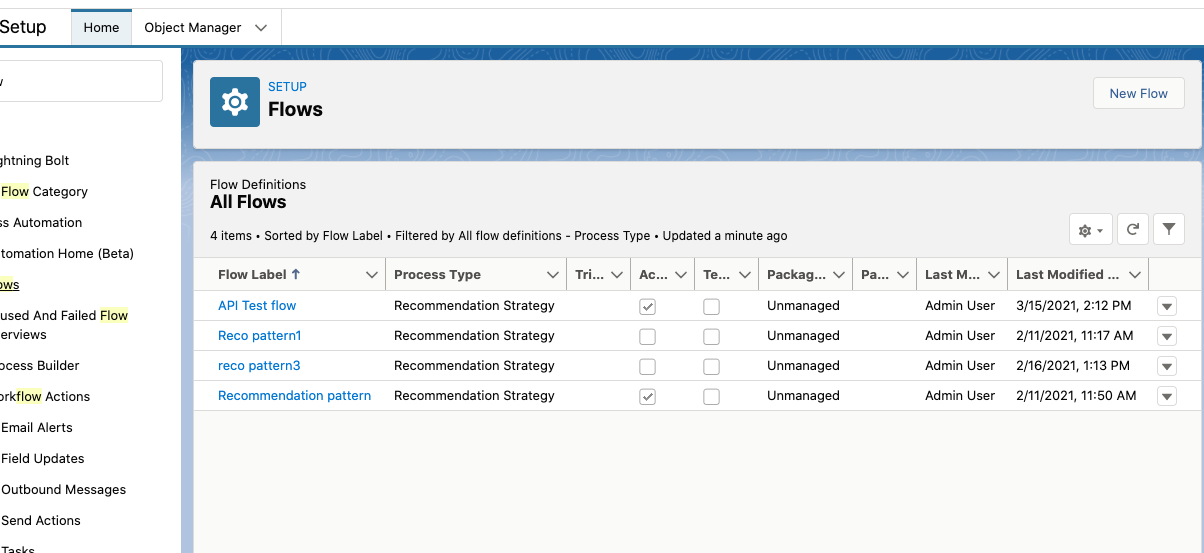
Open Flow Builder: From Setup, enter Flows in the Quick Find box, select Flows, and then click New Flow.
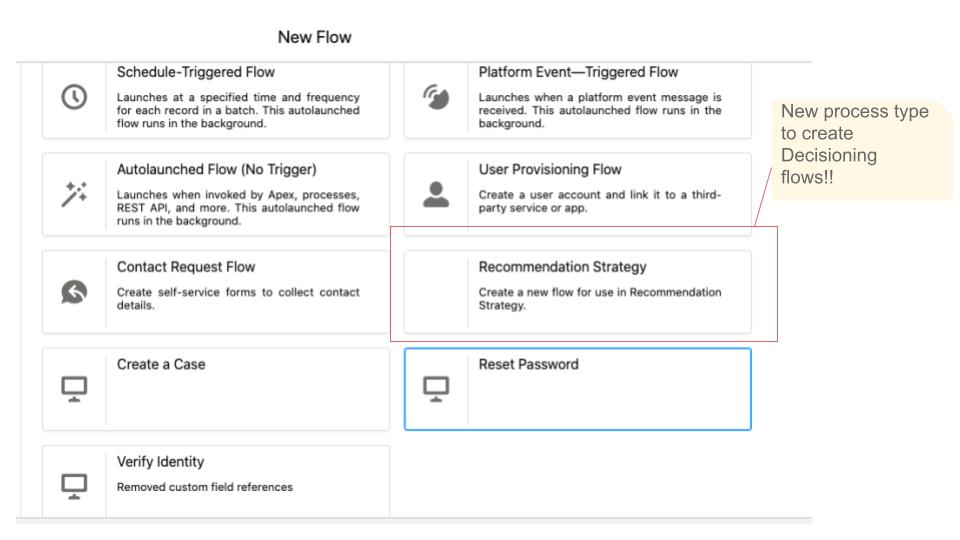
Select Recommendation Strategy on the, which is a new process type Recommendation Strategy, and click Create.
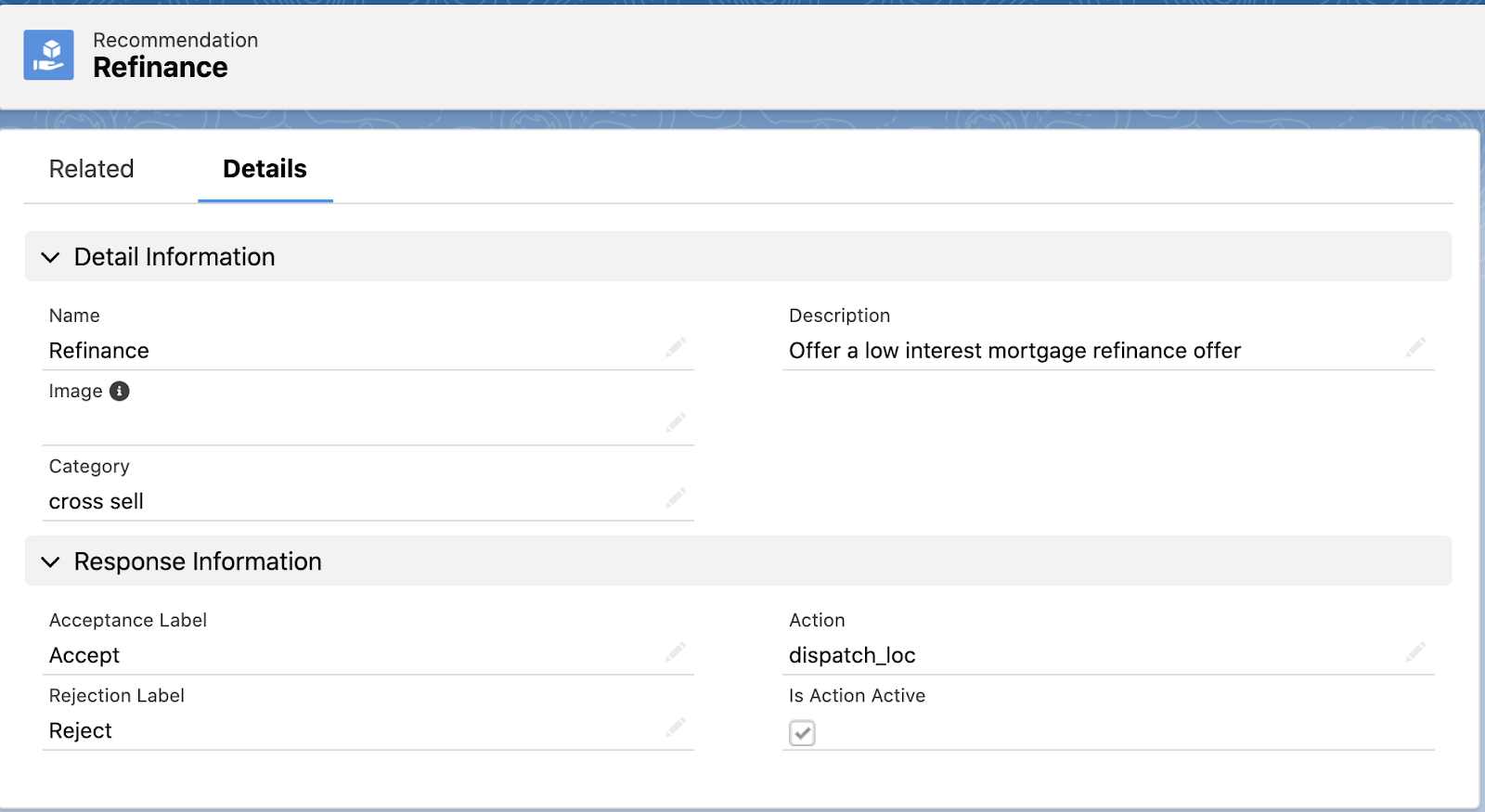
2. Create Recommendations :cRecommendations are created the same way as they are with the use of Strategy builder. Recommendations are standard Salesforce records, similar to accounts and contacts, that are processed by strategies and associated with flows (Make sure the flows associated with recommendations are Activated).Read ‘Create Recommendations’ from the documentation here.
3. Load Recommendations using GetRecords :
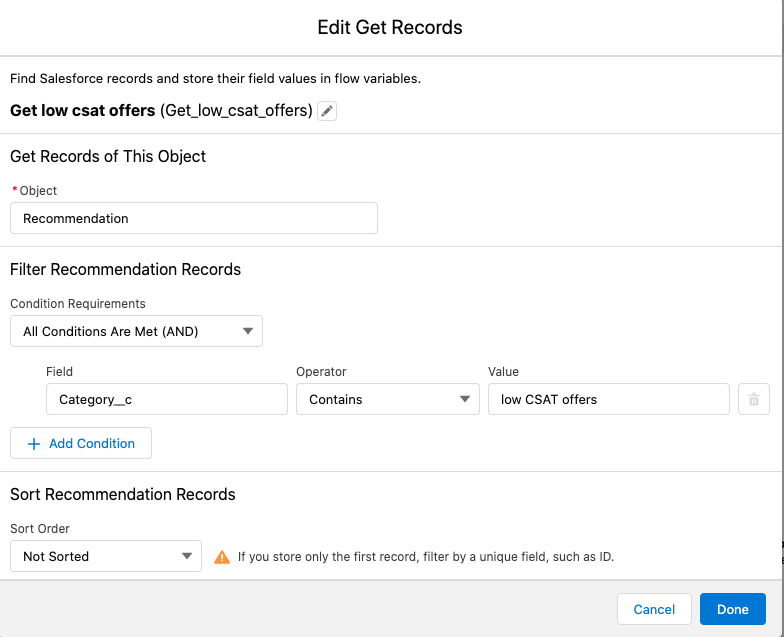
Use the GetRecords element to load Recommendation records that are evaluated in the strategy when the strategy executes. In the Beta version, you will be able to load records of any object and use a Map element to convert them into Recommendations.
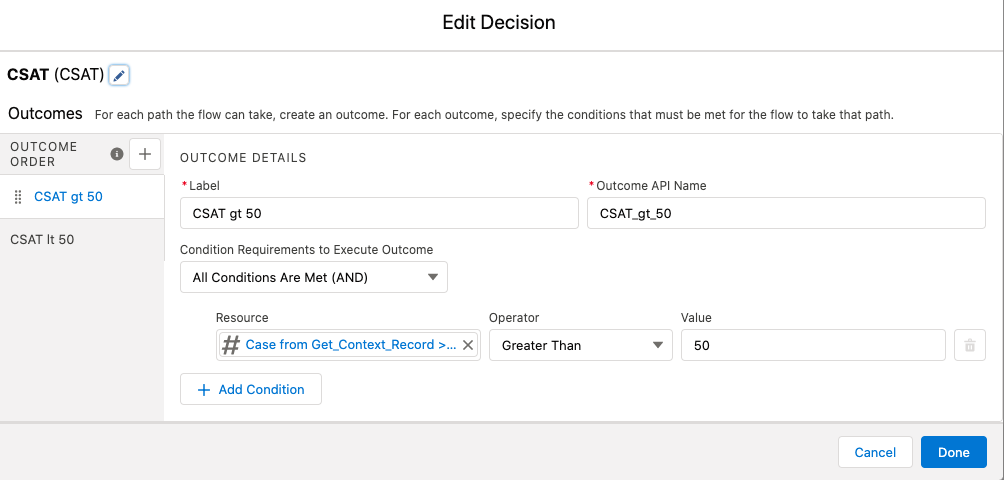
Use the Decision element to conditionally evaluate the flow based on conditions such as in the example shown below: If CSAT is lower than 50, load promotional offers to retain the customer.
4. Sort recommendations( upto 3 levels deep)
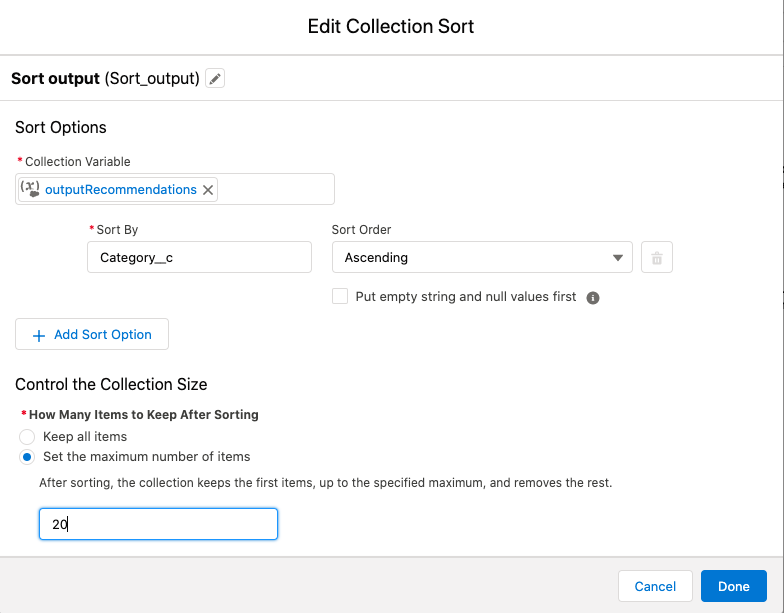
With the Collection Sortnew element, you can reorder the recommendations using Recommendation fields up to 3 levels deep. Choose whether you want to sort in an ascending or descending order, and decide how many recommendations to allow through.
5. Save the flow and Activate it.
6. Display the resulting recommendations using the Next Best Action component on record pages
After creating a Recommendation strategy in Flow Builder, choose a page to display your recommendations and run your strategy. You can use a Lightning record page or an app’s Home page by following the steps below.
Lightning Page (Lightning App Builder)
In Lightning App Builder, create, edit, or clone a record page.
Drag Einstein Next Best Action from the component list to the location on the page where you want to display it.
In the property editor,Choose an action strategy and the number of recommendations you want the component to display.
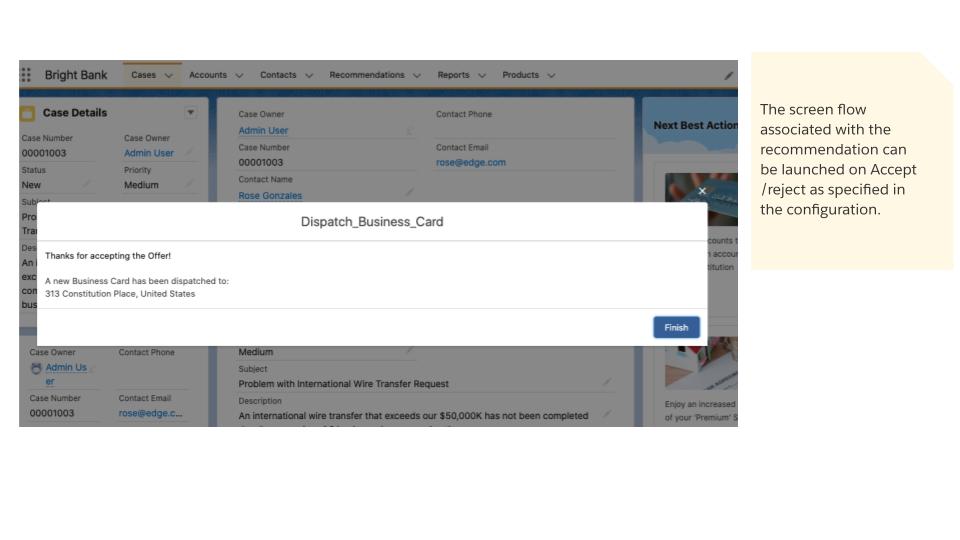
7. Accept/reject a recommendation and launch a flow from the runtime component. The screen flow associated with the recommendation can be launched on Accept /reject as specified in the configuration.
8. Report on accept/reject recommendations from the runtime component
As with Strategy Builder, custom reports can be easily created to report on and track recommendation data and strategy metrics. You can see the monthly total recommendations that a Salesforce org’s strategies served. And you can analyze which recommendations are accepted and rejected, who responds to them, and more.
For the NBA on Flow pilot, the one primary difference is that the the primary objects to report on are Recommendation Response (As opposed to Recommendation Reactions) and Recommendation Strategy Metrics (Same as previous – for monthly metrics)
Creating Reports on Recommendation Response metrics
Creating Reports on Monthly Strategy metrics
9. And finally .. you can also enable Recommendation Strategy process type to be invoked by the Flow Action endpoint.
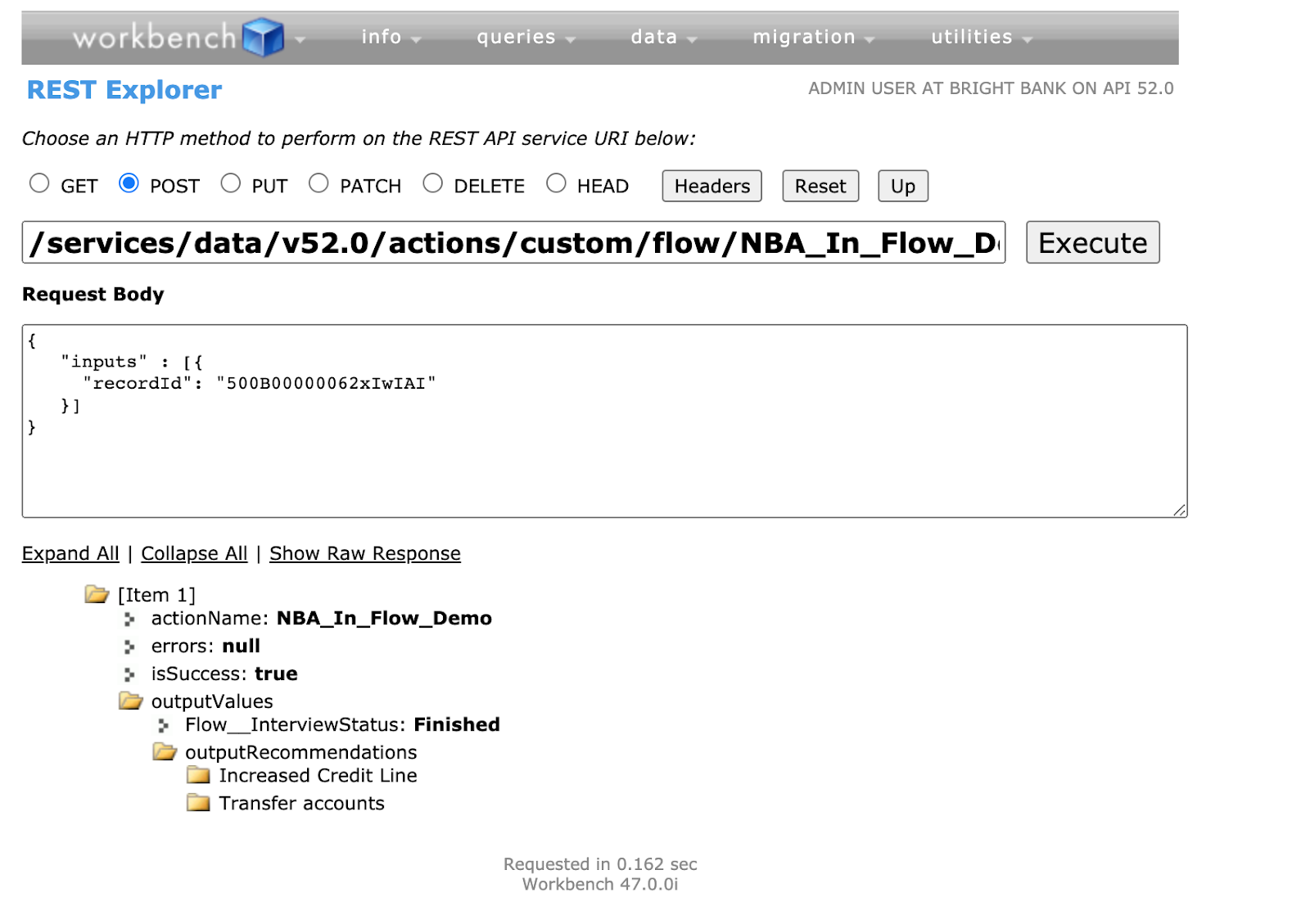
In addition to being able to display recommendations on the Home page or Lightning record page, a recommendation strategy can also be executed via a call to the Flow Action endpoint.
Display recommendations on a custom component or call the recommendation strategy from a scheduled flow by making a call to the API and retrieving recommendations.
The following example illustrates strategy execution via REST API
Thanks for following along this tutorial! Hope you had fun creating your first Recommendation Strategy on Flow! Wondering what more is coming up in subsequent releases?
With Beta/GA (Safe Harbor applies) you will have access to other collection processor and decisioning elements that is currently available in Strategy Builder such as Filter , Map , Branch Selector and Limit Reoffer elements in the new Recommendation Strategy process type in Flow.
In addition to having functional parity with Strategy builder, several other features such as OOTB low code AI recommendations, Scheduled/ Triggered Recommendations , Reporting enhancements, Display component enhancements, OOTB integration with Bots, Support for Mobile display and much more! Check out the blog for an in depth roadmap.
Check out these other blogs in the series for more information
https://unofficialsf.com/wp-content/uploads/2022/09/largeUCSF-300x133.png00Janani Narayananhttps://unofficialsf.com/wp-content/uploads/2022/09/largeUCSF-300x133.pngJanani Narayanan2021-04-30 05:49:102021-04-30 06:04:57Pilot Tutorial -Einstein Next Best Action on Flow(Blog 2 of 4 series)
With the Summer ‘21 Pilot we invite you to try out a brand new way to create Next Best Action Strategies using the Flow Builder that is packed with powerful platform features and many other cutting edge decisioning builder elements.
Planned GA in Spring ‘22 (Safe Harbor applies) Talk to your AE to get nominated for the Pilot and try it out!
This sounds exciting!! How do I try it out??
Since it’s a closed sandbox pilot, reach out to your AE and you can get nominated. Your AE will be able to share the following resources:Also available as blogs right here!
A detailed PDF with step by step instructions on how to get a Steelthread working with the new Recommendation Strategy Process type
A demo video to take you through the steps.
A list of FAQs
Don’t have an AE ? Do not fret. We will be out with the Beta version soon!! Until then, if you haven’t already get your hands dirty with the Strategy builder and try out building an NBA! Check out the Next Best Action Section of Unofficialsf to learn more.
Need a little more convincing to try out the pilot ?
Check out what’s coming up in Beta/GA in the next few releases with NBA on Flow!!!
Happy Next Best Actioning!!
Check out the other 3 posts in the series for a tutorial demo video , FAQs and more
https://unofficialsf.com/wp-content/uploads/2022/09/largeUCSF-300x133.png00Janani Narayananhttps://unofficialsf.com/wp-content/uploads/2022/09/largeUCSF-300x133.pngJanani Narayanan2021-04-30 05:46:202021-04-30 06:03:04Summer ’21 Pilot Preview: Einstein Next Best Action on Flow! (Blog 1 of 4 series)
Here are a few FAQs you may have. I ‘ll start with the obvious one – Is Strategy Builder Going Away?? ..
Is Strategy Builder going away? Why do we need 2 ways to build the same thing?
Great Question! No, it is not going away anytime soon. However, the good news is you stand to get a ton of great new features on the builder, Reporting and Display enhancements, templates etc that will be available on the new Recommendation Strategy Process type. You also get to enjoy some great platform features such as templates, versioning, advanced debugging capabilities etc right off the bat! Stay tuned for the beta in winter ‘22. In other words, we’d hate for you to loose out on all these cutting edge flow features, so while we will continue to support Strategy Builder- Flow is the future!!
How do I get access to this pilot feature?
Reach out to your AE to get nominated for the pilot, we will turn on the pilot perm on your Sandbox and you are ready to roll!
Feature is available in Essentials, Professional, Enterprise, Performance, Unlimited, and Developer Editions.
How do I connect to external services ?
Use Apex actions in flow to integrate external data sources and information from your Salesforce org into your strategies. You can connect to any number of EXTERNAL SERVICES: connect to an external endpoint such as a credit service provider AND easily bring back the logic, , For example say experian provides a RESTful interface for accessing credit score information. You can integrate the REST API, bring back the score . here and use that to filter out a few recommendations. Its basically a call out to Apex. So that helps with the business rules.
Can I connect to an AI of my choice?
In Beta/GA version of NBA in flow you will have access to Einstein Load node from Einstein Recommendation Builder* directly integrated ( with the Recommendation strategy process type. However you can use Apex actions as mentioned above to call any Prediction service and retrieve these values in the flow.
Before you activate a recommendation strategy test it thoroughly to make sure that it works as expected. Use the debug option in Flow builder to test the flow. This is analogous to the Inspect option on Strategy builder.
What Perms do I have to enable?
To create or manage recommendations
Modify All Data or Manage Next Best Action Strategies
To open, edit, or create a flow in Flow Builder:
Manage Flow
To create and save Lightning pages in the Lightning App Builder:
Customize Application
To view Lightning pages in the Lightning App Builder:
View Setup and Configuration
To run a recommendation strategy on a Lightning record page:
Run FlowsORFlow User field enabled on the user detail page
To create, edit and delete custom report types:
Manage Custom Report Types
To view recommendation metrics data:
Modify All Data or Manage Next Best Action Strategies
If I have strategies in my org already, will I have a migration tool ?
We are considering building a migration tool and would love feedback on it. However, we definitely will have some templates on the Beta/GA version to help you get started.
What is coming in future releases?
NBA on Flow Beta/GA (Winter/Spring ‘22 Safe harbor applies )
Strategy Builder Parity elements: Filter ,Map, Branch Selector, Limit Reoffer elements will be added to the Recommendation Strategy process type. This is to get to functional parity with Strategy builder. Beyond parity, the following features will be built.
Enhanced Reporting
Access to RecommendationReactions BPO for Reporting
Reporting with dynamic recommendations created with Generate node
Enabling sharing access on the object so access can be limited to reports for Business Users without giving access to the builder
Enhanced Display
Mobile support for Display component
Recommendation Reason: Ability to surface why a recommendation is surfaced along with Einsetin score if driven by a model
Capture Rejection reason
Multi strategy support
AI based Recommendations with Einstein Recommendation Builder*
https://unofficialsf.com/wp-content/uploads/2022/09/largeUCSF-300x133.png00Janani Narayananhttps://unofficialsf.com/wp-content/uploads/2022/09/largeUCSF-300x133.pngJanani Narayanan2021-04-30 05:43:332021-04-30 06:08:59Pilot FAQs-Einstein Next Best Action on Flow (Blog 4 of 4 series)
Here’s the 3rd Tutorial for the Summer ’21 Flow Orchestrator pilot:
If you’re interested in joining the pilot, contact your Account Executive. (If you don’t have an Account Executive, keep your eyes open…there may be other ways to participate in the future. )
Here’s the 2nd Tutorial for the Summer ’21 Flow Orchestrator pilot:
If you’re interested in joining the pilot, contact your Account Executive. (If you don’t have an Account Executive, keep your eyes open…there may be other ways to participate in the future)
This is the first tutorial for the upcoming Summer ’21 Flow Orchestrator pilot.
If you’re interested in joining the pilot, contact your Account Executive. (If you don’t have an Account Executive, keep your eyes open…there may be other ways to participate in the future)
Doug Swist brought to our attention this Facebook Group, which sports an impressive 2000+ members!
Formed by Paul Carass, this site is providing a lot of useful support and resolutions. Check it out!
https://unofficialsf.com/wp-content/uploads/2022/09/largeUCSF-300x133.png00Alex Edelsteinhttps://unofficialsf.com/wp-content/uploads/2022/09/largeUCSF-300x133.pngAlex Edelstein2021-04-24 08:56:152021-04-24 08:56:20A New Facebook Group for Flow Users
If you head over to the Flow Fanatic channel on YouTube, you’ll see that Alex Fram-Schwartz is creating new flow solutions and has challenged himself and his audience to solve 25 of them in 25 days. One thing I love about what he’s doing is that he’s targeting undelivered ideas from the Trailblazer community. We’ve done this a few times in the past, with things like SetupViaFlow. That’s a hell of a big challenge, so check it out:
Salesforce Field Service (formerly known as Field Service Lighting or FSL) provides a series of UIs that allow agents and dispatchers to schedule appointments. However, a common use case for organizations involves providing self-service scheduling for end users through a Community. This package provides a wrapper and UI that allows admins to embed self-service scheduling within a Flow.
Note: this package requires that you own and have already configured Salesforce Field Service, and that the resources you are scheduling are licensed as Technicians. The users of the Flow would be authenticated Community (Experience Cloud) users booking appointments with those licensed technicians.
HUGE thank you to Field Service experts and all-around wonderful people Laura Bode and Leigh-Anne Nugent for all their help making this a reality.
Components
The star of the show in this package is a screen Flow called “Flow Scheduler” (aren’t I creative?) that is meant to be called as a subflow from within a larger self-scheduling Flow. This subflow is all you really need to understand in order to use this package and doesn’t require any modification, but I’ll also explain the underlying components below for anyone interested. The package also contains two custom checkbox fields, one on Service Territory and one on Scheduling Policy, each called “Default for Flow Scheduler”.
Flow Scheduler
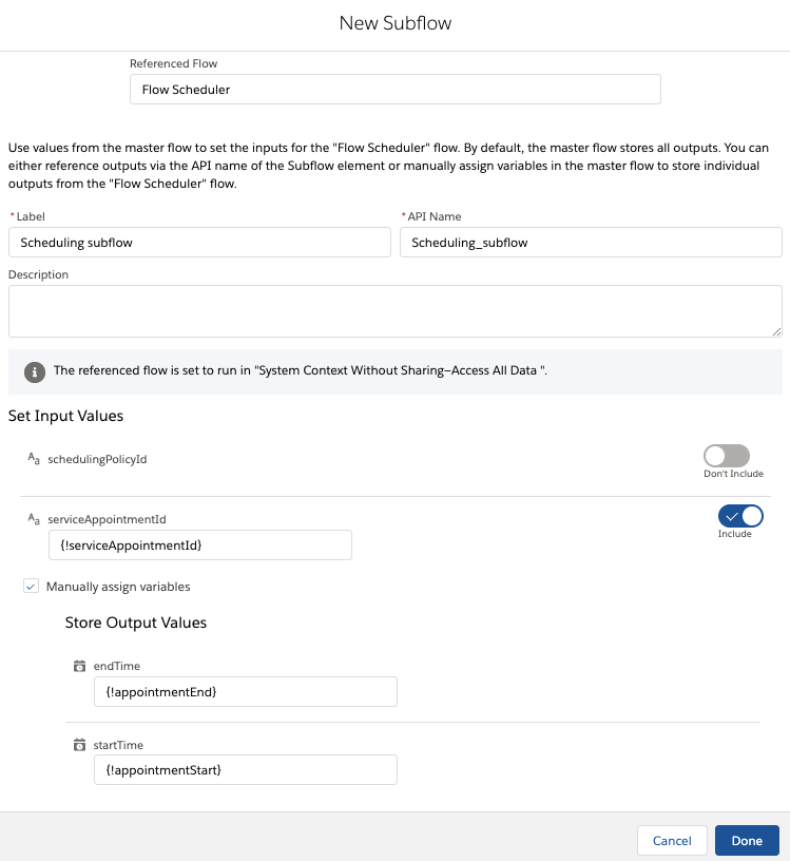
This screen Flow takes two input parameters, a required Service Appointment ID and optional Scheduling Policy ID. It then displays a list of available slots to the user, and schedules the Service Appointment based on the user’s selection. Finally, it returns two values, the start datetime and end datetime of the user’s selected slot.
The Service Appointment ID is always required, and must be created earlier in the Flow or passed in as input.
The corresponding Service Appointment must have a Service Territory associated with it unless you have checked the “Default for Flow Scheduler” checkbox on a Service Territory record.
The Scheduling Policy ID is required unless you have checked the “Default for Flow Scheduler” checkbox on a Scheduling Policy record.
You can then use the startTime and endTime output values (both of which are of type datetime) and use them
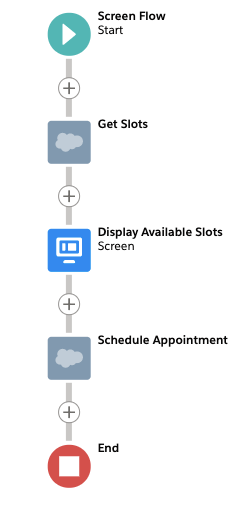
Next we’ll explore what’s actually happening inside the Flow Scheduler subflow.
Action #1: Get Slots
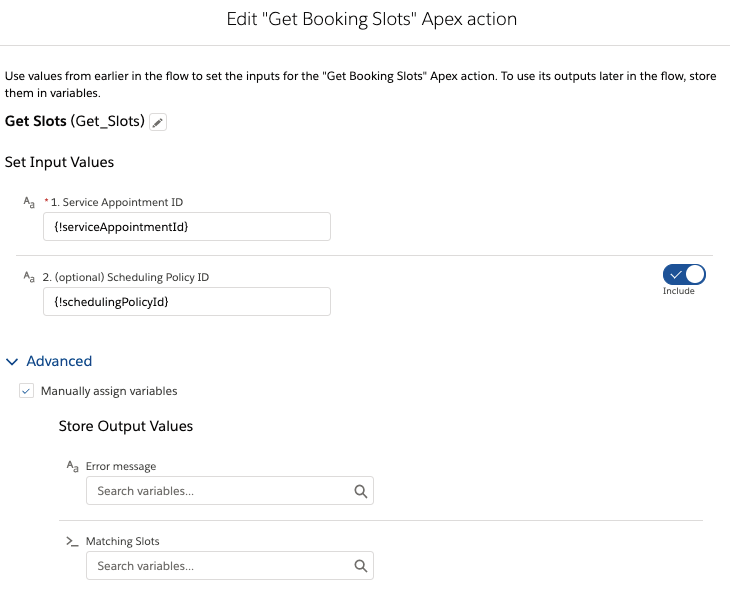
This action is an invocable Apex wrapper that calls the AppointmentBookingService.getSlots() methods. It takes two parameters:
Service Appointment ID (required)
This action assumes that the Service Appointment has already been created and is being passed into this subflow from the parent flow. See the sample build for more detail.
Scheduling Policy ID (optional)
If this input is not provided, the method will look for a Scheduling Policy record with the “Default for Flow Scheduler” checkbox checked. If it doesn’t find one, it will throw an error.
The action returns one of two values, either:
a list of an Apex-defined type called BookingSlot, which will be passed into the Display Available Slots screen component, OR
a string value containing the error message returned from Apex. The goal is not to get this one.
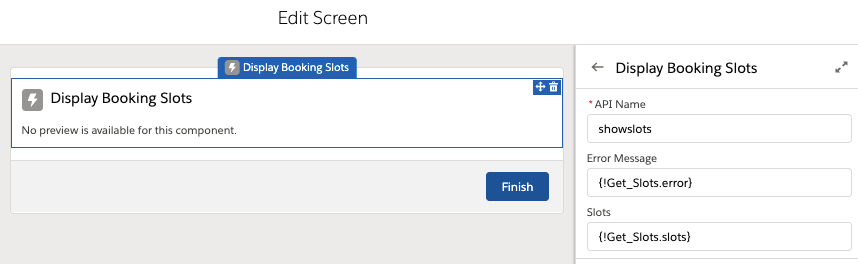
Screen: Display Available Slots
This screen contains the UI component called Display Booking Slots that displays the list of available slots to the user. It takes as inputs the two values returned by the Get Slots action. Again, only one of these values—the list of slots OR the error message—will have a value. It returns as output two values: the start time and end time of the slot the user selects. Both are of type datetime. If you want to customize the UI, you can modify the Display Booking Slots component (LWC) or build your own.
Action #2: Schedule Appointment
This action is an invocable Apex wrapper that calls the ScheduleService.schedule() method. It takes four parameters:
Service Appointment ID (required): the same Service Appointment ID we passed to the Get Slots action.
Arrival Window Start Time (required): this is the start time that the user selected from the Display Booking Slots component.
Arrival Window End Time (required): this is the end time that the user selected from the Display Booking Slots component.
Scheduling Policy ID (optional): Once again, if this value is not provided the system will search for a Scheduling Policy record with the “Default for Flow Scheduler” checkbox checked.
This action does not return a value, it simply schedules the Service Appointment.
https://unofficialsf.com/wp-content/uploads/2021/04/image-52.png4651006David Fromsteinhttps://unofficialsf.com/wp-content/uploads/2022/09/largeUCSF-300x133.pngDavid Fromstein2021-04-22 14:28:352021-04-22 14:28:37Flow Scheduler: Enable Self-Service Scheduling for Field Service