https://unofficialsf.com/wp-content/uploads/2022/09/largeUCSF-300x133.png00Adam Whitehttps://unofficialsf.com/wp-content/uploads/2022/09/largeUCSF-300x133.pngAdam White2021-06-08 10:59:452021-06-08 10:59:50May 2021 Community Flowcast Video
We previously published an LWC screen component called Screen Flow that allows flows to be embedded in Lightning Web Components.However, it doesn’t resize automatically. Rob Fay extended it to do this elegantly and then posted about it.
Note: Salesforce has an LWC version of the lightning:flow component under construction. Look for it in the next 12 months.
https://unofficialsf.com/wp-content/uploads/2022/09/largeUCSF-300x133.png00Alex Edelsteinhttps://unofficialsf.com/wp-content/uploads/2022/09/largeUCSF-300x133.pngAlex Edelstein2021-06-05 14:19:432021-06-05 14:19:48Developer Notebook: Robert Fay shows how to make LWC-embedded screen flows resize properly
I’ve long been a fan of using invocable methods with flows. Today I’ll use a real-life scenario to explain the importance of using invocable variables as well. We’ll start by looking at the anti-pattern of a standalone invocable method, then we’ll follow best practices and refactor the solution into an invocable method plus invocable variables.
The use case comes from a pro bono project for Playworks. Playworks is the leading national nonprofit leveraging the power of play to transform children’s social and emotional health. They’re a great organization, and they could definitely use some support.
Playworks tracks each school partnership with an opportunity record. A school might purchase 5 trainings, represented by opportunity product records. For financial purposes, the service completion date is tracked for each training, so each training needs its own opportunity product record. Manual entry can get cumbersome, with some opportunity records having 10 or more opportunity products associated with them.
To address this need, we created the Add Products Wizard. Built using flow, the wizard starts by presenting a user with a list of products to select from.
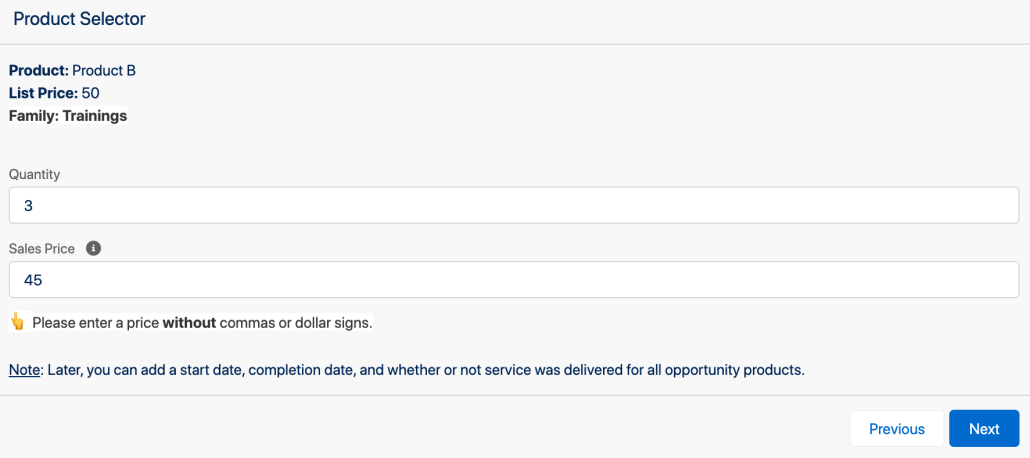
The user selects the products they want, then enters the quantity and sales price of each product they selected.
So far, so good, but things get tricky if you build an invocable method without invocable variables. Let’s take a look at what not to do, then we’ll refactor our solution to follow best practices.
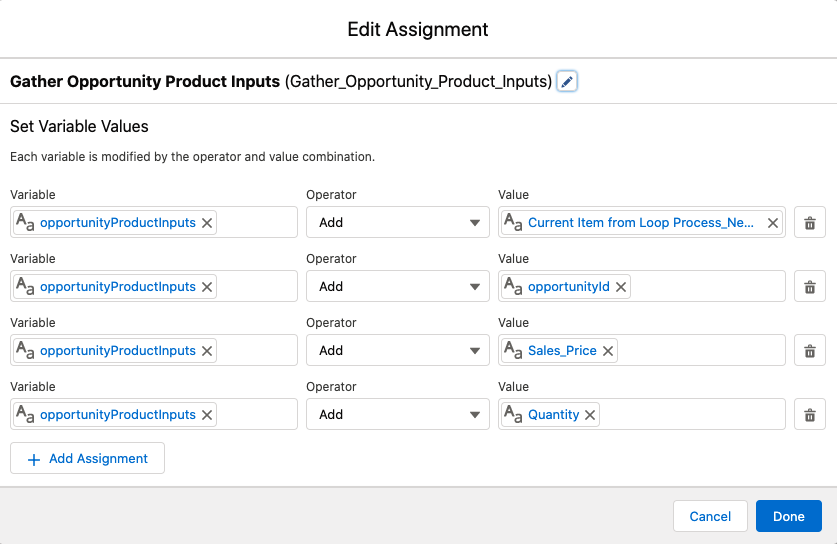
First up, the anti-pattern. Here’s what the flow loop element looks like behind the scenes, designed for a standalone invocable method. After the user selects their products, the loop begins. The loop runs once for each product selected. The pattern is as follows:
Get the quantity and sales price for each product from the user.
Gather up all needed inputs for the invocable method into a flow text collection variable.
Pass the flow text collection variable into the invocable method.
The invocable method then creates the desired number of opportunity product records.
Clear the values of the text collection variable so the loop can start over.
Then comes the messy part. The text collection variable holds 4 values.
The four values are added to the text collection variable in the following order:
First: Product Id
Second: Opportunity Id
Third: Sales Price
Fourth: Quantity
Imagine having to come in and explain what the opportunityProductInputs variable is holding. There is no way to know, without explicitly inspecting the assignment element that populates the opportunityProductInputs variable. Frustrating, to say the least. The code gets even more wonky. Take a look at the invocable method.
@InvocableMethod(label='Create New Opportunity Products') public static void createNewOpportunityProducts(List<List<String>> inputs){
List<OpportunityLineItem> oppProds = new List<OpportunityLineItem>();
PriceBook2 stdPriceBook = [SELECT Id FROM Pricebook2 WHERE isStandard = True LIMIT 1];
PriceBookEntry pbe = [SELECT Id FROM PriceBookEntry WHERE Product2Id =: inputs.get(0).get(0) AND Pricebook2Id =: stdPriceBook.Id LIMIT 1];
Notice that the data type of the input parameter is a nested list of strings. A standalone invocable method requires that the input parameter be a list. A single string becomes a list of strings, and a list of strings becomes a nested list of strings. Not to mention, you have to use nondescript indexes to reference the inputs within the method. The whole thing gets unwieldy fast. This has major downstream implications for code readability.
Now for a best practice. Let’s refactor this code by pivoting away from a standalone invocable method, and adding some invocable variables to hold the inputs. The invocable variables are defined in an inner class called Requests.
public class Requests{

    @invocableVariable(label='Product Id' required=true)
    public String productId;

    @invocableVariable(label='Opportunity Id' required=true)
    public String opportunityId;

    @invocableVariable(label='Sales Price' required=true)
    public Double salesPrice;

    @invocableVariable(label='Quantity' required=true)
    public Integer quantity;
}
Next, let’s change the input parameter of the invocable method to accept the data type of the inner class.
@InvocableMethod(label='Create New Opportunity Products')
public static void createNewOpportunityProducts(List<Requests> requests)
Here’s what the refactored method looks like, using the new input parameter.
@InvocableMethod(label='Create New Opportunity Products')
public static void createNewOpportunityProducts(List<Requests> requests){

     Requests request = requests[0];
     List<OpportunityLineItem> oppProds = new List<OpportunityLineItem>();

     Opportunity oppty = [SELECT Playworks_Fiscal_Date__c
                          FROM Opportunity
                          WHERE Id =: request.opportunityId];

     PriceBook2 stdPriceBook = [SELECT Id
                                FROM Pricebook2
                                WHERE isStandard = True
                                LIMIT 1];

     PriceBookEntry pbe = [SELECT Id
                           FROM PriceBookEntry
                           WHERE Product2Id =: request.productId
                           AND Pricebook2Id =: stdPriceBook.Id
                           LIMIT 1];

     for(Integer i = 0; i < request.quantity ; i++){
         OpportunityLineItem oppProd = new OpportunityLineItem();
         oppProd.Product2Id = request.productId;
         oppProd.PricebookEntryId = pbe.Id;
         oppProd.OpportunityId = request.opportunityId;
         oppProd.UnitPrice = request.salesPrice;
         oppProd.Quantity = 1;
         oppProds.add(oppProd);
     }
     insert oppProds;
}
Notice how much more readable the Apex is. Gone are the nondescript indexes, replaced by logical variable names. The Apex action element is also much more readable inside the flow. It is no longer necessary to gather up the inputs with an assignment element. The invocable variable values are set and the invocable method is called in the same place, creating a much more intuitive flow.
When comparing a standalone invocable method to an invocable method plus invocable variables, the difference is clear. The code becomes much more readable, and the flow is much easier to understand in the latter.
There is one more advantage of using an invocable method plus invocable variables, not shown in this example. While a standalone invocable method can only accept a collection of primitive data types, an invocable variable makes it possible to indirectly pass sObjects into the invocable method. An inner class with variables to hold accounts and opportunities would look something like this.
public class Requests{

        @invocableVariable(label='Accounts' required=true)
        public List<Account> accountsToProcess;

        @invocableVariable(label='Opportunities' required=true)
        public List<Opportunity> opportunitiesToProcess;
    }
Hopefully this post has convinced you not to build a standalone invocable method again, opting instead for an invocable method plus invocable variables. Thanks for reading, and feel free to send me any questions or feedback.
https://unofficialsf.com/wp-content/uploads/2022/09/largeUCSF-300x133.png00Andy Andersonhttps://unofficialsf.com/wp-content/uploads/2022/09/largeUCSF-300x133.pngAndy Anderson2021-06-01 15:32:142022-10-06 10:33:43Best Practices for Creating Invocable Methods: Using Inner Classes and Invocable Variables
“a simple, lightweight tool that gives Flow builders the ability to present users with customizable navigation choices that go beyond the standard ‘Next/Finish’ and ‘Previous’.”
FBB brings a more user-friendly interface, new features like icons and vertical buttons, and now offers two distinct “modes” of Flow functionality: Navigation Mode and Selection Mode.
Features
Navigation Mode
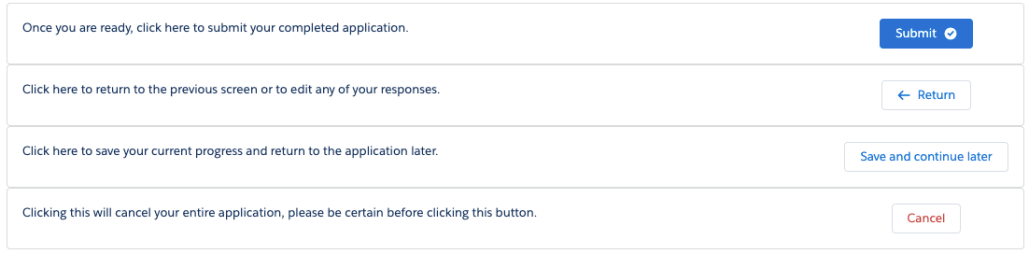
Navigation Mode covers the functionality provided by the existing component, and is used to replace and extend the functionality of the native Flow navigation buttons (Next/Finish and Previous). It allows Flow admins to add one or more Lightning buttons to a Flow screen that, when clicked, return the value associated with that button and navigate to the next (or previous) Flow element. This value can then be handled by a Decision element to route the user accordingly. Buttons in Navigation Mode can be styled with different variants, and the button bar can be oriented horizontally or vertically. In horizontal orientation, the buttons can be aligned to the left, right, or center, and in vertical orientation an optional Description Text value can be displayed.
Example of Navigation Mode (horizontal)
Example of Navigation Mode (vertical)
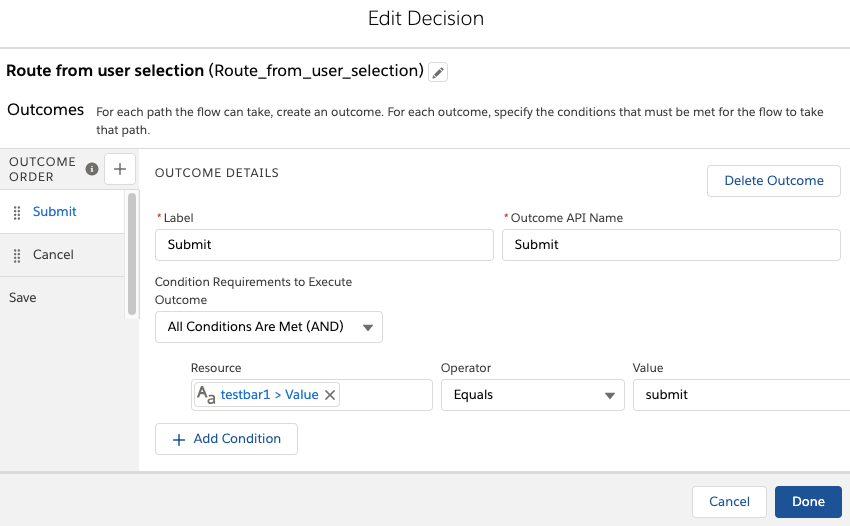
Example of Flow logic in Navigation Mode
View of a Decision element using the output from a Flow Button Bar to guide navigation.
Examples of how to use FBB in Navigation Mode
The Flow Button Bar (FBB) component is shown on Decision Screen in the example above. When the user clicks one of the buttons, their selected value is stored in the component’s ‘value’ property, and the user is navigated to a decision element where they can be routed based on their selection.
Selection Mode
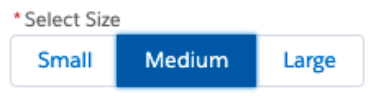
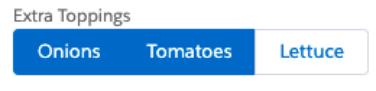
Selection Mode is used to present users with a grouped set of buttons each representing a different selectable option. Selection Mode is comparable to other input elements like radio buttons or picklists, but uses a button group UI and allows for both single- or multi-select. Clicking a button in Selection Mode does not cause navigation within the Flow. In Selection Mode, the component returns two properties:
values[]
list of strings with zero or one elements, or more if multiselectis enabled, containing any selected values in the FBB component. In single-select button bars, the list will contain a maximum of one element.
value
String used for single-select button bars. Returns the first element in values[]. Used for convenience and to conform to the format of the standard components.
Setting this value resets values[]to a list of one, [value], thereby removing any other selected values.
For selections with more than a handful or so of options, it’s probably better to use a checkbox group or radio buttons instead.
Example of FBB in Selection Mode (multi-select, not required)
Examples of FBB in Selection Mode
Common Features
Both Navigation Mode and Selection Mode have the following properties, all of which are optional:
label
Text to be displayed as a label above the button bar
showLines
horizontal lines below and/or above the button bar to visually separate it from other screen components
help text (coming soon)
Settings & Configuration
A major upgrade in Flow Button Bar is that it is now configured through a Custom Property Editor, giving far greater control over the look and feel of the configuration panel than previously possible.
Configuration Panel using the new Custom Property Editor UI in Navigation Mode
The configuration panel contains two sections: Buttons and Button Bar Settings.
Buttons
This section is used to add, delete, and reorder the buttons in your button bar. Click “add new button” to open the Button Builder modal (see below) and create a new button. Click an existing button, or the pencil icon beside it, to open the modal and edit its settings. The trash icon deletes an icon, and the order of the icons can be changed by dragging and dropping them into the desired position. You can also see a preview of your button bar to make sure everything looks right, but note that the preview is at present notperfect and you’ll still need to test some features in debug.
Button Bar Settings
These are the configurations that apply to the overall button bar, as opposed to the individual buttons. They include:
Label: label text to be displayed above the button bar.
Action mode (required): choose between Navigation or Selection, as described above.
Required (Selection Mode only): does not allow user to unselect all options once selected. Also used to communicate validation requirements.
Multi-select (Selection Mode only): allows user to select more than one of the options in the group.
Orientation (Navigation Mode only): controls whether the buttons are laid out horizontally or vertically.
Alignment (horizontal orientation only): controls whether the button bar is aligned to the left, center, or right of the Flow screen.
Display horizontal lines: optionally adds lines visually separating the button bar from the rest of the components on the Flow screen. Options are: Neither, Above, Below, Both
Button Builder
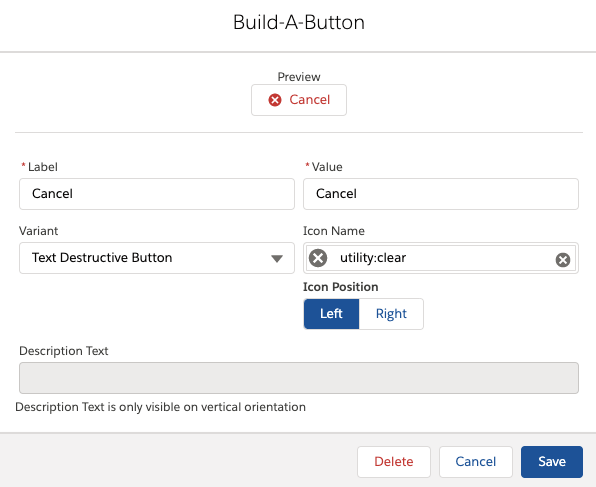
Clicking on an existing button in the list, or clicking “Add new button”, opens up the button builder modal:
Label (required): the text on the button that will be displayed to end users.
Value (required): the value that will be returned by the button upon selection. Defaults to be the same as Label, and has no requirements around formatting, but admins may find it useful to distinguish between values and labels.
Note: If the button value is set to ‘Previous’ (not case-sensitive), the Flow navigation action that will get executed is Previous. In all other cases, the Flow navigation action is Next, or Finish if on the final element.
Variant: dropdown list used to control the style of the button. Options are: Neutral, Base, Brand, Outline Brand, Destructive, Text Destructive, and Success.
Icon Name: dropdown list used to add an icon to the button.
Icon Position: controls whether the icon (if present) appears on the left or right side of the button.
Description Text (vertical orientation only): Text to be displayed horizontally in line with vertical buttons.
Setup & Instructions
Install the Flow Base Packs, following the instructions here.
In Flow Screen Builder, drag the “Flow Button Bar” component onto a Flow screen.
Like all Flow elements, give it a unique API name—you will use this to refer to the user’s selected value(s) downstream in your Flow.
Add up to 5 buttons by clicking “Add new button” and using the Button Builder to configure each button.
Choose an Action Mode: either Navigation or Selection.
Complete any other optional or required configuration settings.
If you want to replace the standard Flow navigation, remember to hide the standard footer(use the showLinesattribute to add a horizontal line above the button bar and mimic the standard UI).
You can then incorporate the button bar’s selected value(s) into your downstream Flow logic, e.g. in Decision elements, formulas, or for conditional visibility.
FBB was built to be used not only by Flow admins using the CPE UI to configure the settings, but also by developers who are building CPEs or other Flow screen LWCs (or non-Flow LWCs, for that matter). The component in Selection Mode is intended to be closely interchangeable with some of the standard input components like lightning-combobox, lightning-radio-group and lightning-radio-group. The component takes the following values:
options (required): a list of label-value pairs, the same that you’d pass into one of the standard components.
actionMode: determines the functional “mode” of the button bar. Valid values are selection(default) and navigation.
alignment: determines horizontal alignment if in horizontal mode. Valid values are left(default), center, and right.
orientation: determines vertical alignment if in Navigation Mode. Valid values are horizontal(default) and vertical.
showLines: controls the optional display of horizontal lines above and/or below the button bar. Valid values are neither(default), above, below, and both.
label: optionally displays label text above the button (generally used in Selection Mode, less so in Navigation Mode).
helpText: optionally displays help text in a lightning-helptext component that follows the label.
multiselect: if set to any non-falsey value, allows for the selection of multiple values. If falsey, selecting any option automatically deselects any other selected options.
required: if set to any non-falsey value, displays a required indicator before the component’s label. Also intended to used in validation logic.
errorMessage: optionally displays a red error message underneath the component.
When any button in the bar is clicked, the buttonclickevent is dispatched. Parent components must listen for this event. The event contains event.detail.values, the list of the values of any selected buttons (used for multi-select button bars) and event.detail.value, which is simply the first element of values(used for single-select button bars).
https://unofficialsf.com/wp-content/uploads/2022/09/largeUCSF-300x133.png00David Fromsteinhttps://unofficialsf.com/wp-content/uploads/2022/09/largeUCSF-300x133.pngDavid Fromstein2021-05-31 14:38:322021-06-03 18:21:16Flow Button Bar: new and improved!
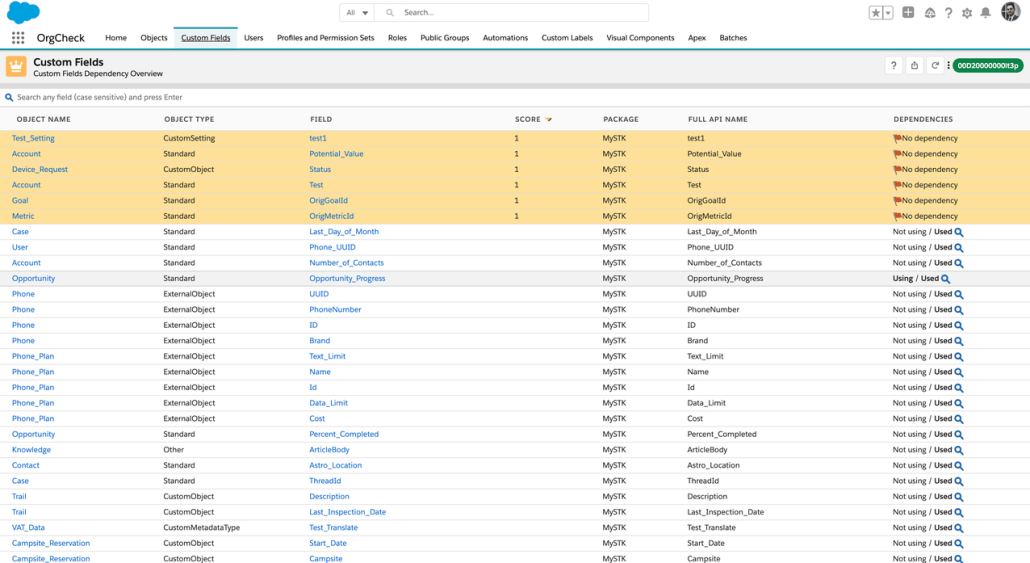
OrgCheck is an easy-to-install and easy-to-use Salesforce application in order to quickly analyze your org and its technical debt. Flow users, note that some of what it reports on relates to your existing automations.
Identify permission sets and profiles correlations
List IP and Login Hours restrictions on all profiles
Role hierarchy
Check if your role hierarchy is not too deep
Show role hierarchy in a diagram with empty roles identification
List roles with bad practices
Users
List users that never logged
Key system permissions for each users
Public group and Queues
List groups and queues
Identify all users of groups and queues (recursive computation)
UI Composants
List Visual Force pages and components with bad practices
List Aura and LWC components with bad practices
Apex Composants
List Apex Classes with bad practices (old API version, no explicit sharing, etc.)
List Triggers with bad practices (contains logic, DML, SOQL, etc.)
Automations
Workflow rules without actions
Process Builders / Flows
Batches
Failed jobs
Scheduled jobs
https://unofficialsf.com/wp-content/uploads/2022/09/largeUCSF-300x133.png00Alex Edelsteinhttps://unofficialsf.com/wp-content/uploads/2022/09/largeUCSF-300x133.pngAlex Edelstein2021-05-28 15:49:142021-05-28 15:51:00From Vincent Finet: Analyze your Org with OrgCheck
This version includes a few community requested enhancements to Flow Flexcard. It includes rich text fields now supported in visible fields, multi-select of cards, header style control, and some overall UE enhancements. Check out the details below.
The first new addition was requested by quite a few people and that was rich text support for visible fields. Something to note here is the card size does not change based off of the field content so remember to either make your cards larger using the cardSize property or limit your field content.
Next up we have Multi-Select. When you set Allow Muli-Select to true it will add a checkbox input when marked as checked will add that individual card recordId to a output collection variable named selectedRecords.
Finally Header Style allows you to control how your header is presented to your users using a string input of HTML style tags. i.e. background-color:powderblue;font-weight:bold;
Here is a video walkthrough highlighting these updates
James Simone, the blogger behind The Joys of Apex, recently turned his attention to invocable actions and cranked out a wonderfully deep examination of the ins and outs of invocable actions, along with discussion about relevant patterns, dependency injection, inversion of control, and a lot of content that I haven’t even had a chance to absorb yet.
https://unofficialsf.com/wp-content/uploads/2022/09/largeUCSF-300x133.png00Alex Edelsteinhttps://unofficialsf.com/wp-content/uploads/2022/09/largeUCSF-300x133.pngAlex Edelstein2021-05-24 10:41:072021-05-24 10:42:20Developer Notebook: James Simone on Analyzing the Nuances of Invocable Actions
We’ve added an action called CollectionCalculate to the CollectionProcessors package that lets you provide a collection of records, specify a field by name, and indicate whether you’d like to add, multiply or average the values. The result is returned both as a decimal and a string.
Input Attributes
inputCollection
a collection of SObjects
fieldName
the name of a field on the objects that you’re passing in
operation
allowable values: “Average”, “Add”, “Multiply”
policyForNullAndEmptyFields
String. Allowable Values: “use0”, “use1”. If any other value is used or if this attribute is null, an empty field or null value in one of the passed in records will cause the action to fail. ‘use0’ replaces empty and null fields with zero and ‘use1’ replaces them with 1
https://unofficialsf.com/wp-content/uploads/2022/09/largeUCSF-300x133.png00Alex Edelsteinhttps://unofficialsf.com/wp-content/uploads/2022/09/largeUCSF-300x133.pngAlex Edelstein2021-05-23 21:09:472021-05-24 10:27:09Sum, Multiply and Average Fields in a Collection with CollectionCalculate
As of this writing, in Summer ’21, there’s a behind-the-scenes transformation starting to happen to the Flow Runtime. This is the javascript component that gets loaded when a screen needs to be rendered in a screen flow. The Flow Runtime is also the ‘Flow’ component that shows up in the palette of App Builder. Although the Flow Builder itself was written from the ground up in 2018 in LWC, the Flow Runtime mostly still uses Salesforce’s older Aura javascript framework.
That’s starting to change, and various component elements of the Flow Runtime are getting converted to LWC. One goal for this effort is for Flows to run in Community pages created in the upcoming new Experience Builder, which is also built in LWC (generally, you can’t load an Aura component in an LWC parent, and the new Community pages and Experience builder are 100% LWC, for faster page loads.).
The heart of the Flow Runtime is a component called Body which forms the basis for flow screen rendering. Salesforce has elected to do a partial deployment of the new LWC version of the Body component. Basically, if you add one of the new Sections to a flow screen, the Section and everything in it is rendered in the new LWC Body. If you add anything to the screen that is not inside a section, it is rendered by the ‘old’ Aura Body component.
It’s a goal of the Flow team to carry out this transition in a way that makes it unnecessary to even explain these things. In other words, behavior should be the same when a flow is run, regardless of the version or technology used in any given combination of Flow Runtime components. However, we’ve encountered our first issue where behavior changes. It affects developers of Flow Screen Components built using LWC and so we want to discuss it here.
A key principle of LWC is that children components don’t get to modify their parents. There are a lot of architectural reasons for this; suffice to say it leads to faster performance. For that reason, when you create a Flow Screen Component in LWC, one of our key instructions is to dispatch FlowChangeEvents whenever an output value changes due to some interaction with a user or some other internal calculation. If you do an event dispatch every time you change an output value in your component, then you can basically ignore this memo and carry on your business.
We have determined though that there are some great lwc Flow Screen Components out there in the wild that are working outside of Sections but erroring inside of Sections. If you experience that symptom, it’s likely that there’s at least one place in your component where you are not dispatching an event. You might reasonably ask at this point “if I wasn’t dispatching an event, why does my component function properly when it’s outside of a Section? Why has it not broken in the past?” The answer is that the Aura Body component handled coordination automatically on behalf of child LWC’s, but the LWC Body is strict in its adherence to LWC guidance, and does not do any automatic coordination.
So if your component is generating errors when used in Sections, we strongly encourage you to review your code, add event dispatches where you find them missing, and retest.
https://unofficialsf.com/wp-content/uploads/2022/09/largeUCSF-300x133.png00Alex Edelsteinhttps://unofficialsf.com/wp-content/uploads/2022/09/largeUCSF-300x133.pngAlex Edelstein2021-05-21 07:21:532021-05-21 07:21:58Developer Note: Flow Screen Components Are Gradually Getting Treated More Strictly When It Comes to Change Event Dispatch