Learn MOAR About Lightning Flow Goodies Coming in Summer ’20
New blog post by Salesforce Flow Senior Product Manager Sam Reynard. Check it out!


New blog post by Salesforce Flow Senior Product Manager Sam Reynard. Check it out!
You can provide Send Rich Email with a collection of Email addresses, but how do you get that information out of a Public Group? This new GetGroupInfo Flow action takes a group name or Id and returns a list of information about the Users in that group (and in any of the child groups that are in that group).
One of the return values is a collection of email addresses that can be handed straight to Send Rich Email.
Returned information includes:
List<String> userEmailAddresses;
List<String> userNames;
List<String> userIds;
List<User> users;
Version 1.0 Unmanaged 6-15-20
Suppose you have a set of records and you want to insert them into an email message. To do this, you can use the updated GenerateCustomReport action to generate a chunk of HTML suitable for adding to the Body of an email action that supports rich text, like Send Rich Email.
You pass in a comma-separated list of the fields you want to show in the table. Make sure to use the full api names, including ‘__c’ for custom fields.
You can also decide whether or not to show a Header row with the names of your fields.
You can style your table. The styling support is powerful but primitive. You can pass in a css Style string for each of three sections: the overall Table, the Header, and the Rows. Because style strings are a little fussy, I like to use Text Templates for them.
Here’s a sample configuration:

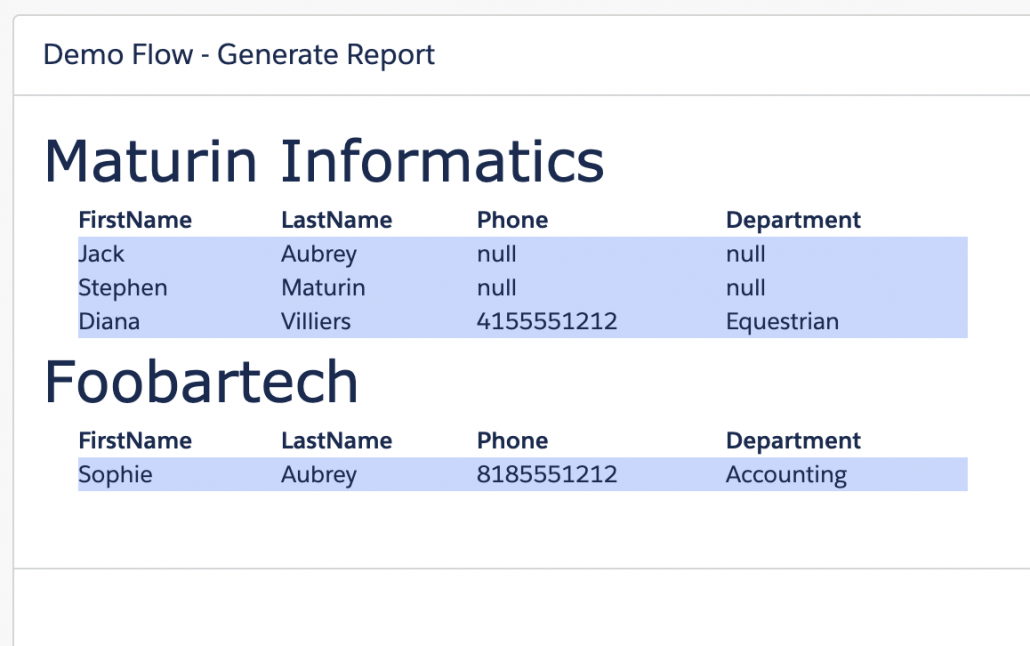
Here’s an example of styled output on a Flow Screen:

Keep in mind that if you want to provide the data in a form on the flow screen that can be manipulated, selected, sorted, etc, you should instead use the Datatable component. The action described here is mainly intended for when you want to output the data through email or into a Quip page.
You can add styling information directly to an input, or put it in a Text Template and pass the Text Template into the input. Here’s an example of one of the Text Templates used to generate the above table:

This is conventional css, and everything you can do in a <style> html tag is available to you. For more information on styles you can use, consult a resource like W3Schools.
Usage Note: if you use Text Templates, you MUST change the menu button from View as Rich Text to View as Plain Text before making any change to your text. If you don’t extra html tags will be inserted and your formatting won’t work properly. We’re working on a fix for this.
Finally, here’s the result in an email message:

In this case, I’ve simply routed the output from my action to the HTML Body input of the Send Rich Email action:

Note that you can use another Text Template to provide boilerplate text:

And the email result is:

The key concept to understand is that at the end of the day, a rich email body is just a single string full of html tags. Each instance of this action will spit out one such string, and the text templates also spit out strings. You can combine them together using formulas or another text template (see the video for an example of this) or an Assignment element.
You can combine multiple instances of this action to create richer report structures. Here’s an example that uses an output string from an Account record and a second output string from a collection of Contact records:

To accomplish this effect, the HideHeader input is set to true on the parent Account Generate Collection Report action and it’s given a font-size style string to make it larger. On the second Generate Collection Report action that displays the child contacts, the style ‘margin-left’ is applied at the table level (not the row level) to achieve the desired indentation:

See the above video for more information.
You can create a large report in Flow with many Parents that have many children, but you may have to take some steps to avoid triggering the 100 SOQL Queries Limit, because you need to carry out a Contact query for each Account and this normally will all be done in a single transaction. If your parent list is around 100 records or larger, you’ll need to break up your flow from a transaction point of view. To solve this, the flow below uses the ‘new’ Commit Transaction action which forces the transaction to close on each iteration through the loop:

This allows you to create large reports:

Be aware, though, that bypassing the normal transaction unification process in this way can result in flows that take a long time to run.
This action is part of the Collections Action package and the features described here are available starting in version 1.18 of that package.
CommitTransaction is a simple Flow Action that works in Screen Flows and simply causes any open DML transaction to close. This is the same thing that happens whenever a Screen element executes or when a Flow ends. Having it in the form of this action allows you to close transactions in places where you might otherwise violate limits.
Consider this Flow:

This Flow highlights the ability of the Flow Action Generate Collection Report to create attractive output out of lists of records:
Note that in order to generate this report, the set of related Contacts has to be queries for each Account. This is done in a Loop, and if the initial set of Accounts is near or over 100, you’ll get this error:

This is happening because the 100 passes through the Loop are all being aggregated into a single transaction. This makes sense in general as a system efficiency technique, but it’s not what we want here.
If we insert a CommitTransaction action into this loop, it becomes 100 individual transactions, and the flow finishes properly:

Here’s where I inserted it:

You can see this in action in the video on this post. Keep in mind that the grouping of activities into a single transaction makes slow things run more quickly, so if you place Commit Transaction into big, busy loops, it may take a lot longer than you’re used to.
How does this work?
If you look at the code, you’ll see that this action is actually an empty Local Action. Local Actions, by dint of their architecture, close open transactions.
How is this different from the ‘zero-duration Wait element’ approach?
Probably nothing. This is just a little more straightforward to implement, at least once you have it installed in your org.
Does this work in Autolaunched Flows?
Sadly, no. For those, use a Pause element and give it a time of 0 to get the transaction to close.
Version 1.0 Unmanaged 6-13-20
There’s a more recent, more powerful version of this app here.
Starting with Summer ’20, some Process Builder processes (which are technically Flows with process type ‘Workflow) can be converted to Flows of process type ‘Autolaunched’. The new flow shows up in Flow Builder and takes advantage of the new Record Change trigger that Flow Builder now supports.
The package here will install into your org a flow called Convert Processes to Flows. it allows you to select a Workflow:

It will then retrieve the workflow metadata from your org using the new Transfer Metadata screen component, then pass the metadata to a flow action called ConvertFlowMetadata.

Here’s a video:
Flow Builder’s ability to do the things Process Builder does is a little limited in Summer ’20. Most notably:
If you select a workflow with any of these characteristics, the Flow will report the error and stop.
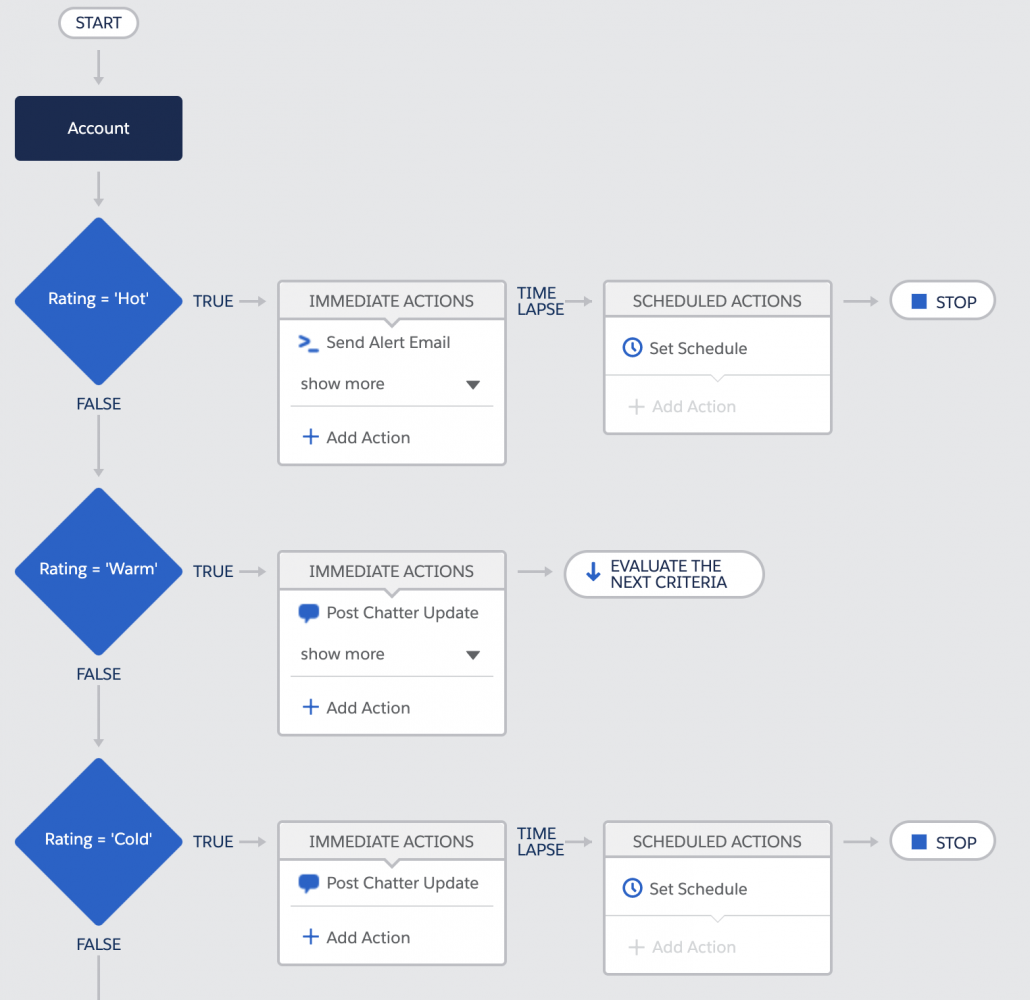
Here’s an example of a Process Builder workflow:
And here’s what it looks like after conversion:

It’s recommended that you only run this on Sandboxes for the time being.
Considerations
The converter automatically creates a unique name for the new flow by taking the Process Builder name and adding ‘-Converted’. It does not change the label or interviewLabel (used for paused flows). Keep in mind that you’ll now have two processes, one in Process Builder lists and one in Flow lists, with the same Label. If this turns out to be a problem we can add logic to automatically create a modified label.
There’s a more recent version here.
Old Versions
See this post for the latest version of this Application. It has been refactored to use the most recent versions of the prerequisite components. Eric Smith 11/5/2022
Flow and Process Builder List View with Batch Delete

I’ve been following a couple of ideas on the Idea Exchange for a while now. One has over 11,000 points and 13 merged ideas. Process Builder – List View and the other Allow Mass Deletion of Inactive Process Builder Versions has over 4,000 points with 4 merged ideas.
I don’t know about you, but I get pretty frustrated trying to view and keep track of all of my Flows and Process Builders. A better List View would certainly be appreciated.
When it comes to trying to clean things up and delete some old inactive versions, it becomes downright painful.
I decided to put my Datatable component to work and updated it to support Apex-Defined object variables. Using data pulled from three different Salesforce internal objects, I’m able to display details about Flows and Process Builders. The full power of the Datatable component comes into play by offering a List View with sorting, highlighting, filtering and more.
Taking advantage of the Datatable’s ability to select multiple records and pass them along in a Flow to be acted upon, I created a Flow Action that interfaces with the Metadata API and handles the batch deletion of the selected inactive Flows and/or Process Builders.
I’ve bundled all of this together in an App that includes a configurable List View, List View with batch selection for delete and a Flow Picker where you can select a single Flow or Process Builder and then work with a List View of all of its active and inactive versions.

Here’s a video of the component in action.
With the advent of System-context screen flows I can’t help but think of the famous phrase ‘With great power comes great responsibility’. When running screen flows in system context, you could inadvertently grant Read or Edit access to a critical system field to the wrong audience. Let’s say you wanted to do some cool stuff like in Jen Lee’s recent post about Community User Management, and you want to ensure the person running the flow has the ‘Manage External User’ permission. Her flow does this check using a custom permission, which is totally fine, this just checks the system permissions directly.
All of that is possible with some straightforward SOQL queries against the Permission Set Assignment object. You may or may not be aware, but the PermissionSet object actually contains Profile permissions as well so it’s a one-stop shop for getting Field and System permissions!
The following example will run you through a VERY basic scenario where a Flow presents a screen to update a given field and the flow is running in System context – God mode.

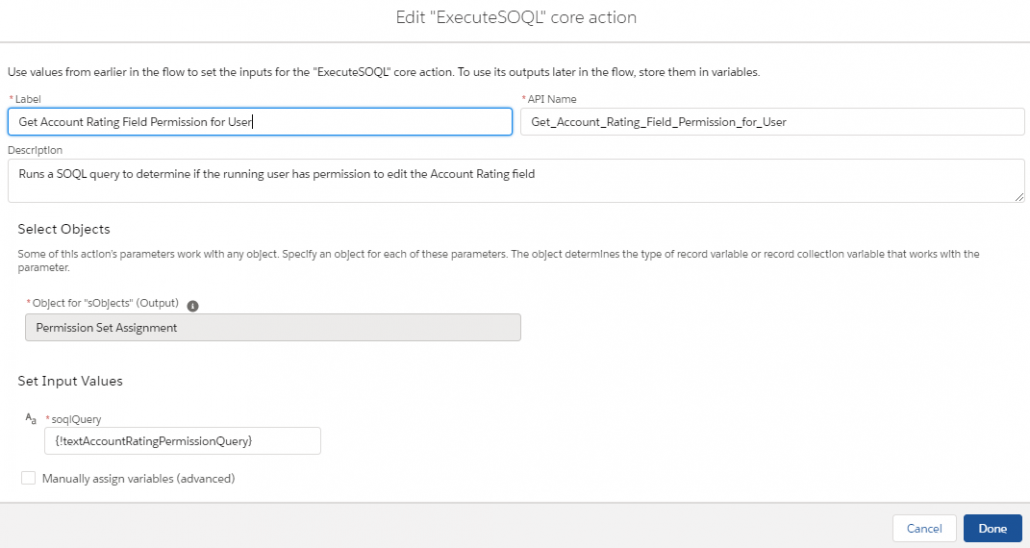
Most of you can probably handle the beginning and end – so I’ll provide some more color on the middle part that does the permission checking.
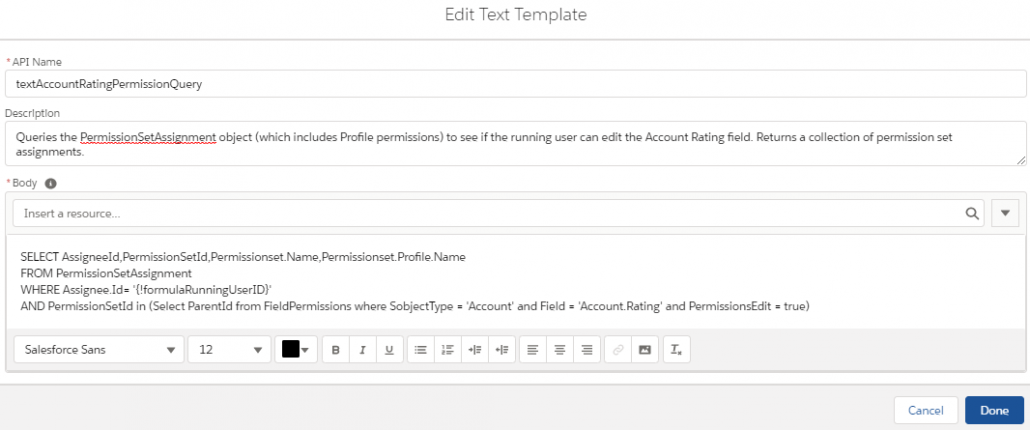
SELECT AssigneeId,PermissionSetId,Permissionset.Name,Permissionset.Profile.Name
FROM PermissionSetAssignment
WHERE Assignee.Id= ‘{!formulaRunningUserID}’
AND PermissionSetId in (Select ParentId from FieldPermissions where SobjectType = ‘Account’ and Field = ‘Account.Rating’ and PermissionsEdit = true)
*WARNING* If you make any edits to the text template variable, a Flow bug will revert the template back to rich text and it will break the action! Make sure you revert it to Plain Text after every edit.

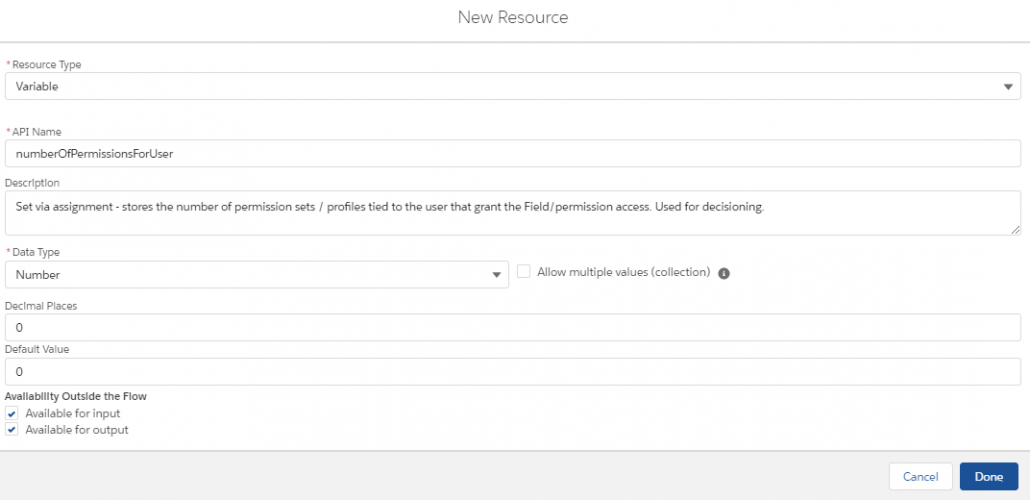
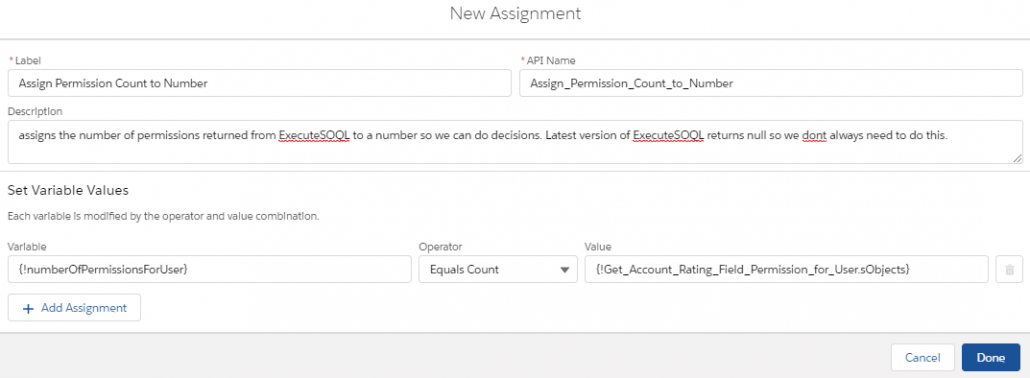

You could of course extend this to multiple fields in one query by modifying the SOQL query, for example:
SELECT AssigneeId,PermissionSetId,Permissionset.Name,Permissionset.Profile.Name
FROM PermissionSetAssignment
WHERE Assignee.Id= ‘0051I000000UB4LQAW’
AND PermissionSetId in (Select ParentId from FieldPermissions where SobjectType = ‘Account’ and
Field in (‘Account.Rating’,’Account.Type’) and PermissionsEdit = true)
You can also check for specific system permissions! Let’s say you wanted a Flow embedded on the Case layout that manages the Contact’s community user record. The query below could be used to check if the user handling the case has permissions to manage the external user account:
SELECT AssigneeId,PermissionSetId,Permissionset.Name,Permissionset.Profile.Name
FROM PermissionSetAssignment
WHERE Assignee.Id= ‘{!formulaRunningUserId}’ AND PermissionSetId in (Select Id from PermissionSet where PermissionsManagePartners = true)
The Transfer Metadata component will retrieve or deploy a single piece of metadata to the org that the Flow is running on. It’s designed as a Flow Screen Component.

Provide it the name of the metadata type (“Flow”) and the name of item (“MyFlowApiName”) and it will return the metadata as a zip file. From there, you can do a couple of different things:
You can deploy metadata by simply passing the xml string and the type and name of the metadata.
This component uses standard metadata apis. They’re asynchronous, so the component will poll once per second to get the status of the transfer. Make sure you don’t transition away from the flow screen while it’s checking. Standard Metadata save-time validation is carried out, so if you try to deploy a invalid piece of metadata, you’ll get back an error message.
This component pairs well with the Flow Picker screen component that lets the user pick a Flow from a picklist. If there’s interest, it won’t be hard to this component to be made more generic so that other kinds of metadata can be selected from lists.
Because this component uses Metadata apis, you’ll need to have a Remote Site Setting on the org. If you don’t, you’ll see an error like this:
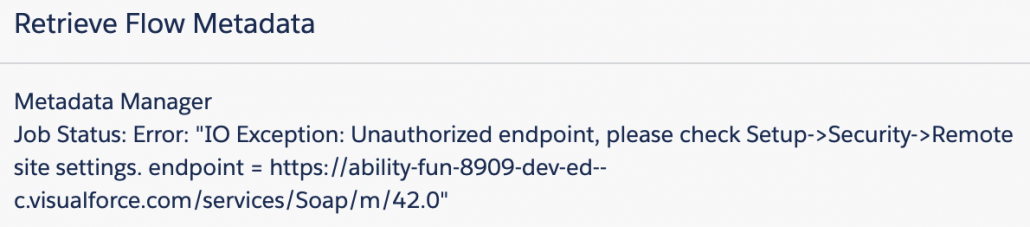
To address this, copy the root url from the error message and go to Setup –> Remote Site Settings. Create a new setting.

This configures your org to essentially allow applications to run that call out to the internet and then back into the same org via its api endpoints.
In this application, we want to get the XML displayed on a Flow screen where we can select it and copy it to the clipboard. To do that, we’re going to use this Flow:

After the retrieval is done, the result is an encoded zipfile string that looks like this:

This represents a zipped package that can theoretically contain more than one piece of metadata. In our case, we know that we have a single piece of metadata, so we want to convert this to make it readable. To do that we first pass this encoded zip string to an ExtractMetadataFromZipfile action, which provides a readable string. Then, because we want to show it in a flow screen, we filter it through an Escape XML String action.
Ultimately you have a nice string version of the metadata suitable for further handling:

Big attribution credit to Andy Fawcett. This component stands upon the shoulders of the giant MetadataService, which solved all the hard parts years ago.
To deploy metadata, set the transferMode attribute to ‘deploy’ and pass in a viable piece of XML.
This component is part of the Flow Base Packs package libraries.
FBC Version 1.2.2 – Eric Smith – 7/26/20
The Flow will now navigate to the next node upon a successful deploy or retrieve.
Added help text to all attributes
Old Versions
Version 1.0.1 Unmanaged (removed unnecessary files that might conflict)
Version 1.0 Unmanaged
For the latest on the Datatable component, please go here: Datatable – Lightning Web Component for Flow Screens
I have posted my official version of the datatable component for Summer ’20 orgs. Check out the Product Page for updated instructions, new see-it-in-action VIDEOS and links for installation and source code.

datatableV2 is a Flow Screen Component that allows you to configure and display a datatable on a flow screen. All you need to do is drag it onto the flow screen in the Flow Builder and give it a collection of records and a list of field names. The field label, type, and numeric formatting will default to what is defined in the object. Lookup fields are supported and will display the referenced record’s name field as a clickable link. The data being displayed can be filtered on a column by column basis. The user can manually resize the columns, wrap or clip text, and sort the rows by most any column.
Starting in Summer ’20 the Salesforce Object is specified at the time of configuration allowing just one version of this component to be used for all Salesforce Objects. I have also added support for user created Apex-Defined objects as well. See Flow & Process Builder List View with Batch Delete for an example.
iDialogue, from Pacific Apps, is a new AppExchange solution that provides powerful document generation tools for efficient communication with customers. They just published a 50 minute tutorial on how to use Flow and their Flow Action to automate these processes:
Check it out!
