Flow’s ability to directly use custom data types gives it the ability to work with data structured as apex objects. This is extremely powerful but still requires that the data structure exist in the form of an Apex Class. Usually that’s not a problem. But some interesting use cases involve the creation of lots of different data structures.
Suppose you have an AI that processes PDF documents that are derived from scans of paper forms. As part of the configuration, your AI is trained to recognize different form types. One ‘Mailing List’ form type might generate firstnames, lastnames, and addresses while an ‘Order’ form type might generate orderNumbers and orderQuantities.
You now want the ability to take the data from those scanned forms and use Flow to process it. That means that the user might, on flow screen 1, upload a PDF file. Then the file would get passed to the AI and get back a set of keys and values (example: ‘firstname’ : ‘Stephen’). If we can output these keys and values to Flow, then we can have the flow do things like create Contact records or send emails.
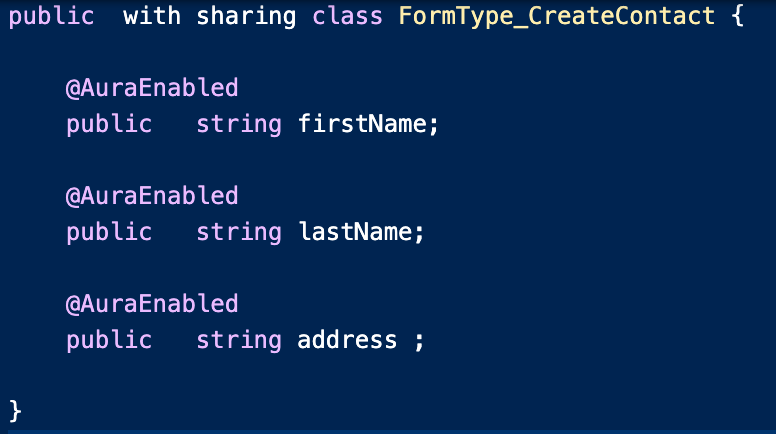
The straightforward way to do this would be to create one Apex class for the Mailing List form, and ‘auraEnable’ it so that it shows up in Flow as an Apex-defined Type:
We’d create a similar one for the Order form, and when the flow designer creates their flow, they’d simply select the one that was a match for the current job.
But we have a tougher challenge here, because we want the use to be able to freely (and without code) create lots of unique custom form types. In order to support that, we need to trigger each time a form type is changed, and automatically generate the appropriate Apex data type in the background.
This isn’t easy to do. It requires the use of a multistep process that involves:
starting with a list of the names of the fields, do string manipulation in Apex to build up a string representing the Apex Class you want to generate
programmatically assemble a zip file package of metadata, including a package.xml file
Base64 encode the package and deploy it from apex using standard metadata deployment.
Fortunately, Andrew Fawcett yoda’ed the hell out of this problem back in the 2010’s. His MetadataService forms the backbone of our solution.
The solution has 2 parts:
You use the GenerateCustomClasses code to take a list of string keys (technically it expects a Map<String, String> but only the keys are used) and generate two Apex classes.
The two classes are a custom datatype (aka an Apex-defined type) and an invocable action called ProcessForm_[foo], where the full name is determined by an input to the GenerateCustomClasses code.
The GenerateCustomClasses code is set up as an invocable action but in practice it’s unlikely to be used declaratively. A more realistic scenario is to have the creation of some kind of data structure trigger this code to run and generate the two classes so that the data structure can be manipulated declaratively in Flow.
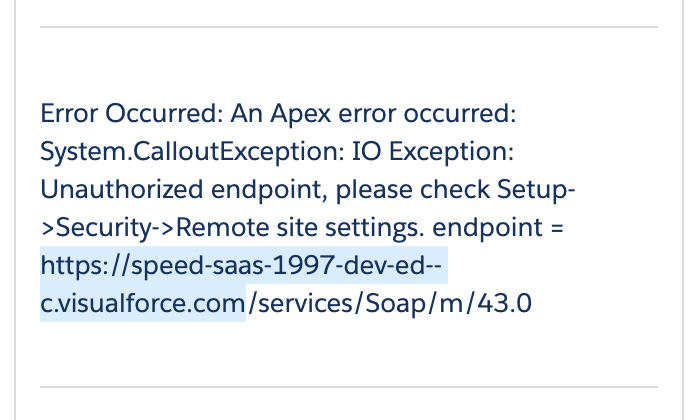
Note that because the generation process involves a metadata deployment call back into your org, you will need to add a remote site setting. The easiest way to find out what you need is to just run the flow and then copy out of the error message:
The ‘Dedupe Fields From Record Collection‘ action is being retired and the functionality is now being moved into the CollectionsProcessors ‘ExtractFieldsFromCollection’ action:
Ragan Walker added several improvements to the action:
Parameterizes dedupeValues functionality (defaults to true)
You can now output to a comma-separated text variable instead of just a text collection variable
Supports extracting + deduping of multi-select picklist fields
Adds flow documentation
Supports bulkification
Adds exception handling to make action more robust
Adds further unit testing
You can still download the ‘DedupeRecordsFromCollection’ action below.
Intro
A few months back I posted about an action Danny Tilton and I over at CapTech Consulting worked on that has simplified a ton of my Flows. You can find that on my LinkedIn profile here (sorry, shameless plug: Here)
We separated the action into two classes: DedupeFieldsFromRecordCollection and DedupeRecordCollection to simplify its usage.
Added a couple error exceptions – just in case!
You can now output results from DedupeFieldsFromRecordCollection to a comma-separated text variable (instead of just a collection)!
Dedupe Fields From Record Collection
NOTE: THIS ACTION IS NOW RETIRED IN FAVOR OF REVAMPING THE ‘ExtractStringFromCollection’ action. See the update at the beginning of this post.
Summary
This class takes in a Record Collection and spits out all of the de-duped values of a field of your choosing across the records in the collection.
I used this in my LinkedIn Post, but say you wanted to get a list of all of the Owners of a bunch of records, but you didnt want a bunch of duplicate IDs. Run this bad boy on your collection and you’ll get a collection or text string of unique IDs! You can that loop on that to send an email alert, for example.
Inputs
Object Type
InputRecordCollection – The collection you want to get the de-duped field from
fieldToDedupeOn – The API Name of the unique field values you want to return in your text collection
Outputs
textCollection – Returns the results in a Text Collection variable
This is quite similar to the other class – instead of the action returning text, it just returns a set of de-duped records based on the field you specify.
In the example above you could de-dupe a set of Accounts based on OwnerId, then loop over each of the Accounts to grab its Owner to email on a nightly schedule. I think where this would come in handy is if you needed to grab other details about the record you’re de-duping on. Let’s say in your email to the Record Owner you wanted to give a few details about the record – that’s where you’d want this action.
Inputs
Object Type
inputRecordCollection – The collection you want to de-dupe
fieldToDedupeOn – The API Name of the unique field values you want to de-dupe all of the records on
Outputs
Object Type
outputRecordCollection
https://unofficialsf.com/wp-content/uploads/2022/09/largeUCSF-300x133.png00Adam Whitehttps://unofficialsf.com/wp-content/uploads/2022/09/largeUCSF-300x133.pngAdam White2020-05-15 11:24:092021-06-02 11:57:49Updates to Dedupe Record Collections Action & ExtractStringsFromCollection Action
GORAV SETH demonstrates how you can use ISCHANGED and PRIORVALUE in Before Save Flows Check it out
https://unofficialsf.com/wp-content/uploads/2022/09/largeUCSF-300x133.png00Tamar Erlichhttps://unofficialsf.com/wp-content/uploads/2022/09/largeUCSF-300x133.pngTamar Erlich2020-05-12 12:46:322020-05-12 12:46:33How to use ISCHANGED and PRIORVALUE in Before Save Flows by GORAV SETH
The Automation Components repo that was published last week features a useful action that I don’t think I ever created a blog post for.
GetFlowMetadata (what’s it’s called in the Automation Components repo) provides metadata about a Flow. Just provide it with a name OR a recordId and it returns:
        public String FlowApiName;

        public String FlowDefinitionId;

        public String ActiveVersionId;

        public String Description;

        public String Label;

        public String LatestVersionId;

        public String NamespacePrefix;

        public String FlowType;
Install
Install this from the new Automation Components repo via a managed package
https://unofficialsf.com/wp-content/uploads/2022/09/largeUCSF-300x133.png00Alex Edelsteinhttps://unofficialsf.com/wp-content/uploads/2022/09/largeUCSF-300x133.pngAlex Edelstein2020-05-11 17:50:302020-05-11 17:50:32Get Information About A Flow with GetFlowMetadata
If you’re working in Aura, you can insert the lighting:flow component. This is the same component that you can insert into pages in App Builder. However, Salesforce has not yet made lightning:flow available in LWC. Because LWC does not allow the embedding of Aura components, you can’t just add the lightning:flow component to your LWC. Why isn’t it available yet? lightning:flow is probably the most complex page component and has to be completely rewritten to work in LWC. It’s on the way, but it’s taking time.
The current options for working around this depend on whether you want to execute a visual flow that has screens and requires a user session with a browser, or whether you want to execute a screen-less ‘Autolaunched’ flow.
For Screen Flows
Wrapping lightning:flow and your LWC in an Aura wrapper component, and sending messages from your LWC to control the Flow component. Check it out here.
You can have your component load the Flow by URL. This will either load the Flow into a new tab or a new window, or you can have it overwrite your existing page (and your existing LWC).
For Autolaunched Flows
If the Flow is an Autolaunched flow (and thus doesn’t have screens) you can dynamically launch it from your LWC code by using an Apex call to the Flow invocation point.
Flows can be launched from platform events as of Summer ’20, so you can have your LWC fire a platform event. This also only works with screen-less flows.
https://unofficialsf.com/wp-content/uploads/2022/09/largeUCSF-300x133.png00Alex Edelsteinhttps://unofficialsf.com/wp-content/uploads/2022/09/largeUCSF-300x133.pngAlex Edelstein2020-05-08 09:00:382020-10-15 08:23:59How to launch Flows from Your Own Lightning Web Component
https://unofficialsf.com/wp-content/uploads/2022/09/largeUCSF-300x133.png00Alex Edelsteinhttps://unofficialsf.com/wp-content/uploads/2022/09/largeUCSF-300x133.pngAlex Edelstein2020-05-07 08:08:422020-05-07 08:09:59See ‘Quick Choice’ Featured at Today’s Salesforce Low Code Love Event
As you can see from this new post from Salesforce evangelism, Salesforce has officially recognized the work being done by the Flowhana, and in particular by Eric Smith (Quick Choice), Chris Van Der Merwe (Calculate Business Hours), David Entremont (Save Records Async), Enrico Murru (Evaluate Formula), and Andrii Kraiev (many of the actions). I worked with Philippe Ozil from Developer Evangelism, as he picked a selection of components, polished them up, added tests, and then created a new Automation Components repo.
I’m pleased with this on several levels:
It will attract new members to the Flowhana and introduce people to UnofficialSF
The code has gotten a polish and review by some very seasoned Salesforce developers who know a lot of useful things
The components have been made available as managed packages. Usually, we haven’t budgeted the time to create managed package versions on UnofficialSF
Managing Things Going Forward
Developers can contribute code changes via pull requests to the Automation Components actions, and they can continue to contribute to UnofficialSF. The process for Automation Components is more formal than what we do here. Philippe, the repository manager, says “it’s good to validate interest with a question first then have a PR. Then let’s be clear about best practices and code coverage reqs.”
https://unofficialsf.com/wp-content/uploads/2022/09/largeUCSF-300x133.png00Alex Edelsteinhttps://unofficialsf.com/wp-content/uploads/2022/09/largeUCSF-300x133.pngAlex Edelstein2020-05-07 08:07:122020-05-07 08:07:14A Big Honor For UnofficialSF: Some of Our Components Just Got ‘Officialized’!
If you arent familiar with the data model / structure of Salesforce Files (ContentDocumentLink,ContentDocument,ContentVersion) I STRONGLY recommend getting familiar with it. Not only because it will help you understand this action better, but because every admin and developer should know how they function.
Alex Edelstein also wrote a very helpful article on the matter here: https://unofficialsf.com/using-files-and-attachments-in-flow/ We built this to easily support providing a collection of ContentDocumentLinks to feed straight into the Send Rich Text Email action!
Use Cases
Generate a CSV file and Email it to a group of people, even non-SF Users using Send Rich Text Email
Generate a CSV file and post it to a Chatter Group or a Document Library
Create a screen flow triggered from a Related List, List View, or Quick Action that lets users pick records using Datatable and output their selections to a CSV file, then email that file to a set of users that they pick.
Send a CSV of records to an another system using invoked Apex Actions
Generate a CSV file from a ‘Complicated Collection’ – Utilize UnofficialSF’s Collections Processors to create collections of records that would be impossible with Salesforce Reports or even SOQL
Features
Create Multiple ContentDocumentLinks – Linkages between File and Records – Specify a string or text collection of record IDs to associate the file with those records
Sharing / Collaborator Rights – Specify the sharing and visibility of each ContentDocumentLink
Limit the Fields Exported to CSV – Customize the order and fields included in your CSV via text collection or comma-seperated string. This is optional, if left blank, it will export all fields that were in the collection / query.
Aggregate Queries and Custom Relationship Support* – Support for relationship fields provided by ExcecuteSOQL Example: Contact__r.Custom_Field__c.
Run Asynchronously – Can execute ‘asynchronously’ if CPU timing is an issue.
Generate a Platform Event if ran asynchronously – If ran asynchronously, supports generating a platform event of type ‘CSV_Document__e’. The platform event does not come packaged with this, you will need to create it manually for now. See below for when and why you’d want to use this.
Error Handling – We added some error handling for a variety of scenarios – including if you hit CPU limits we suggest switching you into asynchronous mode
Inputs
Required:
recordCollection
Record (sObject) Collection – The collection you want to turn into a CSV
documentTitle
Text – The title of the File when generated
Optional:
documentShareType
Text – Sharing permissions for the file. Available values: “V” (viewer), “C” (collaborator), “I” (inferred); Default value: “V”
documentVisibility
Text – Specifies whether the document is available to all users, internal users, or shared users. Available values: “AllUsers”, “InternalUsers”, “SharedUsers”; Default value: “AllUsers”
linkedRecordIds
Text Collection – List of recordIds to link generated document to. If this and linkedRecordIdsString are left blank, will only relate to the running user
linkedRecordIdsString
Text – Comma-separated string of recordIds to link generated document to. If this and linkedRecordIds are left blank, will only relate to the running user
fieldsCollection
Text – Collection of strings of record fields names to print as columns in CSV. If this and fieldsString are empty, all populated fields on the record collection will be displayed.
IMPORTANT: If you want to include related fields from a SOQL query (Custom_Object__r.Custom__c) this parameter is required.
If you used field aliasing in an aggregate query, alias names can be provided rather than the API names.
fieldsString
Text – Comma-separated string of record fields names to print as columns in CSV. If this and fieldsCollection are empty, all populated fields on the record collection will be displayed.
IMPORTANT: If you want to include related fields from a SOQL query (Custom_Object__r.Custom__c) this parameter is required.
If you used field aliasing in an aggregate query, alias names can be provided rather than the API names.
executeAsyncIdentifier
Text – If provided, the action will execute asynchronously and return values will be posted to a platform event: CSV_Document__e. Use this identifier to listen for the platform event in a ‘Wait’ element in flow or use Summer 20’s ‘Invoke Flow from a Platform Event’.
Note: You generally want to pass in the Flow’s Interview ID (Done by accessing the Flow global variable $Flow.InterviewGuid
Outputs (Optional)
If the action is executed asynchronously (indicated via executeAsyncIdentifier parameter), then the job id(s) for the execution are returned immediately and the document information is published via platform event if configured. Otherwise when run synchronously the CSV File information is returned immediately.
ContentDocumentID
Text – ID of the ContentDocument generated
ContentVersionID
Text – ID of the ContentVersion generated
ContentDocumentLinkIDs
Text Collection – IDs of the ContentDocumentLinks generated
asyncJobIDs
Text Collection – Id of the asynchronous job queued (AsyncApexJob). If the action was executed asynchronously all other return values will be null. Use this to query for status of the job.
Considerations
When using this action, you are still subject to normal governor limits, even when running this action asynchronously. We’ve added customized error handling should you input a collection of records that exceed the available heap limit.
Examples
Create a CSV file then post it to a Chatter Group
One potential use case here could be generating a CSV from a Flow lookup, then posting the file generated to a Chatter Group AND to a specific Account. Here’s how we’ll relate the file to multiple entities using a collection of ContentDocumentLinks.
Here’s how you’d do it:
Generate whatever Record Collection you want from a Flow Get step. Feel free to choose ‘All fields’ but beware – you will want to limit the fields when you configure the action or you’ll get every field on the object in your file.
Do another Lookup on ‘CollaborationGroup’ using the group name to get the ID of the Chatter Group
Create a Text variable and check ‘Allow multiple values (collection)’ This is what you’ll be adding your related IDs to.
Create an assignment step to add both the ‘recordId’ variable used to launch the flow and the results of the Chatter Group lookup Id {!Look_up_Chatter_Group_ID.Id}.
We’re ready to generate our CSV! See below for how you’d configure it. For documentTitle I recommend a formula field and grab the related record’s details and the TODAY() function to add to the file name. Check out the ContentDocumentLink documentation linked above for a good description on what each of the values mean for ShareType and Visibility.
Your CSV will now be in the ‘Files’ related list of any records you put into the linkedRecordIDs String/Collection!
Note: If you don’t specify any Linked Records, the File will simply be associated to the user that runs the Flow.
If you want to create a chatter post to the group then relate the file to the post as well, you can use the out of the box ‘post to chatter’ action and then do a ‘Create’ step on ‘FeeedAttachment’ using the output ID of the chatter step and the outputs from the CSV action:
Output aggregate queries with ExecuteSOQL
This action is also supports aggregate querying with Alias support with ExecuteSOQL.
Aggregate functions in SOQL, such as SUM() and MAX(), allow you to roll up and summarize your data in a query. For more information on aggregate functions, see “Aggregate Functions” in the Salesforce SOQL and SOSL Reference Guide.
Aggregate Queries
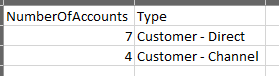
Let’s try passing in a query string from ExecuteSOQL into the CSV action – including an Alias for our Count expression. By providing an alias for our count, the CSV will have a nice clean column name instead of some nasty ‘expr0′ label.
SELECT count(Id) NumberOfAccounts, Type FROM Account WHERE type != null Group by Type
Run the ExecuteSOQL action using the query above in a Text Template variable as the ‘soqlQuery’ input.
NOTE: MAKE SURE YOU USE PLAIN TEXT! There’s also a bug in flow where if you make any changes to the text and save it, it will revert to rich text. Every time you edit it, you will need to flip it to plain text.
Run the action with the output from the ExecuteSOQL action and voila!
And the output file:
Related Fields
When paired with ExecuteSOQL you can also output related fields! Check out the video for how to do this. The key thing here is that you need to make sure all the fields in your SELECT statement are in the ‘fieldsString’ input. So if the query you pass into ExecuteSOQL is:
select id, name,Type, Ultimate_Parent_Company__r.Name from Account where Id = ‘{!recordId}’
You should be putting this into the fieldsString input for the CSV action:
TIP: It might be easier and more maintainable if you store your fields in a text variable so you can reference them in one place.
Wait for a Platform Event and Send an Email with the File Attached.
Create a new Platform Event type – call it ‘CSV Export Event’ and create the fields exactly as shown in the code below.
Comment back in the code referencing the platform event in the Apex Class (aka remove all the backslashes)
Your uncommented code should look like this:
You’re now ready to utilize the Platform Event functionality! The next step is really up to you and your process. In Summer ’20 you can choose to launch a flow based on this platform event type, or you can incorporate a ‘Wait’ element and resume on a platform event being posted. See below for an example.
For the CSV action you want to populate the executeAsyncIdentifier input variable with the Flow Interview ID:
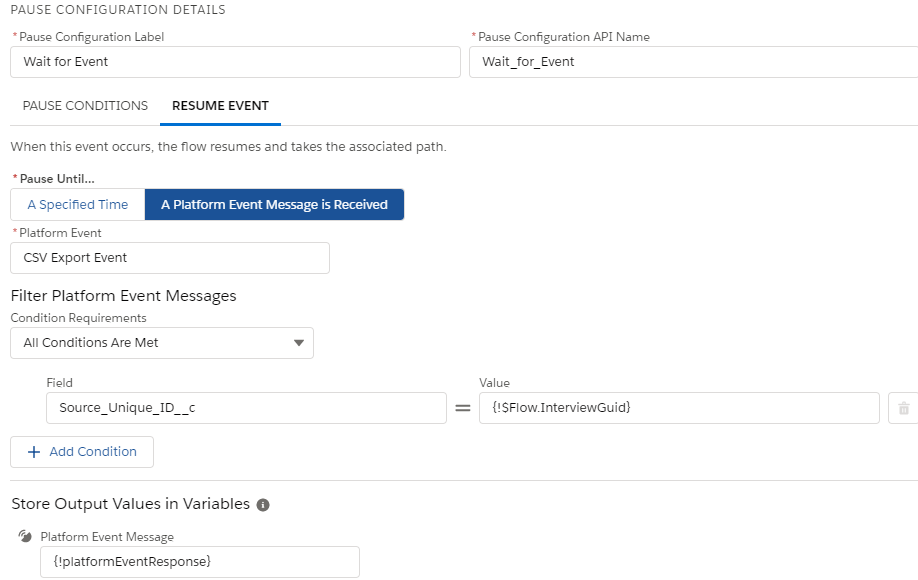
Here’s how you’d configure it the Resume piece of your ‘Pause’ action, :
You can store the Platform Event Response in a ‘record variable’ for use later in the flow. Just be sure to assign anything you might want from it in a separate variable like below:
Using the response from the platform event, you can use the Response’s ContentDocumentID to then do a ‘Get’ on ContentDocumentLink using the response ID and store it in a Record Collection Variable to be used in the handy dandy Send HTML Action. Make sure you store All Records.
In your Send HTML Action configuration just throw in the results of the ‘Get’ above and you’re all set to send attachments!
Here’s the full picture:
https://unofficialsf.com/wp-content/uploads/2020/05/flowpreview.png10161212Adam Whitehttps://unofficialsf.com/wp-content/uploads/2022/09/largeUCSF-300x133.pngAdam White2020-05-06 13:12:182022-01-21 13:22:35Convert Records to a CSV File
With version 1.3.2 of Execute SOQL, you can now pass in queries like these in your Flow and get back records:
SELECT LastName from Contact WHERE Id = '1123xxx333e3e'
Query on date literal: SELECT Id from Contact WHERE CreatedDate = LAST_n_DAYS:14
Kudos to new contributor Ragan Walker, part of the impressive operation at Captech Consulting. Keep an eye out: I hear they’re about to post a crazy CSV utility.
https://unofficialsf.com/wp-content/uploads/2022/09/largeUCSF-300x133.png00Alex Edelsteinhttps://unofficialsf.com/wp-content/uploads/2022/09/largeUCSF-300x133.pngAlex Edelstein2020-05-05 19:18:542020-05-05 19:18:55The SOQL Wins Keep Coming: Execute SOQL action now supports date literals and ID literals
The community has done some great work bringing SOQL tools to Flow, but this recently published action from GravityLab demonstrates how you can use the recently shipped dynamic SObject support to allow for the first time, record searches in flow to leverage the same search Salesforce offers in the Omnisearch bar, complete with fuzzy logic and incomplete words.
It also supports SOQL queries. Some of its distinctive features:
Bypass sharing rules
Pass in a List of Ids.
They’ve provided a video, source code and an installable package. Check it Out!
https://unofficialsf.com/wp-content/uploads/2022/09/largeUCSF-300x133.png00Alex Edelsteinhttps://unofficialsf.com/wp-content/uploads/2022/09/largeUCSF-300x133.pngAlex Edelstein2020-05-05 18:52:242020-05-05 18:57:59Easy SOSL Searching with ‘Search with Apex’ from GravityLab