Quick Choice v1.4 – Help Text, New Record Detail, Bug Fixes

QuickChoice is an improved Picklist and Radio Buttons component for Flow screesn.

V1.4 includes the following improvements:

  • Every attribute now has help text available to make it easier when you are configuring the component for a flow screen
  • The install packages now include the latest (v1.5) of the Record Detail FSC
  • A bug has been squashed that caused only the last selected visual card to display as checked when multiple Quick Choice components were on the same flow screen

Quick Choice V1.3: New Outputs, a Test Class Fix

QuickChoice is an improved Picklist and Radio Buttons component for Flow screesn.

V1.3 includes the following improvements:

  • The test class utility MockHTTPResponseGenerator was renamed to eliminate conflicts with existing installations that use this utility
  • New Output Attributes: allValues and allLabels
  • New Output Attribute: selectedLabel

allValues and allLabels

These are two new string collection output attributes.

These are useful in scenarios where you want to use Quick Choice’s record filtering to generate an appropriate subset from a picklist field, and then you want the list of values or the list of label, for further processing. Some examples:

  • Heath Parks wrote: I am getting the record type IDโ€™s to select what โ€œpathโ€ a person needs to take. So if itโ€™s CW Engagement record type, it following the CW path, if itโ€™s Limited Engagement record type it follows the Limited path and so on. a total of 4 decisions, I can get the decision to work, but I am having to hard code in the record type ID into my decision element. I would like to not do
  • David Rabizadeh wrote: Hi Alex, Iโ€™d also benefit from outputting the label if youโ€™re able to add that feature. Then I can go back through the collections and โ€˜removeโ€™ the selected items from the dual collection and present the user with another set of choices.

For more information and installation, see https://unofficialsf.com/quick-choice-improved-picklists-and-radio-buttons-for-flow/

Execute SOQL V1.2: Handles Flow Dates Properly and works with Flow Schedule and Record Change Triggers

The Execute SOQL action takes a SOQL string and executes the query, returning the records that you specify. It comes packaged with a graphical SOQL Builder component that you can add to a flow screen to let your users create their own queries at runtime.

New for V1.2

Previously if you tried to pass a “standard” Flow date via a mergefield into this action as part of the SOQL string, it would get confused. Flow dates are now converted properly.

Additionally, the class was fixed to work properly with Schedule triggers.

For more information see: https://unofficialsf.com/a-graphical-soql-query-builder-for-flow/

PREVIEW: Using Dynamic Types with Flow Screen Components

NOTE: This functionality requires a Summer ’20 org. (To sign up for prerelease Summer ’20 orgs, watch here for the link that will be made available).

In Spring ’20, Flow added to its invocable action support the ability to use input and output attributes with generic types of SObject or SObject[]. This allows for the creation of powerful new types of actions that you can install and build.

In Summer ’20, Salesforce extends this capability to Flow Screen Components written using Lightning Web Components, released as a Beta. This will empower components like datatable, which provides a list view. We’ve had some great datatable implementations available on this site, but if you look into them you’ll see that they’ve suffered because of this limitation. Some implementations only support a handful of standard objects. Supporting custom objects required code modifications. If you have, for example, a custom object called QuoteRequests__c, and you wanted to display a collection of quote requests in a nice list view, you had to craft a version of datatable in code specifically ‘tuned’ to accept QuoteRequests. This isn’t a huge impediment to developers, but we really want to get great components like this published in a state where admins can use them without going anywhere near code.

So, with Summer 20, LWC’s gain the ability to expose attributes of type SObject and SObject[] and Flow gains the ability to use them.

Configuring an LWC to Expose Generic Attributes

This configuration is done in the existing component meta xml ‘design file’. Let’s take a look at an example:

<targetConfig targets="lightning__FlowScreen">
    <propertyType name="T" extends="SObject" label="Object API Name" description="Select the api name of the SObject this component is going to be looking for" />

    <property name="selectedRecord" type="{T}" label="The selected Record" role="outputOnly" description="The SObject the user has selected" />
</targetConfig>

Setting up generic attributes is a two part process. In the first process, you define a propertyType that extends the existing SObject type that’s part of Lightning Web Components framework, and you give it a name. Here’s the name of the type is a single letter “T”. It could actually be anything you want, but it’s a standard convention to use single letters to help the reader recognize that they’re looking at a type and not a variable.

The second part of the process is to define your generic properties and set their type to be the type you’ve defined. Note the use of braces in the property element. The braces signal that a replacement is needed and Flow will duly replace the {T} in the property name with the appropriate type selected by the user when they add the component to a screen and edit its property editor.

For collections, you use the same ‘extends=”SObject”‘ in the propertyType and then tack on some brackets in the property. Note that you can actually have a mix of collection and singleton records extending from the same property type:

<targetConfig targets="lightning__FlowScreen">
    <propertyType name="U" extends="SObject" label="Incoming Records" description="Which kind of records are you passing in this time?" />   
 <property name="incomingCollection" value="{U[]}" type="String" label="inputCollection" />
 <property name="someRecord" type="{U}"   label="anotherRecord" />
</targetConfig>

Once you define a propertyType, you can use it for more than one property, and you can have multiple propertyTypes, each with its own name, in the same targetConfig.

Note that all of this functionality only works with the lightning__FlowScreen target.

Improved Readability for the RecordDetailFSC

I found that the standard view mode for the Record Detail Flow Screen Component was hard to read because there was no separation between the field rows. To make the display look more like a standard record detail view, I added an underline between the rows.

BEFORE

AFTER

Datatable Component now supports Column Filters

For the latest on the Datatable component, please go here: Datatable – Lightning Web Component for Flow Screens

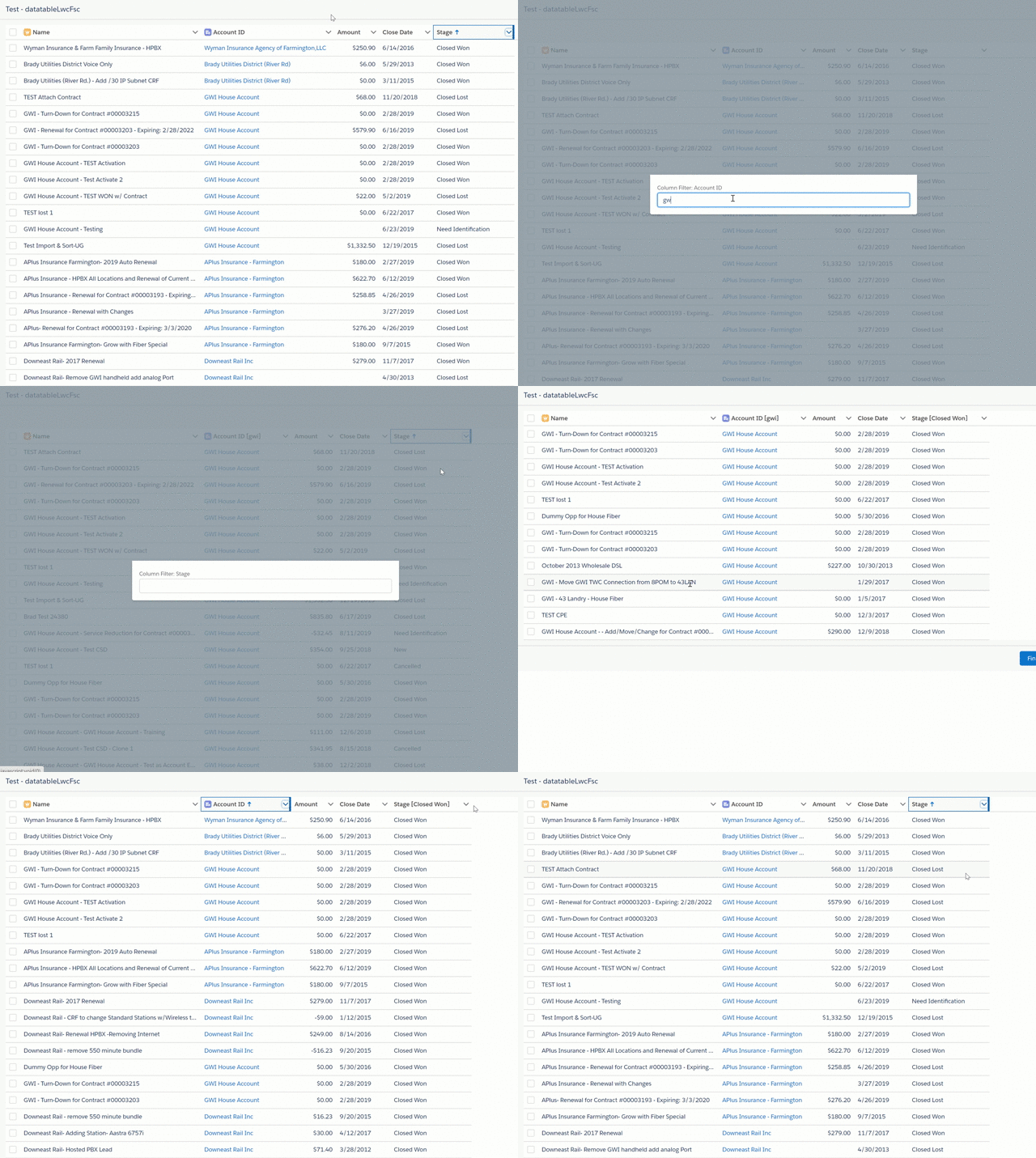
Multiple people have asked for the ability to allow the user to filter the results being displayed in the datatable component. My most recent update to the LWC datatable component includes the ability to specify any or all columns to support the entry of a filter value by clicking on the column header. An additional attribute has been added to specify whether or not the filter values should be an exact upper/lower case match or not.

Serialize Records to JSON and Deserialize JSON strings to Records

Neil Armstrong, a Flow ace in the Salesforce solution engineering corps, came by with a use case:

I’m working on a Lambda function that can invoke flows via REST. Is there a way to pass in records? The REST API for Flow only accepts strings

As Neil points out,the REST interface only supports string inputs. But you can solve problems like this by passing the object in as a string to the Flow and then using a Flow Action to deserialize (convert) the string to your desired SObject.

This is something that has been available for a long time via custom code, but the recent support that Flow gained for dynamic sobjects makes it possible to package this functionality as an installable pair of actions, provided below.

Serialize SObject To Json

This action has the following inputs:

inputSObjectThis can be any record. You specify the object type in Flow Builder each time you add an instance of this action to a Flow.
inputSObjectListThis can be any record collection

This action outputs a serialized string representing the record. For example, a basic Account generates this JSON:

Deserialize JSON to SObject

This action takes as input:

serializedSObjectListStringthis expects a string like the one shown above.
objectTypeNamethis expects a string formatted as a json array, with one or more interior records

This action outputs:

outputSObject
outputSObjectList

Here’s a demo flow that uses both of these. It loads an Account, serializes it to a string, and then converts it back to an account. This flow is available in the package and will run as long as your org has an account with name ‘account1’.

Considerations

You may notice that Account is specified three different times: two visible above and one inside the serialized string. That’s deeply inefficient, but 1) I haven’t quite figured out how to introspect the type that the user selects in the “Object for” field and 2) I don’t have time at the moment to build properly robust json parsing to pull it out of the string. These are left as exercises for people who want to become famous.

One possible use case for this: you can serialize a record and then store it in a string field of another record! And then later on, you can retrieve that string and deserialize it back to a record! I have no idea if that’s useful, but it smells like it could be. Anyone have any other ideas for what one might do with serialization and records in flows?

Install

Unlocked 1.1.0 9-22-21

troubleshooting installs

Old Versions

Unmanaged 1.0.1

View Source

Source

New LWC Datatable Component!

For the latest on the Datatable component, please go here: Datatable – Lightning Web Component for Flow Screens

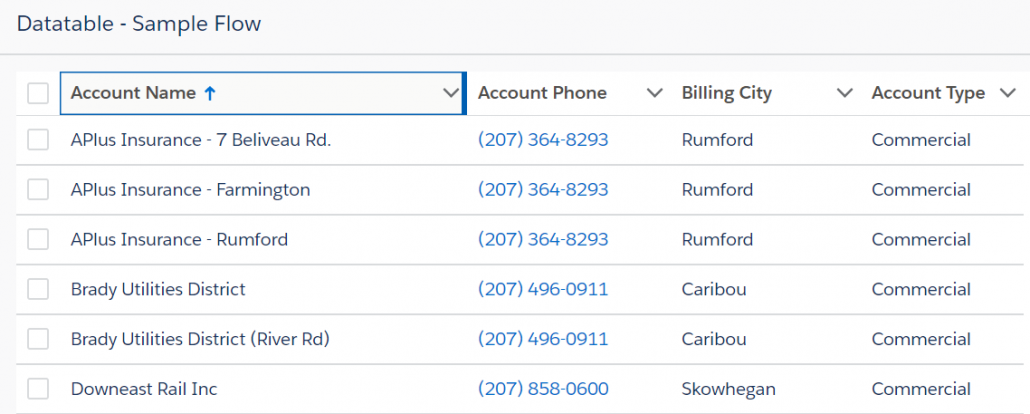
The datatable Flow Screen Component has been one of the most popular add-ons found on unofficialsf.com.ย  Admins have found many great use cases for the component and we have been able to add some nice updates to it as well.

One of the drawbacks to the component was the requirement to hard-code the Objects you wanted to display records from.  Starting in Summer โ€˜20, that restriction should go away for Flow components, if they are written as Lightning Web Components.  Unfortunately, the original datatable is written as a Lightning Aura Component.

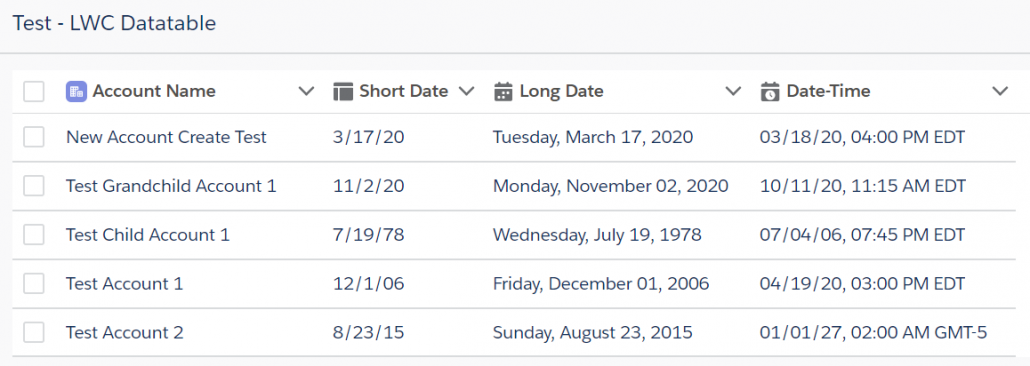
I decided to start from scratch and create a brand new LWC datatable component.  I think it is easier to configure and use than the original component and it offers some great new features.

  • The only required attributes are the Record Collection and a list of field names
  • Lookup fields are displayed with the record name as a link rather than showing the Id  
  • You can restrict the number of records to be displayed in the table
  • Percent and Time fields now display correctly
  • When using inline editing, only the changed records are passed back to the flow
  • You can set overrides just for the columns you want for attributes like:
    • Alignment
    • Icon
    • Label
    • Width
    • Editability
  • You can easily add advanced attributes like CellAttributes and TypeAttributes
  • Advanced attributes can even use the values of other fields in the records

Until Summer โ€˜20, the new component still needs to have the Object hard-coded but I have included versions for 11 different Standard Objects and complete instructions on how to modify the component to create versions for other Standard and Custom Objects.

Please give the new component a try and let me know how it works for you.

Eric Smith

Demystifying Flow’s Custom Notification Action & A Possible UnofficialSF Use Case

I recently started trying out the relatively new Custom Notification action today and wanted to share my thoughts on two head scratcher inputs.

Check it out

I call out the Collections Processor package here on UnofficialSF

One neat little combo would be utilizing some of the invoked actions found on UnofficialSF.com. You could use the ‘Extract Fields’ action from theย Collections Processor Packageย to do a query, run the invoked action to get a text collection of IDs, then pass that into the Recipient ID input.

Using Custom Screen Components with Conditional Field Visibility to Create Dependent Picklist Combos

This scenario is common and powerful: you have a Flow Lightning Screen Component on the screen. Perhaps its an out-of-the-box component like Address or Lookup, or maybe it’s a custom component like QuickChoice. You want to have another component on that screen use conditional visibility and make the visibility dependent on the value of the selection in your first screen component.

This works really well, but there are a couple of little tricks that it helps to know about. The main thing to know is that outputs from Lightning Screen Components are only immediately available to the Conditional Field Visibility subsystem if you use the recently introduced Automatic Output Handling by clicking off the “Manually assigned Variables (Advanced)” checkbox.

This is necessary because the checkbox activates the older manual variable system, which doesn’t get updated with changed values until the Next/Finish button is clicked. When the checkbox is off, the new Automatic Output Handling is turned on, and conditional field visibility will work.

Here’s a video demo:

When you turn off this checkbox, (which is on by default in Spring ’20 for new components, but will be off by default starting in Summer ’20), you still won’t see the component show up in Set Component Visibility until you close and reopen the screen. At that point, you’ll be able to select the value from the parent screen component as an input into the visibility expression:

Theoretically, it should be possible to chain together a huge number of these….!