Many invocable actions make web callouts to endpoints via HTTP. However, Salesforce won’t allow callouts when a transaction is open. So if you want to make a callout in your flow, you need to make sure that any open transactions are closed.
The recently added Scheduled Flows feature always opens a transaction when the schedule ‘fires’, and you can’t insert actions with callouts in Scheduled Flows as a result. That means that something basic like this won’t work:
However, you can use the Launch Flow Dynamically action to work around this limitation. This flow previously was discussed here. The new version 1.2 has a boolean attribute called UseFutureLaunch that can be set to True to cause the dynamically launched flow to get ‘Future’ treatment.
When an action method gets marked as a Future method, Salesforce puts it in a different queue and does not enforce the limitation that there can be no open transactions. In exchange for this, you’re basically allowing Salesforce to delay carrying out the work until some hypothetical future point when there’s less load. In practice, I haven’t see these delays be meaningful but they should be kept in mind.
When you’re using this approach, you break things into two pieces. The callouts get put in a separate, activated autolaunched Flow:
In the Scheduled Flow, add this Load Flow Dynamically action:
…and give it the name of your activated autolaunched flow, along with any parameters you want to pass.
At the moment, the parameters have to be strings, which makes it hard to pass the records that you can get as part of the schedule trigger batch query. However, you can work around that if you need to by using Serialize and Deserialize: have the Scheduled flow serialize the retrieved record, pass it to Launch Flow Dynamically as a string input parameter, and then Deserialize it into a record.
For developers, you can learn about Future methods here.
https://unofficialsf.com/wp-content/uploads/2022/09/largeUCSF-300x133.png00Alex Edelsteinhttps://unofficialsf.com/wp-content/uploads/2022/09/largeUCSF-300x133.pngAlex Edelstein2020-05-03 09:27:032020-05-03 09:27:05Mix Callouts with Scheduled Flows with the Updated Launch Flow Dynamically
Primary Fix: Update regex for SOQL query string to to handled nested relationship queries after the WHERE clause; The code will first check to see if one of those queries exists and if true, will recursively search the nested queries and do the same formatted on those; If false, it will continue on with the single query search Secondary Fixes: Strip unwanted formatting characters from the query string that come in when text template is used in flow: ‘\n’, ‘\r\n’, ‘\t’ Fix time stamp formatting on date strings with a time: ’00:00 am’ is an invalid format. The equivalent, valid format using regular time is ’12:00 am’. ’00:00′ is only valid for 24hr formatting. Fix month name to month number conversion: prepend a 0 on the month number if the string value is < 10 Improvements: throw some exceptions for more informative error handling cleaned up unit suite and fixed failing tests Potential issues not yet fixed: It appears that after the ‘ order by ‘ substring is removed from the query, it is never added back before querying. Use Cases: SELECT Id, Name,Status_DD__c,Region__c FROM Object2__c WHERE Status_DD__c in (‘Option 1′,’Option 2′,’Option 3’) and id not in (SELECT Id FROM Object1__c WHERE CreatedDate >= 2020-04-12T15:24:00Z) and Field1__r.Custom__c = ‘1234’ SELECT Id, Status__c, Contact__c , Custom__c FROM Object_1__c WHERE Status__c like ‘%Active%’ AND Account__r.Custom__c = ‘1234’ AND Custom__c not in (select Custom__c from Object_2__c where Contact__c = ‘1234’)
Special thanks to Adam White and new contributor Ragan Walker, from CapTech Consulting, for these excellent hardening fixes.
It’s not very hard to clone a collection of records in Flow. You’ve been able to do it in Assignment node for a couple of years, and the Copy Collection action in Collection Processors is extremely efficient. A lot of cloning, however, requires that child/related records get handled as well. This new DeepClone action can really accelerate and simplify flow that do this kind of administrative work.
This action takes as inputs:
SObject inputRecord;
You can provide either a record or a recordId. You have to provide one and only one.
String inputRecordId;
You can provide either a record or a recordId. You have to provide one and only one.
List<String> childRelationships;
Provide the names of the child relationships you want to clone. You can provide them either as a collection of Strings or a single comma-separated string. See ‘Specifying the Child Records’ below.
String childRelationshipsCSV;
Provide the names of the child relationships you want to clone. You can provide them either as a collection of Strings or a single comma-separated string. See ‘Specifying the Child Records’ below.
Boolean saveImmediately = true;
If set to true, the action will immediately save the cloned records. true by default. This needs to be true in order to clone child records because they need a parent recordId or you won’t be able to save them later.
Boolean saveChildRecordsAutomatically = false;
Save the child clones immediately along with the parent clone.
Specifying the Child Records
Using either a List of Strings or a comma-separated string, provide the Child Relationship Name of the child records you want. For example, if you want to clone Opportunity Products along with an Opportunity, you would use ‘OpportunityLineItems’, as shown below:
How it Works
The action creates a clone of the provided input record and immediately saves it so it can obtain the new Id of the newly created clone record. The child records are then retrieved and cloned, and the new Id is used for their lookup value. The child records however are not immediately and automatically saved, as many use cases will call for them to be modified first. Use Create Records to save the child records and Update Records to save any changes to the cloned Parent record.
The action will attempt to append “Clone” and a date to the Name or Subject of the record being cloned so you can distinguish between clones in the event you don’t manually change the record name yourself.
Master-Detail Relationships
When working with master detail objects. Make sure to add ” __r” to the end of the relationship name. This is very important thing for custom fields and custom relations;
For example, you have a child object with a MD field that references Account. Then in Master Detail Options you can see that for the custom field, Child Relationship Name = Custom_Object_MD_Account. So in Deep Clone set childRelationshipsCSV = Custom_Object_MD_Account__r .
Back on March 31, we put out the first Chance for GloryNarender Singh responded quickly with a great action that takes uploaded CSV data and converts it to records in Flow. A few commenters note how useful it would be to be able to go in the other direction, and Narender has written a solution for that as well, available here.
Here are the inputs:
            @InvocableVariable(label='Object API Name' required = true)
            public String strObjectApiName;

            @InvocableVariable(label='Save file with name' required = true)
            public String strFileTitle;

            @InvocableVariable(label='Add time stamp to the file name?'  )
            public Boolean boolAddTimeStamp;

            @InvocableVariable(label='List of Records' required = true)
            public SObject[] lstRecords;
The action outputs a single Content Document Id, which makes me realize exactly what we need next: A File Download screen component! Perhaps that will be the subject of the next Chance for Glory.
Well done, Narender!
https://unofficialsf.com/wp-content/uploads/2022/09/largeUCSF-300x133.png00Alex Edelsteinhttps://unofficialsf.com/wp-content/uploads/2022/09/largeUCSF-300x133.pngAlex Edelstein2020-04-29 20:06:212020-04-29 20:07:15Easy Export of Records to CSV, Courtesy of Narender Singh
We think we’ve finally figured out how to activate the email subscription widget here at UnofficialSF, and are now making it available in the sidebar of posts. It looks like you can now request notification each time a new post is made. Enjoy.
Look for this on the right side of Posts
https://unofficialsf.com/wp-content/uploads/2022/09/largeUCSF-300x133.png00Alex Edelsteinhttps://unofficialsf.com/wp-content/uploads/2022/09/largeUCSF-300x133.pngAlex Edelstein2020-04-25 13:56:292020-04-25 13:56:31Easy Email Notification when UnofficialSF Publishes
I’m very pleased to again be able to share upcoming new Flow functionality! Preview Orgs can be obtained to try out this functionality.
Complete Flow Trigger Support
We’ve been adding triggers to Flow for the last couple of releases, and Summer ’20 finishes the job by adding support to trigger Flows on both traditional Process Builder-style record change events and platform events. We’ve had to do another evolution of the New Flow window because there are now so many ways to start Flows:
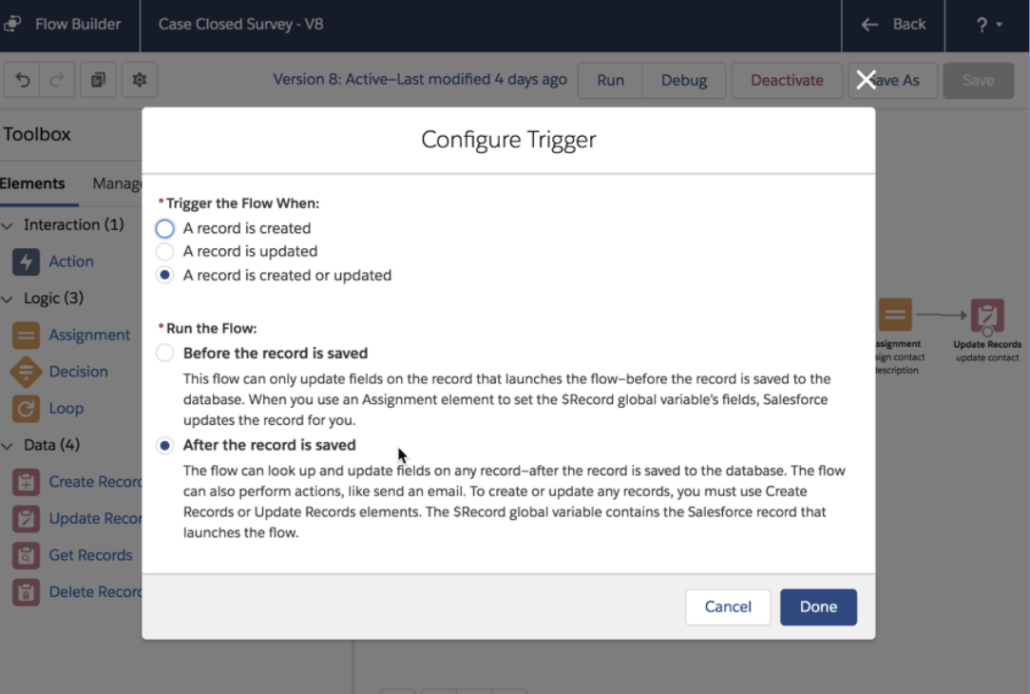
For Record Change events, you’ll be asked to choose whether you want to use the standard triggers that kick in immediately after a record change gets saved (also known as “After Save” triggers), or use the trigger introduced in Spring ’20 that fires immediately before the record saves:
The set of things you can do with a “Before the record is saved” triggered Flow is limited, but it does an extremely fast job performing one of the most common reasons processes are triggered: update a field before it gets saved with some additional information. For that use case, Before Save triggered flows are 10x faster than Process Builder. If you need to do things with related records, though, you’ll need to either use After Save triggered flows or stick to Process Builder. (We’re tracking the handful of features that are present in PB and not yet in FB, and intend to bring them all over to FB)
Flow Debugger Enhancements
This release, the debugging environment gets three useful enhancements:
You can now debug your scheduled flows. When you do this, Flow runs against the oldest record that matches the filter criteria.
If your flow uses input variables that expect records, you can select a specific record to set them to while running in debug
While debugging flows of type Autolaunched, you can enable ‘rollback mode’, which prevents changes from being permanently committed to your data
Record Selection
Rollback Mode
Multilevel Flow Permission Elevation
Permission elevation allows you to give a Flow a consistent level of access that makes it independent of the people running the Flow. That lets you create flows that can be used by relatively low authorization users (like Guest Users) that still do useful CRUD operations on key record types like Case and make use of Apex invocable actions.
Over the last couple of releases, Flow has been adding granularity to its permissioning. In Summer ’20, it becomes possible to anoint a flow with the ability to run in “System Context Without Sharing”. As you can see from the choices below, “System Context Without Sharing” is essentially full access to all data, whereas System Context with Sharing bypasses object- and field-level security settings, but still respect org-wide default settings, role hierarchies, sharing rules, manual sharing, teams, and territories.
Flow Analytics: Screen Time Duration & Record Count
You can access a pre-built report that shows analytics about your screen flows. Access this report from Report Tab > Public Folder > “Sample Flow Report: Screen Flow”. You can see how many flows are currently running as well as how many have been completed in a specified period of time.
You can inspect the individual transitions of single flow executions:
You can compare across screen flows and see how many instances (interviews) are currently running:
Automatic Input Retrieval
When you pass a recordId into a Flow from App Builder or a Quick Action, Flow now automatically converts it to a record (this is also known as ‘hydration’).
With Quick Actions, you still need to name your the input variable recordId, but you can make its type a Record type like Account or Contact, as opposed to the old Text option. You do not need to do Get Records to retrieve the record.
In Lightning App Builder, you will now be able to choose Pass record into this variable. for input variables of type record.
Automatic Output Handling Extended to Cover Subflows and Loops
The last substantial elements that required the use of manual variables have been enhanced to automatically generate output references for use downstream in the flow. In addition, see New Next Behavior to see a small but subtle change to Next behavior that was limiting the usability of Automatic Output handling. Automatic Output Handling is now on by default for all new elements.
For Loop element, the effect of this is to eliminate the need to create a “Loop Variable” in all new Loop elements:
Flow Guardrails
Guardrails are pop-up alerts that warn you about detected issues you might want to address.
Initial guardrails detect:
Unclosed loops
Database (DML) operations inside of loops
Changed Next Behavior for Screens with Lightning Screen Components
When returning to a screen via the Next transition, Flow will automatically recalculate the inputs of any lightning components on the screen to reflect any changes you made upstream in the Flow.
Previously, if an attribute of a Lightning screen component had both the input and output set in Flow Builder, then on a Next transition, it would reuse the most recently output value from the component and would not recalculate the inputs.
Basically, what this change does is ensure that EVERY time you visit a screen via a Next button, it freshly applies the latest input and EVERY time you visit a screen via a Previous button, the last value you had in the field is restored to it.
Pass Apex-Defined Variables into & out of Flows
The Apex-defined data type affords you a flexible way to represent complex data that isn’t well-modeled by the sObjects in your organization. Customers often use the Apex-defined data type to represent external web objects, so that they can integrate with external web services either entirely declaratively through Flow and External Services, or with a mixed code & clicks pattern through Flow and invocable Apex.
Now, like with most other Flow-supported data types, you can pass values or variables of the Apex-defined data type into & out of flows and subflows.
Miscellaneous Improvements
Revised Help menu provides more contextual, useful help, as well as Guardrails settings
Property Editor headers automatically hide unused field to save real estate
Field traversal in merge fields and combo boxers now goes multiple levels for Apex-defined data.
Flow Development Enhancements
Custom Property Editors in Beta for both Invocable Actions and Flow Screen Components.
The Send Rich Email sample action from the pilot will be published shortly as an example of how to add graphical user interfaces to your actions:
This easy-to-use Update Field action (to be published shortly), when coupled with the new Record Change triggers, provides for the first time a high quality Flow replacement for Workflow Rules:
Joining the actions, the beta also includes Custom Property Editors for Flow Screen Components. Here’s a preview of the new interface for Quick Choice:
Dynamic SObject Support for Flow Screen Components
This allows the creation of screen components that can be passed any kind of records. Eric Smith has already put this to work with Datatable, and the Flowhana now has, for the first time and after years of waiting and effort, a List View component that can be dropped into any Flow to work with any collection of records.
To learn how to build screen components that support dynamic sObjects, go here.
Finally, for those of you waiting for Sections and Columns and Canvas Autolayout, they didn’t make it into Summer but we are in great shape for the Winter ’21 release.
We now have the ability to dynamically specify SObjects to be referenced in Flows at the time of configuration!
This is a game changer!
No more editing source code for each different object you want to support.
No more creating unwieldy components that try and handle multiple objects.
I have updated the LWC version of my datatable component to support this new feature. You only need to install one version of the component and you can use it for any Standard or Custom Object. You supply the object name right when you configure the component on your flow screen in the flow builder.
Ver 1.33.1 is a minor release for sentHTMLEmail action – EXCEPT
saveAsActivity parameter now defaults to false. WARNING!!!! Emails activities will no longer be saved in the Activity stream unless explicitly using saveAsActivity = true.
Email Activity tasks created with Templates now have subject and recipients in Task Comments
You can now upload CSV data and turn it into Salesforce records with just a couple of Flow elements. This action is based on original work by Narender Singh, plus nice new improvements by Hijlko and Suraj Pillai.
Here’s all that’s needed to take a typical CSV file and turn it into a collection of Accounts that you can save or modify.
The work is done by the ConvertCSVToRecords invocable action. It takes as input one or more Content Document ID’s. This is the main way you refer to files that have been uploaded to Salesforce. In the example above, we use a File Upload screen component to upload a CSV file. (see Considerations: Uploading Files, below for more information). It outputs a Content Document ID which is then fed into the new action.
The action takes advantage of Flow support for generic SObjects in invocable actions. This is the same enhancement that enables Collection Actions. Here, at design time, I specify both the name of the object type “Account” and you select Account as the expect output from the action:
Considerations: Uploading Files
The video in this post shows an example that uses the out-of-the-box File Upload component. It requires a recordId to be provided, and it stores uploaded files ‘on’ that recordId. This makes a lot of sense when you’re trying to upload Account or Contact-related files, but doesn’t make a lot of sense here where we’re just trying to import data. As the video here shows, I actually created a separate object just to hold these values.The import process doesn’t actually make use of this related record. This is all a little annoying. Fortunately, since that video was recorded members of the Flow community have created a replacement extension called File Upload Improved, which doesn’t require a recordId. We recommend that for use with CSV Uploading.
CSV File Considerations
The first row of your file should consist of the field names you want to upload. Make sure you use apinames, include “__c” for your custom fields, and pay attention to the required fields for the records you’re uploading. Note: there should be no NULL values in the last column of CSV.
As of Version 1.2, the following things are supported:
Considerations: Large Data Sets
per research from contributor kurtfairfield:
if the file is too large, the parser hits heap size governor limits, likely in the recursive removeFSeps() method call.
Work around is to break the large input file up. In an example case involving a Custom object with about 7x 80 char fields typically, we can only parse 2500 rows before the heap limit is hit. But with several separate paged files, the parser survives.
Row Data Support
Text and Date fields
Embedded commas
Rows/File beginning and ending with quotes
Newline characters within columns
Null columns at the end of a row
Supports the CSV spec definition of double quotes, which is represented by consecutive double quotes ("") within a column enclosed in double quotes:
Column Header Support
Column Headers should be in the first row of the file and should be api field names:
Column Headers that are not already field API names will be converted to API Name format
Contributor Hijlko added this useful improvement. With it, you can import CSV files containing values that use non-comma separators like semicolons. Standard US csv uses a comma as a field separator while most European csv’s use a semicolon as a field seperator.The code can now import muli region CSV files Numbers/currency like 1,2345.56 (US) and 1.234,56 (EU) are converted to 1234.56
You can now set the following:
Field Separator
Thousand Separator
Decimal Separator
Currency Symbol
If these inputs are left empty, the existing default values will be used.
Support for Non-US Dates
Date values in the formats YYYY-MM-DD and DD-MM-YYYY (or with non-hyphen separators like YYYY/MM/DD and DD/MM/YYYY) are now converted by default to YYYY-MM-DD, which is the Salesforce standard. You can set the Date Format input: The default is yyyy-MM-dd or the local date format. Other supported formats are dd-MM-yyyy and MM-dd-yyyy
Attributes
Inputs
Object API Name
Required. Tells Flow what to convert your data into. Example “Account”. Make sure your CSV file has all the required fields
contentDocumentId
A single Content Document record ID string
contentDocumentIdList
Collection of Strings.
isTrim
Set isTrim to true to have any leading or trailing spaces removed.
Date Format
Date format used in the file. Default is yyyy-MM-dd or the local date format. Other supported formats are dd-MM-yyyy and MM-dd-yyyy
Separator 1: Fields
The character that indicates a separation between two fields. Defaults to a comma. European content often uses a semi-colon
Separator 2: Decimals
The character that distinguishes between the left side and right side of a value, such as 23.45. Defaults to period.
Separator 3: Thousands
The character that distinguishes between thousands, such as 230.454. Defaults to comma.
Separator 4: Currency
Output
A collection of Records
Install Package
Version 1.6 4/17/22 – ProductionSandbox fix to handle multiple input files
https://unofficialsf.com/wp-content/uploads/2022/09/largeUCSF-300x133.png00Alex Edelsteinhttps://unofficialsf.com/wp-content/uploads/2022/09/largeUCSF-300x133.pngAlex Edelstein2020-04-19 15:23:182023-04-24 19:02:57Import Data from CSV Files Using Salesforce Flow