If you want to import a CSV file, you can use this existing invocable action. It has a good feature set, but there are some limits on the file size that can be imported that stem from backend Salesforce limits. Andy Haas has provide a complementary Flow Screen Component that also allows CSV imports. This version processes files on your local computer, and can work with larger files. This component will automatically navigate to the next screen when the parsing has been completed.
Use Cases
The CFO at a large company has come to you with a request to allow end users to import a CSV file from their merchant companies each month. He doesn’t want to have to call you each month or learn another platform to import these records. He tells you that they partner with many different merchant processor companies and the files will stay the same each month; he wants the process to be as simple as possible for the end users. You ask him for the CSV files to create an object and fields corresponding to the file.
You sit down, open the CSV file the CFO sent to you, and create the object with the appropriate fields. You then open up a new Screenflow, drag the Convert CSV to Records – LWC Version to the screen, and set up the component’s configuration.
After you have set up the component, you test drive it out and see how quick and simple this will be. You schedule a meeting with the CFO and show him the progress; he is amazed at how well this works.
In the above use case, we talked about utilizing the component for a monthly import that the CFO has to do; this can also be used with a one-time import or a multitude of different use cases where the user is importing a file. If a user is not initiating the import, the existing invocable action will be the correct action to use.
Setup
Add the Convert CSV to Records – LWC to the screen.
Inputs
The inputs consist of 4 required inputs and a large list of optional advanced features. The underlying PapaParse library provides advanced features and is documented in the PapaParse documentation.
Input Name
Default Value
Description
API Name
The name of the component.
Input Object
This is used to get the field definition.
File Import Label
The label for the file input field.
Auto Navigate Next
If true, the flow will automatically navigate to the next screen after the component has been initialized.
Delimeter
,
The delimiting character. Leave blank to auto-detect from a list of most common delimiters, or any values passed in through delimitersToGuess.
New Line
The newline sequence. Leave blank to auto-detect. It must be one of \r, \n, or \r\n.
Quote Character
"
The character used to quote fields. The quoting of all fields is not mandatory. Any field which is not quoted will be correctly read.
Escape Character
"
The character used to escape the quote character within a field.
Transform Header
A function to apply on each header. The function receives the header as its first argument and the index as second.
Dynamic Typing
If true, numeric and boolean data will be converted to their type instead of remaining strings.
Encoding
UTF-8
The encoding to use when opening local files. If specified, it must be a value supported by the FileReader API.
Comments
A string that indicates a comment (for example, # or //). When Papa encounters a line starting with this string, it will skip the line.
Fast Mode
Fast mode speeds up parsing significantly for large inputs. However, it only works when the input has no quoted fields. Fast mode will automatically be enabled if no ” characters appear in the input.
Transform
A function to apply on each value. The function receives the value as its first argument and the column number or header name when enabled as its second argument. The return value of the function will replace the value it received. The transform function is applied before dynamicTyping.
Delimiters to Guess
An array of delimiters to guess from if the delimiter option is not set.
Please note that the following PapaParse inputs will be set within the component and can not be changed. Keep this in mind if any conflicting inputs will error out.
PapaParse Name
Value
Description
Header
TRUE
The first row of parsed data will be interpreted as field names.
Skip Empty Lines
TRUE
Lines that are completely empty (those which evaluate to an empty string) will be skipped.
Column Headers
The header columns are compared against the objects fields, and if the header column is a custom field and the header isn’t labeled that way, the component will rename the header and assign the custom field.
Example
Input Object: Account
CSV Headers: Name, Description, Active
The component will convert the above CSV Headers to the following:
Name, Description, Active__c
Outputs
Output Name
API Name
Description
Parsed Results
outputValue
An sObject of the parsed results.
Is Error
isError
Will be marked true if an error has occurred when attempting to parse the CSV file.
Error Message
errorMessage
Will output the value of the error that had occurred.
Implementations
Implementing this component can be as simple as creating records right after parsing like so:
Or you can be more complex with loops and filters as the output is an SObject allowing manipulation of the imported data.
With Spring ‘23 and the added ability for reactive screens, you can use this component to preview the data uploaded before creating records.
Install Link
Production/Dev
V1.0.1 1/14/23 ProductionSandbox Fixed setting the selected object in CPE
Old Versions
V1.0 12/29/22 ProductionSandbox 1st version hosted on FlowComponents
https://unofficialsf.com/wp-content/uploads/2022/09/largeUCSF-300x133.png00Alex Edelsteinhttps://unofficialsf.com/wp-content/uploads/2022/09/largeUCSF-300x133.pngAlex Edelstein2022-12-29 15:44:232023-01-18 18:20:10From Andy Haas: A high-volume Convert CSV To Records screen component
You can only approve or reject but cannot add an approval comment.
I wanted to see if I can improve on that by using a screen flow in Slack. This blog will not cover the initial setup and connection of Salesforce to Slack. You can find details on how to do this in the official documentation.
My solution was inspired by two blogs
Alex Edelstein created an invocable action for processing approval requests that includes sending an approval comment
Yumi Ibrahimzade demonstrated how to copy an approval comment from the approval history related list to a field on the record
In order to send a screen flow to Slack you have to create two separate flows that will work together.
A screen flow – this is what will surface to the user in Slack and process the user inputs there. This flow has to be marked as available in Slack. Marking a flow as ‘Available in Slack’ generates a separate ‘launcher’ invocable action that can be used in other flows
A record triggered flow – This flow will act as a dispatcher and will use the launcher action, we created in step 1, to send the screen flow to Slack when record conditions are met. Slack actions can only be processed asynchronously, after the record is saved.
To test this, I setup a simple one step approval process, with simple actions that update an approval status picklist field on the record
I then created my screen flow which has only one screen. The screen displays an approval request to the user, along with some record details, and captures the responses. The flow will then use those responses to process the approval using the invocable action, and update the record with the approval comment. The flow has some input variables that will get their value from the dispatching flow. I marked this screen flow as available in Slack. I was not successful in passing a record link to the screen flow. Slack uses a special markup language to format links, which works well when sending a Slack message using the “Send Slack Message” core flow action, but it did not work when sending in the screen flow action.
The next step was to create the record triggered flow that will send to Slack. My trigger was based on a custom Approval status field set to submitted, when a user will submit the record for approval. This will work well for a single step approval process but if you have a multi step process, additional conditions may be needed to determine the current approval step. This flow gets the most recent approval process instance, work item, and approver userId for the triggering record and passes this information, along with the record Id, to the screen flow action.
When both flows are combined, I was able to send an approval request to Slack, process the response, and update the record with the most recent approval comment. Here is a short video of the complete process.
This is a simple use case for a single step approval process with a single approver. It can be enhanced to handle more complex approval processes.
If there are multiple approvers, the dispatching flow will need to get a collection of all the work items and loop through to send the screen flow to all of them.
If a queue is set as the approver, the the dispatching flow will need to get a collection of all members of the queue to find their userId
The screen flow can be updated to add a recall action
https://unofficialsf.com/wp-content/uploads/2022/09/largeUCSF-300x133.png00Tamar Erlichhttps://unofficialsf.com/wp-content/uploads/2022/09/largeUCSF-300x133.pngTamar Erlich2022-12-27 06:09:362022-12-27 06:09:40Process approvals using a screen flow in Slack
This blog suggests a way that allows appointment booking with service resources who have support for a set of languages. Thus, we will be adding language support to our existing Appointment Booking flows.
Problem Statement:
Let’s say we have a Service Resource who can speak only a certain set of languages, say Hindi and English and another who can speak in only Chinese. Even though each of the resources have all the relevant skills for attending a Work Type, he/she will not be able to drive the appointment since they cannot speak a certain language.
By introducing language support we will try to eliminate this problem.
Solution Approach:
We manage a multi-select pick-list custom field on the Service Resource Object which will store the list of languages the resources can support
Add a selection to the flow that will display the languages – so that requestor can opt for languages he/she prefers to get the service in
After selection of languages in flow, the FilterByResourceIds is populated by intersection of ( getAppointmentCandidates API call and SOSL to fetch resources supporting the list of languages)
List the available service resources by filtering out those who know a specific language by leveraging “filterByResources”
Setup Steps:
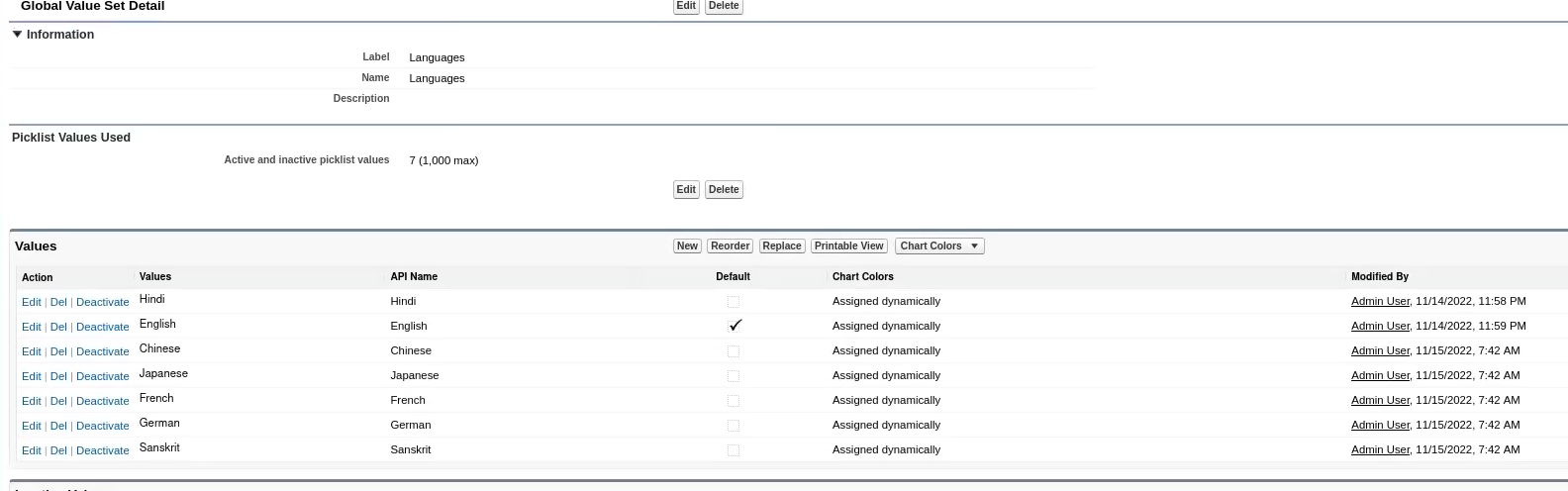
Create a Global Value Set
Create a new Global Value Set , with a defined set of language values.
Add a Multi-Select Picklist Field on Service Resource
Add a multi-select picklist field on Service Resource which takes values from the earlier defined global value set.
Create an Apex Class
Add following code to create an Apex Class ( Note that this class method will be used to set the FilterByResourceIds parameter):
There are two ways in which we can create this action.:
When there are many STM records for the selected ServiceTerritory, an extra API call can be used to reduce the scope of our query.
public class MultiLanguage {
@InvocableMethod(label=’Get Service Resource Ids’)
public static List<String> getServiceResourceIds(List<Input> inputs){
lxscheduler.GetAppointmentCandidatesInput input = new lxscheduler.GetAppointmentCandidatesInputBuilder()
String languages = inputs.get(0).languagesSelected;
List<String>languagesList = languages.split(‘;’);
languages = ‘(\” + String.join(languagesList, ‘\’,\”) + ‘\’)’;
List<ServiceResource> resources = DataBase.query(‘select id from ServiceResource where Languages__c includes ‘ + languages + ‘and id in :test1 and IsActive = true’);
List<String> list2 = new List<String>();
for(ServiceResource r:resources){
list2.add(r.id);
}
return new List<String>{String.join(list2, ‘,’)};
}
public class Input{
@InvocableVariable
public String serviceTerritoryId;
@InvocableVariable
public String workTypeGroupId;
@InvocableVariable
public String accountId;
@InvocableVariable
public String languagesSelected;
}
}
In cases when the count of STM is not that large we can directly query without an extra API call.
public class MultiLanguage2 {
@InvocableMethod(label=’Get Service Resource Ids2′)
public static List<String> getServiceResourceIds(List<Input> inputs){
String languages = inputs.get(0).languagesSelected;
List<String>languagesList = languages.split(‘;’);
languages = ‘(\” + String.join(languagesList, ‘\’,\”) + ‘\’)’;
List<ServiceTerritoryMember> resources = DataBase.query(‘select ServiceResource.Id from ServiceTerritoryMember where ServiceResource.Languages__c includes’ + languages + ‘and ServiceResource.IsActive = true and ServiceTerritory.Id =:serviceTerritoryId’);
List<String> list2 = new List<String>();
for(ServiceTerritoryMember r:resources){
list2.add(r.ServiceResource.Id);
}
return new List<String>{String.join(list2, ‘,’)};
}
public class Input{
@InvocableVariable
public String serviceTerritoryId;
@InvocableVariable
public String workTypeGroupId;
@InvocableVariable
public String accountId;
@InvocableVariable
public String languagesSelected;
}
}
Flow:
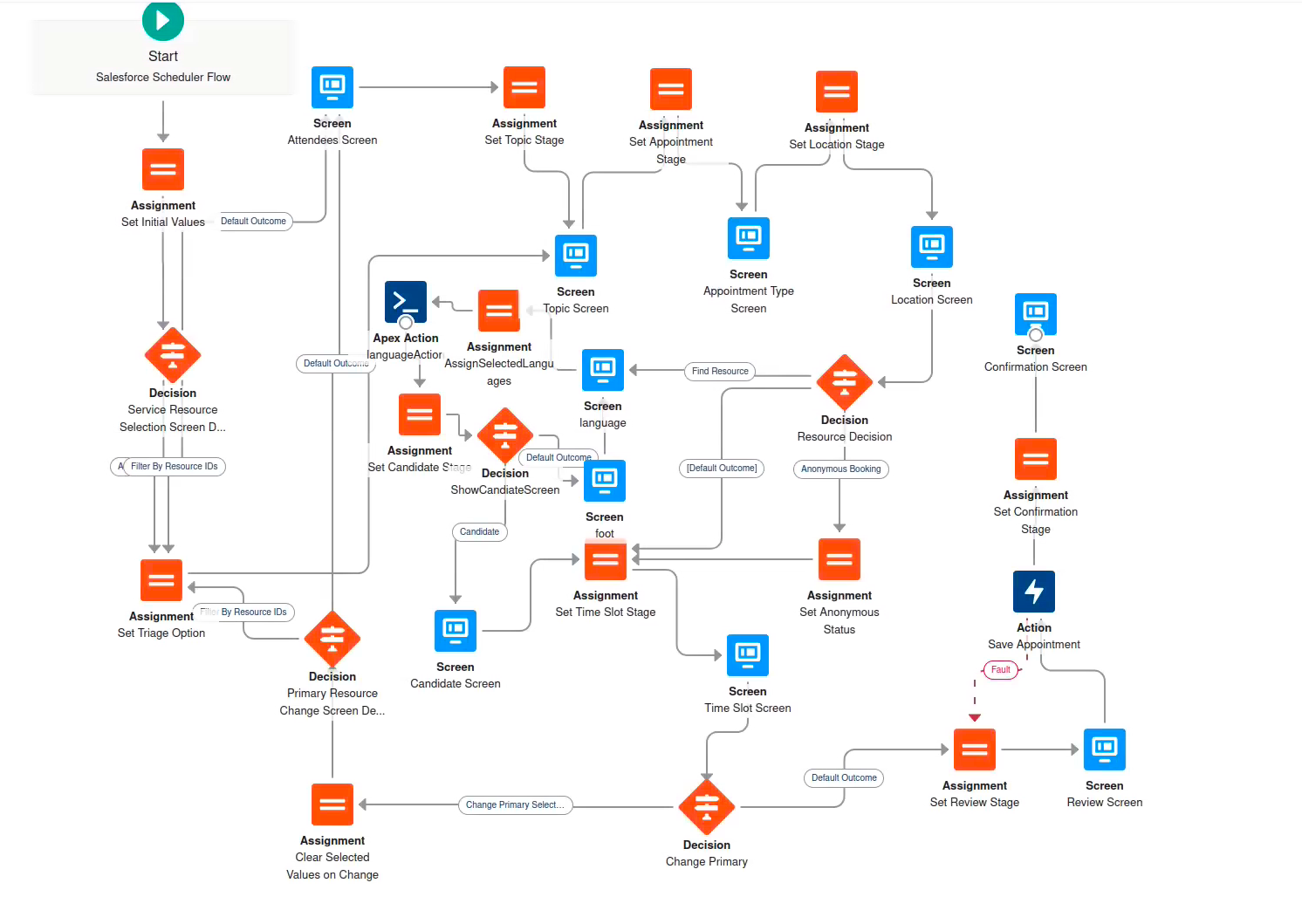
Clone the existing Outbound New Appointment Flow.
Add following Elements:
Variable : selectedLanguages of type Text.
Screen : Language Screen ( This screen will show the picklist values of Global Value Set to choose from set of languages )
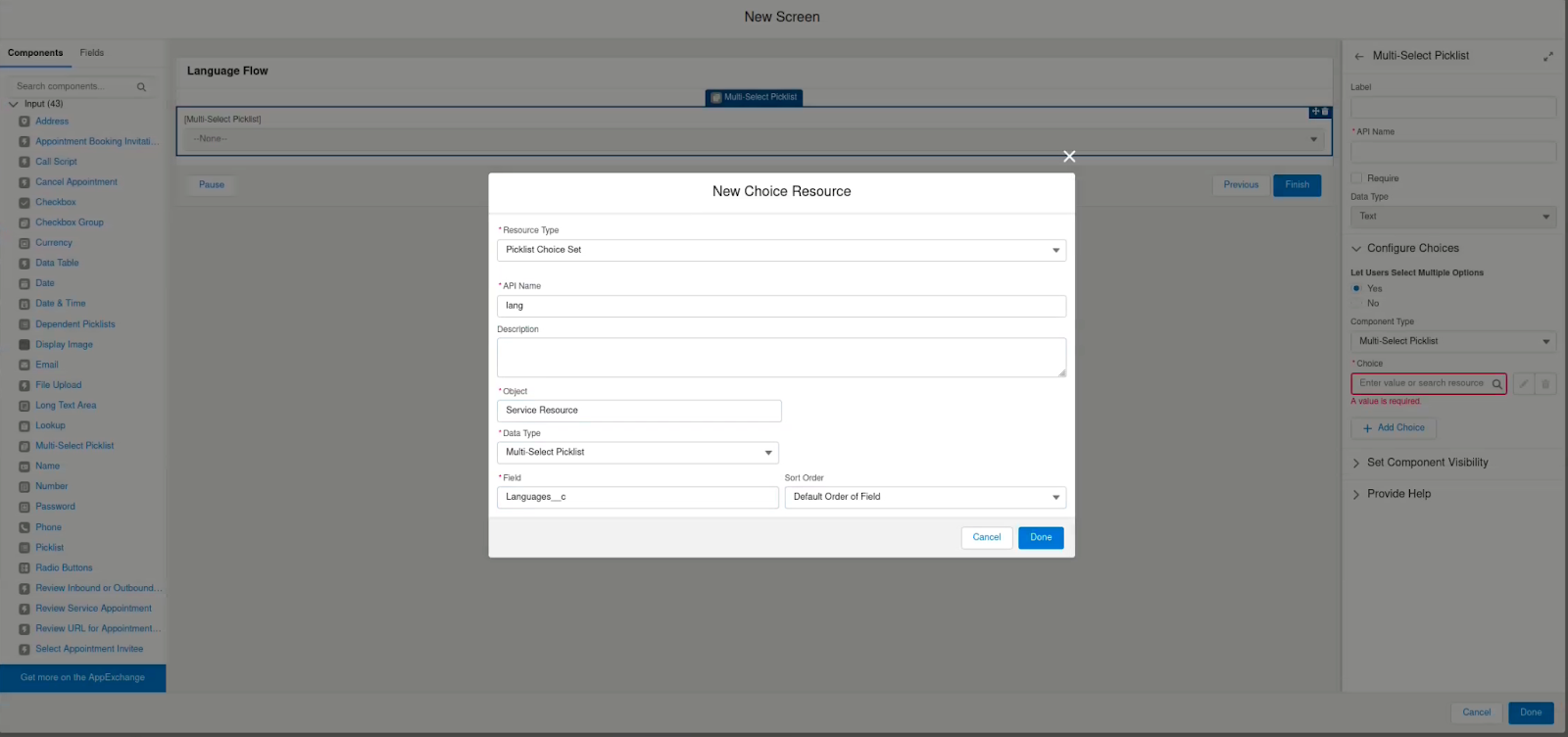
Add a Multi-Select Picklist Component to the Screen
Under the Choice setup, add a New Choice Resource with theses values
Add Label and API Names to this screen
Assignment( Assign Selected Languages):
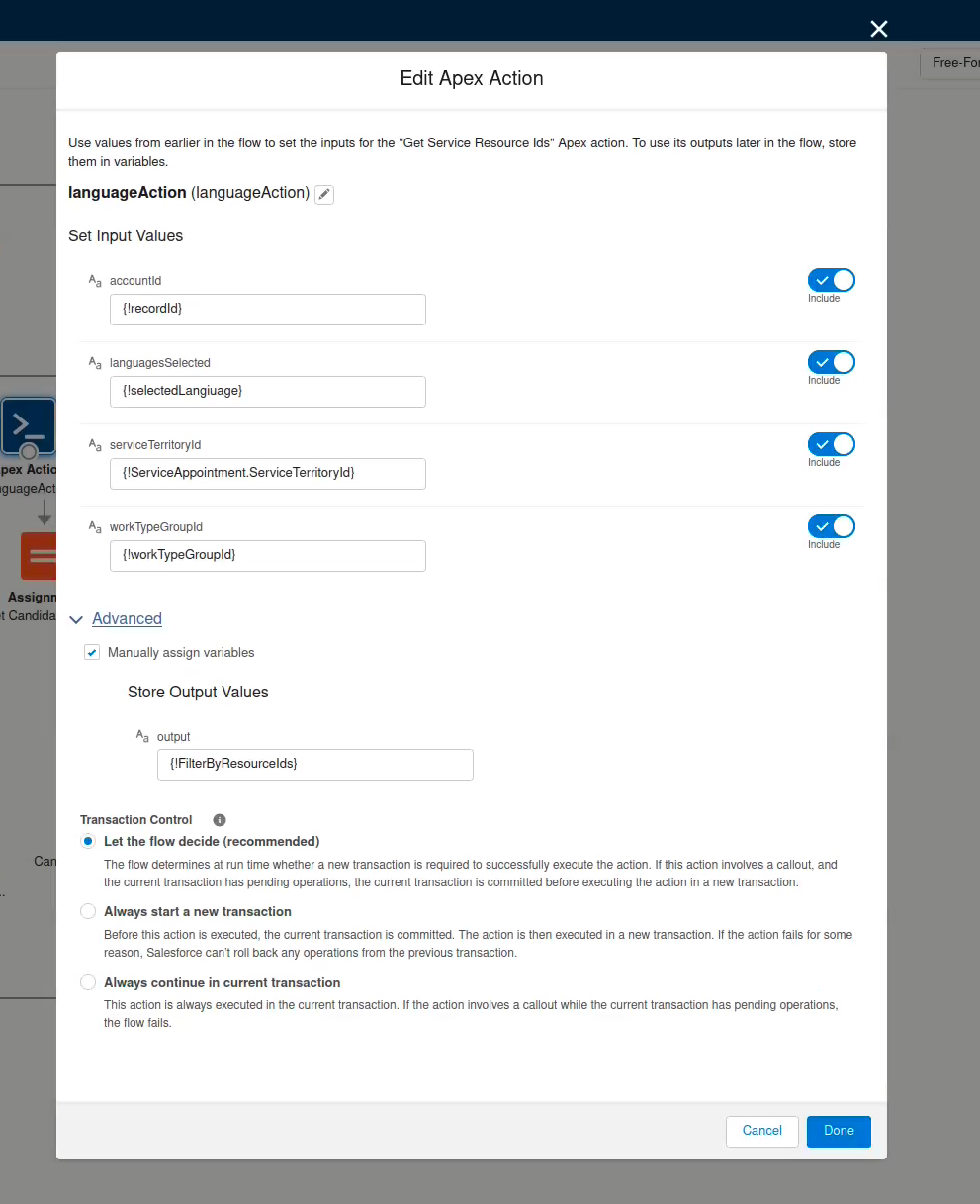
Apex Action ( languageAction )
Choose Uncategorized under Filter By Category
Add the apex action which was created earlier i.e “Get Service Resource Ids”
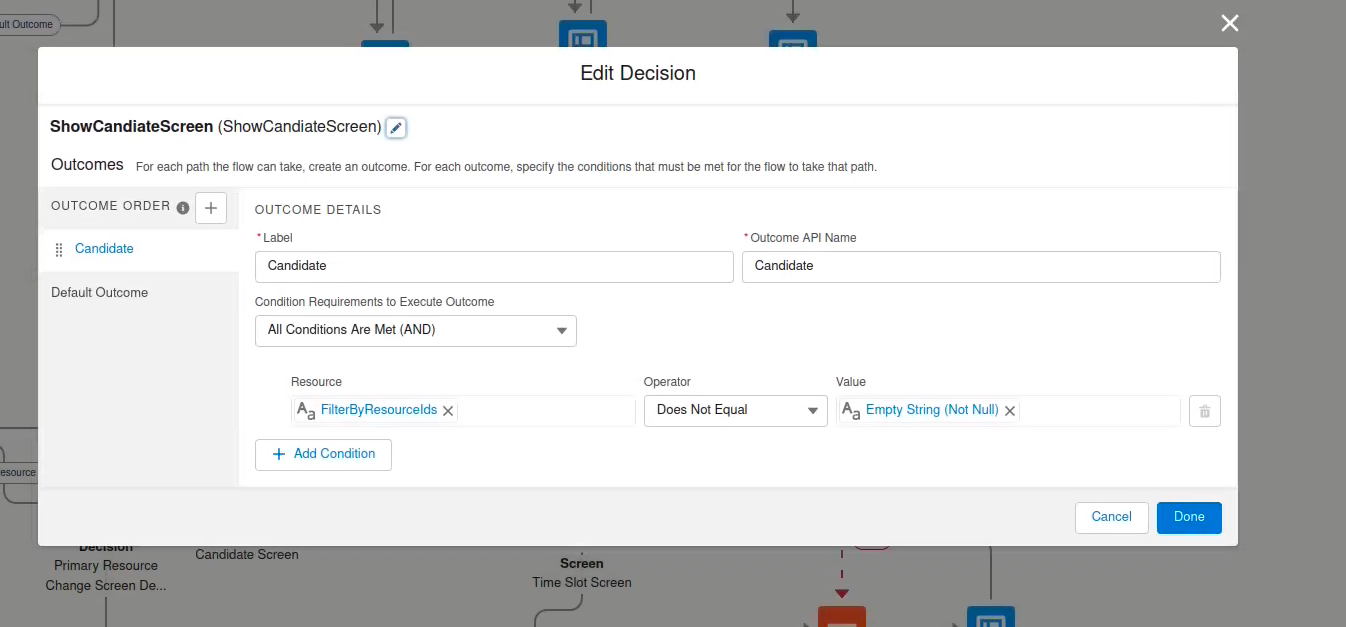
Decision : (ShowCandidateScreen)
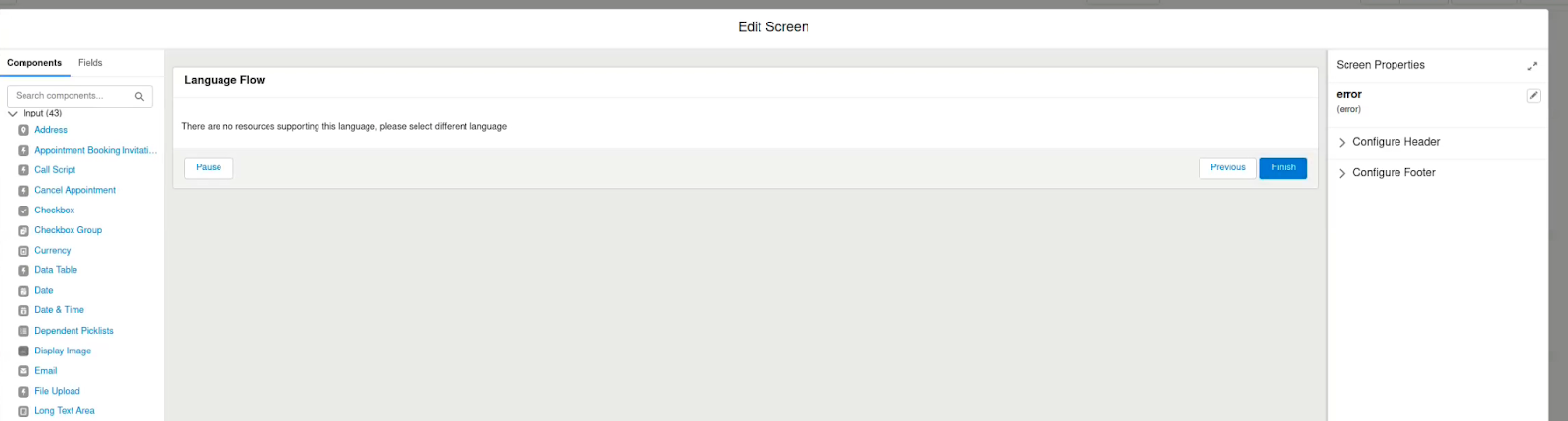
Screen(Error) : This will show error if there exists no resource which supports the languages selected.
Order the flow as suggested in the image below
Video: (Working Solution)
https://unofficialsf.com/wp-content/uploads/2022/09/largeUCSF-300x133.png00Sunilhttps://unofficialsf.com/wp-content/uploads/2022/09/largeUCSF-300x133.pngSunil2022-12-21 03:49:202022-12-21 03:52:09From Pratyush Kumar : Orchestrate Appointment Experience based on Language selected
Editor’s Note: UnofficialSF is pleased to enable commercial creators of Flow extensions like Common-Unite to introduce their products and demonstrate useful use cases. One of our goals is to see a rich tier of commercial solutions in addition to the many free extensions that will continue to be available.
Content provided by Common-Unite
The Flow Took Kit (Form and Table Builder) app is a 100% Salesforce native tool that enables you and your team to create custom Flow Screen components declaratively, with clicks, not code. These custom components leverage the power of Flow, instead of Apex, to control your component’s processes and actions. By combining Flow and the Flow Tool Kit, your team can create advanced interfaces, forms, surveys, or wizards for both internal and external users. Reducing your team’s development time, cost, or reliance on external form builder solutions.
What sets the Flow Tool Kit apart?
The Flow Tool Kit is 100% built to leverage the power of Salesforce Flow. Our custom components and features, such as live formula recalculation, modular/reusable components, and the Form (Repeater), will allow your team to move out of custom code and into a declarative Flow solution. The Flow Tool Kit is built upon the idea of modular components. Just like LWC’s or Visualforce Components, we provide your team with tools to create modular, reusable Flow Screen components. These components are configured within a custom interface outside of Flow, which allows for the decoupling of complex Flow logic from ever-changing front-end design requirements. This means that System Admins or Super Users without Flow proficiency can own and manage components without ever needing to open or edit a Flow.
Build Modular/Reusable Flow Screen Components
There is a concept that developers adhere to when writing code “Don’t Repeat Yourself” (DRY). The idea is simple, try not to duplicate code. Instead, write it once and ensure that other solutions can reference and reuse the same code if needed. With this principle, when a change needs to be made, a developer only has to update the code in one place instead of multiple locations. This reduces both initial development time, as well as future administration. We love Flow, and Flow provides tools such as subflows and invocable flows to allow logic and processes to be reused. However, when considering Flow Screens, no standard feature is provided to reduce duplicated form design and visibility logic. This often leads to duplicative configuration. This is administrative debt!
The Flow Tool Kit enables your team to create modular/reusable Flow screen components with clicks, not code. Each component contains its own set of fields, styling, and conditional logic. Admins and Developers can add these components to one or many flow screens. If something in your business logic changes, update the component, and all Flows that reference your component are instantly updated, Magic! Furthermore, our form components can be reused throughout the Flow Took Kit. Please look at ourForm (Repeater) andForm (Table) elements, as well as our Shopping Cart and Survey extensions.
Decouple complex back-end processes from fluid front-end design
Everything is moving to Flow, but Flow sometimes does require a developer’s eye to design and maintain efficient back-end business processes. With the Flow Tool Kit, we decouple the front-end UX from the complex back-end processes handled by Flow. This means that your team can pass the task of field arrangement, styling, customizing labels, and other ever-changing front-end requirements to System Admins that do not currently have the skill set needed to manage a Flow. This pattern is equivalent to how Developers implement fieldsets within Visualforce and Lightning Components.
Leverage the power of Salesforce Flow
The Flow Tool Kit was designed to leverage the power of Flow. With Salesforce Flow, your team will have few, if any, limits when it comes to building out complex solutions. If you do find a limit, Flow can be extended with custom code to handle your unique business requirements.
Salesforce Flow is powerful when it comes to pre-processing and post-process handling. However, Flow has many gaps when working with Flow screen solutions. These gaps are what the Flow Tool Kit (Form and Table Builder) app was designed to fill.
Key Features | Flow Tool Kit (Form and Table Builder)
Form Builder Interface
The Form Builder Interface is a standalone app where users create custom Flow Screen components. The interface includes a live preview window that is always visible. Each change updates the live preview so your Users can see what their component will look like when dropped into a Flow. Adding input fields to your component is equivalent to the new GA Flow Fields feature within a Flow screen. Add the field to your component, and the fields data-type, label, help-text, and requiredness are loaded as your starting point. Unlike the Flow Fields feature, you can override the system defaults with custom labels, help text, prompt messages, requiredness, and more. The fields added to your component stay synced with the field’s API names. Therefore there is no need for field mapping within the Flow.
Display Picklist fields as Radio Options or Radio Buttons (define the number of columns)
Display Multiselect Picklist as Multiselect Checkboxes (define the number of columns)
Display Boolean/Checkbox Fields as Picklist and provide alternative labels such as: “Active, Inactive,” “Yes, No,” “Valid, Invalid,” etc.
Override default Labels
Append and Prepend Text
Change the Label’s Position (Stacked, Inline, or Hidden)
Add Placeholder Text
Add or Override Inline Help Text
Disable/Hide Inline Help Text
Require or Disable Input Field
Min and Max length for Text Inputs
Min and Max Values for Date, DateTime, Time, and Number fields
Set the Height of RichText and TextArea Fields
Each form component can be styled with custom themes. Conditional logic is also configured and packaged within your custom form components. Conditional logic is used to show, hide, require or disable fields and sections within your component. Conditional logic is triggered via field updates and/or pre-filling input fields within Flow Builder. See how it works.
Form Components can include and display the values of calculated Formula Fields. These formulas can also be configured to recalculate in real time within your Flow screen. As users change field values, your formulas will be recalculated, displaying the updated result. Use these formula results to trigger conditional logic, hiding and/or showing fields and sections based on the updated formula value.
Table Builder Interface
The Table Builder Interface functions just like the Form Builder Interface. Declaratively add and arrange table columns, override header labels, and customize display properties. As you make changes, the table is updated within the preview window, allowing you to track how your table will look within a flow.
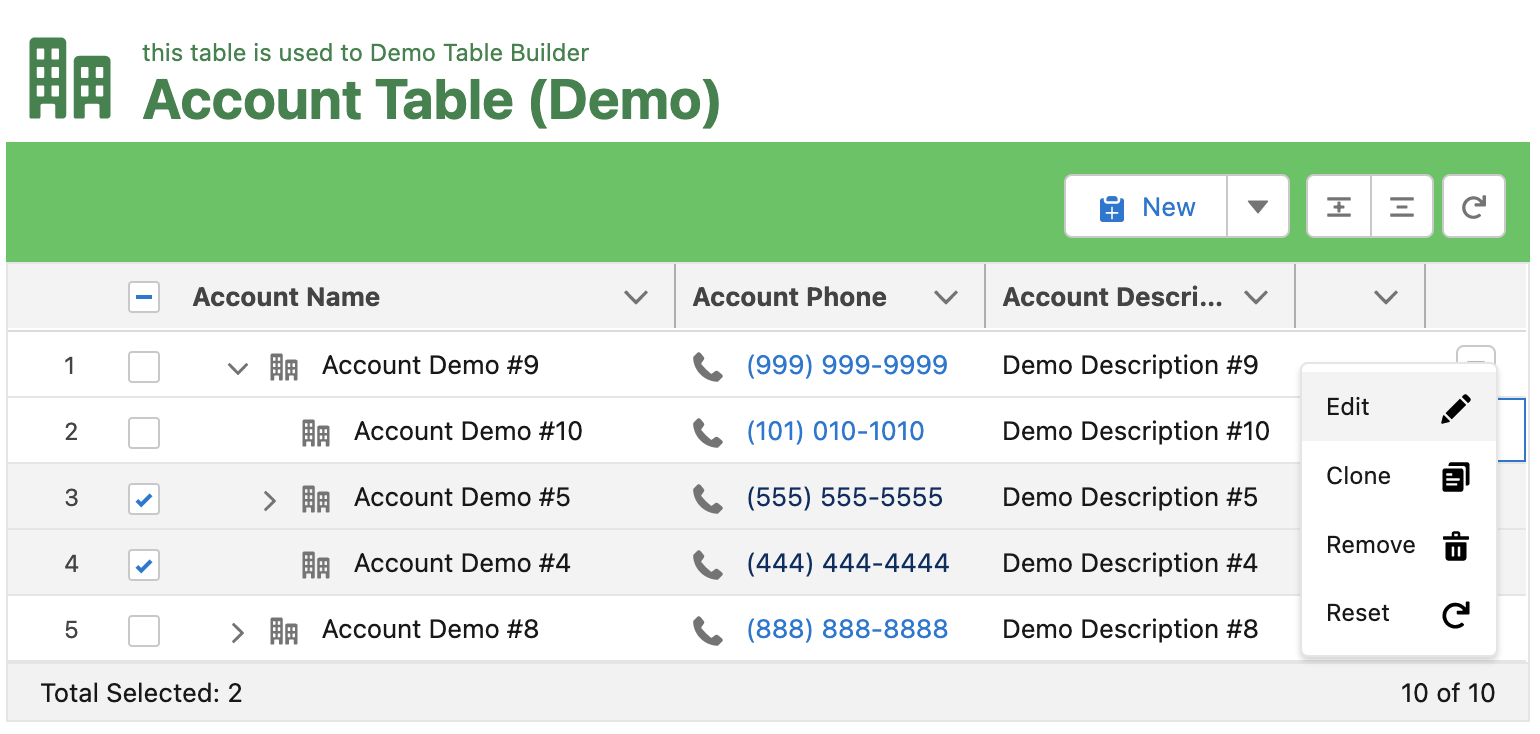
Table components can be reused within multiple flows. Simply add your table component to a flow screen and pass in a record collection to populate the rows. Within Flow, you define how Users interact with the table records by enabling users to create, update, select or delete records. Adding or updating records within a table functions like a quick action on a standard record page. Admins pass in Form components to the table, as well as an optional pre-fill record template. When a user clicks the “New” or “Edit” button, a modal opens, displaying the fields defined within the form component. Users can edit field values for a record even if not displayed as a table column. Tables can also be configured to display as a hierarchy tree.
Flow Screen Components and Flow Actions
Modular form components, built with the Form and Table Builder interfaces, can be weaved together with standard flow screen components and custom and third-party components to create advanced forms and interfaces.
The “Form” screen component is what an administrator uses to add form components to Flow screens. Our form screen components communicate, passing field and visibility updates between components. This allows you to easily weave together components across objects as well as standard and custom Flow screen components. The custom property editor allows admins to assign record type options, hide headers, override the theme, or collapse form sections within accordions.
Dynamic Form Component Assignments
Form Components can be explicitly added to a Flow screen with a “hard-coded” reference. Alternatively, Form Components can be assigned to your Flow screens dynamically. This is powerful! Consider our free Survey extension app. We leverage a single Flow, with one screen, to handle and create Survey_Reponse__c records. We pass into our Flow a Campaign Id. The related Campaign stores a reference to a Survey form component. Each Survey component can be configured with custom Survey questions and branding. This allows us to dynamically change the fields displayed within the Flow based on the related Campaign. Allowing a single Flow screen to handle an unlimited combination of survey questions. This pattern, “Data-driven screen flows,” is a recommended best practice. Check out this UnofficialSF article for additional considerations: Scaling to Thousands of Screens with Lightning Flow.
The Form (Repeater) component allows users to create and/or edit multiple records within a single Flow screen. Admins can pass a form component to the (Repeater) and a collection of records if the component requires a pre-filled form. Users can then add more records by clicking the ‘New’ button. The repeater adds a new record to the screen with the same input fields packaged within the form component. In addition, admins can customize the repeater within flow screens by enabling a User to Create, Clone, Select or Delete records within the repeater.
The custom buttons within the Flow Tool Kit allow you to configure as many buttons as your solution requires within a single Flow screen. Easily customize each button’s label, icon, branding, or action with our intuitive property editors. Confirmation modals can also be enabled for any button. When enabled, the user is presented with a custom message and a confirmation button that must be clicked to move the Flow forward. Additionally, buttons can be configured to bypass field validation as well as trigger Google reCaptcha validation. You also control how and where your buttons are displayed, such as within docked footers or grouped drop-down menus.
Loops add complexity to flows and can degrade the user experience. Therefore, the Flow Tool Kit includes two features, theForm (Repeater) andForm (Table), which allow users to add, update, delete or select multiple records within a single flow screen. These components return output collections (e.g., Insert Collection, Update Collection, Delete Collection, Selected Collection). As a User interacts with records within these components, the records are sorted and added to the appropriate output collections. These output collections could then be passed right into DML elements (Create, Update, Delete) within your Flow. You can also predefine field values for new records created within these components with a record template. This is useful for setting values such as RecordTypeId or related lookup Ids that should apply to all new records.
Eliminate Field Mappings
Form Components maintain a direct reference to your Object schema. This allows your field labels, help text, picklist values, and field API names to stay in sync with your object. Changes made are instantly visible within your Form Components and the Flows that reference them. This also means that there is no need for field mappings within your Flow. Instead, our Form Components pass back a “record” variable with all field values added or updated by your users mapped to the referenced field API names. Simply pass this “record” output into a DML element for processing. For some Flow solutions, this could mean most changes happen within the Form Builder with no need to open and update the related Flows, just like Field Sets. Magic!
Next Steps
Try out the latest release of the Flow Tool Kit by visiting our site commonunite.force.com or through the AppExchange. We have two versions of the Flow Tool Kit, “Free” and “Unlimited.” The Free version includes all features but will limit your org to the following objects: Account, Contact, Case, Lead, and our custom Survey object. The Unlimited version is sold as an org-wide license and allows for any object Custom or Standard. Nonprofits with ten Users or fewer can purchase the Unlimited license for $30 per month. All other orgs can purchase the Unlimited license for $150 per org per month. You can contact us for custom pricing considerations. Visit our Vimeo showcase for how-to videos and demos.
Follow us on LinkedIn for product updates and demos. Or contact support@common-unite.com with any questions.
If you are building a survey or a feedback form, you can use number or selection input components to get a rating from the user. Even though they will store the answer, they won’t look like the surveys that we are familiar with. However, you can use this custom Star Rating Component that lets the users select a star and stores the number of selected stars.
How to Use
Add the StarRatingComponent to the screen and give it a name.
There are 3 input parameters that you can provide to the component.
Maximum Number of Stars This is the number of stars that the component will display to the user. It is required to enter a value.
Read Only This is a boolean parameter to make the component read only. By default, the value is false. However, you can enter {!$GlobalConstant.True} to make it read only.
Value This parameter stores the number of selected stars. If you provide a value as an input, Star Rating Component displays it as the default number of selected stars.
At the end, Value parameter stores the selected number of stars as an output.
Example
Read this post to see a customer satisfaction survey built with the Star Rating Component.
Experience Builder Considerations
This component works fine in the developer edition environments. However, it may not be able to load the star icons when it is used in an Experience site connected to a production/sandbox environment. In these cases, you have to override the css directly from the Experience Builder.
In this case, URL of the background image should be “/ExperienceSiteName/resource/fivestar/stars.svg” instead of “/resource/fivestar/stars.svg”.
Go to the Experience Builder and click Edit CSS from the Theme.
Do you want to try the component before installing it? You can use this link to test the component!
https://unofficialsf.com/wp-content/uploads/2022/09/largeUCSF-300x133.png00Yumi Ibrahimzadehttps://unofficialsf.com/wp-content/uploads/2022/09/largeUCSF-300x133.pngYumi Ibrahimzade2022-12-13 18:37:462022-12-14 07:40:14From Yumi: Add a Star Rating Component to your screens
This blog will cover the scenarios for a salesforce user to integrate third party web conferencing tools which provide video appointments (like zoom, WebEx, MS team) and send an email confirmation including those details for the recipient to attend the meeting.
We will follow the following steps in order :
Integrate salesforce scheduler with any third party video web conferencing provider.
Create a record triggered flow on Service Appointment that will call external API’s and obtain the Meeting URL.
Fetch the associated lead email address and service resource name.
Configure this flow to stamp the service resource name on the comments field and meeting URL on AppointmentBookingInfoURL field of the service appointment.
Create an apex action to send email to the leads email address using appropriate email template.
We will be covering both the scenarios
Service Appointment is booked used AppointmentType as “Video”.
Service Appointment is booked using EngagementChannelType with ContactPoint as “Video”.
Now, we will be following these steps but before that go through the key points and always keep them in mind.
Key Points
AWS Chime and other third party providers(webEx, MS Team etc) cannot be used in the same org.
In the steps ahead we will be using comments field on Service Appointment to store service resource name, this is just a working example you can also create a custom field for that purpose but don’t forget to edit the email template if you are using a custom field for this purpose.
While using third party providers after the service appointment is completed the status of the service appointment should be changed manually.
Third Party Integration Customer can use only one Zoom or any other provider user to setup and have to use the same common credentials to initiate the call.
After integrating your org with the web conferencing provider of your choice we need to create a record triggered flow.
**As rest of the steps are common, For the purpose of this blog we have integrated our org with zoom.
Create a Record -Triggered flow on Service Appointment
Go to Setup → Flows → New Flow
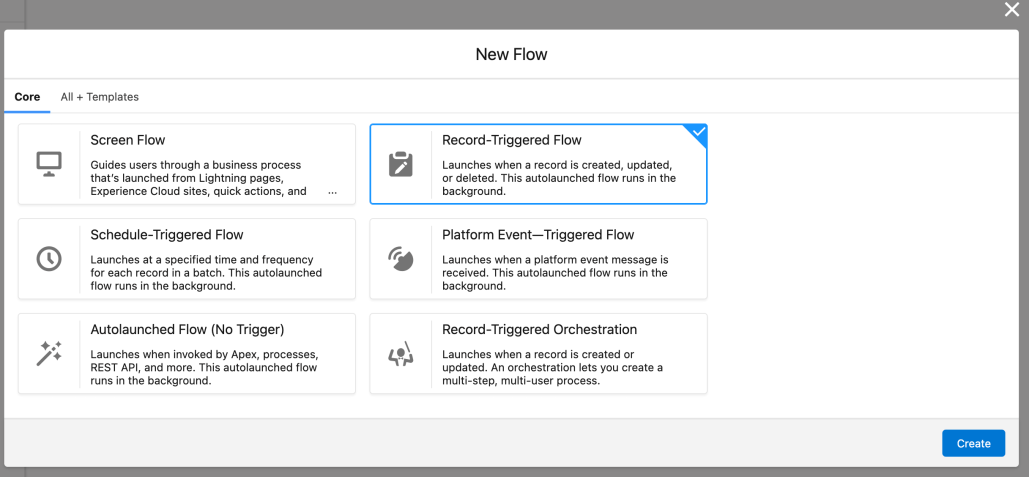
Click on Record-Triggered Flow and Create
Select Service Appointment as Object.
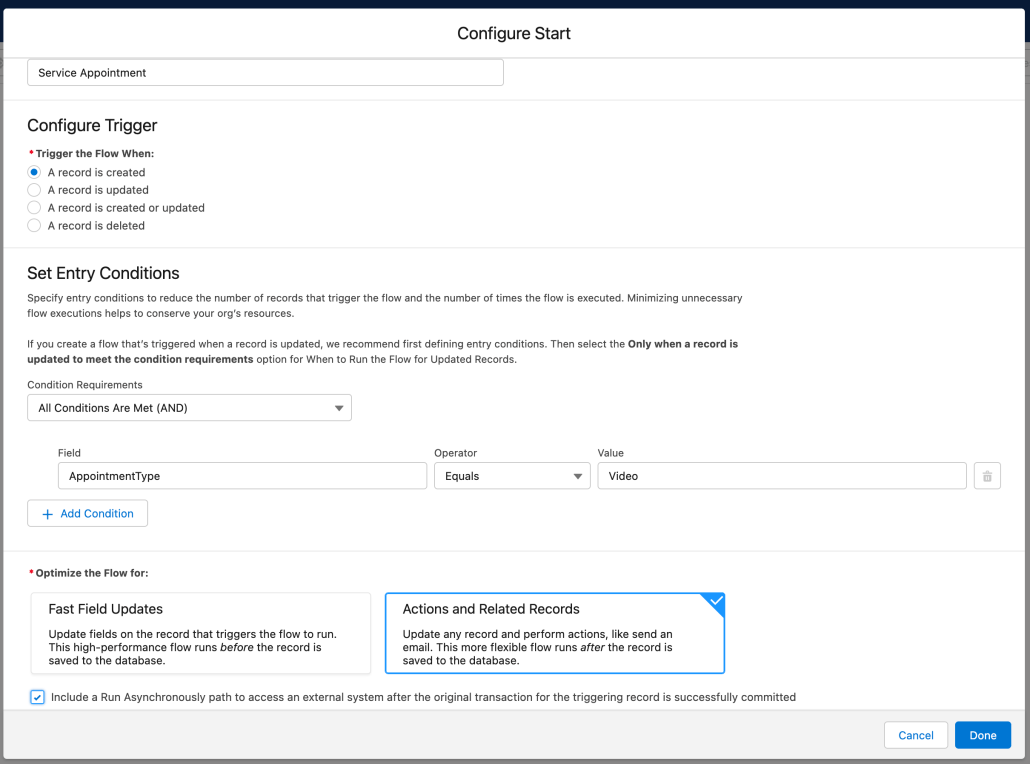
Click “A record is created” radio button.
From the Condition Requirements dropdown select All Conditions Are Met (AND).
Add condition AppointmentType equals “Video”.
Click Actions and Related Records.
Click the “Include a Run Asynchronously path to access an external system after the original transaction for the triggering record is successfully committed” checkbox at bottom and click done.
Select Free-Form from the drop down at top
Open Developer Console in a new tab and create a new class “GetZoomMeetingURLwithInput” and use the code provided below inside the class body(this class will provide the meeting URL).
public class GetZoomMeetingURLwithInput {
   @InvocableMethod(label='Get Zoom Meeting URL with Input' callout='true')
   public static List<String> makeApiCalloutwithInput(List<String> appointmentId)
   {
       HttpRequest req = new HttpRequest();
       Http http = new Http();
       //Setup the Endpoint and append the name of the file
       req.setEndpoint('callout:SalesforceZoomPOCNC');
       req.setMethod('POST');
       req.setHeader('Content-Type','application/json');
       req.setHeader('Accept','*/*');
       req.setHeader('Accept-Encoding','gzip, deflate, br');
       req.setBody('{"topic": "test create meeting","type": "1"}');
       HTTPResponse res = http.send(req);
       System.debug('Response Body: '+res.getBody());
       /* Parse Response */
       JSONParser parser = JSON.createParser(res.getBody());
       String webLink;
       webLink = 'ZoomNotSetup';
       while (parser.nextToken() != null) {
       if ((parser.getCurrentToken() == JSONToken.FIELD_NAME) &&
       (parser.getText() == 'join_url')) {
           parser.nextToken();
           webLink = parser.getText();
           System.debug('join_url= ' + webLink);
           }
       }
   return new List<String>{webLink};
   }
}
**This piece of code is specific for Zoom and you can refer to the blogs mentioned above for other web conferencing providers.
Go to the flow builder again and drag and drop one action element from the left hand side menu.
Select “Type” from Filter by drop down.
Click on “Apex Action” in the left side menu.
Select “Get Zoom Meeting URL with Input” in the Action drop down.
Enter “Get Meeting URL” in the label field and “Get_Meeting_URL” in the API Name .
Click on the Don’t include button.
In the appointmentId field select {!$Record.Id}.
Expand the Advanced section and Click the “Manually assign variables” checkbox .
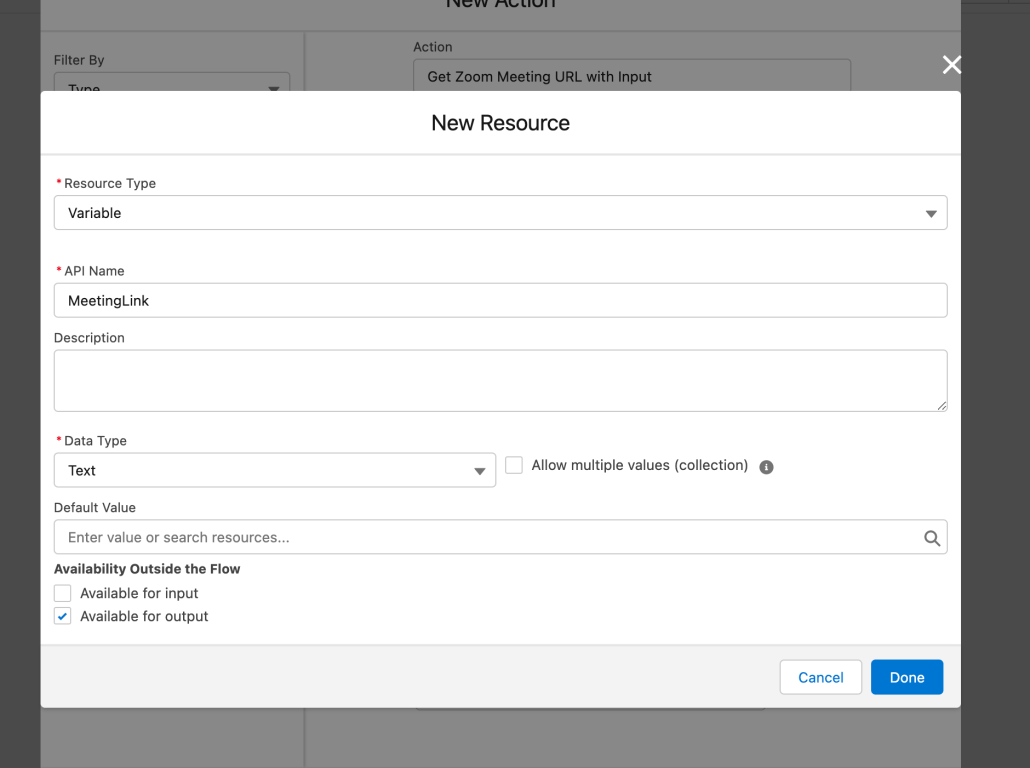
Click on the output field input box and Click on the New Resource option.
Select “Variable” as Resource Type.
Enter “MeetingLink” in the API name field.
Select Data Type as “Text”.
Click on “Available for output checkbox“ and Click Done.
Click Done again for the Apex Action.
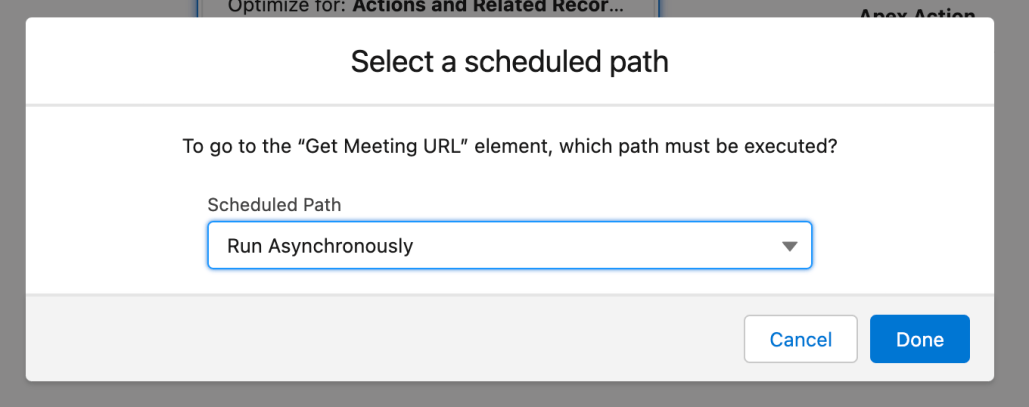
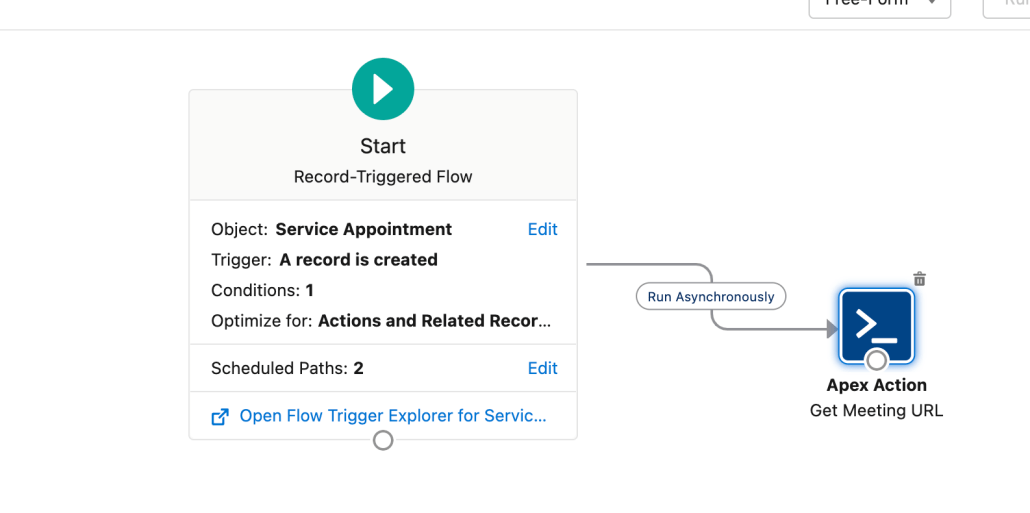
Now, Connect the start element with the Apex Action element and Select “Run Asynchronously” as scheduled path
Now, Your flow will look something like this.
Fetch recipient E-mail address from the parent lead record
Drag and drop get records element on the flow builder.
Enter “Get Lead Email” in the label field .
Enter “Get_Lead_Email” in the API Name field.
Select “Lead” as Object.
From the Condition Requirements dropdown select All Conditions Are Met (AND).
Add condition Id equals {!$Record.ParentRecordId}.
Click “Only the first record” radio button.
To store the value of record fetched create a new resource of type “Record” by clicking on the new resource from the Record input field.
Select “Variable” as Resource Type.
Enter “LeadRecord” in the API name field.
Select Data Type as “Record”.
Select “Lead” as Object and click Done.
Select “Email” from the field drop down
Click on “When no records are returned, set specified variables to null.” radio button and click Done.
Connect the apex action with the get records element.
Fetch service resource name
Drag and drop get records element on the flow builder.
Enter “Get assigned resource” in the label field .
Enter “Get_assigned_resource” in the API Name field.
Select “Assigned Resource” as Object.
From the Condition Requirements dropdown select All Conditions Are Met (AND).
To store the value of record fetched create a new resource of type “Record” by clicking on the new resource from the Record input field.
Select “Variable” as Resource Type.
Enter “ServiceResource” in the API name field.
Select Data Type as “Record”.
Select “AssignedResource” as Object and click Done.
Select “ServiceResourceId” from the field drop down
Click on “When no records are returned, set specified variables to null.” radio button and click Done.
Connect the “Get lead record” action with this get records element.
Using this ServiceResourceId we need to fetch ServiceResource’s name
Drag and drop get records element on the flow builder.
Enter “Get Service Resource Name” in the label field .
Enter “Get_Service_Resource_Name” in the API Name field.
Select “Service Resource” as Object.
From the Condition Requirements dropdown select All Conditions Are Met (AND).
Add condition Id equals {!ServiceResource.ServiceResourceId}.
Click “Only the first record” radio button.
To store the value of record fetched create a new resource of type “Record” by clicking on the new resource from the Record input field.
Select “Variable” as Resource Type.
Enter “ServiceResourceName” in the API name field.
Select Data Type as “Record”.
Select “ServiceResource” as Object and click Done.
Select “Name” from the field drop down
Click on “When no records are returned, set specified variables to null.” radio button and click Done.
Connect the “Get assigned resource” action with this get records element.
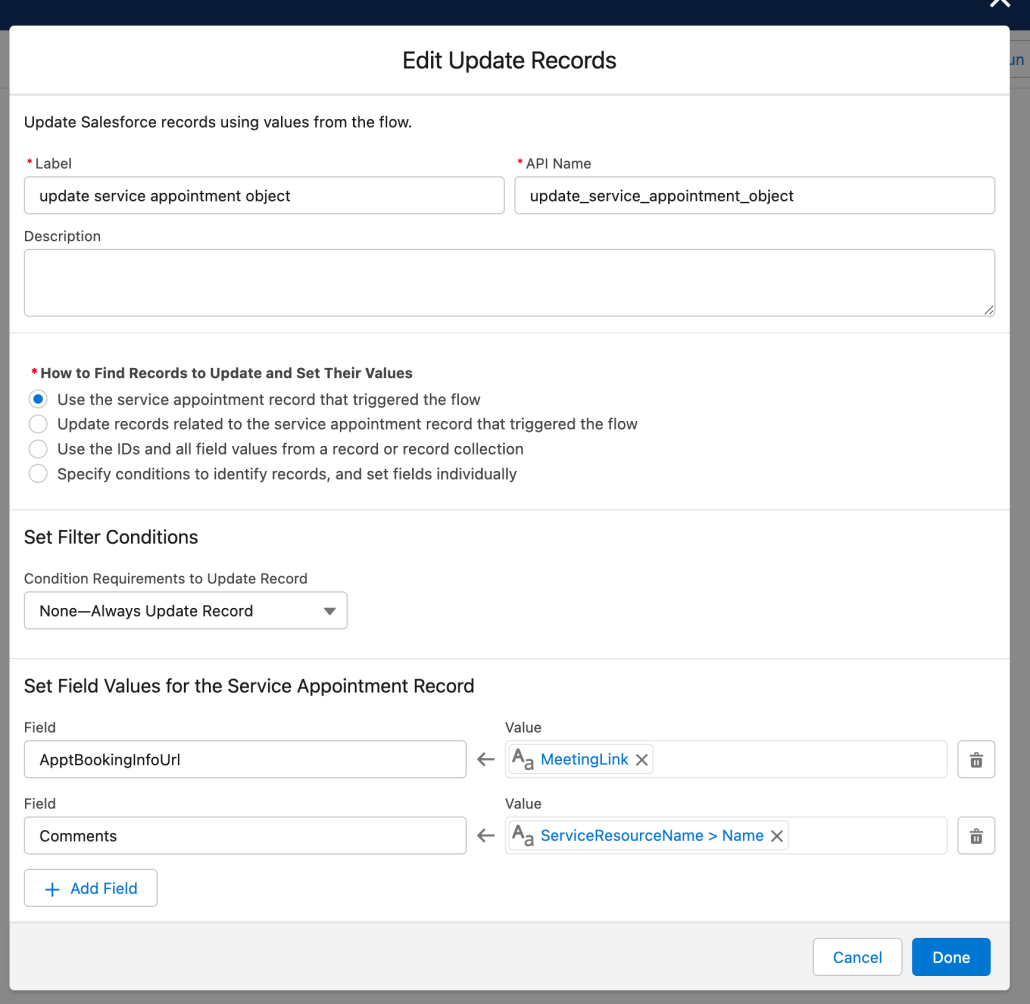
Stamp the ServiceResource name on the comments field and meeting URL on the AppointmentBookingInfoURL field
Drag and drop update records element on the flow builder.
Enter “Update service appointment object” in the label field.
Enter “Update_service_appointment_object” in the API Name field.
Click “Use the service appointment record that triggered the flow” radio button.
Add field “ApptBookingInfoUrl” and MeetingLink(variable that stores the value of meetingURL) as value.
Add field “Comments” and ServiceResourceName.Name(variable that stores the value of ServiceResource name) as value and click Done.
Connect Update record element with previous get records element.
Create an apex action to send email to the leads email address
Go to developer console and create a new apex class “SendEmailToGuest” and use the code snippet provided below in the class body. ** There are some Out of the box Email templates that Salesforce Scheduler provides and here we are utilising one of them. ** The template unique name used here is specific for appointments scheduled using “Video” AppointmentType and needs to be changed in case of EngagementChannelType.
public class SendEmailToGuest {
   @InvocableMethod(label='Send Email To Guest' callout='true')
   public static Void SendEmailToGuestUsingEmailTemplate(List<inputvariables> inputParams)
   {
       EmailTemplate et = [SELECT Id,Subject, Body FROM EmailTemplate WHERE DeveloperName ='SchedulerUnauthenticatedUserAppointmentTypeEmailTemplateForThirdParty'];
       List<string> toAddress = new List<string>();
       toAddress.add(inputParams.get(0).leadEmail);
       Messaging.SingleEmailMessage mail = new Messaging.SingleEmailMessage();
       mail.setTemplateId(et.Id);
       mail.setToAddresses(toAddress);
       mail.setTargetObjectId(inputParams.get(0).leadId);
       mail.setWhatId(inputParams.get(0).appointmentId);
       mail.setSaveAsActivity(false);
       mail.setUseSignature(false);
       List<Messaging.SingleEmailMessage> allmsg = new List<Messaging.SingleEmailMessage>();
       allmsg.add(mail);
       try {
           Messaging.sendEmail(allmsg,false);
           return;
       } catch (Exception e) {
           System.debug(e.getMessage());
       }
   }

    public class inputvariables {
        @InvocableVariable
        public String leadEmail;
        @InvocableVariable
        public String leadId;
        @InvocableVariable
        public String appointmentId;
        }
}
Go to the flow builder again and drag and drop one action element from the left hand side menu.
Select “Type” from Filter by drop down.
Click on “Apex Action” in the left side menu.
Select “Send Email To Guest” in the Action drop down.
Enter “Send Email to guest” in the label field and “Send_Email_to_guest” in the API Name .
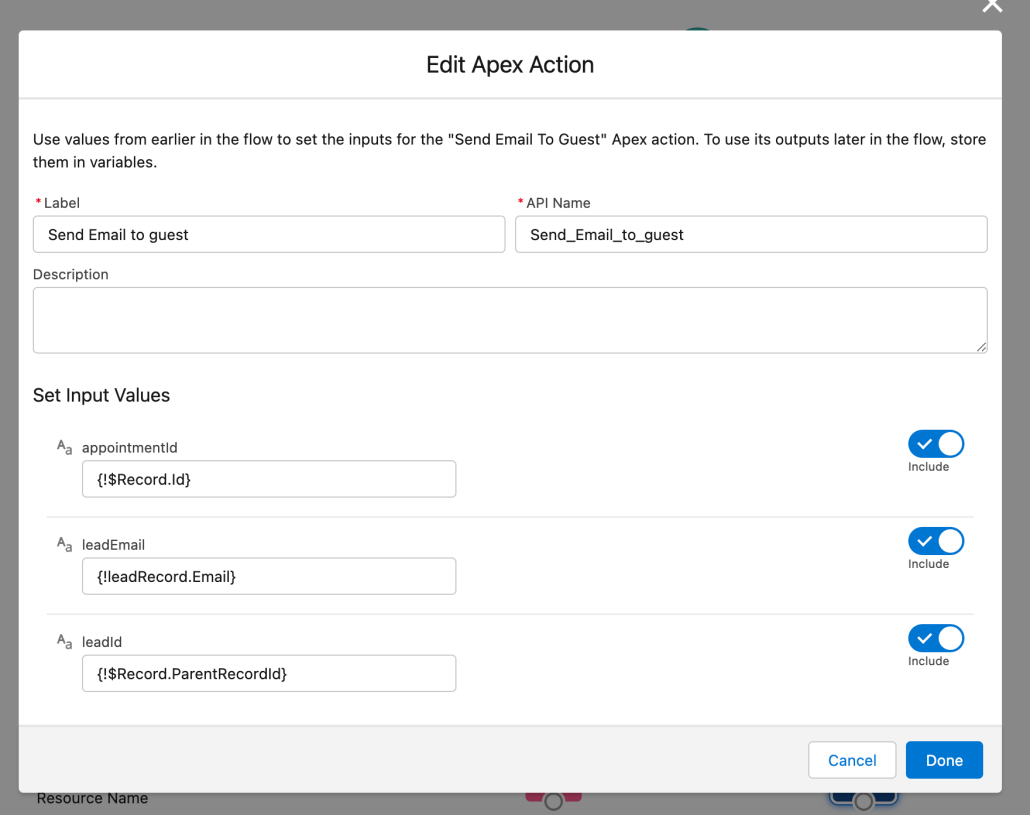
Pass the appointmentId, leadEmail and leadId to the apex action as shown here.
In the appointmentId field select {!$Record.Id}.
In the leadEmail field select {!leadRecord.Email}.
In the leadId field select {!$Record.ParentRecordId}.
Click done and connect this apex action with the last element .
Now flow is all set, save the flow and activate the flow.
Enter “Service Appointment With Zoom” as Flow Label.
Enter “Service_Appointment_With_Zoom” as Flow API Name.
This is how the complete flow will look.
Test the flow by creating a service Appointment
Schedule a Service Appointment for lead.
Appointment Booking URL and Comments field gets populated due to the flow we configured just now.
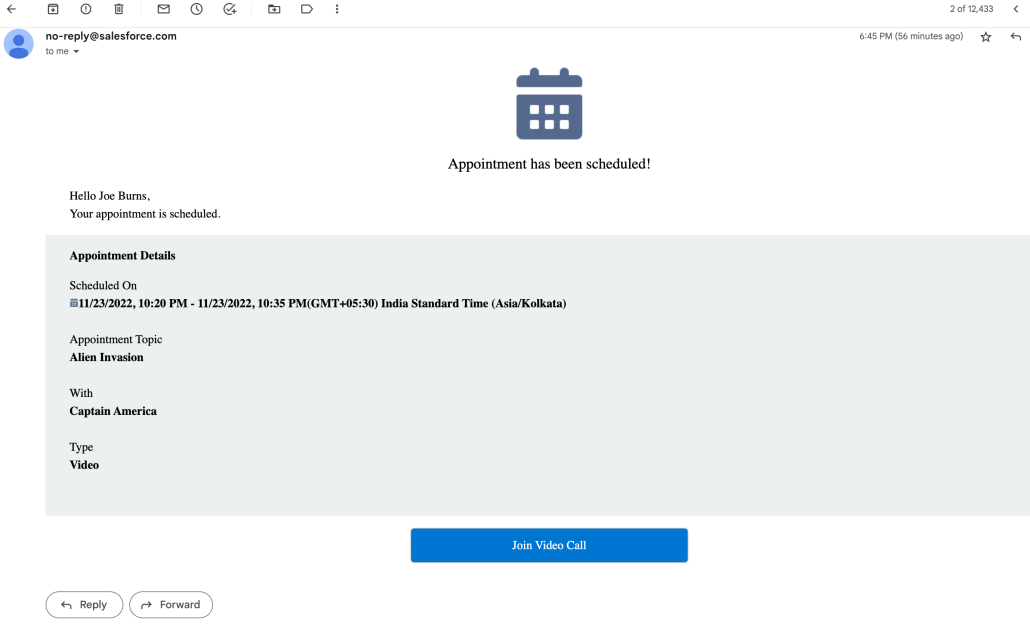
The Unauthenticated user will receive an e-mail .
And the Unauthenticated user can join the meeting by clicking the button in the E-mail.
Write this Salesforce Scheduler Appointments to Salesforce Calendar
Go to setup → salesforce scheduler setting and check that event management setting is turned on. We want that the meeting link for this service appointment is also visible in the description of the associated event.
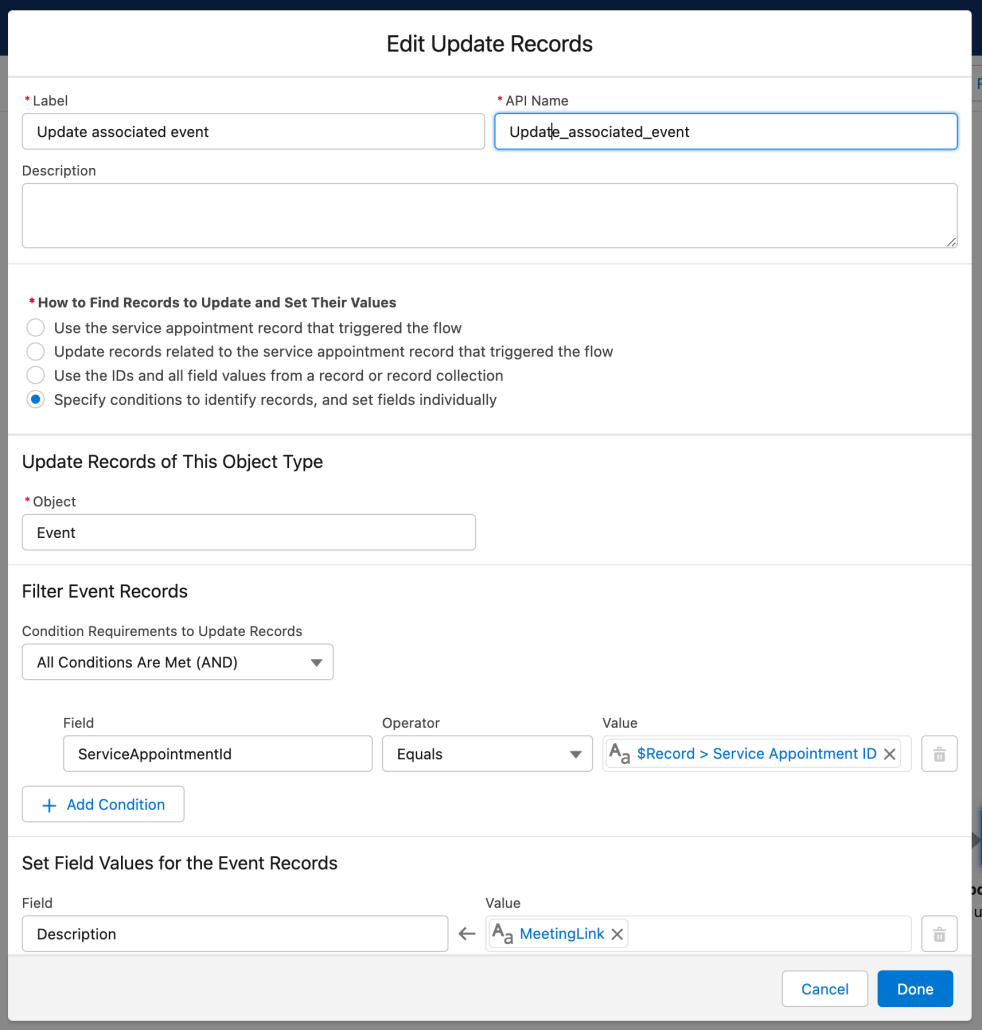
Drag and drop update records element on the flow builder.
Enter “Update associated event” in the label field.
Enter “Update_associated_event” in the API Name field.
Click “Specify conditions to identify records, and set fields individually” radio button.
Select “Event” as object from the dropdown.
Add a condition “ServiceAppointmentId” equals $Record.Id.
Now, Set Field Values for the Event Records and set field as “Description” and value “MeetingLink”(variable that stores zoom meeting link).
Click done, connect this update element with the apex action we used for sending mails, save the flow and activate it.
Now when you’ll book a service appointment with appointment type “video” the associated event’s description will contain meeting link.
Appointment is booked using EngagementChannelType with ContactPoint “Video”
There is a very slight difference between the two scenarios
Create EngagementChannelTypes with ContactPoint “Video”
Create a record-triggered flow as in the previous scenario.
From the Condition Requirements dropdown select All Conditions Are Met (AND).
Add condition EngagementChannelType Id equals id of the engagement channel type created
And use “SchedulerUnauthenticatedUserEngagementChannelEmailTemplateForThirdParty” as the developer name in the apex class used for sending the email to the guest and rest of the steps are common between the two scenarios.
https://unofficialsf.com/wp-content/uploads/2022/09/largeUCSF-300x133.png00Sunilhttps://unofficialsf.com/wp-content/uploads/2022/09/largeUCSF-300x133.pngSunil2022-12-13 00:27:462023-01-01 22:02:06From Adwait : Email Appointment Confirmation with Video Conferencing Information (3rd Party) included
The Salesforce to Slack integrations are many and there are some really great post-to-Slack actions out of the box but the biggest gap is when you have rich text/HTML markup you are entering in a screen flow and posting that message to Slack it doesn’t translate the HTML into Slack Markdown so it displays all of the HTML markups in your post maybe there is a scenario at the end of your screen flow where you need to bold a specific text that was entered in a screen. You now have that option with Text Area Plus! In this release, there is limited support for HTML to Slack Markdown. Text Area Plus! is currently supporting everything from the general editor in Slack except for Code Block and Numbered lists (it is on the roadmap for full support along with image support) for a full list of what you can do visit this help article on Slack.
Before Text Area Plus
After Text Area Plus
For download and full details visit the original post here.
https://unofficialsf.com/wp-content/uploads/2022/09/largeUCSF-300x133.png00Josh Daymenthttps://unofficialsf.com/wp-content/uploads/2022/09/largeUCSF-300x133.pngJosh Dayment2022-12-12 06:29:122022-12-12 06:29:15Send rich text messages to Slack using Text Area Plus!
I have recently been working often with file uploads in screen flows and of course, find myself using File Upload Improved to provide the best User Experience and get the best functionality out of the file uploads. As rich as it is in features setting it up could be a little painful and trying to get new developers and admins up to speed on what needs/should be filled out in the property editor was time-consuming. So I decided to hopefully make it easier for everyone and created a Custom Property Editor for File Upload Improved and made a few updates to the Flow Banner component that is included in the Flow Screen Components Base Pack as well. As you can see in the images of the before and after below the Custom Property Editor gives a cleaner and easier setup process for File Upload Improved.
Also included as part of this development was a minor change to the Flow Banner component it has been updated to allow for rich text so that we can provide better information and clear instructions on the components a developer builds. As an example, I included hyperlinks for resources pointing to the post here on unoffocialsf for File Upload Improved along with a resource link just to the file upload lightning component for those that want to dig in and learn even more.
For further details and installation instructions visit the original post here.
https://unofficialsf.com/wp-content/uploads/2022/09/largeUCSF-300x133.png00Josh Daymenthttps://unofficialsf.com/wp-content/uploads/2022/09/largeUCSF-300x133.pngJosh Dayment2022-12-12 06:05:372022-12-12 06:07:23File Upload Improved Now Includes a Custom Property Editor
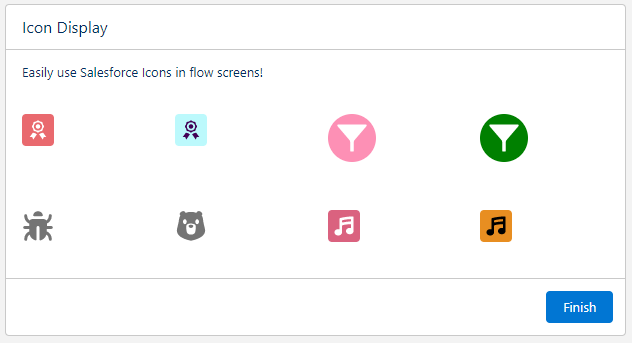
Claire Crabtree has created a nice flow screen component that you can use to display any Salesforce icon.
This LWC will display a Salesforce Icon in a screen flow. You can set the icon type/name, as well as foreground and background colors, if desired!
Icon with no color changes
Set the iconType to the type of Salesforce icon. (Standard, Utility, Custom, DocType, Action) Set the iconName to the name of the icon. (Messaging_conversation, clone, etc.)
Icon with Hex color changes
Set the foreground and background colors using hexcodes
Icon with Standard color changes
Set the foreground and background colors using regulard color names