Here are some minor changes that were not documented officially.
Number and Currency Components
The Number and Currency components were upgraded to new LWC technology. This results in the following new behavior:
When not in focus, the value is rounded or zero-padded according to the scale. This affects value presentation only. It has no impact on the actual value: when the field acquires focus again the actual, unrounded number will be displayed. It is also the actual number, which gets sent to the backend.
The input allows for localized digits: e.g. US – 123456789; SA – ١٢٣٤٥٦٧٨٩
The input allows
for entry of an arbitrary number of digits and a few other symbols (e,m,t,k,b) upto 255.
to increment or decrement current value using the up and down arrow keys (+/- 1)
for the use of the binary form by prefixing a sequence of 0s and 1s with 0b (link)
for the use of the scientific notation
Big numbers
When in focus can get converted to scientific notation
1e+38
When out of focus get expanded
100,000,000,000,000,000,000,000,000,000,000,000,000.00000 instead of 1e+38.
https://unofficialsf.com/wp-content/uploads/2022/09/largeUCSF-300x133.png00Alex Edelsteinhttps://unofficialsf.com/wp-content/uploads/2022/09/largeUCSF-300x133.pngAlex Edelstein2021-06-21 14:22:582021-06-21 14:23:06Changes to Number and Currency Components in Summer ’21
Are you looking for a taste of what you can find on here on Unofficialsf.com? How about some ideas on how to put some of the more popular Flow Components found on this site to work for you? Are you looking to improve how your users interact with your Lightning Record Pages?
Find all that and a few other ideas from a presentation I’ve given at Dreamforce and various other Salesforce events around the world. This recording is from the London’s Calling event held earlier this Spring.
I have either created or enhanced most of these components and they are all available, with source code, for free here on unofficialsf.com. They range from simple to complex, but all of them can be used in ways you may not have thought of before to bring out the best in your user experiences. The components are designed to be generic. No coding is required, and all can be customized and configured with built in parameters.
https://unofficialsf.com/wp-content/uploads/2022/09/largeUCSF-300x133.png00Eric Smithhttps://unofficialsf.com/wp-content/uploads/2022/09/largeUCSF-300x133.pngEric Smith2021-06-21 11:03:422021-06-21 11:03:5010 Ways to Get Creative With Lightning Components
https://unofficialsf.com/wp-content/uploads/2022/09/largeUCSF-300x133.png00Adam Whitehttps://unofficialsf.com/wp-content/uploads/2022/09/largeUCSF-300x133.pngAdam White2021-06-16 11:18:422021-06-16 11:29:15The “Ultimate” Guide to Flow Best Practices and Standards
The new DataMapper package of actions provides a way to easily create web callouts and powerful new data mapping solution that allows data to be extracted easily from JSON text. This post introduces the Make HTTP Action that is included in DataMapper.
Easy HTTP Calls
We’re going to start by retrieving exchange rates via an api call. Here’s the api:
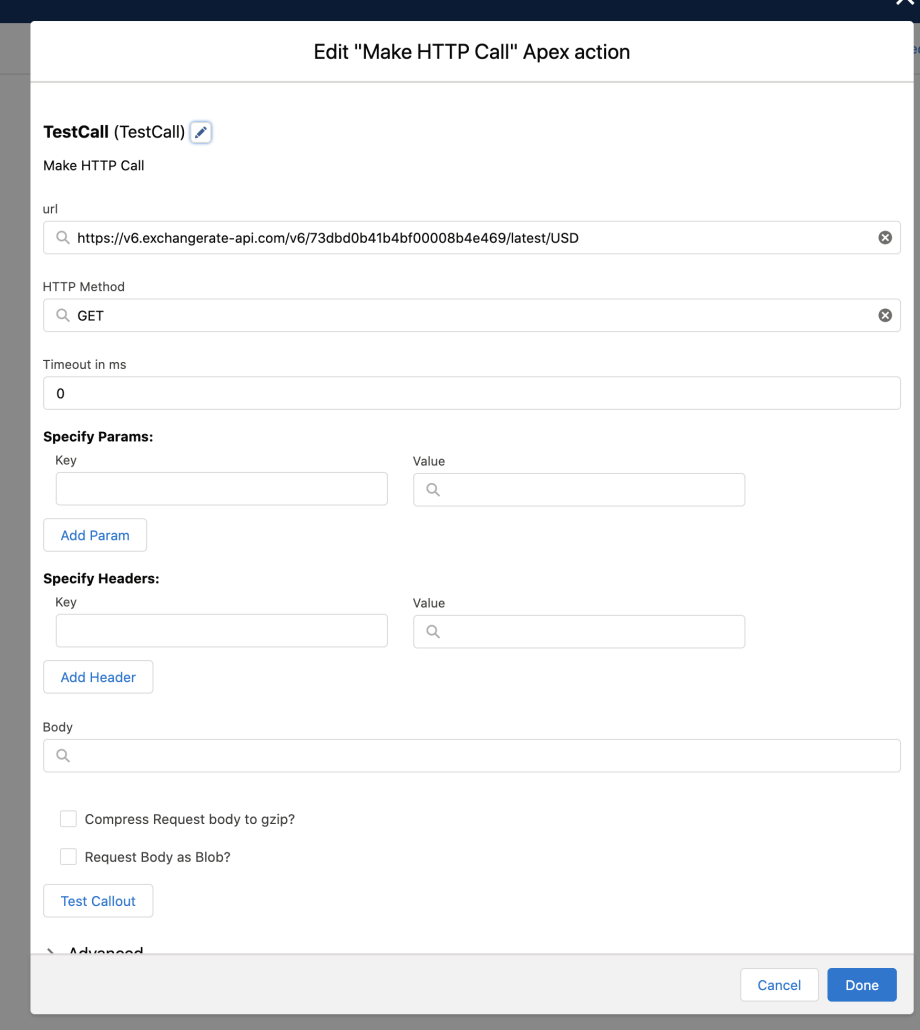
The property editor of this action looks like this:
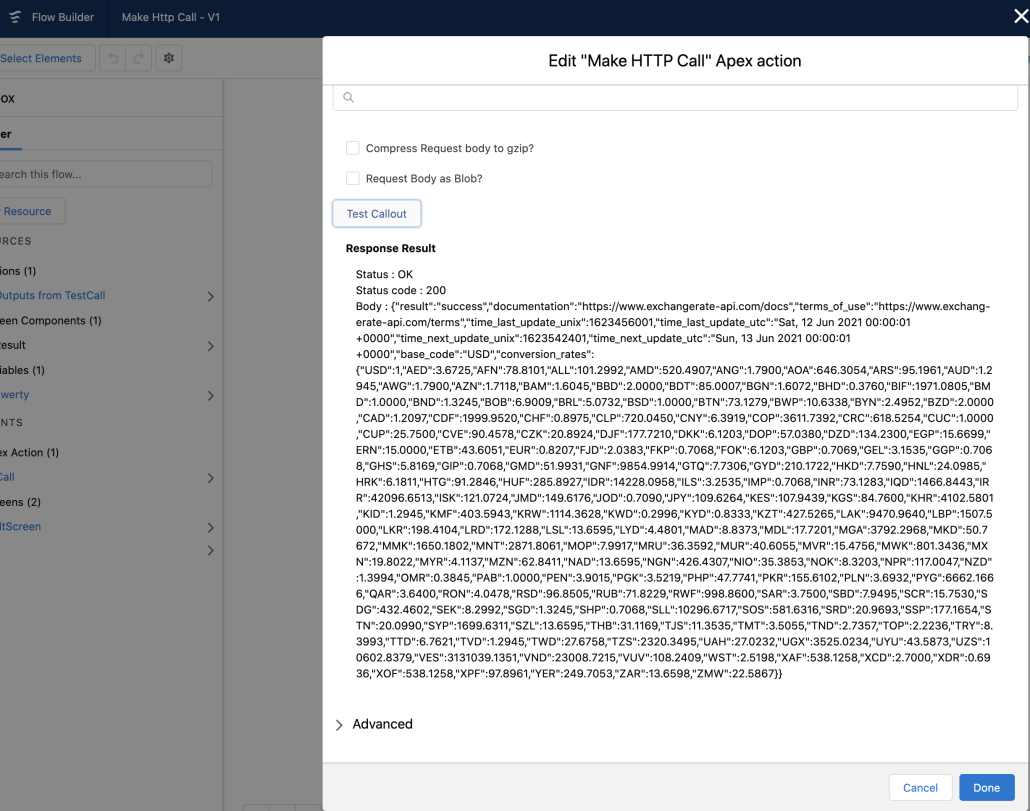
You can click Test Callout right there in the custom property editor to try things out. Keep in mind that for every site you connect to, your org must have a corresponding Remote Site Setting.
https://unofficialsf.com/wp-content/uploads/2022/09/largeUCSF-300x133.png00Alex Edelsteinhttps://unofficialsf.com/wp-content/uploads/2022/09/largeUCSF-300x133.pngAlex Edelstein2021-06-13 16:10:372022-03-10 16:11:22Use Salesforce Flow to Make No-Code HTTP Web Callouts
The DataMapper package provides two Flow Actions that can be combined in different ways to achieve powerful transformations between Salesforce objects and JSON. We’ll demonstrate this using the JSON created in the example in the Make HTTP Call. In that example, a call is made to a foreign exchange web service and it returns the exchange rates for ALL the traded currencies. But we only need a single exchange rate.
Extract JSON Data
Here’s what the JSON returned by the call looks like in a test callout:
Let’s look at it with a little bit of formatting:
In our example, we want to extract the exchange rate of the US Dollar against the Australian Dollar. We can see that at the moment the above call was made, that rate was 1.2945. Let’s extract that with Extract JSON Data, the first of the two Datamapper actions:
As you can see above, we pass the Body JSON in from the HTTP response and then reference the AUD rate by giving the dot-notation path to it. When you use this action, you provide keys and assign their values to 1 of 20 available outputs. These static outputs are labeled ‘value1’, ‘value2’, etc… and they’re strings. You can use those values downstream in the flow or you can assign them to more memorable variables.
This test output shows the successful extractions:
Map JSON Array: Handling groups of JSON objects
Extract JSON Data is powerful but it has a flaw: you can’t practically use it against arrays. And arrays show up all over the place. Here’s an example from a Slack API that can return 1 or more attachments:
The most practical way to manipulate arrays of JSON data is to map them to a corresponding collection of Salesforce SObjects. That’s the function of the second DataMapper action: Map JSON Array. When you configure this action, you first need to isolate the array JSON that you want to map. Here’s what an isolated array json string looks like:
In our example, we’ll use this json data to create records of type ‘CustomAttachment__c’:
Here’s what the Map JSON Array looks like:
This action will output a collection of the selected Target Object Type, which you can use to create a new set of records or do futher processing:
The keys on the right will be looked for in the individual json array members, and their respective values will be set to the specified output fields.
Developer Note: The underlying action uses a generic SObject output. The CPE makes sure that a concrete type (in this case, CustomAttachment__c) is provided.
Developer Note: The variable List Builder mechanism used here has been implemented so that it can be reused easily in unrelated CPE’s.
This action doesn’t currently support the ability to edit/update existing records, but that could be added in the future.
Here’s a view of the resulting Custom Attachment records created using the record collection variable output by the Map JSON Array:
https://unofficialsf.com/wp-content/uploads/2022/09/largeUCSF-300x133.png00Alex Edelsteinhttps://unofficialsf.com/wp-content/uploads/2022/09/largeUCSF-300x133.pngAlex Edelstein2021-06-13 16:10:272022-04-21 16:03:18Use DataMapper to Convert Web JSON to Salesforce Flow Objects
– Need to integrate an external system with your SalesForce Instance using its out of the box webhooks without programming? Webhook2Flow may be your answer. You can build webhook service endpoints in your Salesforce instance completely in Flow; 1) declaring the the interface with Flow Resources (“Available for Input” and “Available for Output”), 2) service the requests with Flow Logic, then 3) define the connection securely using metadata.
Today, I’ve released a new version of the Datatable component. I’ve fixed a few minor issues and added a few new enhancements. The key changes are that pre-selected records are showing again, edited date fields should display the correct day (not the prior day) and there is a new Table Behavior option to hide the Clear Selection button on Datatables with radio button selection.
Updates: 3.2.3
When the running User doesn’t have Read access to the Datatable’s SObject, Record Type Id for Picklist Values is ignored and all picklist values will be available when editing a picklist field
Fields that are Read Only to the running User can still be edited when the Flow is running in System Mode
Updates: 3.2.2
Editable picklist fields now show a pencil icon when editable (Same behavior as all other field edits) – Thanks to Jerry Poon
Icon Pickers in the CPE and Configure Column Wizard have been updated to the latest version
Added a new attribute to optionaly hide the Clear Selection button that appears on a table with radio button selection
Bug Fixes
Fixed alignment of picklist fields when selecting Center or Right alignment
Adjust edited Date fields by the running User’s timezone offset to keep the correct day
Enforced no edits on fields such as Rollups and Formulas
Fixed occasional error message about the not_suppressNameFieldLink attribute
Fixed v3.2.1 bug where pre-selected rows did not display as selected
The Quip team has provided some powerful Flow Actions that allow flow to drive the creation of new Quip documents from Quip templates. Ralph Braun’s new wiki page builds out the Quip section of the UnofficialSF wiki:
Keep in mind that EVERYONE is invited to create new wiki articles and submit edits to existing ones. Just click the Edit Article button. The wiki has tremendous potential to become the ultimate source of Flow knowledge.
https://unofficialsf.com/wp-content/uploads/2022/09/largeUCSF-300x133.png00Alex Edelsteinhttps://unofficialsf.com/wp-content/uploads/2022/09/largeUCSF-300x133.pngAlex Edelstein2021-06-10 18:44:472021-06-10 18:44:53From Ralph Braun: Using the ‘Edit Quip Document’ Action
Check out my recent post on the official Salesforce Architect Medium blog channel around Flow! Thank you to the Salesforce Architect Relations team for the help in getting this out the door!
https://unofficialsf.com/wp-content/uploads/2022/09/largeUCSF-300x133.png00Adam Whitehttps://unofficialsf.com/wp-content/uploads/2022/09/largeUCSF-300x133.pngAdam White2021-06-10 12:47:002021-06-10 12:47:057 Things Architects Should Know About Flow