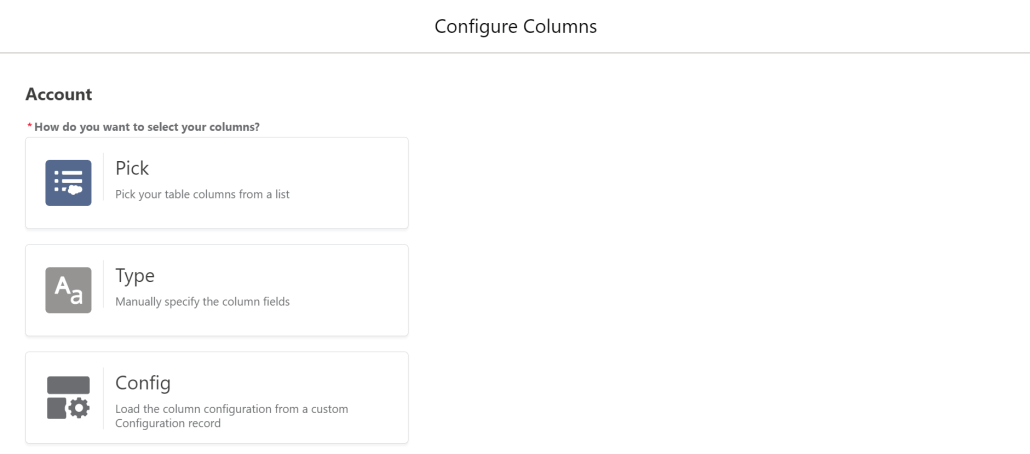
The latest release of the Datatable component adds a major new feature. You can now Save and Retrieve settings for your Column Configurations. If you find yourself adding identical or similar Datatables to multiple flows, this will be a tremendous time-saver.
Check out the updated documentation for all the details on how to take advantage of this new feature.
There is a new advanced attribute you can set to allow the Datatable to overflow its container. This is useful when you are allowing picklist fields to be edited on a table with only a few records and want to avoid causing the user to have to scroll up and down to see the picklist values.
The Table Height attribute is ignored when using this setting. This is not recommended for wide tables being displayed in a narrow container, because the table, if needed, will overflow horizontally as well.
Other changes in this release include:
Reduced the number of rows displayed in the Column Configuration Wizard from 10 to 6 to allow more of the new save configuration options to appear on the Wizard screen.
Fixed an error that ocurred when trying to save an edited row from a datatable that contained a time field.
Fixed a bug that kept Date and Time fields from displaying in datatables when the User’s locale displays numbers with a . separator instead of a , separator.
Rows with editable picklist fields will no longer default to a taller height (Even without picklist fields, all rows will still be slightly taller if any fields are editable).
This new update to ConvertToFlow adds the ability to create Flows from Workflow Rules. Most WFR are supported, although Flow doesn’t support Outbound Messages yet and is not expected to support Recursion. Here’s a video showing some conversions:
https://unofficialsf.com/wp-content/uploads/2022/09/largeUCSF-300x133.png00Alex Edelsteinhttps://unofficialsf.com/wp-content/uploads/2022/09/largeUCSF-300x133.pngAlex Edelstein2021-07-14 19:25:032021-07-14 19:25:07Convert To Flow Now Migrates Workflow Rules to Flow
We wanted to give Forcelution Apps a chance to talk about the functionality they add to Approval Requests with their Enhanced Approval Requests extension. It’s available as a free version and as a paid, supported, enhanced version.
Filling Gaps
Salesforce out of the box provides the ability to submit and process records for approval. This is a feature used in many orgs as it is easily configurable and extendable by adding multiple approval steps. On the other hand, especially since Lighting Experience was introduced, it currently lacks some key features to efficiently and accurately submit and process approval records. Fortunately, there are solutions using the AppExchange app Enhanced Approval Requests (Pro).
Some of the key features currently missing
Submitting records for approval in bulk instead of going to each and every record page to submit it for approval;
Organizing submitted and pending approval requests in list views;
Approving, rejecting, reassigning and recalling approval requests in bulk;
Having detailed insights on the underlying records in one overview to allow bulk processing of records;
Having the ability to filter approval requests in a list view based on one or more criteria.
Being more efficient
Some of the missing key features can easily be solved by installing the free app Enhanced Approval Requests. As an admin you can configure a list view for approval managers that displays relevant data of pending approval requests. Approvers can select multiple items and approve, reject or reassign them in one go. Without the need to navigate to each and every approval record page, approvers save a great portion of their time!
Managing approval requests like a pro
Although the app Enhanced Approval Requests helps to process approval requests more efficiently, it lacks the ability to see key information about the requests you’re processing. As mass processing can only truly be useful if you have all relevant information at hand, the pro-version of the app provides the ability to display data of the underlying records in the list view. This allows users to mass process approval requests with full confidence!
The app Enhanced Approval Requests Pro focuses on managing approval requests more efficiently and accurately for submitters, approvers and administrators, through the following features:
Mass approve, reject or reassign approval requests;
View your approval requests on Lightning pages;
View details of related records through table columns and popovers;
Review and verify by consulting the summary overview before processing;
Organize approval requests using list views;
Refine approval requests with filters;
Intuitively manage approval requests on your mobile;
Mass submit records for approval from any object list view;
Mass recall your submitted items;
Track your submitted items;
View all and process any approval request as an administrator.
You can try out the app in your sandbox or install the 30-day free trial in your org.
Watch the videos for a quick walkthrough of all the benefits that comes with Enhanced Approval Requests Pro!
Check out the Flowhana’s contributions for the month of June in the latest Flowcast video!
https://unofficialsf.com/wp-content/uploads/2022/09/largeUCSF-300x133.png00Adam Whitehttps://unofficialsf.com/wp-content/uploads/2022/09/largeUCSF-300x133.pngAdam White2021-07-09 15:21:442021-07-09 15:21:49Flow Development Community ‘Flowcast’ – June 2021
Flow Orchestrator takes a wide range of rich, sophisticated, and complex business process use cases that require code today and makes them easy to create with clicks. It makes it possible to automate multi user processes so I try to verify if Flow Orchestrator replaces the standard approval process.
Use case
A SaaS company provides various products with their customers. They give free trials for their products to their prospects and manage this process using a custom object called “Free Trial”, which contains Start Date of trial, End Date, Products, and related Opportunity.
The Sales VP would like all Free Trial requests to be routed controlled by an Approval Route table which is a custom object and it to be routed with serial and parallel mode.
Functionality
Send an email to approvers
Lock & unlock a record
Three Approval Steps
Serial mode : same as standard approval process
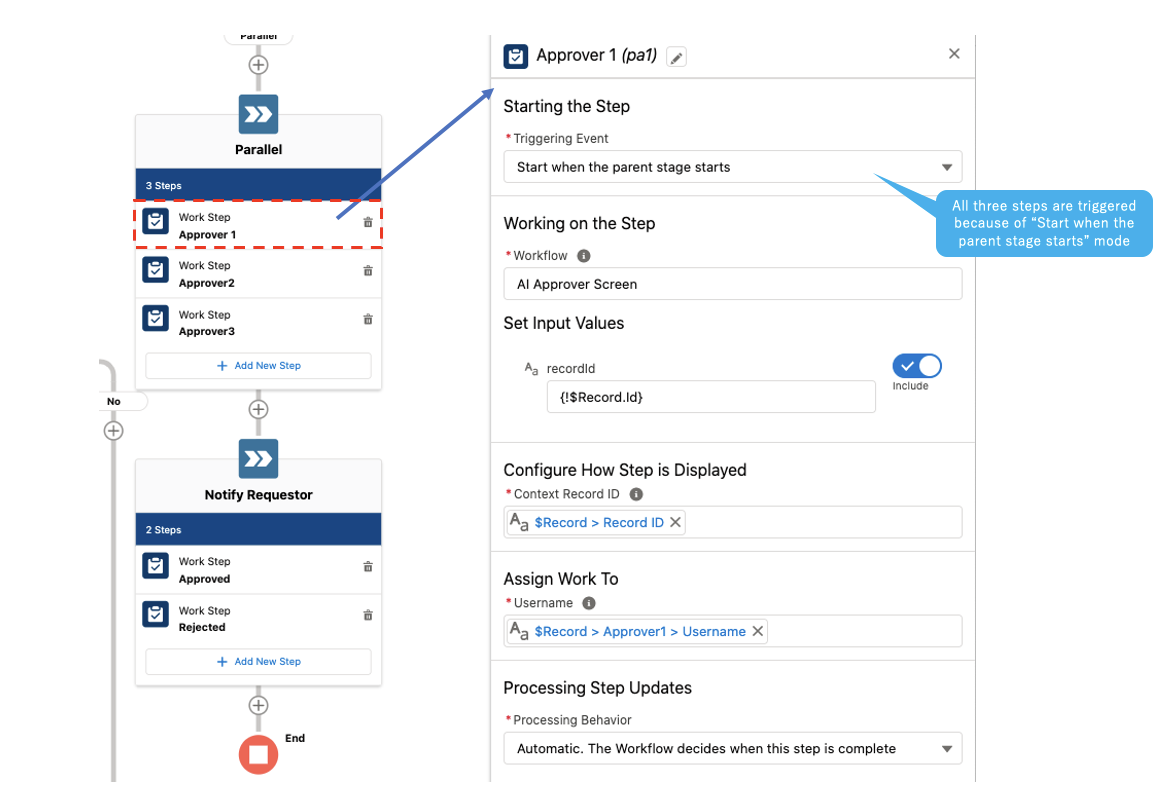
Parallel mode
Majority Wins
CEO Overrides where a particular approver can override the majority
Approval History
Approval Route
Custom Notification for only parallel mode
Demo Video
Flow
AI Approver Screen
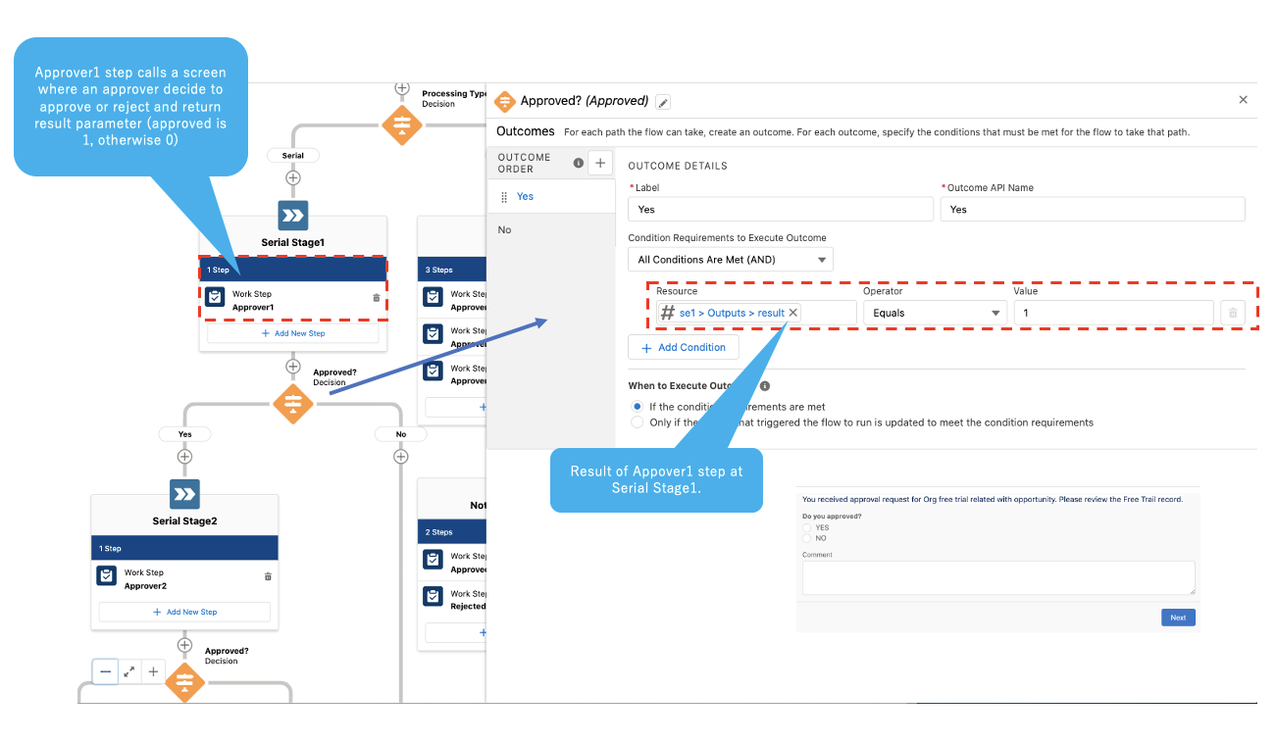
This is a screen flow where an approver decide to approve or reject and return result parameter (approved is 1 otherwise 0)
AI Requester Screen
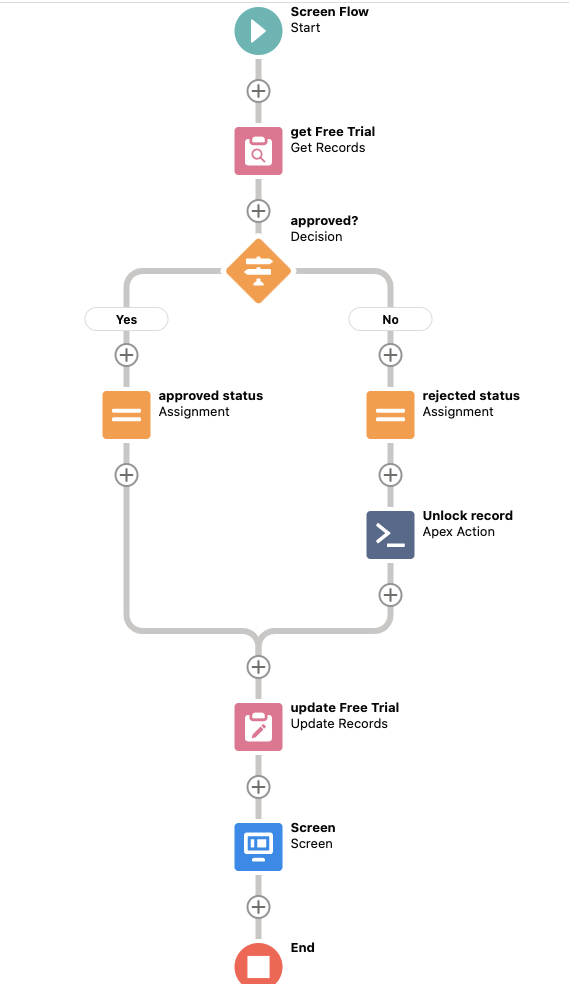
This screen flow receives is_approved (boolean) and recordId (string) as input parameters and update a Free Trial record’ status based on is_approved value. In case it is rejected, Apex action for unlocking the record is executed. Finally it shows whether the approval process is accepted or rejected to a requester. This implementation looks weird to you because the status of the record is updated after the requester executes this screen flow. Yes, it does. The current Flow orchestrator supports only screen flow. We can not hook up an event where three approvers complete their decisions for parallel mode (send approval request to approvers simultaneously) Do not worry about it. Flow orchestrator will support Autolaunched Flow soon. Once it comes true, we can get rid of updating and unlock record logics from this screen flow.
AI Submit Approval Process Action
Custom action of Free Trial record calls this screen flow. After requester completes to submit for approval process, Submit_Approval__c of the target Free Trial record is set to true. This triggers AI Approval Process Orchestration.
AI Parallel Approval Decision Flow
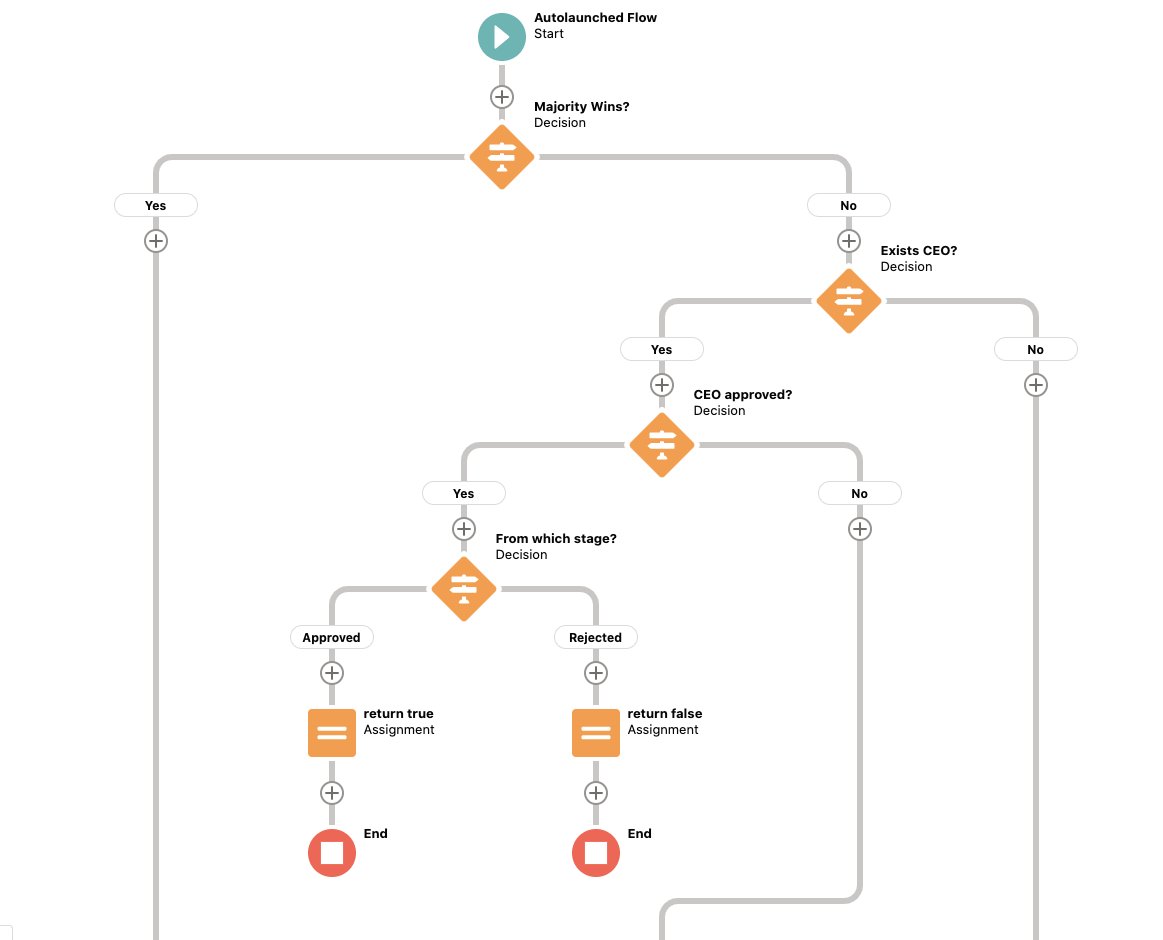
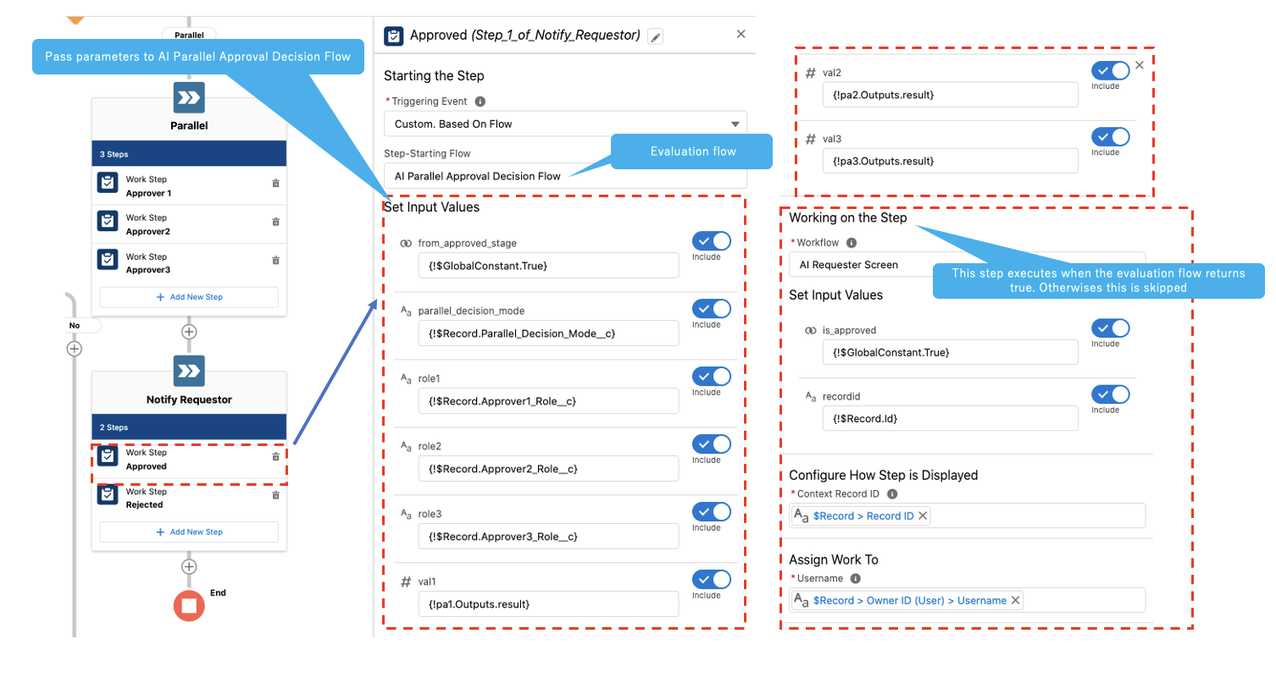
One of my favorite features of Flow orchestrator is that we can customize how a step or a stage will be triggered or considered complete. We can invoke an evaluation flow to evaluate the entry condition of a stage or step. This flow is an evaluation flow for parallel mode. An evaluation flow must be Autolaunched Flow and returns isOrchestrationConditionMet parameter (boolean). Since autolaunched flow can query objects and make API calls via Apex , execute logic, and so on, you can make complicated decision logic.
The flow receives parallel decision mode (Majority wins or CER overrides), role names for three approvers, three approver’s decisions, and “from approved stage” ( boolean value, from approved stage or rejected stage) as input parameters and returns isOrchestrationConditionMet boolean value. The current Flow orchestrator does not support evaluation flow within the Decision element so I need “from approved stage” input parameter so that only proper step is triggered. I will jot about this at AI Approval Process Orchestration section below.
AI Approval Process Orchestration
It is Record-Triggered Orchestration where object is Free Trial and condition is Submit_Approval__c Equals true. It orchestrates AI Parallel Approval Decision Flow, AI Submit Approval Process Action, AI Requester Screen, and AI Approver Screen.
Serial mode
Parallel mode
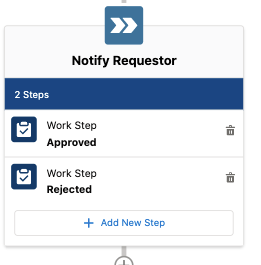
As I mentioned necessity of “from approved stage” input parameter at AI Parallel Approval Decision Flow section. I want to execute either a Work step named “Approved” or “Reject”. For instance, AI Parallel Approval Decision Flow returns true at Work step named Approved and do false at Work step named Rejected under approved Free Trial record.
Not implemented
Recall approval process
Assign Queue
This can be implemented using Select Id from Group where type=’Queue’ and Name=’Queue Name’ and Select UserOrGroupId From GroupMember where GroupId =:Id but complicated
Custom Notification for serial mode
Supporting Autolaunched Flow will fix easily
Conclusion
I have confidence in replacing the approval process with Flow Orchestrator because I believe that new functionalities related to the approval process will be available at GA. My implementation of the approval process is a little bit complicated because of lacking standard functions such as supporting Autolaunched Flow, recall approval process (back to previous stage), standard actions (lock & unlock record, get queue member) but I am very excited to continue to watch new features.
You want to try?
Prerequisite
Unlimited, Enterprise, Developer Editions have Flow orchestrator enabled
Select “Install for All Users” at Install AI Flow Orchestration Approval Process screen and hit Install button
Post Installation
Setup → Process Automation → Process Automation Settings
Check “Allows Apex code to set and remove approval process locks. Enable record locking and unlocking in” checkbox
Hit Save button
Setup → Users → Profiles
Search “Demo Salesforce Platform” profile
Hit edit link
Check the both “Run Flows” and “Send Custom Notifications” checkboxes
Hit Save button
Setup → User Interface → Path Settings
Hit “Enable” button
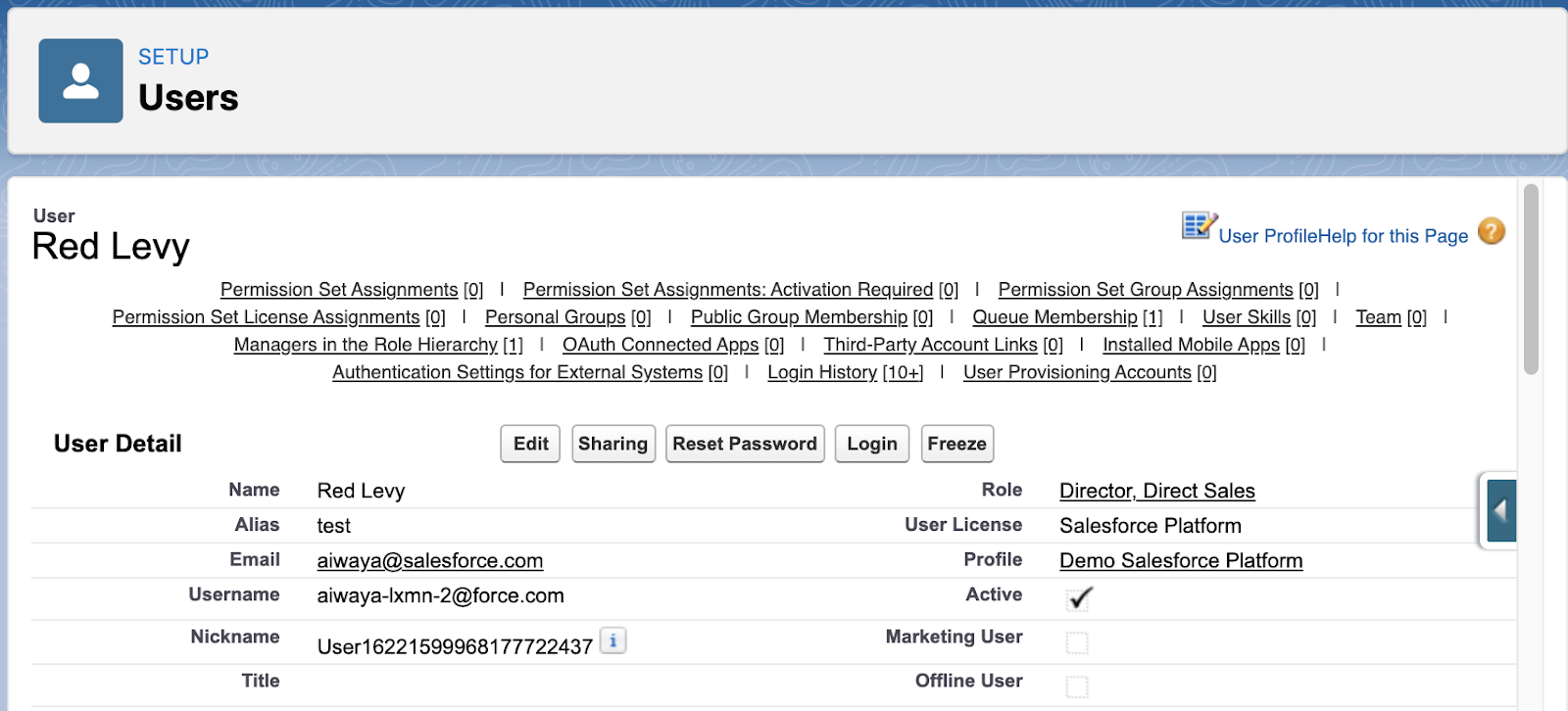
Create three “Salesforce Platform” user license users with “Demo Salesforce Platform” profile
By Hand
Role must be specified and one of three must be CEO role
By Apex code
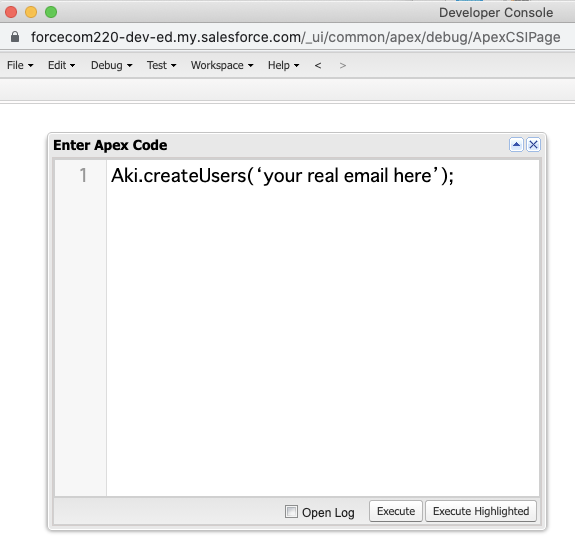
Open developer console
Debug→ Open Execute Anonymous Window
Aki.createUsers(‘YOUR_REAL_EMAIL_ADDRESS’); and Hit Execute button
You will receives password reset emails for three users at YOUR_REAL_EMAIL_ADDRESS.
Select “Approval App” at App Launcher
Select “Approval Route” tab
Hit New button
Create a Approval Route record
Approval Route Name : High Priority
Approver1 : one of users created at post installation step
Approver2 : one of users created at post installation step
Approver3 : System Admin user
Demo Steps
Requester
Login in as the user which is not in the Approval Route record you defined
Select Approval App at App Launcher
Select Free Trial Tab
Hit New button
Fulfill fields
Opportunity in the form is a custom object because “Salesforce Platform” user license user can not access standard Opportunity
Hit Save button
Hit Approval Process Action
Fulfill all fields because I do not implement proper error handling ;(
Check if the record is locked
Approver
Login in as the user based on the selected Approval route record
Select Approval App at App Launcher
Select Free Trial Tab
Select the record
Enter your decision at the Work Guide
# The custom notification is not implemented for serial mode and you need to refresh a Free Trial detail page to change status after requester confirms at Work Guide
Uninstall Package
Since the uninstall package contains flow orchestrator, you need to delete some components manually first.
https://unofficialsf.com/wp-content/uploads/2022/09/largeUCSF-300x133.png00Alex Edelsteinhttps://unofficialsf.com/wp-content/uploads/2022/09/largeUCSF-300x133.pngAlex Edelstein2021-07-06 15:24:292021-07-06 15:24:34Akihiro Iwaya Explores Approval Use Case in Flow Orchestrator
If you’re reading this at some point in the future, then hopefully this will all be a distant memory, but right now, Flows and the Time field type really don’t get along. Which is a shame, because we love Flows and we need to work with data in time fields.
We have found a way. We also built a declarative time picker in Flow and the Summer ’21 release has made it better. So, if anyone else is struggling like I was, this is what we did …
Before we get to the time picker, you first need to get Time into your Flow. Unless I’m missing something fundamental, that’s not as easy as you might think.
We need to do four things …
Read from a time field
Create data with time fields
Display editable data from a time field
Update a time field
Sounds simple right? Except we tripped over at number one. These are the obvious things we tried that you can’t do …
Create a time variable and assign a value to that (no Time variable type exists)
Assign the time value to a text field (this one causes a pretty spectacular fail with lots of red ink and obscure numbers)
Build a formula on a time field value retrieved using a Get Record element such as HOUR, TEXT or MINUTE
But, that last one’s not so very far off what we did get to work. Essentially build formula fields on the Object that return the HOUR and MINUTE values of the time field as integers. That’s not very efficient, but it does work and you can read the hour and minute values and then have a Time value in your Flow to play around with.
So now we have that, we can make and populate our time picker.
You can probably work out from the picture exactly what you need to do, but here’s a little summary …
Use the new (GA Summer ’21) Section component and create four columns within it. Columns one, two and three are 2 of 12 wide (this will make sense if you try to do this) and the last column is 6 of 12 wide.
In the first column use a Display Text component to put the title of your time picker. It’s kind of hard to get the font to match and make it look like the other labels, but Verdana 11 and a dark grey (RGB 50:50:50) seems to get pretty close.
The second and third columns are picklists. The first one has choices of 0 to 23 and the second in our case just has 0, 15, 30 and 45 which is precise enough for our use case. Of course you could use 0 to 59. If you don’t want to use a 24 hour clock it’s harder and you’d need an AM/PM picker in the last column which messes up the widths a bit.
And then this is where Summer ‘21 gives us another helping hand, because you can now set the default value of the picklist to the hour or minute value. That in turn means you can pre-populate the value of the time picker with the value of a record you want to Clone or Edit.
Superb. Now all we need to do is save it and we’re done.
Ha!
Because Flows aren’t particularly good at saving into Time fields either. You can’t just convert the Hour and Minute values into a TIMEVALUE because there’s no such function available in a Flow. However, after a bit of rummaging around I discovered that you can save a DATETIMEVALUE into a Time field and the date gets stripped out just leaving you with the time and there is a function available for that.
So, you make a little formula to do that. Here’s mine. You can choose any date you like.
DATETIMEVALUE ( ‘2020-01-01 ‘ & IF ({!StartHourInput}<10,’0′,”) & TEXT ({!StartHourInput}) & ‘:’ & IF ({!StartMinuteInput}=0,’0′,”) & TEXT ({!StartMinuteInput}) & ‘:00.000Z’ )
And then you can save that using a Create Record Element. One final ‘gotcha’ is that this only works if you try to save the record directly and it doesn’t work if you try to assign the value to a record variable in an assignment step. So, you can’t add records to a collection and save them all at once. Instead you have to go against best practice and start Creating or Updating records inside a loop, which is far from perfect but it does work.
And that’s it – a declarative time picker for Flows 😊
https://unofficialsf.com/wp-content/uploads/2022/09/largeUCSF-300x133.png00Sean Dukeshttps://unofficialsf.com/wp-content/uploads/2022/09/largeUCSF-300x133.pngSean Dukes2021-06-27 10:50:422021-06-28 13:46:57BUILDING A DECLARATIVE TIME PICKER AND WORKING WITH TIME IN FLOWS (AND HOW SUMMER ’21 HELPS)
This new Datatable release includes two new features and a few minor bug fixes.
Because the outputEditedRows attribute is not Null even if no rows were edited nor included in the output collection variable, I’ve added a new output attribute numberOfRowsEdited that can be used to check if any rows were edited. I’ve also updated the component to take advantage of the new Automatic Output Variables feature so outputs from one Datatable can now be specified as inputs to another Datatable in the same Flow without have to manually assign the first Datatable’s outputs to a variable.
Updates:
New Output Attribute for the Number of Rows Edited (Because even when no rows are edited, the OutputEditedRows attribute is not null)
The Datatable CPE now supports Automatic Output Variables in the Flow Builder
Bug Fixes:
Orgs with multi-currency enabled can now add currency rollup and currency formula fields to the datatable
The edit picklist dropdown will overflow the displayed table if necessary (Only if the Table Height attribute is not set)
The dropdown picklist values when editing will show the picklist labels instead of the picklist API names (The selected edit prior to selecting Save will show as the API name)
The datatable will only display the first 1000 records in the input collection. A collection passed in with more than 1000 records could cause an Apex CPU time limit exceeded error.
When filtering rows in a datatable, any previously selected rows that are not part of the resulting filtered rows will be deselected.
Some data types cannot yet be edited in a datable (lookup, location, time, encrypted, rich text, long text area).
In order for a lookup or master/detail field to display as a link, it must be “reparentable”
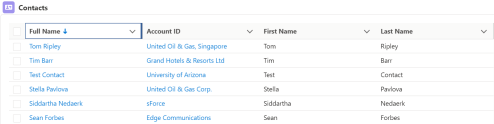
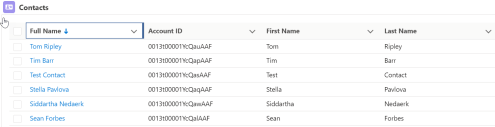
In order to have the Datatable display a Lookup field as a link to the record rather than just the recordId value in the field, the running User must have Edit access to the object whose records are being displayed in the Datatable. For example, if you have a Datatable for Contact records and include the AccountId(Lookup) field, the running User needs to have Edit access for the Contact object in order for the AccountId field to show as a clickable link with the Account’s Name. Without Edit access to the Contact record, the Datatable will display, as unclickable, the Account’s recordId value. For information on how you can temporarily add then remove Edit access in a Flow, read the referenced Help Article and/or complete the referenced Trailhead. Help Article: Create a Flow That Can Activate or Deactivate a Session-Based Permission Set Trailhead: Session-Based Permission Sets and Security
Running User has Edit access to the Contact objectRunning User does not have Edit access to the Contact object
With the update to selecting a record type for picklist field edits, the running User must have Read Access to the object being displayed in the Datatable. If they do not, any Record Type Id attribute will be ignored and all Picklist values will be available when editing a Picklist field.
When editing Percent fields you must enter the true decimal value. Example: .25 for 25%
2 fewer decimal places will be available when editing than what has been defined for the percent field
If you are selecting an Object that contains Geolocation fields (ie: Contact), you may experience a Salesforce Bug where the Flow will stop just before the Datatable should be displayed or the Flow will display an error when clicking Next and show another copy of the same datatable. If this happens, unselect “Automatically store all fields” in your Get Records and choose your fields manually.
If you are editing, then updating records that contain a non-custom integer field (Account: NumberOfEmployees) you may experience a Salesforce Bug and see this error:
This error occurred when the flow tried to update records: Argument must be a big decimal java.lang.Long.
If you see this error when trying to Configure Columns, try going to Setup > Security > Session Settings and unchecking “Enable clickjack protection for customer Visualforce pages with headers disabled“. Also, in your Setup > User settings, make sure both Debug Mode and Development Mode are Unchecked.
Amit Singh from the blog SFDCPanther.com has written a post explaining how to create a LWC that will enable a Rich Text Area component in flow screens Check it out
https://unofficialsf.com/wp-content/uploads/2022/09/largeUCSF-300x133.png00Tamar Erlichhttps://unofficialsf.com/wp-content/uploads/2022/09/largeUCSF-300x133.pngTamar Erlich2021-06-24 14:33:192021-06-24 14:33:21From SFDCPanther: Rich Text Area component for screen flow
This new version of the converter (the original is here) has been updated to convert more kinds of Process Builder workflows to Flows, leveraging features added to Flow in the last 2 releases. It also now converts Workflow Rules.
Important Notes
ConvertToFlow creates a clone of your process and deploys it as a Record-Triggered Autolaunched Flow. This flow shows up in the Flow List like any other flow. ConvertToFlow does not modify or deactivate the process builder process or workflow rule that it’s cloning, so when you activate the new flow, keep in mind that if you don’t deactivate the original, you’ll have two identical processes firing on the same event. We did this for safety, but you really need to keep this in mind. If there’s demand, we can create an option to delete or auto-deactivate the original process so you never have two of them.
The newly created flow has an api Name that has ‘converted_’ prepended to it, and it has the same label as the original process:
Looking at a Typical Conversion
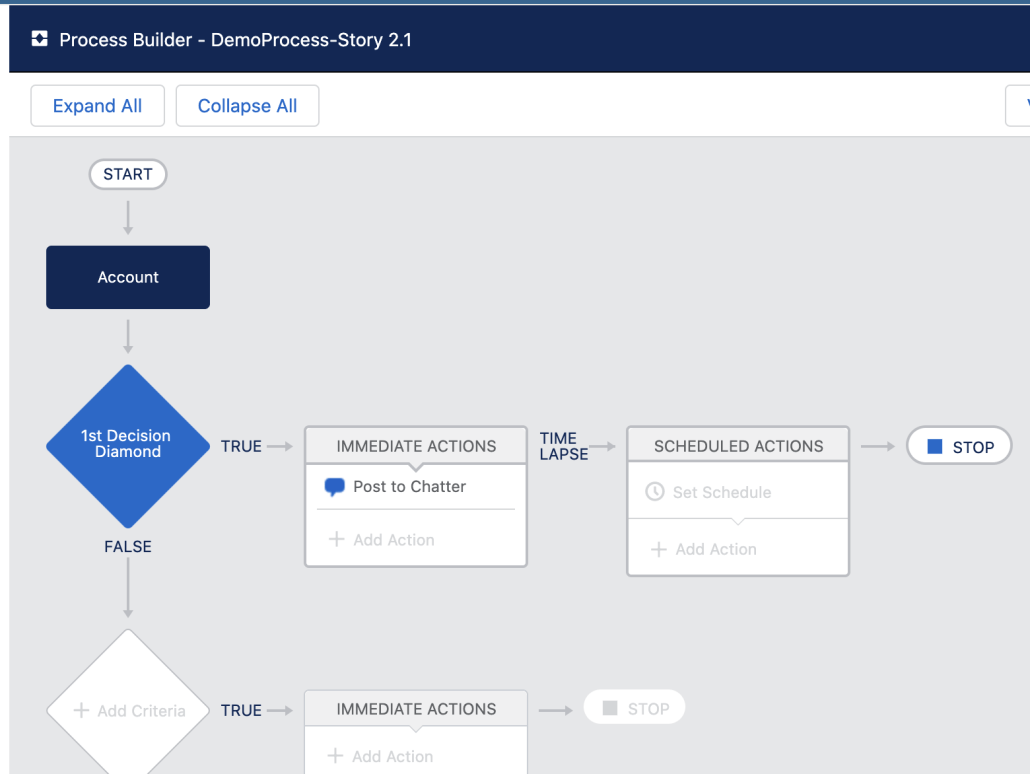
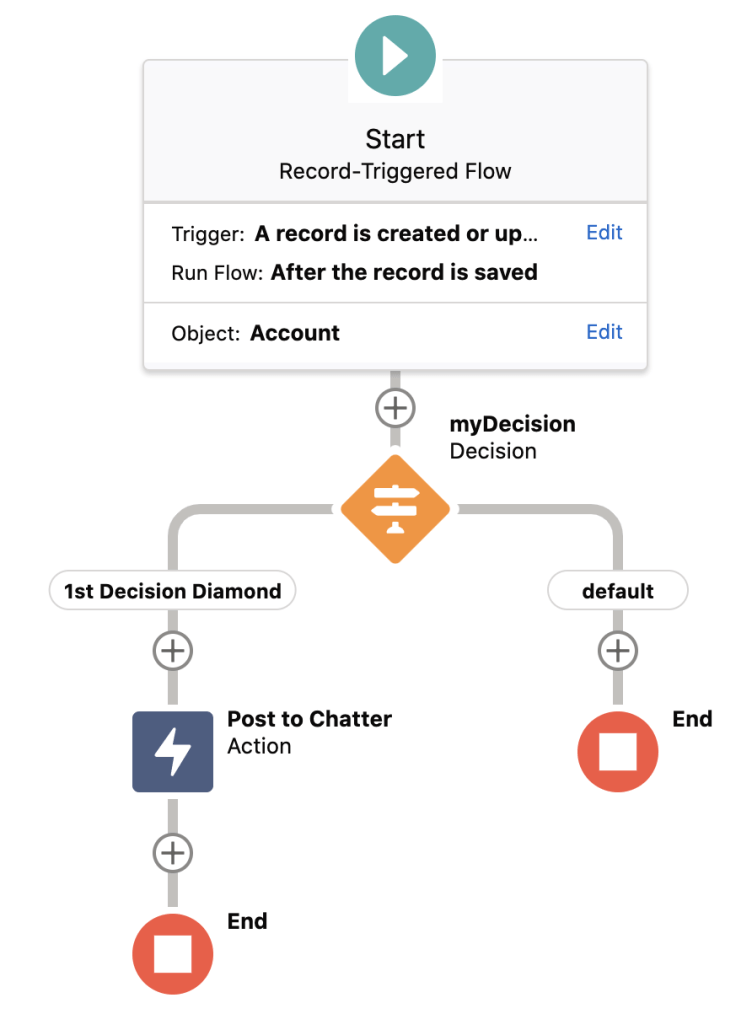
Let’s take a look at what a conversion looks like. Here’s a simple PB process:
Here’s what the converted version looks like:
Let’s look at some of the improvements on the Process Builder side. Since the original version was released, Flow has added a bunch of matching features.
ConvertToFlow converts processes that have the “Only Specified Changes” checkbox checked:
The setting of the checkbox is represented in Flow Builder here:
ConvertToFlow converts processes that are using related record references
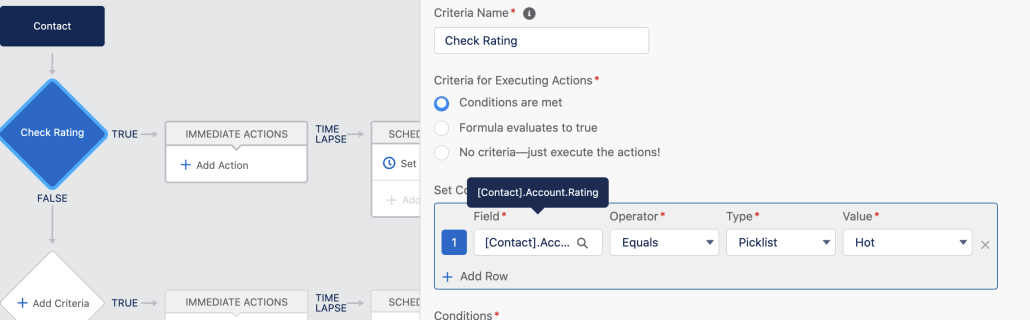
Here’s an example of a process that has a reference to a related record:
Here’s the converted version:
ConvertToFlow converts processes that use Scheduled Actions
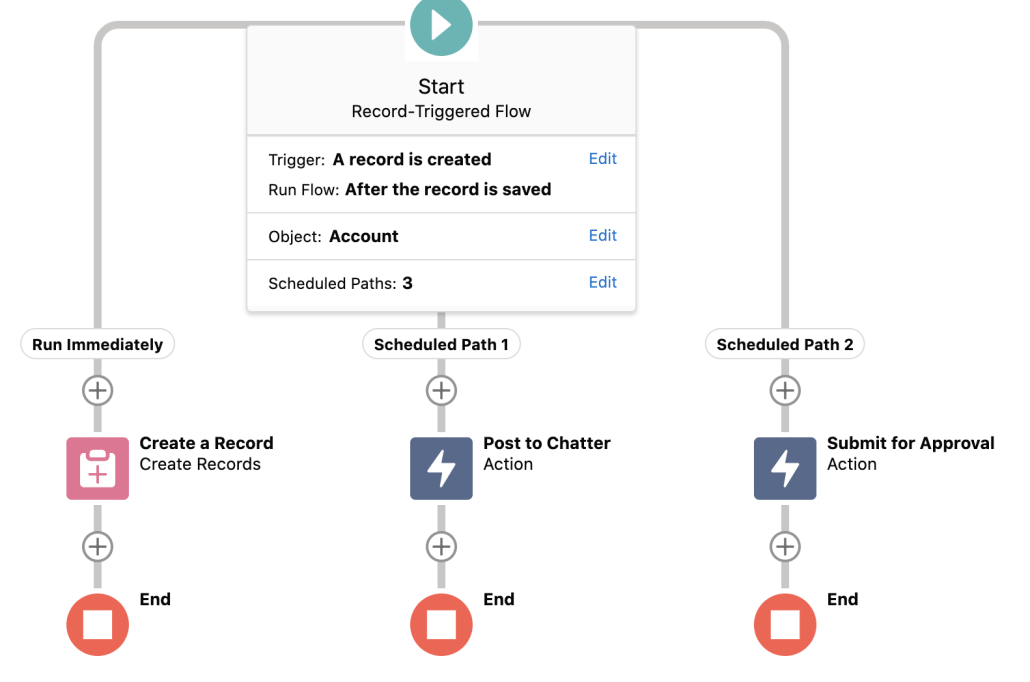
If the process has no more than 1 scheduled action per decision ‘row’, ConvertToFlow can convert it. Here’s an example of a process with 2 scheduled paths:
Here’s what it looks like after conversion:
Converting Workflow Rules
This update to ConvertToFlow adds the ability to create Flows from Workflow Rules. Most WFR are supported, although Flow doesn’t support Outbound Messages yet and is not expected to support Recursion. Here’s a video showing some conversions:
Support for Process Builder Processes that Launch Flows
The latest update of Convert To Flow adds support for Process Builder processes that launch flows, converting them to Triggered Flows that use a Subflow.
NOTE: this requires a Winter ’22 Org.
The Newly Generated Flow Will Use Before-Save Triggers If Possible
If the source process or rule does a straightforward field update, a high-performance Before-Save trigger will be used. If the source process does something that’s not allowed Before the Save, an After-Save trigger will be used.
Important Notes
ConvertToFlow creates a clone of your processes and rules and deploys it as a Record-Triggered Autolaunched Flow. This flow shows up in the Flow List like any other flow. ConvertToFlow does not modify or deactivate the process builder process or workflow rule that it’s cloning, so when you activate the new flow, keep in mind that if you don’t deactivate the original, you’ll have two identical processes firing on the same event. We did this for safety, but you really need to keep this in mind. If there’s demand, we can create an option to delete or auto-deactivate the original process so you never have two of them.
The newly created flow has an api Name that has ‘converted_’ prepended to it, and it has the same label as the original process:
Save Order Considerations
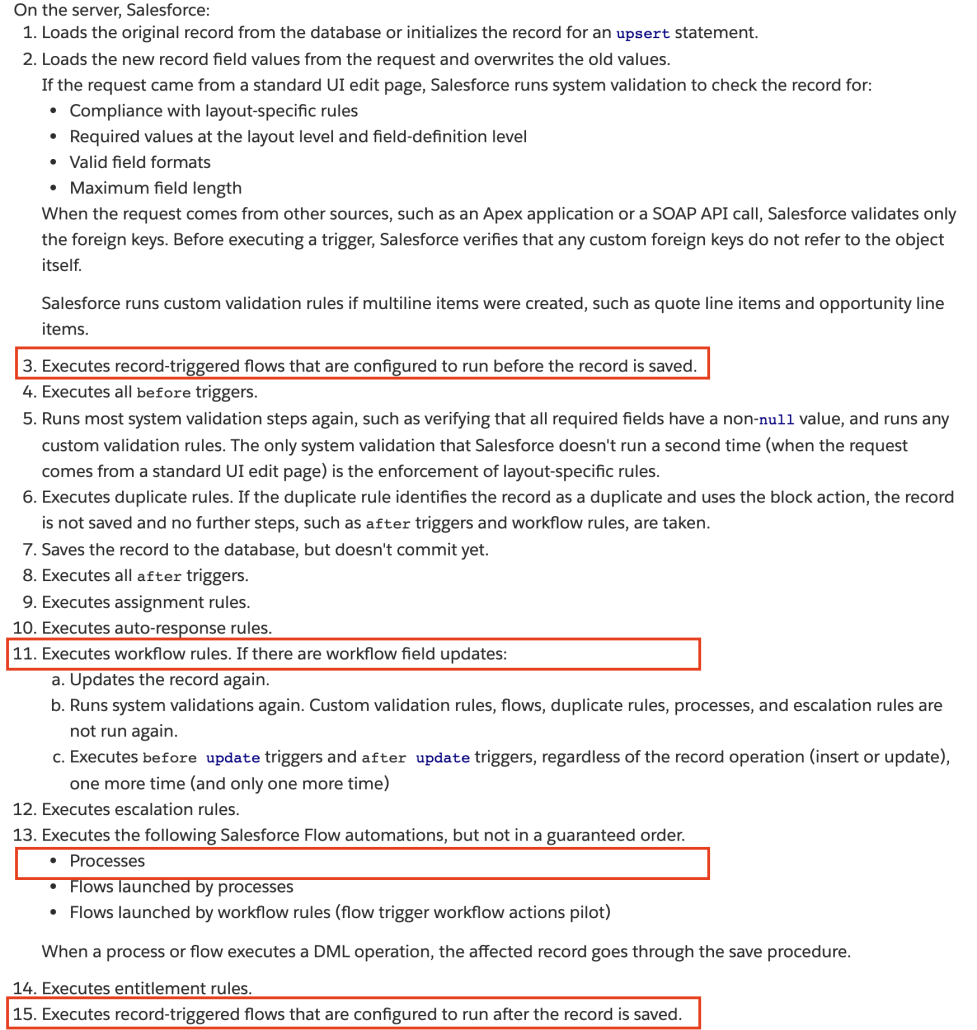
Some Flows generated from Processes and Workflow Rules may behave slightly differently because of differences in the save order. See “Save-Order Considerations”, below. Currently ConvertToFlow always creates After-Save Triggers. Note the different points in the save order used by Process Builder, Workflow Rules, and After-Save Triggers in the list below.
As can be seen, the sensitive functionality is Escalation Rules and Entitlement Rules. Entitlement Rules execute after Process Builder and Workflow Rules but before Record-Triggered Flows that execute After Save. Escalation Rules execute after Workflow Rules but before Record-Triggerd Flows that execute After Save.
Not Yet Supported
ConvertToFlow does not:
generate Before-Save Triggers.
convert PB Processes that have more than one set of Scheduled Actions on a single row
convert Workflow Rules that use Outbound Messages or Recursion.
respect the Notify Assignee checkbox on the New Task action in Workflow Rules
Troubleshooting
Remote Site Settings issues
If you see this kind of error:
This page has an error. You might just need to refresh it. [LWC component’s @wire target property or method threw an error during value provisioning. Original error: [error returning from _getWFRDataApexIO Exception: Unauthorized endpoint, please check Setup->Security->Remote site settings. endpoint = https://saas-force-2107-dev-ed–c.visualforce.com/services/Soap/m/42.0%5D%5D Failing descriptor: {markup://c:flowPickerFSC}
Just as it says, you need to create a Remote Site Setting that points to your own org. In the example above, you would go to Remote Site Settings in Setup and create this:
Deployment Never Completes Issue
If retrieval works, but deployment of the converted flow seems to hang, it may be because of this: Your Apex Tests are all run when the metadata deploys even though Convert To Flow is deploying just a single piece of Flow metadata and no code. We recently changed Deploy to do this because with the previous setting that bypassed test runs, you couldn’t do Convert To Flow on production orgs (which don’t allow test runs to be bypassed for this situation).
What makes this confusing is that the test failure error isn’t getting delivered to Convert To Flow.
To see if this problem is caused by test failures, you can check your deployment status, which might look like this:
In this case, an unrelated class called DataManager, which is already installed on the org, has some broken test classes that are preventing Convert To Flow from successfully deploying.
You can also verify whether or not you have a broken Apex Class by clicking the Compile all classes link found here:
If you have _any_ compile failures, you will get this Deployment Never Completes error.
To get past this, you either need to fix the test class code or delete the class in question.
Install V1.2.2 9-19-21 removed a demo flow that was calling
Install V1.2 9-10-21 Added Before-Save and Subflow Support IMPORTANT: this version requires a Winter ’22 org to successfully convert Process Builder Processes that themselves launch flows.
https://unofficialsf.com/wp-content/uploads/2022/09/largeUCSF-300x133.png00Alex Edelsteinhttps://unofficialsf.com/wp-content/uploads/2022/09/largeUCSF-300x133.pngAlex Edelstein2021-06-22 20:37:262022-06-08 11:01:26ConvertToFlow App Migrates Process Builder Processes and Workflow Rules to Flow
The Custom Property Editor Developer’s Guide has been updated to include material about the new @api automaticOutputVariables attribute. If you use FlowComboBox in your CPE, you should create this attribute and then make sure to pass the resulting data to FlowComboBox along with the builderContext data. This will cause your embedded ComboBoxes to provide access to all upstream merge fields.
https://unofficialsf.com/wp-content/uploads/2022/09/largeUCSF-300x133.png00Alex Edelsteinhttps://unofficialsf.com/wp-content/uploads/2022/09/largeUCSF-300x133.pngAlex Edelstein2021-06-22 10:31:362021-06-22 10:33:41Developer Note: Adding Automatic Output Variable Support to your Custom Property Editor