Hayes Davis, Co-founder of GradientWorks, has posted a great walkthrough on how to utilize CPEs to help admins get more out of Invoked Actions and Screen Components in Flow.
The flow IFrame Lightning Web Component gives an admin the ability to display a website/web page inside of a Flow Screen Component. iFrames can be tricky and they have their pros and cons and in some cases are depreciated by some websites however if you have a use case they can be great. When would you want to use it in a flow? A few ideas I have run into have been things like displaying a Salesforce File via a flow screen or showing data that is in an external system that is not available via a direct integration via external services or some other type of API but a user needs to see the data. Possibilities are endless last year I embedded a virtual career fair inside of an Experience Site that did not have a direct integration with Salesforce allowing us to present data and actions from the Experience Site while also displaying conversations and navigation of the Career Fair.
Gotchas. There are always Gotchas! In order for this to work you will need to add the domain of the site to your trusted sites in your org. The site also needs to allow for iFraming as well. iFrames come with their own inherent security risk so be careful what information you are passing through the iFrame.
I know you are all saying thank you for my rambling of how I have used this and the Gotchas can you just show us how it works already! Let’s take a look
The component has three input variables.
Property Label
Data Type
Description
iFrame Height
Text String
The height in pixels of your iFrame
iFrame Width
Text String
The width in pixels of your iFrame
URL
Text String
URL of the site you wish to display in your flow
In my example below I am going to take a file I upload in my first screen create a public url for it and display it via Flow iFrame (to learn more about creating a Content Delivery aka public url for files check out this post from Narender Singh)
https://unofficialsf.com/wp-content/uploads/2022/09/largeUCSF-300x133.png00Alex Edelsteinhttps://unofficialsf.com/wp-content/uploads/2022/09/largeUCSF-300x133.pngAlex Edelstein2021-05-13 15:16:042021-05-13 15:17:08From Tamar Erlich: GetRecordTypeInfoByObject Now Returns Default Record Type Info
This version includes two asks from the community. It includes the ability to restrict to only allow a single file for upload and also to set the accepted file formats check it out below.
There is now a new property for Accepted Formats this is a Comma Separated String Variable of accepted file formats for upload for example .pdf,.sxls,.jpg. If left null it will default to accept all file formats.
Also added was a property to control single or multiple file uploads. Allow Multiple Files is a boolean property that when set to True allows for multiple file uploads but when set to False will only allow for a single file upload. (The default is false)
https://unofficialsf.com/wp-content/uploads/2022/09/largeUCSF-300x133.png00Josh Daymenthttps://unofficialsf.com/wp-content/uploads/2022/09/largeUCSF-300x133.pngJosh Dayment2021-05-05 05:56:412021-05-05 05:56:44Josh Dayment released Version 1.1 of File Upload Improved
Much like last month’s ‘Flowcast’ – I highlight a bunch of components, articles, and actions featured here on UnofficialSF – check it out in the link below!
The description in the video has links to each of the articles mentioned – enjoy!
Alex Edelstein – Summer 21 Release Updates for Flow
https://unofficialsf.com/wp-content/uploads/2022/09/largeUCSF-300x133.png00Adam Whitehttps://unofficialsf.com/wp-content/uploads/2022/09/largeUCSF-300x133.pngAdam White2021-05-05 05:27:362021-05-05 05:27:41April 2021 Community Flowcast Video
I’m very impressed by the amount of great video content that’s getting published about Flow! Just in the last month or two, some vloggers have appeared, seemingly out of nowhere but with deep Salesforce knowledge and great video production chops.
Salesforce Break
Salesforce Break is publishing Summer 21 videos and created a monster 1 hour session on Flow with Terry’s Tidbits:
SFDC Craftsmanship
SFDC Craftmanship has an unmistakable look and is running a series right now on Flow solutions. Special props for using Unofficialsf’s beloved ‘Bangers’ font!
Adam Foyston
Adam started posting videos about Flow a month ago. I don’t know where Adam cut his vlogging teeth, but he’s bringin’ ALL of the video production goodness.
Salesforce Geek
Shubham has built up thousands of subscribers and covers more than just Flow. Lately he’s been creating a lot of flow scenarios and enhancement reviews.
Check it out!
https://unofficialsf.com/wp-content/uploads/2022/09/largeUCSF-300x133.png00Alex Edelsteinhttps://unofficialsf.com/wp-content/uploads/2022/09/largeUCSF-300x133.pngAlex Edelstein2021-05-04 11:22:402021-05-04 12:28:23More Great New Sources for Flow Videos
A huge thanks to Guillaume Davies and Jerry Poon from Accenture in Sydney Australia for sharing their solution for supporting Picklist Field editing in the Datatable component.
Download the latest version (3.2.0) of Datatable to take advantage of this new and often requested feature. Currently, all available picklist values will be made available for selection when editing the fields. I’m working on fututure enhancements to support picklist value restrictions based on one RecordType per table and to provide an option to include –None– as an available selection.
https://unofficialsf.com/wp-content/uploads/2022/09/largeUCSF-300x133.png00Eric Smithhttps://unofficialsf.com/wp-content/uploads/2022/09/largeUCSF-300x133.pngEric Smith2021-05-03 08:44:202021-05-03 08:44:26Datatable now supports Picklist field edits
Reach out to your AE to get nominated for the pilot, we will turn on the pilot perm on your Sandbox and you are ready to roll!
Feature is available in Essentials, Professional, Enterprise, Performance, Unlimited, and Developer Editions.
OTHER CONSIDERATIONS FOR PILOT
Accessing Recommendation fields in the invoked flow
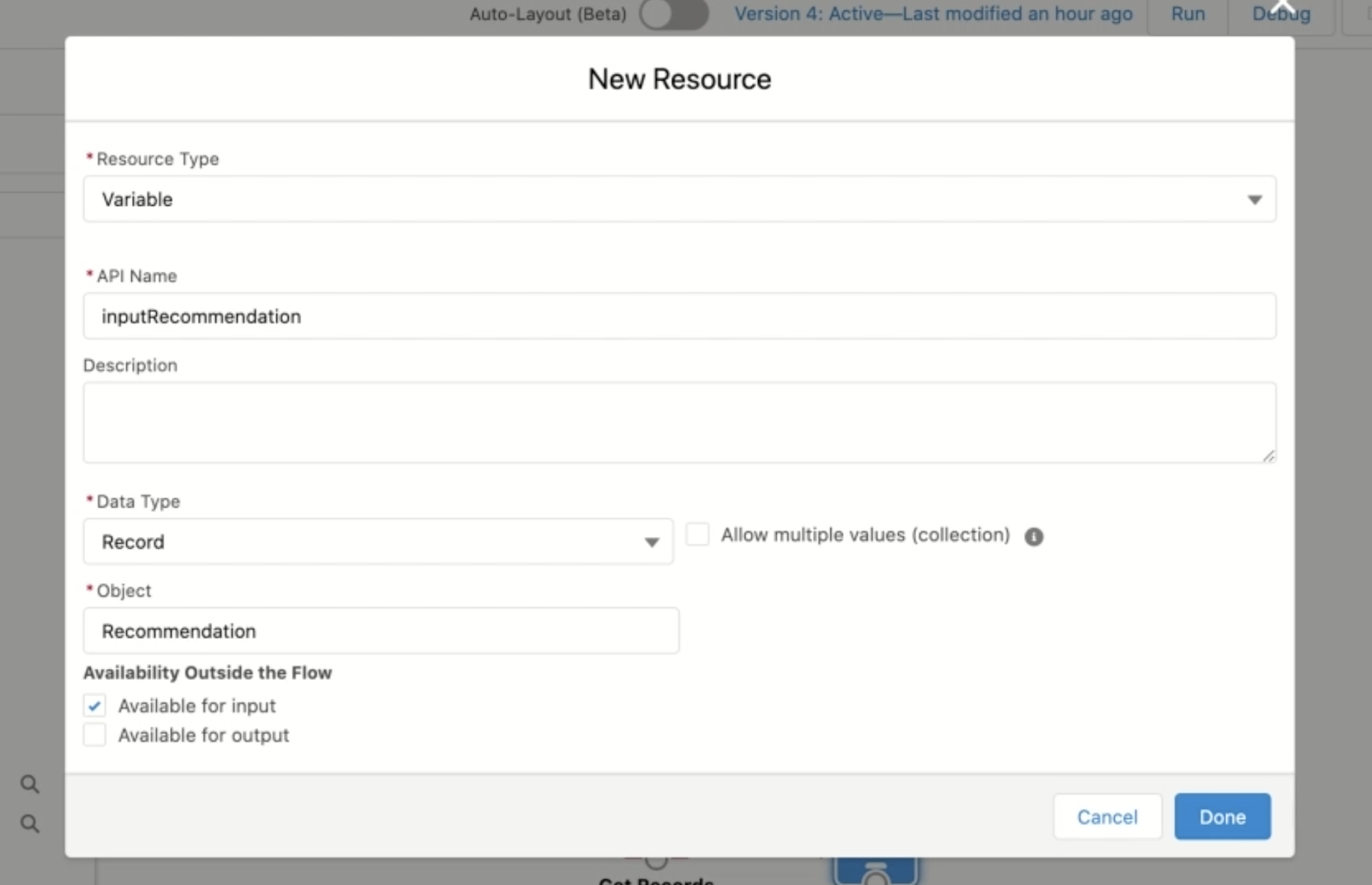
Create an optional input variable named inputRecommendation in the invoked flow of data type ‘Record’ and Object type ‘Recommendation’ and mark it as Available for input as shown.
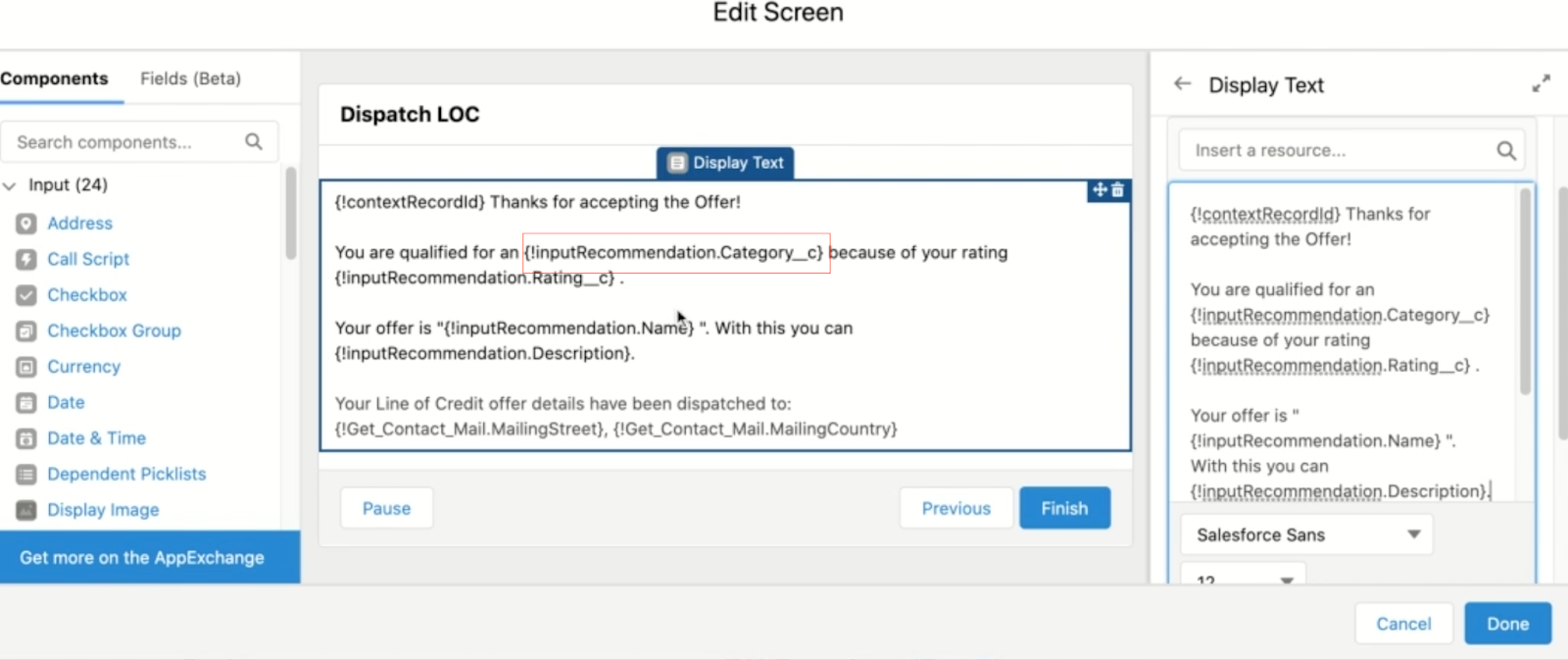
Now this variable holds details of the selected recommendations on the invoked flow that the admin can choose to display a more descriptive text on the screenflow invoked or save for custom reporting purposes. Example below where the category field(custom field) of the inputRecommendation is referenced in the invoked screenflow.
Automatic Variables
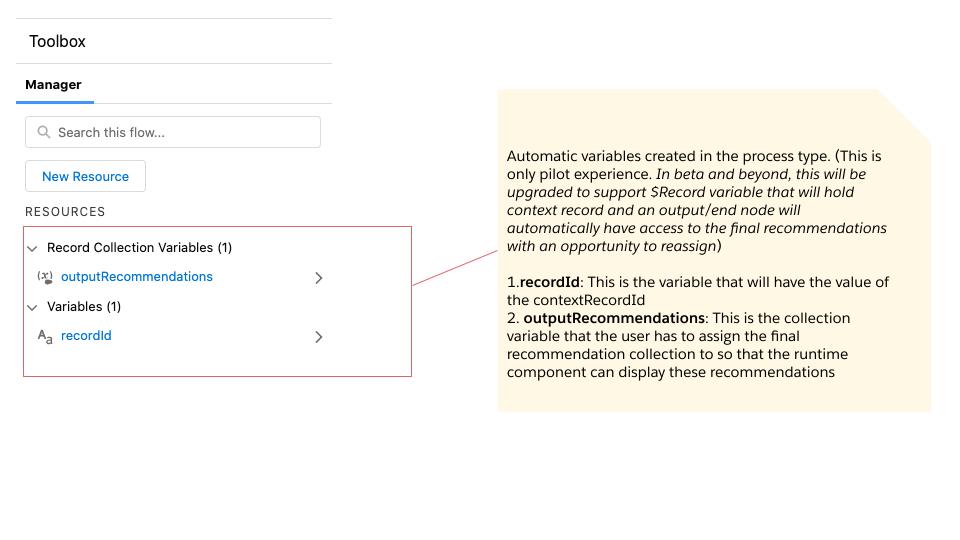
When you open the new recommendation strategy process type, 2 variables will be automatically created in the Manager tab under resources .
1.recordId: This is the variable that will have the value of the contextRecordId. (This is only pilot experience. In beta and beyond, this will be upgraded to support $Record variable that will hold context record
2. outputRecommendations: This is the collection variable that the user has to assign the final recommendation collection to so that the runtime component can display these recommendations (In beta and beyond an output/end node will automatically have access to the final recommendations but the admin will still have the ability to reassign it)
Versioning/ Activate or Deactivate a Recommendation Strategy:Versioning is a new platform capability that will be available to NBA users on this pilot. You can have multiple versions of a recommendation strategy, but only one version of each flow can be active at a time. You can activate or deactivate a flow right in Flow Builder or from the flow’s detail page in Setup.
Perms:
To create or manage recommendations
Modify All Data or Manage Next Best Action Strategies
To open, edit, or create a flow in Flow Builder:
Manage Flow
To create and save Lightning pages in the Lightning App Builder:
Customize Application
To view Lightning pages in the Lightning App Builder:
View Setup and Configuration
To run a recommendation strategy on a Lightning record page:
Run FlowsORFlow User field enabled on the user detail page
To create, edit and delete custom report types:
Manage Custom Report Types
To view recommendation metrics data:
Modify All Data or Manage Next Best Action Strategies
https://unofficialsf.com/wp-content/uploads/2022/09/largeUCSF-300x133.png00Janani Narayananhttps://unofficialsf.com/wp-content/uploads/2022/09/largeUCSF-300x133.pngJanani Narayanan2021-04-30 05:49:382021-04-30 06:06:55Pilot other considerations and requirements: Einstein Next Best Action on Flow(Blog 3 of 4 series)
Bonus: You also get to check out the brand new Sort collection processor element on Flow!
This tutorial will help you create your first Recommendation Strategy on Flow! This is a pilot feature, so contact your Account Executive to get nominated for the pilot. Also if you haven’t already, check out this blog for an overview on the product. As an added bonus, this tutorial also helps you check out the brand new Sort collection processor element on Flow!
You can now create Next Best Action Strategies using the powerful Flow Builder and leverage the power of Salesforce’s mature Automation Platform .
NBA customers will now have a brand new way of creating recommendation strategies on flow builder that is packed with powerful platform features such as Templates, Versioning, Packaging 2.0 support, Sub Strategies, Debugging enhancements and also will be home to low code AI driven Recommendation, OOTB Reporting and analytics , OOTB Integration with Bots, Enhanced Display component with Mobile support and many other cutting edge decisioning builder elements. Planned GA in Spring ‘22 (Safe Harbor applies)
WHAT WILL BE AVAILABLE AS PILOT IN SUMMER ‘21
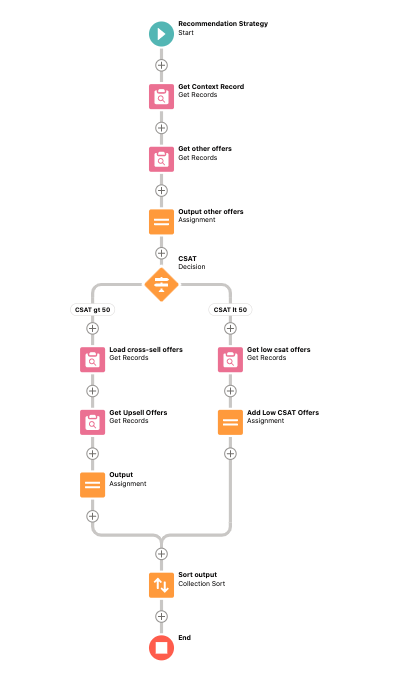
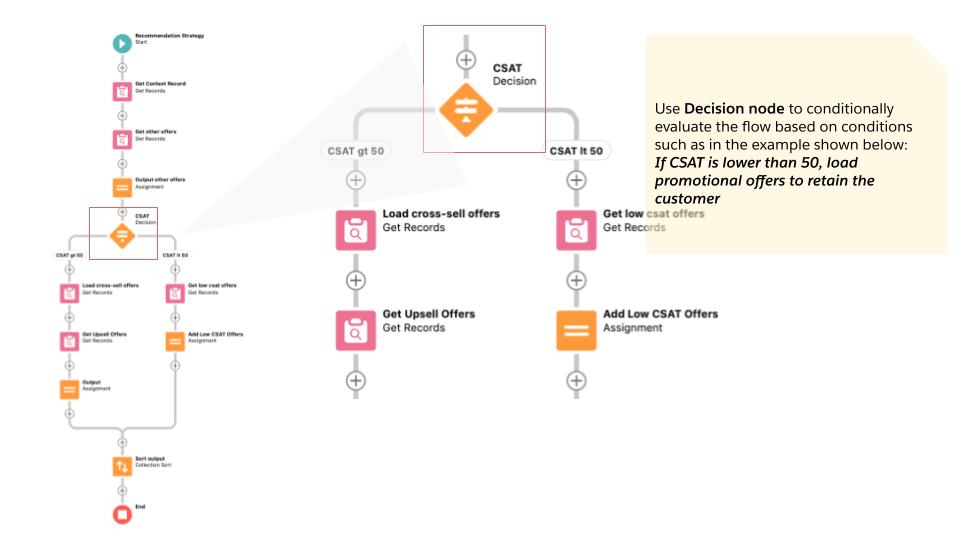
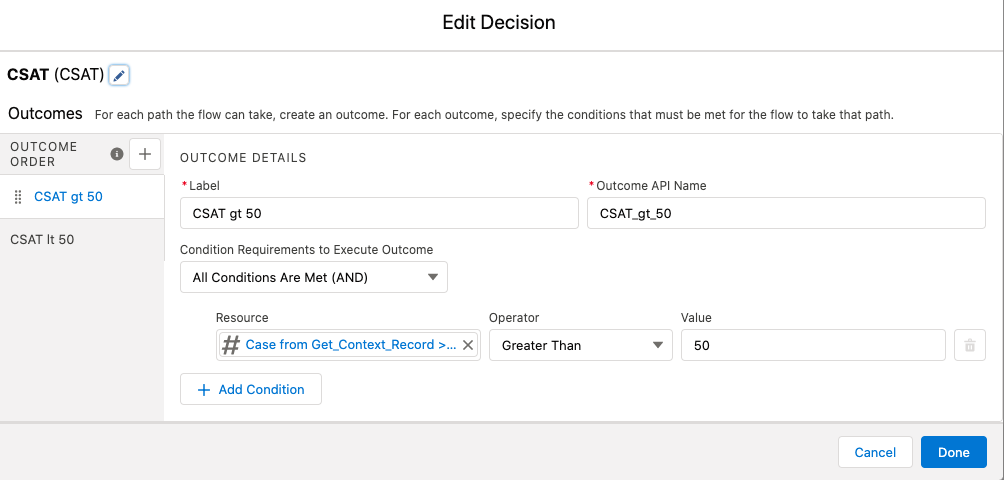
Try the following pilot tutorial out by creating a sample flow as follows. The use case is to show recommendations on a Case object. For a customer whose CSAT is greater than 50 show Cross-sell and Upsell offers (stored as recommendation records) and for a customer whose CSAT is lower than 50 show some Promotional offers. For every customer irrespective of CSAT, show any other recommendations.Also check out the demo video that explains all the features.
Let’s try and build the following flow and see some recommendations .
Use Flow Builder to Create a new Recommendation Strategy
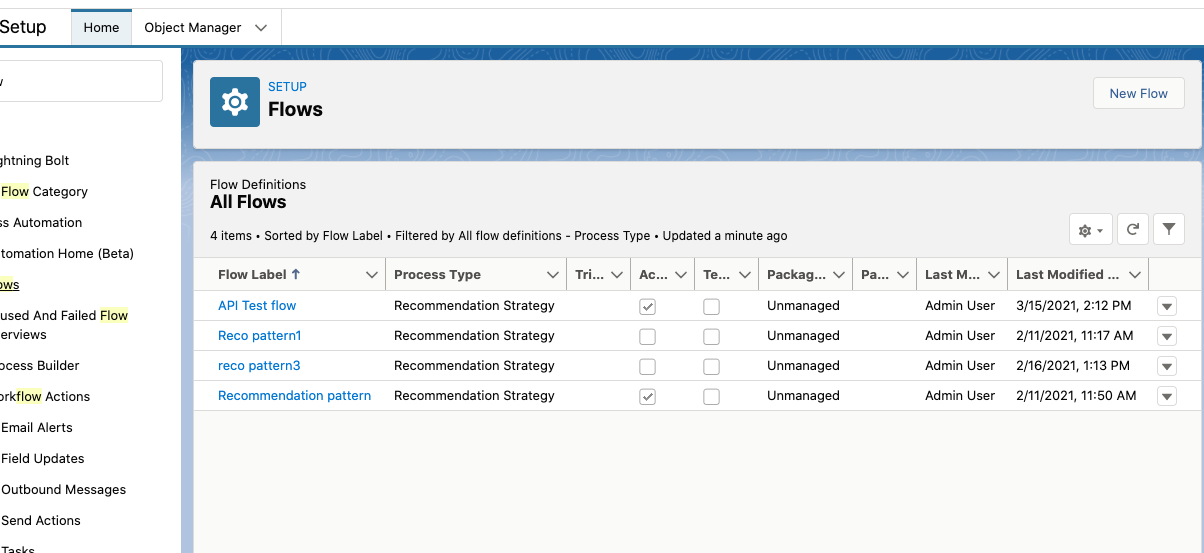
Open Flow Builder: From Setup, enter Flows in the Quick Find box, select Flows, and then click New Flow.
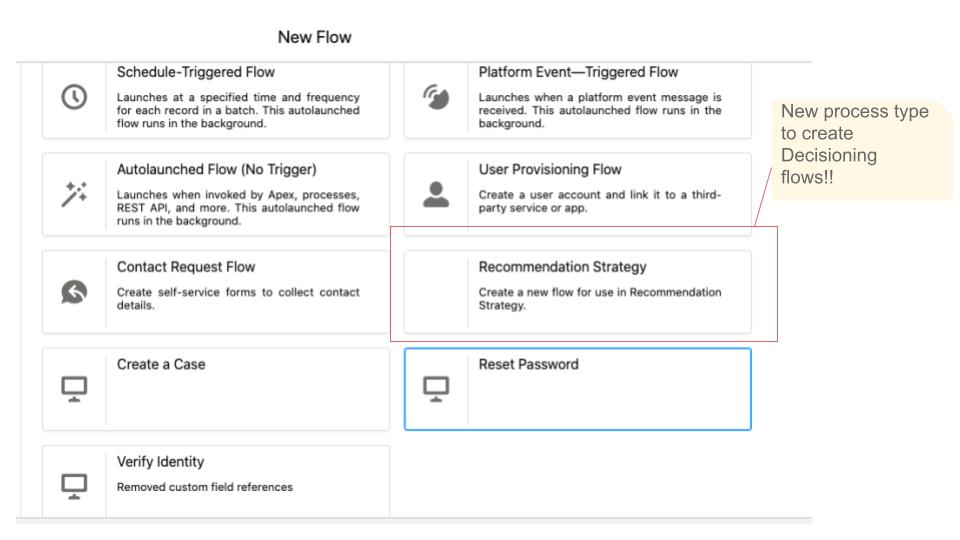
Select Recommendation Strategy on the, which is a new process type Recommendation Strategy, and click Create.
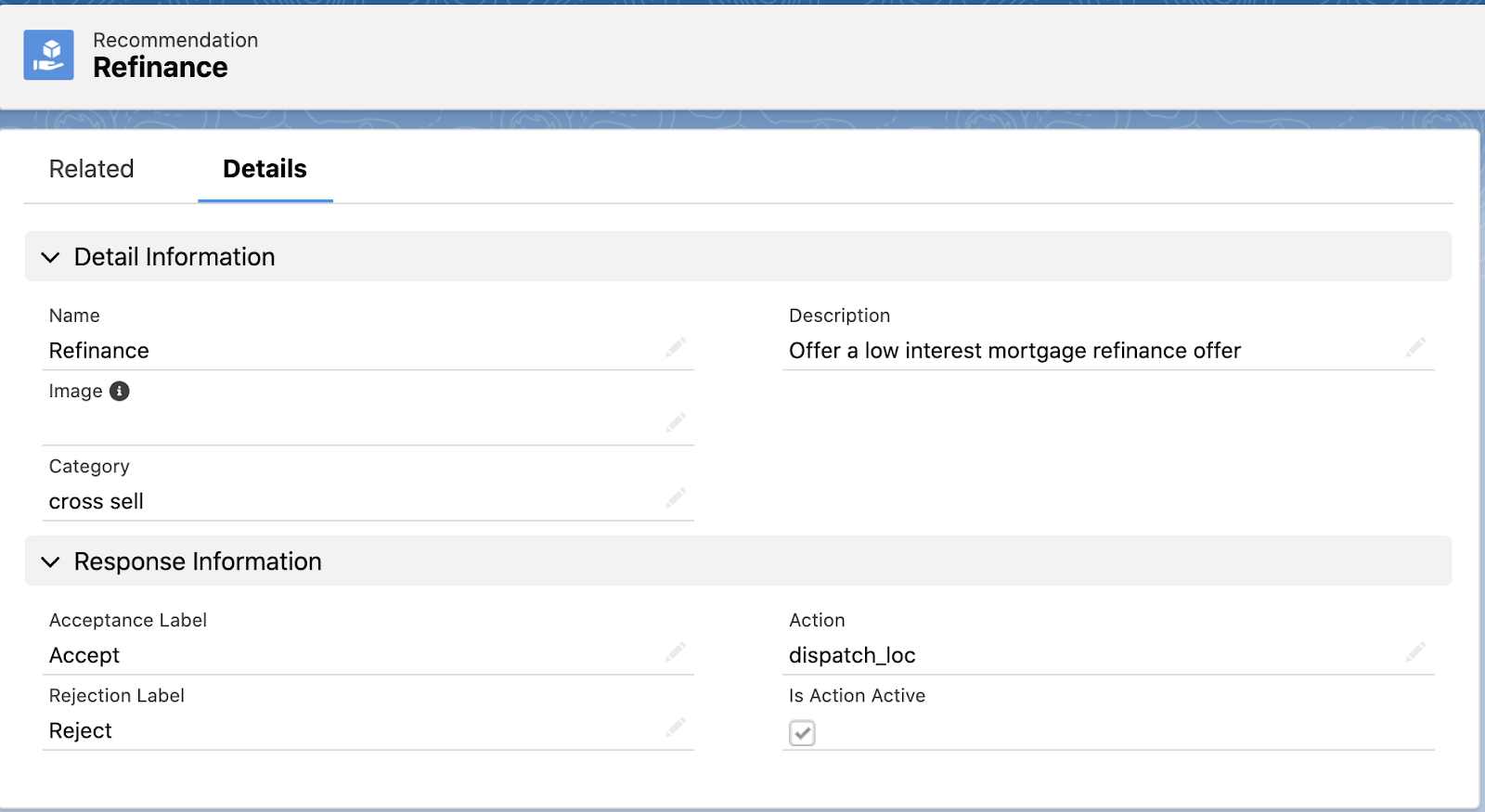
2. Create Recommendations :cRecommendations are created the same way as they are with the use of Strategy builder. Recommendations are standard Salesforce records, similar to accounts and contacts, that are processed by strategies and associated with flows (Make sure the flows associated with recommendations are Activated).Read ‘Create Recommendations’ from the documentation here.
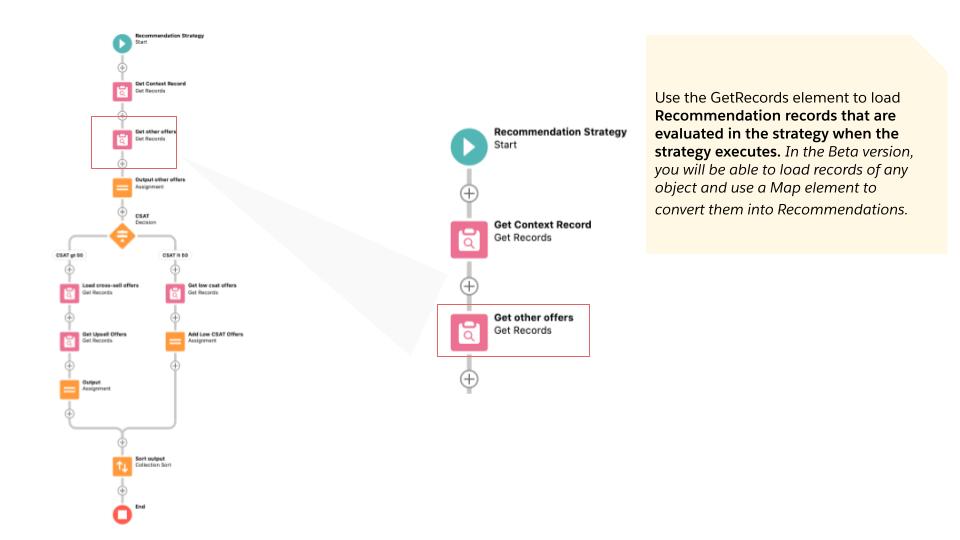
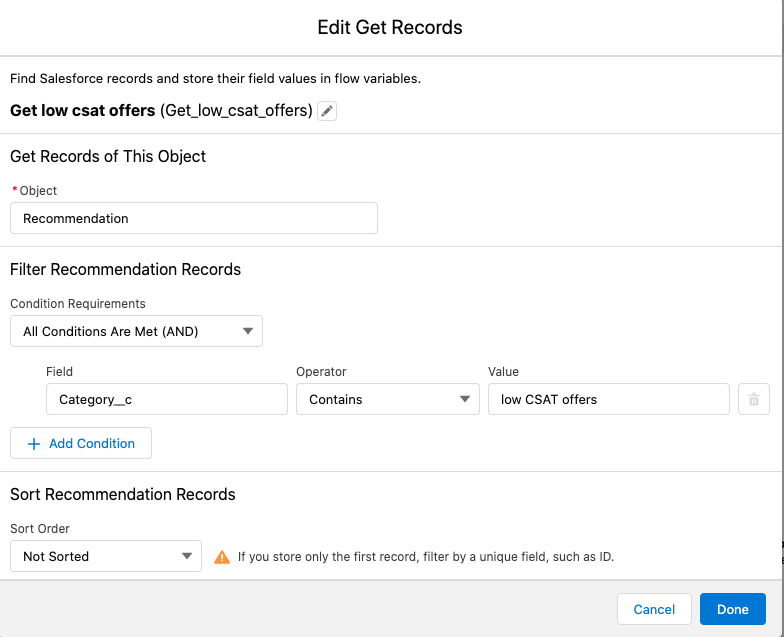
3. Load Recommendations using GetRecords :
Use the GetRecords element to load Recommendation records that are evaluated in the strategy when the strategy executes. In the Beta version, you will be able to load records of any object and use a Map element to convert them into Recommendations.
Use the Decision element to conditionally evaluate the flow based on conditions such as in the example shown below: If CSAT is lower than 50, load promotional offers to retain the customer.
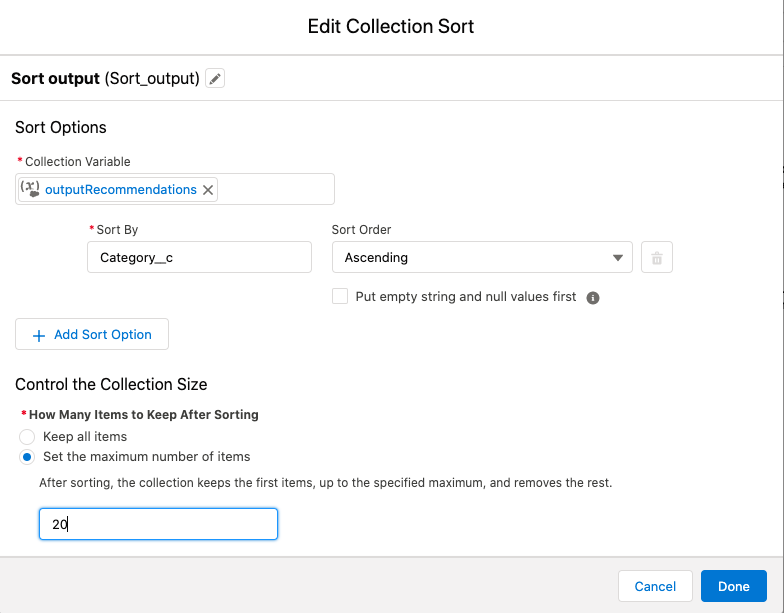
4. Sort recommendations( upto 3 levels deep)
With the Collection Sortnew element, you can reorder the recommendations using Recommendation fields up to 3 levels deep. Choose whether you want to sort in an ascending or descending order, and decide how many recommendations to allow through.
5. Save the flow and Activate it.
6. Display the resulting recommendations using the Next Best Action component on record pages
After creating a Recommendation strategy in Flow Builder, choose a page to display your recommendations and run your strategy. You can use a Lightning record page or an app’s Home page by following the steps below.
Lightning Page (Lightning App Builder)
In Lightning App Builder, create, edit, or clone a record page.
Drag Einstein Next Best Action from the component list to the location on the page where you want to display it.
In the property editor,Choose an action strategy and the number of recommendations you want the component to display.
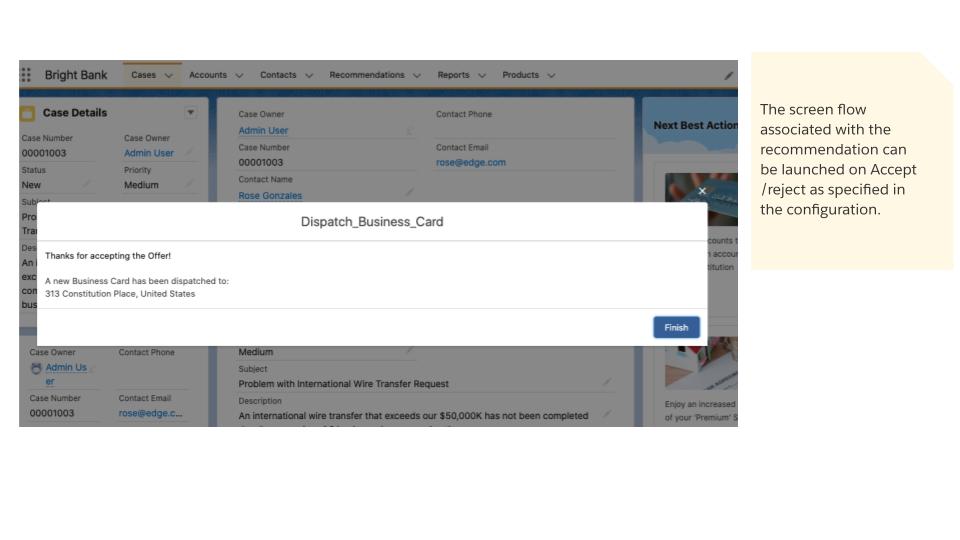
7. Accept/reject a recommendation and launch a flow from the runtime component. The screen flow associated with the recommendation can be launched on Accept /reject as specified in the configuration.
8. Report on accept/reject recommendations from the runtime component
As with Strategy Builder, custom reports can be easily created to report on and track recommendation data and strategy metrics. You can see the monthly total recommendations that a Salesforce org’s strategies served. And you can analyze which recommendations are accepted and rejected, who responds to them, and more.
For the NBA on Flow pilot, the one primary difference is that the the primary objects to report on are Recommendation Response (As opposed to Recommendation Reactions) and Recommendation Strategy Metrics (Same as previous – for monthly metrics)
Creating Reports on Recommendation Response metrics
Creating Reports on Monthly Strategy metrics
9. And finally .. you can also enable Recommendation Strategy process type to be invoked by the Flow Action endpoint.
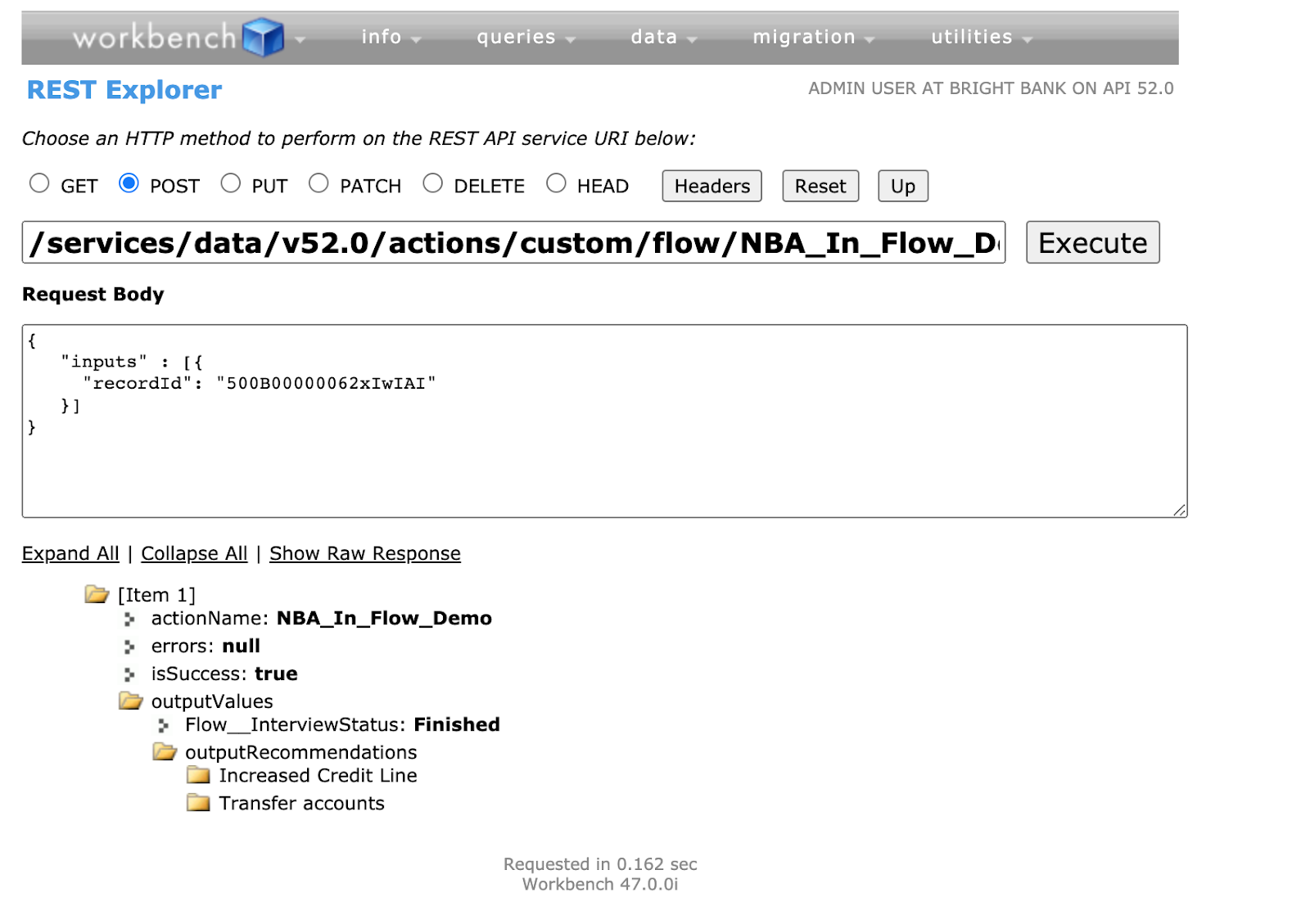
In addition to being able to display recommendations on the Home page or Lightning record page, a recommendation strategy can also be executed via a call to the Flow Action endpoint.
Display recommendations on a custom component or call the recommendation strategy from a scheduled flow by making a call to the API and retrieving recommendations.
The following example illustrates strategy execution via REST API
Thanks for following along this tutorial! Hope you had fun creating your first Recommendation Strategy on Flow! Wondering what more is coming up in subsequent releases?
With Beta/GA (Safe Harbor applies) you will have access to other collection processor and decisioning elements that is currently available in Strategy Builder such as Filter , Map , Branch Selector and Limit Reoffer elements in the new Recommendation Strategy process type in Flow.
In addition to having functional parity with Strategy builder, several other features such as OOTB low code AI recommendations, Scheduled/ Triggered Recommendations , Reporting enhancements, Display component enhancements, OOTB integration with Bots, Support for Mobile display and much more! Check out the blog for an in depth roadmap.
Check out these other blogs in the series for more information
https://unofficialsf.com/wp-content/uploads/2022/09/largeUCSF-300x133.png00Janani Narayananhttps://unofficialsf.com/wp-content/uploads/2022/09/largeUCSF-300x133.pngJanani Narayanan2021-04-30 05:49:102021-04-30 06:04:57Pilot Tutorial -Einstein Next Best Action on Flow(Blog 2 of 4 series)
With the Summer ‘21 Pilot we invite you to try out a brand new way to create Next Best Action Strategies using the Flow Builder that is packed with powerful platform features and many other cutting edge decisioning builder elements.
Planned GA in Spring ‘22 (Safe Harbor applies) Talk to your AE to get nominated for the Pilot and try it out!
This sounds exciting!! How do I try it out??
Since it’s a closed sandbox pilot, reach out to your AE and you can get nominated. Your AE will be able to share the following resources:Also available as blogs right here!
A detailed PDF with step by step instructions on how to get a Steelthread working with the new Recommendation Strategy Process type
A demo video to take you through the steps.
A list of FAQs
Don’t have an AE ? Do not fret. We will be out with the Beta version soon!! Until then, if you haven’t already get your hands dirty with the Strategy builder and try out building an NBA! Check out the Next Best Action Section of Unofficialsf to learn more.
Need a little more convincing to try out the pilot ?
Check out what’s coming up in Beta/GA in the next few releases with NBA on Flow!!!
Happy Next Best Actioning!!
Check out the other 3 posts in the series for a tutorial demo video , FAQs and more
https://unofficialsf.com/wp-content/uploads/2022/09/largeUCSF-300x133.png00Janani Narayananhttps://unofficialsf.com/wp-content/uploads/2022/09/largeUCSF-300x133.pngJanani Narayanan2021-04-30 05:46:202021-04-30 06:03:04Summer ’21 Pilot Preview: Einstein Next Best Action on Flow! (Blog 1 of 4 series)